


Cal.com Conversion Tracking: 2 ways to do it
Learn two different ways to set up conversion tracking for Cal.com bookings, and how to work out which one is right for you.
Need to set up conversion tracking in Cal.com?
If you're running ads to generate new leads for your business, and you use Cal.com to book meetings with potential customers, then it's a non-negotiable. Ad platforms like Google Ads and Meta need you to send conversion data back to them so they know which campaigns, placements, etc are working (and can optimise how they serve your ads).
But what's the best way to set it up? How do you make sure your ad platforms are getting accurate data?
We build conversion tracking for a living here at Converly, so in this article we'll walk you through the two approaches that genuinely work with Cal.com, what each one can and can't send to your ad platforms, and how to pick the best approach for your business.
Method 1: Use Google Tag Manager
Good for: Counting Cal.com bookings in Google Analytics, for free.
If all you need is a conversion event in Google Analytics each time someone books a meeting through the Cal.com embed on your site, Google Tag Manager will do the job for free (and it's not hard to set up if you use a pre-built recipe).
Cal.com does have a Google Analytics app, but it only adds Google Analytics to your Cal.com booking pages (so doesn't work if you have a Cal.com widget embedded on your own website). On top of that, it doesn't send booking events, so it can only tell you how many people viewed your booking page, not how many actually booked.
Cal.com's own help documents recommend using Google Tag Manager, but the problem is that Google Tag Manager's built-in Form Submission trigger can't see a Cal.com booking, because the booking form sits inside Cal.com's iFrame. What you need instead is some code that listens for the message Cal.com sends your page when a new booking has been made, pushes an event into the dataLayer (a holding area on your page that Google Tag Manager reads from), and then a set of Triggers and Tags that can forward your conversions to Google Analytics.
If that sounds like a lot of work, no need to worry. We've bundled all of it into a free Google Tag Manager recipe (a recipe is just a set of pre-built pieces you import straight into your account, so you don't have to build them yourself). Here's how to use it.
Step 1: Download the Cal.com Conversion Tracking GTM Recipe
Start by grabbing the Cal.com GTM recipe from this page. Inside, you'll find:
- A Custom HTML Tag that listens for the message Cal.com sends your page once a new booking has been made, and pushes an event called
calcom_booking_successfulinto Google Tag Manager. - Three Variables holding the booking's ID, the ID of the event type that was booked, and the booking's status (whether it's confirmed, or still waiting on the host).
- A Trigger tied to the
calcom_booking_successfulevent, calledCE - Cal.com Booking Successful, which you use as the firing trigger for whatever conversion tags you build (a GA4 event, a Google Ads conversion, a Meta pixel event, and so on).
Step 2: Import the GTM recipe into your account
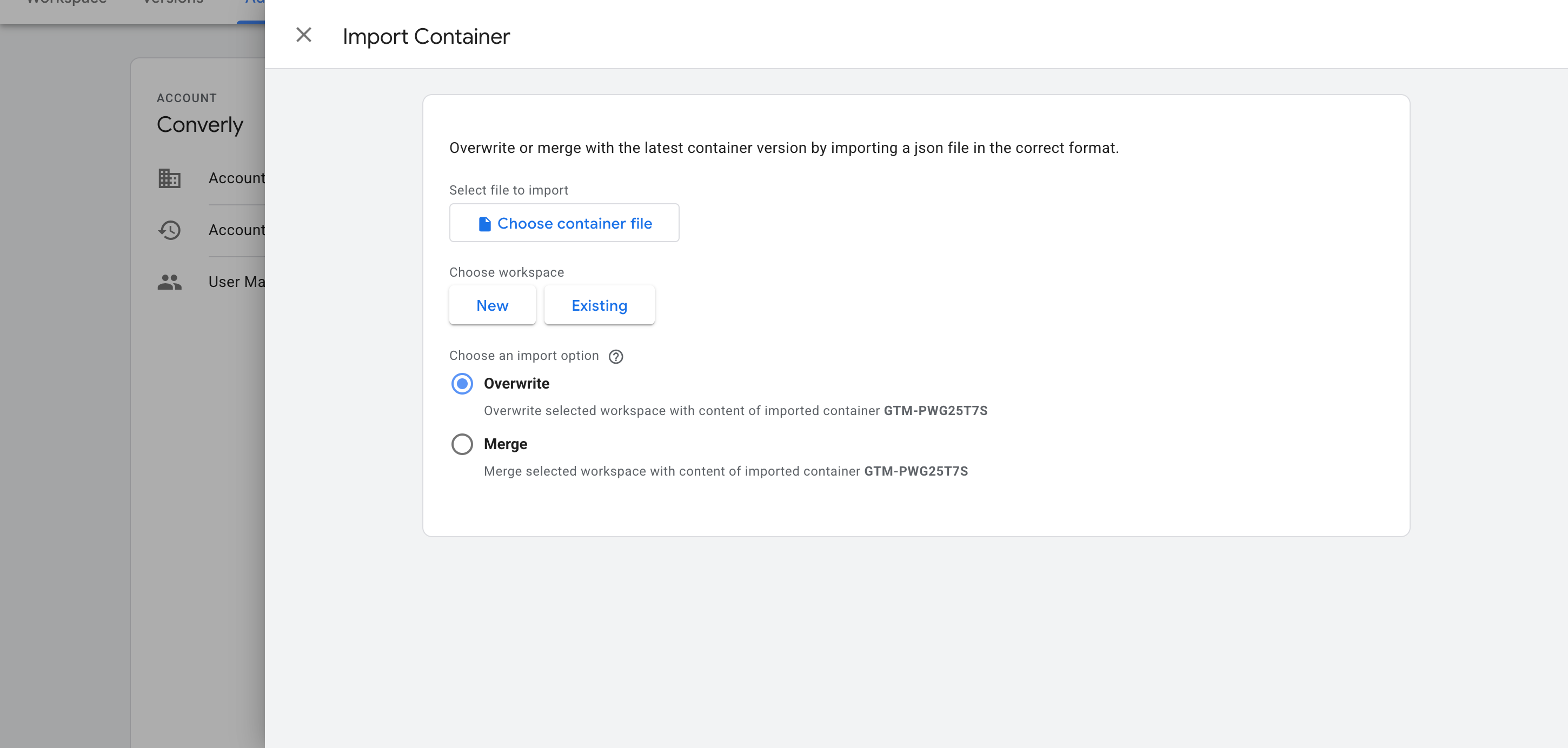
With the file downloaded, the next step is to get it into your container. Open Google Tag Manager, go to Admin, choose Import Container, select the file, and pick the Merge option so nothing already in your container gets overwritten. Once done, the listener, all three variables, and the trigger are created in your Google Tag Manager container for you.
Step 3: Build a GA4 event tag
The recipe gives you the trigger, but it deliberately leaves the destination up to you (because that's going to be different for everyone).
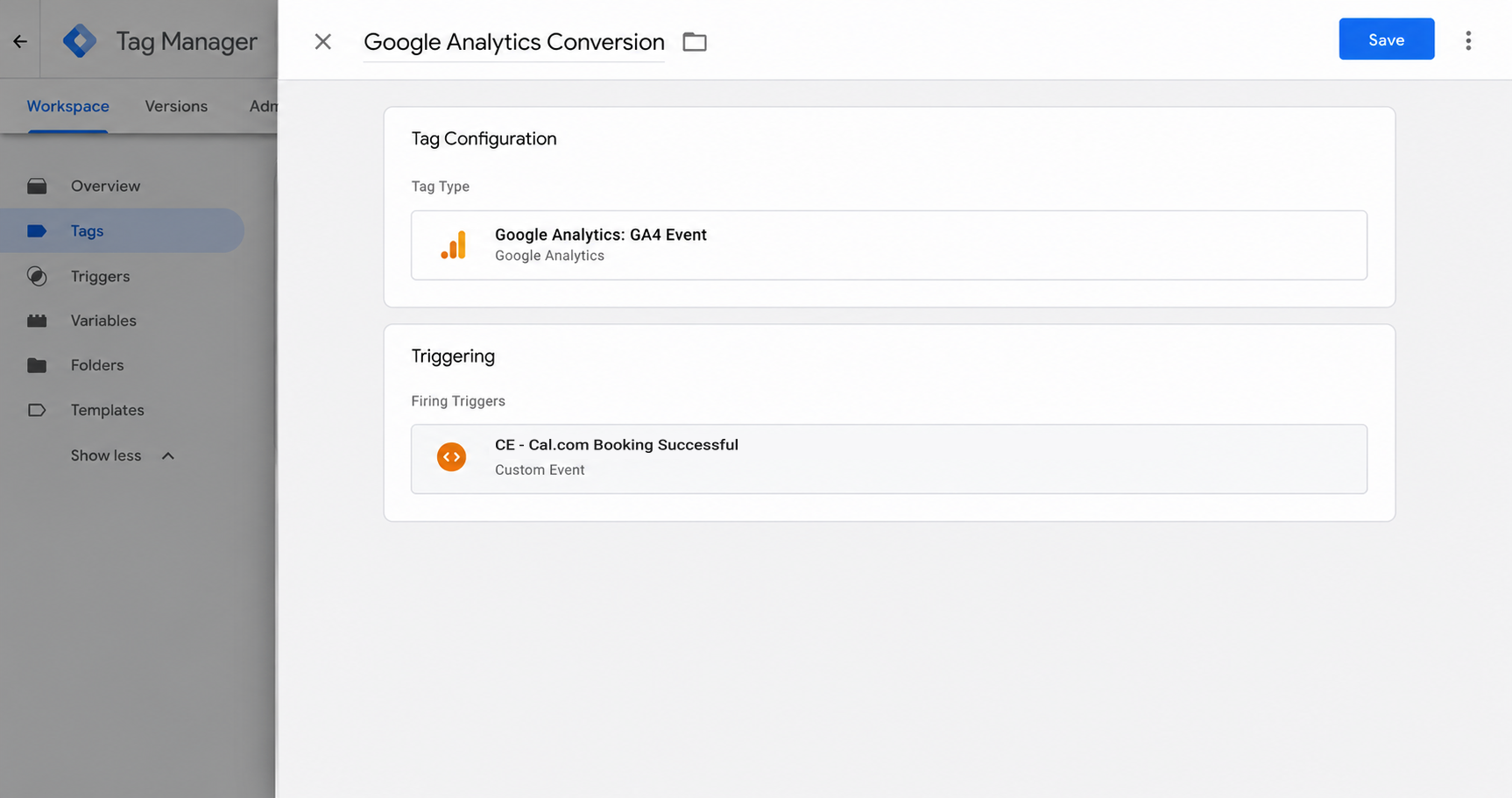
So to send bookings to Google Analytics, you need to create a GA4 event tag and set its firing trigger to the one the recipe installed.
To do that, create a new Tag, select Google Analytics from the list, and then select Google Analytics: GA4 Event. Under the Triggering section, select the trigger that was added to your account as part of the recipe (called CE - Cal.com Booking Successful).
Step 4: Test it, then mark it as a Key Event in GA4
With everything wired up, the last job is proving it works. Go to a page on your site with the Cal.com embed on it, book a test meeting, then open GA4's Realtime report and check the event appears in the recent events list. (You can cancel the test booking in Cal.com afterwards.)
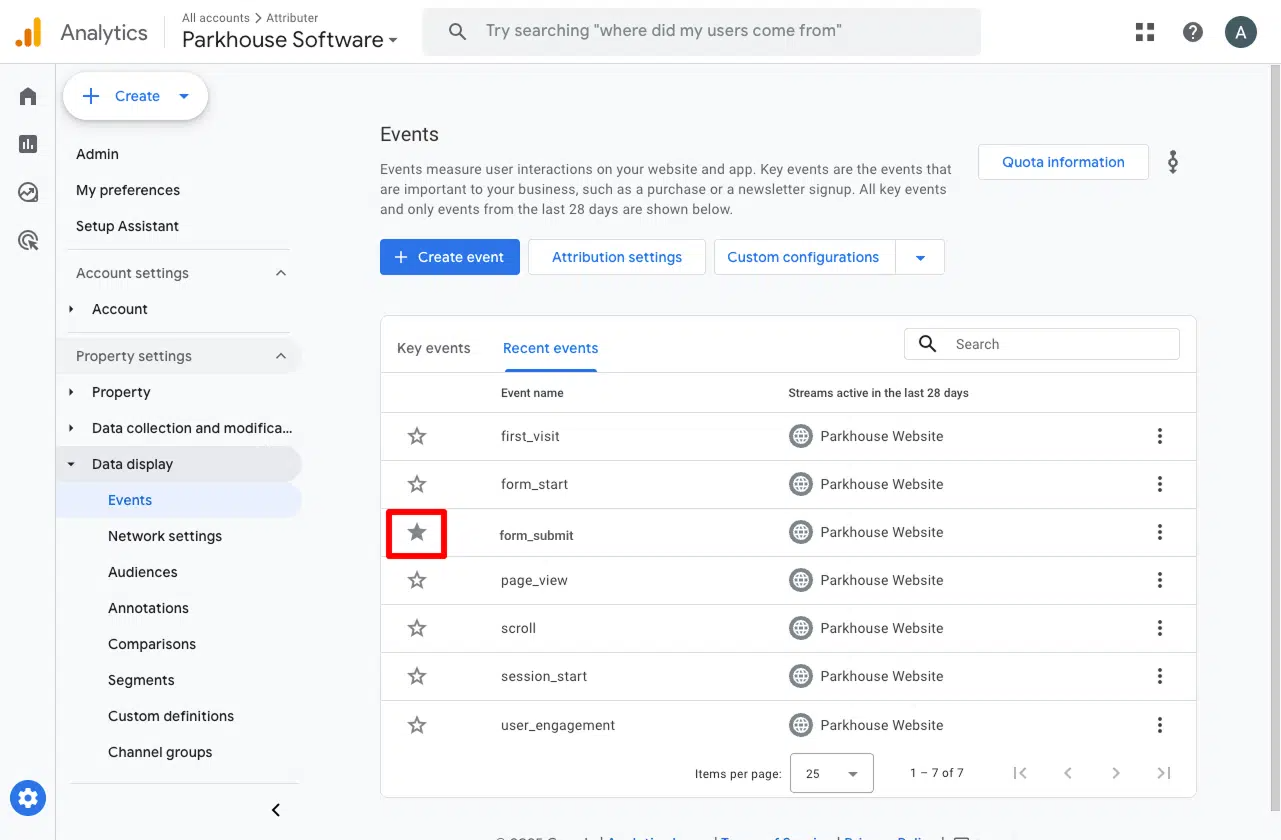
Once it's coming through, go to Admin, then Events, find the event in the list, and toggle it on as a Key Event. This is what tells GA4 to treat the event as a conversion in your acquisition and funnel reports.
Why use this rather than a script you found online
There are plenty of Cal.com tracking scripts floating around on blogs and forums. Most are a few lines long and share the same handful of problems, which is why we built this recipe from the detection code our own product runs in production.
- It only counts a new booking. Cal.com sends your page a steady stream of messages while someone uses the embed (when it loads, when they view your calendar, when available times appear, etc). It also sends a separate message when someone reschedules. Most scripts fire on anything that mentions a booking, so they count reschedules as new bookings and count every real booking twice. The recipe only fires on the one message that means a brand new booking was made.
- It checks the message really came from Cal.com. Any script running on your page can send a message that looks like Cal.com's. So the recipe keeps track of the Cal.com embeds on your page (including popups that only appear after someone clicks your button), and only trusts a message that came from one of them (which makes sure no other scripts can accidentally fire conversions into your Google Analytics account).
- It counts each booking once. Every booking has its own ID, and the recipe remembers the ones it has already seen, so the same meeting can't be sent to your analytics twice.
- It keeps personal details out of Google Analytics. Some of Cal.com's messages include the name and email of the person who booked. The recipe never passes either of them on (which matters, because Google Analytics' terms of service forbid sending personally identifiable information, and it's also against GDPR laws).
Pros and cons
Pros:
- It's free. Google Tag Manager costs nothing, neither does the recipe, and it works on any Cal.com plan.
- It works with Cal.com's inline embed, its popup and its floating button, so it's got you covered regardless of how you embed the Cal.com booking calendar on your site.
- It only fires when Cal.com confirms a new booking was made, not when someone opens the popup, picks a time slot or reschedules an existing meeting.
- Almost all the fiddly work is done for you. The tag, the trigger and all three variables come pre-built, so the conversion tag itself is the only piece you build by hand.
Cons:
- It doesn't send the name, email or phone of the person who booked. That's fine for Google Analytics, but ad platforms like Google Ads and Meta Ads need those details to match the conversion back to a real person and the original ad they clicked. Without them, many of the bookings your ads produced won't get recorded as conversions (ad platforms only record a conversion if they can actually match it back to a real ad click).
- It doesn't capture the click IDs either. The Google Click ID and the Facebook Click ID are what tie a conversion back to one specific ad click with 100% certainty, and neither one is sent here.
- Every event type fires the same event, so out of the box your 30-minute Sales Call and your 15-minute Support Check In both land as the same conversion in Google Analytics. You can split them, but only by looking up the ID of each event type and building a separate trigger for each one, which starts to get much more complicated.
- It all happens in the visitor's browser, so ad blockers and privacy-focused browsers like Safari can stop the conversion from ever reaching Google Analytics. Industry studies put the loss at roughly 30% of conversions, so you'll probably undercount your conversions by about 30% if you use Google Tag Manager (it's an issue with using GTM, not with the recipe).
- There's still setup to do, and nobody to ask for help. Google doesn't offer support for Google Tag Manager, so if your bookings stop showing up (because Cal.com changed its embed, for example), working out why is your problem, and you usually only find out when the numbers in your reports drop to zero.
Method 2: Use Converly
Best for: Sending proper, server-side conversions to Google Ads, Meta Ads, ChatGPT Ads, LinkedIn Ads, and more, without having to do complicated configuration in Google Tag Manager.
Converly is a dedicated conversion tracking tool. Its sole job is to send server-side conversions to Google Ads, Meta Ads, LinkedIn Ads, and more whenever someone books a meeting through Cal.com on your website.
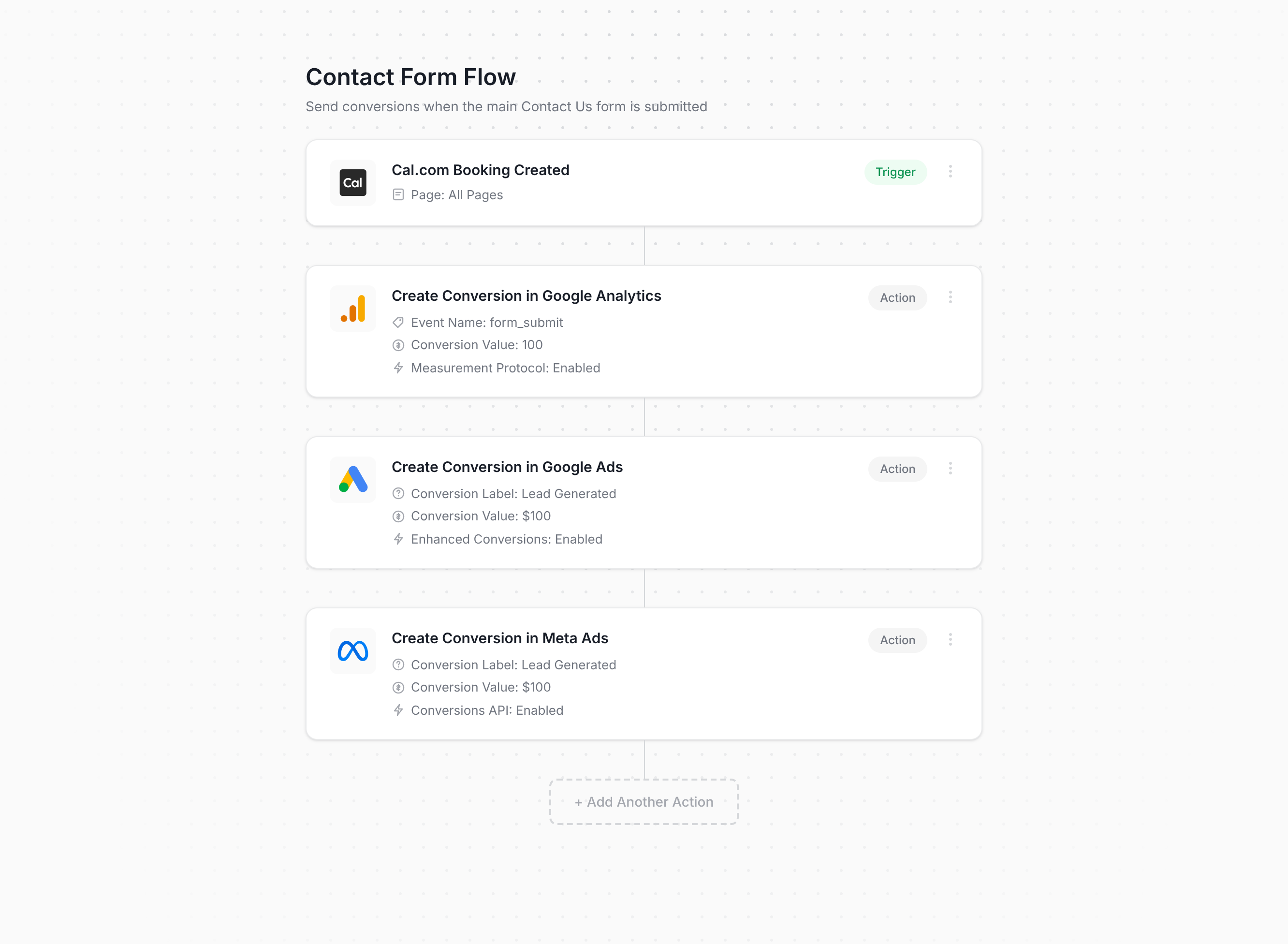
The screenshot above is pretty much the entire setup process. You just pick a trigger (in this case, a new booking in Cal.com), add one or more actions (such as sending a conversion to Google Ads or Meta Ads), and you're done. There's no code to write and nothing to wire up by hand in Tag Manager.
Once you've built your flow, you add the snippet of code Converly gives you to your site, and it takes care of everything else. It watches for new Cal.com bookings, fetches the name, email and phone of the person who booked from Cal.com's API, and sends the conversion to Google Ads, Meta Ads and any other destination you've connected. Converly sends conversions directly to each ad platform's Conversions API, so ad blockers and privacy browsers like Safari can't get in the way.
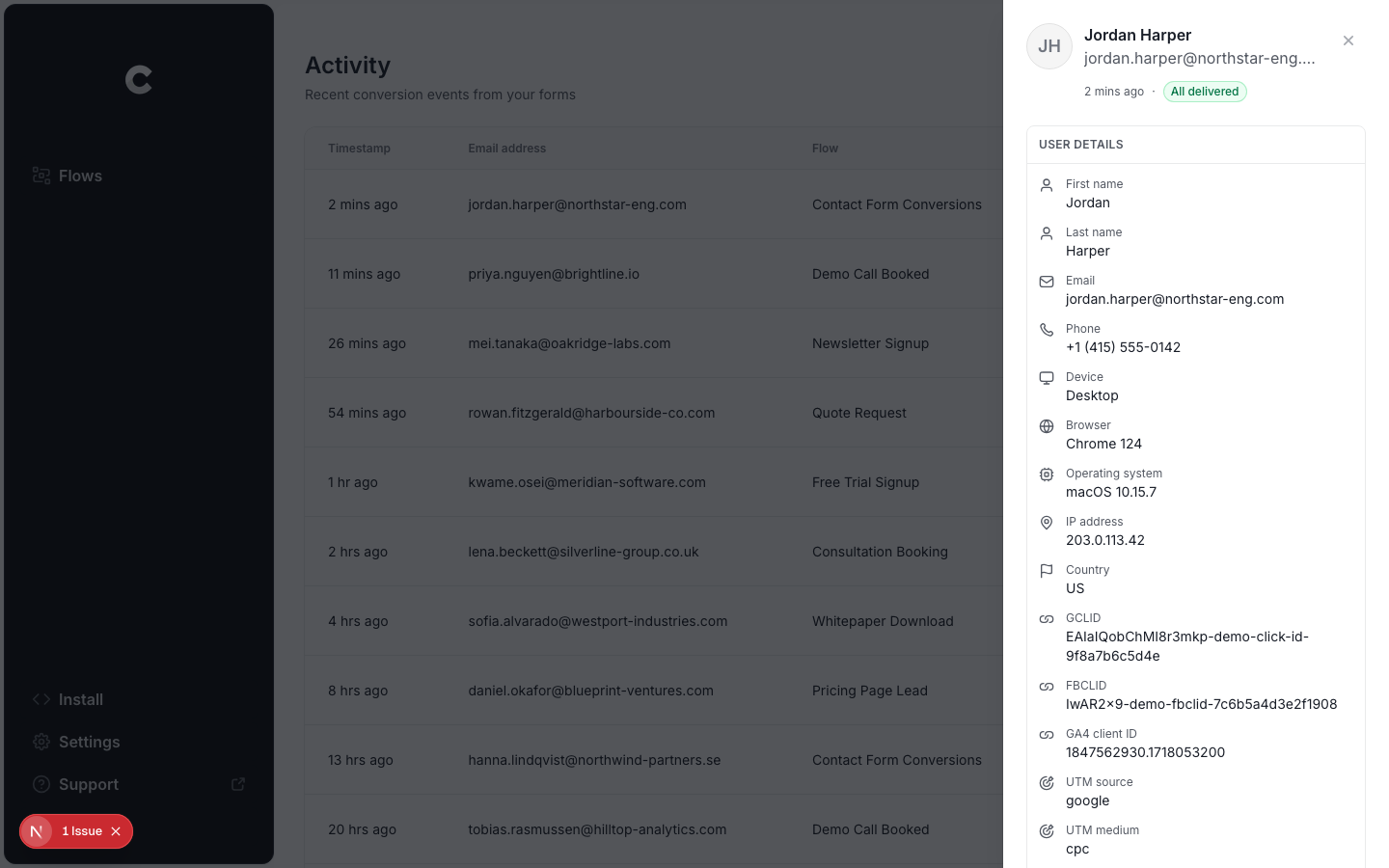
And on top of the name, email and phone, Converly captures the click IDs (i.e. GCLID, fbclid, etc), the browser cookies the ad platforms set, the visitor's IP address and their user agent, and sends all of it with every conversion. Sending this extra data to your ad platforms is what takes your match quality from mediocre to strong (Meta's Event Match Quality score, for example, usually climbs from around 3 to somewhere between 9 and 10).
There's a full conversion log built in too, showing every person who booked a meeting through Cal.com, exactly what data Converly captured, what got sent to each platform, and whether it arrived successfully.
Pros and cons
Pros:
- Setup is genuinely quick and easy. Pick a trigger, pick your actions, and that's it! There's no code to write or maintain, nothing complicated to configure, and no need to work around Cal.com's iFrame yourself.
- It's the only method here that sends the name, email and phone of the person who booked, because it pulls them from Cal.com's API (which isn't possible in Google Tag Manager).
- Sends click IDs, cookies, IP address and user agent with every conversion, which gives match quality in the ad platforms a real lift (Meta's Event Match Quality score typically goes from a 3 or 4 up to a 9 or 10 with Converly, for example).
- Sends conversions server-side, so ad blockers and privacy browsers can't stop them. Expect roughly 30% more recorded conversions than you'd get from a Google Tag Manager setup.
- Supports conditional logic, so you decide which Cal.com event types actually count as a conversion, by their real name (like sending a conversion when someone books your Sales Call, but not your Support Check In).
- You can send static values (i.e. $100) with each conversion, or if you charge for bookings in Cal.com, then you can pull the actual amount that each lead paid from the booking and send that over as the value with each conversion (so your ad platforms have accurate revenue data, and you can measure ROAS and other metrics easily).
- Lets you connect Google Ads, Meta Ads, etc directly inside Converly and simply choose which conversion should fire. No hunting around for account IDs or conversion IDs.
- Comes with a dedicated MCP and CLI, so you can connect an AI tool like Claude or ChatGPT, tell it to 'Set up conversion tracking in Google Ads and Meta Ads when someone books a meeting in Cal.com', and it will do the whole thing for you.
- Includes a full conversion log covering every person who booked through Cal.com, what data was captured, whether it reached your ad platforms, and more.
- Backed by a real support team who'll help you get set up and sort out any problems. Good luck getting that kind of help from Google when your GTM setup stops working.
Cons:
- It costs money once the free trial is over. Plans start at $19 a month.
So which method should I use?
Here's how the two ways to track Cal.com conversions compare.
| Method | Best for | Sends conversions to | Data sent |
|---|---|---|---|
| Method 1. Google Tag Manager, using our free recipe | Sending bookings to Google Analytics | Google Analytics 4 | The booking event only, with no name, email or phone |
| Method 2. Converly | Sending to any ad platform, with the least setup work | Google Ads, Meta Ads, LinkedIn Ads, ChatGPT Ads, GA4 and more | Name, email and phone, plus the GCLID, the Meta click ID, IP address and user agent |
Wrap up
Conversion tracking rarely gets much attention, but it's one of the biggest factors in how well your advertising actually performs.
Take the time to set it up properly and the ad platforms' algorithms get the data they need to learn what your ideal customer looks like, so they can put your ads in front of more people like them.
And Converly makes this super easy to do. You simply choose your trigger (someone booking a meeting through Cal.com), pick the platforms you want the conversions sent to, and you're done. If you use an AI tool like Claude or ChatGPT it's even easier, because you can connect it, ask it to 'set up Cal.com conversion tracking', and it takes care of everything for you through our MCP or CLI.
You can get started for free (no credit card needed for the trial), and most people have it fully up and running in well under 10 minutes. Start your 14-day free trial today.
About the author

Aaron is the founder of Converly. With over 15 years of experience in digital marketing and SaaS, he's passionate about helping businesses track and optimise their ad conversions.