


Track Cal.com Bookings in Google Tag Manager with this Free GTM Recipe
A free, tested Google Tag Manager recipe that detects Cal.com bookings and gives you a GTM trigger to fire conversions to Google Ads, GA4 and more.

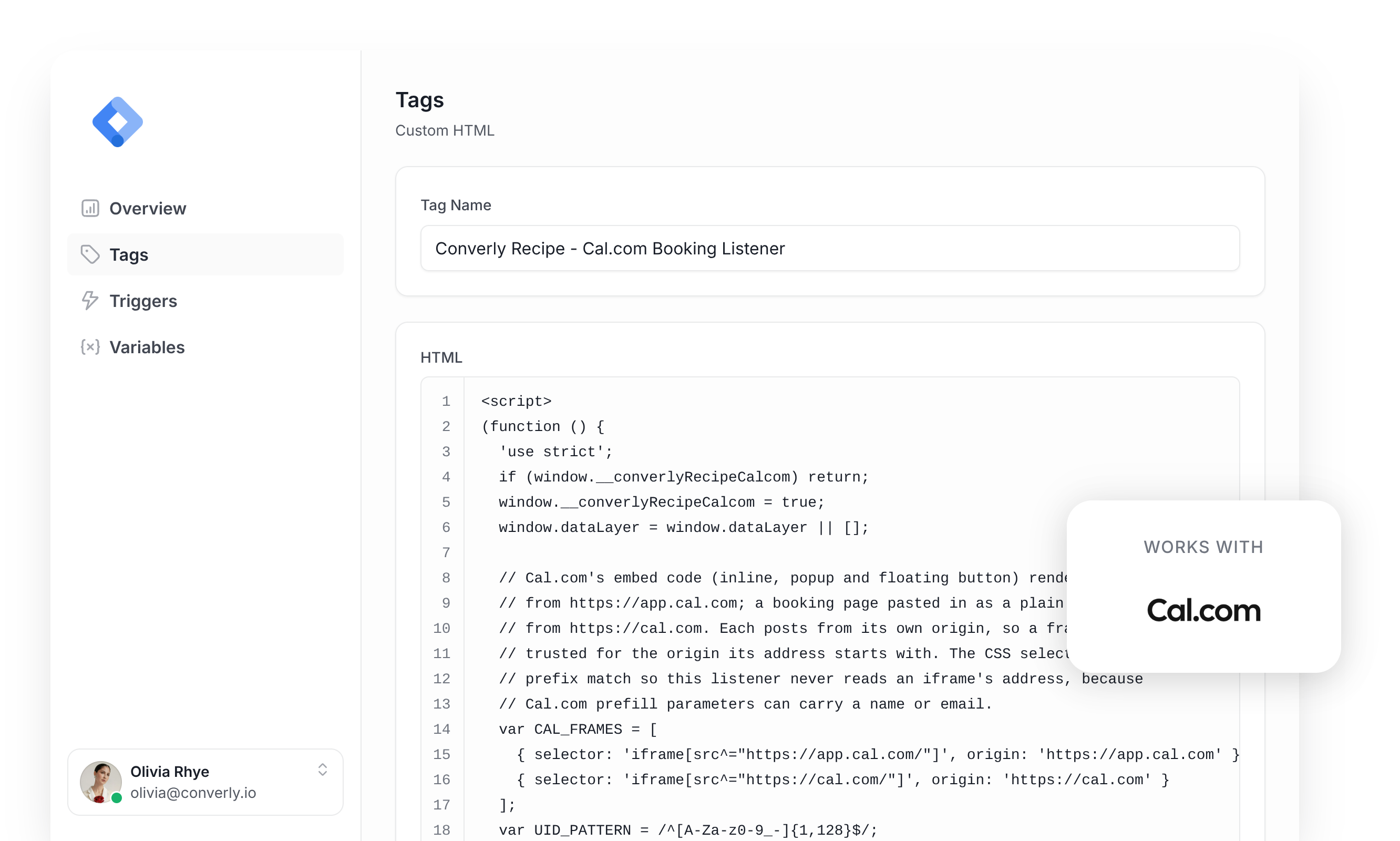
Google Tag Manager is a common way to send a conversion to Google Ads, Google Analytics, etc whenever someone books a meeting through the Cal.com scheduler on their website.
The problem is, getting it working is harder than it looks. Cal.com's booking page always runs inside an iframe, even when you use its inline embed or popup button, so Google Tag Manager can't see the booking form at all. This means you're left writing custom code that listens for Cal.com's success message, ignores reschedules and duplicates, checks it really came from Cal.com and pushes an event to the dataLayer. You then need to build your Tags, Triggers and Variables on top of that.
If that all sounds complicated, then fair enough. Unless you're a Tag Manager expert, it's a lot of custom code and complex configuration.
Fortunately though, there is a simple solution.
You can install this Cal.com Conversion Tracking Recipe in your Google Tag Manager account and you'll have everything you need to get basic booking conversion tracking set up.
What Is a Google Tag Manager Recipe and What's in It?
Think of a recipe as a pre-assembled kit for Google Tag Manager. You import the kit into your Google Tag Manager account and you get all the different pieces you need to set up conversion tracking.
This recipe picks up new bookings made through Cal.com, sends a 'Booking Successful' event to Google Tag Manager, and gives you a Trigger you can use to send conversions to Google Analytics, Google Ads, etc. It's made up of a tag, a trigger and three variables, and details of all of them can be seen below (so you know exactly what you're adding to your container before you import it).
Custom HTML Tag
Detects new, successful bookings and then pushes an event to the dataLayer. It fires on All Pages, once per event, and this is the code inside it:
(function () {
  'use strict';
  if (window.__converlyRecipeCalcom) return;
  window.__converlyRecipeCalcom = true;
  window.dataLayer = window.dataLayer || [];

  // Cal.com's embed code (inline, popup and floating button) renders an iframe
  // from https://app.cal.com; a booking page pasted in as a plain iframe loads
  // from https://cal.com. Each posts from its own origin, so a frame is only
  // trusted for the origin its address starts with. The CSS selectors do that
  // prefix match so this listener never reads an iframe's address, because
  // Cal.com prefill parameters can carry a name or email.
  var CAL_FRAMES = [
    { selector: 'iframe[src^="https://app.cal.com/"]', origin: 'https://app.cal.com' },
    { selector: 'iframe[src^="https://cal.com/"]', origin: 'https://cal.com' }
  ];
  var UID_PATTERN = /^[A-Za-z0-9_-]{1,128}$/;
  var STATUS_PATTERN = /^[A-Z_]{1,32}$/;
  var trackedFrames = [];
  var seenUids = [];

  function trackFrame(frame, origin) {
    if (!frame || !frame.contentWindow) return;
    for (var i = 0; i < trackedFrames.length; i++) {
      if (trackedFrames[i].frame === frame) {
        trackedFrames[i].origin = origin;
        return;
      }
    }
    trackedFrames.push({ frame: frame, origin: origin });
  }

  function scan(root) {
    if (!root || typeof root.querySelectorAll !== 'function') return;
    for (var k = 0; k < CAL_FRAMES.length; k++) {
      var frames;
      try { frames = root.querySelectorAll(CAL_FRAMES[k].selector); } catch (e) { continue; }
      for (var i = 0; i < frames.length; i++) trackFrame(frames[i], CAL_FRAMES[k].origin);
    }
  }

  // The message must come from a Cal.com frame that is on this page right now,
  // and from the origin that frame was loaded from. Cal.com re-creates popup
  // frames, so a frame seen earlier is re-checked live.
  function sourceIsTracked(message) {
    for (var i = 0; i < trackedFrames.length; i++) {
      var item = trackedFrames[i];
      try {
        if (item.frame.isConnected === true && item.frame.contentWindow === message.source && item.origin === message.origin) return true;
      } catch (e) { /* replaced or inaccessible frames fail closed */ }
    }
    return false;
  }

  function isCalOrigin(origin) {
    for (var k = 0; k < CAL_FRAMES.length; k++) if (CAL_FRAMES[k].origin === origin) return true;
    return false;
  }

  function isPlainObject(value) {
    return !!value && typeof value === 'object' && Object.prototype.toString.call(value) === '[object Object]';
  }

  function uidSeen(uid) {
    for (var i = 0; i < seenUids.length; i++) if (seenUids[i] === uid) return true;
    return false;
  }

  function onMessage(message) {
    if (!message || !message.source || message.source === window) return;
    if (!isCalOrigin(message.origin)) return;
    // A frame added since the last scan (a popup that just opened) is picked up here.
    if (!sourceIsTracked(message)) {
      scan(document);
      if (!sourceIsTracked(message)) return;
    }
    var data = message.data;
    if (typeof data === 'string') {
      try { data = JSON.parse(data); } catch (e) { return; }
    }
    // Only a completed new booking. Reschedules (rescheduleBookingSuccessfulV2)
    // and the deprecated V1 events, which carry the attendee's details, never match.
    if (!isPlainObject(data) || data.originator !== 'CAL' || data.type !== 'bookingSuccessfulV2') return;
    var booking = data.data;
    if (!isPlainObject(booking) || typeof booking.uid !== 'string' || !UID_PATTERN.test(booking.uid)) return;
    if (uidSeen(booking.uid)) return;
    // Only these three values are copied. The booking title names the attendee,
    // so it and every other field are left behind.
    var push = { event: 'calcom_booking_successful', booking_uid: booking.uid };
    if (typeof booking.eventTypeId === 'number' && isFinite(booking.eventTypeId)) push.event_type_id = String(booking.eventTypeId);
    if (typeof booking.status === 'string' && STATUS_PATTERN.test(booking.status)) push.booking_status = booking.status;
    // The ID is remembered only once the push went through, so a dataLayer
    // that throws (a broken wrapper) never escapes into the page, and a
    // repeat of the same message can still be counted.
    try {
      window.dataLayer = window.dataLayer || [];
      window.dataLayer.push(push);
    } catch (e) {
      return;
    }
    seenUids.push(booking.uid);
  }

  function start() {
    if (typeof document === 'undefined') return;
    scan(document);
    if (typeof MutationObserver === 'undefined' || !document.documentElement) return;
    try {
      var observer = new MutationObserver(function (mutations) {
        for (var i = 0; i < mutations.length; i++) {
          var added = mutations[i].addedNodes || [];
          for (var j = 0; j < added.length; j++) {
            var node = added[j];
            if (node && node.tagName === 'IFRAME') scan(document);
            else scan(node);
          }
          if (mutations[i].type === 'attributes' && mutations[i].attributeName === 'src') scan(document);
        }
      });
      observer.observe(document.documentElement, { childList: true, subtree: true, attributes: true, attributeFilter: ['src'] });
    } catch (e) {}
  }

  if (typeof document !== 'undefined') {
    if (document.readyState === 'loading') document.addEventListener('DOMContentLoaded', start, false);
    else start();
  }
  window.addEventListener('message', onMessage, false);
})();Variables
3 variables containing the booking's ID, the event type that was booked, and the booking's status (useful for filtering your conversion tags). These are their exact settings:
Name
DLV - Cal.com Booking UID
Variable Type
Data Layer Variable
Data Layer Variable Name
booking_uid
Name
DLV - Cal.com Event Type ID
Variable Type
Data Layer Variable
Data Layer Variable Name
event_type_id
Name
DLV - Cal.com Booking Status
Variable Type
Data Layer Variable
Data Layer Variable Name
booking_status
Trigger
Fires each time the booking event comes through, so you can use it to fire any of your conversion tags. These are its exact settings:
Name
CE - Cal.com Booking Successful
Trigger Type
Custom Event
Event Name
calcom_booking_successful
Download This Recipe
Upload the recipe into Google Tag Manager and you get the booking listener, the trigger and all three booking variables, configured and ready to go.
Built from Converly's own Cal.com detection code
Why It's the Best Recipe Out There
It is built from the same detection code we use in our own conversion tracking product, Converly, just adapted to run inside Google Tag Manager.
How to Use the Cal.com GTM Recipe
Install the Recipe
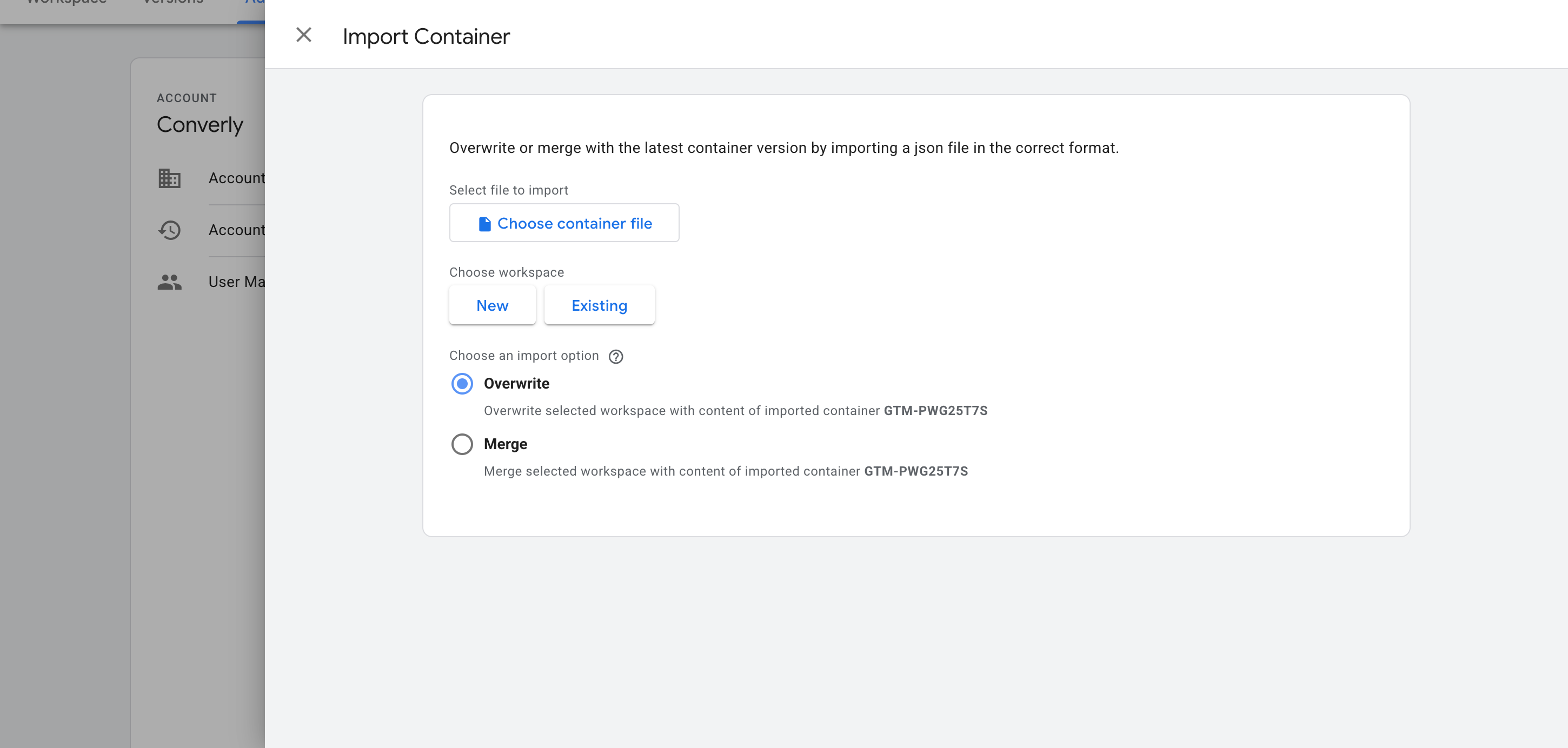
Download the recipe using the form above, then import it into your Google Tag Manager container. To do that, go to Admin, choose Import Container, select the file you downloaded, and choose the Merge option so nothing already in your container gets overwritten. The listener, the variables and the trigger are all added for you.
Configure Your Tags
With the recipe in your container, the next step is to use the Trigger it gives you to fire your various conversion tags. Here are some instructions for two of the most common destinations:
Example 1: Google Analytics
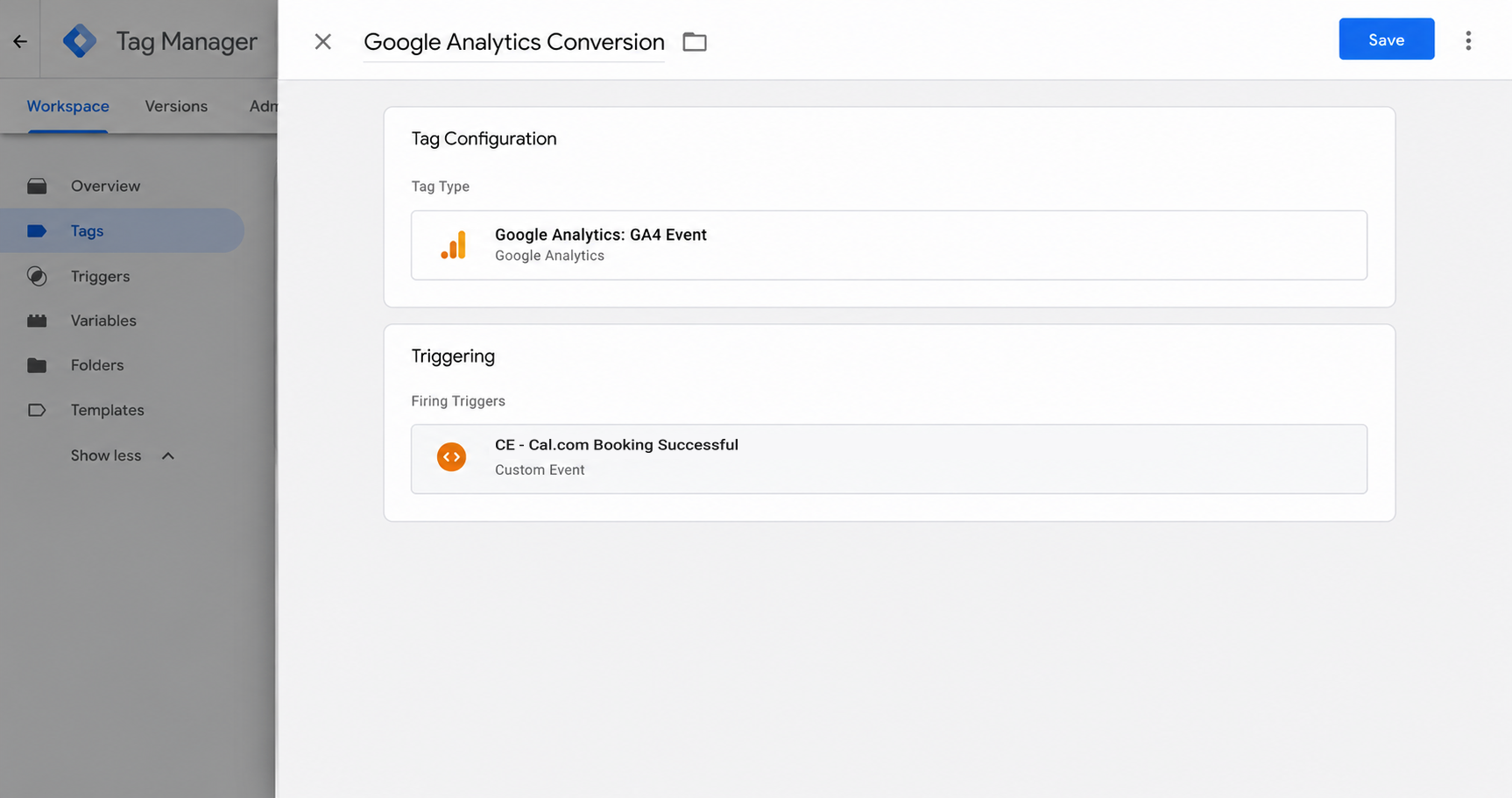
Set up a GA4 event tag and pick the recipe's trigger (called CE - Cal.com Booking Successful) as the one that fires it. From then on, each new booking on Cal.com shows up as an event in Google Analytics.
Example 2: Google Ads
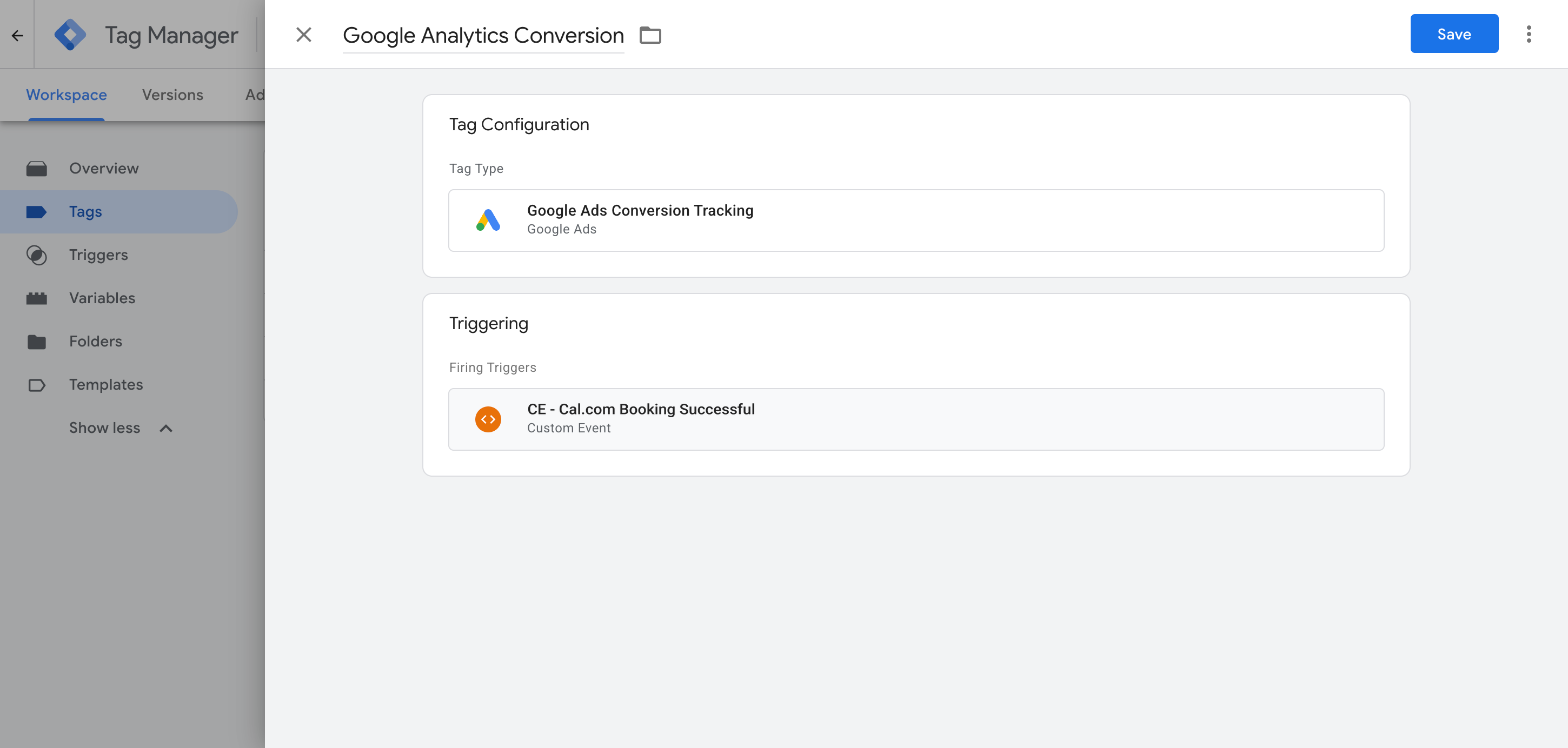
Create a new Google Ads conversion tag, enter your conversion ID and conversion label, and then select the recipe's trigger (called CE - Cal.com Booking Successful) as the one that fires it. Meetings people book through Cal.com on your site now count as conversions in your campaigns.
What This Enables You to Do (and What It Doesn't)
Each time a visitor books a new meeting with you through Cal.com, the recipe passes an event to Google Tag Manager (which you can use to fire your conversion tags to Google Analytics, Google Ads, etc.).
What it does
Sends an Event to GTM
Detects each new Cal.com booking and pushes a booking event into the dataLayer automatically.
Tells You Which Event Type Was Booked
Passes along the booking's ID, the event type, and whether the booking is confirmed or not (useful if you want to fire different conversion tags for different meeting types, for instance).
Creates a Trigger in GTM
Adds a 'Trigger' to Google Tag Manager that you can set as the firing trigger on any of your conversion tags.
What it doesn't do
Doesn't send the conversion server-side
Everything runs in the visitor's browser, so ad blockers and privacy-focused browsers (like Safari) can prevent the conversion from reaching Google Analytics or Google Ads. Expect to lose around 30% of your conversions with this approach (a limitation of Google Tag Manager, not the recipe).
No Click IDs or Identifiers
It does not capture the Google click ID, Facebook click ID, Meta pixel cookies, IP address or user agent, which ad platforms need for Enhanced Conversions (Google) or a proper Event Match Quality score (Meta).
No Personal Details
The script only tells GTM that a booking happened. It doesn't send the attendee's name, email, and phone number. This is fine if you're just sending to Google Analytics, but ad platforms like Google and Meta need this data to match a conversion back to a real person and the original ad they clicked (otherwise, the conversion doesn't count).
No Logging or Notifications
You can test it with Tag Assistant when you first set it up, but unless you test it every week, it can easily break and nothing will tell you that it happened (or why it happened).
The Proper Way to Send Conversions to Google Ads, Meta Ads & More
If you only need to send conversions to Google Analytics, this recipe covers it, because GA won't take personal information or IP addresses in the first place. But ad platforms like Google and Meta are a different story. Both want the conversion delivered server-side, with the attendee's name, email, phone and other information included. Converly is built to do exactly that.
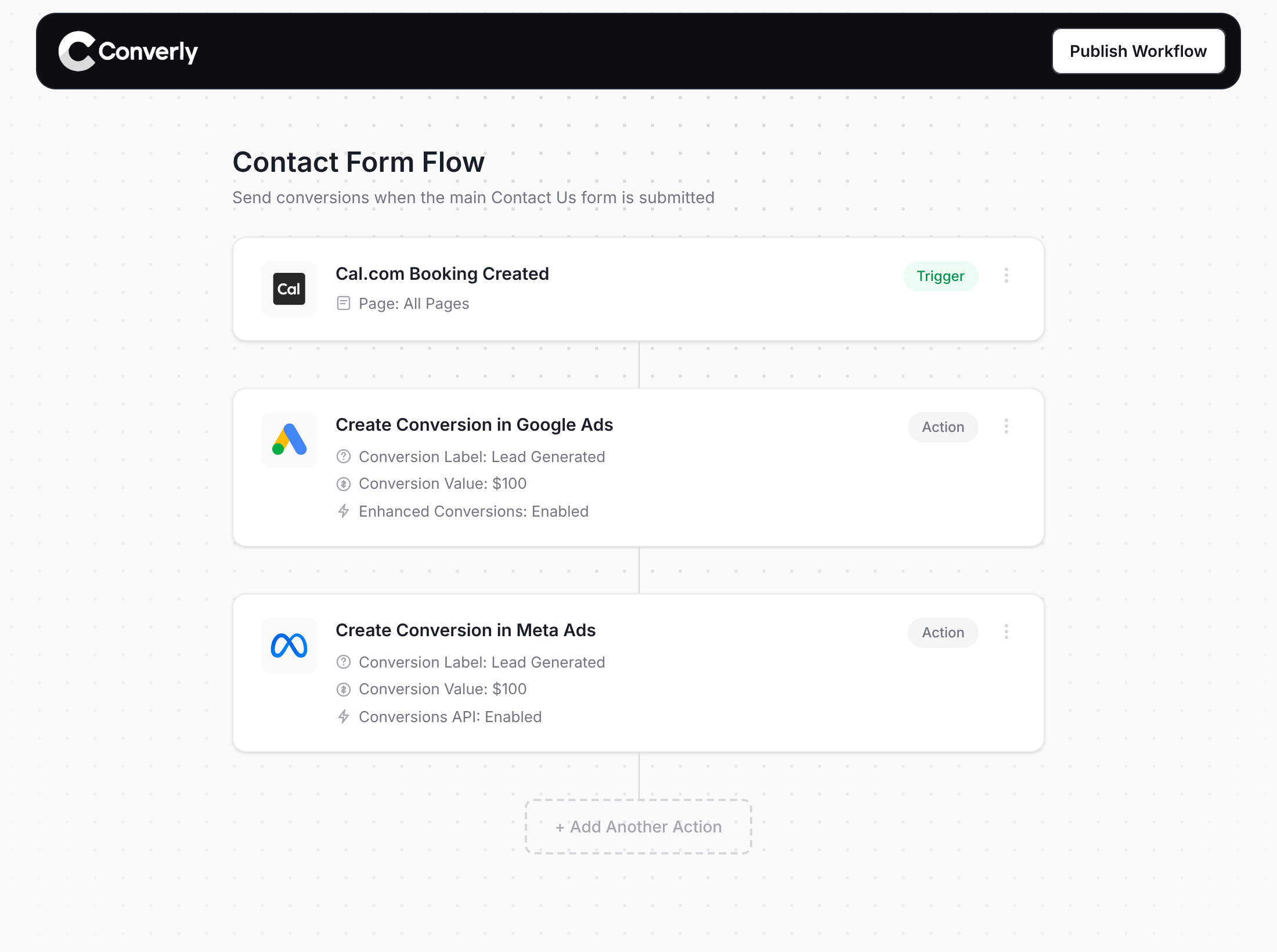
Here's why Converly is the best way to send your Cal.com bookings to Google Ads, Meta Ads, Microsoft Ads, LinkedIn Ads, etc.
Easy to set up
Converly gives you a simple drag-and-drop builder. You select your trigger (a Cal.com booking, for example) and then select where each conversion should be sent (Google Ads, Meta Ads, ChatGPT Ads, etc). There's no custom code to write or complex configuration.
Only Counts Confirmed Bookings
When a booking needs the host to approve it, or needs payment first, Converly checks with Cal.com and only sends the conversion once the booking is actually accepted. So your ad platforms never learn from a booking that didn't go ahead.
Sends Data Server-Side
Conversions are sent from Converly's servers straight to Google, Meta, ChatGPT, and every other platform you use, so they never depend on the visitor's browser. This means ad blockers and privacy settings can't get in the way and all your conversions make it through.
Sends More Data
Converly gets the attendee's name and email from the Cal.com API, combines it with the Google and Facebook click IDs, IP address, and user agent, and sends it all with each conversion. That's what unlocks Enhanced Conversions in Google Ads and an Event Match Quality (EMQ) score of 9 or 10 in Meta.
Sends Real Conversion Values
Converly can send a static conversion value (i.e. $100) with each conversion, or if you charge for booking, it can be easily set up to retrieve the actual amount from the booking and send it over with each conversion (which allows you to report on revenue generated, return on ad spend, etc. within each ad platform).
Full Conversion Log & Email Notifications
Converly gives you a full conversion log that shows each booking, the data that Converly captured, what data was sent to each ad platform, and whether that platform accepted it. If tracking ever stops, you can set up email notifications to alert you instantly (rather than noticing 2 weeks later when your reporting is broken).
Supports Multiple Tools & Destinations
Converly integrates with 100+ form, scheduling and chat tools and can send conversions to 20+ destinations, including Google Ads, Meta, ChatGPT, LinkedIn, Microsoft and TikTok.
Provides Free Support
Whenever you get stuck, a team with 20 years' experience in conversion tracking and analytics is on hand to help. With Google Tag Manager, you're on your own.
Start Your Free Trial
Start a 14-day free trial and track your conversions the proper way. No code, no complicated configuration.
About the author
Aaron is the founder of Converly. With over 15 years of experience in digital marketing and SaaS, he's passionate about helping businesses track and optimise their ad conversions.