





It's pretty common to use tools like Google Tag Manager to send conversions to Google Ads, Meta Ads, Google Analytics, etc when a visitor converts on your website.
The challenge is telling Google Tag Manager when the conversion happens. When you embed a Typeform form on your website, it loads in an iframe served from Typeform's own domain, which means the standard way of detecting form submissions (like GTM's built-in form submission trigger) doesn't work.
Typeform does tell the page when a response comes in by posting a message from the iframe to the main page, but picking that up means writing your own listener code.
This free template is that listener. Install it from Google's Community Template Gallery and each successful Typeform form submission arrives in GTM as a typeform_form_submitted event you can use to fire your conversion tags from.
How to Use the Template
Below are the steps to install the template, create a Trigger in GTM and set up your conversion tags, so that ultimately each Typeform submission gets sent as a conversion to Google Ads, Meta Ads, Google Analytics or wherever else you need.
Install It
First, import the template into your container from Google's Community Template Gallery and set it to run on every page.
- 1
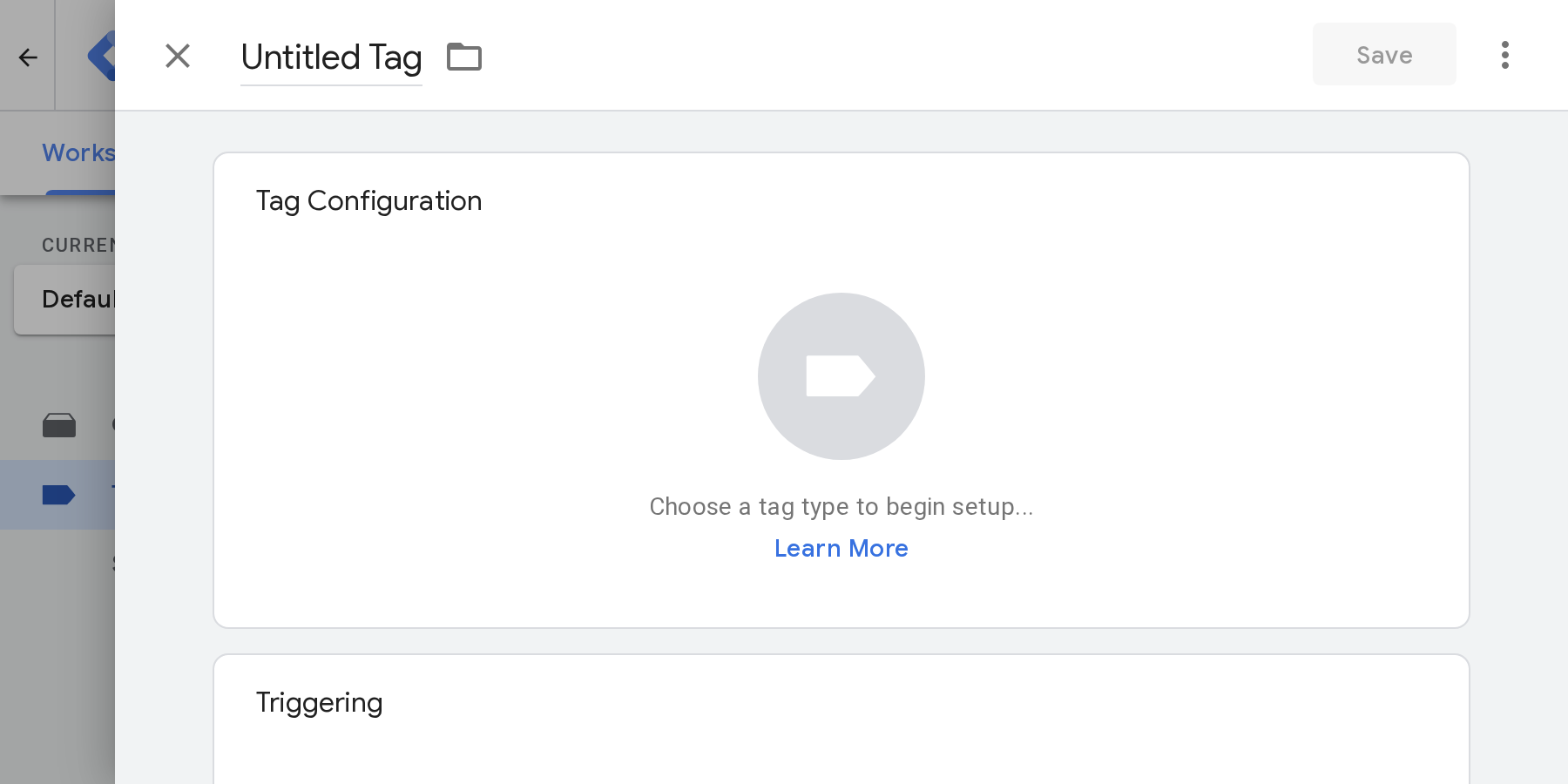
From your container's Tags screen, press New and then the Tag Configuration panel to choose a tag type.
- 2
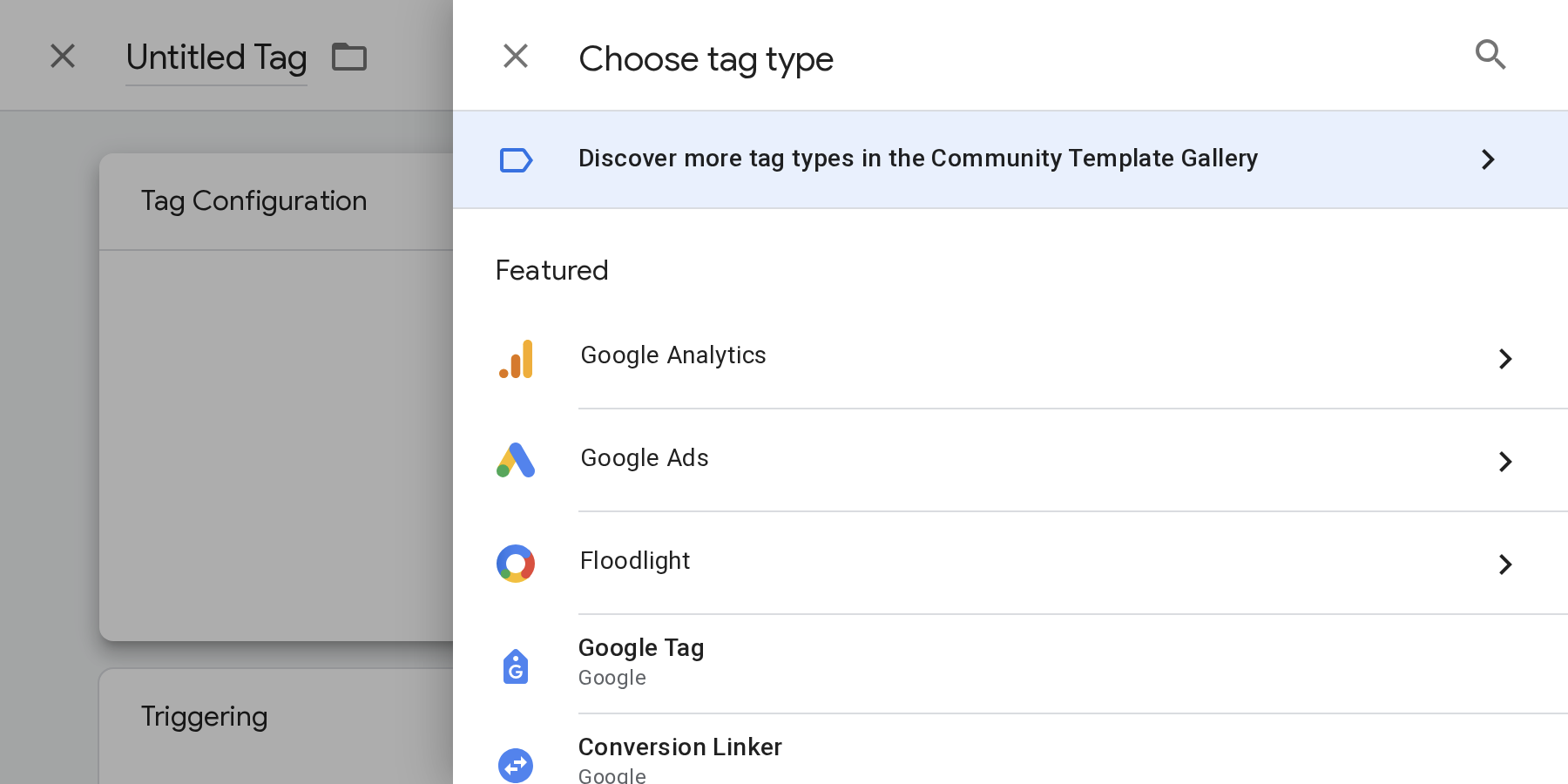
At the top of the list, pick Discover more tag types in the Community Template Gallery and search for "Typeform".
- 3
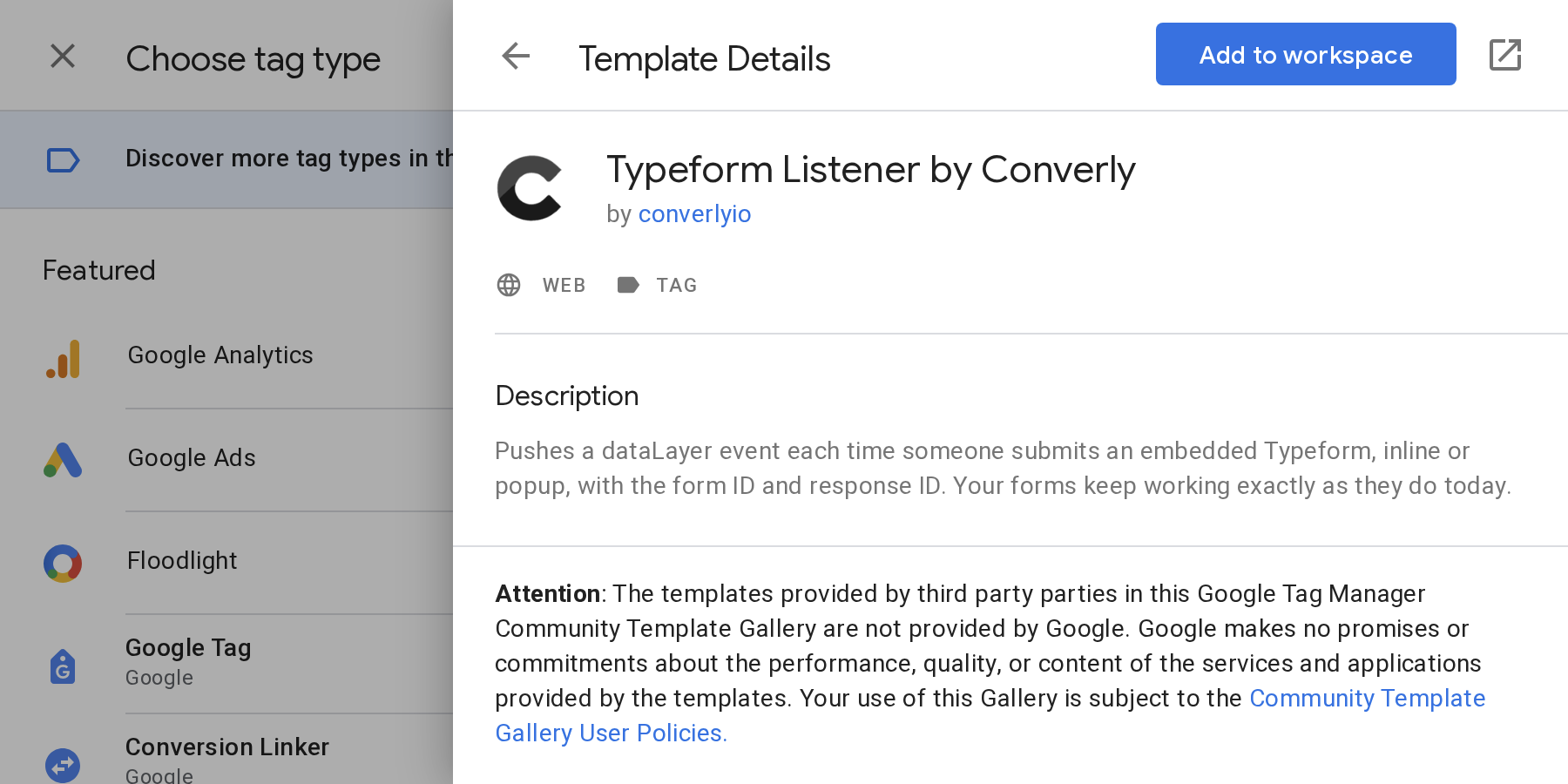
Open Typeform Listener, published by Converly. Press Add to workspace, then Add in the dialog that follows.
- 4
Choose All Pages as the trigger, give the tag a name you'll recognise (like Typeform Listener) and click Save. This tag is now set up to run on every page of your site, listen for successful Typeform form submissions, and send an event called
typeform_form_submittedto the dataLayer.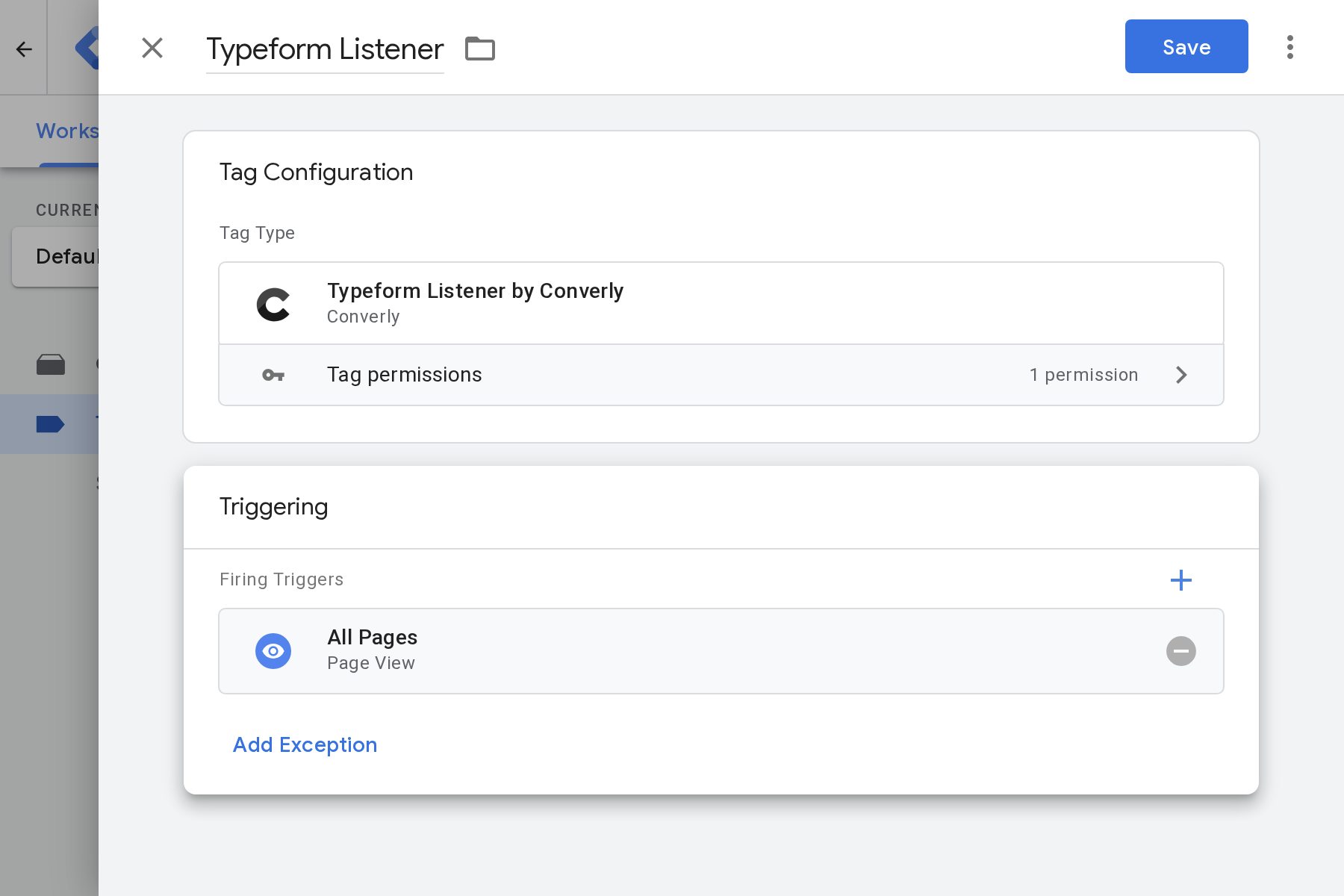
Create the Trigger
The next step is to set up a Trigger that listens for the typeform_form_submitted event in the dataLayer and can then fire your conversion tags for Google Ads, Google Analytics, Meta Ads, etc.
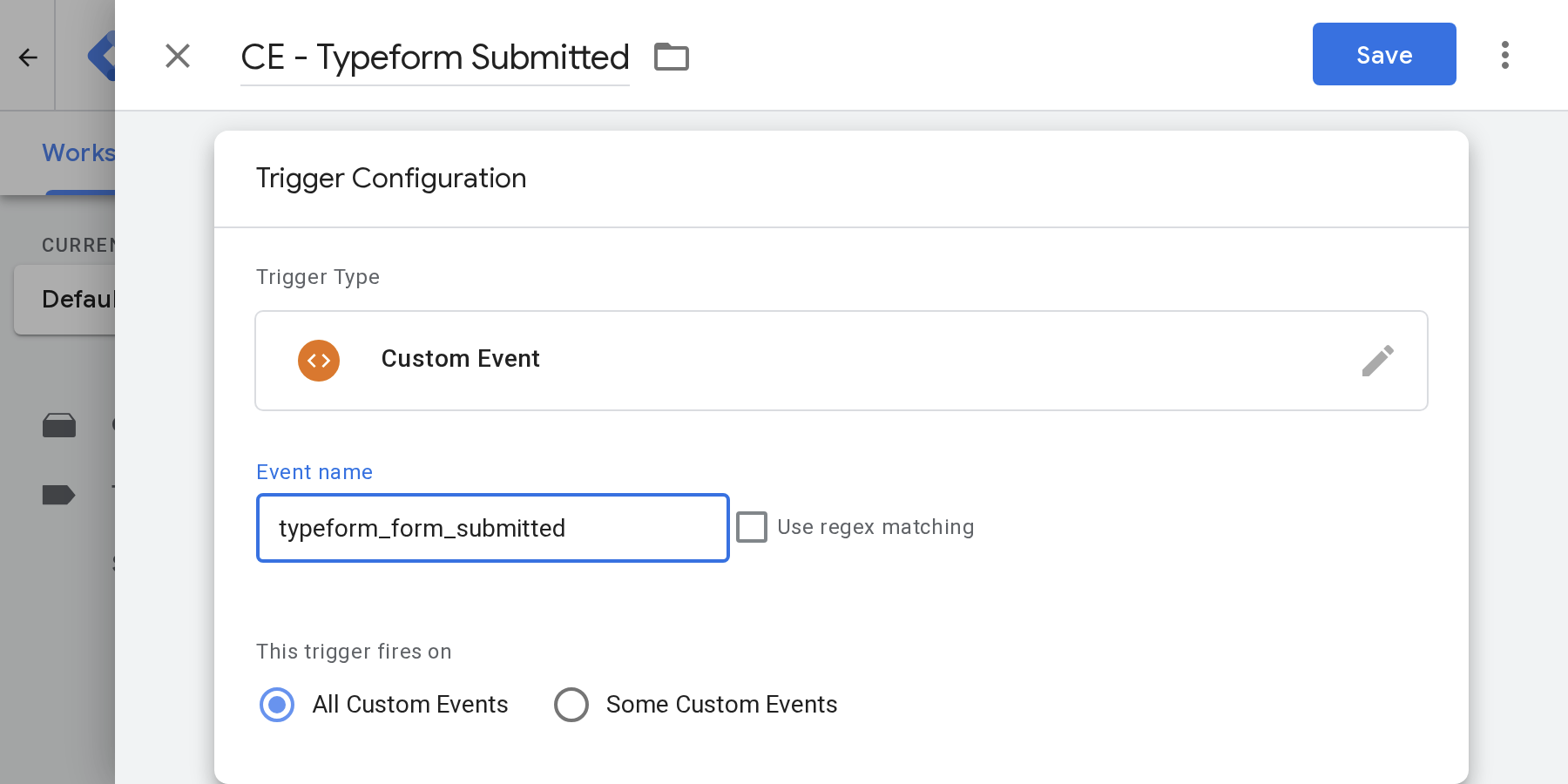
The Google Tag Manager Template Gallery doesn't allow Triggers to be imported, so you'll have to set this up yourself. To do so, open Triggers, click New and use the settings shown below.
Exact Settings
- Trigger Type
- Custom Event
- Event Name
- typeform_form_submitted
- Name It
- CE - Typeform Submitted
Connect Your Tags
The final step is to build your conversion tags for whatever destinations you need (Google Ads, Google Analytics, Meta Ads, etc) and then set them to fire on the Trigger you just built. Instructions for the most common destinations are included below:
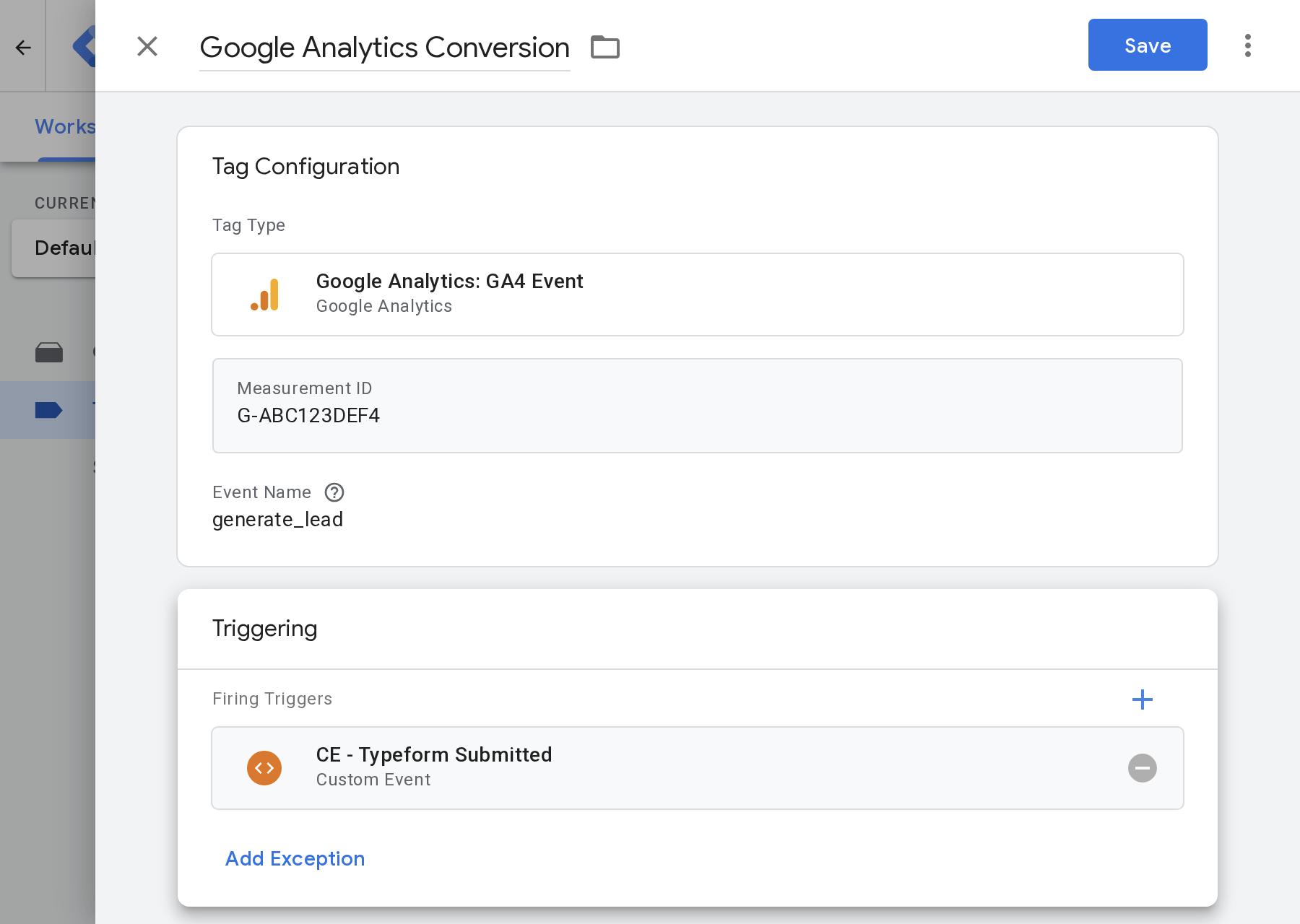
Example 1: Google Analytics
Pick the Google Analytics: GA4 Event tag type, add your Measurement ID and name the event something like generate_lead. Finally, in the Triggering section of the page, select the Trigger you created in step 2.
This will send an event to GA4 each time a Typeform form is successfully submitted on your website.
Example 2: Google Ads
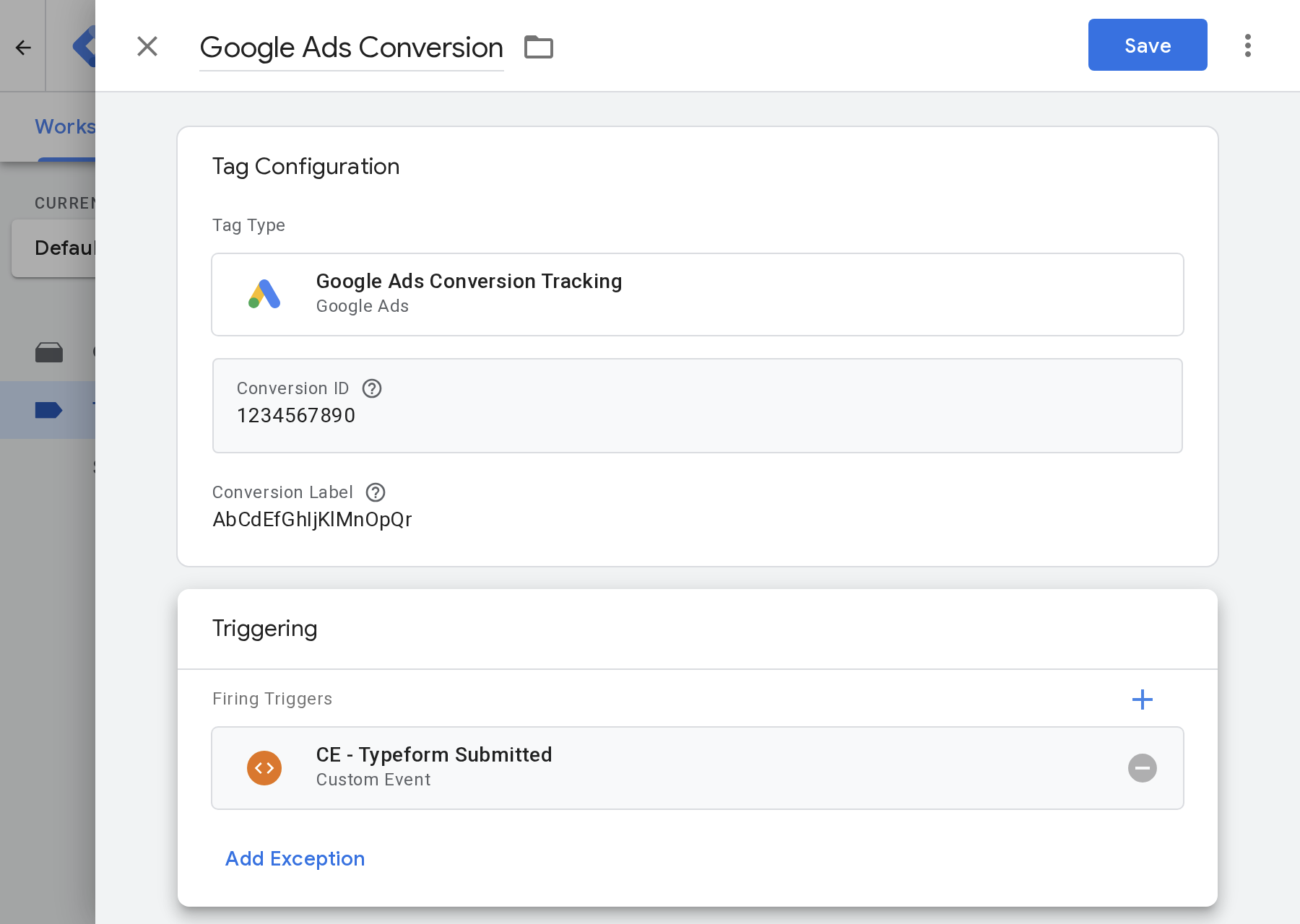
Add a new Tag and choose Google Ads Conversion Tracking as the tag type. You will need to enter a bunch of information from your Google Ads account to set this up, so open the conversion you want to fire in Google Ads and copy the Conversion ID and Conversion Label into the tag. Once done, select the Trigger you created in step 2 as the trigger for this tag. This will send a conversion event to Google Ads whenever someone successfully submits a Typeform form on your website.
Example 3: Meta Ads
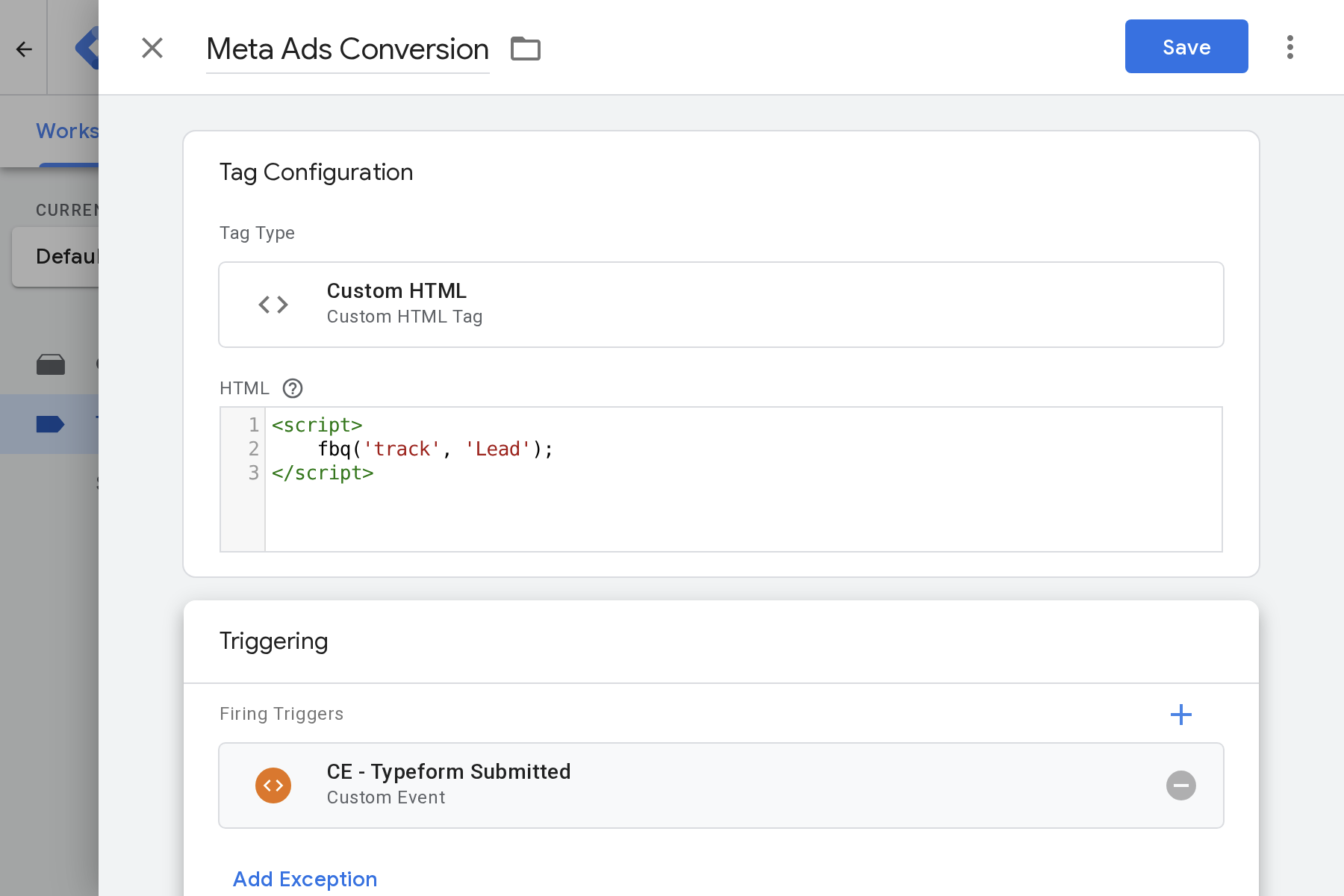
To send conversions to Meta, use a Meta Pixel tag from the community gallery or build your own Custom HTML tag that sends the standard Lead event. Finally, set CE - Typeform Submitted (the Trigger you created in step 2) as the firing trigger for the tag, and Meta Ads will get a new conversion event sent every time someone completes your Typeform form.
Test in Preview Mode
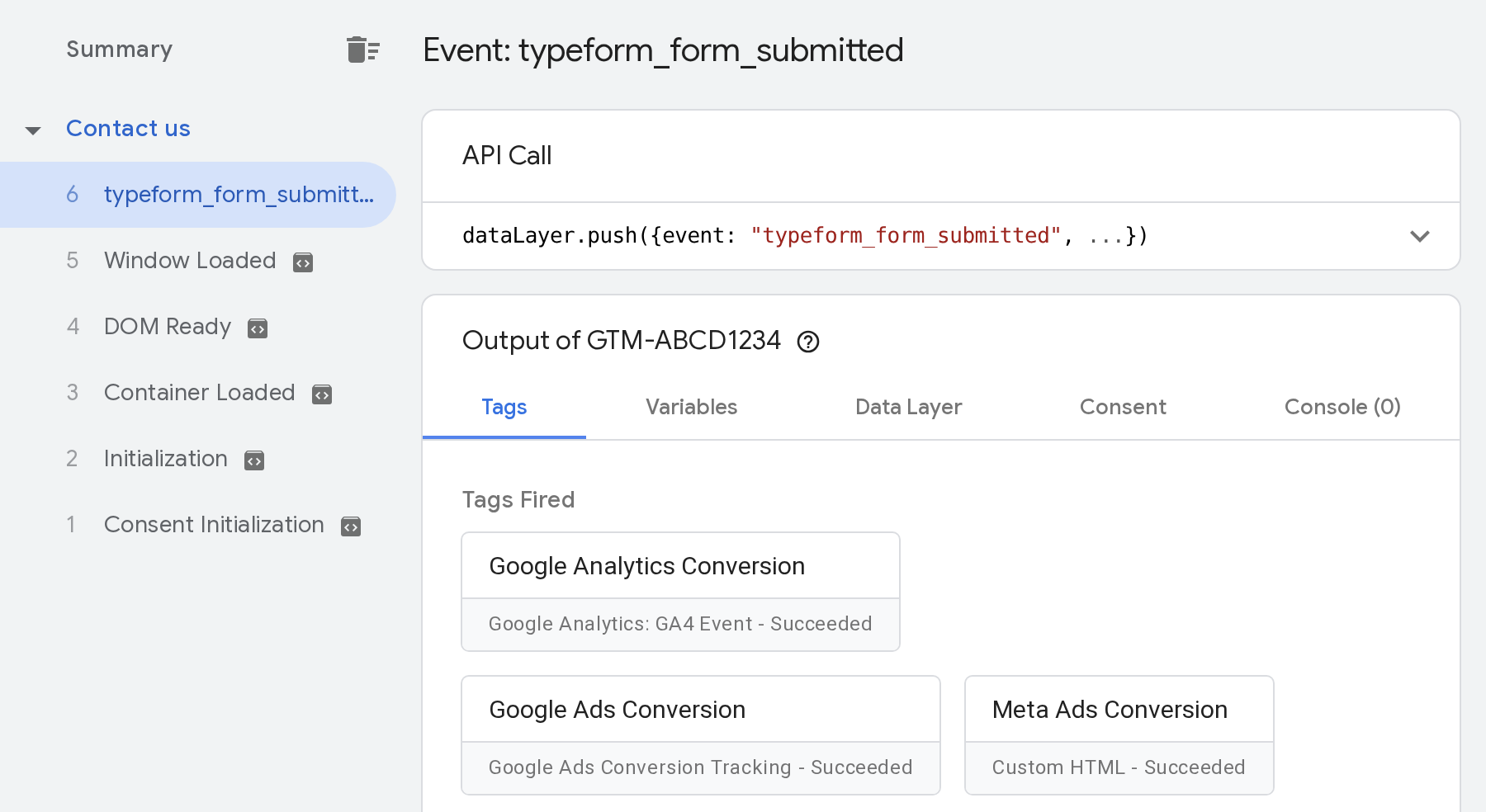
Before going live, open Preview, visit a page that has your Typeform form on it, and submit the form. Then look for the following in Tag Assistant:
- A single
typeform_form_submittedevent in the timeline for each response you submit. - Your conversion tags under Tags Fired once you select that event.
- The ID of your Typeform form under
form_idin the Data Layer tab.
Happy with what you see? Click Submit to publish the container.
What It Sends
This is what the Typeform GTM Template sends to the dataLayer each time a Typeform form is successfully submitted on your website:
window.dataLayer.push({
  "event": "typeform_form_submitted",
  "form_id": "uRz9JEJP",
  "response_id": "response-id"
});| Key | Type | What It Is |
|---|---|---|
event | string | A static value that never changes (typeform_form_submitted), so you can use it to build a Trigger in GTM. |
form_id | string | The Typeform form ID. You can (optionally) use this to only fire certain conversion tags when certain forms are submitted (like your Quote Request form but not your Job Application form). |
response_id | string | Typeform's own ID for the form submission. You can use this to match the conversion event back to actual form submissions in Typeform. |
Permissions & Privacy
Why Does Google Tag Manager Show a Warning?
Each template in the Google Tag Manager Community Gallery lists the access it needs. This tag loads code from Converly's own servers, which means you may see a red "Injects scripts" warning. It will look a bit like this:
Injects scripts
https://gtm-templates.converly.io/typeform-listener.jsFetches Converly's Typeform detection script from our own servers
Why This Isn't An Issue
- Secure The GTM Template can only load code from
gtm-templates.converly.ioand nowhere else. This means that only real code from Converly can be loaded. - Automatic updates. This template is based on Converly's own Typeform detection code, which is tested regularly against live Typeform embeds. So when Typeform changes something, we simply update this template and the new version gets loaded on your site instantly.
Compatibility
This Typeform listener uses the same core code that Converly's own Typeform listener uses, which means it's been extensively tested and used to detect thousands of submissions for Converly's own customers.
| Setup | Status | Note |
|---|---|---|
| Standard inline embed | Works | Fires once when the response is submitted. |
| Standard popup | Works | Fires once when the form inside the popup is submitted. |
| Answers Typeform won't accept | Works | Typeform checks each answer before moving on, so a bad entry stops the form and nothing fires. |
| Fixing an answer and finishing | Works | Fires once, when the corrected response goes through. |
| Double clicks on Submit | Works | Typeform saves one response and one event fires. |
| Full page, slider, popover and side tab embeds | Not tested yet | Not checked on a live form yet. |
| Mobile embeds | Not tested yet | Not checked on a live form yet. |
| Redirect after submit | Not tested yet | Not checked on a live form yet. |
| Two forms on one page | Not tested yet | Not checked on a live form yet. |
| Logic jumps and conditional questions | Not tested yet | Not checked on a live form yet. |
| File uploads | Not tested yet | Not checked on a live form yet. |
| Popups that open on their own | Not tested yet | Not checked on a live form yet. |
| Forms on a custom domain | Not tested yet | Not checked on a live form yet. |
| Installed alongside our GTM recipe | Not tested yet | Not checked on a live form yet. |
Tested with Typeform hosted (no version shown), Typeform Embed SDK next (embed.typeform.com/next), Chromium 145.0.7632.6.
Troubleshooting & FAQ
Start in Preview and confirm the listener tag fired as the page loaded. If it didn't, it's probably set to the custom event instead of All Pages.
The tag has to run on the page that shows the embed, because it only accepts messages from a Typeform iframe on that page for the same form. Someone filling in the form on Typeform's own site, through a share link, isn't on your page, so GTM can't see it.
Also check the form is open. A form closed by your plan's response limit, a close date or by hand takes no responses and sends no event. Ad blockers can stop GTM too, so test in a clean browser window.
Preview shows your workspace before it's published. Visitors only get the change once you click Submit in Google Tag Manager.
Published and still silent? Your site or a caching layer may be serving an old version of the page. Clear the cache and test again.
Consent banners can also keep GTM from loading until a visitor agrees, so anyone who declines won't be tracked.
No. Your Typeform form looks, behaves and saves responses exactly as before. The template only listens for the message Typeform sends when a response is submitted.
It can't see anyone's answers. All it passes to GTM is the event name, the form ID and Typeform's response ID.
No. The script is tiny and loads asynchronously, so it never holds up your page or your form.
Add it to your web container, since the browser is where Typeform reports the response. You can pass the event on to a server container through your GA4 tag, but a server container can't run the template itself.
Go with the template if you want detection fixes to arrive without any effort on your part. Go with the recipe if you'd prefer one import that brings the tag, trigger and variable, with every line of code living in your container, on the understanding that it stays as it is until you import an update.
| This Template | The Recipe | |
|---|---|---|
| Installing it | Added from Google's gallery in a click | Downloaded, then imported as a file |
| What's included | One tag. The trigger is yours to add | Tag, trigger and variable together |
| Where the code runs from | Converly's script host | Custom HTML saved in your container |
| Detection fixes | Reach you without doing anything | Wait until you import a new version |
Changelog
| Version | Date | Changes |
|---|---|---|
| v1.0.0 | 26 Oct 2026 | Initial version of the template. |
When the detection script is improved, your site picks up the change by itself, and we note it here.
 Converly