





Google Tag Manager is probably the most common way to set up conversion tracking for Google Ads, Meta Ads, Google Analytics, etc.
But the problem is telling Google Tag Manager that a HubSpot form was actually submitted. Forms made in HubSpot's current form builder load inside an iFrame on your page, so GTM's built-in form submission trigger can't see them at all. Others have written ways around this, but those largely rely on HubSpot sending a message called 'onFormSubmitted' when the submission goes through, which their newest form builder doesn't do.
So how are you supposed to set up accurate conversion tracking for HubSpot forms?
This free template takes care of it. Add it to your container from Google's Community Template Gallery, and every successful HubSpot form submission turns up in GTM as a hubspot_form_submitted event (which you can then use to fire your conversion tags from).
How to Use the Template
There are 3 pieces to set up. You add the template, you create a Trigger in Google Tag Manager, and you set your conversion tags to fire off that Trigger. Once done, HubSpot form submissions on your website will be sent to Google Ads, Meta Ads, Google Analytics and anywhere else you configure.
Install It
To begin, add the template to your container from Google's Community Template Gallery and make sure it loads on all of your pages.
- 1
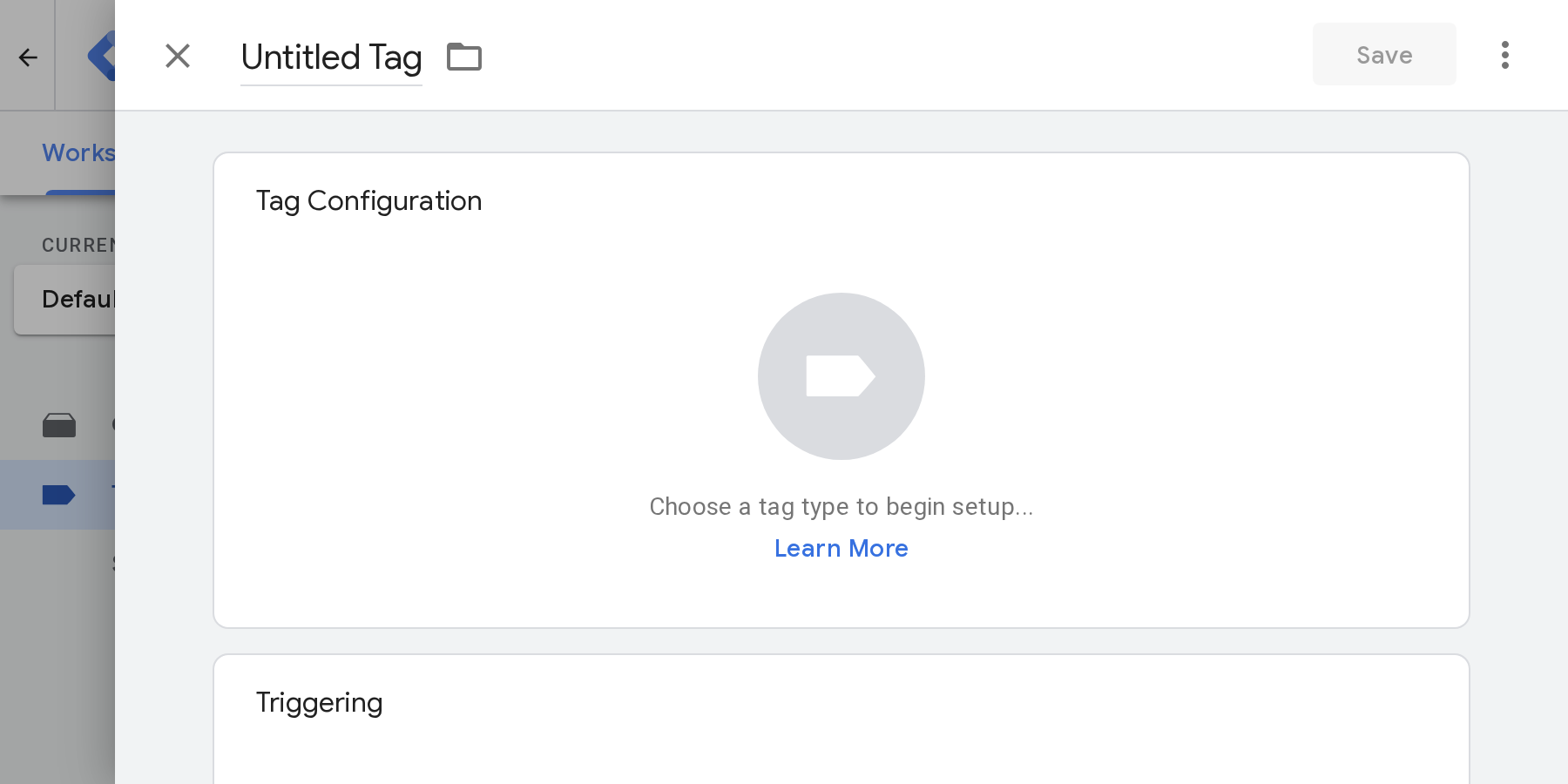
Inside your GTM container, head to Tags using the left menu and hit New to start a blank tag. Clicking the Tag Configuration box then brings up every tag type available to you.
- 2
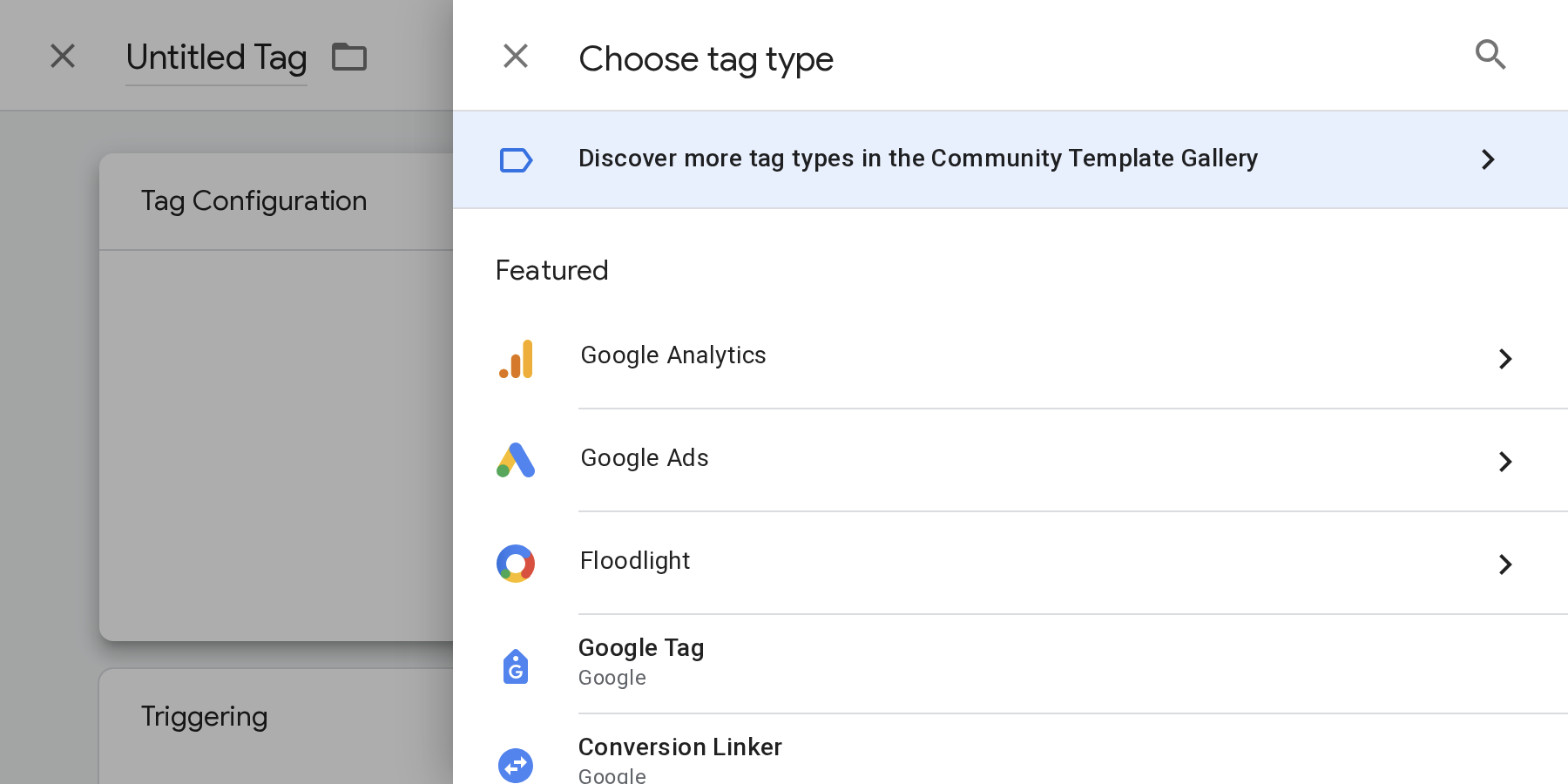
Click Discover more tag types in the Community Template Gallery, which sits at the top of that list. Once the gallery is open, type "HubSpot Forms" into the search box.
- 3
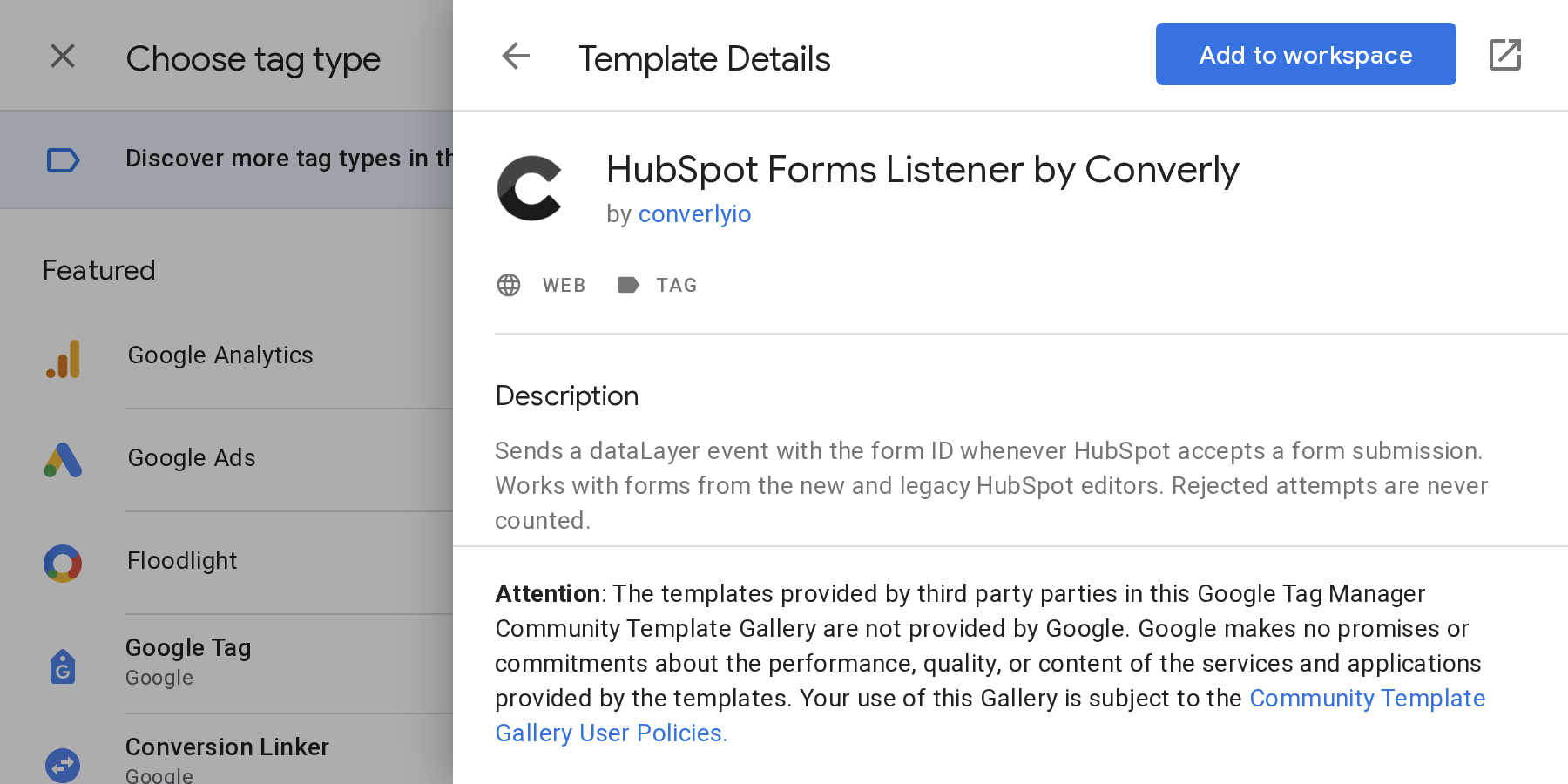
Select HubSpot Forms Listener (Converly is listed as its publisher). Hit Add to workspace, and when a confirmation window appears, click Add.
- 4
Set Triggering to All Pages, call the tag something easy to spot (for example HubSpot Forms Listener) and save it. This tag will now load on every page of your site and essentially just sit there listening for successful HubSpot form submissions. When it detects one, the tag pushes an event named
hubspot_form_submittedinto the dataLayer.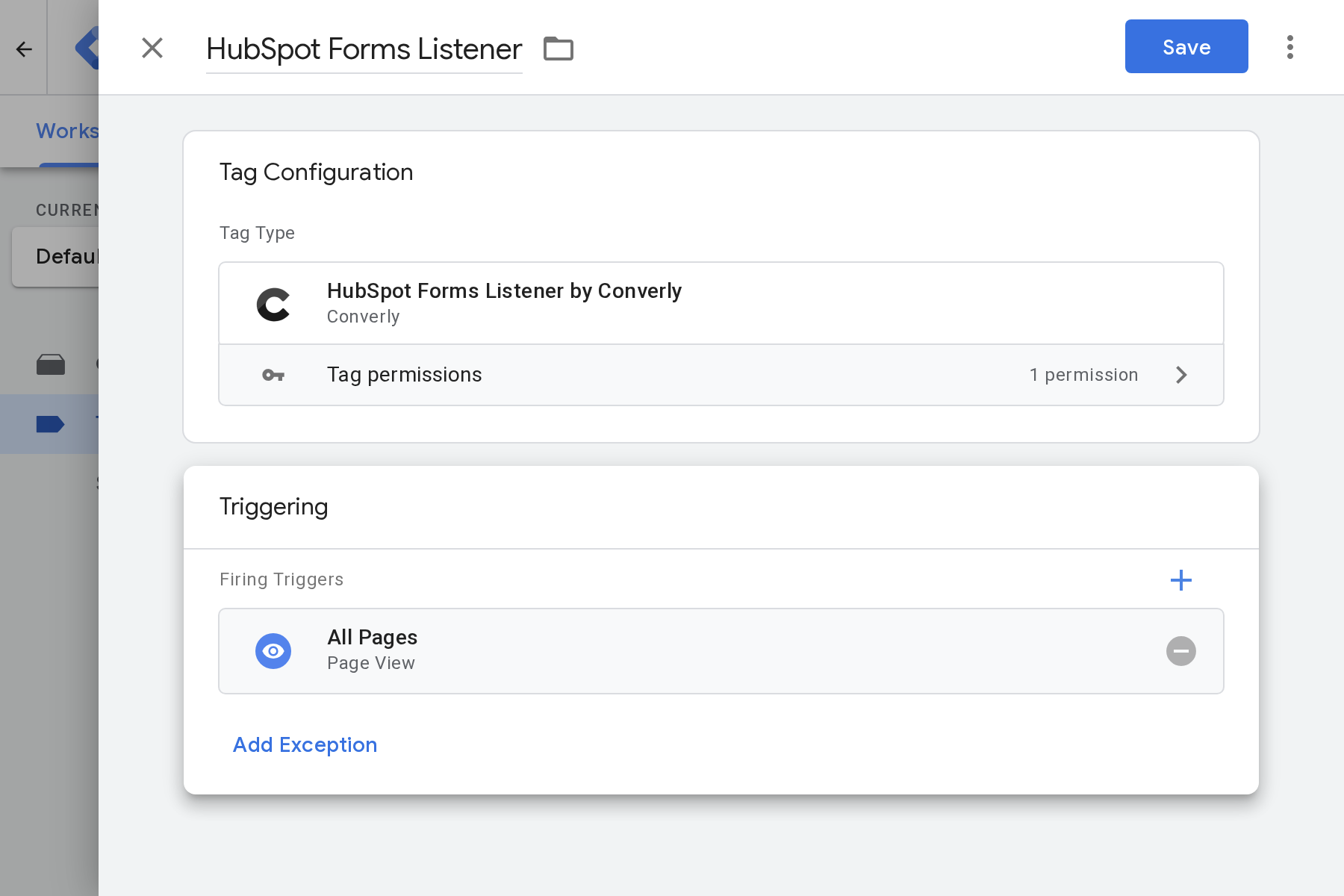
Create the Trigger
With the listener installed, you can then use it to build a Trigger in Tag Manager that fires when hubspot_form_submitted appears in the dataLayer.
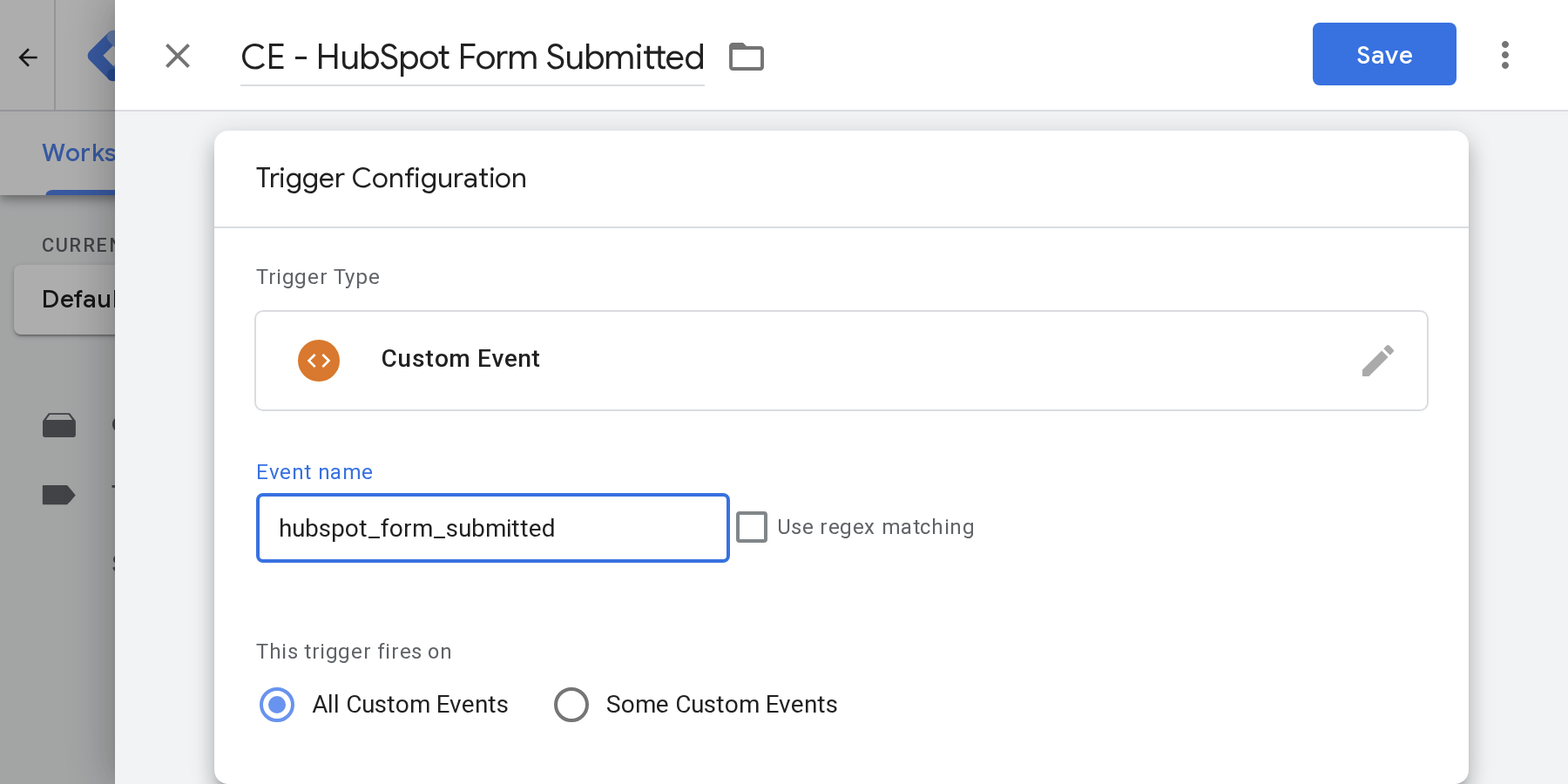
Templates from Google's gallery can't include Triggers, which means you have to build this part yourself. To do so, go to Triggers in the left menu, click New and copy the settings from the screenshot below.
Exact Settings
- Trigger Type
- Custom Event
- Event Name
- hubspot_form_submitted
- Name It
- CE - HubSpot Form Submitted
Connect Your Tags
Last of all, you need to build a conversion tag for each destination you want to send conversions to (Google Ads, Google Analytics, Meta Ads, etc), and attach the Trigger from step 2 to every one of them. Here's how to do that for 3 popular destinations:
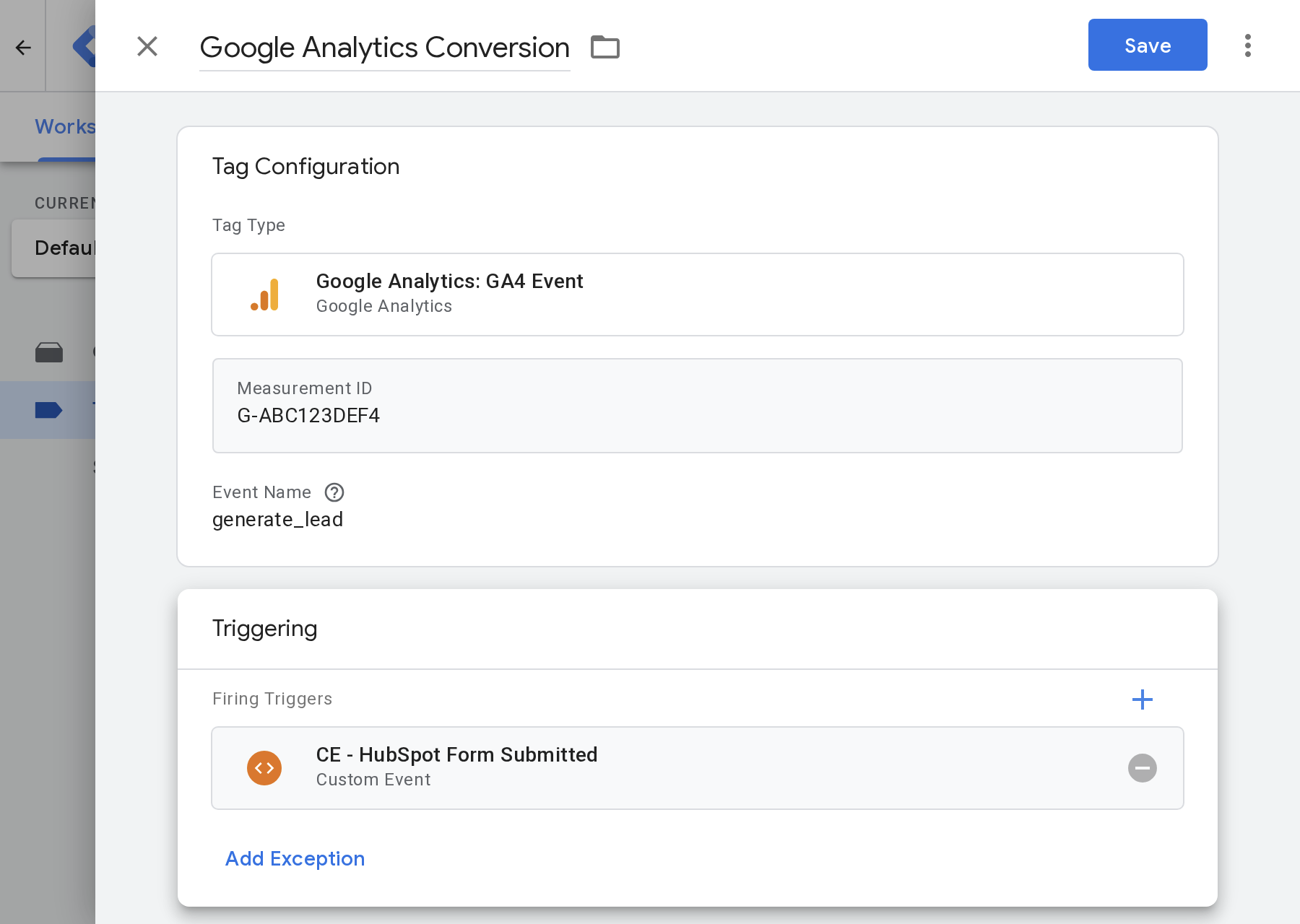
Example 1: Google Analytics
Create a new tag and select Google Analytics: GA4 Event as the tag type. Enter your Measurement ID (find it under Admin in your GA4 property) and enter a name for the event that appears in GA4 (something like generate_lead or form_submitted). Finally, choose the Trigger you built in step 2 in the Triggering section.
GA4 will now receive an event every time a HubSpot form is successfully submitted on your website (and don't forget to mark it as a key event if you want it to count as a conversion in your acquisition and funnel reports).
Example 2: Google Ads
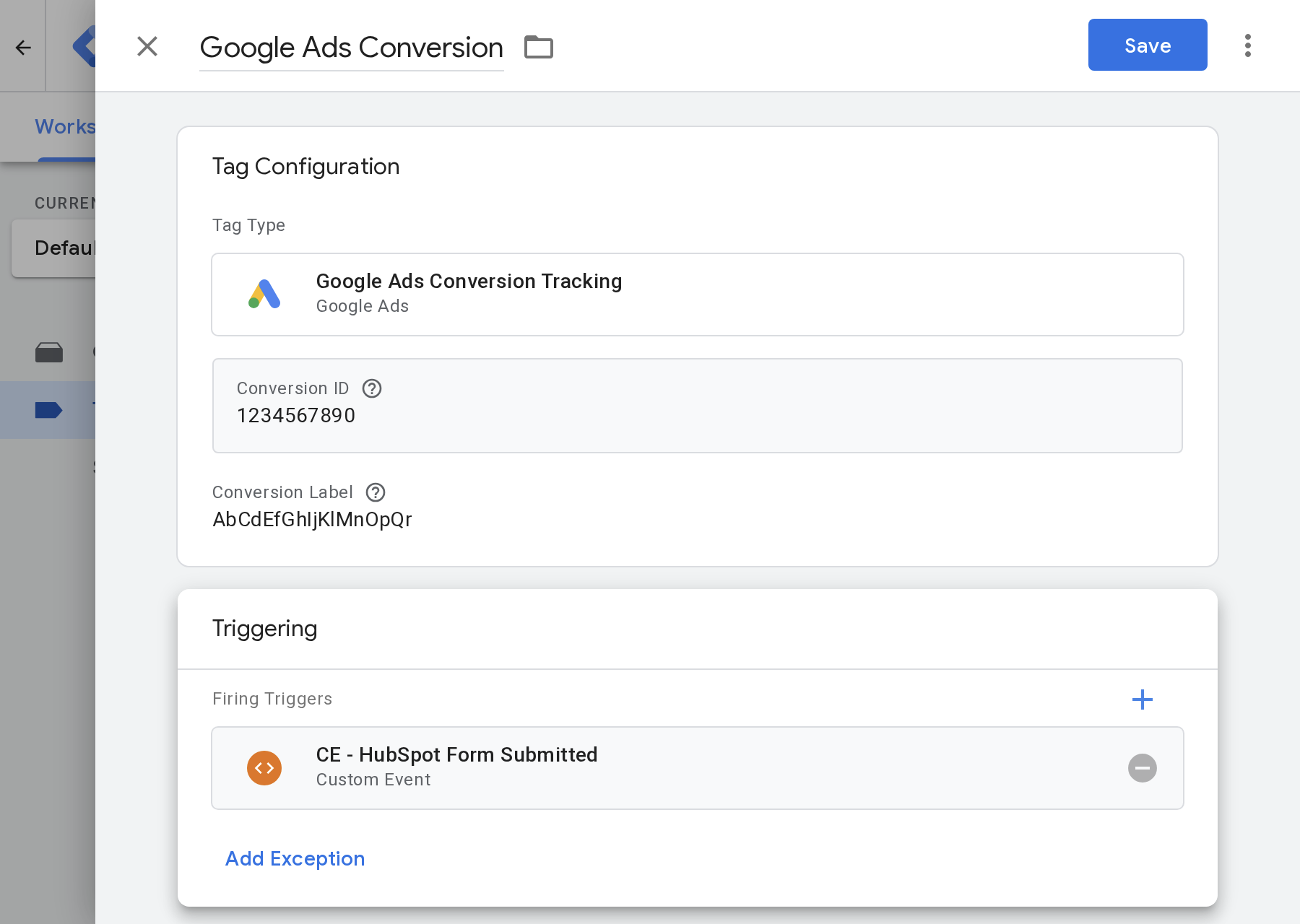
To send conversions to Google Ads, create another tag (but this time with the type Google Ads Conversion Tracking). It asks for the Conversion ID and Conversion Label of your conversion action, which you can copy from the Goals section of Google Ads. Finally, choose the Trigger you built in step 2 in the Triggering section. Google Ads will now receive a conversion every time a HubSpot form is successfully submitted on your website.
Example 3: Meta Ads
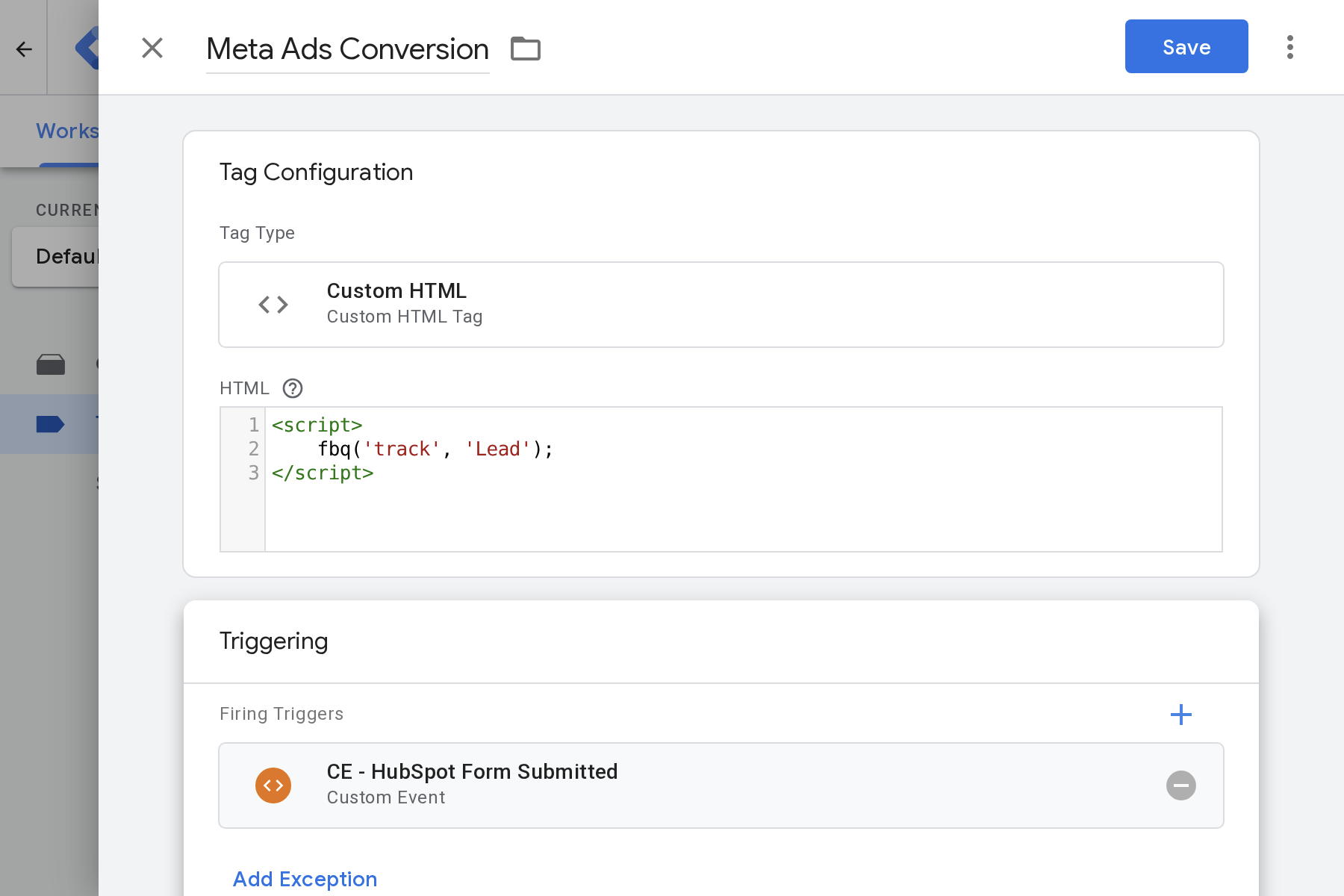
Not surprisingly, there's no pre-built Meta tag in Google Tag Manager. So to set this one up, you can use a Meta Pixel template from the community gallery, or write a Custom HTML tag that fires Meta's standard Lead event. Once done, choose CE - HubSpot Form Submitted (the Trigger you built in step 2) to fire it. Meta Ads will now receive a Lead event for every successful HubSpot Forms submission on your site.
Test in Preview Mode
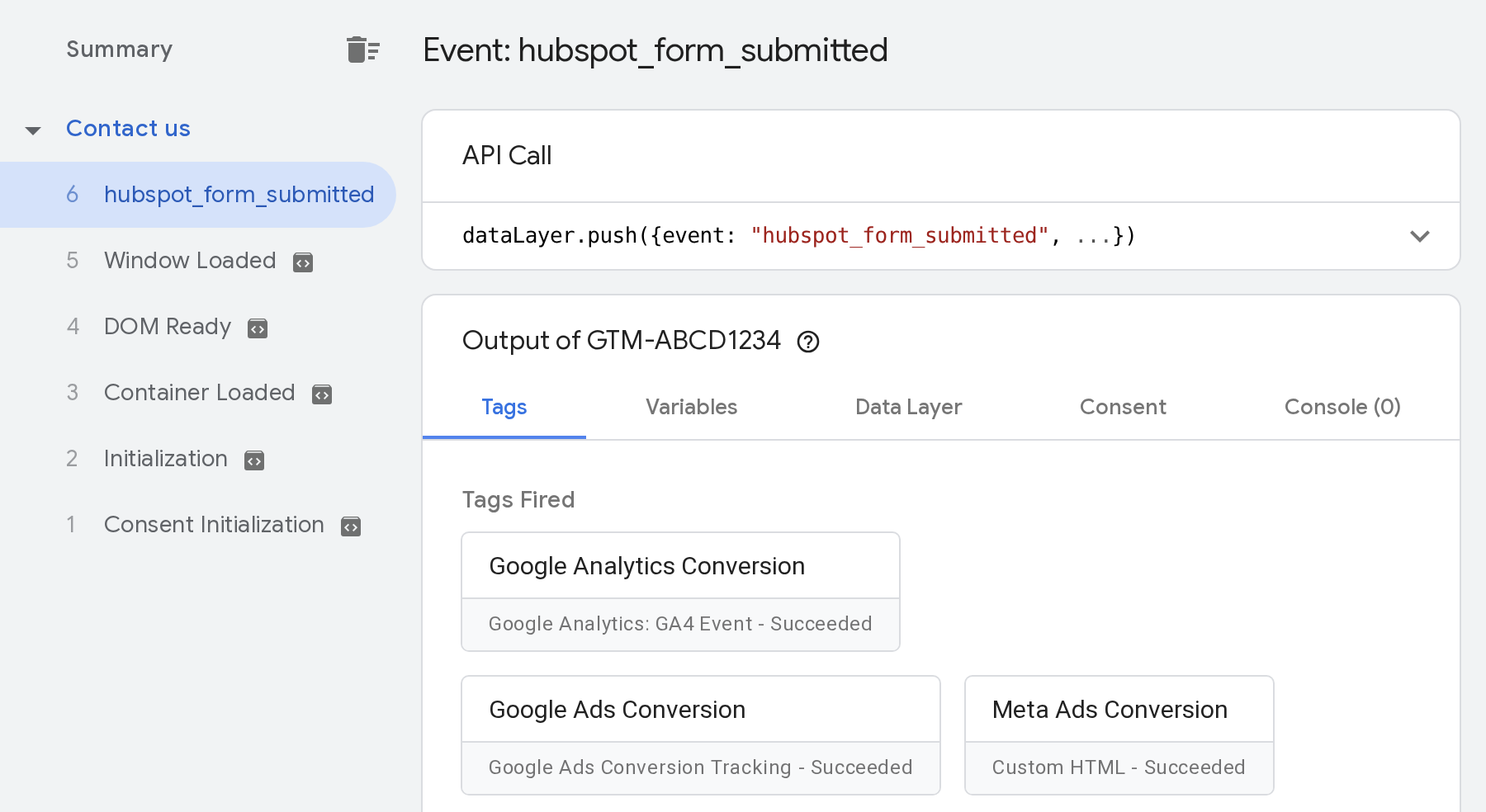
It's worth testing all of this before you publish. To do that, hit Preview in Google Tag Manager, which opens your website in the Tag Assistant view. Then visit a page with a HubSpot form, fill it in and submit it once. Here's what you're looking for:
- Exactly one
hubspot_form_submittedevent in the left hand timeline per submission. - Your conversion tags appearing in the Tags Fired list.
- Your HubSpot Forms form's ID shown against
form_idunder the Data Layer tab.
Once everything is tested and working, hit Submit, add a version name and click Publish to push the new container version live.
What It Sends
Each time a HubSpot form is submitted on your website, the HubSpot Forms GTM Template adds the following to the dataLayer:
window.dataLayer.push({
  "event": "hubspot_form_submitted",
  "form_id": "form-id"
});| Key | Type | What It Is |
|---|---|---|
event | string | An event that always has the same name (hubspot_form_submitted). Your GTM Trigger listens for this event. |
form_id | string | The ID of the HubSpot form that was submitted. You can use this as a filter, so you only fire certain conversion tags for certain forms (like a Book a Demo form but not a newsletter signup form). The ID is actually the long string of letters and numbers in the address bar when you open the form in HubSpot. |
Permissions & Privacy
Why Does Google Tag Manager Show a Warning?
Google shows a list of permissions on every template listing in its gallery. Because this tag fetches its code from a Converly server, that list includes a red "Injects scripts" warning. It will look a bit like this:
Injects scripts
https://gtm-templates.converly.io/hubspot-forms-listener.jsFetches the HubSpot Forms listener script from Converly
Why This Is Actually The Best Approach
- Security GTM only lets this tag pull code from
gtm-templates.converly.io, so it can't actually load anything else on your website without you knowing. - Automatic Updates We regularly test it against live HubSpot forms, and if it needs updating (because HubSpot updates its form builder, for example), we can ship a fix to that script once and every website running the template gets the new version automatically.
Compatibility
This template is built on the same core code Converly uses to detect HubSpot form submissions for its customers, and it has been tested against real HubSpot forms from both the new and legacy editors.
| Setup | Status | Note |
|---|---|---|
| Forms from HubSpot's new editor | Works | One event is sent per successful form submission |
| Forms from HubSpot's legacy editor | Works | One event is sent per successful form submission |
| Submissions HubSpot rejects | Works | If HubSpot shows an error (a required field left blank, for example), no event is sent. |
| Correcting errors and resubmitting | Works | After the visitor fixes the errors and HubSpot accepts the form, one event is sent. |
| Double clicking Submit | Works | One event per accepted submission, however many times the button is clicked. |
| Two copies of the same form on one page | Works | Each copy that is submitted sends its own event. |
| New and legacy forms on the same page | Works | Each form sends its own event with its own form ID. |
| Redirecting to a thank you page | Works | One event is sent per successful form submission |
Tested with HubSpot Forms New and legacy editors, Nov 2026, Chromium 147.0.7727.15.
Troubleshooting & FAQ
Open Preview and check whether the listener tag fired as the page loaded. If it didn't, its trigger is likely set to the custom event instead of All Pages.
The template only fires once HubSpot has accepted the submission. If HubSpot shows an error on the form (a missing required field, for example), nothing is sent until the visitor fixes it and submits again. It also relies on HubSpot's own embed script running on the page, so a form that hasn't loaded properly can't be counted.
Ad blockers and strict browser privacy settings can stop GTM from loading at all, so always test in a clean browser window.
Preview runs your unpublished workspace. Visitors only see the change once you click Submit in Google Tag Manager and publish it.
If you've published and it still isn't working, a caching tool or your host could be serving an old copy of the page. Clear the cache and try again.
A cookie consent banner can also hold GTM back until the visitor accepts, so visitors who decline won't be tracked.
Yes. The template detects forms built in HubSpot's current editor and forms built in the legacy editor, including pages that have both. Either way, it waits for HubSpot to accept the submission before sending the event.
No. Your forms look, validate and save submissions in HubSpot exactly as they do now. The template only listens for the signal HubSpot gives once a submission has been accepted.
It never reads what visitors type into your forms. The only things it passes to GTM are the event name and the form's ID.
Pick one or the other for each page. If both send conversions to the same ad platform, a single HubSpot submission gets counted twice (once from your GTM tag and once from Converly).
No. The script is tiny and loads asynchronously, so your pages and HubSpot forms never have to wait for it.
Install it in your web container, because the browser is where HubSpot confirms the submission. Your GA4 tag can pass the event on to a server container from there, but the template itself can't run in one.
Changelog
| Version | Date | Changes |
|---|---|---|
| v1.0.0 | 16 Nov 2026 | Launched in the gallery. |
Our detection script improves over time, and every improvement reaches your website without you lifting a finger. You'll find each one listed below.
 Converly