





A lot of businesses use Google Tag Manager to send form submissions to Google Ads, Meta Ads, Google Analytics, etc. as conversions.
For that to work, Google Tag Manager first has to know a conversion took place, and with Contact Form 7 that's harder than it sounds. Contact Form 7 sends the form in the background (using AJAX) and shows its thank you message without a page reload, which means Google Tag Manager's built-in form submission trigger doesn't work.
This free GTM template solves that. Install it from Google's Community Template Gallery and it will send a contact_form_7_submitted event for each successful Contact Form 7 form submission, ready for your conversion tags to fire from.
How to Use the Template
There are 3 parts to getting this working. You install the template, build a Trigger in Google Tag Manager, and then attach your conversion tags to it. Once that's done, every Contact Form 7 submission on your site will be sent as a conversion to Google Ads, Meta Ads, Google Analytics, or whatever other platform you rely on.
Install It
Step one is getting the template out of Google's Community Template Gallery and into your container, set to load everywhere on your site.
- 1
In your GTM container, go into Tags and press New. That creates a new, empty tag in your account. Then click the Tag Configuration area to open the list of available tag types.
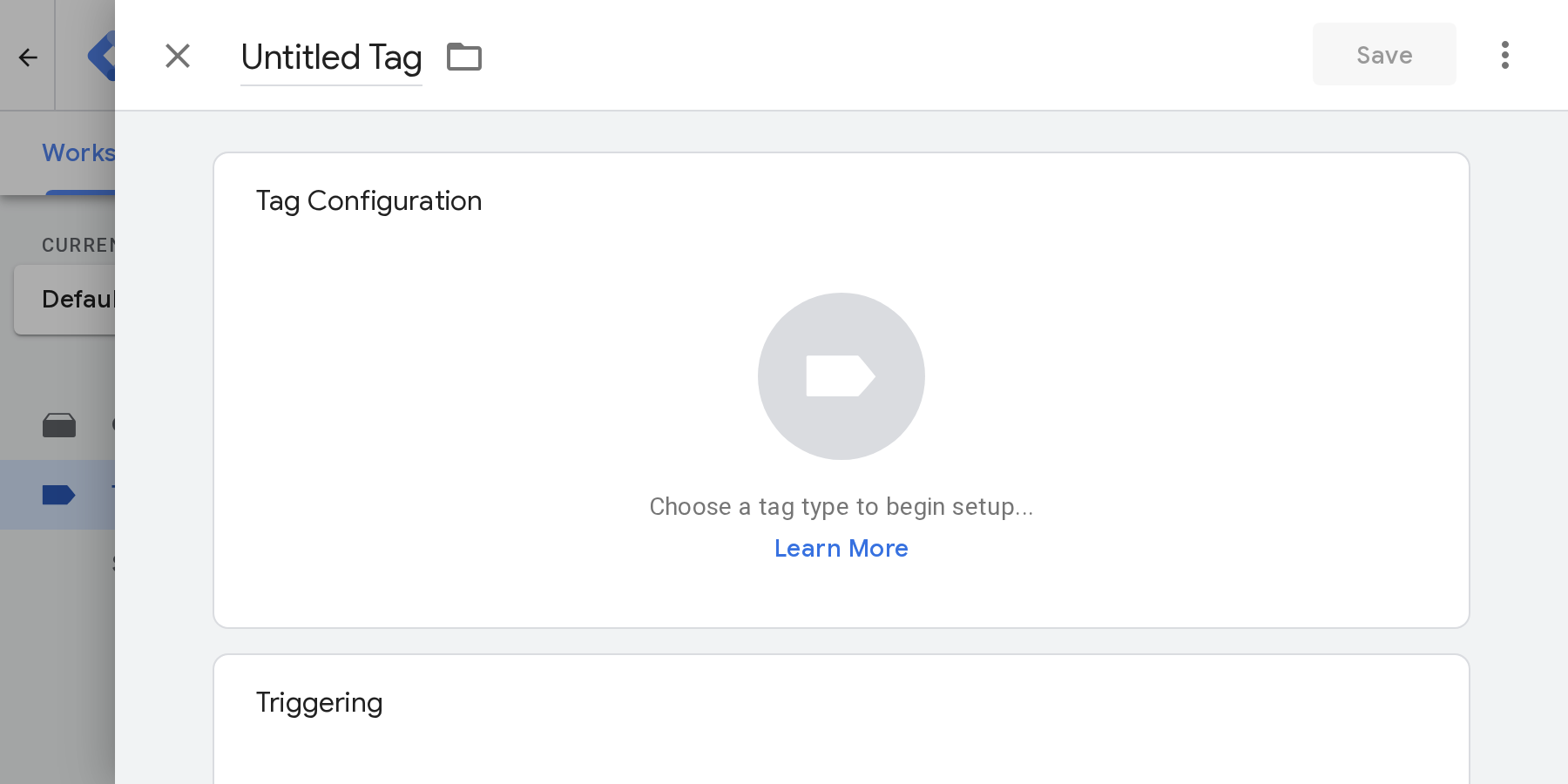
- 2
In the list that appears, click the Discover more tag types in the Community Template Gallery. Once in the gallery, do a search for "Contact Form 7".
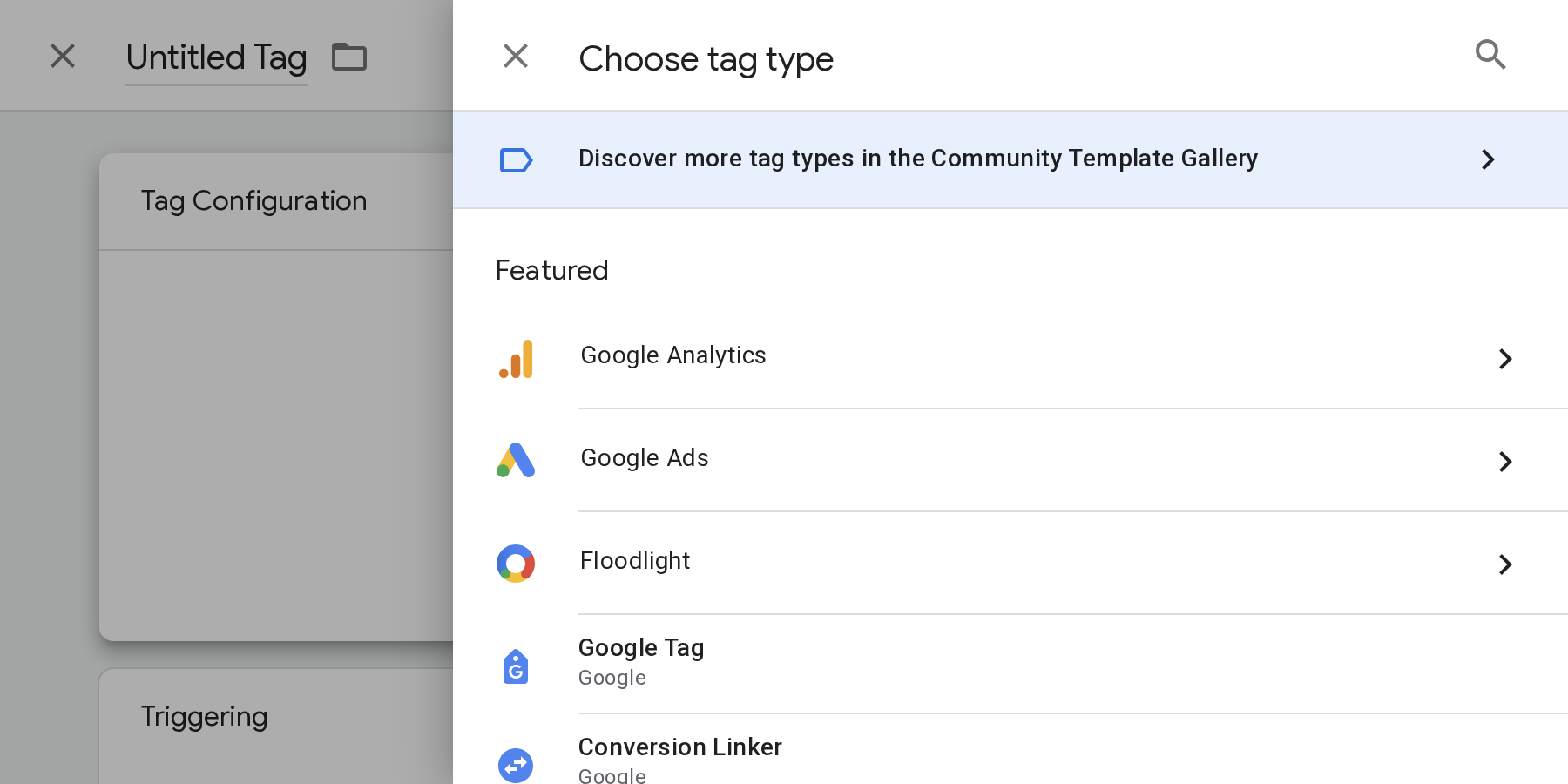
- 3
Converly is the publisher of Contact Form 7 Listener, so pick that one. Then press Add to workspace, and Add again in the popup.
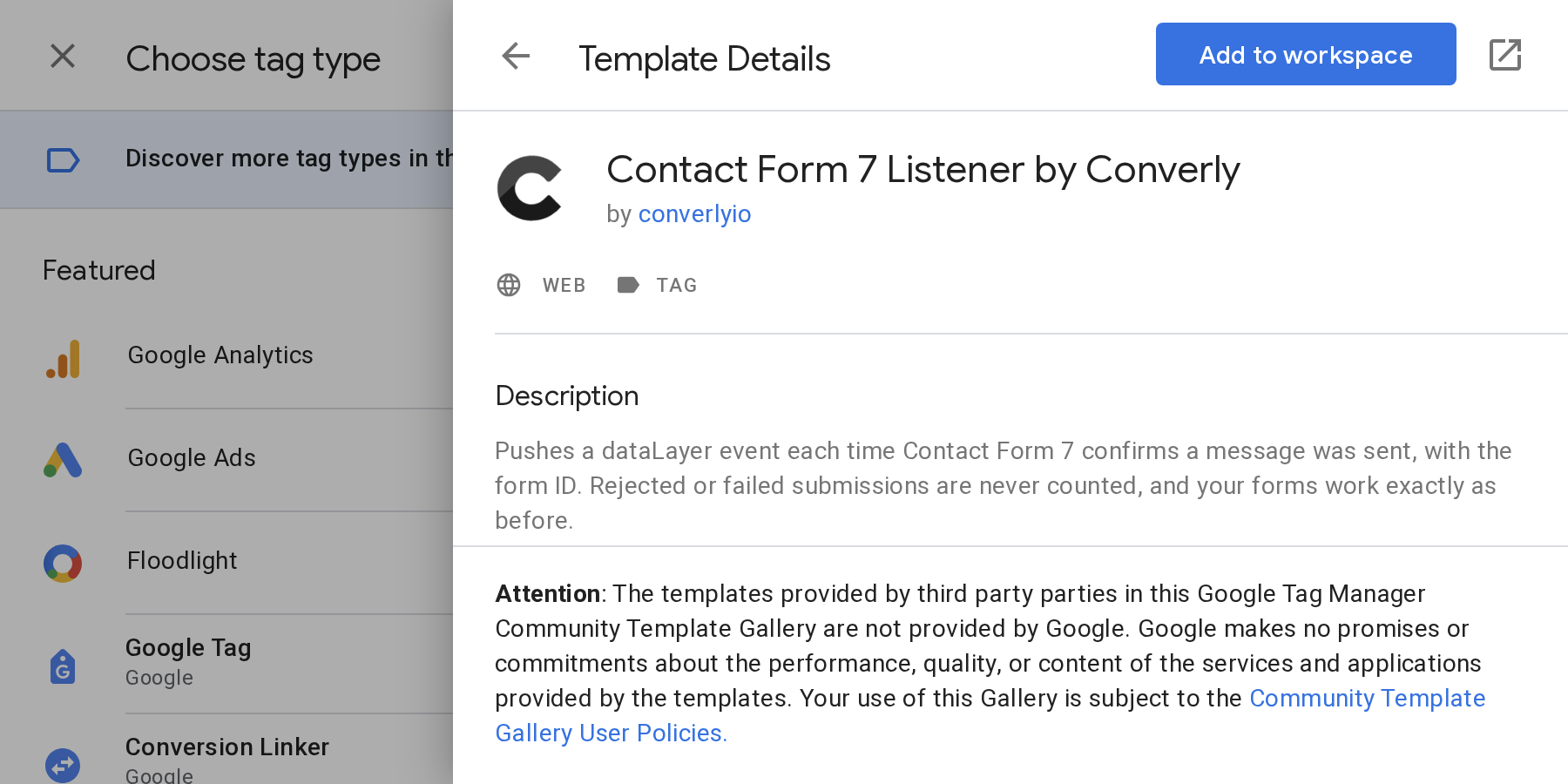
- 4
Under Triggering choose All Pages, give the tag a clear name (for example Contact Form 7 Listener) and hit Save. The tag now loads on every page on your site and listens for successful Contact Form 7 form submissions. Whenever one is detected, it pushes an event called
contact_form_7_submittedinto the dataLayer.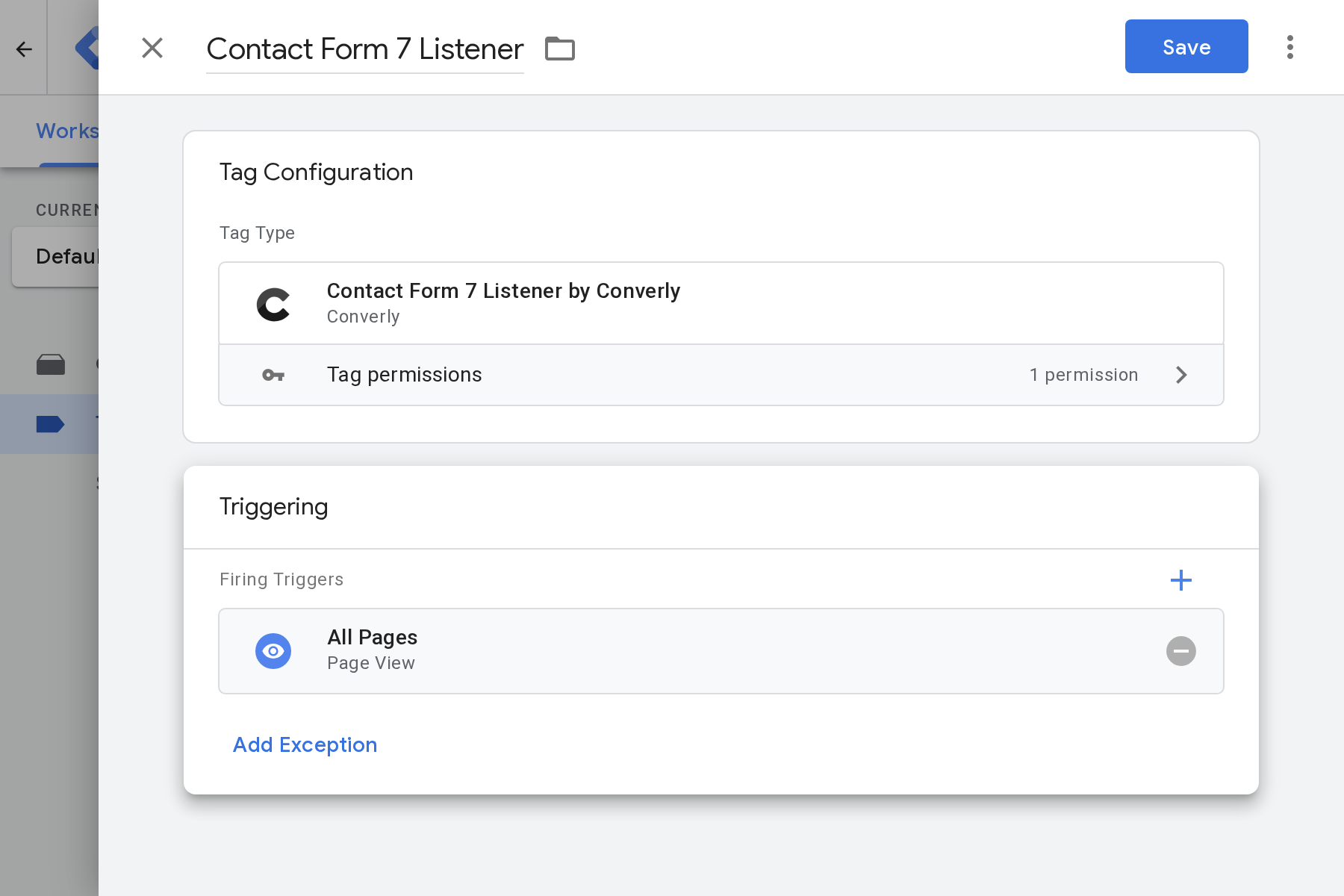
Create the Trigger
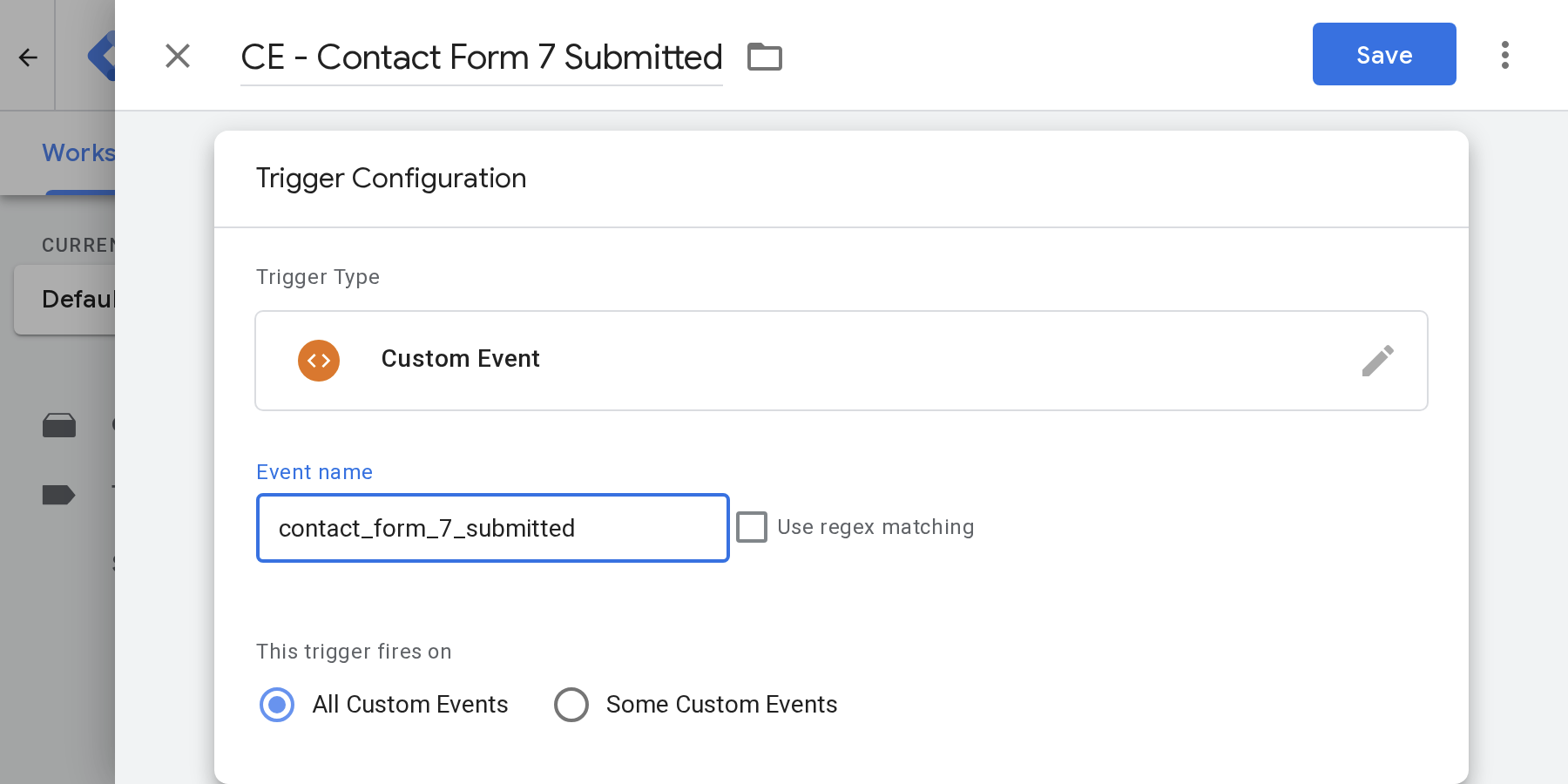
With the listener running, the second step is to create a Trigger. Its job is to detect the contact_form_7_submitted event when it lands in the dataLayer, and then fire your Google Ads, Google Analytics and Meta Ads conversion tags from there.
To build this out, click Triggers in the left menu, then New, and copy the settings in the screenshot below.
Exact Settings
- Trigger Type
- Custom Event
- Event Name
- contact_form_7_submitted
- Name It
- CE - Contact Form 7 Submitted
Connect Your Tags
Finally, each platform you want to send conversions to (Google Ads, Google Analytics, Meta Ads, etc) needs its own tag, set to fire on the Trigger you've just made. Here are step by step instructions for 3 of the most common destinations:
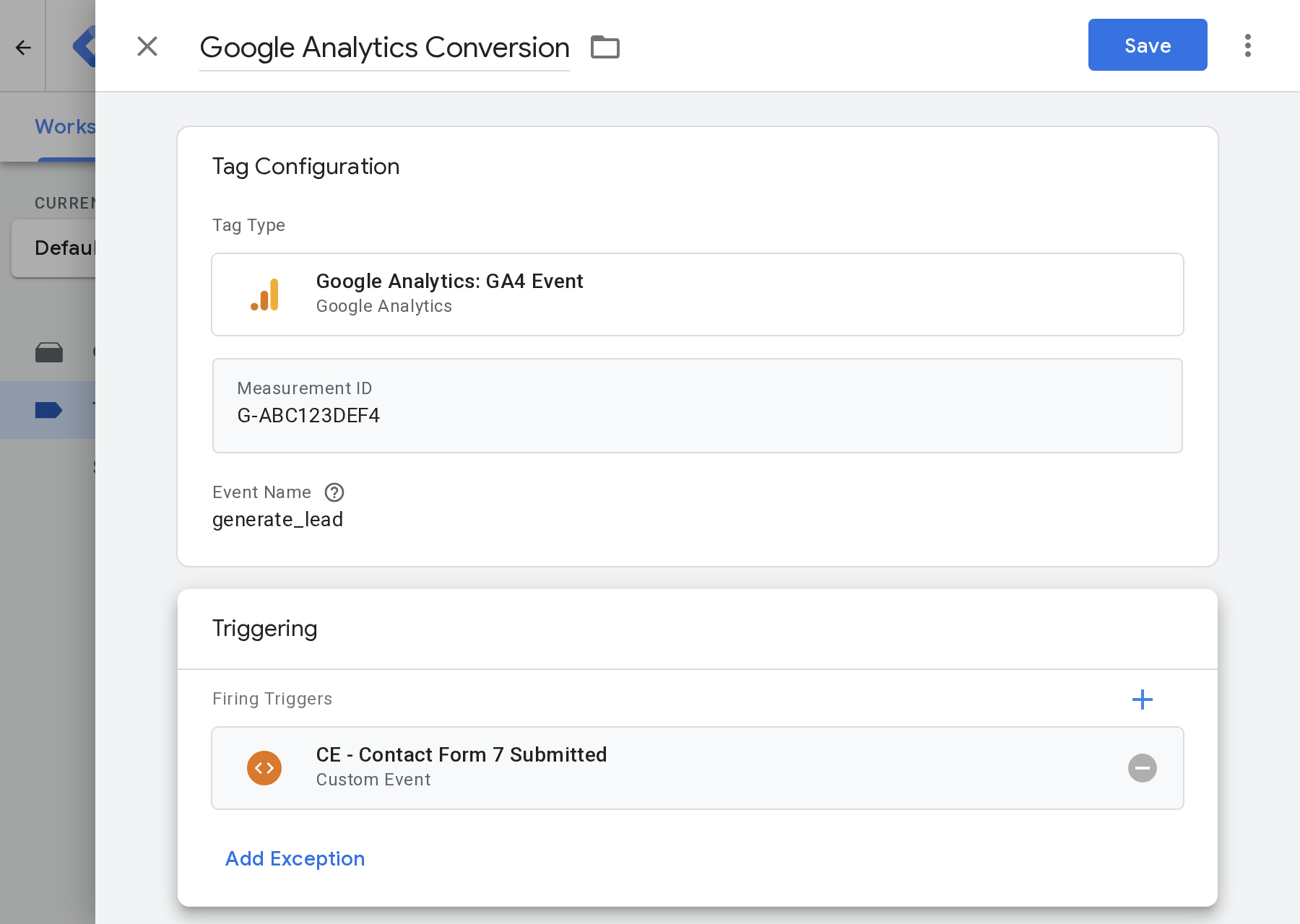
Example 1: Google Analytics
Pick Google Analytics: GA4 Event as the tag type. Enter your Measurement ID (you'll find this in the Admin section of your Google Analytics account) and an event name (something like generate_lead is a sensible choice). Finally, in the Triggering box, pick your Trigger from step 2.
From here on out, a successful Contact Form 7 form submission anywhere on your website shows up in GA4 as an event.
Example 2: Google Ads
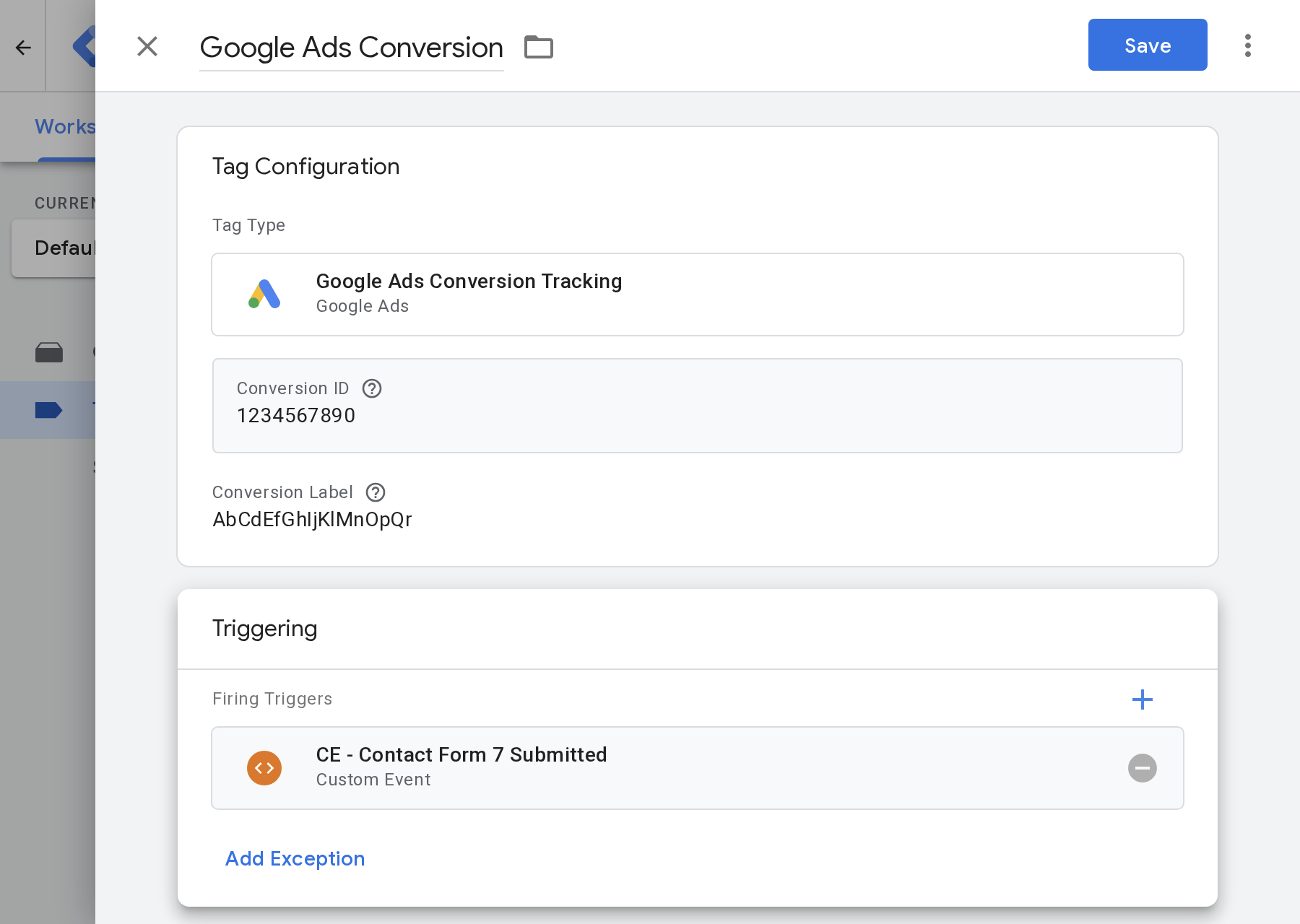
For Google Ads, make one more Tag and set its type to Google Ads Conversion Tracking. You need to enter the Conversion ID and Conversion Label of the conversion action you want to send to (you'll find these in the Goals section of your Google Ads account). Finally, select the Trigger you created in step 2 as the trigger for this conversion tag. Once that's set up, every Contact Form 7 form submission will be sent to Google Ads as a conversion.
Example 3: Meta Ads
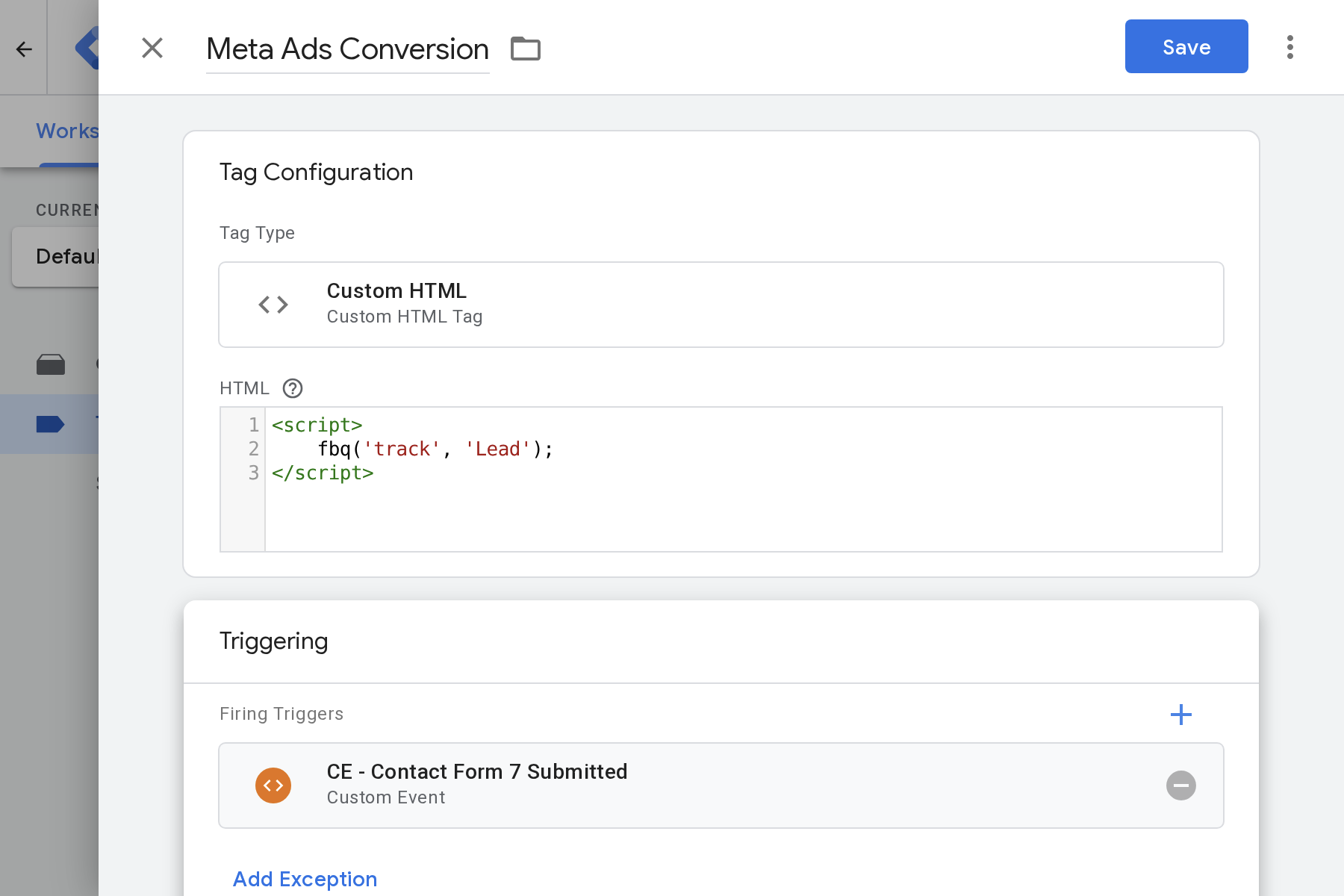
GTM has no built-in Meta tag, so you can use a Meta Pixel template from the community gallery, or a Custom HTML tag of your own that fires Meta's standard Lead event. Finally, make CE - Contact Form 7 Submitted (your Trigger from step 2) its firing trigger. Each completed Contact Form 7 form will then be recorded as a conversion event in Meta Ads.
Test in Preview Mode
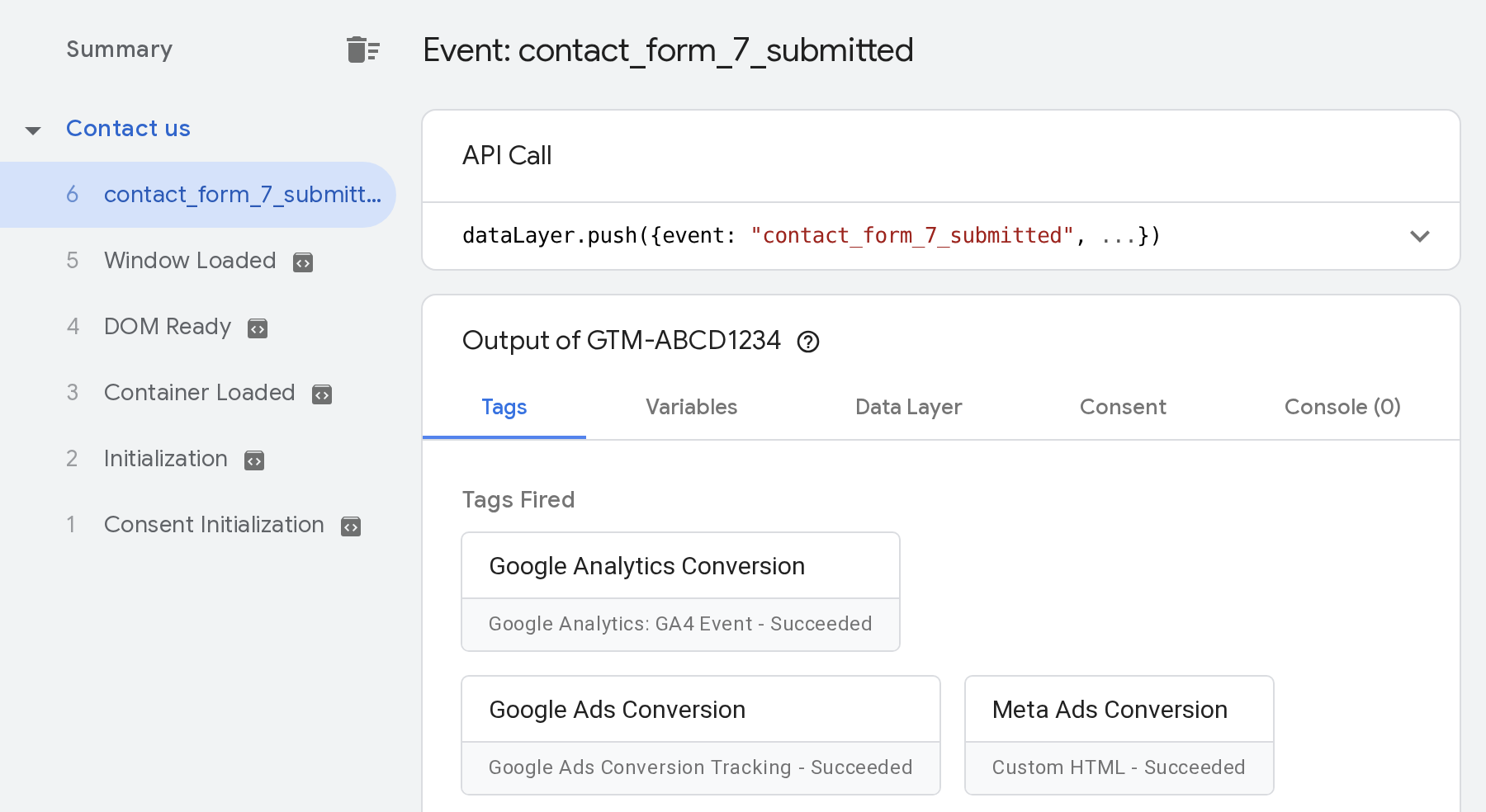
The final step is to test everything thoroughly before it goes live. Click Preview in Google Tag Manager to open your website in the GTM preview mode, browse to one of your pages that has a Contact Form 7 form, and submit the form once. Tag Assistant should then show you:
- A single
contact_form_7_submittedevent in the timeline down the left for each message sent. - Your conversion tags under Tags Fired once you click on that event.
- Your Contact Form 7 form's number against
form_id, on the Data Layer tab.
Everything as expected? Press Submit, give this new version a name, and click Publish to put this new version of your container live on the site.
What It Sends
Here's what the Contact Form 7 GTM Template adds to the dataLayer every time a Contact Form 7 form is successfully submitted on your website:
window.dataLayer.push({
  "event": "contact_form_7_submitted",
  "form_id": "42"
});| Key | Type | What It Is |
|---|---|---|
event | string | An event in the dataLayer that always has the same name (contact_form_7_submitted). This is what your GTM Trigger listens for. |
form_id | string | The ID of the Contact Form 7 form that was submitted. You can use it to fire conversion tags when certain forms are submitted, like your Request a Quote form but not your Careers form. It's the number after post= in the address bar when you edit the form in WordPress. |
Permissions & Privacy
Why Does Google Tag Manager Show a Warning?
When you look at a template in Google's gallery, it lists the permissions that template needs. Ours fetches code from Converly's servers, so expect a red "Injects scripts" warning on its listing, similar to this:
Injects scripts
https://gtm-templates.converly.io/contact-form-7-listener.jsPulls in the Contact Form 7 detection script, hosted by Converly
Why This Is Actually The Best Approach
- Secure We've locked the template to a single address,
gtm-templates.converly.io. It can't load anything from any other domain, which means only Converly's own script is able to run. - Automatic Updates Behind the template sits the Contact Form 7 detection code that Converly built and regularly checks against real Contact Form 7 forms. If Contact Form 7 ever changes the way its forms behave, we fix that one script and your site starts using the fix right away.
Compatibility
Under the hood, this listener shares its core code with the one Converly uses to detect Contact Form 7 submissions for its own customers, so it has been put through thorough testing.
| Setup | Status | Note |
|---|---|---|
| Standard form with an on-page message | Works | One event, sent once Contact Form 7 confirms the email went out. |
| Submissions Contact Form 7 rejects | Works | When Contact Form 7 returns a form with errors (a blank required field, for example), no event is sent. |
| Fixing errors and sending again | Works | Once the visitor fixes the errors and the form is accepted, one event is sent. |
| Double clicks on Send | Works | Contact Form 7 itself may save two messages, yet the listener only sends one event. |
| Forms that reload the page (non-AJAX mode) | Works | One event, sent once Contact Form 7 confirms the email went out. |
| Redirect after submit | Works | One event, sent once Contact Form 7 confirms the email went out. |
| Forms in a popup | Works | One event, sent once Contact Form 7 confirms the email went out. |
| Two forms on one page | Works | One event, sent once Contact Form 7 confirms the email went out. |
| Spam protection and honeypots | Works | Only sends an event once the form submission clears spam checks. |
Tested with Contact Form 7 6.1.6, WordPress 7.0.7, Chromium 145.0.7632.6.
Troubleshooting & FAQ
Open Preview and check that the listener tag fired when the page loaded. If it didn't, its trigger is probably the custom event rather than All Pages.
Next, watch what happens when you send the form. If the whole page reloads instead of Contact Form 7 showing its message in place, the form is running in Contact Form 7's older non-AJAX mode. That mode gives no success signal, so the event can't fire.
Contact Form 7 also only confirms a submission once its notification email has gone out. If your site has trouble sending email, Contact Form 7 reports the submission as failed and no event fires. Ad blockers can stop GTM loading too, so test in a clean browser window.
Preview runs the workspace you haven't published yet. Visitors only get your changes once you click Submit in Google Tag Manager.
Already published? A caching plugin or your host may still be serving an older copy of the page, so clear the cache and try again.
A cookie consent banner can also stop GTM loading until the visitor agrees, so people who decline won't be tracked.
No. Your Contact Form 7 forms look, validate, send email and show their messages exactly as they do now. The template only listens for the signal Contact Form 7 gives when a message has been sent.
It doesn't stop double submissions either. If someone double clicks Send, Contact Form 7 may still save two messages and send you two emails, just as it does today. The template only makes sure that counts as one conversion.
It never reads what people type into your form. All it passes to GTM is the event name and the form's number.
No. The script is very small and loads asynchronously, so your pages and forms never wait for it.
Put it in your web container, because the browser is where Contact Form 7 confirms the submission. Your GA4 tag can forward the event to a server container, but the template itself can't run in one.
Use the template if you want detection fixes to reach your site without lifting a finger. Use the recipe if you'd prefer a single import containing the tag, trigger and variable, with all of the code stored in your own container, bearing in mind it won't change until you import a newer version.
| This Template | The Recipe | |
|---|---|---|
| Adding it to GTM | A single click from the gallery | A file you download and import |
| Included | A tag only, so you build the trigger | Tag, trigger and variable bundled together |
| Code lives | On Converly's servers | Inside your container, as Custom HTML |
| Getting improvements | Happens by itself | Requires importing the latest file |
Changelog
| Version | Date | Changes |
|---|---|---|
| v1.0.0 | 2 Nov 2026 | Launch version. |
As we improve the detection script, the changes load on your site without any action from you, and each one gets logged on this page.
 Converly