


Track Jotform Submissions in Google Tag Manager with this Free GTM Recipe
A free, tested Google Tag Manager recipe that captures Jotform submissions and turns them into a trigger you can use to fire conversions to Google Ads, Google Analytics and more.

Google Tag Manager is a common way to send conversions to Google Ads, Google Analytics, etc when someone submits a Jotform form on your website.
The problem is, it's quite difficult to set up. Jotform's embeds give Google Tag Manager's built-in form submission trigger nothing to hook into, so you're left having to write custom code to detect the form submission, send an event to the dataLayer, and build a trigger on top of that.
And unless you're a developer or very experienced with Google Tag Manager, you're going to struggle.
Fortunately, there is a simple solution.
You can install this Jotform Conversion Tracking Recipe in your Google Tag Manager account and you'll have everything you need to get basic conversion tracking set up.
What Is a Google Tag Manager Recipe and What's in It?
A recipe is a pre-built bundle of Google Tag Manager assets (a tag, a trigger and a variable) that you import in one go instead of building each piece yourself. You can see all our recipes and how they work in the GTM recipe library.
This recipe detects successful Jotform submissions, sends a 'Form Submitted' event to Google Tag Manager, and gives you a Trigger you can use to send conversions to Google Analytics, Google Ads, etc. There are three parts to it, and nothing inside is hidden. Here's exactly what each piece contains, so you can see what you're importing before you import it.
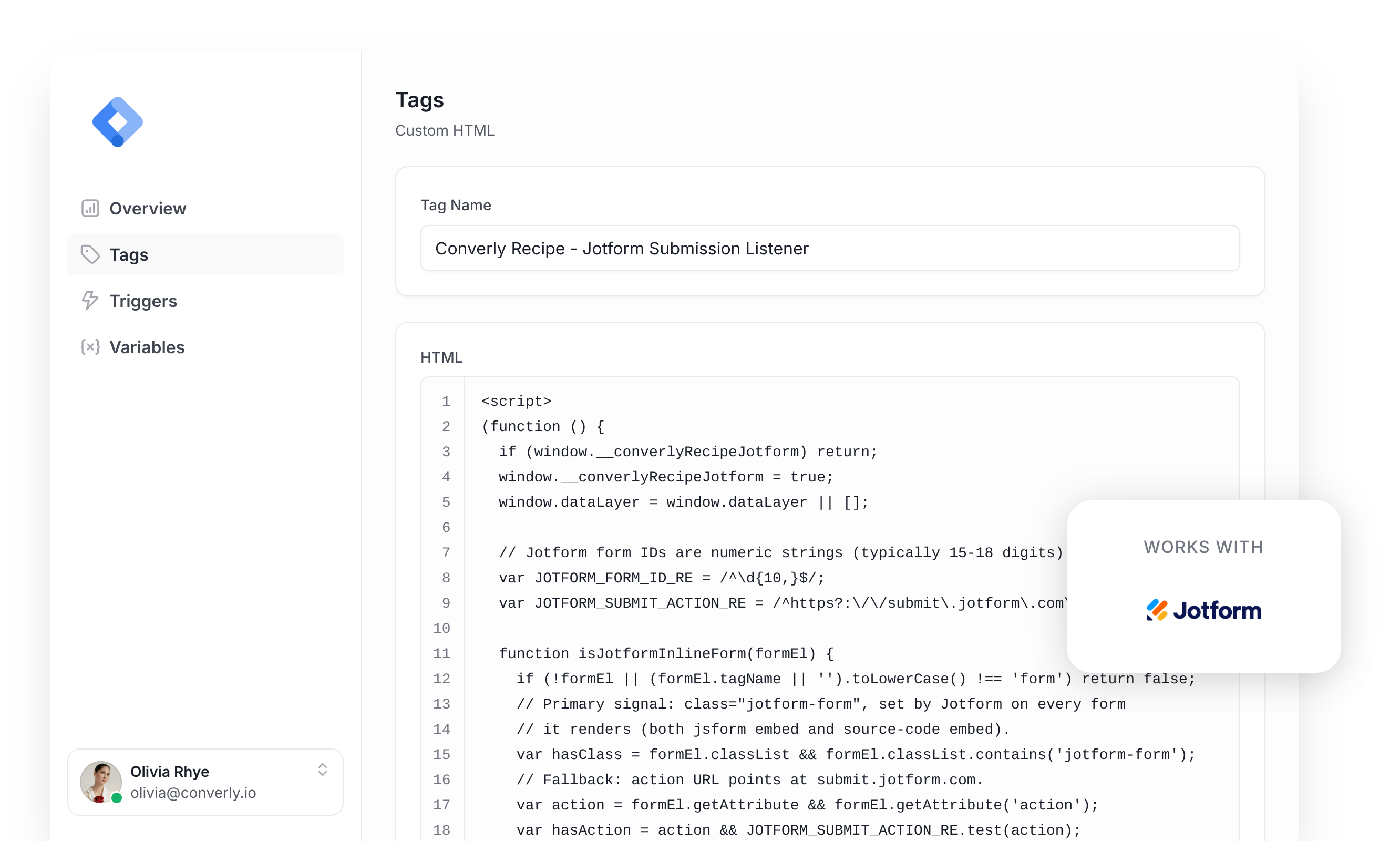
Custom HTML Tag
Listens for successful Jotform submissions and pushes a 'jotform_form_submitted' event to the dataLayer. It fires on All Pages, once per event, and this is the code inside it.
(function () {
  if (window.__converlyRecipeJotform) return;
  window.__converlyRecipeJotform = true;
  window.dataLayer = window.dataLayer || [];

  // Jotform form IDs are numeric strings (typically 15-18 digits).
  var JOTFORM_FORM_ID_RE = /^\d{10,}$/;
  var JOTFORM_SUBMIT_ACTION_RE = /^https?:\/\/submit\.jotform\.com\//i;

  function isJotformInlineForm(formEl) {
    if (!formEl || (formEl.tagName || '').toLowerCase() !== 'form') return false;
    // Primary signal: class="jotform-form", set by Jotform on every form
    // it renders (both jsform embed and source-code embed).
    var hasClass = formEl.classList && formEl.classList.contains('jotform-form');
    // Fallback: action URL points at submit.jotform.com.
    var action = formEl.getAttribute && formEl.getAttribute('action');
    var hasAction = action && JOTFORM_SUBMIT_ACTION_RE.test(action);
    if (!hasClass && !hasAction) return false;
    // The form's `id` attribute IS the Jotform form ID.
    var id = formEl.id || '';
    if (!JOTFORM_FORM_ID_RE.test(id)) return false;
    return true;
  }

  function fireConversion(formId) {
    window.dataLayer.push({
      event: 'jotform_form_submitted',
      form_id: formId || ''
    });
  }

  // Per page load: which Jotform forms the visitor has tried to submit, and
  // which have already fired. Jotform navigates away on success, so one
  // conversion per form per page load is the most there can ever be.
  var attempted = {};
  var fired = {};

  // Step 1, arm. The visitor tried to submit a Jotform form. Jotform turns
  // off the browser's own validation, so this runs on every click, valid or
  // not. On its own it is NOT a conversion.
  document.addEventListener('submit', function (event) {
    var formEl = event.target;
    if (!isJotformInlineForm(formEl)) return;
    attempted[formEl.id] = true;
  }, true);

  // Step 2, fire. The browser is actually sending that form. The standard
  // `formdata` event only fires while a real submission is being built,
  // which Jotform only allows once its own validation has passed, and it
  // fires before the page navigates away. A blocked attempt never gets here.
  document.addEventListener('formdata', function (event) {
    var formEl = event.target;
    if (!isJotformInlineForm(formEl)) return;
    if (!attempted[formEl.id] || fired[formEl.id]) return;
    fired[formEl.id] = true;
    fireConversion(formEl.id);
  }, true);
})();Variable
Captures the ID of the form that was submitted, ready to reference in any tag. These are its exact settings.
Name
DLV - Jotform Form ID
Variable Type
Data Layer Variable
Data Layer Variable Name
form_id
Trigger
Fires when the 'jotform_form_submitted' event is received. Use it as the trigger for any conversion tag. These are its exact settings.
Name
CE - Jotform Submitted
Trigger Type
Custom Event
Event Name
jotform_form_submitted
Download This Recipe
Get the ready-to-import file and upload it into Google Tag Manager. Everything shown above (the tag, the variable and the trigger) comes pre-built inside.
Built from Converly's own Jotform detection code
Why It's the Best Recipe Out There
It is built from the same detection code we use in our own conversion tracking product, Converly, just adapted to run inside Google Tag Manager.
How to Use the Jotform GTM Recipe
Install the Recipe
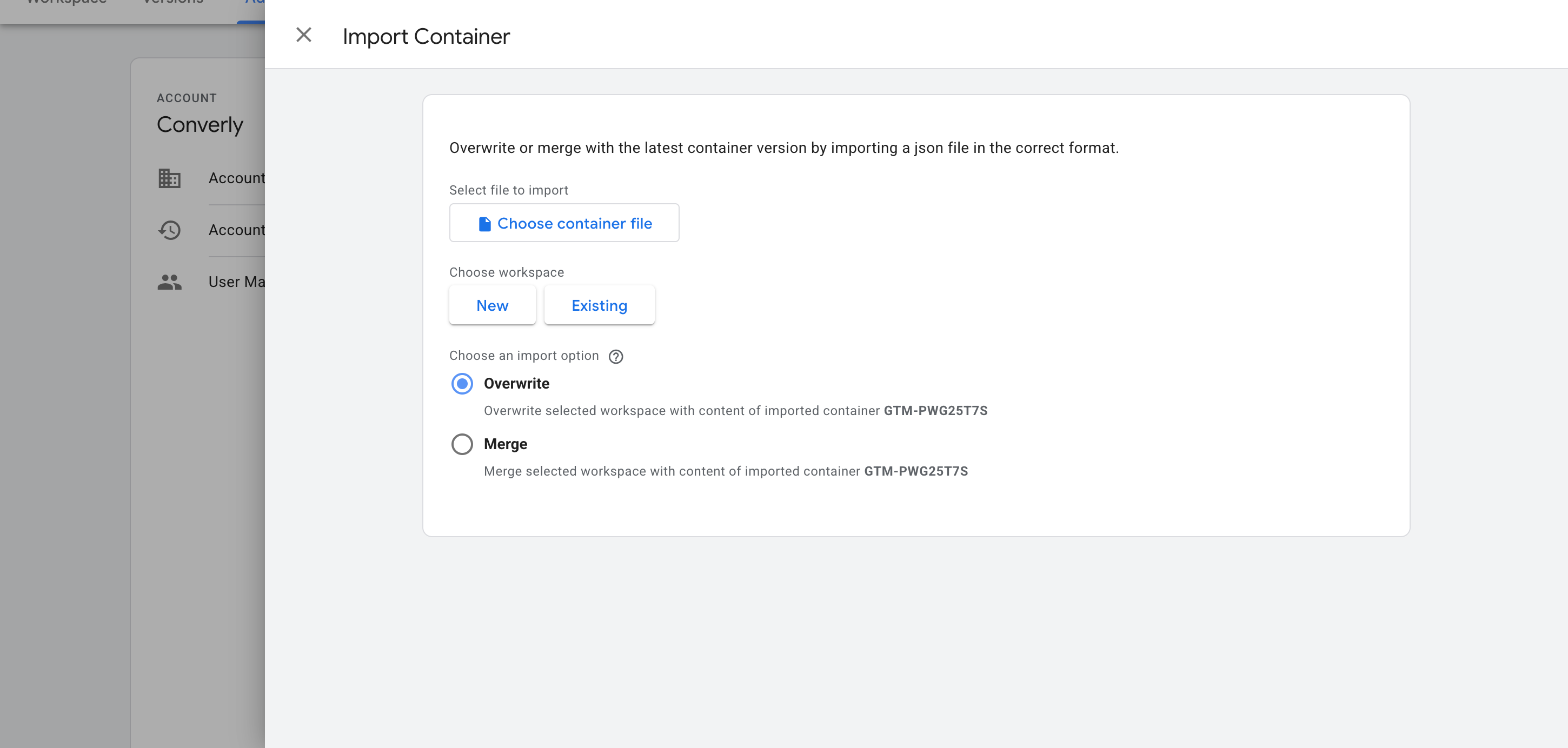
Download the recipe using the form above, then import it into your Google Tag Manager container. To do, open your Google Tag Manager account, head to Admin, choose Import Container, select the downloaded file, and pick the Merge option (so it doesn't overwrite anything already in your container). The listener, variable and trigger are added for you automatically.
Configure Your Tags
Now that the recipe is installed, you can use it as a Trigger for your conversion tags. Here are two common examples.
Example 1: Google Analytics
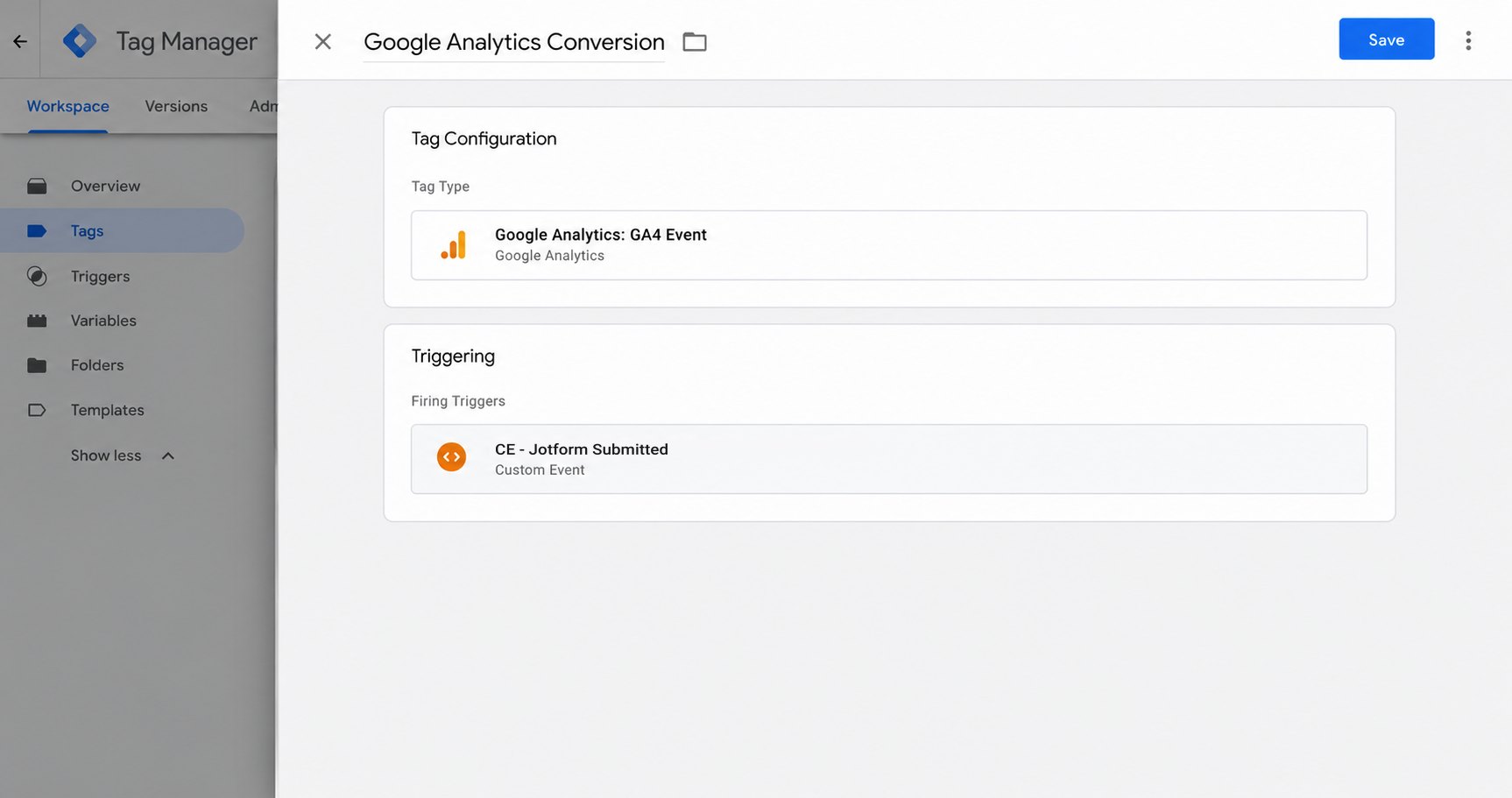
Create a GA4 event tag and set the Trigger that the recipe gives you (called CE - Jotform Submitted) as the firing trigger. Every Jotform submission now sends an event to Google Analytics.
Example 2: Google Ads
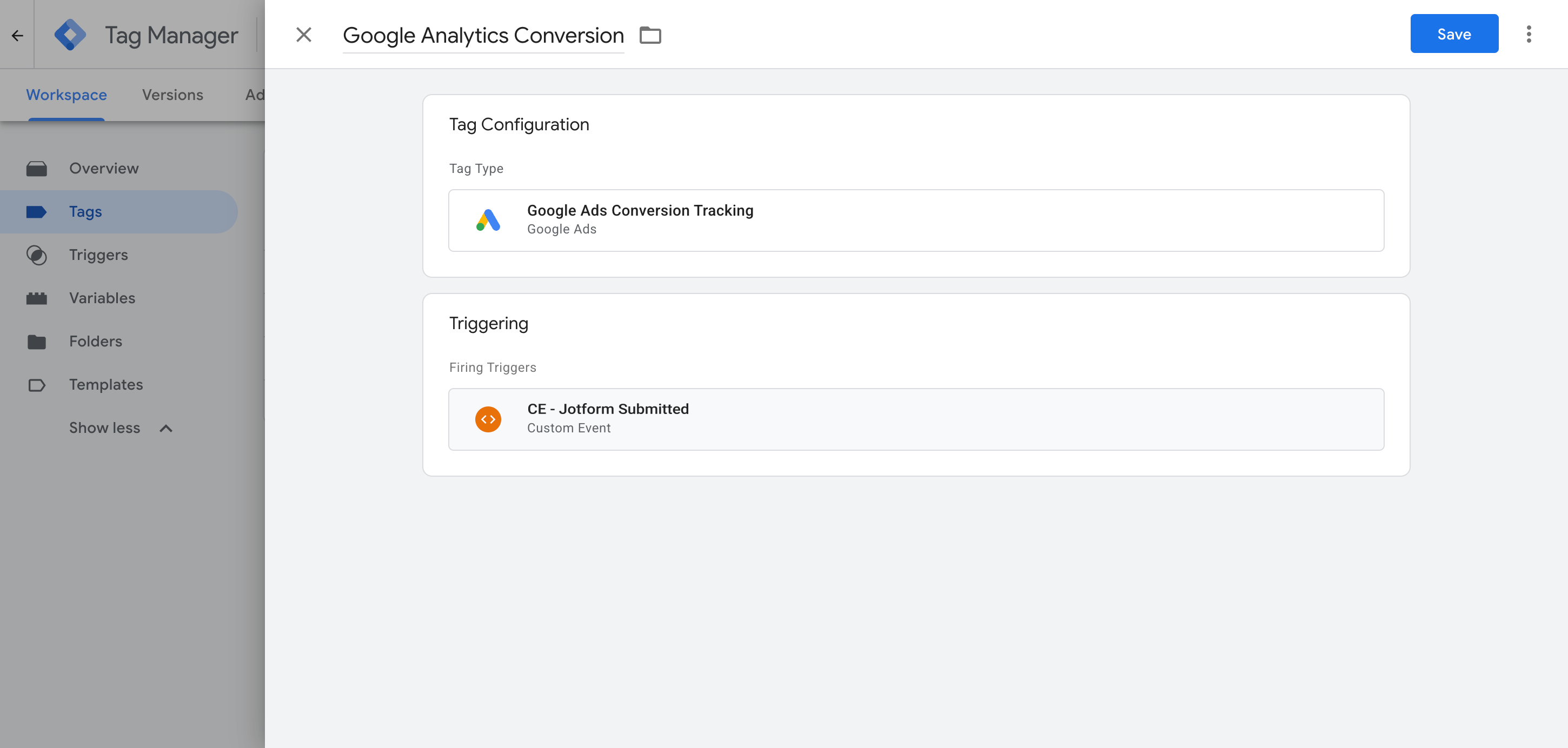
Add a Google Ads conversion tag and set it to fire on the Trigger the recipe gives you. That will send a conversion to Google Ads whenever a Jotform is submitted on your site.
What This Enables You to Do (and What It Doesn't)
This recipe fires an event in Google Tag Manager whenever a Jotform submission is detected. You can use that as a trigger to send conversions to Google Ads, Google Analytics and other tags. Here's some specifics:
What it does
Sends an Event to GTM
Detects successful Jotform submissions and pushes an event called 'jotform_form_submitted' into your dataLayer automatically.
Tells You Which Form Fired
Captures the ID of the form that was submitted, so a site with several forms can fire different tags for different forms.
Creates a Trigger in GTM
Gives you a 'Trigger' in Google Tag Manager which you can use as the trigger for any of your conversion tags.
What it doesn't do
Doesn't send the conversion server-side
Everything happens in the visitor's browser, so if they have an ad blocker installed or are using privacy-focused browsers like Safari or Firefox then this won't work very well.
No Click IDs or Identifiers
It does not capture the Google click ID, Facebook click ID, Meta pixel cookies, IP address or user agent, which ad platforms need for Enhanced Conversions (Google) or a proper Event Match Quality score (Meta).
No Personal Details
The script only fires an event. It does not capture the lead's name, email or phone number, all of which Google and Meta require for enhanced conversions and a high match score.
No Logging or Notifications
You can test it with Tag Assistant on install, but unless you check every week you have no way of knowing if it breaks. You'll just see 0 conversions in your ad accounts, and Google, Meta, etc will start spending wildly to try to get your conversions back up.
Work with Jotform's iFrame or JavaScript Embeds
It only tracks Jotform's Source Code embed, where the form sits directly on your page. The iFrame and JavaScript embeds load the form in a sealed box your browser can't see into, so Google Tag Manager cannot detect a form submission (you need to ping the Jotform API, which GTM can't do).
The Proper Way to Send Conversions to Google Ads, Meta Ads & More
This recipe is fine if you use Jotform's Source Code embed method and only send events to Google Analytics, which does not accept personal information or IP addresses. But to get a good Event Match Quality (EMQ) score in Meta, or use Enhanced Conversions in Google, you need to send the data server-side, together with the lead's name and email. That is what Converly does.
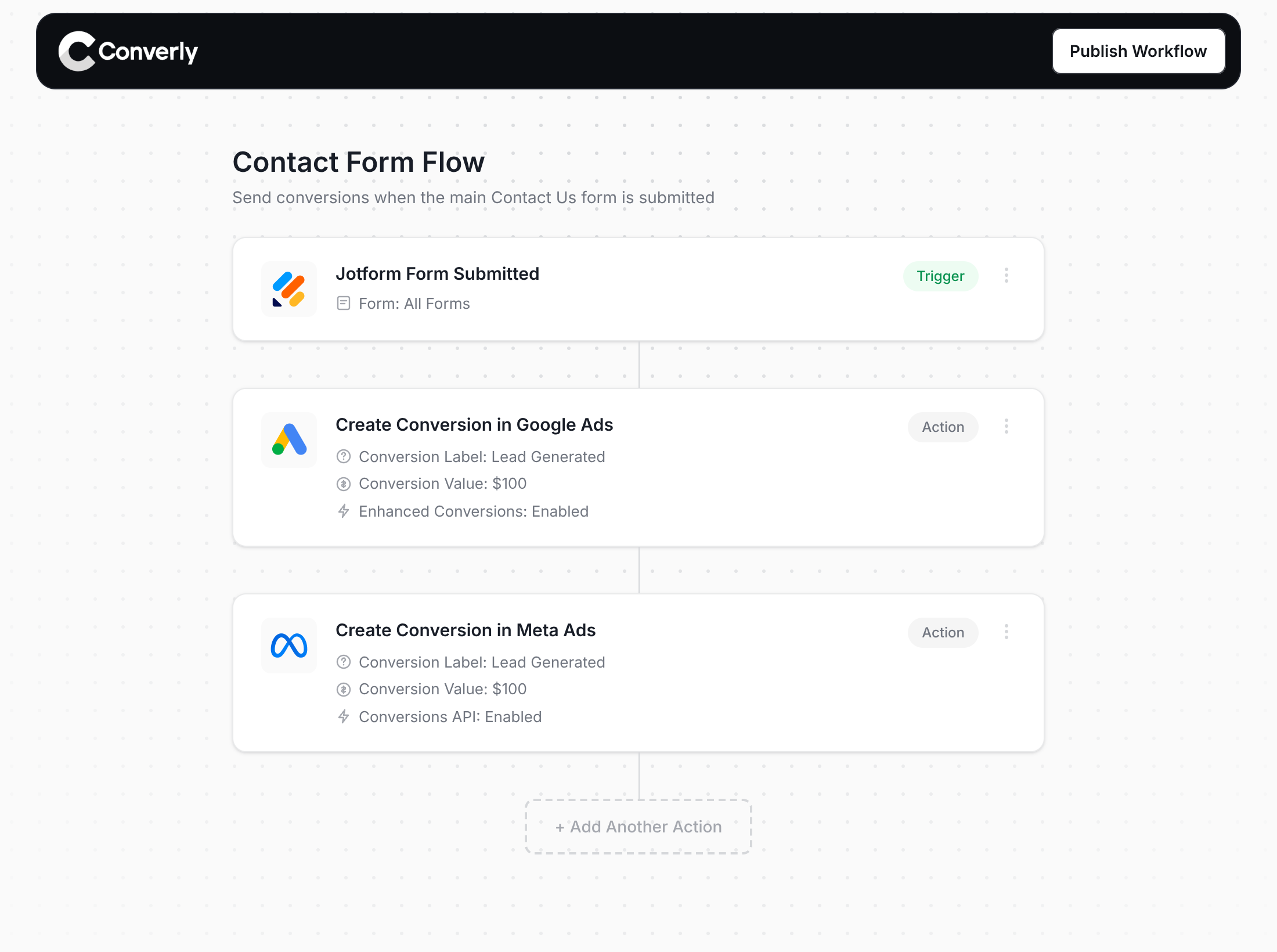
Here's why Converly is the best way to send conversions to Google Ads, Meta Ads, Microsoft Ads, LinkedIn Ads, etc.
Easy to set up
Converly gives you a simple drag-and-drop builder you can use to build a Conversion Flow. Simply select a trigger (like a Jotform form being submitted) and then select your actions (like sending a conversion to Google Ads). Or if you use an AI assistant like Claude or ChatGPT, you can connect those and simply say 'Send conversions to Google Ads from Jotform' and it will handle it all for you.
Works with Every Jotform Embed
Google Tag Manager can only track submissions when your form is embedded using the Source Code method. Converly works with all three of Jotform's embed methods, including the more common iFrame and JavaScript embeds. That's because Converly stamps a hidden tracking ID onto the form when it's submitted, then uses the Jotform API to get all the data, so it works even when Google Tag Manager doesn't.
Sends Data Server-Side
Instead of sending conversions through the visitor's browser as Google Tag Manager does, Converly sends conversions directly from its servers to Google, Meta, etc. This means ad blockers and privacy restrictions can't get in the way and you get much more accurate conversion tracking.
Sends More Data
It captures the lead's name, email and phone plus the Google and Facebook click IDs, IP address and user agent, and sends them with every conversion. That enables Enhanced Conversions in Google Ads, or gives you an Event Match Quality (EMQ) score of 9 or 10 in Meta.
Full Conversion Log & Email Notifications
See every conversion, what was captured, what was sent to each platform and whether it was successfully received or not. You can even set up email alerts so tracking can't break without you knowing.
Supports Multiple Tools & Destinations
Detects submissions across 80+ form, scheduling and chat tools and sends to 20+ destinations including Google Ads, Meta, LinkedIn, ChatGPT, Microsoft and TikTok. So if you ever add a new tool or start advertising on a new platform, setting up conversion tracking is just a few clicks.
Provides Free Support
Our team has 20 years of experience in conversion tracking and analytics and is here to help whenever you need it. With Google Tag Manager, you're on your own.
Start Your Free Trial
Start a 14-day free trial and track your conversions the proper way. No code, no complicated configuration.
About the author
Aaron is the founder of Converly. With over 15 years of experience in digital marketing and SaaS, he's passionate about helping businesses track and optimise their ad conversions.