


Track Fillout Form Submissions in Google Tag Manager with this Free GTM Recipe
Free Google Tag Manager recipe that detects Fillout form submissions and gives you a Trigger in Google Tag Manager you can use to fire conversions to Google Ads, GA4 and more.

Want Google Tag Manager to send a conversion to Google Ads, Google Analytics, etc. every time someone completes a Fillout form on your website?
It can definitely do that, but the problem is that Fillout forms are hard to track. Every Fillout embed (standard, pop-up, slider or full-screen) loads the form inside an iFrame, so Google Tag Manager can't see the form at all (and its built-in Form Submission trigger never fires). On top of that, Fillout is sending many browser messages as someone interacts with your forms (when it loads, when it opens, every time they move to the next page, etc.), and you need to make sure you are using the right one to trigger a conversion.
Because of this, you'd typically have to write your own code that listens for the right Fillout message, pushes an event to the dataLayer, and then build a trigger around it. Thankfully though, there's an easier way.
Just import this Fillout Conversion Tracking Recipe into your Google Tag Manager account and you'll have everything you need for basic conversion tracking.
What Is a Google Tag Manager Recipe and What's in It?
Rather than building a tag, a trigger and a variable in Google Tag Manager yourself, a recipe gives you all three pre-built in a single file. Import it into your account and you've got the building blocks of a proper conversion tracking setup.
This specific recipe detects successful Fillout Form submissions, sends a 'Form Submitted' event to Google Tag Manager, and gives you a Trigger you can use to send conversions to Google Analytics, Google Ads, etc. Here's what's in it:
Custom HTML Tag
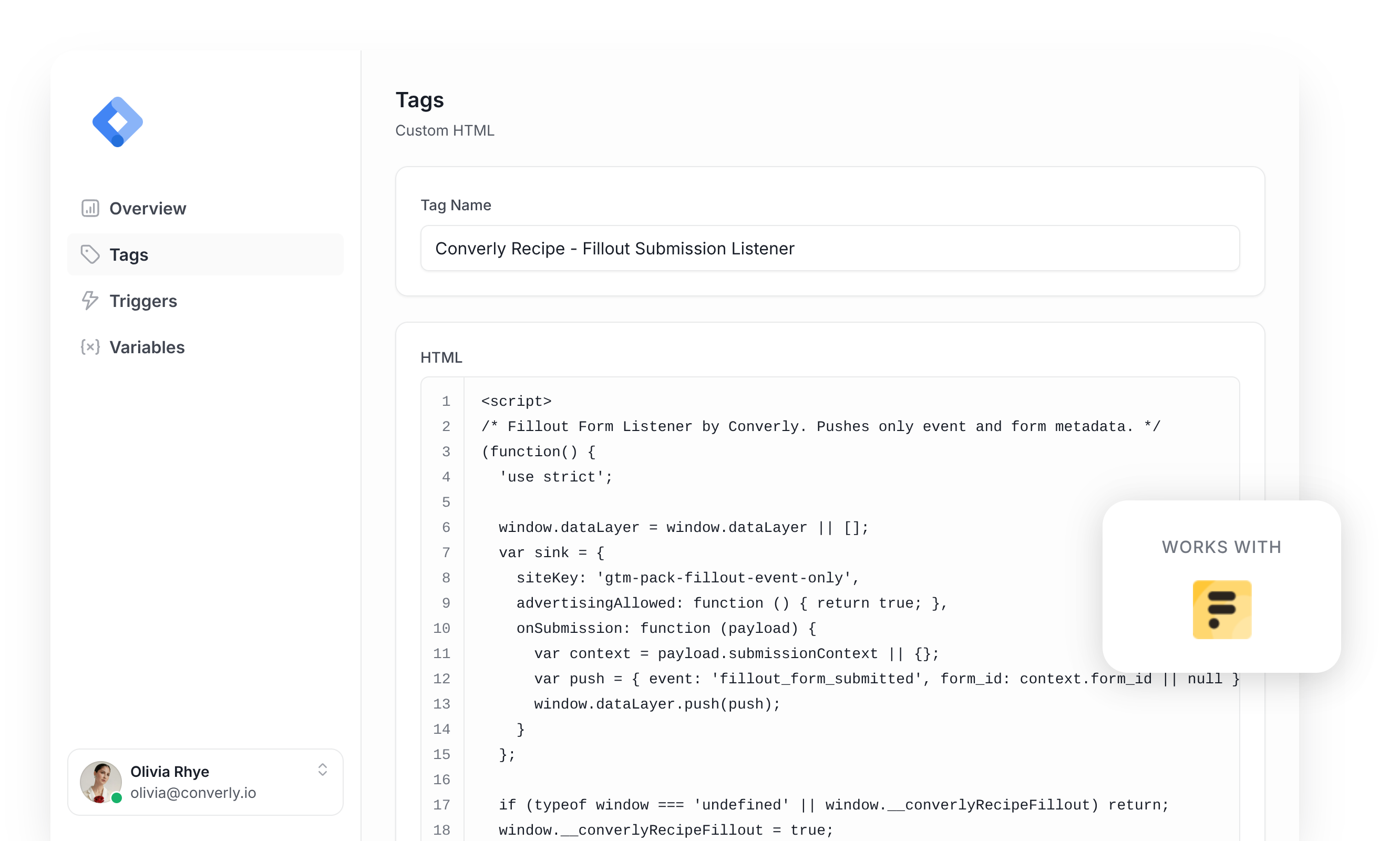
Listens for the message Fillout sends once a submission is successful and pushes a 'fillout_form_submitted' event to the dataLayer. It fires on All Pages, once per event, and this is the code inside it:
/* Fillout Form Listener by Converly. Pushes only event and form metadata. */
(function() {
  'use strict';

  window.dataLayer = window.dataLayer || [];
  var sink = {
    siteKey: 'gtm-pack-fillout-event-only',
    advertisingAllowed: function () { return true; },
    onSubmission: function (payload) {
      var context = payload.submissionContext || {};
      var push = { event: 'fillout_form_submitted', form_id: context.form_id || null };
      window.dataLayer.push(push);
    }
  };

  if (typeof window === 'undefined' || window.__converlyRecipeFillout) return;
  window.__converlyRecipeFillout = true;

  function consentAllows() {
    try {
      var c = sink;
      return !(c && typeof c.advertisingAllowed === 'function' && c.advertisingAllowed() === false);
    } catch (e) { return true; }
  }

  var SENSITIVE_AUTOCOMPLETE = {
    'current-password': true, 'new-password': true, 'one-time-code': true,
    'cc-number': true, 'cc-csc': true, 'cc-exp': true, 'cc-exp-month': true,
    'cc-exp-year': true, 'cc-name': true, 'cc-given-name': true,
    'cc-family-name': true, 'cc-additional-name': true, 'cc-type': true,
  };

  var SENSITIVE_NAME_SUBSTRINGS = [
    'password', 'passwd', 'passcode', 'cardnum', 'ccnumber', 'creditcard',
    'onetimecode', 'securitycode', 'socialsecurity',
  ];
  var SENSITIVE_NAME_TOKENS = {
    otp: true, cvv: true, cvc: true, ssn: true, pwd: true, pin: true,
  };

  function isSensitiveName(name) {
    if (!name) return false;
    var lower = String(name).toLowerCase();
    var norm = lower.replace(/[^a-z0-9]/g, '');
    for (var i = 0; i < SENSITIVE_NAME_SUBSTRINGS.length; i++) {
      if (norm.indexOf(SENSITIVE_NAME_SUBSTRINGS[i]) !== -1) return true;
    }
    var parts = lower.split(/[^a-z0-9]+/);
    for (var p = 0; p < parts.length; p++) {
      if (SENSITIVE_NAME_TOKENS[parts[p]] === true) return true;
    }
    return false;
  }

  function isSensitiveField(type, autocomplete, name) {
    if (type === 'password') return true;

    if (autocomplete) {
      var tokens = autocomplete.split(/\s+/);
      for (var t = 0; t < tokens.length; t++) {
        if (SENSITIVE_AUTOCOMPLETE[tokens[t]] === true) return true;
      }
    }
    if (isSensitiveName(name)) return true;
    return false;
  }

  function object(value) {
    if (value === null || typeof value !== 'object' || Array.isArray(value)) return false;
    var proto = Object.getPrototypeOf(value);

    return proto === Object.prototype || proto === null;
  }

  function extractAnswers() { return { userData: {}, formFieldsSeen: [] }; }

  var ORIGIN = 'https://embed.fillout.com';
  function frameUrl(frame) {
    try {
      var src = frame.getAttribute('src');
      if (!src) return null;
      var url = new URL(src, document.baseURI);
      if (url.username || url.password || url.origin !== ORIGIN) return null;
      return url;
    } catch (e) { return null; }
  }

  var frames = [];
  var trackerStarted = false;
  function scan() {
    frames = [];
    var candidates = document.querySelectorAll('iframe');
    for (var i = 0; i < candidates.length; i++) {
      if (frameUrl(candidates[i])) frames.push(candidates[i]);
    }
  }
  function startTracker() {
    if (trackerStarted || !document.documentElement) return;
    trackerStarted = true;
    scan();
    if (typeof MutationObserver !== 'undefined') {
      new MutationObserver(scan).observe(document.documentElement, {
        childList: true, subtree: true, attributes: true, attributeFilter: ['src']
      });
    }
  }
  function boundUrl(source) {
    for (var i = 0; i < frames.length; i++) {
      try {
        if (document.documentElement.contains(frames[i]) && frames[i].contentWindow === source) {
          var url = frameUrl(frames[i]);
          if (url) return url;
        }
      } catch (e) {  }
    }
    return null;
  }

  var seen = Object.create(null);
  function handleMessage(event) {
    try {
      if (!event || !event.source || event.source === window || event.isTrusted !== true) return;
      if (event.origin !== ORIGIN || !consentAllows()) return;
      var message = event.data;
      if (!object(message) || message.type !== 'form_submit' ||
          typeof message.submissionUuid !== 'string' || !message.submissionUuid.trim() ||
          !Array.isArray(message.questions)) return;
      var url = boundUrl(event.source);
      if (!url) return;
      var loader = sink;
      if (!loader || typeof loader.onSubmission !== 'function' || !consentAllows()) return;
      var id = message.submissionUuid;
      if (Object.prototype.hasOwnProperty.call(seen, id)) return;

      var match = /^\/t\/([a-zA-Z0-9_-]+)\/?$/.exec(url.pathname);
      var context = match ? { form_id: match[1] } : {};
      var extracted = extractAnswers(message.questions);
      if (!consentAllows()) return;
      seen[id] = true;
      loader.onSubmission({
        trigger: 'fillout-forms', pageUrl: window.location.pathname,
        userData: extracted.userData, formFieldsSeen: extracted.formFieldsSeen,
        submissionContext: context
      });
    } catch (e) {  }
  }

  window.addEventListener('message', handleMessage, false);
  startTracker();
  if (!trackerStarted) document.addEventListener('DOMContentLoaded', startTracker, false);

})();Variable
Captures the ID of the Fillout form that was completed and can be used to filter your conversion tags by form (so you can send a conversion when someone completes your Quote Request form but not your Support Request form). These are its exact settings:
Name
DLV - Fillout Form ID
Variable Type
Data Layer Variable
Data Layer Variable Name
form_id
Trigger
Fires each time the 'fillout_form_submitted' event arrives. You can use it as a trigger for your conversion tags for Google Analytics, Google Ads, etc. These are its exact settings:
Name
CE - Fillout Form Submitted
Trigger Type
Custom Event
Event Name
fillout_form_submitted
Download This Recipe
Upload this file to Google Tag Manager and you're set. You'll get a pre-built conversion tracking setup for Fillout Forms.
Built from Converly's own Fillout detection code
Why It's the Best Recipe Out There
It comes from the same detection code that powers our own conversion tracking product, Converly, just reworked to run inside Google Tag Manager.
How to Use the Fillout GTM Recipe
Install the Recipe
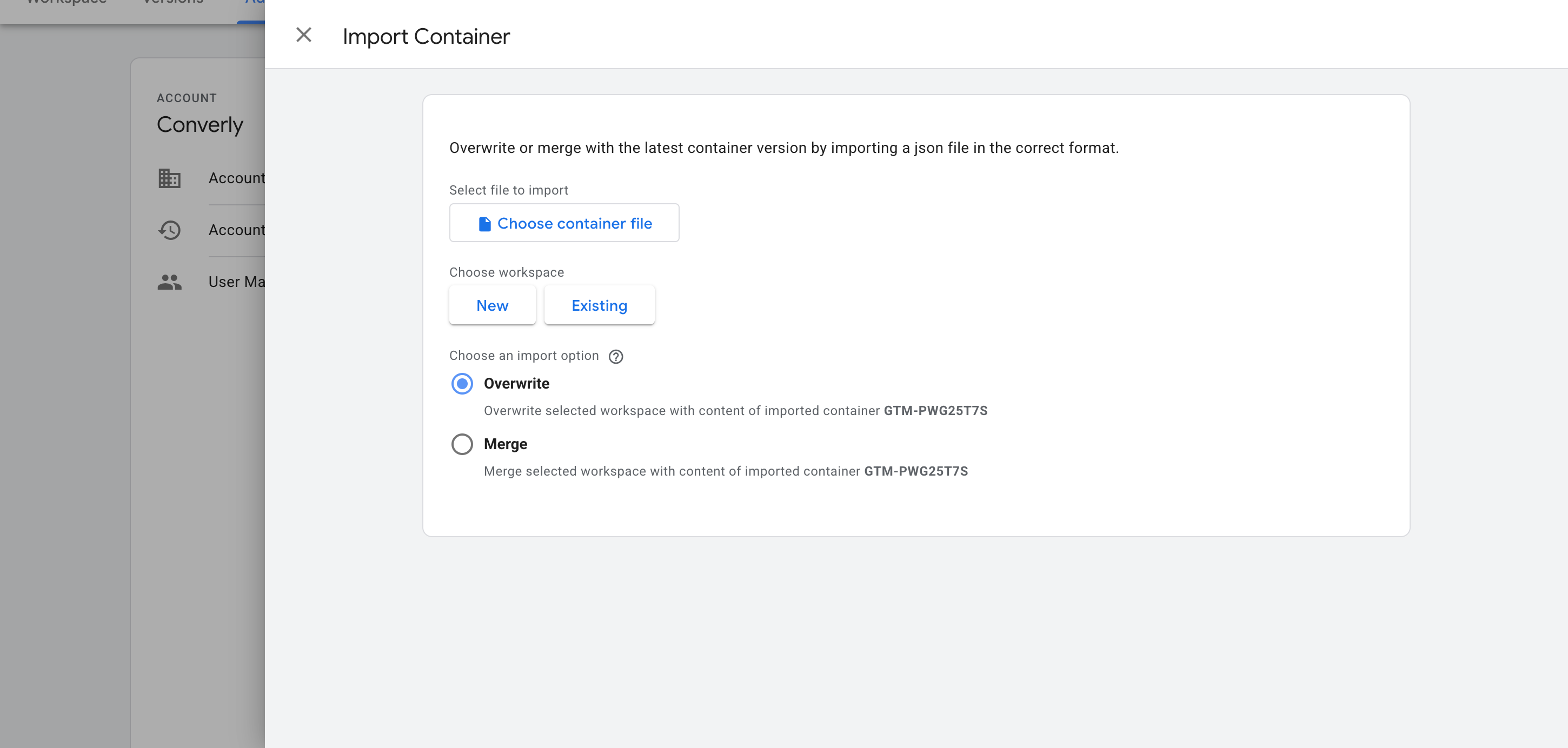
Fill in the form above to download the recipe, then import it into your Google Tag Manager container. To import it, go to Admin, click Import Container, choose the file you downloaded and select Merge (so nothing already in your container is overwritten). GTM then adds the listener, variable and trigger to your account for you.
Configure Your Tags
Once the recipe is in your container, its Trigger can be used to fire any of your conversion tags. Here's how to set up two of the most common ones:
Example 1: Google Analytics
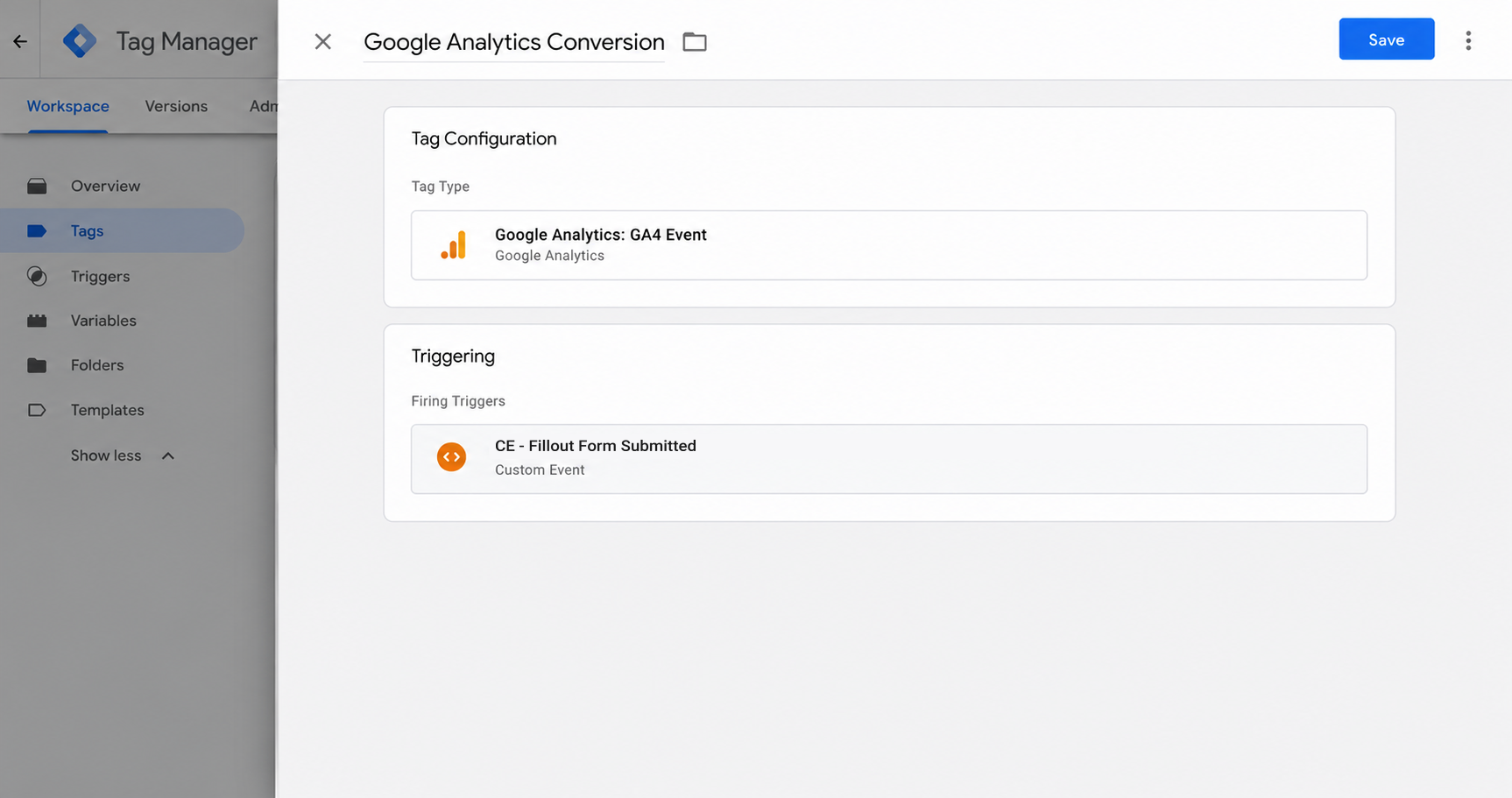
Create a GA4 event tag, give the event a name like generate_lead, and under the Triggering section pick the recipe's trigger (called CE - Fillout Form Submitted). Each Fillout response will then show up as an event in Google Analytics.
Example 2: Google Ads
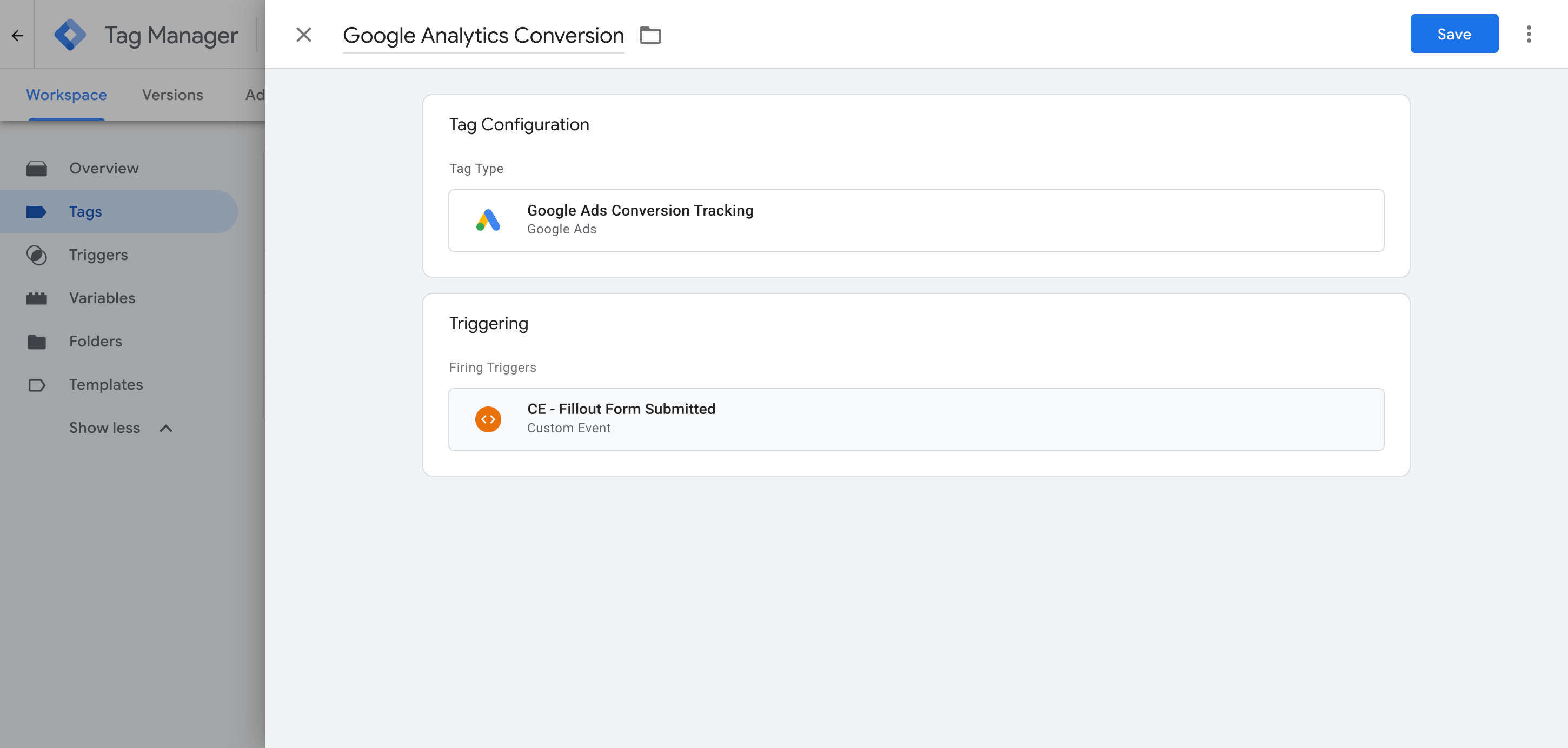
Add a Google Ads conversion tag with your conversion ID and label, then under Triggering select the recipe's trigger (called CE - Fillout Form Submitted). Every completed Fillout form is then sent to Google Ads as a conversion.
What This Enables You to Do (and What It Doesn't)
Each successful Fillout form submission shows up in Google Tag Manager as its own event. You can then use that event as the trigger for your Google Ads, Google Analytics or other conversion tags.
What it does
Sends an Event to GTM
Detects successful Fillout Forms submissions and pushes an event called 'fillout_form_submitted' into your dataLayer automatically.
Tells You Which Form Fired
Picks up the ID of the Fillout form the visitor completed and sends it along with the event, so if you have both a quote request form and a complaint form on your website, you can select which one fires a conversion and which one doesn't.
Creates a Trigger in GTM
Adds a 'Trigger' to Google Tag Manager that any of your conversion tags can fire on.
What it doesn't do
Send the conversion server-side
It all runs in the visitor's browser, which means ad blockers can stop the Google tag from loading (so nothing the visitor does gets tracked). Similarly, privacy restrictions in browsers like Safari can cut the link between the ad click and a conversion after just a few days (which means the conversion won't appear in your reports, even though it is sent to Google Ads).
No Click IDs or Identifiers
It doesn't collect the Google click ID, Facebook click ID, Meta pixel cookies, IP address or user agent, which ad platforms depend on for Enhanced Conversions (Google) or a solid Event Match Quality score (Meta).
No Personal Details
The script just fires an event. It never passes along the lead's name, email or phone number, which Google and Meta both use to match a conversion to a real person and the ad they clicked.
No Logging or Notifications
You can check it in GTM's Preview mode when you set it up, but unless you look again every week, it can stop working without you noticing (until your ad platforms start showing 0 conversions).
The Proper Way to Send Conversions to Google Ads, Meta Ads & More
If you are wanting to send conversions to ad platforms like Google and Meta, then you need to be sending more than just a 'form submitted' event. You also need to capture and send the lead's name, email, phone, click ID, IP address and more (ad platforms use this to match a conversion back to a real person and the original ad they clicked). Converly makes that easy.
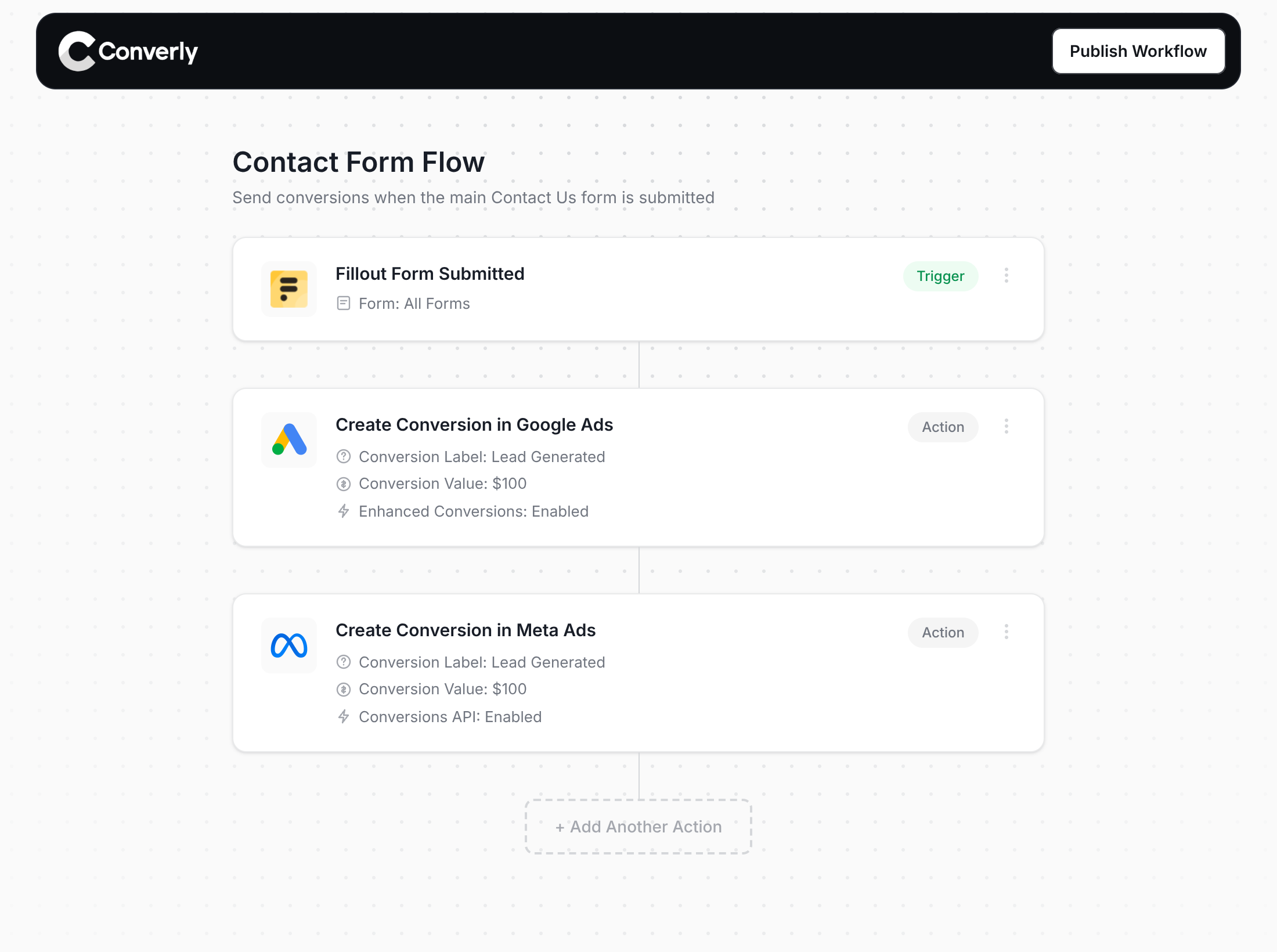
Here's why Converly is the best way to send conversions to Google Ads, Meta Ads, ChatGPT Ads, Microsoft Ads, LinkedIn Ads, etc. from Fillout Forms.
Easy to set up
Converly's drag-and-drop builder makes it easy to set up your conversion tracking. Choose a trigger (a Fillout form being completed) and choose your actions (sending a conversion to Google Ads). There's no complicated configuration and no custom code to write and maintain (we do all that for you).
Sends Data Server-Side
Converly sends each conversion straight from its own servers to Google, Meta and the others. This means your conversion tracking doesn't rely on the visitor's browser, so ad blockers and privacy restrictions can't block it.
Sends More Data
It collects the lead's name, email and phone along with the Google and Facebook click IDs, IP address and user agent, and includes them with every conversion. That switches on Enhanced Conversions in Google Ads and gets you an Event Match Quality (EMQ) score of 9 or 10 in Meta.
Full Conversion Log & Email Notifications
Every conversion is logged, showing what data was captured, what went to each platform, and whether it was received successfully. Email alerts warn you if something breaks, so your tracking can never fail without you knowing.
Supports Multiple Tools & Destinations
Fillout Forms is one of 100+ form, scheduling and chat tools Converly can detect, and it sends conversions to 20+ destinations such as Google Ads, Meta, ChatGPT, LinkedIn, Microsoft and TikTok. So when you add a new tool to your site or try a new ad platform, setting up conversion tracking is easy.
Provides Free Support
Our team brings 20 years of conversion tracking and analytics experience and is on hand whenever you need help (you can contact us via email or book a call from within the app). With Google Tag Manager, you're on your own (Google doesn't provide support for Google Tag Manager).
Start Your Free Trial
Start a 14-day free trial and track your conversions the proper way. No code, no complicated configuration.
About the author
Aaron is the founder of Converly. With over 15 years of experience in digital marketing and SaaS, he's passionate about helping businesses track and optimise their ad conversions.