


Track ClickFunnels Form Submissions in Google Tag Manager with this Free GTM Recipe
A free, tested Google Tag Manager recipe that detects successful form submissions on your ClickFunnels funnels and gives you a trigger for sending conversions to Google Ads, Google Analytics and more.

Want to send a conversion to Google Ads, Google Analytics, etc. whenever someone completes a form on one of your ClickFunnels funnel steps?
The problem you might have run into is that ClickFunnels opt-ins are awkward to track. When a visitor clicks the opt-in button, ClickFunnels doesn't submit the form the normal way. It sends the contact to its own servers in the background, waits to hear whether the details were accepted, and only then moves the visitor on to the next step in the funnel. This means that Google Tag Manager's built-in Form Submission trigger doesn't work, and to get it properly set up you need to write custom code that waits for ClickFunnels to accept the contact and sends an event to the dataLayer (and then you need to build a Trigger in GTM on top of that event).
Unless you write code for a living or know Google Tag Manager inside out, that's going to be a struggle.
Thankfully, there's an easier option.
Import this ClickFunnels Conversion Tracking Recipe into your Google Tag Manager account and you'll have everything you need to get basic conversion tracking working.
What Is a Google Tag Manager Recipe and What's in It?
Think of a recipe as a starter kit for Google Tag Manager. It's a tag, a trigger and a variable that you can import into your account rather than building each part by hand.
This recipe detects successful ClickFunnels opt-ins, passes a 'Form Submitted' event to Google Tag Manager, and gives you a Trigger you can use in GTM to send conversions to Google Analytics, Google Ads and more. It's made up of three parts and everything is outlined below so you can review each piece before importing it into your container.
Custom HTML Tag
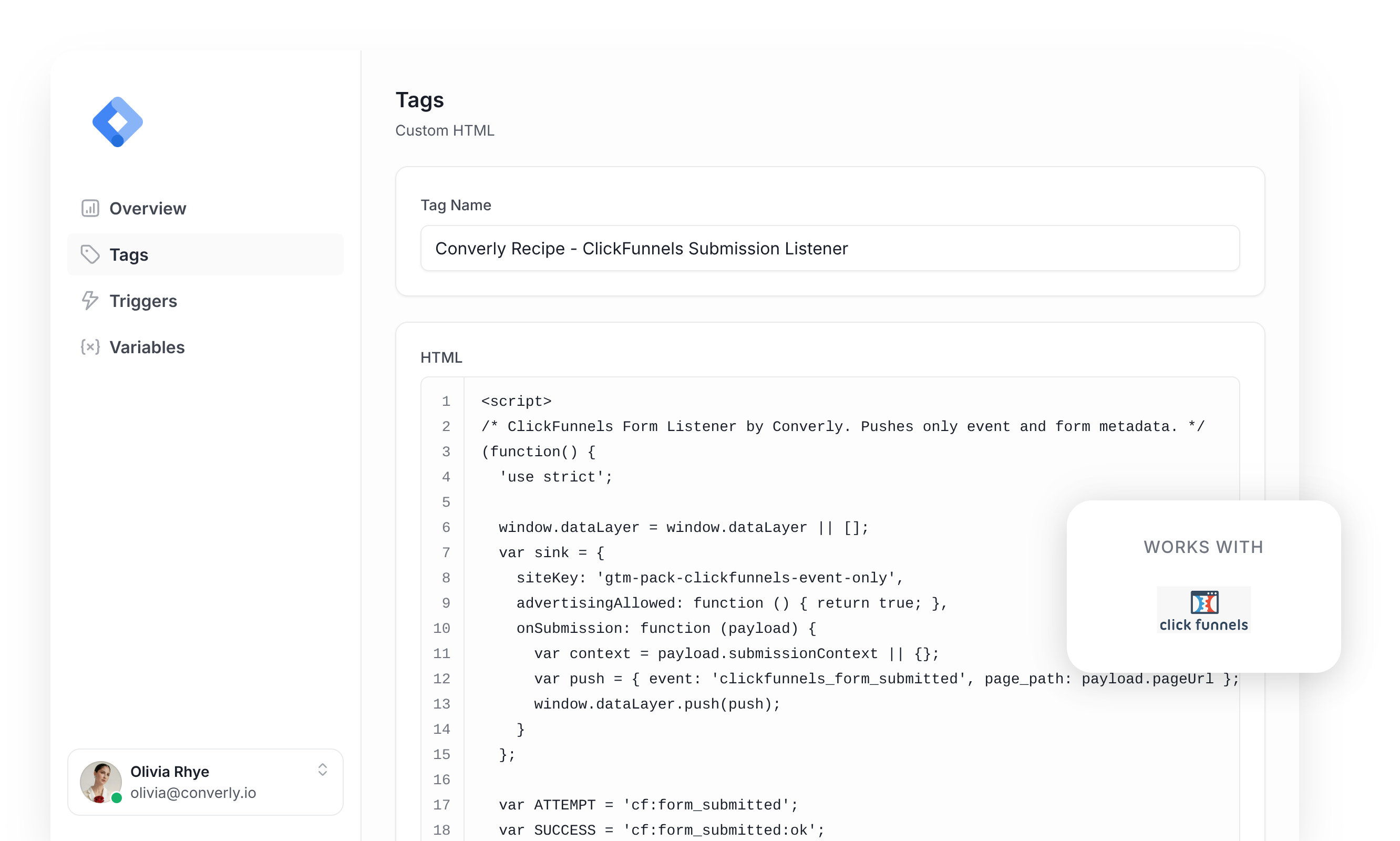
Waits for ClickFunnels to confirm it has accepted the opt-in, then pushes a form submission event to the dataLayer. It fires on All Pages, once per event, and this is the code inside it:
/* ClickFunnels Form Listener by Converly. Pushes only event and form metadata. */
(function() {
  'use strict';

  window.dataLayer = window.dataLayer || [];
  var sink = {
    siteKey: 'gtm-pack-clickfunnels-event-only',
    advertisingAllowed: function () { return true; },
    onSubmission: function (payload) {
      var context = payload.submissionContext || {};
      var push = { event: 'clickfunnels_form_submitted', page_path: payload.pageUrl };
      window.dataLayer.push(push);
    }
  };

  var ATTEMPT = 'cf:form_submitted';
  var SUCCESS = 'cf:form_submitted:ok';
  var WINDOW_MS = 60000;
  var KEYS = ['email', 'first_name', 'last_name', 'name', 'phone_number'];
  var TARGETS = { email: 'email', first_name: 'firstName', last_name: 'lastName', phone_number: 'phone' };
  var active = null;

  var attempts = typeof WeakMap === 'function' ? new WeakMap() : null;

  function consentAllows() {
    try {
      var c = sink;
      return !(c && typeof c.advertisingAllowed === 'function' && c.advertisingAllowed() === false);
    } catch (e) { return true; }
  }

  var SENSITIVE_AUTOCOMPLETE = {
    'current-password': true, 'new-password': true, 'one-time-code': true,
    'cc-number': true, 'cc-csc': true, 'cc-exp': true, 'cc-exp-month': true,
    'cc-exp-year': true, 'cc-name': true, 'cc-given-name': true,
    'cc-family-name': true, 'cc-additional-name': true, 'cc-type': true,
  };

  var SENSITIVE_NAME_SUBSTRINGS = [
    'password', 'passwd', 'passcode', 'cardnum', 'ccnumber', 'creditcard',
    'onetimecode', 'securitycode', 'socialsecurity',
  ];
  var SENSITIVE_NAME_TOKENS = {
    otp: true, cvv: true, cvc: true, ssn: true, pwd: true, pin: true,
  };

  function isSensitiveName(name) {
    if (!name) return false;
    var lower = String(name).toLowerCase();
    var norm = lower.replace(/[^a-z0-9]/g, '');
    for (var i = 0; i < SENSITIVE_NAME_SUBSTRINGS.length; i++) {
      if (norm.indexOf(SENSITIVE_NAME_SUBSTRINGS[i]) !== -1) return true;
    }
    var parts = lower.split(/[^a-z0-9]+/);
    for (var p = 0; p < parts.length; p++) {
      if (SENSITIVE_NAME_TOKENS[parts[p]] === true) return true;
    }
    return false;
  }

  function isSensitiveField(type, autocomplete, name) {
    if (type === 'password') return true;

    if (autocomplete) {
      var tokens = autocomplete.split(/\s+/);
      for (var t = 0; t < tokens.length; t++) {
        if (SENSITIVE_AUTOCOMPLETE[tokens[t]] === true) return true;
      }
    }
    if (isSensitiveName(name)) return true;
    return false;
  }

  function labelTextFor(el) {
    var text = '';
    var wrap = el.closest('label');
    if (wrap) text += ' ' + wrap.textContent;
    var doc = el.ownerDocument;
    var id = el.getAttribute('id');
    var labels = doc.getElementsByTagName('label');
    for (var i = 0; id && i < labels.length; i++) {
      if (labels[i].getAttribute('for') === id) text += ' ' + labels[i].textContent;
    }
    var ids = (el.getAttribute('aria-labelledby') || '').split(/\s+/);
    var nodes = doc.querySelectorAll('[id]');
    for (var k = 0; k < nodes.length; k++) {
      if (ids.indexOf(nodes[k].getAttribute('id')) !== -1) text += ' ' + nodes[k].textContent;
    }
    return text;
  }

  function object(value) {
    return value !== null && typeof value === 'object' && !Array.isArray(value);
  }

  function dataProperty(objectValue, key) {
    var descriptor = Object.getOwnPropertyDescriptor(objectValue, key);
    return descriptor && Object.prototype.hasOwnProperty.call(descriptor, 'value') ? descriptor : null;
  }

  function contactFor(detail) {
    if (!object(detail) || 'purchase' in detail) return null;
    var contact = dataProperty(detail, 'contact');
    return contact && object(contact.value) ? contact.value : null;
  }

  function carrierForRuntime() {
    var events = window.CFEvents;
    if (!events || events.FORM_SUBMITTED !== ATTEMPT || events.FORM_SUBMITTED_OK !== SUCCESS) return null;
    var carriers = document.querySelectorAll('form#cfAR[data-cf-form-action]');
    return carriers.length === 1 && document.documentElement.contains(carriers[0]) ? carriers[0] : null;
  }

  function clearAttempt() {
    if (active) window.clearTimeout(active.timer);
    active = null;
  }

  function refreshIndex(index) {
    var fields = document.querySelectorAll('.elFormItem:not([data-prevent-submit="true"])');
    for (var i = 0; i < fields.length; i++) {
      var el = fields[i];
      if (el.closest('form#cfAR, [data-page-element="Checkout/V2"]')) continue;
      var name = el.getAttribute('name') || '';
      if (KEYS.indexOf(name) === -1) continue;
      var type = (el.getAttribute('type') || 'text').toLowerCase();
      var autocomplete = (el.getAttribute('autocomplete') || '').toLowerCase();
      var sensitive = isSensitiveField(type, autocomplete, name) ||
        isSensitiveName(el.getAttribute('id')) ||
        isSensitiveName(el.getAttribute('aria-label')) ||
        isSensitiveName(el.getAttribute('placeholder')) || isSensitiveName(labelTextFor(el));
      var ineligible = el.tagName === 'SELECT' || !/^(text|email|tel|name|first_name|last_name|phone_number)$/.test(type);
      var entry = index[name] || { sensitive: false, ineligible: false, type: type };
      entry.sensitive = entry.sensitive || sensitive;
      entry.ineligible = entry.ineligible || ineligible;
      index[name] = entry;
    }
  }

  function handleAttempt(event) {
    try {
      if (!consentAllows()) { clearAttempt(); return; }
      if (event.target !== document || !attempts) return;
      var carrier = carrierForRuntime();
      if (!carrier) { clearAttempt(); return; }
      var detail = event.detail;
      if (!contactFor(detail)) { clearAttempt(); return; }
      if (attempts.has(detail)) return; // no deadline extension or replay
      clearAttempt();
      var token = {};
      attempts.set(detail, token);
      active = { token: token, carrier: carrier, path: window.location.pathname,
        started: Date.now(), index: Object.create(null), timer: null };
      refreshIndex(active.index);

      active.timer = window.setTimeout(clearAttempt, WINDOW_MS + 1);
    } catch (e) { clearAttempt(); }
  }

  function snapshot() { return { pageUrl: window.location.pathname, userData: {}, formFieldsSeen: [] }; }

  function handleSuccess(event) {
    try {
      if (!consentAllows()) { clearAttempt(); return; }
      if (event.target !== document || !active) return;
      if (carrierForRuntime() !== active.carrier || window.location.pathname !== active.path ||
          Date.now() - active.started > WINDOW_MS) { clearAttempt(); return; }
      var detail = event.detail;
      if (!object(detail) || attempts.get(detail) !== active.token) return;
      var contact = contactFor(detail);
      if (!contact || !sink || typeof sink.onSubmission !== 'function') {
        clearAttempt(); return;
      }
      refreshIndex(active.index);
      var payload = snapshot(contact, active.index);
      clearAttempt(); // consume before invoking outside code, including reentry
      sink.onSubmission(payload);
    } catch (e) {
      clearAttempt();

    }
  }

  if (typeof window !== 'undefined' && !window.__converlyRecipeClickFunnels && attempts) {
    window.__converlyRecipeClickFunnels = true;
    document.addEventListener(ATTEMPT, handleAttempt);
    document.addEventListener(SUCCESS, handleSuccess);
    window.addEventListener('checkout:order-submit-errors', clearAttempt);
    window.addEventListener('payments:submit-failed', clearAttempt);
    window.addEventListener('pagehide', clearAttempt);
  }
})();Variable
Stores the step of the funnel the lead opted in from, so you can tell your steps apart in any tag or trigger condition. These are its exact settings:
Name
DLV - ClickFunnels Page Path
Variable Type
Data Layer Variable
Data Layer Variable Name
page_path
Trigger
Fires whenever the form submission event comes through. You can use it as the trigger for any of your conversion tags. These are its exact settings:
Name
CE - ClickFunnels Form Submitted
Trigger Type
Custom Event
Event Name
clickfunnels_form_submitted
Download This Recipe
Import this file into Google Tag Manager and it gives you a ready-to-use listener tag, variable and trigger
Built from Converly's own ClickFunnels detection code and regularly tested on a live ClickFunnels 2.0 funnel
Why It's the Best Recipe Out There
It comes from the same detection code that powers our own conversion tracking product, Converly, reworked so it runs inside Google Tag Manager.
How to Use the ClickFunnels GTM Recipe
Install the Recipe
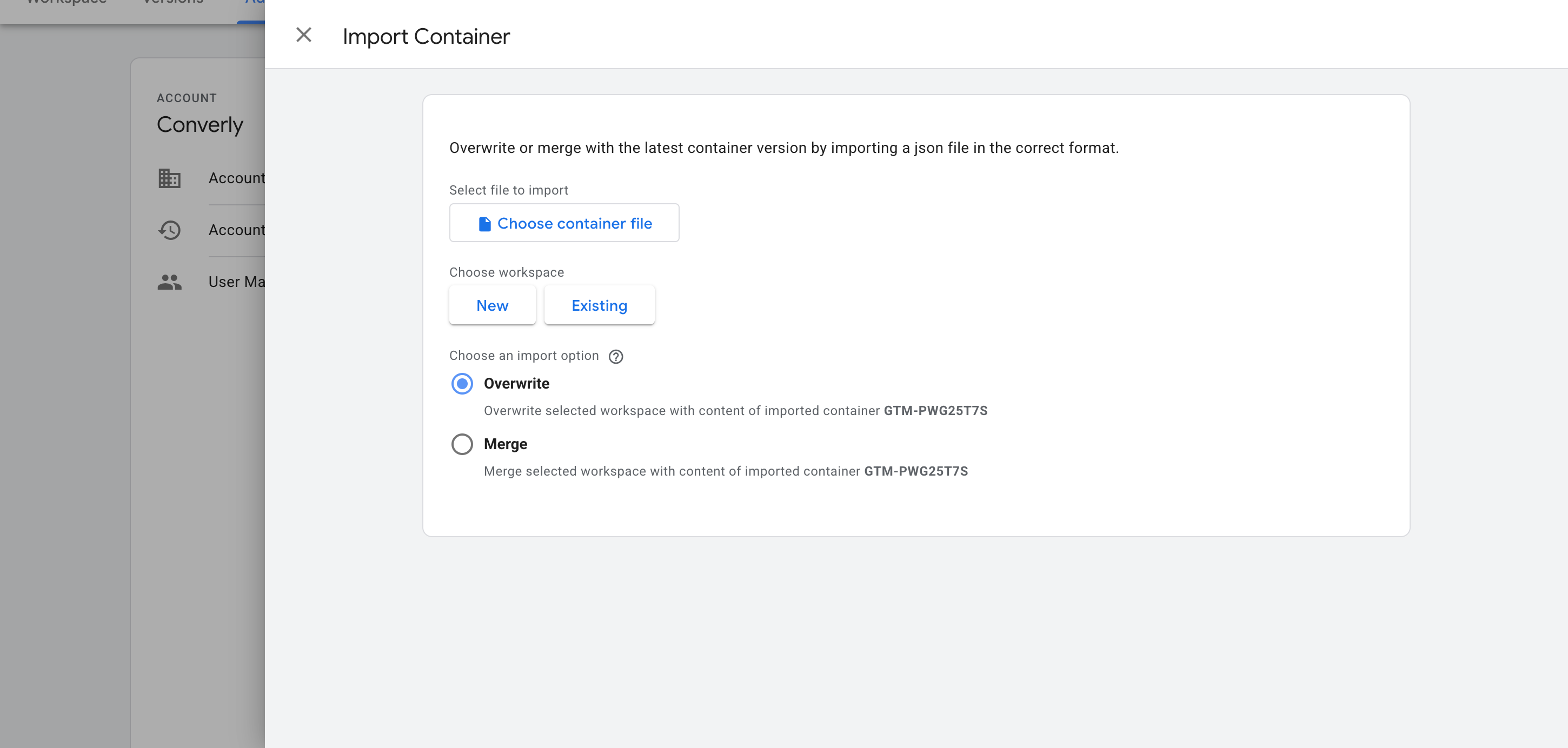
First, download the recipe using the form above. Then open Google Tag Manager, go to Admin and pick Import Container. Select the file, choose Merge so nothing already in your container gets overwritten, and confirm. The listener, the variable and the trigger land in your workspace automatically.
Configure Your Tags
Once the recipe is installed, you can use its Trigger to fire your conversion tags. Below are the setup instructions for the two most common destinations:
Example 1: Google Analytics
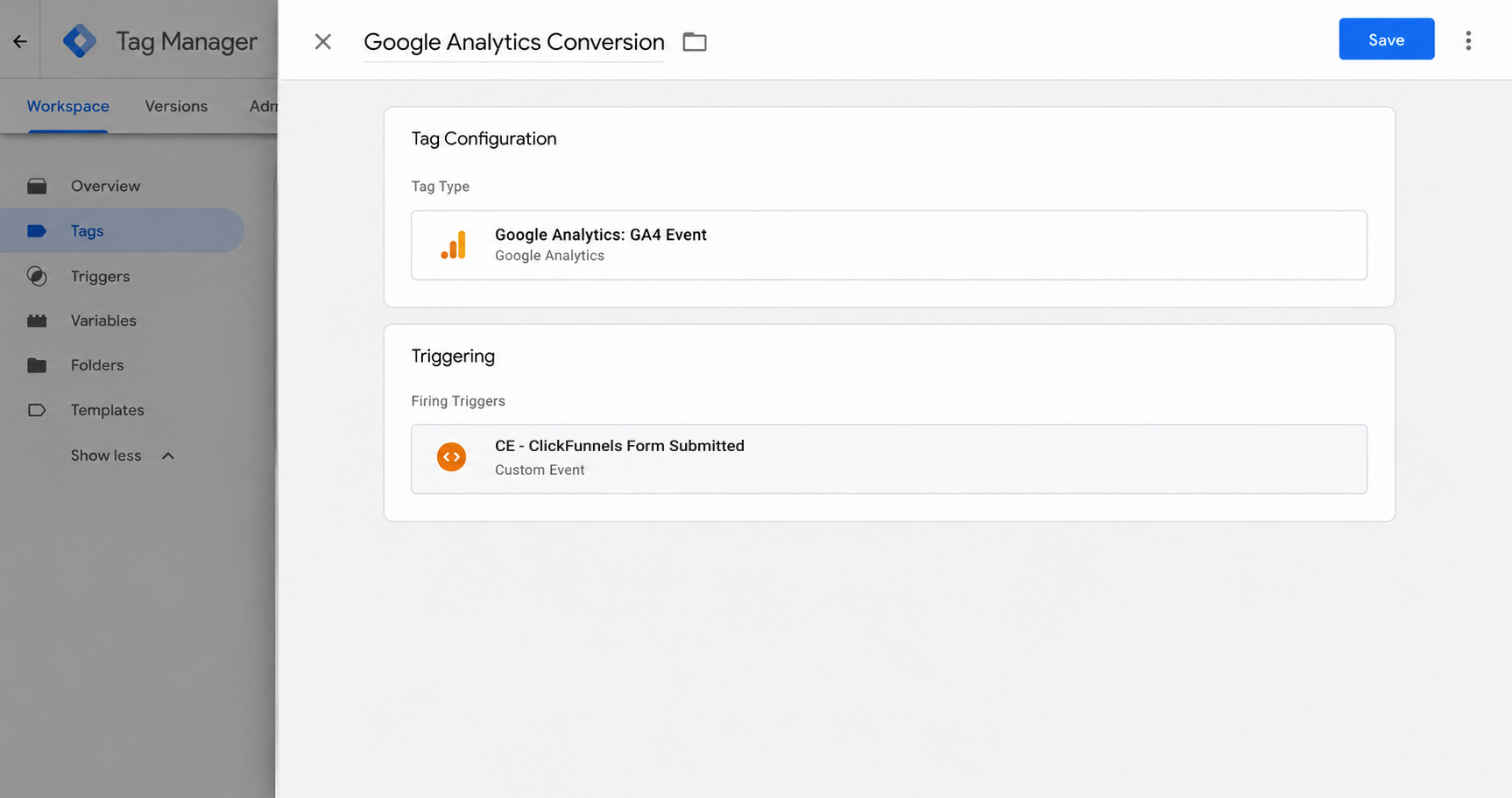
Create a new GA4 event tag, name the event something like generate_lead, and under Triggering pick the recipe's trigger (called CE - ClickFunnels Form Submitted). This will send an event to GA4 every time someone completes a ClickFunnels Opt-In form.
Example 2: Google Ads
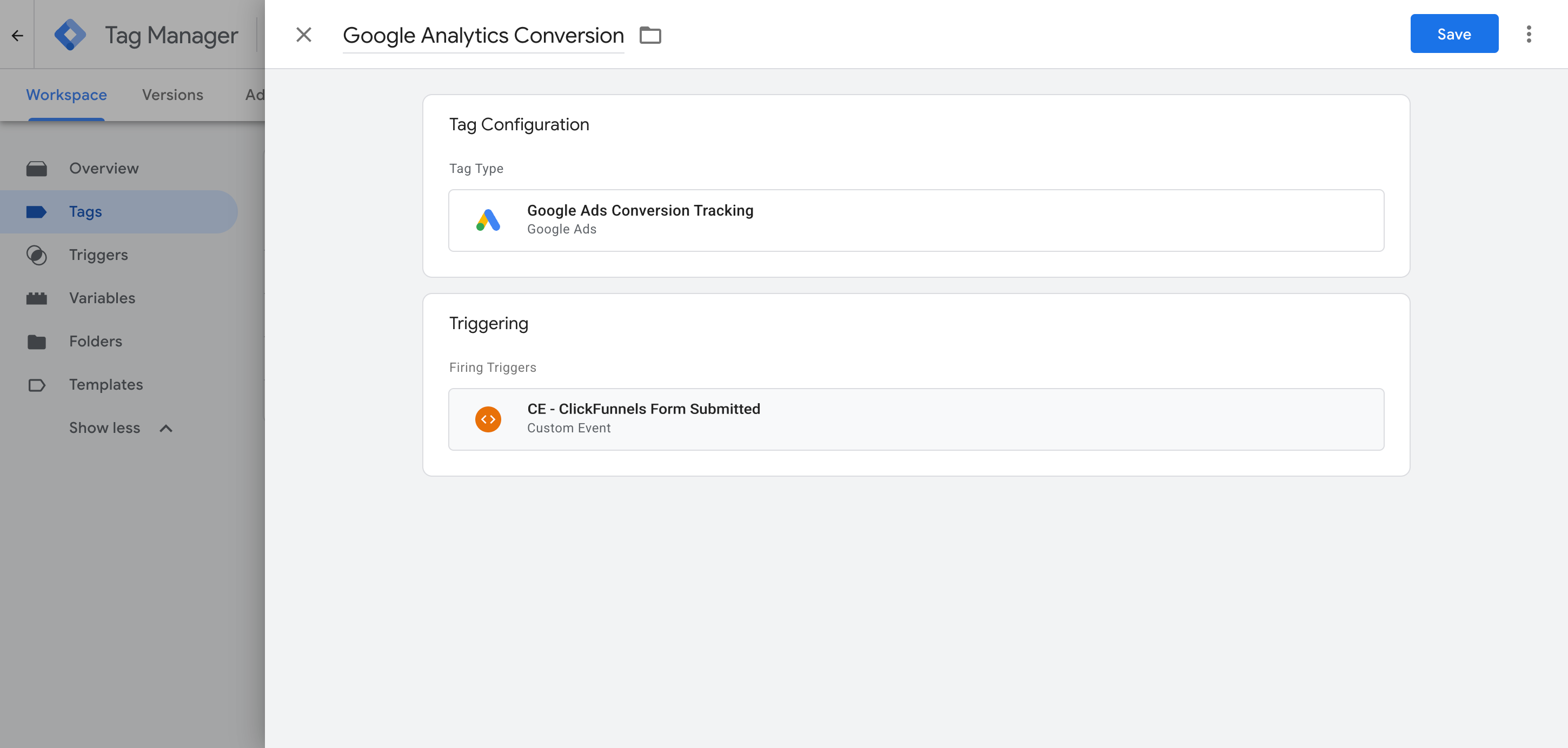
Add a Google Ads conversion tag, input your conversion ID and label, then select the recipe's trigger (called CE - ClickFunnels Form Submitted) under Triggering. Every opt-in will then be sent as a conversion to Google Ads.
What This Enables You to Do (and What It Doesn't)
When a ClickFunnels opt-in form is successfully submitted, this recipe sends an event to Google Tag Manager straight away, and any Google Ads, Google Analytics or other conversion tag tied to the trigger goes off with it.
What it does
Sends an Event to GTM
Detects every successful ClickFunnels opt-in and pushes a form submission event into your dataLayer.
Tells You Which Step Fired
Sends the ID of the funnel step with every event, so a funnel with several opt-in steps can fire different tags for different steps.
Creates a Trigger in GTM
Gives you a ready-made 'Trigger' in Google Tag Manager that you can select as the firing trigger on any conversion tag.
What it doesn't do
Send the conversion server-side
It all runs in the visitor's browser, so you're at the mercy of what their browser allows. An ad blocker can stop the Google tag from loading at all (which means nothing a visitor does gets tracked), and browser privacy rules can cut tracking down to a day (which means someone who clicks your ad on Monday and opts in on Thursday may never be tied back to that click).
No Click IDs or Identifiers
It doesn't collect the Google click ID, Facebook click ID, Meta pixel cookies, IP address or user agent, which ad platforms need to match the conversion back to a real person and the original ad they clicked.
No Personal Details
The script only fires an event. It never passes on the lead's name, email or phone number, which Google and Meta both use to match a conversion to a real person and the ad they clicked.
No Logging or Notifications
You can use Preview mode to test it works when you first set it up, but unless you go back and check every week it can break without warning (all you'll notice is 0 conversions in your ad platforms).
The Proper Way to Send Conversions to Google Ads, Meta Ads & More
If your leads only ever go to Google Analytics, this recipe does the job, because GA4 won't accept personal information or IP addresses anyway. But ad platforms are a different story. Enhanced Conversions in Google and a high Event Match Quality (EMQ) score in Meta both depend on the lead's name and email being sent server-side with the conversion. That's precisely what Converly does.
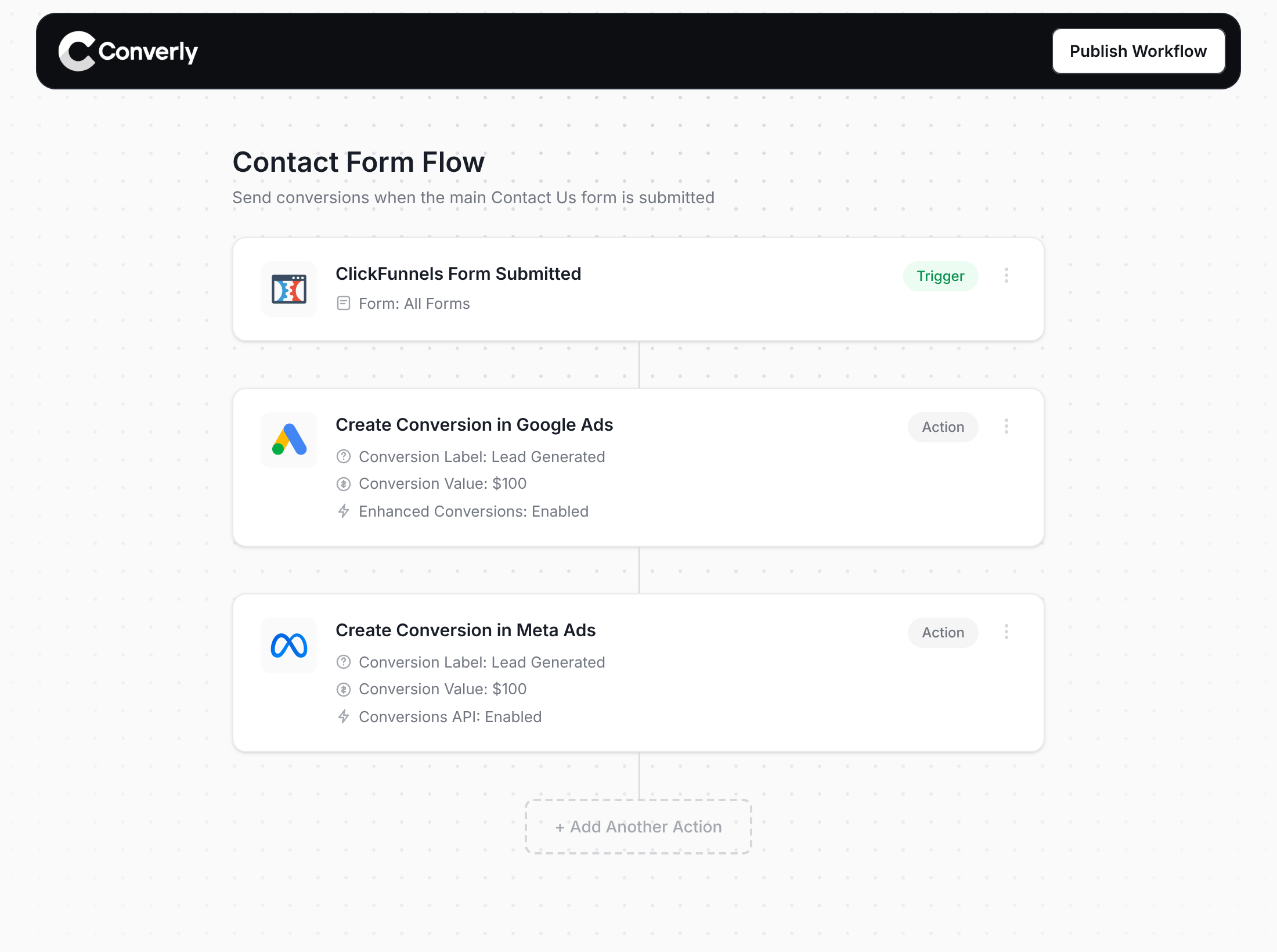
Here's why Converly is the best way to send conversions to Google Ads, Meta Ads, Microsoft Ads, LinkedIn Ads, etc.
Easy to set up
Converly's drag-and-drop builder makes it easy to set up your conversion tracking. Choose a trigger (such as a ClickFunnels opt-in), then add your actions (such as sending a conversion to Google Ads and Meta Ads). There's no code to write and nothing to configure by hand.
Sends Data Server-Side
Converly sends each conversion from its own servers directly to Google, Meta, ChatGPT, etc. This means it doesn't depend on what the visitor's browser lets through, so ad blockers and browser privacy settings stop getting in the way.
Sends More Data
Each conversion carries the lead's name, email and phone, plus the Google and Facebook click IDs, IP address and user agent. That's what switches on Enhanced Conversions in Google Ads and lifts your Meta Event Match Quality (EMQ) score to 9 or 10.
Full Conversion Log & Email Notifications
You can see every conversion, what was captured, what was sent to each platform, and whether it was successfully delivered or not. And if tracking ever stops, you get an email letting you know straight away.
Provides Free Support
Stuck on something? Our team has 20 years of conversion tracking and analytics experience, and provides free support to all customers. With Google Tag Manager, you are on your own (Google provides no support).
Start Your Free Trial
Start a 14-day free trial and track your conversions the proper way. No code, no complicated configuration.
About the author
Aaron is the founder of Converly. With over 15 years of experience in digital marketing and SaaS, he's passionate about helping businesses track and optimise their ad conversions.