


Typeform Conversion Tracking: 2 ways to do it
Learn two different ways to set up conversion tracking for Typeform, and how to work out which one is right for you.
If you're running ads to help grow your business, then you need to know which campaigns, keywords, ads, etc are actually producing leads.
If you don't, you risk pouring your limited marketing budget into campaigns that might be getting lots of impressions and clicks, but not actually generating many leads.
Setting up proper conversion tracking is the answer here, but if you are using Typeform then it's quite difficult.
That's because when you embed a Typeform form on your website, it loads in an iFrame rather than actually being part of your page. And unfortunately this means that most of the conversion tracking advice you'll find online doesn't work.
Here at Converly, we build form conversion tracking for a living, so in this article we'll walk you through the two approaches that genuinely work with Typeform, what each one can and can't send to your ad platforms, and the traps that catch people out along the way.
Method 1: Use Google Tag Manager
Good for: Counting Typeform submissions in Google Analytics, for free.
If all you want to do is send a conversion event to Google Analytics when someone completes a Typeform on your website, then using Google Tag Manager is free (and not too difficult to set up if you use a pre-built recipe).
Google Tag Manager has built-in ‘form submission trigger’ that is suppose watch for form submissions and then fire your conversion tags (i.e. the things that send conversions to Google Analytics, Google Ads, etc). Unfortunately though, it doesn't work with Typeform forms. GTM's built-in trigger listens for the browser's native form submit event, but because Typeform is loaded in an iFrame on your site, that native form submit event never fires. So if you took this approach, no conversions would ever be tracked.
What you need to do instead is write some custom code that listens for the success message Typeform sends when a form is successfully submitted, write an event into the dataLayer, and then create triggers, tags and variables from that. Sounds complicated right?
Fortunately, there are these things called recipes in Google Tag Manager, which are basically just a set of pre-built assets you can upload into your account and use (as opposed to having to write all the code and everything yourself). Here's how it works:
Step 1: Download the Typeform Conversion Tracking GTM Recipe
Start by grabbing the Typeform GTM recipe from this page. Inside, you'll find:
- A Custom HTML Tag that listens for the message Typeform sends when someone completes a form, and pushes an event called
typeform_form_submittedinto Google Tag Manager. Before it counts anything, it checks that the message genuinely came from Typeform and that it's carrying both of the IDs a real form completion carries. - Two Variables that contain the ID of the form that was completed and the ID of the response itself, which are useful if you want to fire different tags for different Typeforms later (i.e. you want to send a conversion when someone completes your Request A Quote form but not your Customer Feedback survey).
- A Trigger tied to the
typeform_form_submittedevent, calledCE - Typeform Submitted, which you would use as the firing trigger for whatever conversion tags you build (a GA4 event, a Google Ads conversion, a Meta pixel event, and so on).
Step 2: Import the GTM recipe into your account
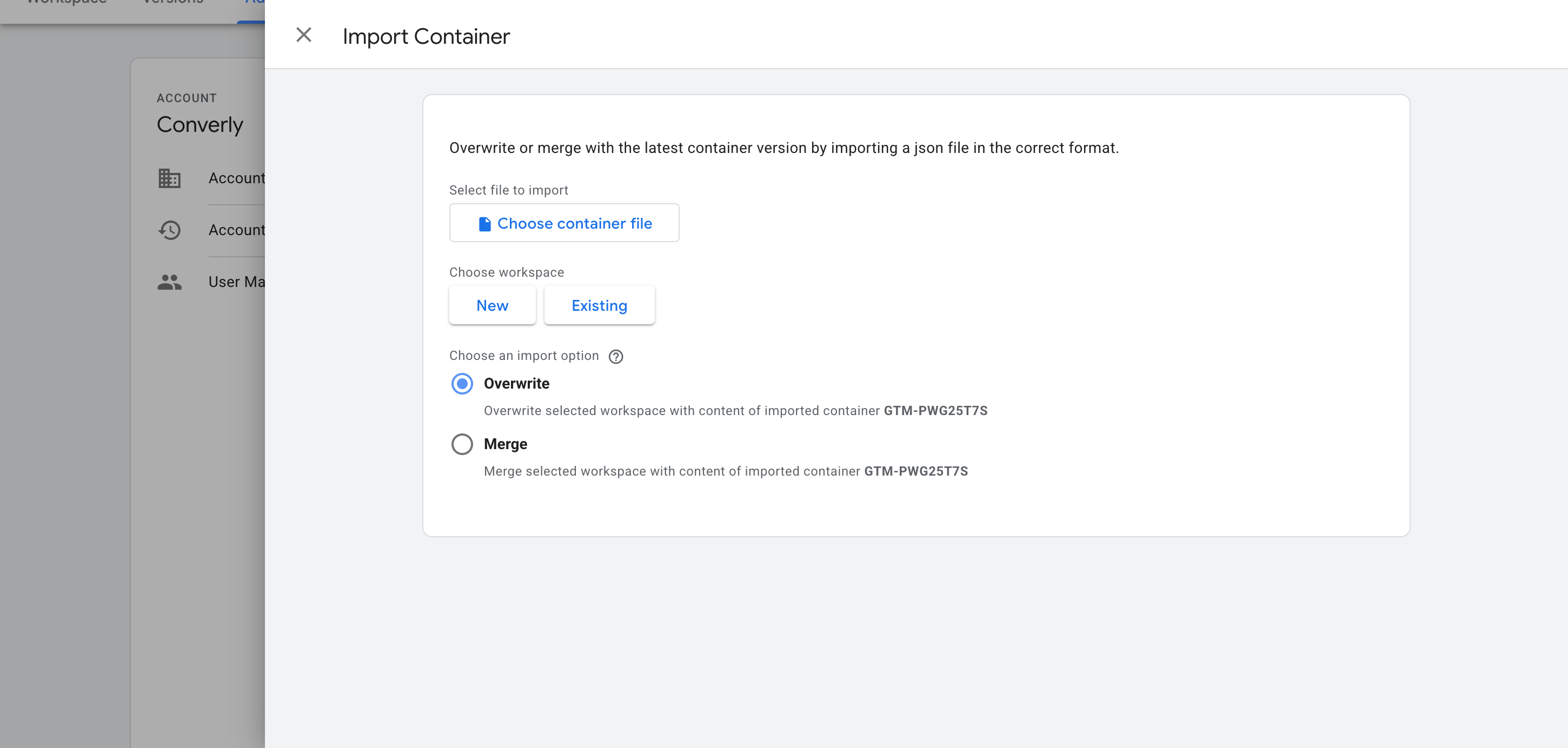
With the file downloaded, the next job is getting it into your container. Open Google Tag Manager, head to Admin, choose Import Container, select the file you just downloaded, and pick the Merge option so it leaves everything already in your container alone. The listener, both variables and the trigger all get created for you.
Step 3: Build a GA4 event tag
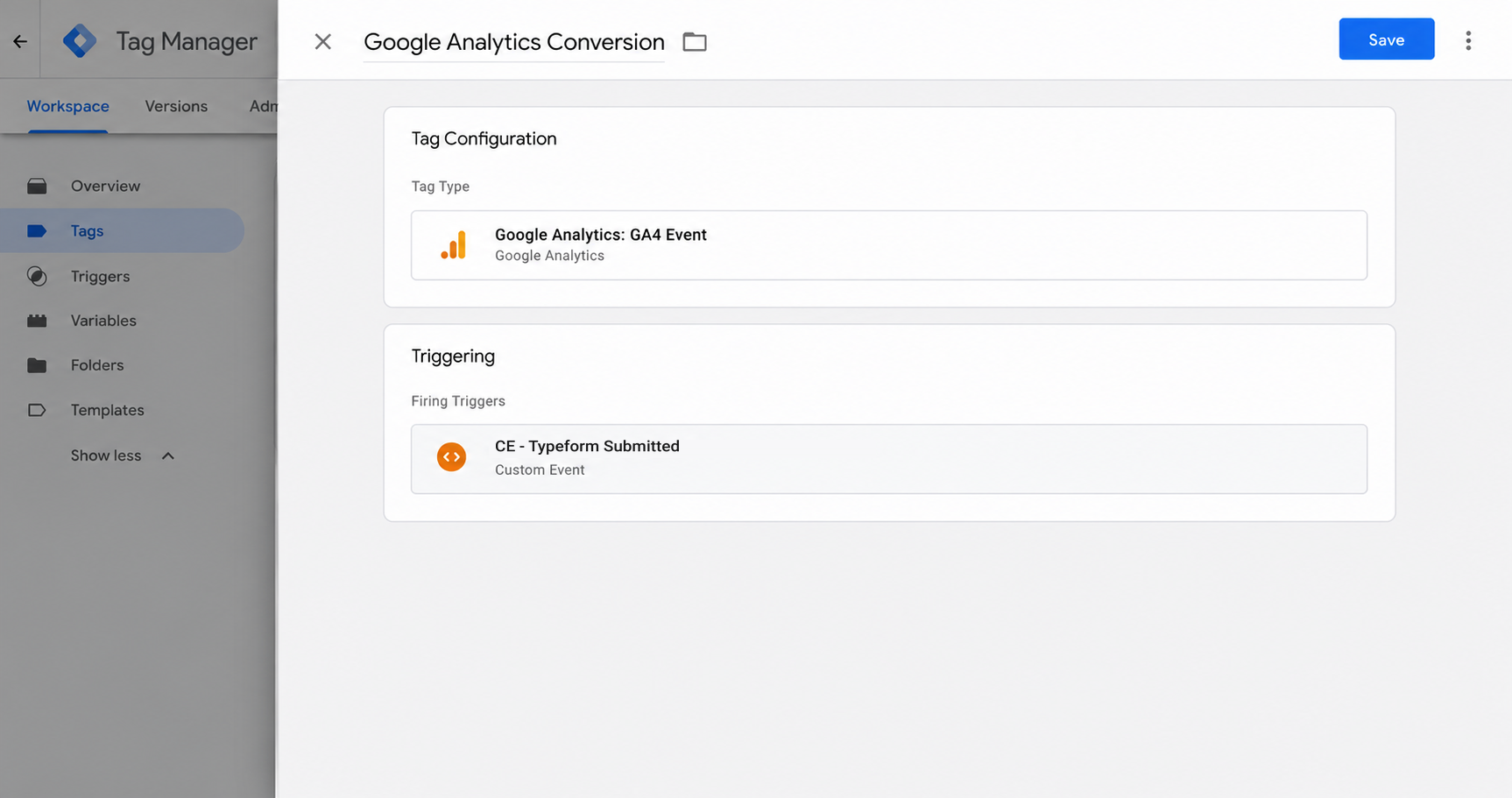
The recipe gives you the trigger. What it deliberately doesn't do is decide where your conversions go, because that's going to be different for everyone. So to send completions to Google Analytics, create a GA4 event tag and set its firing trigger to the one the recipe installed (called CE - Typeform Submitted)
Step 4: Test it, then mark it as a Key Event in GA4
Everything is wired up at this point, so the last job is proving it actually works. Go to a page on your site with a Typeform on it, submit the form, then open GA4's Realtime report and check that the event turns up in the recent events list.
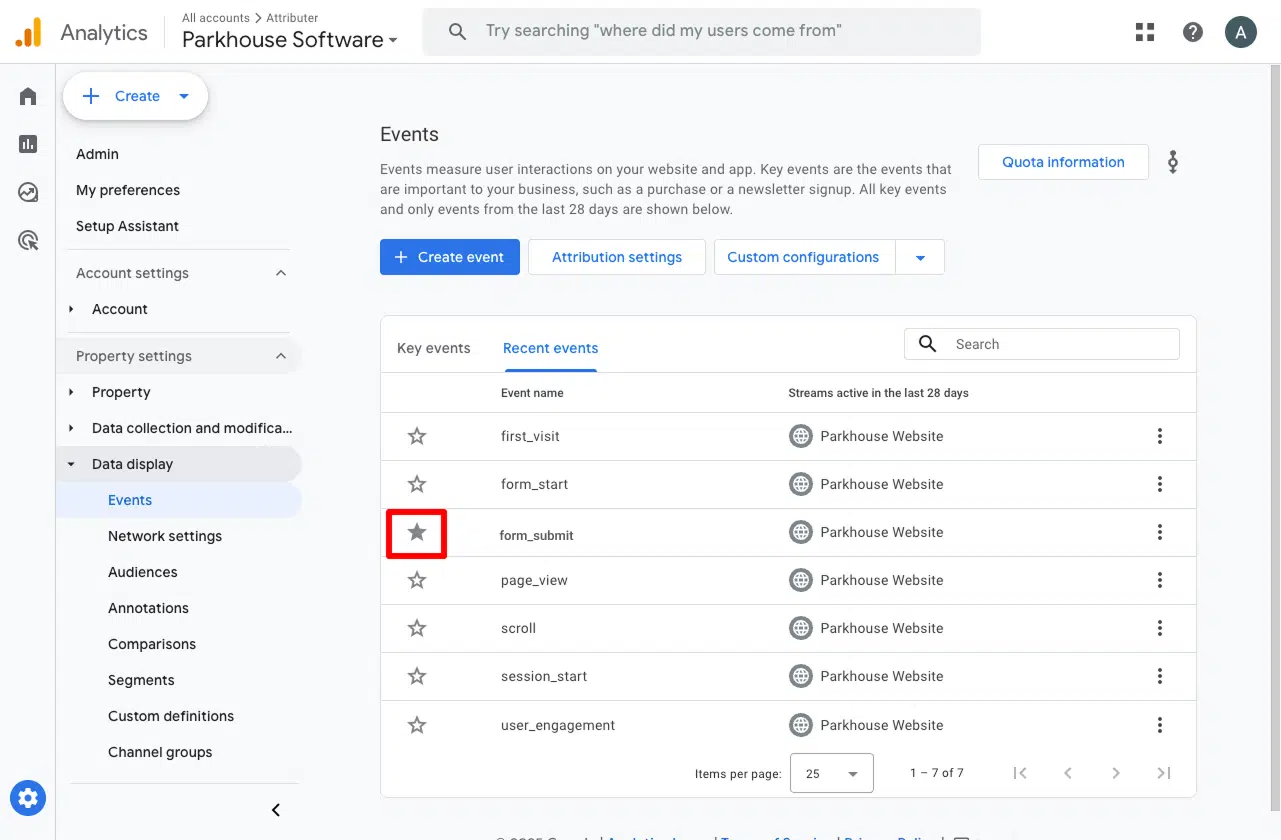
Once you can see it arriving, go to Admin, then Events, find it in the list, and toggle it on as a Key Event. That's the bit people forget, and it's what tells GA4 to treat it as a conversion in your acquisition and funnel reports rather than leaving it sitting there as an ordinary event.
Why use this rather than a script you found online
There are plenty of Typeform tracking scripts floating around on blogs and in forums. Most of them are a few lines long and most of them have the same handful of problems, which is why we built the recipe from our own production detection code instead.
- It only counts a real completion. It's built around Typeform's own submission success message, which only gets sent when the form submission was actually successful. So if someone submits your form but the submission was rejected (maybe because they missed a required field or entered their email in an invalid format), no conversion is sent.
- It checks the message really came from Typeform. Any script running on the page can send a postMessage that looks the same as Typeform's success message, so the code in this recipe verified the message actually came from Typeform's servers before firing the conversion event to Google Tag Manager.
- It works with every Typeform embed style. Typeform offers a number of ways to embed a form on your site, including Standard, Full Page, Popup, Slider and Sidetab. This recipe detects successful form submissions regardless of which one you use.
As you can probably tell, it's not just something we wrote for this article. It's the same detection logic our own conversion tracking product runs in production, we regularly test it against a real Typeform embed, and it's been used to detect thousands of genuine Typeform submissions for our customers. Moral of the story: You can be confident that it's the best one out there.
Pros and cons
Pros:
- It's free. Google Tag Manager costs nothing and neither does the recipe.
- It works on an embedded Typeform, which most of the conversion tracking advice out there doesn't.
- It only fires on a successful form submission, so if a form submission is rejected (i.e. because a person missed a required field or inputs an invalid email) it doesn't fire. This is important, because in most cases the visitor will correct the issue and submit the form again, which would result in 2 conversion events being sent for one lead.
- Almost all the fiddly work is already done. You get the tag, the trigger and both variables pre-built, so the only thing you configure by hand is the conversion tag itself.
- The event tells you which Typeform was completed, so if you need to you can set up Google Tag Manager to only send conversions when specific forms on your site are submitted (I.e. your Request A Quote form but not your Job Application form).
Cons:
- It doesn't send through the lead's name, email, phone, etc. Typeform doesn't make this available in the browser so this isn't a limitation of this recipe, it's a limitation of Typeform. This is fine for Google Analytics, but ad platforms like Google Ads, Meta Ads, ChatGPT Ads, etc. want you to send the lead's details so they can use to match the conversion back to a real person and the original ad they clicked. Without sending the lead's details, they will struggle to match the conversion back to a campaign and you'll end up significantly undercounting conversions.
- It doesn't capture the click IDs either. The Google Click ID and the Facebook Click ID are what tie a conversion back to one specific ad click with complete certainty, and neither of them is available here.
- Everything fires through the visitor's browser, so ad blockers and privacy-focused browsers like Safari can stop the conversion reaching Google Analytics, Google Ads, Meta Ads, etc. Industry studies suggest you'll lose roughly 30% of your conversions doing it this way.
- There's still setup to do and nobody to call when it breaks. Google doesn't offer support for Google Tag Manager, so if it doesn't work then working out why is your problem.
Method 2: Use Converly
Best for: Sending proper, server-side conversions to Google Ads, Meta Ads, ChatGPT Ads, LinkedIn Ads, and more, without having to do complicated configuration in Google Tag Manager.
Converly is a dedicated conversion tracking tool, built to send server-side conversions to Google Ads, Meta Ads, LinkedIn Ads, and more, whenever someone completes a Typeform on your site.
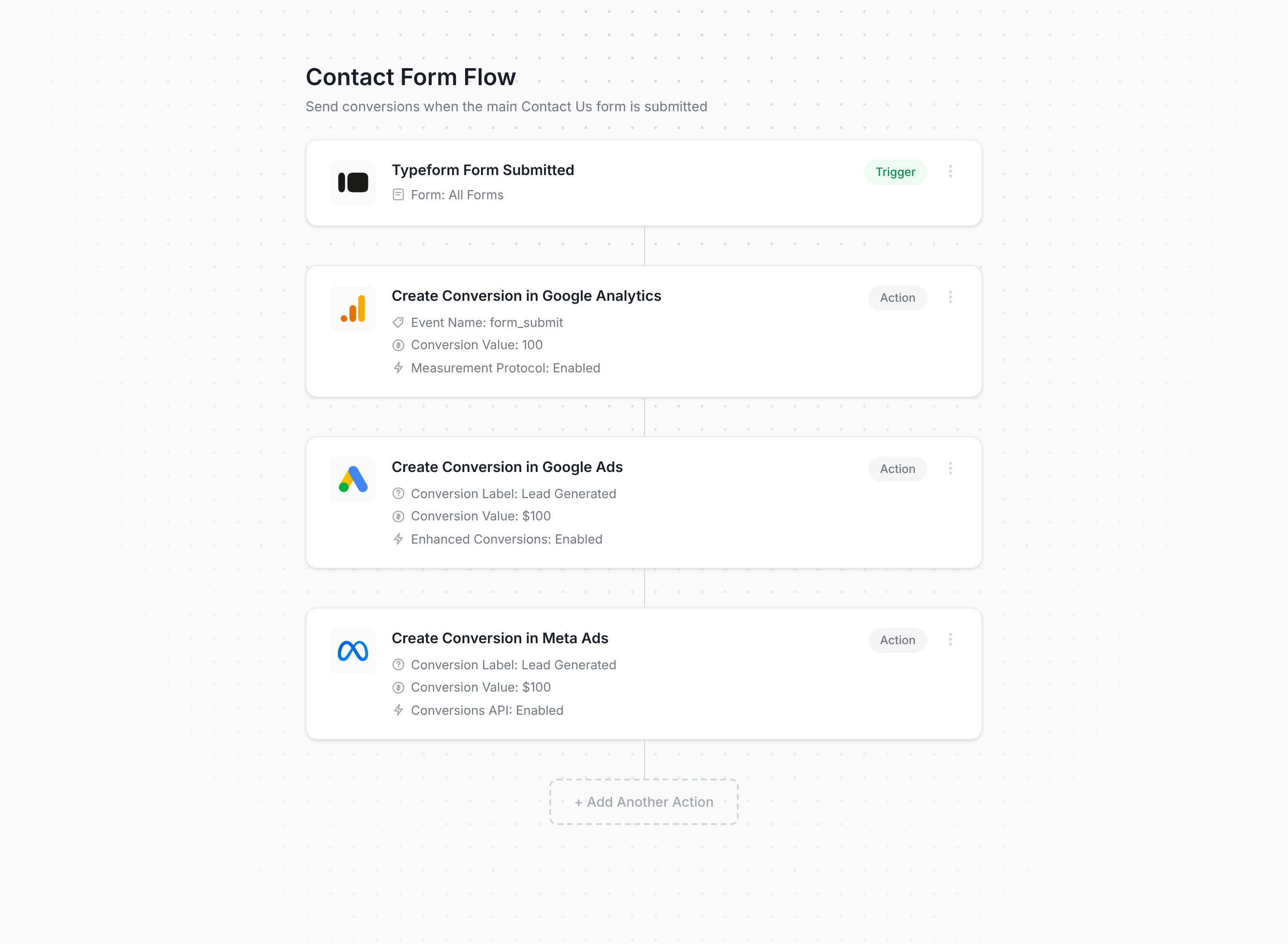
The screenshot above is basically the whole setup process. You simply choose a trigger (in this case a Typeform submission), add one or more actions (such as sending a conversion to Google Ads or Meta Ads), and you're done. If you use an AI tool like Claude or ChatGPT, then you can connect it to Converly, tell it to ‘Set up conversion tracking for Typeform’ and it will do it all for you!
Once that's configured, Converly takes care of everything else. It listens for successful Typeform submissions, gets the name, email, and phone from Typeform's API (which is the only place they are available) and stores them all on Converly's own servers. Those servers then forward the conversion to Google Ads, Meta Ads, and any other destination you've connected, and because the forwarding happens on Converly's servers rather than in the browser, ad blockers and privacy browsers like Safari can't interfere (which means the ad platforms get much more accurate conversion data to work with).
And if you're advertising on Google, Meta, ChatGPT, or similar platforms, here's the piece that really moves the needle. On top of the name, email, and phone, Converly also captures the click IDs (i.e. GCLID, fbclid, etc), Meta's browser cookies, the visitor's IP address, and their user agent, then sends it all over with every conversion. Ad platforms weigh these signals heavily, so having all of them is what takes your match quality from mediocre to strong (Meta's Event Match Quality, for example, typically climbs from around 3 to somewhere in the 9 to 10 range).
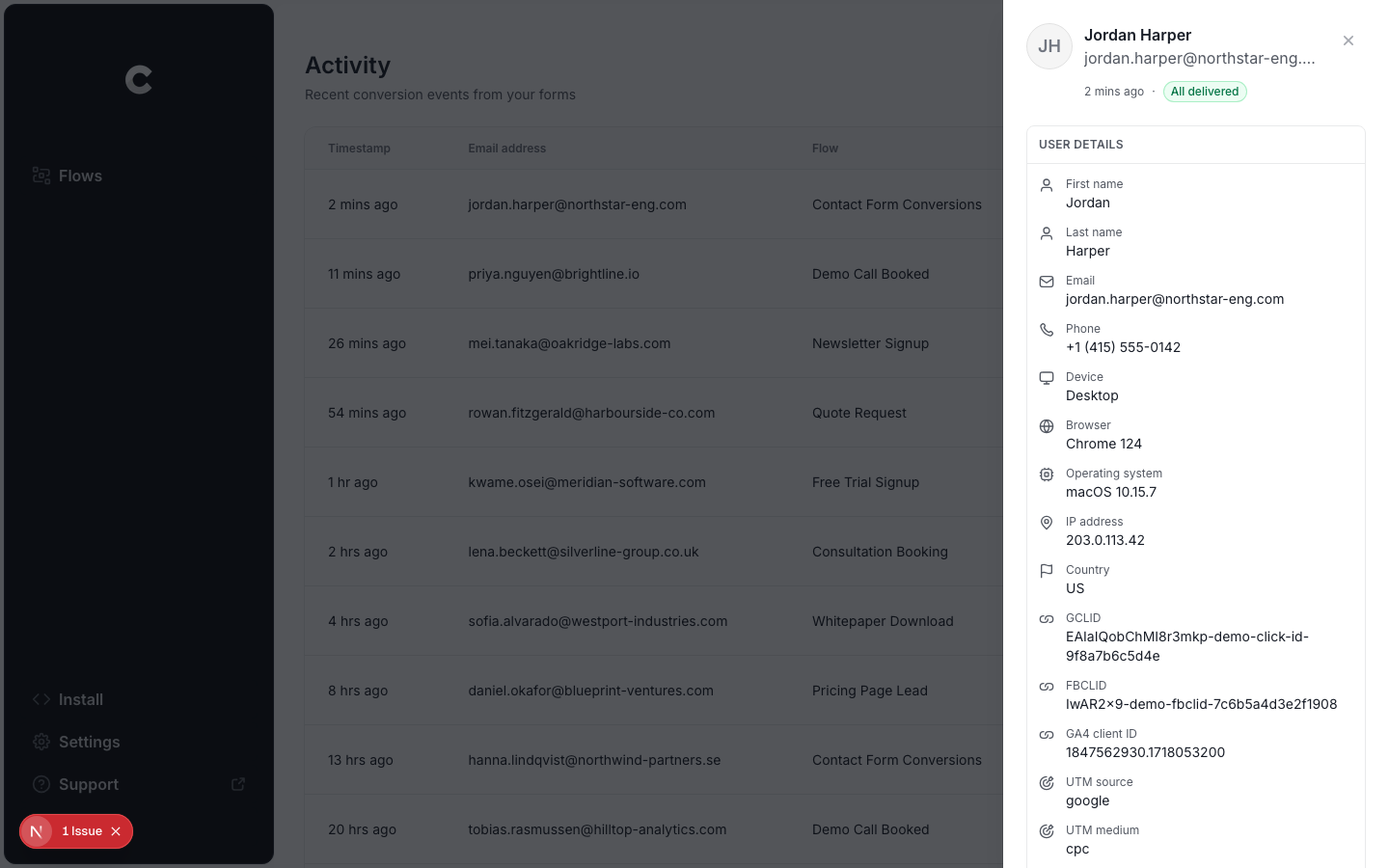
There's also a full conversion log built in, showing every lead who completed a Typeform on your site, exactly what data Converly captured, what got forwarded to each platform, and whether it made it through successfully.
Pros and cons
Pros:
- It's the only method here that sends the lead's name, email and phone, because it reads them from Typeform's API (which is the only way you can actually get them).
- Setup is genuinely quick and easy. Choose a trigger, choose your actions, done. There's no code to write or maintain, nothing complicated to configure, and no need to work out how to get data out of an embedded form.
- Sends click IDs, cookies, IP address and user agent alongside every conversion, which meaningfully lifts match quality in the ad platform (Meta's Event Match Quality typically climbs from a 3 or 4 up to a 9 or 10 with Converly, as one example).
- Sends conversions server-side, so ad blockers and privacy browsers can't block them. Expect about 30% more recorded conversions than a Google Tag Manager setup.
- Handles conditional logic, so you can choose which Typeforms actually trigger a conversion (like firing a conversion when someone completes your Request A Quote form but not when they finish your Customer Feedback survey).
- Lets you connect Google Ads, Meta Ads, etc directly inside the platform and simply select which conversion should fire. No hunting for account IDs or conversion IDs anywhere.
- Has a dedicated MCP and CLI, so you can connect AI tools like Claude or ChatGPT and simply say 'Set up conversion tracking in Google Ads and Meta Ads when someone completes my Typeform' and it will do everything for you.
- Comes with a complete conversion log which shows every lead who completed a Typeform, what data was captured, whether it was successfully sent to the ad platforms, and more.
- You can set up email notifications to let you know if anything ever breaks (there's no such feature in Google Tag Manager)
- It's backed by a real support team who'll help you get set up and sort out any issues. Google Tag Manager is completely unsupported, so you are on your own if anything doesn't work.
Cons:
- It costs real money once the free trial ends. Plans start at $19 a month.
What not to do
So far in this article, we've covered two conversion tracking methods that work for Typeform as well as highlighting which method is best in different circumstances.
But it's just as useful to know which approaches to stay away from, because the common DIY attempts at tracking Typeform completions mostly fail in ways that aren't obvious until your reporting is already wrong. Here are the ones to avoid:
Tracking thank-you page visits
This is the most popular DIY approach by a mile. Typeform can redirect leads to a page after they submit the form, so pointing that at a thank-you page on your own site and tracking the visits to the thank you page as conversions is pretty easy to set up. Unfortunately though, it isn't a great approach:
It fires for people who never completed anything. A thank-you page is just a URL, and URLs get reached in all sorts of ways that have nothing to do with your form. Someone bookmarks it, their browser autocompletes it out of history, a colleague forwards them the link, or Google indexes it and people arrive from search. Every one of those visits counts as a conversion despite nobody completing a form.
It double counts the people who did. Refresh the thank-you page and that's a second conversion. Hit the back button or open it later from history, and that's another conversion. One lead can easily register as three or four, which means Google and Meta are optimising your spend against numbers that were never real.
Your match rates would be dreadful. This is the main issue. Tracking a thank you page doesn't give Google Ads, Meta Ads, etc any of the data that it needs (name, email, phone, etc) to actually match a conversion back to a real person and the ad they clicked. As a result, very few of the conversions that actually came from your ads will appear in your reports (and to make matters worse, Google, Meta etc won't have the data they need to optimise your ad delivery, so you'll actually end up getting far worse results from your ad spend).
Tracking thank you page visits is the most common approach because it's easy, but it doesn't mean it's a good way to do it.
Relying on the default form submit event in Google Tag Manager
As we mentioned before, Google Tag Manager has a built-in ‘form submission’ trigger that can listen for form submissions and then fire your conversion tags (i.e., the things that send conversions to Google Analytics, Google Ads, etc.).
Unfortunately though, it doesn't work with Typeform forms. GTM's built-in trigger listens for the browser's native form submit event, but because Typeform is loaded in an iFrame on your site, that native form submit event never fires. So if you took this approach, no conversions would ever be tracked.
You have to listen for the success message Typeform sends when a form is submitted successfully, which is what both methods above do.
Using GA4's automatic form tracking (Enhanced Measurement)
GA4's Enhanced Measurement includes an option that promises to record form starts and form submissions automatically with no setup at all.
But it runs into exactly the same problem as GTM's default trigger (it listens for the browser's native form submit event, which never fires with Typeform). So if you want Typeform form submissions showing up reliably in GA4, use the free recipe from Method 1 or use Converly.
Firing the conversion on the submit button click
The other method we sometimes see is firing a conversion when someone clicks the Submit button on a form (usually using a click trigger in Google Tag Manager).
You actually can't do that with Typeform, because the submit button lives inside the iFrame that Typeform loads on your site, and therefore the click trigger can't actually see it. In that case, we've seen people fire a conversion on the button that opens the Typeform (usually when the Typeform displays in a popup or slide-in or full page takeover).
This is even worse because people can open the Typeform, answer two questions, decide they'd rather not, and leave (and then this gets counted as a conversion).
As with everything above, you want to make sure you only fire a conversion when Typeform confirms the form was submitted successfully. Otherwise you'll end up in a situation where you have 5 leads in your Typeform account and 20 conversions in your Google Analytics account.
So which method should I use?
Here's how the two ways to track Typeform conversions compare.
| Method | Best for | Data sent |
|---|---|---|
| Method 1. Google Tag Manager | Sending conversions to Google Analytics | The submission event only, with no name, email or phone |
| Method 2. Converly | Sending conversions to Google Ads, Meta Ads, LinkedIn Ads, ChatGPT Ads, and more | Name, email and phone, plus the GCLID, the Meta click ID, IP address and user agent. |
Wrap up
Conversion tracking doesn't get talked about much, but it's actually one of the bigger factors in how well your advertising performs.
Put the work into setting it up properly and you give Google and Meta's algorithms the data they need to learn what your ideal customer looks like, which enables them to serve your ads to the right people. If you set it up wrong (or skip it altogether), then the ad platforms don't have the data they need you pay to show ads to people who were never going to convert.
In fact, both platforms have actually published figures on how much difference this makes. According to Google, businesses that move to proper server-side conversion tracking see conversions climb by roughly 19% on average, while Meta reports a 23% increase off the back of the same switch.
Converly gives you all the benefits of server-side tracking without any of the hard parts. You simply choose your trigger (someone completing a Typeform), pick the platforms you want those conversions sent to, and that's it. And hooking up an AI tool like Claude or ChatGPT makes it easier still. You just connect it, ask it to 'set up Typeform conversion tracking', and it does it all for you.
Converly is free to start with (you don't even need to enter a credit card to start the trial), and most people have the whole thing up and running in well under 10 minutes. Start your 14-day free trial today.
About the author

Aaron is the founder of Converly. With over 15 years of experience in digital marketing and SaaS, he's passionate about helping businesses track and optimise their ad conversions.