


Track Zoho Form submissions as conversions in Google Ads
Learn how to send server-side conversions to Google Ads whenever a Zoho Form is submitted on your website. No code required!
Google Ads can be a fantastic way to bring in new leads and customers for your business, but getting conversion tracking dialled in properly is genuinely difficult.
Tools like Google Tag Manager require you to write custom code that listens for form submissions, and then you've got to configure triggers, tags, variables and a whole lot of other moving parts to get the data over to Google Ads.
Meanwhile, basic methods like firing a conversion on thank you page visits can quietly miss up to 30% of your conversions thanks to things like ad blockers, the privacy features now baked into browsers (Safari especially), or people clicking your ad on their phone and converting later from their laptop.
So what's the right way to handle it?
In this article, we'll walk you through how to set up proper conversion tracking in Google Ads when a Zoho Form is submitted on your website (using a method known as server-side tracking).
Why you need to send conversions to Google Ads server-side
Having accurate conversion tracking in place is critical to seeing results from Google Ads.
That's because Google Ads relies on smart bidding technology that draws on thousands of signals (the user's location, their purchase history, the time of day, etc) to figure out whether a particular searcher is likely to buy your product or service, and it then bids higher or lower depending on whether it thinks that person is likely to convert into a lead.
It's incredibly powerful, but it only works if you have accurate conversion data. You need to be able to tell Google "this person converted and this person didn't" so it knows what kind of people are the best fit for your business.
The problem with other conversion tactics (like tracking thank you page visits or using tools like Google Tag Manager) is that they send conversions to Google through the user's browser. That approach has a couple of issues:
- Ad Blockers — Ad blockers stop the Google Tag from loading on your site, meaning if a person who is using one clicks your ad and lands on your site, nothing they do can be tracked.
- Privacy Features in Browsers — Browsers like Safari now ship with privacy tech that prevents the Google Tag from following a visitor for more than a day (which means that if someone clicks today but doesn't convert until 3 days later, the conversion can't be tied back to the original ad click).
- Using multiple devices — A person might click your ad on their work computer and then come back to convert from their home computer or phone, which means the original ad click can't be matched to the eventual conversion because they happened on completely different devices.
Server-side conversion tracking solves these issues. Rather than crossing your fingers and hoping that everything works in the visitor's browser, you send the conversion data straight to Google's servers, which means it can't be intercepted by ad blockers or watered down by browser privacy settings.
And the impact is real. Google's own figures suggest that switching to server-side tracking typically lifts recorded conversions by around 23% and lowers cost per conversion by about 10% (because Google's algorithms can understand what a 'good' searcher looks like for you and can bid higher to bring more of them to your site).
3 simple steps to send server-side conversions to Google Ads from Zoho Forms
Just follow the 3 steps below to get server-side conversion tracking up and running between Zoho Forms and Google Ads.
Step 1: Build your Conversion Flow in Converly
Converly is a tool designed to make it genuinely easy to push server-side conversions from Zoho Forms over to Google Ads.
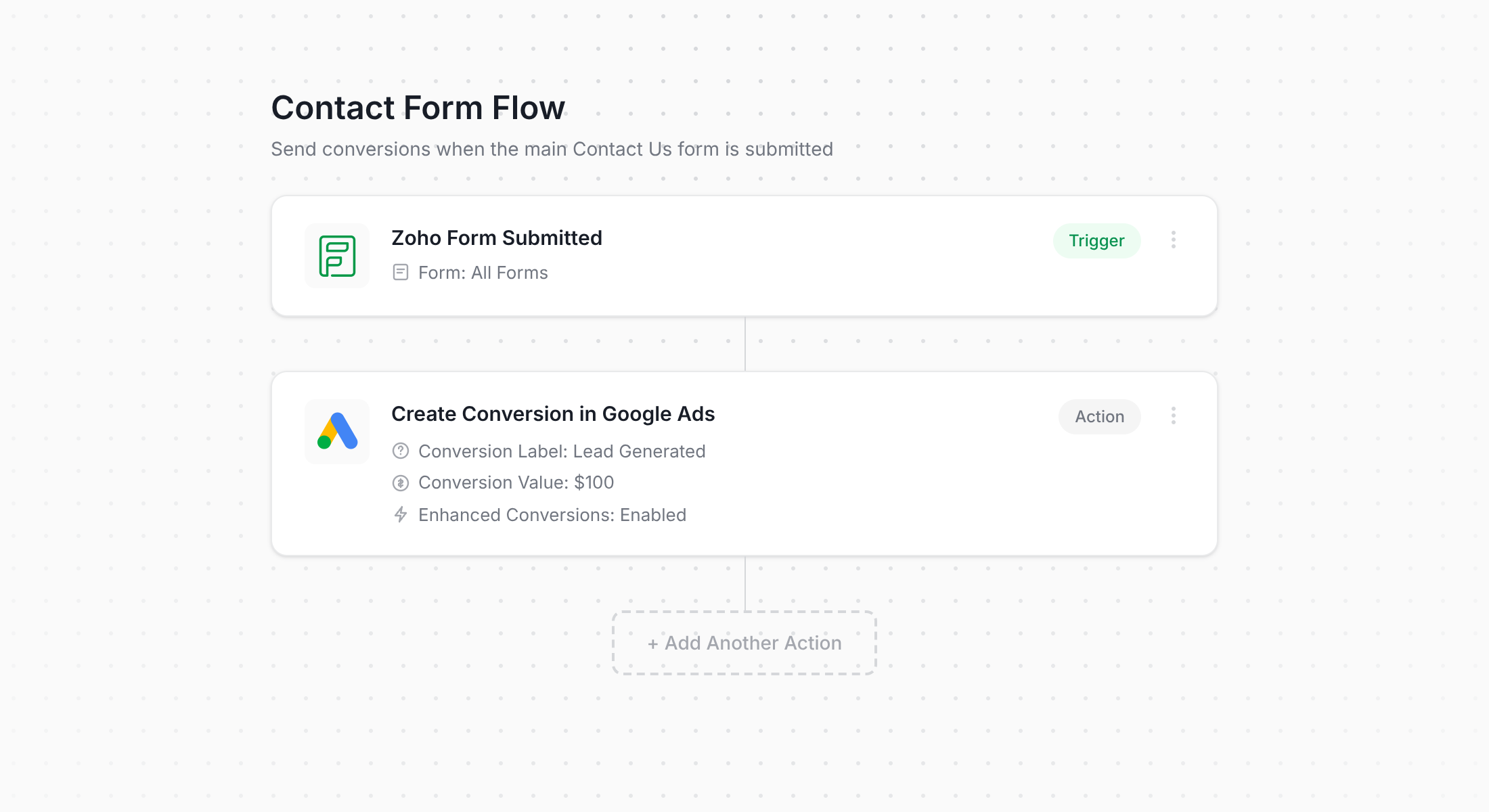
As you can see from the screenshot above, Converly ships with a visual workflow builder that should feel instantly recognisable to anyone who's used something like Zapier or an email automation tool.
You just choose your trigger (like a Zoho Form being submitted), then pick the actions you want to fire as a result (like sending a server-side conversion across to Google Ads).
And that's all there is to it. A few clicks later and your server-side conversion tracking for Google Ads is live.
Step 2: Add the Converly code to your website
After you've built and published your Conversion Flow, Converly provides you a small code snippet to drop onto the site where your Zoho Form lives.
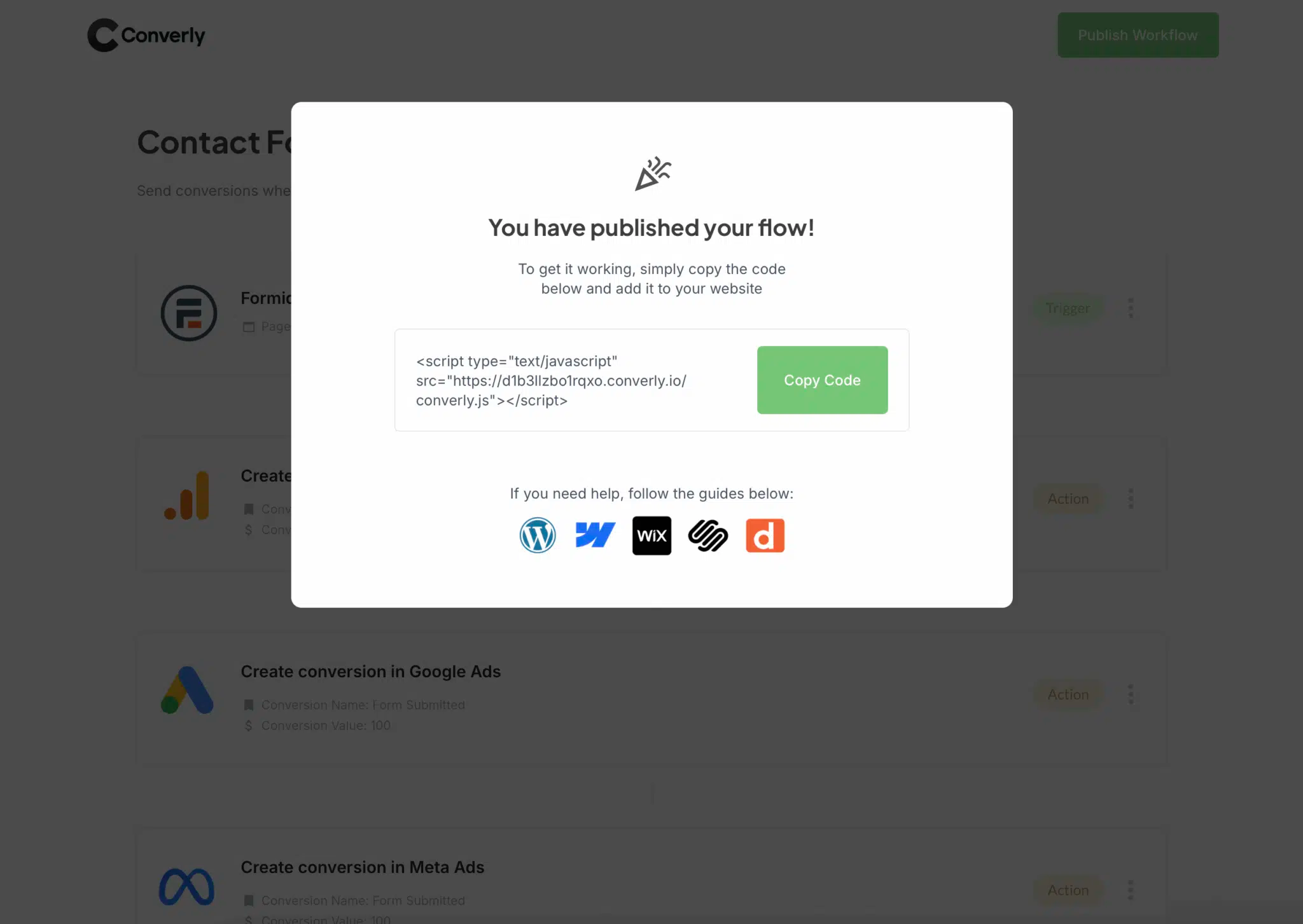
Because Zoho Forms is generally embedded onto a parent website (WordPress, Webflow, HubSpot, or even a custom-built site), the snippet goes onto that parent site rather than inside Zoho itself. Most website builders let you drop the snippet into a Header or Custom Code area in the Settings section of your site. Alternatively, you can use tools like Google Tag Manager to add the code in.
Step 3: Test it works
The last thing to do is head to your website and submit a test entry through the Zoho Form embedded there.
After submitting, jump back into your Conversion Flow, hit the 3 dots menu in the top right corner, and choose View Logs.
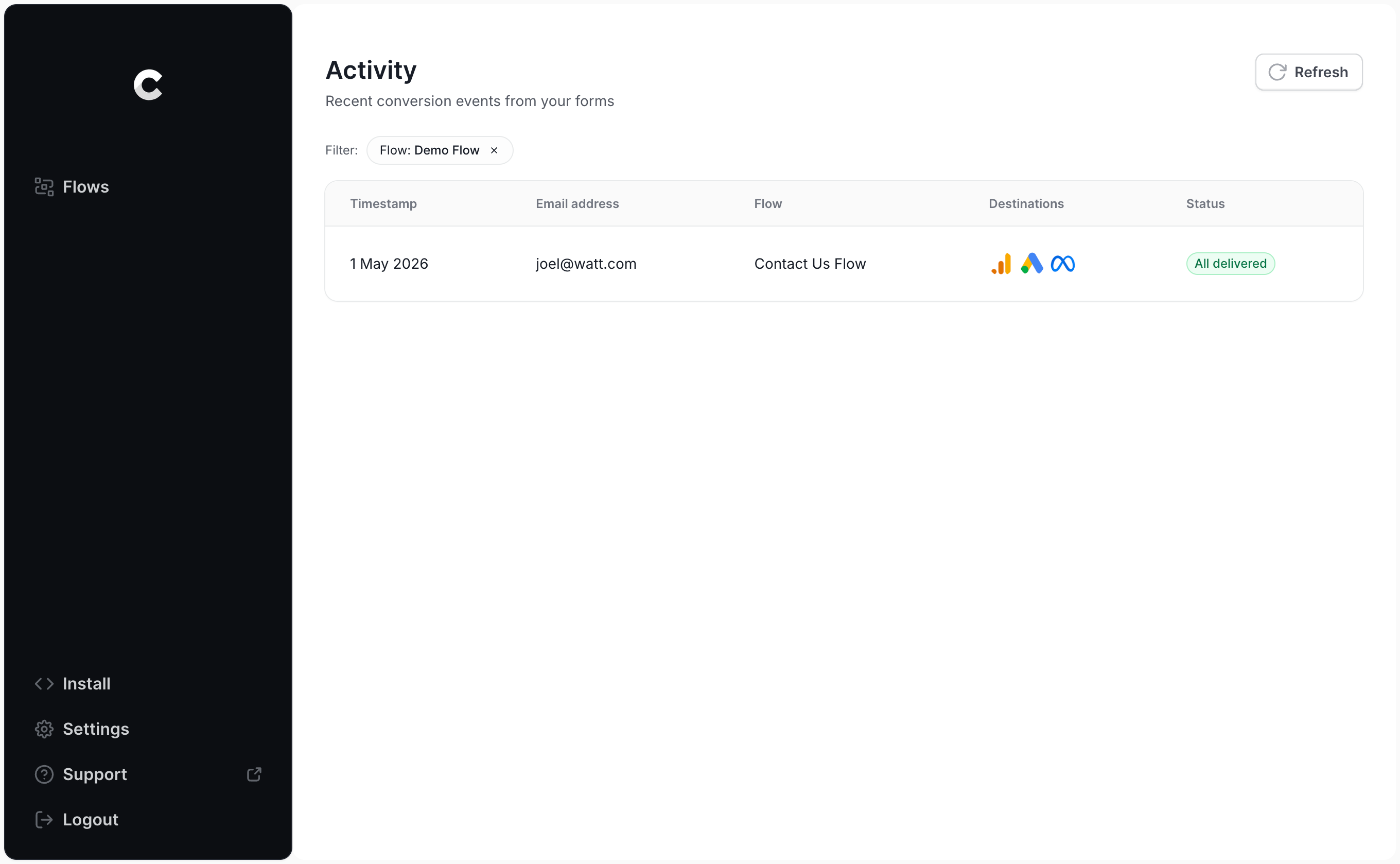
From the logs page, open up your test entry to see all the details, including whether it was successfully delivered to Google Ads.
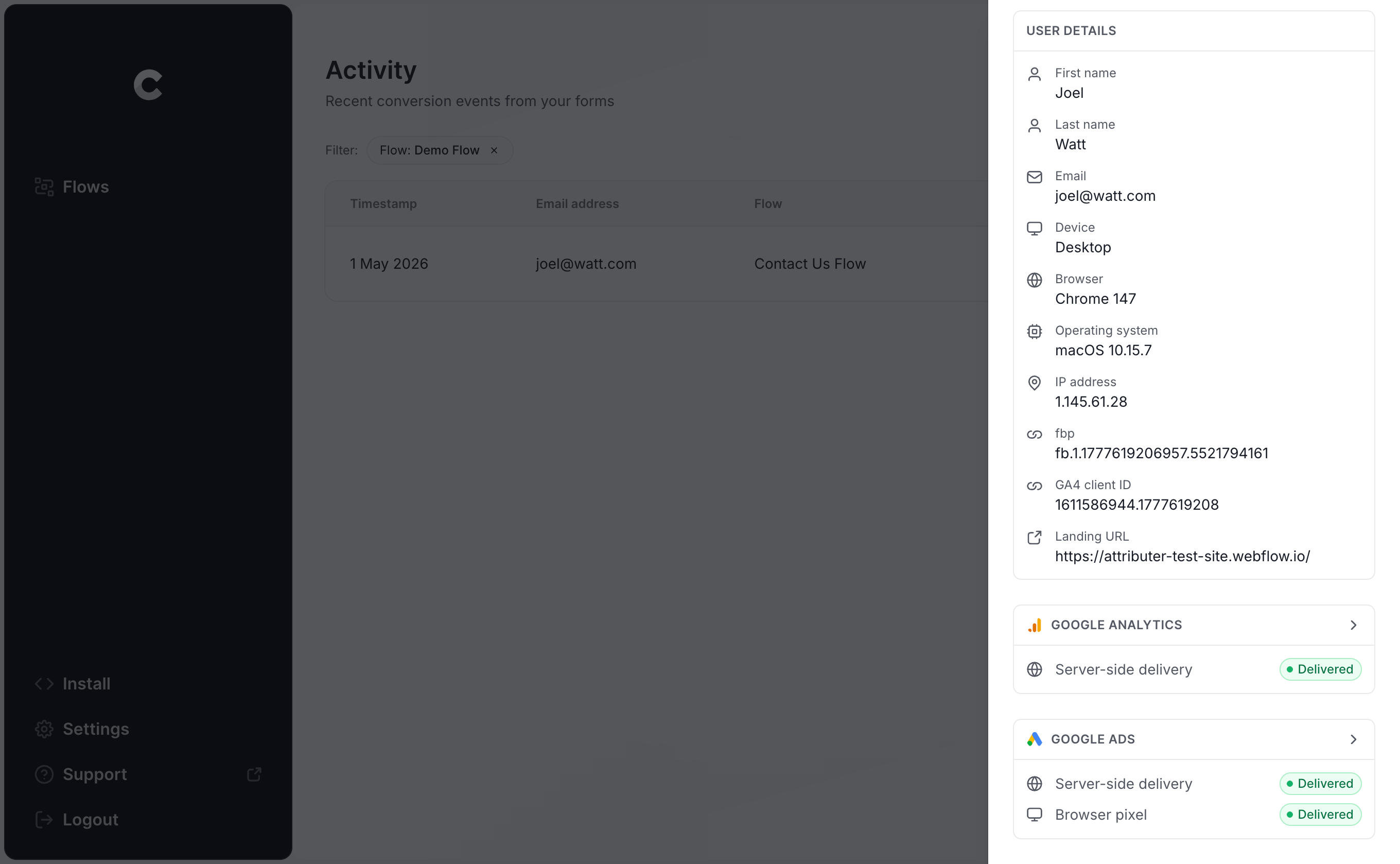
You can even drill down further to see exactly what data was sent to Google Ads, what response came back from their servers, and so on.
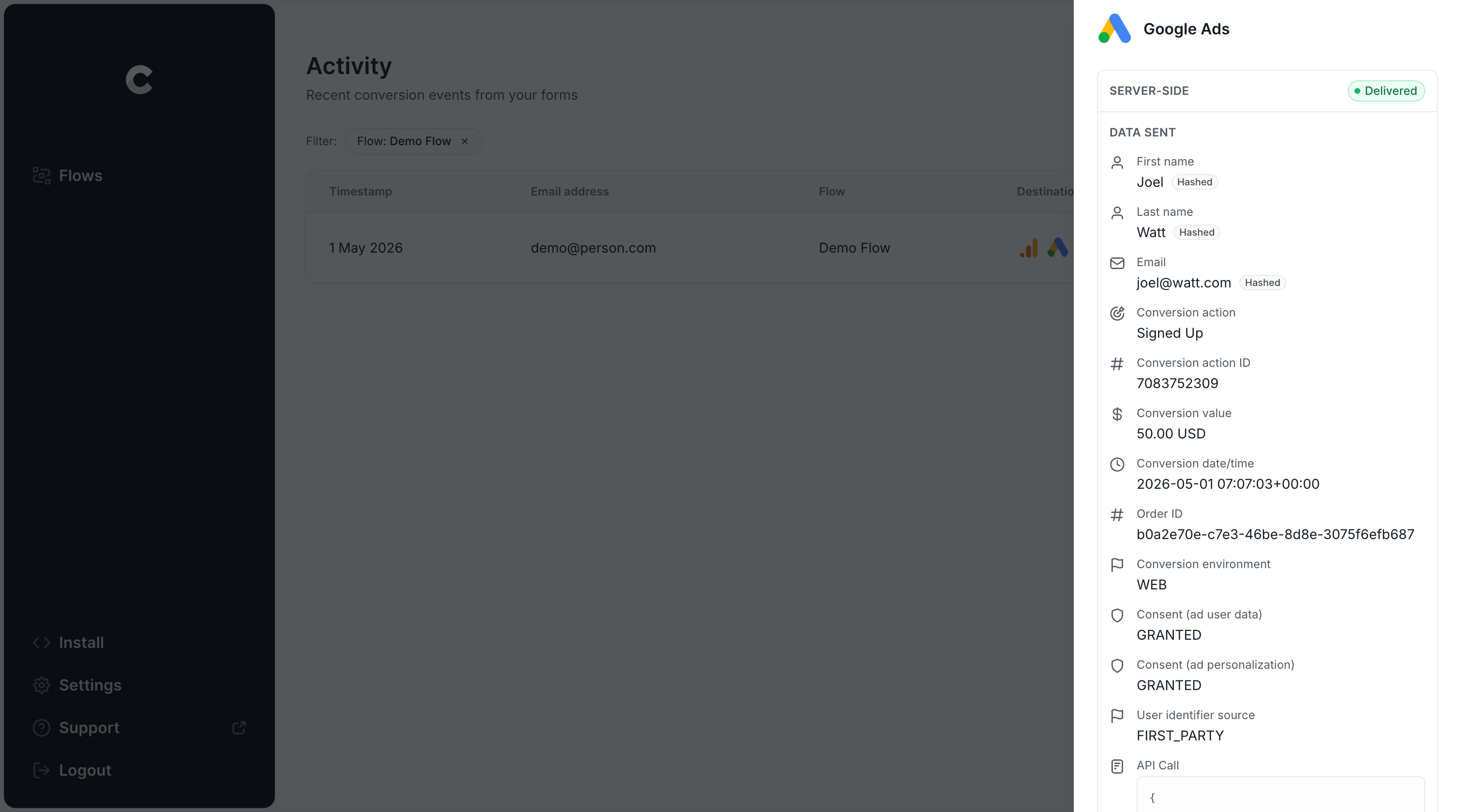
If your test entry appears in the log and is marked as successfully delivered to Google Ads, your conversion tracking is good to go. From start to finish, the whole setup typically takes no more than 5-10 minutes!
Why Converly is the best way to send conversions to Google Ads from Zoho Forms
There are obviously other ways to send conversions across to Google Ads when a Zoho Form is submitted, so why choose Converly over the alternatives? A handful of reasons really stand out:
1. Easy to set up
The most popular route for getting conversions into Google Ads is using Google Tag Manager. The catch is that you'll need to write custom JavaScript to listen for form submissions, grab the lead's name and email out of the form and push them into the DataLayer, work out how to hash that data with SHA-256 (which Google requires), and then wire up the variables, triggers and tags to send the conversion to Google Ads.
Zoho Forms makes things even harder. Zoho Forms are typically embedded into your site via an iframe, which means standard GTM listeners running on the parent page can't see the submit event at all without postMessage workarounds.
Unless you're properly versed in Google Tag Manager AND can write Javascript, you're looking at hours upon hours of trial and error to get it all working.
Converly takes a much simpler approach. You just pick your trigger (a Zoho Form being submitted on your site) and decide what should happen as a result (a conversion firing off to Google Ads). Converly then handles all of the complexity for you. You don't need to write any custom code, figure out how to send information into the DataLayer, or learn what SHA-256 even means.
2. Not affected by ad blockers and privacy restrictions
If you're relying on a tool like Google Tag Manager (or going with something basic like firing on thank you page visits), a meaningful share of your conversions simply won't make it back to Google because ad blockers and privacy-focused browsers stop the Google Tag from loading on your site in the first place.
There's a study that looked at over 7 million conversions and found that tag-based tracking was failing to send roughly 30% of all conversions. About 5% of those losses were caused by ad blockers, and the bigger chunk (roughly 25%) came from browser-level privacy controls.
Because Converly sends conversions straight to Google's servers, it isn't tripped up by ad blockers or privacy-focused browsers, which means the data you end up with is far more complete.
3. Works across devices
It's pretty common these days for a lead to land on your site from one device (their phone, say) and then hold off on filling out the form until they're sitting back at a computer.
If you're sending conversions through the browser (using tools like Google Tag Manager), there's no way to link those two sessions because they're happening on different devices.
Converly gets around this by sending the lead's data (name, email, phone, and so on) straight to Google's servers, which gives Google the information it needs to tie the conversion on the computer back to the original ad click on the phone, so your ads finally get the credit they earned.
4. Sends more data
Beyond the lead's name, email, phone, etc, Converly also captures technical details like the GCLID, IP address, browser, device, and so on, and pushes all of that across to Google Ads with each conversion.
The end result is that Google Ads has a much richer profile of the person who converted, which it can use to better match the conversion back to an ad click (even if that click happened on a different device several weeks earlier).
The end result? You get more accurate conversion reporting in Google Ads and their smart bidding technology has more conversion data to help it understand who your ideal customers are (so it can drive more of them to your website in the future).
5. Supports multiple tools and platforms
Converly integrates with more than 100 different form builders, scheduling tools, chat widgets, etc.
On the destination side, it can deliver conversion events to Google Analytics, Google Ads, Meta Ads, LinkedIn Ads, Microsoft Ads, and a long list of other platforms.
So if you bring on new tools for your website down the road (like a scheduling tool or chatbot), or perhaps you start running ads on a new platform, you won't need to rebuild your conversion tracking from scratch. A few clicks inside Converly and the new connection is ready to go.
6. Gives you a full conversion log and email alerts
If you send conversions to Google Ads using a tool like Google Tag Manager, knowing whether it is still firing is genuinely hard. You can test it at setup, but unless you keep going back to re-test, your tracking can break without a trace (someone edits the form, changes a tag in Google Tag Manager, or tweaks a setting in Google Ads) and you would never notice.
Converly puts an end to that guesswork. You get a full conversion log that records every conversion that fired, exactly what data Converly captured, what it sent to Google Ads, the response Google Ads returned, and more.
On top of that, you can switch on email notifications. Get one for every conversion sent to Google Ads, or only when a send fails, so you find out the instant your tracking stops working.
3 things you can do when you properly send conversions to Google Ads from Zoho Forms
Once you've got proper, reliable conversion tracking running inside Google Ads, a whole bunch of capabilities open up that simply weren't possible before.
1. Report on conversions by campaign, ad group, keyword, etc.
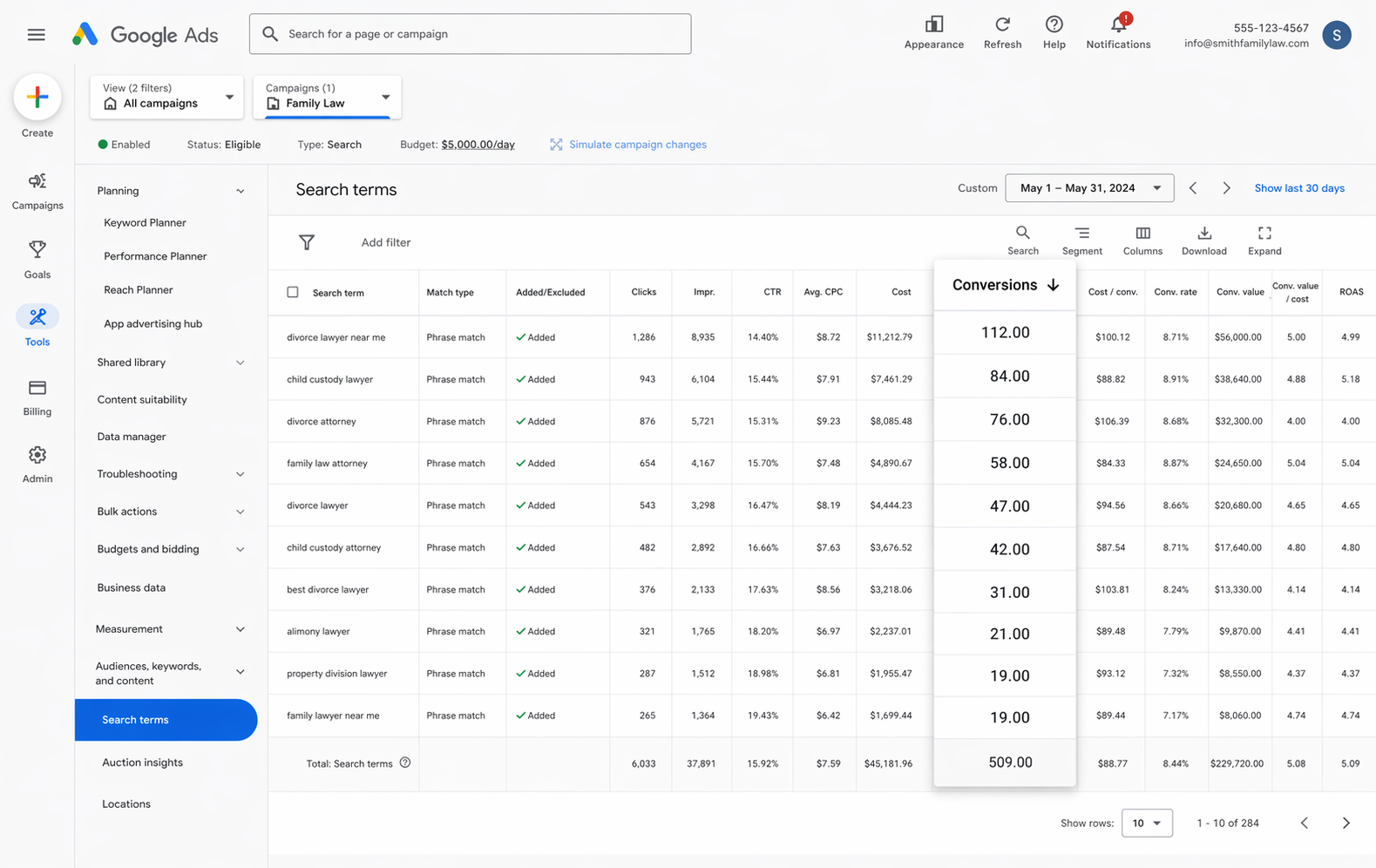
With accurate conversion tracking flowing through, your Google Ads account starts showing far more than just impressions and clicks. You can see how many conversions your ads drove, the conversion rate, cost per conversion, return on ad spend, and plenty of other useful metrics.
You can also slice those numbers by campaign, ad group, keyword, ad, country, and many other dimensions.
This gives you a much better understanding of how your Google Ads are actually performing and where the biggest growth opportunities are sitting.
2. Use Google's Smart Bidding technology
With manual bidding, you're basically telling Google "I'll pay up to $3 per click." And Google will go and bid up to that for every searcher (regardless of whether they are actually a good fit for your business or not).
Smart bidding flips that on its head. You set the end goal (something like $45 per lead) and Google handles the bidding for you. It weighs up everything it knows about the searcher (their age, location, device, browsing history, etc.) and bids higher or lower depending on whether the searcher is an ideal customer for your business or not.
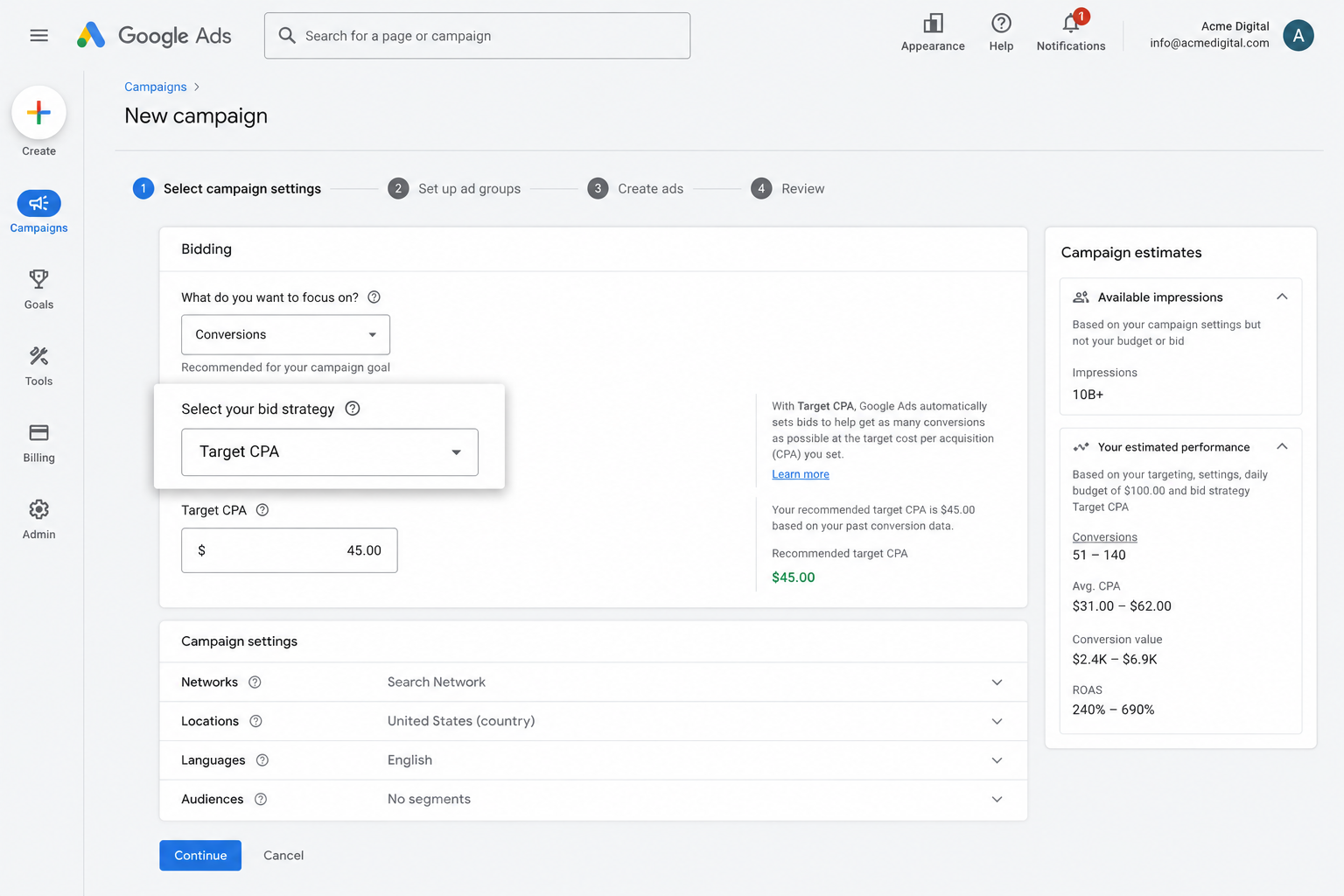
It's an amazing system that can genuinely change your Google Ads performance, but none of it works unless your conversion tracking is solid. Without it, Google has no clear picture of what a "good" searcher looks like for your business, so it ends up bidding aggressively to win clicks from the wrong people (which drains your budget and pushes costs higher).
But by using Converly to set up accurate, server-side conversion tracking, you can really get the most out of Google's smart bidding tools and bring in more leads at a lower cost.
3. Retarget people who visited your site but didn't convert
When good conversion data flows into Google Ads, you can start building remarketing lists made up of people who visited your site but never completed a form and converted.
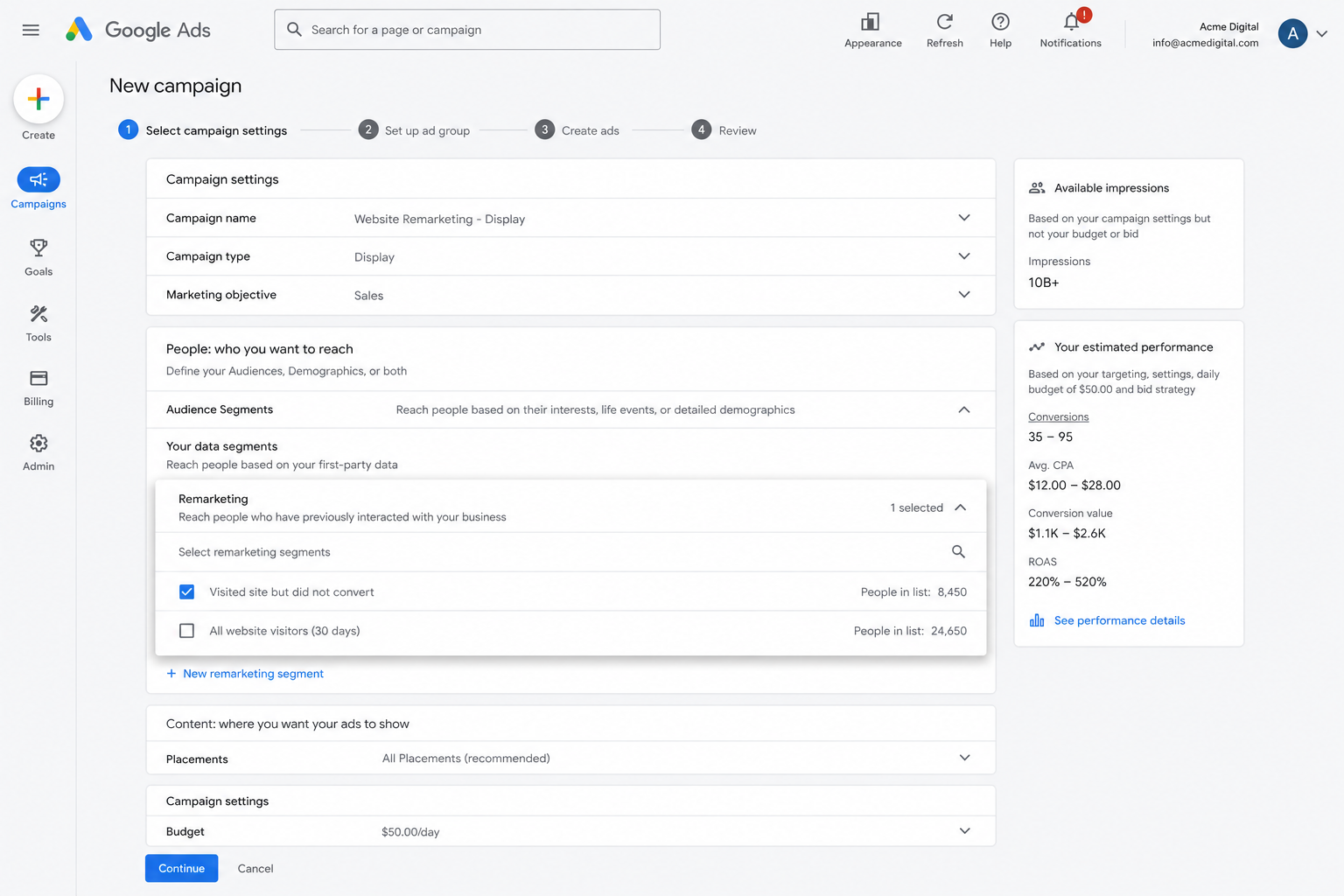
From there, you can retarget those visitors in a number of different ways, including:
- Search — Bid higher (or lower if that suits) for these people the next time they search your keywords.
- Display — Show display ads on the Google Display network only to these visitors, so your brand keeps appearing as they move around the web.
- YouTube — Run YouTube ads exclusively pointed at this audience, so they keep seeing your ads while watching videos.
Wrap Up
Converly is a really solid option if you're looking to send a conversion across to Google Ads whenever someone submits a Zoho Form on your website.
Because conversions are sent directly to Google's servers, they bypass ad blockers and the privacy features built into browsers like Safari. And the rich profile that Converly sends (including the lead's name, email, phone, IP address, Google Click ID, browser, device, and so on) gives Google plenty of signal to work with when tying that conversion back to the original ad click.
On top of all that, the whole setup takes only a few minutes, and there's a 14-day free trial available so you can give it a try today!
About the author

Aaron is the founder of Converly. With over 15 years of experience in digital marketing and SaaS, he's passionate about helping businesses track and optimise their ad conversions.