


Track WS Form submissions as conversions in Google Ads
Learn how to send server-side conversions to Google Ads every time someone completes a WS Form on your WordPress site. No code required!
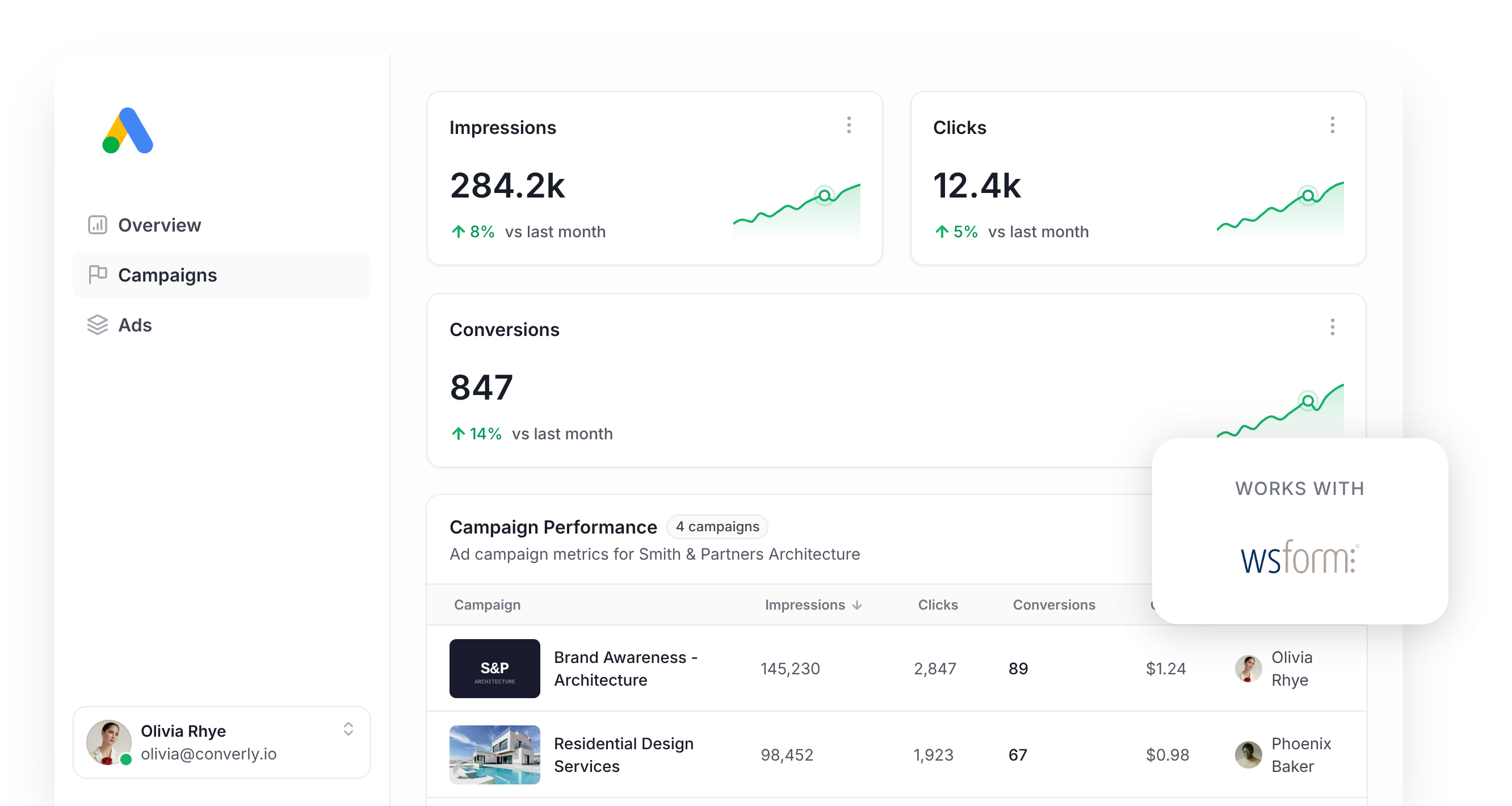
If you're paying for clicks on Google Ads to bring in leads, you need a way to tell which campaigns are actually paying off and which ones are just burning budget. That means setting up conversion tracking in Google Ads.
Sounds simple. In practice, it rarely is.
The usual route is Google Tag Manager, which means writing code to catch the form submission, pushing an event into the dataLayer, then wiring up the tags, triggers, and variables that turn that event into a recorded conversion.
Other teams skip the code and just watch for a thank you page visit or a button click instead, but that shortcut comes at a cost. Ad blockers, Safari's tracking limits, and leads who start on one device and finish on another can quietly erase close to 30% of your real conversions.
Is there a way around all of this? Yes, and you don't need a developer to pull it off.
This guide walks through setting up reliable, server-side conversion tracking for Google Ads every time someone fills out a WS Form on your WordPress site.
Why server-side tracking matters for Google Ads
Conversion tracking used to be a nice to have. Now it's the foundation everything else in your account is built on.
Google Ads' smart bidding strategies (things like Maximize Conversions or Target CPA) look at signals like location, device, time of day, and past purchase history to guess how likely a given searcher is to convert, then adjusts its bids accordingly. Someone who looks like a good fit gets a higher bid and more visibility. Someone who doesn't gets less.
When the underlying data is solid, that's a genuinely powerful way to bring in more leads without increasing spend. But it only works if you're actually telling Google who converted and who didn't, so the algorithm can learn what your best leads look like and go find more people just like them.
Older tracking methods, like watching for a thank you page visit, all rely on sending that signal through the visitor's own browser, and that opens up a few weak points:
- Ad blockers - Plenty of visitors run extensions that block ad scripts outright, which means the Google Tag simply never fires and the conversion never gets recorded.
- Browser privacy limits - Safari and other privacy focused browsers cap how long the Google Tag can follow a visitor, sometimes to just a single day, so anyone who clicks your ad and converts a few days later can't be matched back to that click.
- Multiple devices - Someone might click your ad on their phone while commuting, then come back later on their laptop to actually fill out your WS Form. Browser-based tracking has no way to connect those two sessions since they happened on separate devices, so your ad never gets credit for the lead it generated.
Server-side tracking sidesteps all of this by skipping the visitor's browser entirely. The lead's details go straight to Google's servers through a direct API call, so ad blockers and privacy settings have nothing to interfere with.
It might sound technical, but the payoff is very real. Google's own numbers show server-side tracking typically delivers a 23% lift in recorded conversions and a 10% drop in cost per conversion, simply because the bidding algorithm finally has the data it needs to recognize your ideal customer and put your ad in front of more people who look like them.
3 simple steps to send server-side conversions to Google Ads from WS Form
Setting up server-side tracking between your WS Form and Google Ads takes just a few minutes with Converly. Here's how it works:
Step 1: Build your Conversion Flow in Converly
Converly makes it easy to fire off a server-side conversion to Google Ads every time someone submits a WS Form on your WordPress site.
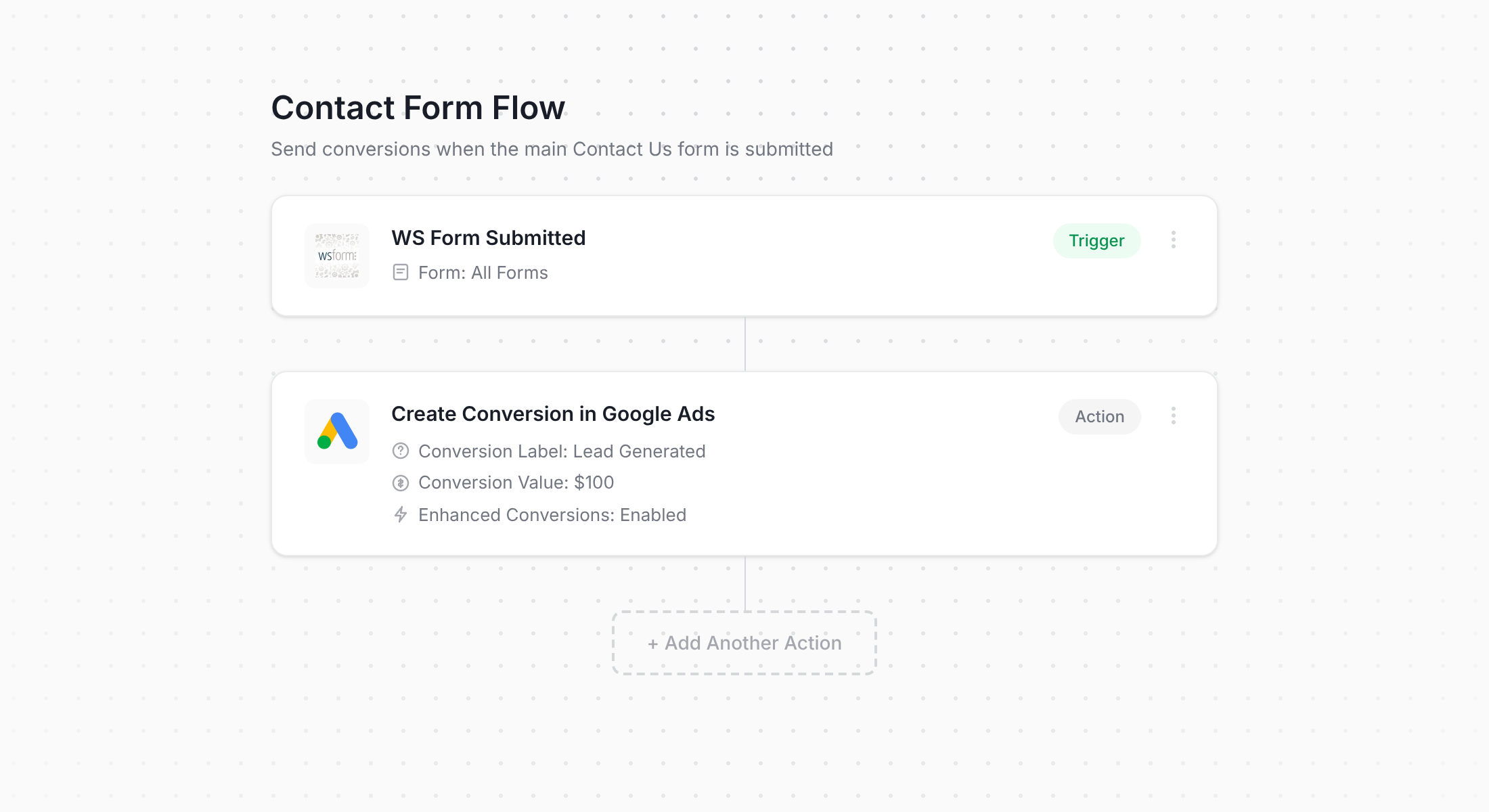
That's a screenshot of Converly's workflow builder. If you've used Zapier or any similar automation tool before, the layout will feel instantly familiar.
You pick a trigger (a lead completing your WS Form), then pick the action that should happen next (a conversion sent to Google Ads).
That's genuinely the whole process. A few clicks and server-side conversion tracking is live, with no developers or custom scripts required.
Step 2: Add the Converly code to your website
Once you've published your Conversion Flow, Converly hands you a short snippet of code to install on your site.
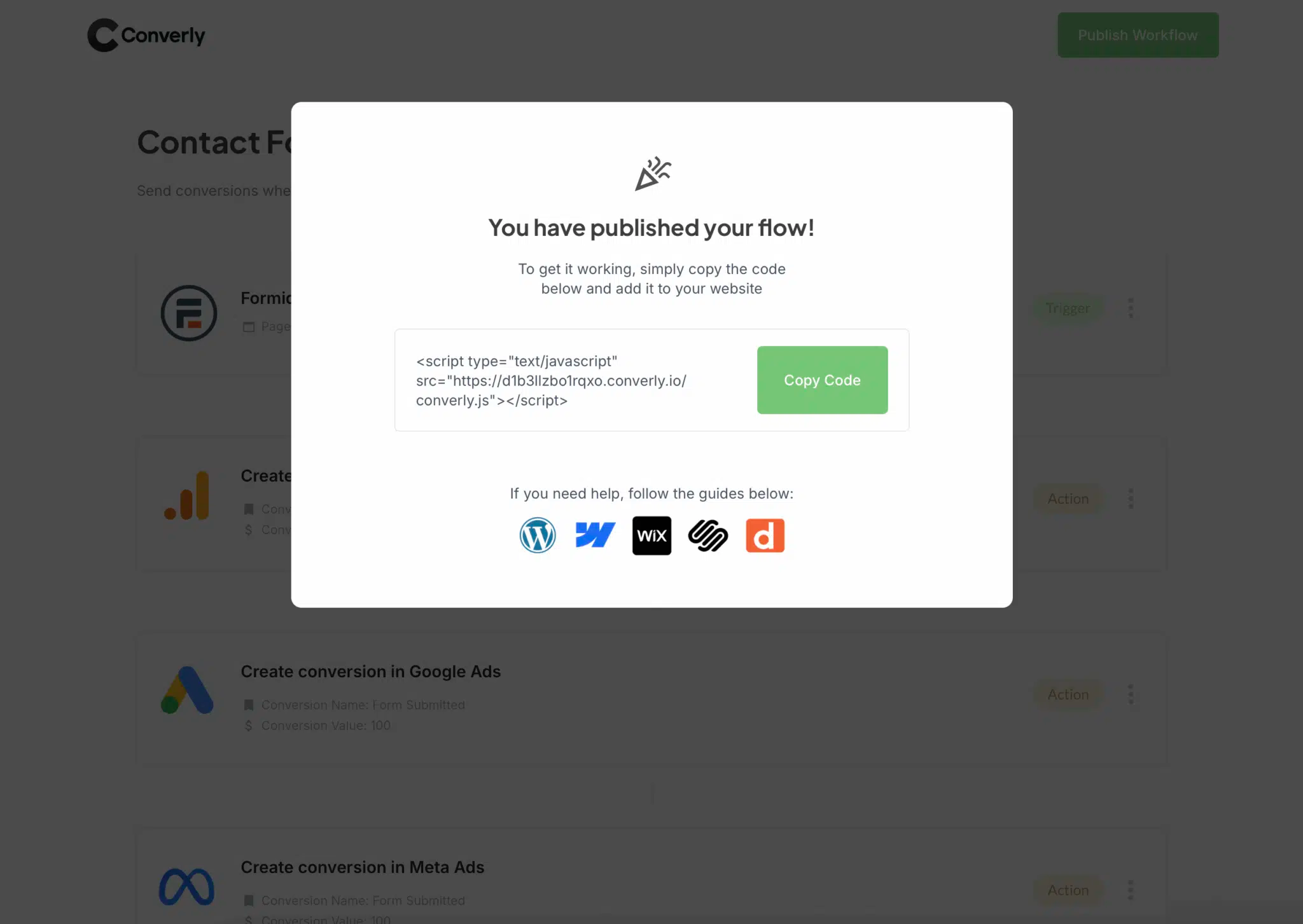
Drop it into your WordPress theme's header, a plugin like Insert Headers and Footers, or wherever else your site lets you add custom scripts, and make sure it loads on every page. If your site already runs Google Tag Manager, you can add it there instead.
Step 3: Test it works
With everything set up, head to your live site and submit one of your WS Forms as a test.
Then jump back into Converly, open the Conversion Flow, click the 3 dots menu in the top right, and select View Logs.
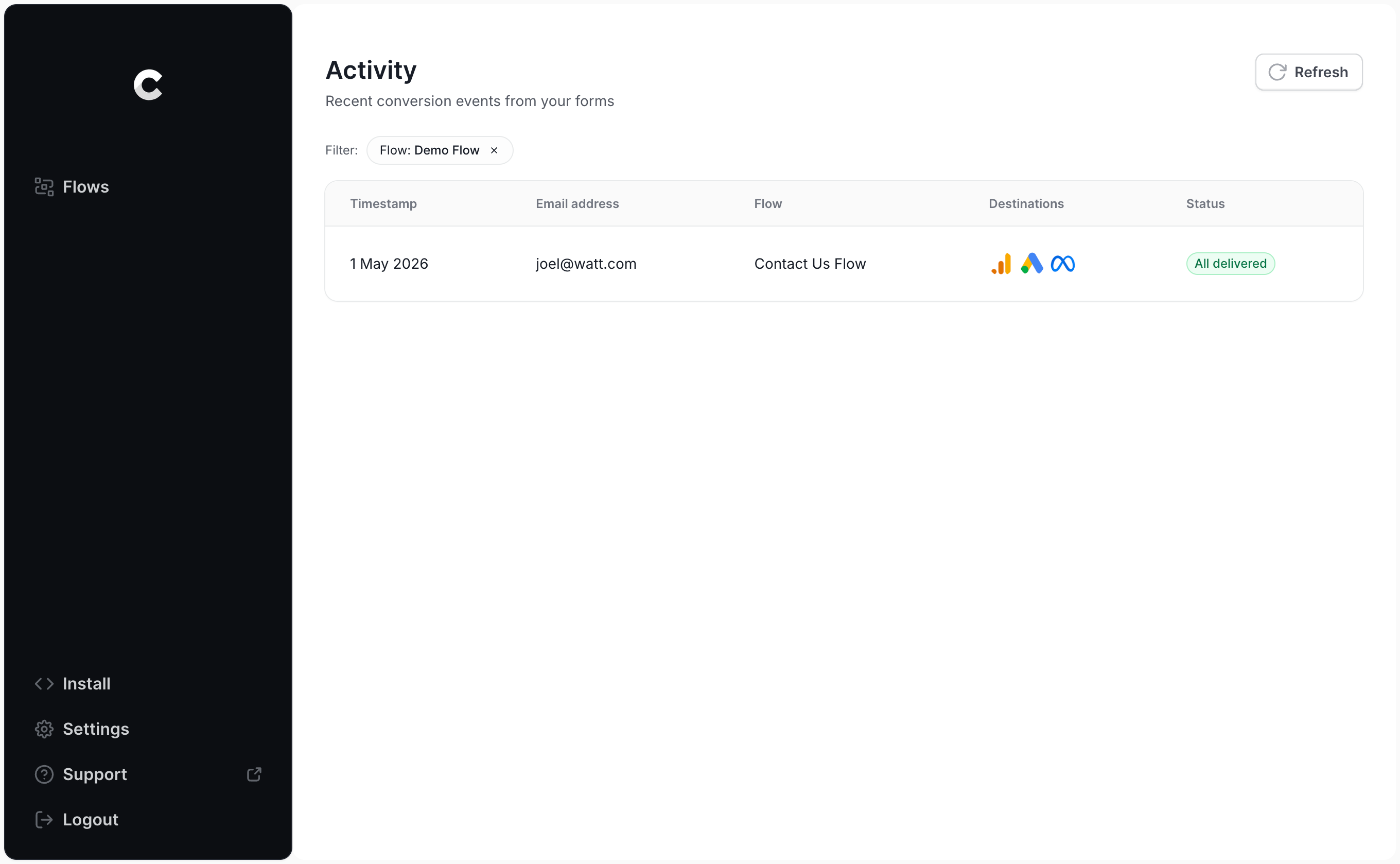
Click into the entry for your test submission and you'll see exactly what data was captured and where it was sent.
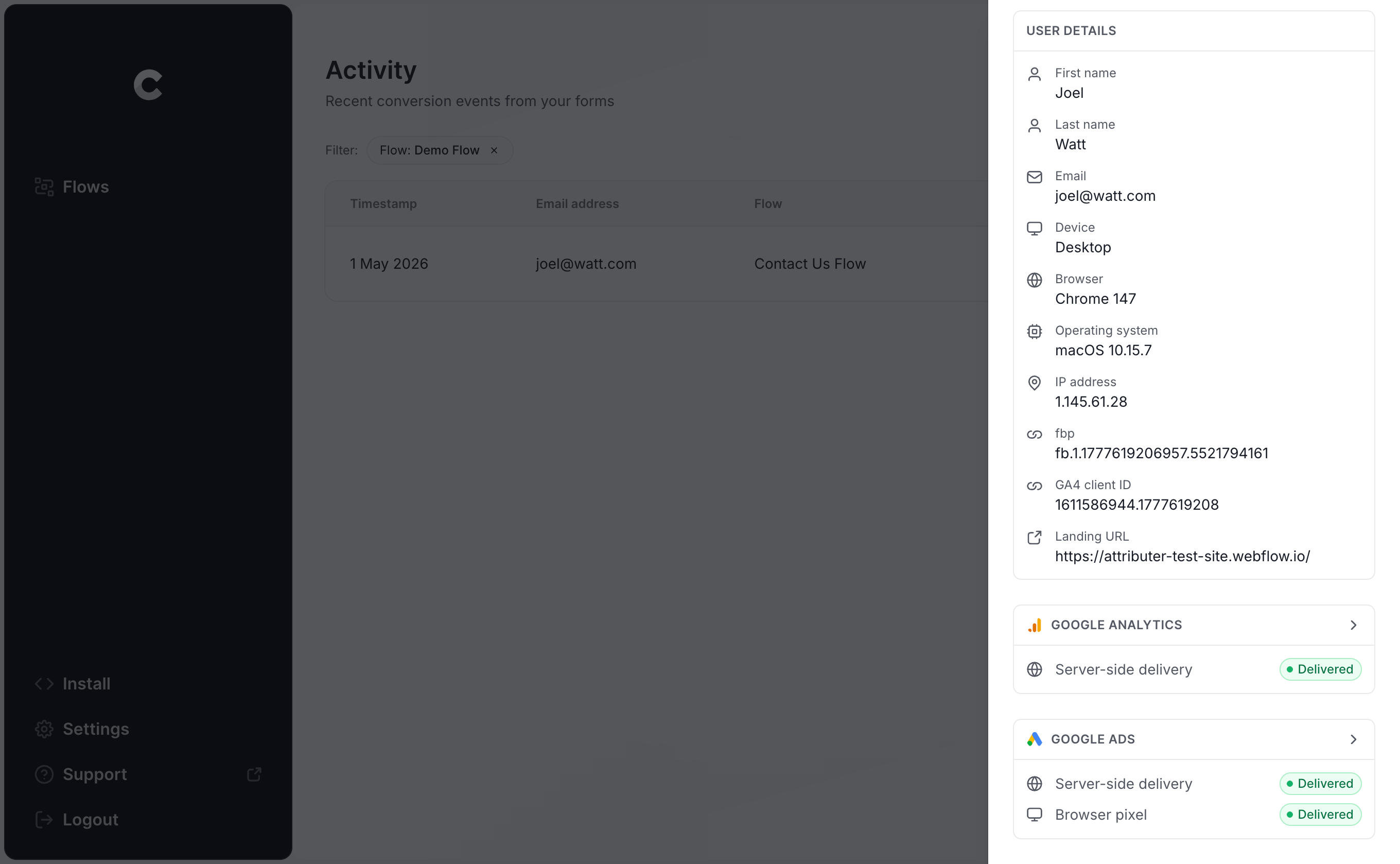
You can go a level deeper still and see the exact payload that reached Google Ads, along with how their servers responded.
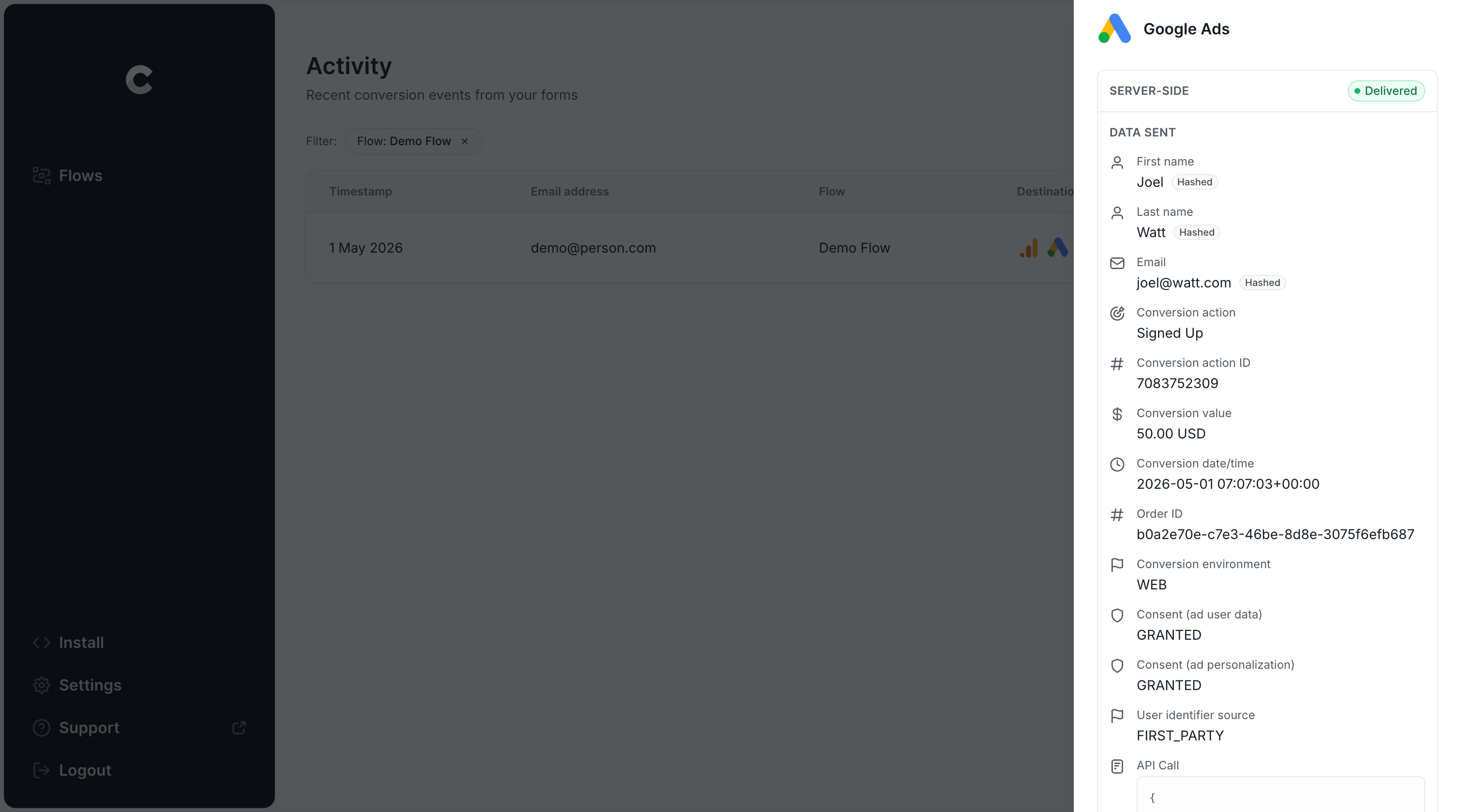
Once your test submission shows up in the log with a successful send to Google Ads, you're done. Most people finish the entire setup in under 5 minutes.
Why Converly is the best way to send conversions to Google Ads from WS Form
There's more than one way to turn WS Form completions into Google Ads conversions, so it's worth asking why Converly is the one to pick.
1. Easy to set up
Plenty of teams default to Google Tag Manager for this. That path means writing custom JavaScript to detect a WS Form submission, pushing the lead's name and email into the dataLayer, pulling them back out with dataLayer Variables, hashing everything with SHA-256 (a requirement from Google), then piecing together the Tags and Triggers that tie it all together.
It's possible to do it yourself. But if you're not already fluent in Google Tag Manager, you'll burn a lot of hours figuring out where things went wrong.
Converly skips all of that. You choose a trigger (a WS Form submission), choose an action (a Google Ads conversion), and you're finished. If your team already leans on an AI assistant like Claude or ChatGPT, you can connect it to Converly's MCP and just say something like "Set up conversion tracking between Google Ads and WS Form," and it will build the flow for you.
2. Not affected by ad blockers and privacy restrictions
Rely on browser-based tracking (Google Tag Manager, thank you page visits, button clicks) and a real chunk of your conversions will never reach Google, because ad blockers and privacy-focused browsers stop the Google Tag from ever loading on the visitor's device.
A study covering more than 7 million conversions found browser-based tracking only managed to get about 70% of conversions through to Google Ads, meaning roughly 30% simply vanish.
Converly doesn't have that problem. It sends conversions directly to Google's servers, so there's no browser-side script for an ad blocker or privacy setting to interfere with.
3. Works across devices
It's common for someone to first discover your business on their phone, then not actually fill out a form until they're sitting at their desk on a work computer.
Browser-based tools like Google Tag Manager can't bridge that gap, since the two visits happened in separate browsers on separate devices, so Google has no way to tie the eventual conversion back to the original ad click.
Converly gets around this by sending the lead's details (name, email, and more) straight to Google's servers, which lets Google connect the conversion back to the real person and the ad they originally clicked, even if it happened on a completely different device.
4. Sends more data
Beyond the lead's name, email, and phone number, Converly also captures technical signals like the Google Click ID (GCLID), IP address, and user agent, and passes all of it through to Google Ads with every conversion.
That matters because a lot of people share the same name, and plenty of people use more than one email address, so those fields alone aren't enough to reliably match a conversion back to a real person. Sending the Google Click ID and IP address alongside them gives Google far more to work with, so it can still connect the dots even when the ad click and the conversion happen weeks apart on entirely different devices.
The result is cleaner reporting and more usable data sitting inside your Google Ads account.
5. Supports multiple tools and platforms
Converly connects to more than 100 form builders, CRMs, scheduling tools, and other website tools, WS Form included. It can send conversion events to Google Analytics, Google Ads, Meta Ads, ChatGPT Ads, LinkedIn Ads, Microsoft Ads, and a handful of other destinations too.
So if you adopt a new tool later on (a chat widget for inbound leads, say) or start running ads on a new platform, you're not rebuilding your tracking from the ground up. Just connect it inside Converly and you're set.
6. Gives you a full conversion log and email alerts
Build your tracking through Google Tag Manager and there's no easy way to know if it's still working once it's live. It might pass every test on day one, then a change to your WS Form, a tweak in GTM, or an edit somewhere in Google Ads quietly breaks the chain, and you won't notice until your conversions drop to zero (right around when Google starts spending your budget trying to chase conversions that no longer exist).
Converly closes that gap. Every conversion gets logged, showing exactly what data came in, what was sent to Google Ads, and how Google Ads responded. You can also turn on email alerts, either for every conversion or just the failures, so you find out about problems the moment they happen instead of weeks later.
3 things you can do when you properly send conversions to Google Ads from WS Form
Once real conversion data is flowing into Google Ads, a lot more becomes possible on the reporting and optimization side. Here are 3 things you can start doing:
1. Report on conversions by campaign, ad group, keyword, etc.
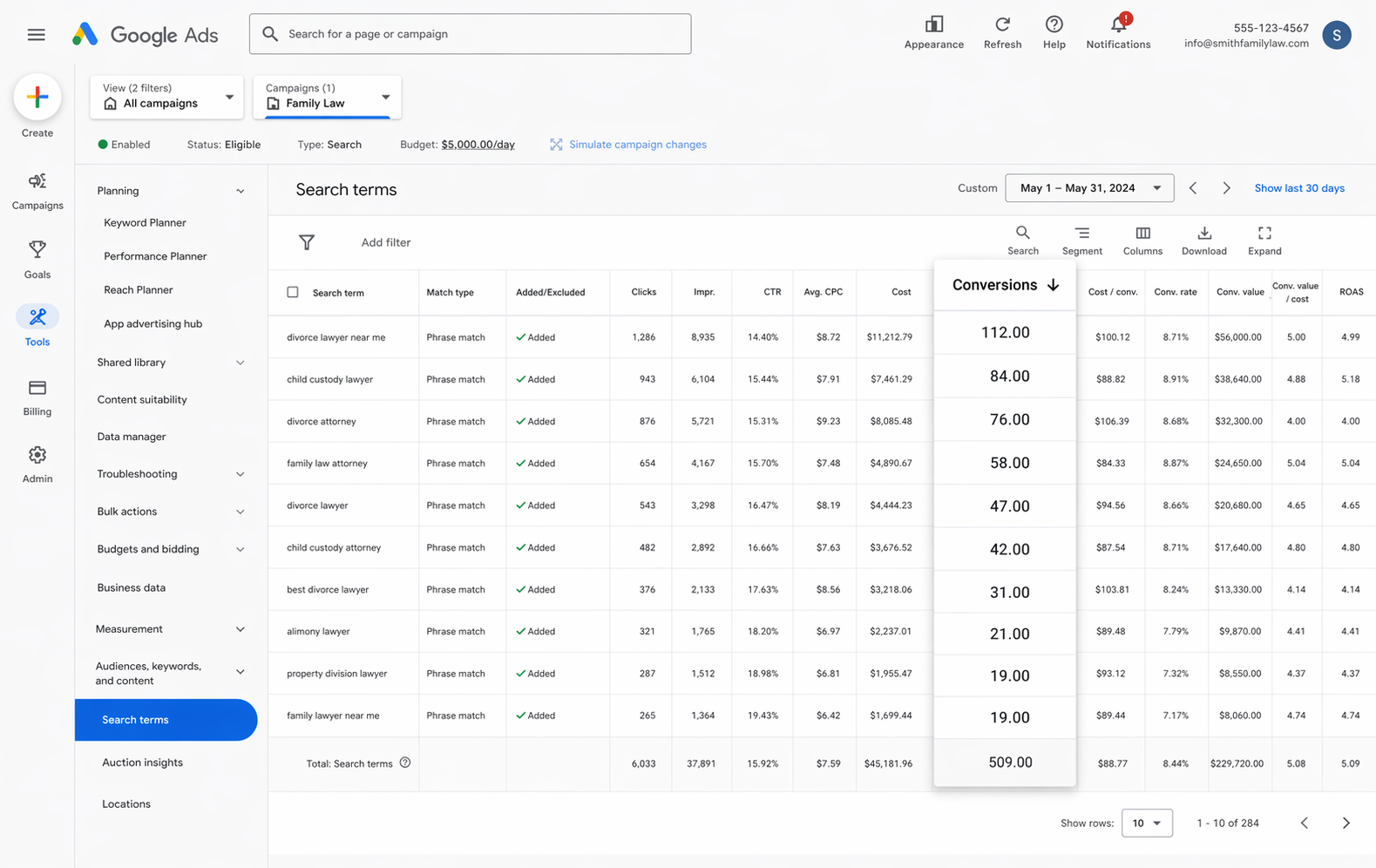
With real conversions tracked, your Google Ads account shows more than clicks and impressions. You get conversion counts, conversion rate, cost per conversion, return on ad spend, and more, all in one place, and you can break any of it down by campaign, ad group, keyword, ad, or country to see exactly where performance is coming from.
That visibility makes it a lot easier to spot what's working, what isn't, and where the best opportunities for growth are hiding.
2. Use Google's Smart Bidding technology
Manual bidding is a fairly blunt way to run a Google Ads account. You're telling Google "bid up to $3 a click," and it does exactly that regardless of who's actually searching or how likely they are to convert.
Google's Smart Bidding strategies do this better. You give Google a target, say $45 per lead, and it takes over the bidding for you. It weighs things like the searcher's device, location, age, interests, and past behavior, then bids higher for people who look likely to convert and lower for those who don't.
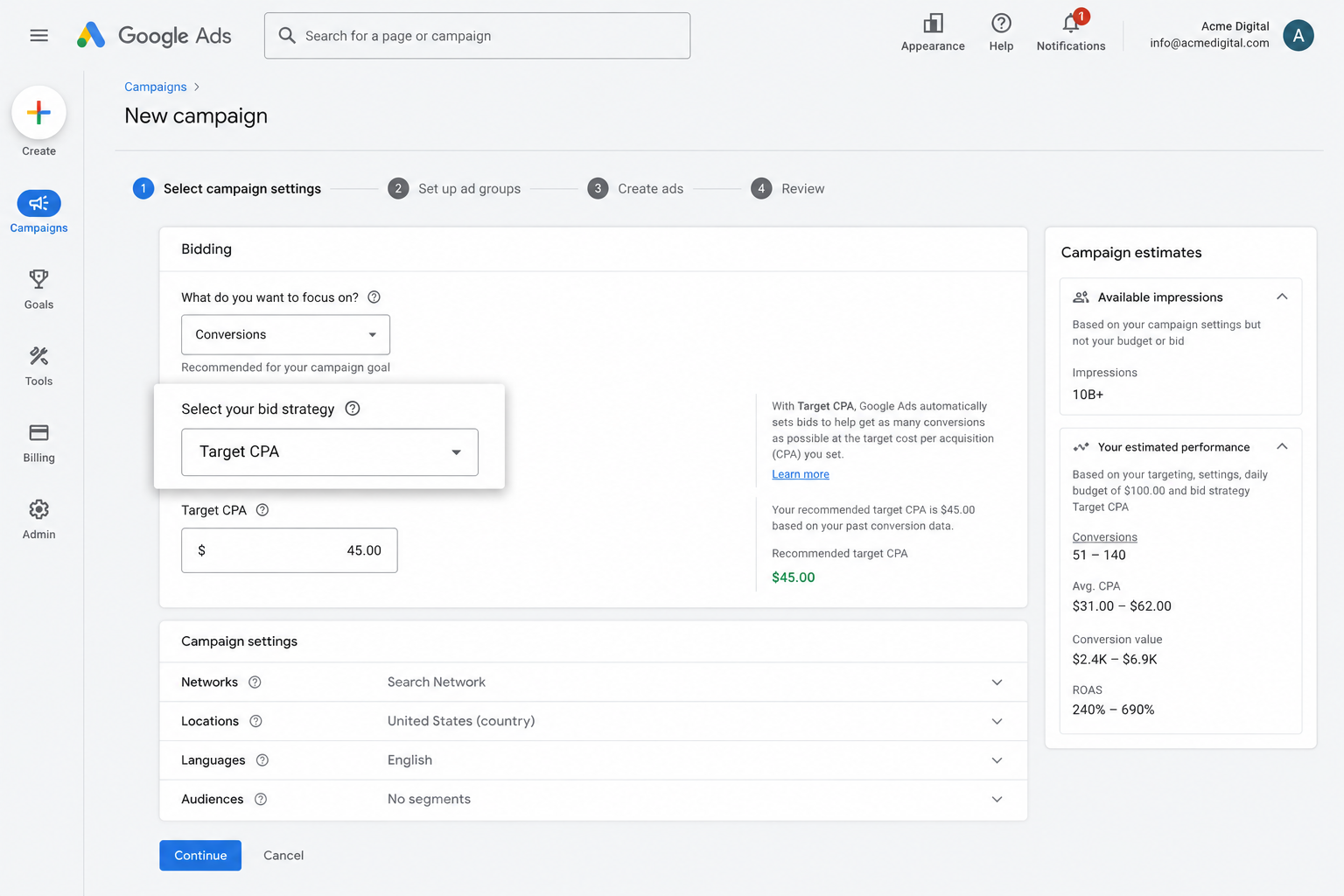
It's a genuinely strong tool for bringing in more leads at a lower cost, but only if the conversion data behind it holds up. If Google can't tell which clicks actually became leads, it can't learn what a good searcher looks like for your business, and you'll end up spending on people who were never going to convert.
Getting accurate, server-side tracking in place through Converly puts you in a position to actually benefit from Google's smart bidding and bring in more leads for less.
3. Retarget people who visited your site but didn't convert
Solid conversion data also lets you build remarketing lists made up of visitors who landed on your site but never completed a WS Form.
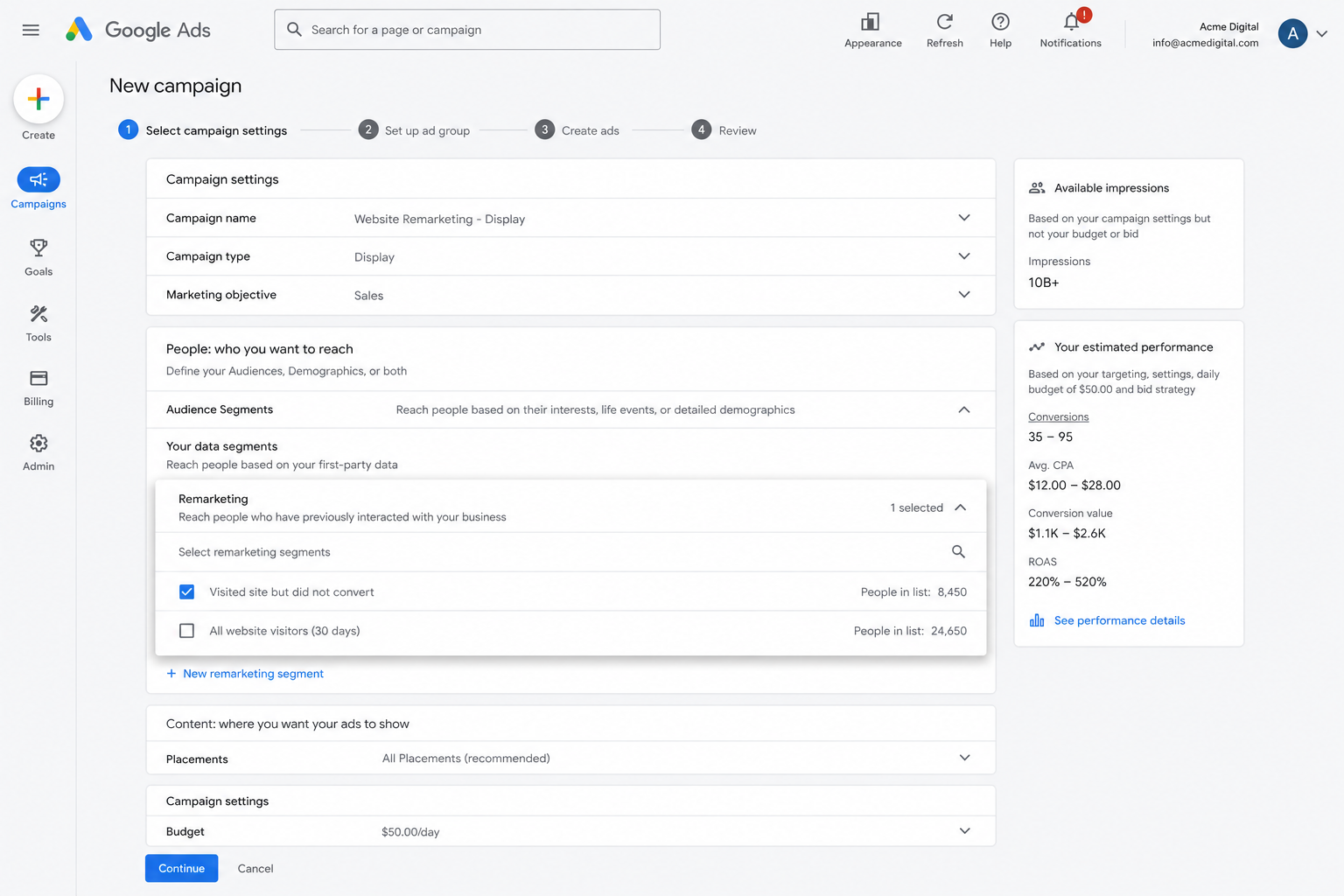
From there, you've got a few ways to bring them back:
- Search Ads - Raise or lower your bids for these visitors the next time they search your target keywords.
- Display Ads - Run banner ads across the Google Display Network so your brand stays in front of them while they browse other sites.
- YouTube Ads - Serve them YouTube ads to stay top of mind while they're watching video content.
Wrap Up
If you're after an easy, reliable way to send conversions to Google Ads every time a lead completes a WS Form on your site, Converly is a solid pick.
Conversions go straight to Google's servers, so ad blockers and browser privacy settings can't get in the way, and Converly hands along a full set of lead data (name, email, phone, IP address, user agent, and more) so Google has what it needs to accurately match the conversion back to the original ad click, even if that happened weeks earlier on a completely different device.
Setup takes just a few minutes, and it comes with a 14-day free trial, so give it a try today!
About the author

Aaron is the founder of Converly. With over 15 years of experience in digital marketing and SaaS, he's passionate about helping businesses track and optimise their ad conversions.