


Track WPForms form submissions as conversions in ChatGPT Ads
Learn how to send server-side conversions to ChatGPT Ads whenever someone fills out a WPForms form on your WordPress site. No code required!
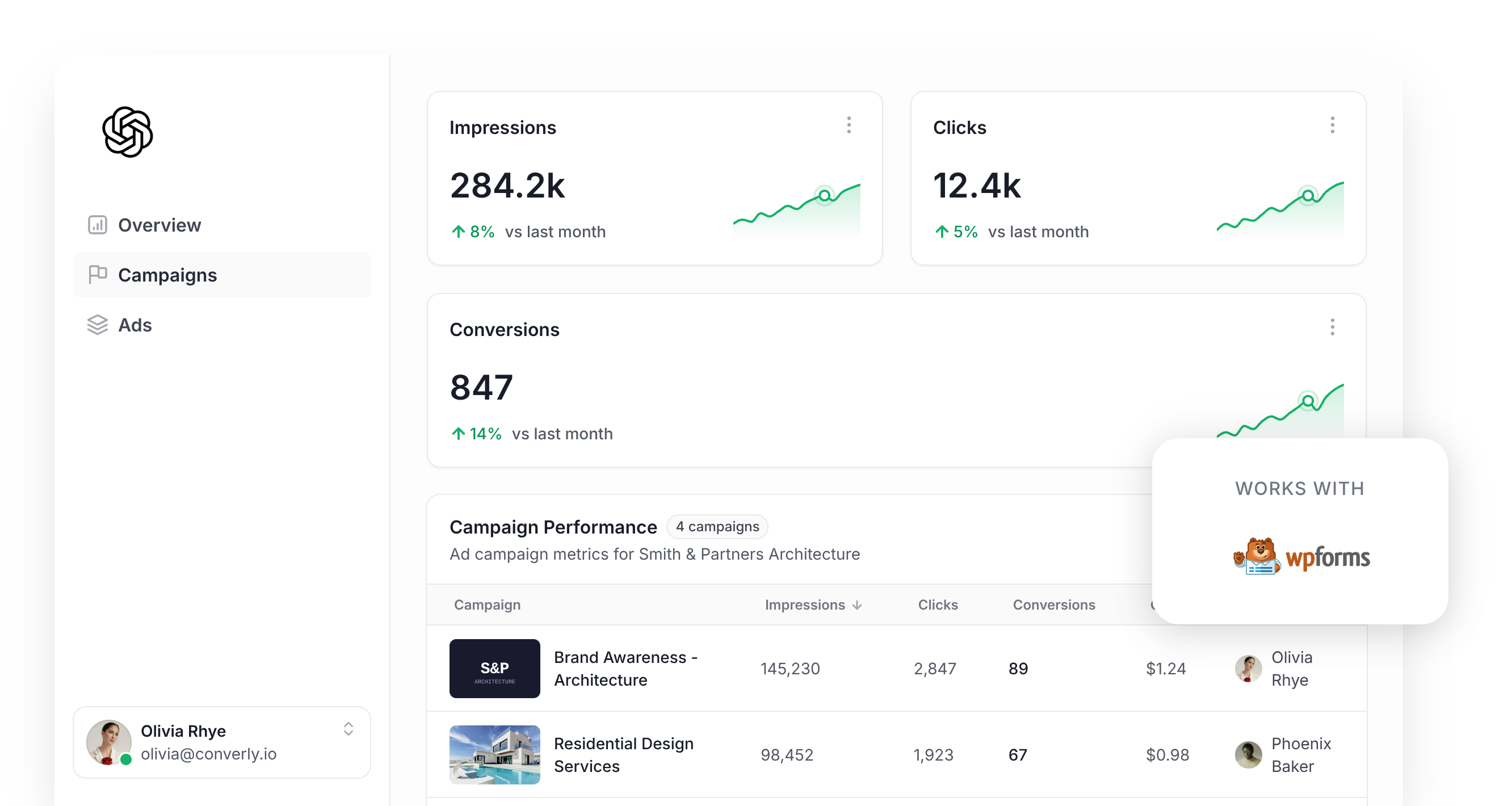
Thinking about using ChatGPT Ads to generate more leads for your business? If so, then you need to make sure you get conversion tracking right.
Like almost every ad platform these days, ChatGPT Ads uses AI to work out which people are most likely to turn into leads, and then shows your ads to those people more often.
The problem is that the AI is only as good as the conversion data you give it. When ChatGPT Ads has no visibility into which ad clicks actually became leads, it doesn't know who it should be serving your ads to, and it ends up spending your budget on people that were never going to convert.
And it actually matters more in ChatGPT Ads because you don't pick ‘keywords’ to target. Instead, you're trusting ChatGPT to insert your ad into relevant conversations, and without proper conversion data being sent back it has no idea which of those conversations are actually producing leads.
So what does good conversion tracking in ChatGPT Ads look like, and how do you get it set up?
In this article, we'll show you the best way to send a conversion to ChatGPT Ads every time someone submits a WPForms form on your WordPress site.
What proper conversion tracking looks like in ChatGPT Ads
So what does it actually take to get conversion tracking right in ChatGPT Ads? It really comes down to 2 things. The first is getting every conversion delivered successfully, and the second is making sure each one arrives with enough information for ChatGPT Ads to tie the conversion back to a real user and the original ad they clicked.
Getting every conversion delivered
The simplest way to set up conversion tracking is to add the ChatGPT Ads Measurement Pixel to your website and fire a conversion whenever someone lands on your thank you page. The problem is that this relies entirely on the visitor's browser to send the conversion to ChatGPT Ads, and ad blockers and built-in privacy features regularly stop that from happening.
And it's not a small leak either. Industry studies put the loss at 30% or more of all conversions, which means your reports show fewer leads than you're actually getting and ChatGPT's algorithm has less data to learn from when it's trying to decide who to show your ads to.
That's why OpenAI recommends sending each conversion in 2 different ways. The first is to send it through the visitor's browser via the Measurement Pixel, and the other is to send it from a server to OpenAI through the Conversions API (this is what people mean by "server-side tracking"). That way, if the Measurement Pixel is blocked from loading in the visitor's browser, the server-side conversions act as a backup.
Making sure each conversion can be matched
Getting the conversion to ChatGPT Ads is only half the battle. Once it arrives, ChatGPT Ads has to match it to a real person and to the specific ad they clicked (and if it can't make that connection, the conversion isn't counted at all). There are a few things that make that matching much harder than you'd expect:
- Browser privacy features - Safari and other privacy-focused browsers only let tracking cookies stick around for a short time (usually 7 days or less). So if someone clicks your ad on a Tuesday and comes back to fill in your form the following week, the cookie that linked them to that ad click has already been deleted.
- Switching devices - It's really common for someone to click your ad on their phone, then come back a few days later on their desktop or laptop and complete your form. But because these happen on different devices, there's no way to tie the eventual conversion back to the original ad click.
- Switching browsers - Lots of people use the ChatGPT app on their phone, and when they tap your ad, your website opens in a little browser window inside the app. That window keeps its cookies completely separate from the phone's main browser, so if they come back later in Safari or Chrome and fill in your form, ChatGPT Ads has no way to connect the conversion to the original click.
The fix for all 3 is to send extra lead information with every conversion. That includes their name, email address and phone number, as well as the Click ID (ChatGPT Ads calls this the oppref, and it's added to the end of your URL when someone clicks your ad). It also helps to send the lead's IP address and user agent, as that gives ChatGPT information about the device they are using. Each one gives ChatGPT Ads another way to recognise who the lead is, so the more of them you send, the more conversions it can match.
3 simple steps to send proper, server-side conversions to ChatGPT Ads from WPForms
So now that you know what good conversion tracking looks like, let's talk about the easiest way to set it up.
Step 1: Build your Conversion Flow in Converly
Converly is a conversion tracking tool that makes it simple to send proper, server-side conversions from WPForms to ChatGPT Ads.
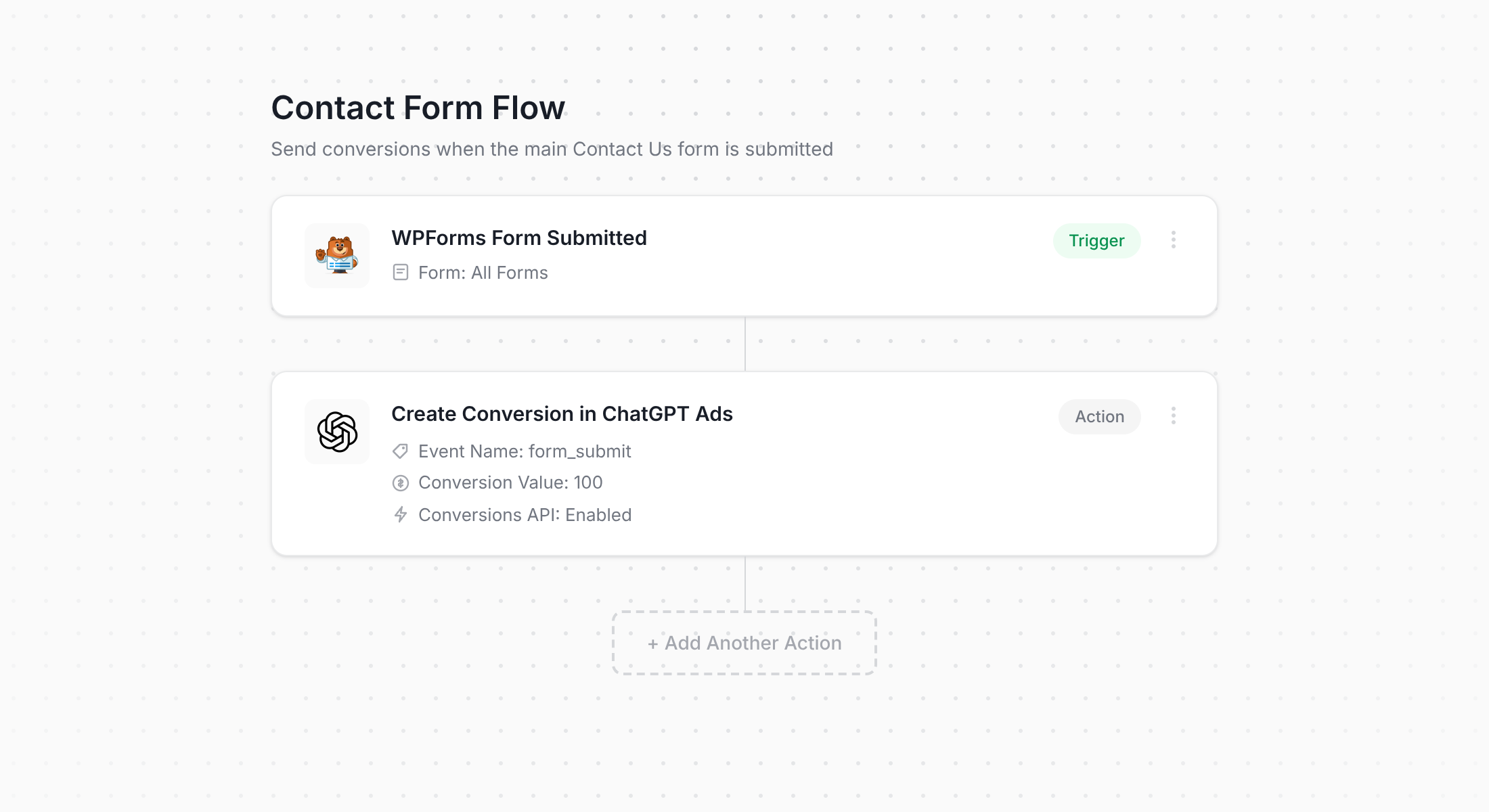
The screenshot above shows Converly's flow builder. If you've ever used Zapier before (or set up an automation in a WordPress plugin like Uncanny Automator), it will feel very familiar.
First, select your trigger (like a visitor submitting a WPForms form on your site), then choose what should happen next (like a conversion being sent to ChatGPT Ads). That's genuinely the whole setup. A couple of clicks and you've got server-side conversion tracking for ChatGPT Ads running.
And if you use an AI assistant like Claude or ChatGPT, it's even simpler. Install the plugin, ask it to 'Set up ChatGPT Ads conversion tracking for my WPForms forms', and it will build everything for you!
Step 2: Add the Converly code to your website
Once you build and publish your Conversion Flow, Converly will give you a small code snippet to add to your site.
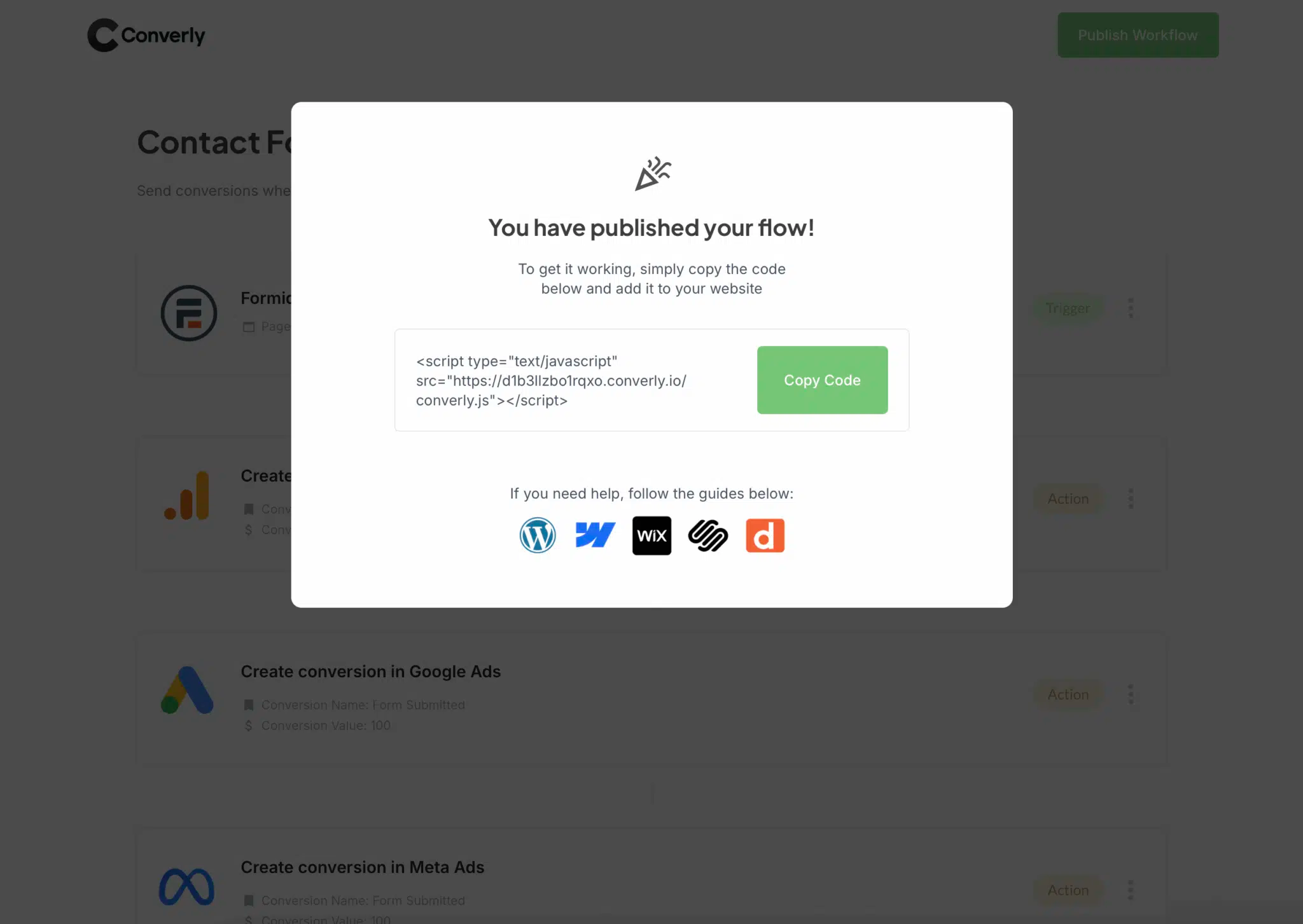
Because WPForms runs on WordPress, the easiest option is usually to add it via a header and footer plugin like WPCode (made by the same team behind WPForms). Just paste the snippet into the site-wide header section and save. Otherwise, most WordPress themes have their own Header Scripts setting you can use instead, and you can add it via Google Tag Manager as well.
Step 3: Test it works
The last step is to visit your website and submit your WPForms form yourself.
After that, head back to Converly and click 'Logs' in the main navigation.
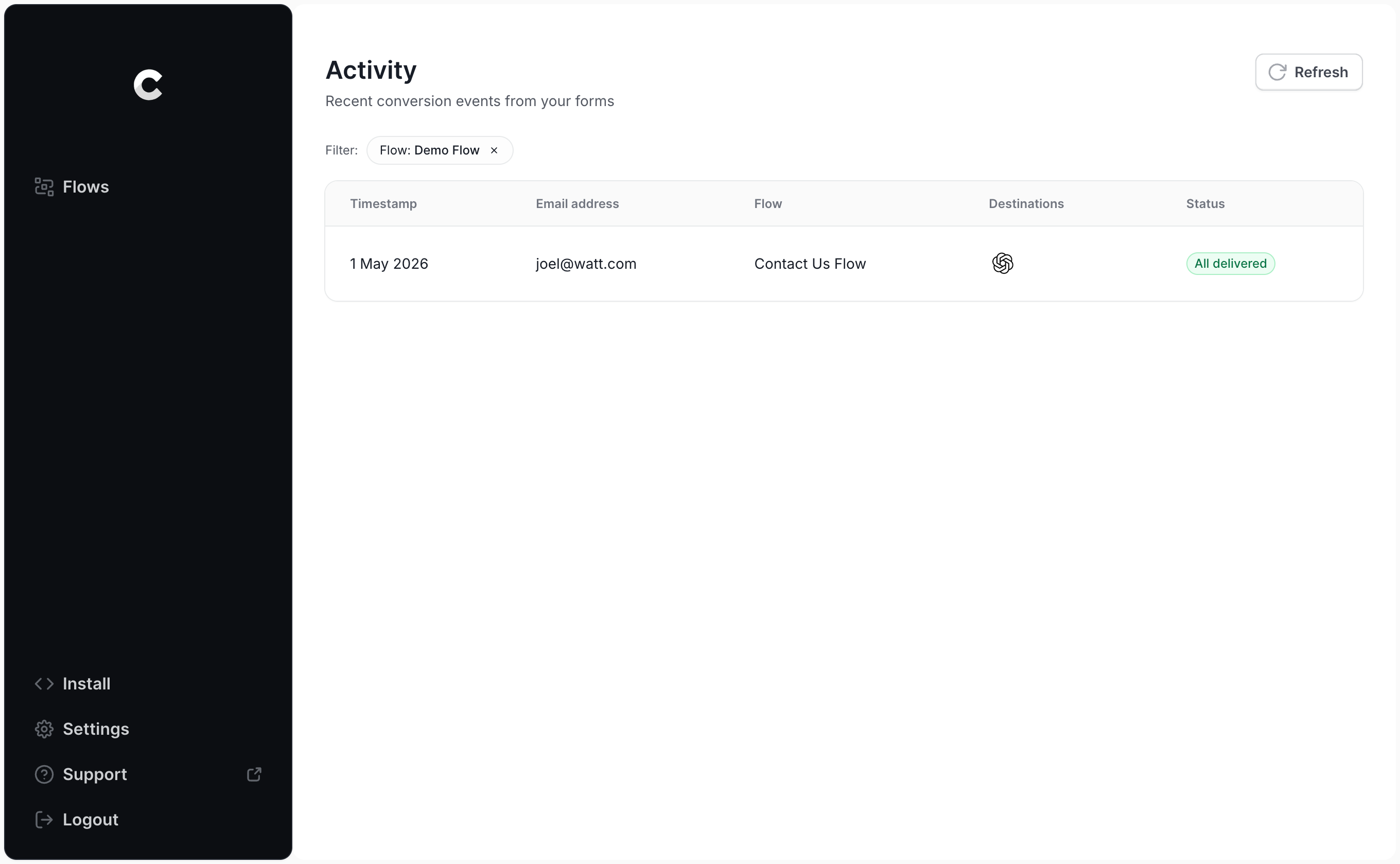
Look for your test entry on the logs page and click on it. You'll see everything Converly captured about the submission, along with whether the conversion made it to ChatGPT Ads.
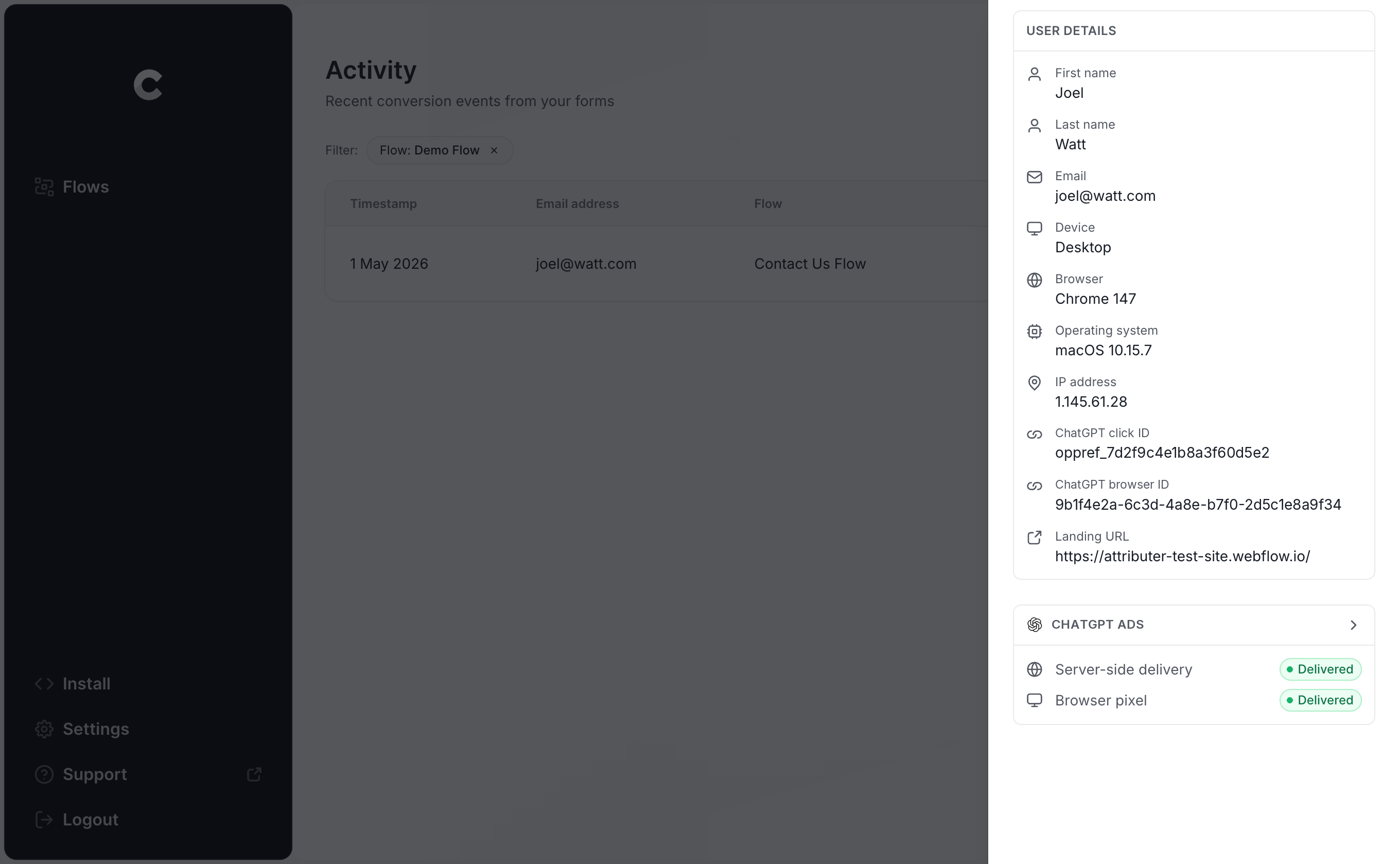
For a closer look, you can also open up the exact payload that went to ChatGPT Ads (including the click ID, browser ID and hashed email address) and the response that came back from OpenAI's server.
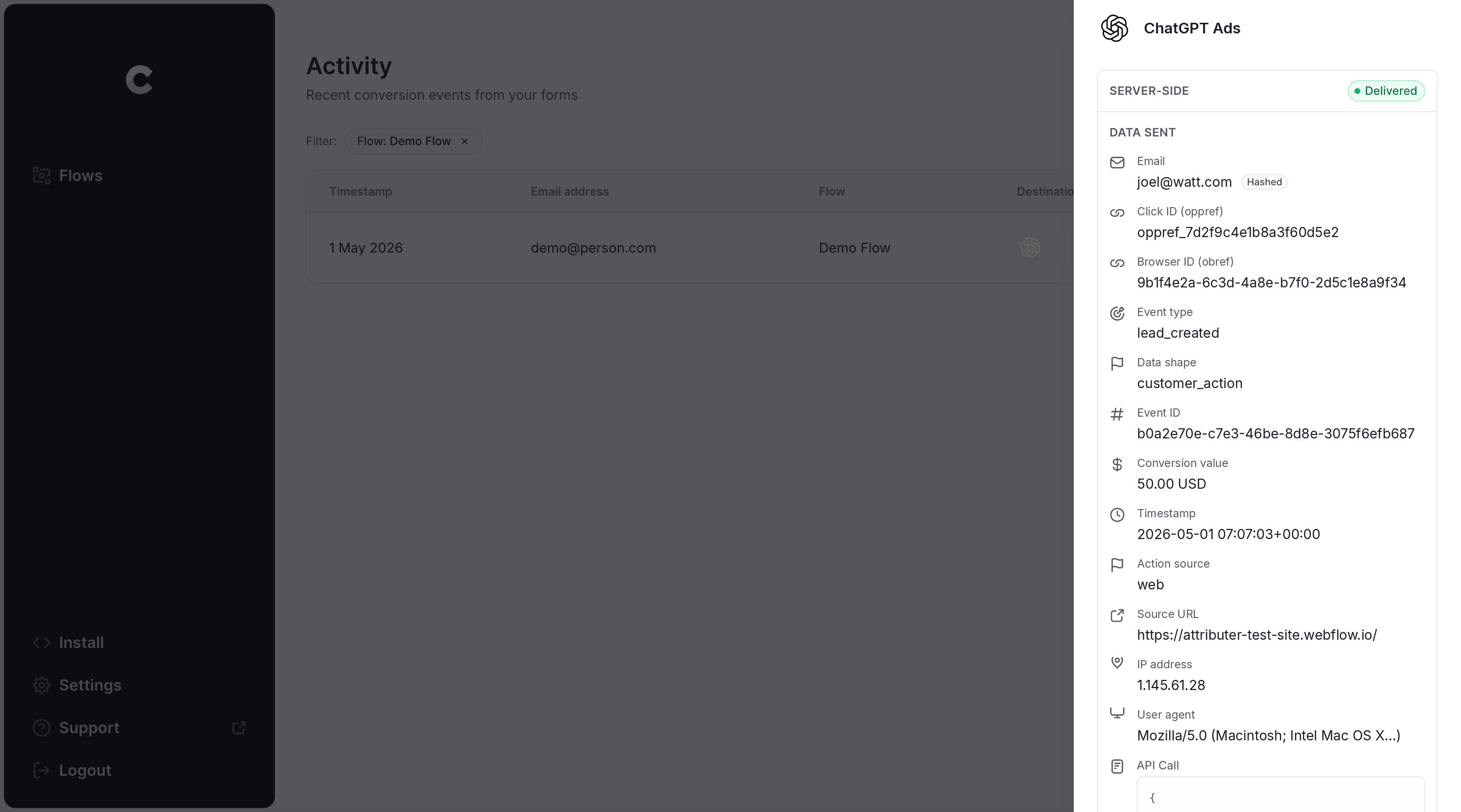
When your test entry shows up in the log as successfully sent to ChatGPT Ads, your conversion tracking is live. Most people get through the whole thing in under 5 minutes.
Why Converly is the best way to send conversions to ChatGPT Ads from WPForms
There's more than one way to get a conversion into ChatGPT Ads when someone submits a WPForms form on your site, so why go with Converly? Here's what sets it apart:
1. Easy to set up
Building all of this yourself would be a huge pain. You'd need code that detects when a WPForms form has been submitted, captures the click ID and browser cookie, grabs the name, email address and phone number, hashes them with SHA-256, shapes the payload exactly the way OpenAI wants it, and then deals with API keys, deduplication and retries as well.
Converly takes all of that off your plate. You simply pick a trigger (a WPForms submission) and pick an action (a conversion sent to ChatGPT Ads), and Converly handles the rest. No custom code, no API keys to look after, just conversion tracking that works.
And if you're already using an AI tool like Claude or ChatGPT, you can just install the Converly plugin, ask it to 'Set up ChatGPT Ads tracking for my WPForms forms', and it will set it all up for you!
2. Not affected by ad blockers and privacy restrictions
If you only use the ChatGPT Ads Measurement Pixel (and don't also send conversions server-side via the Conversions API), a meaningful share of your conversions will simply never arrive at OpenAI, because ad blockers and privacy-focused browsers stop the pixel before it has a chance to load.
How big is that share? One study of more than 7 million conversions found that browser-based tracking missed around 30% of all conversions. So basically, 30% of your conversions would never be counted.
Converly sends each conversion both ways (through the browser to the ChatGPT Measurement Pixel and server-side to the Conversions API), so all your conversions should make it back to ChatGPT Ads regardless of which ad blocker or privacy settings your visitors have.
3. Works across devices
Lots of leads first discover your site on one device (e.g. on their phone while waiting for a coffee) and only fill out your WPForms form later from their computer.
When you rely on something like thank you page tracking, that conversion can't be connected back to the original ad click, because the click and the form submission happened in separate browsers on separate devices.
Converly fixes this. It captures the click ID (the oppref) and sends it to ChatGPT Ads along with the lead's name, email address, and phone number. This gives ChatGPT Ads what it needs to match the conversion to a real person and the ad they originally clicked, even if that click was on a different device weeks before they filled out the form.
4. Sends more data
As soon as someone lands on your site, Converly grabs the ChatGPT click ID, the browser cookie set by the ChatGPT Ads pixel, and their user agent, and stores them. When that visitor later submits a form, Converly combines them with their name, email, and phone and sends everything to ChatGPT Ads together.
The result is that ChatGPT Ads can tie each conversion back to the ad click that started it, and you get conversion numbers you can trust.
5. Supports multiple tools and platforms
Converly integrates with over 100 form builders, scheduling tools, chat widgets and more. And it can send conversions to ChatGPT Ads, Google Ads, Meta Ads, LinkedIn Ads, Microsoft Ads, Google Analytics and many other platforms.
That means if you're also running Google Ads or Meta Ads, you don't need a separate setup for each of them. Just add them as additional actions on the Conversion Flow and every WPForms submission gets sent to all of them at once. And if you decide to start advertising on a new platform, adding it is a few clicks instead of a whole new project.
6. Gives you a full conversion log and email alerts
With most other ways of tracking ChatGPT Ads conversions (e.g. Google Tag Manager), there's no easy way to tell if things are still working. You can check it on day 1 when you set it up, but if someone later changes the confirmation settings on your WPForms form, updates a plugin, or adjusts something in ChatGPT Ads Manager, your tracking can stop working without anyone realising.
Converly takes the guesswork away. You get a full conversion log showing every conversion from your WPForms forms, what data was collected, exactly what was sent to ChatGPT Ads, and whether it was accepted.
You can also turn on email notifications so you get an email whenever a conversion is sent to ChatGPT Ads (or just when one fails, if you'd rather keep your inbox chill). This means that if anything ever does break, you'll know about it straight away.
2 things you can do when you properly send conversions to ChatGPT Ads from WPForms
When reliable conversion data is flowing from WPForms forms into ChatGPT Ads, a couple of things become possible that you simply can't do when you're flying blind.
1. See which campaigns and ads actually produce leads
Without proper conversion tracking, all ChatGPT Ads can tell you about is impressions and clicks, and clicks alone won't grow your business.
Once accurate conversion data is coming in, you can see exactly how many leads each campaign and ad is generating, how much you're paying for every lead, and where the biggest opportunities to grow are hiding.
2. Let OpenAI's algorithm find you more of the right people
ChatGPT Ads uses sophisticated AI to choose who sees your ads and which conversations it gets injected into.
When your conversion tracking is set up properly, it has what it needs to understand what a great lead looks like for your business, and it will put your ads in front of them more often. With a poor setup it won't have enough to go on, so it will keep putting your ads in front of the wrong people (which pushes up your cost per lead and eats into your marketing budget).
Wrap Up
If you want ChatGPT Ads to get a conversion every time a WPForms form is submitted on your website, Converly is the easiest (and best) way to do it.
Since it sends conversions directly to OpenAI's servers, ad blockers and privacy-focused browsers can't block them. And since it includes all the identifiers OpenAI uses for matching (the click ID, name, email address, etc.), each lead has the best possible chance of being tied back to the ad that produced it.
Best of all, it only takes a few minutes to set up and there's a 14-day free trial (no credit card required), so start your free trial today!
About the author

Aaron is the founder of Converly. With over 15 years of experience in digital marketing and SaaS, he's passionate about helping businesses track and optimise their ad conversions.