


Track Webflow Forms submissions as conversions in Google Ads
Learn how to send server-side conversions to Google Ads whenever someone submits a form on your Webflow site. No coding required!
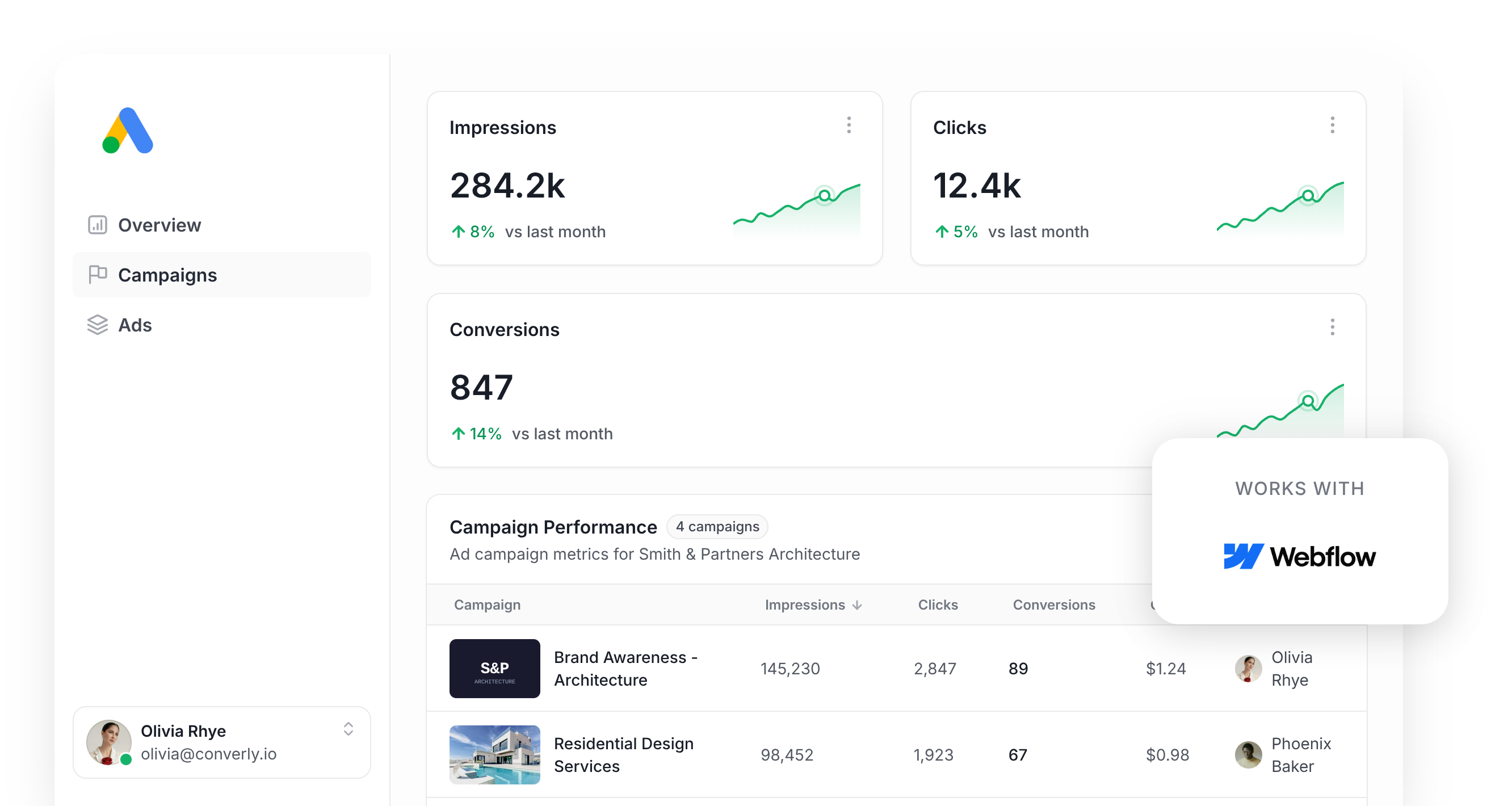
Running Google Ads campaigns is one thing, but properly tracking which of those campaigns is actually generating leads is a different challenge altogether.
Some people try to set conversion tracking up in Google Tag Manager, but this requires you to write custom code to catch form submissions and then configure triggers, tags, and variables. It's quite complicated.
And simpler approaches, like watching for visits to a thank you page, quietly miss up to 30% of conversions because of ad blockers, privacy tools built into browsers like Safari, or someone clicking your ad on their phone and coming back to convert on a laptop later.
So what actually works?
In this article, we will walk through how to set up proper conversion tracking in Google Ads for form submissions on your Webflow site, using an approach called server-side tracking.
Why you need to send conversions to Google Ads server-side
Accurate conversion tracking is the foundation that everything else in Google Ads is built on.
Google Ads relies on smart bidding, which weighs thousands of signals (location, past purchases, time of day, and plenty more) to work out how likely a given visitor is to become a customer, then bids more or less accordingly.
For that to actually work in your favor, Google needs reliable conversion data. It needs to be told clearly which visitors converted and which did not, so its models learn what a good fit looks like for your business.
The trouble with older methods, like tracking thank you page visits or wiring things up in Google Tag Manager, is that they all rely on sending conversions through the visitor's browser. That creates a few problems:
- Ad Blockers — When a visitor has an ad blocker running, the Google Tag simply cannot fire, so nothing about that visit gets tracked at all.
- Privacy Features in Browsers — Browsers such as Safari cap how long the Google Tag can track a visitor (often to a single day), so if someone clicks your ad and converts three days later, that conversion never gets connected back to the click.
- Using multiple devices — Someone might click your ad from their phone on the train, then fill out your Webflow form later that evening from their laptop at home, and the browser-based approach has no way to link those two moments together.
Server-side tracking sidesteps all of this. Rather than hoping the browser cooperates, Converly sends a direct, private message straight to Google's servers with the lead's details, so ad blockers and privacy settings never get the chance to interfere.
The results back this up too. Google's own benchmarks show that businesses moving to server-side tracking see a 23% average lift in recorded conversions, alongside a 10% drop in cost per conversion, since Google's algorithms finally have accurate data to learn from.
3 simple steps to send server-side conversions to Google Ads from Webflow Forms
Here is how to get server-side conversion tracking working between your Webflow form and Google Ads in 3 simple steps.
Step 1: Build your Conversion Flow in Converly
Converly makes it easy to track Webflow form submissions as conversions in Google Ads.
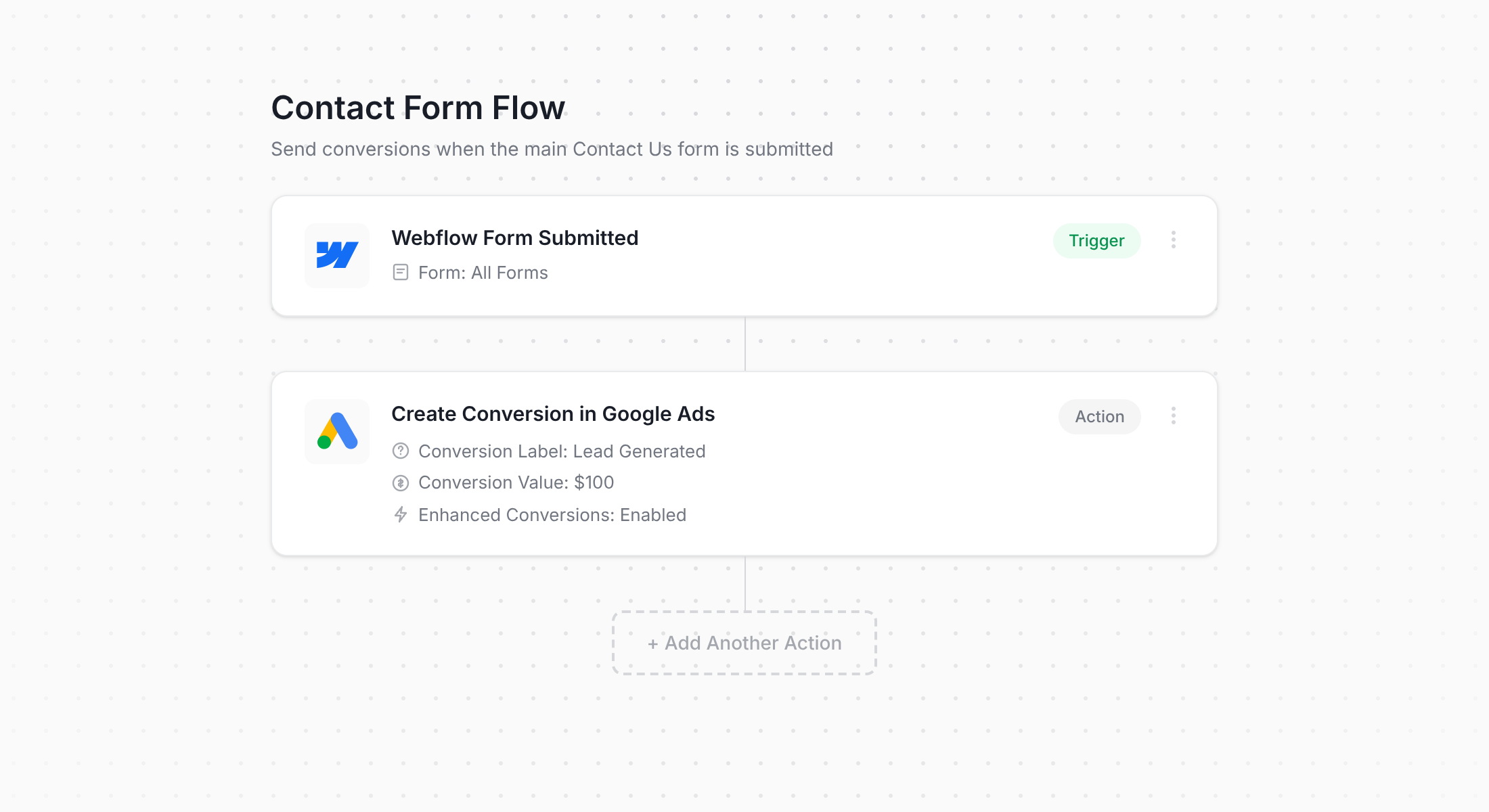
As the screenshot shows, Converly comes with a simple visual workflow builder that will feel familiar if you have ever worked with tools like Zapier or HubSpot Workflows.
You simply pick your trigger (in this case, a Webflow form submission), then choose the action you want it to kick off, like sending a conversion straight to Google Ads.
That is genuinely all it takes. A few clicks and server-side conversion tracking is live in your Google Ads account.
Step 2: Add the Converly code to your website
After your Conversion Flow is built and published, Converly hands you a small snippet of code to add to your Webflow site.
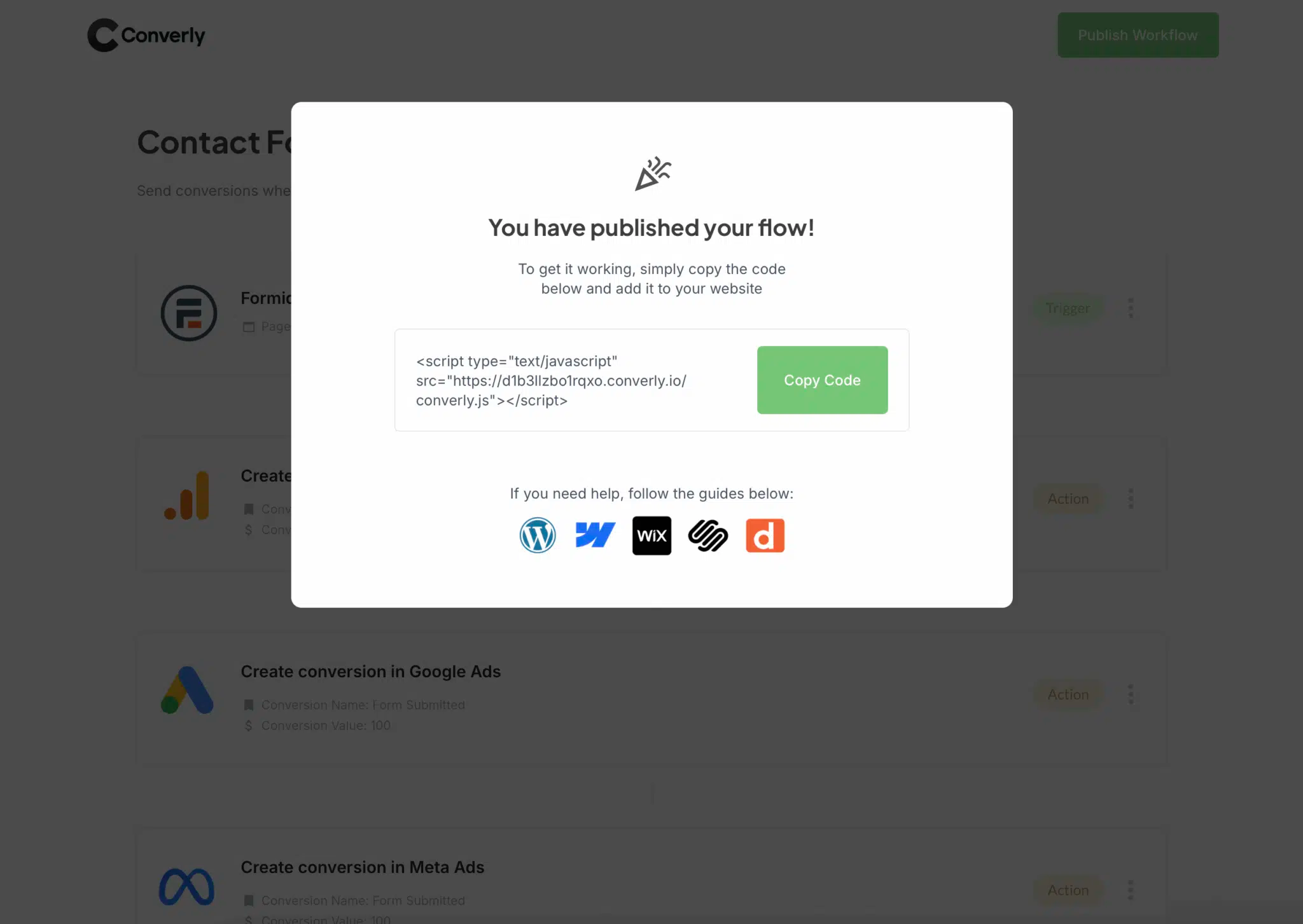
In Webflow, head to Site Settings, then Custom Code, and paste the snippet into the Head Code box. Publish your site afterward so the change actually goes live. Already routing things through Google Tag Manager? That works too, since you can drop the same snippet in there instead.
Step 3: Test it works
Before calling it done, jump over to your live Webflow site and submit the form yourself as a test.
Head back into Converly, open your Conversion Flow, click the 3 dots menu in the top right corner, and choose View Logs.
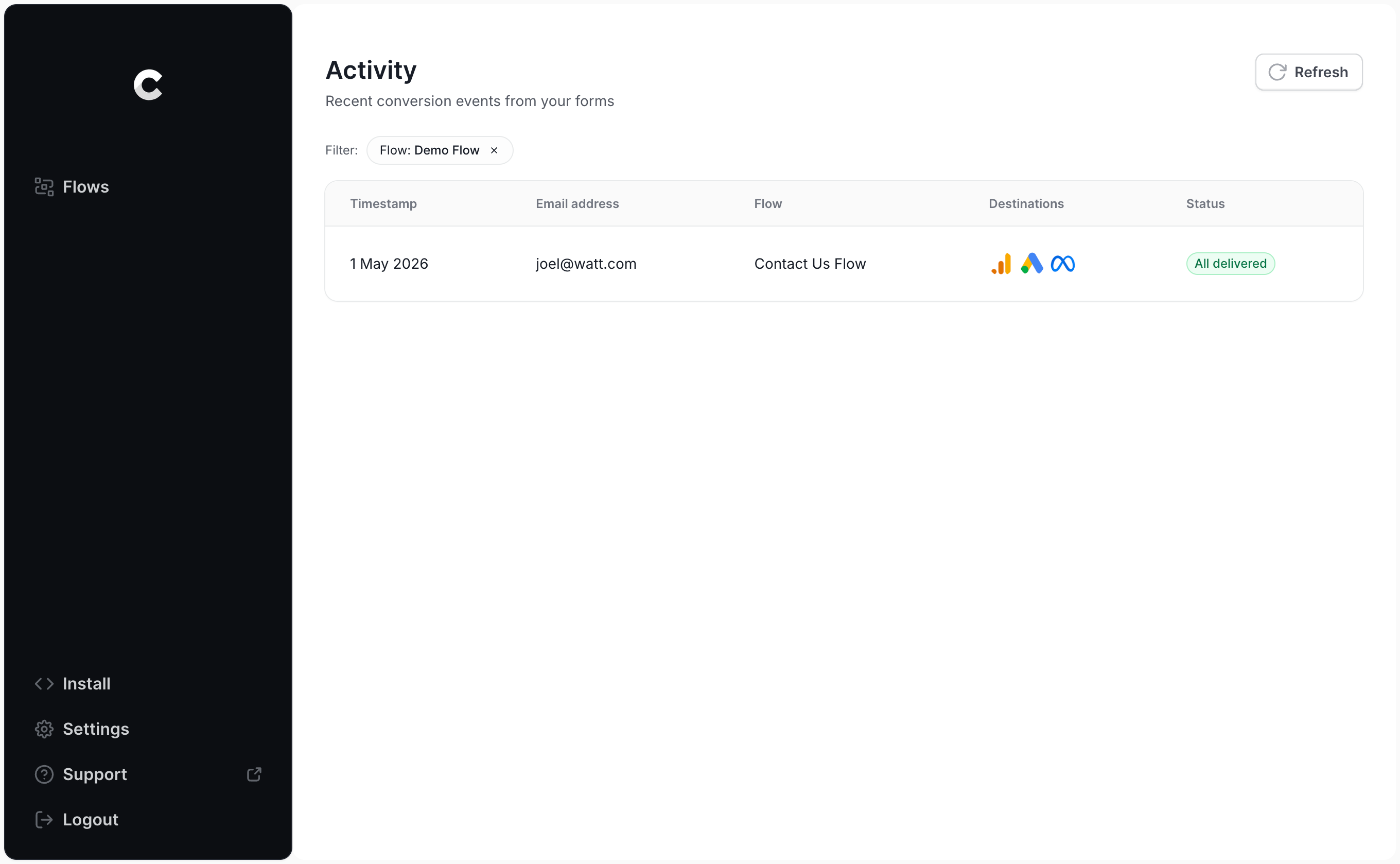
From the logs page, click into the test entry you just created to see everything Converly captured about it, including whether the conversion made it to Google Ads.
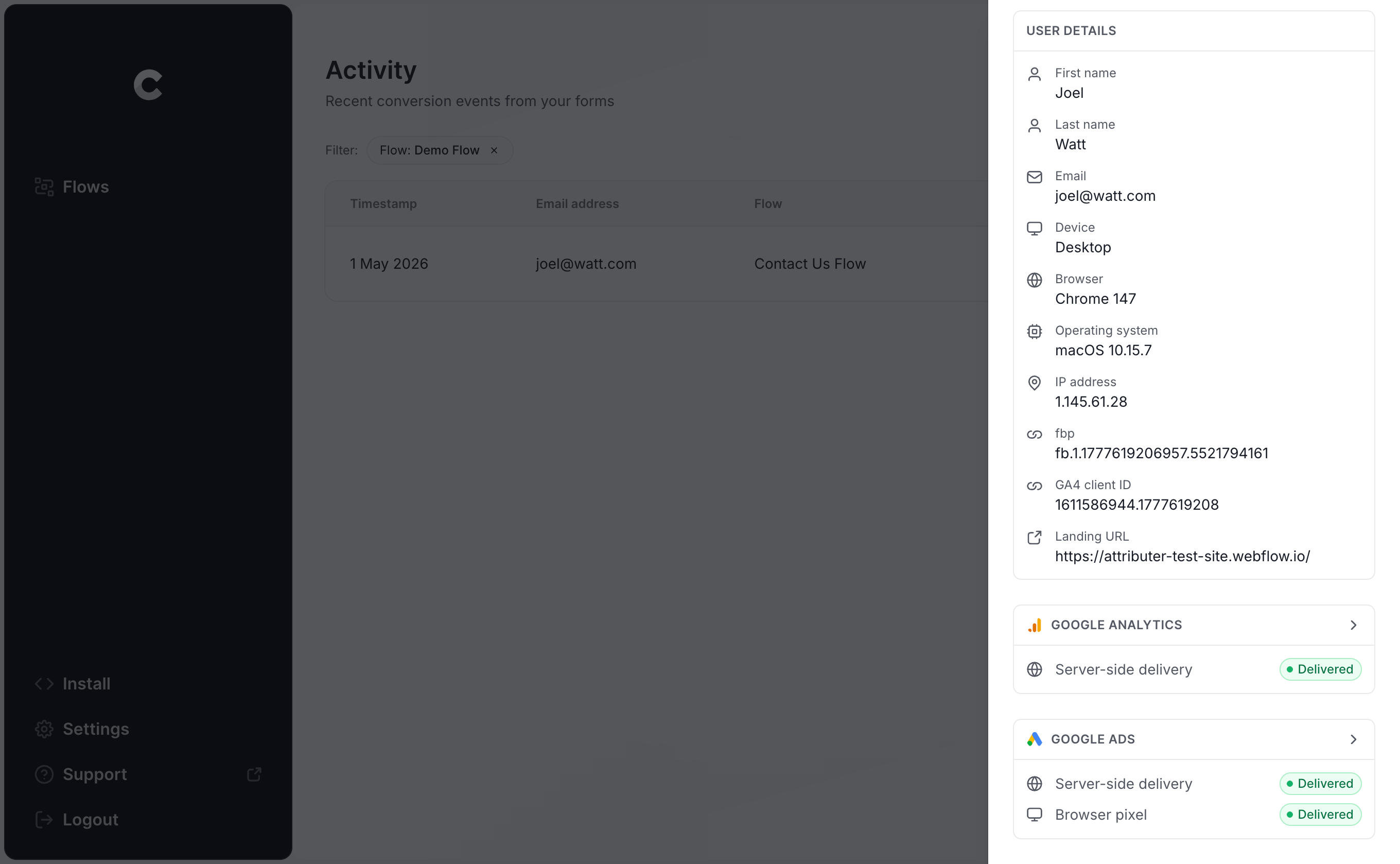
You can drill in even further to see exactly what data was sent to Google Ads, along with what Google's servers sent back in response.
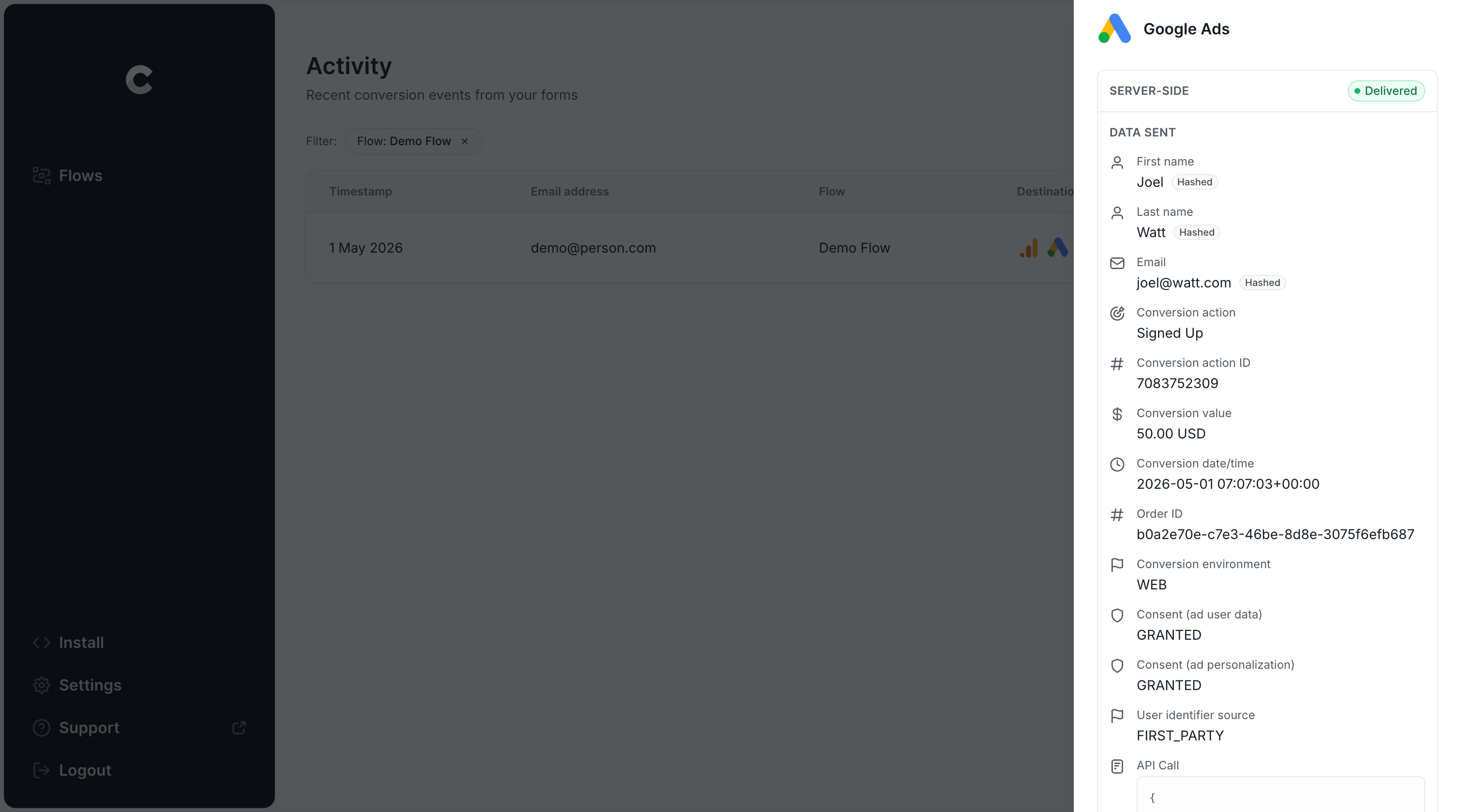
Once your test submission shows up in the log as successfully delivered to Google Ads, your conversion tracking is confirmed working. The whole setup, start to finish, usually takes under 5 minutes.
Why Converly is the best way to send conversions to Google Ads from Webflow Forms
There is more than one way to get conversions from your Webflow form into Google Ads, so what makes Converly worth choosing over the alternatives? A handful of reasons stand out.
1. Easy to set up
The most common method of sending conversions to Google Ads is Google Tag Manager. But that route has you writing custom code to catch form submissions, pulling the lead's name and email out of the form and pushing it into the DataLayer, working out how to hash that data with SHA256 (which Google requires), then wiring up variables, triggers, and tags on top of all that.
Unless you already live and breathe Google Tag Manager, that is a lot of hours to burn.
Converly skips all of it. You pick a trigger (a Webflow form being submitted), then decide what should happen as a result (a conversion firing to Google Ads). No custom code, no fiddly configuration, just conversion tracking that works.
2. Not affected by ad blockers and privacy restrictions
If you use Google Tag Manager, or something even more basic like thank you page tracking, then a meaningful chunk of your conversions simply will not reach Google. Ad blockers and privacy-focused browsers stop the Google Tag from ever loading, which means it can't track what your visitors do.
One study looking at over 7 million conversions found tag-based tracking was losing close to 30% of them. Roughly 5% of that came from ad blockers, with the bulk of the rest (about 25%) coming from browser-level privacy protections.
Converly avoids that entirely by sending conversions directly to Google's servers, so no ad blockers or privacy settings can get in the way, and your numbers end up far closer to reality.
3. Works across devices
It is common for someone to first discover your site on their phone, then wait until they are back at their desk to actually fill out your Webflow form.
Browser-based tools like Google Tag Manager cannot bridge that gap, because the ad click and the form submission happen in two completely separate sessions on two separate devices.
Converly gets around this by passing identity data (name, email, and similar details) straight to Google's servers, which helps Google connect the dots between the original ad click on the phone and the eventual conversion on the desktop, so your campaigns get proper credit for the leads they generated.
4. Sends more data
Beyond the lead's name, email, and phone number, Converly also captures technical details like the GCLID, IP address, and User Agent, and passes all of that along to Google Ads too.
That gives Google Ads a much richer profile of the person who converted, which improves its odds of matching that conversion to the original ad click, even if it happened on a different device weeks earlier.
The payoff for you is more accurate conversion data and more useful reporting inside Google Ads.
5. Supports multiple tools and platforms
Converly integrates with more than 100 form builders, scheduling tools, chat widgets, and other website tools (including Webflow). It can also push conversion events out to Google Analytics, Google Ads, Meta Ads, LinkedIn Ads, Microsoft Ads, and a range of other platforms.
So if you add a new tool to your Webflow site later (like a Calendly booking widget for instance), or you decide to start advertising somewhere new, you are not rebuilding your tracking setup from the ground up. A few clicks inside Converly and it is connected.
6. Gives you a full conversion log and email alerts
With something like Google Tag Manager sending your conversions to Google Ads, you have basically no way of knowing if it is still working properly week to week. You might test it thoroughly on day one, but if nobody keeps checking, it can quietly stop working (a form field gets renamed, a tag gets edited, something changes in Google Ads) and you would never notice.
Converly removes that guesswork. You get a complete conversion log showing every conversion that fired, exactly what data Converly captured, what got sent to Google Ads, and how Google Ads responded.
You can also switch on email notifications, either for every conversion sent, or just for failures, so you find out the moment something breaks instead of weeks later.
3 things you can do when you properly send conversions to Google Ads from Webflow Forms
Once accurate conversion tracking is flowing into Google Ads,you can do a lot of things you probably weren't doing before that will ultimately help you get better results.
1. Report on conversions by campaign, ad group, keyword, etc.
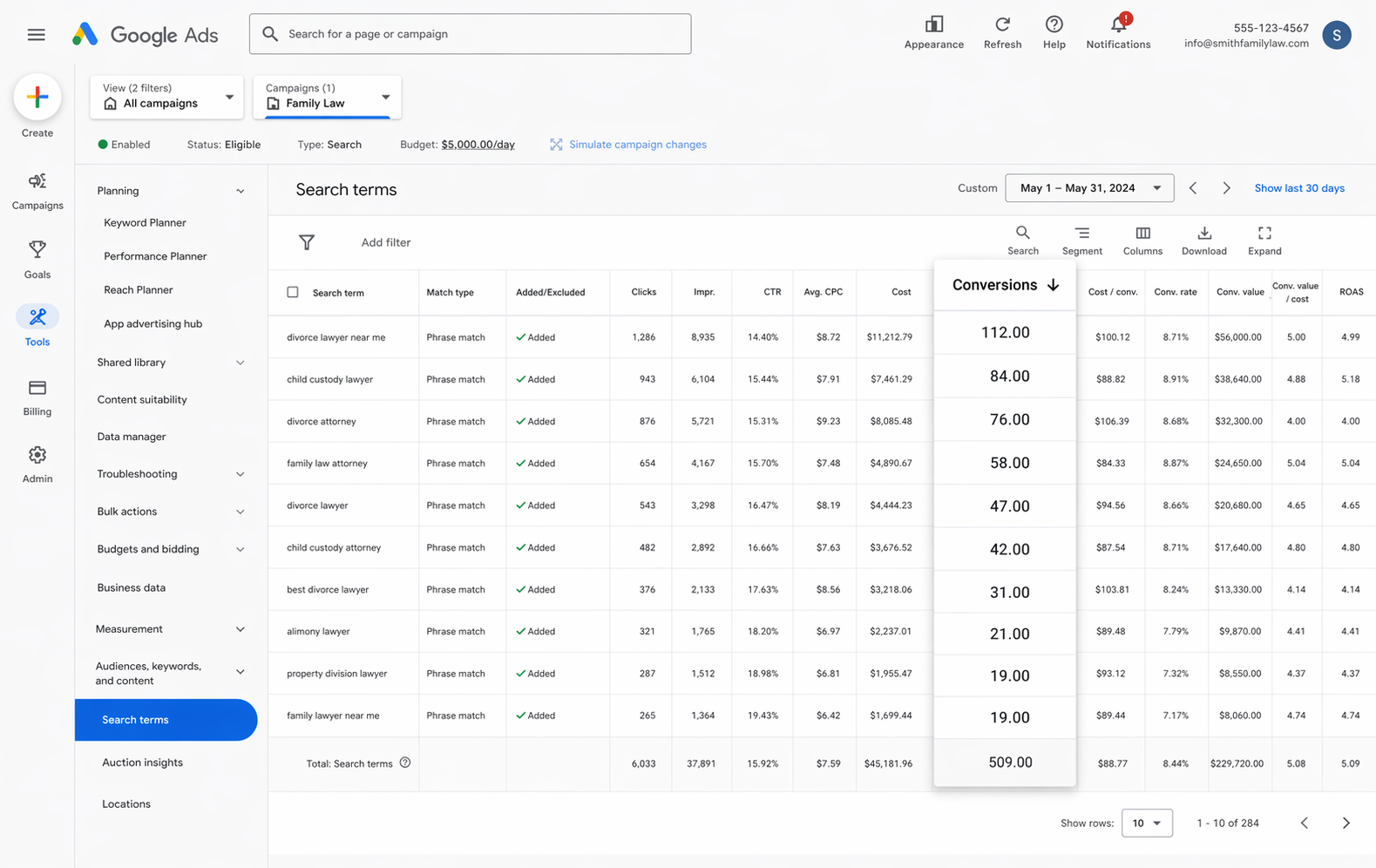
With real conversion data in place, your Google Ads account stops being just impressions and clicks. You get conversions, conversion rate, cost per conversion, return on ad spend, etc.
You can slice all of that by campaign, ad group, keyword, individual ad, country, and more.
That level of visibility makes it much easier to see how your Google Ads campaigns are actually performing, and where you have room to grow.
2. Use Google's Smart Bidding technology
With manual bidding, you're basically telling Google "I will pay up to $3 per click." and Google goes and bids up to $3 regardless of who the person searching is or what their search term was.
On the other hand, Smart bidding allows you to tell Google ‘I’m willing to pay $45 per lead' and then Google goes and factors in everything it knows about the person searching (age, location, device, prior purchases, and more) and decides whether to bid high or low, based on how likely that specific person is to convert.
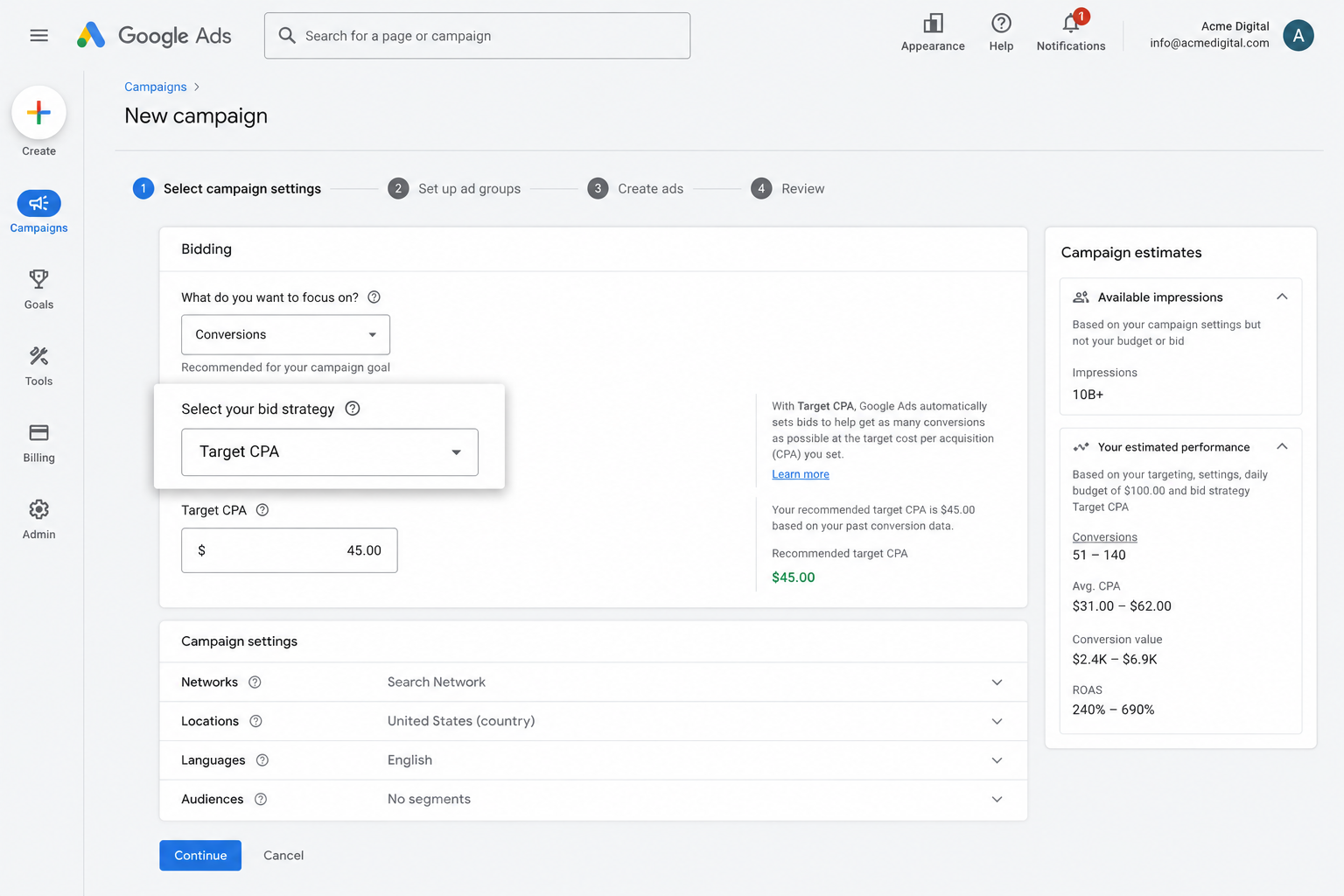
It's super powerful and has been proven to drive more leads at a lower cost, but none of it works without solid conversion tracking. Without proper conversion tracking, Google has no reference point for what a good lead looks like for you, and tends to overbid on the wrong people, which burns through budget and drives your costs up.
But by setting up accurate, server-side conversion tracking with Converly, Google's smart bidding has the data it needs to actually earn you more leads at a lower cost.
3. Retarget people who visited your site but didn't convert
Feeding accurate conversion data back to Google Ads also lets you build remarketing lists of visitors who showed up on your Webflow site but never filled out the form.
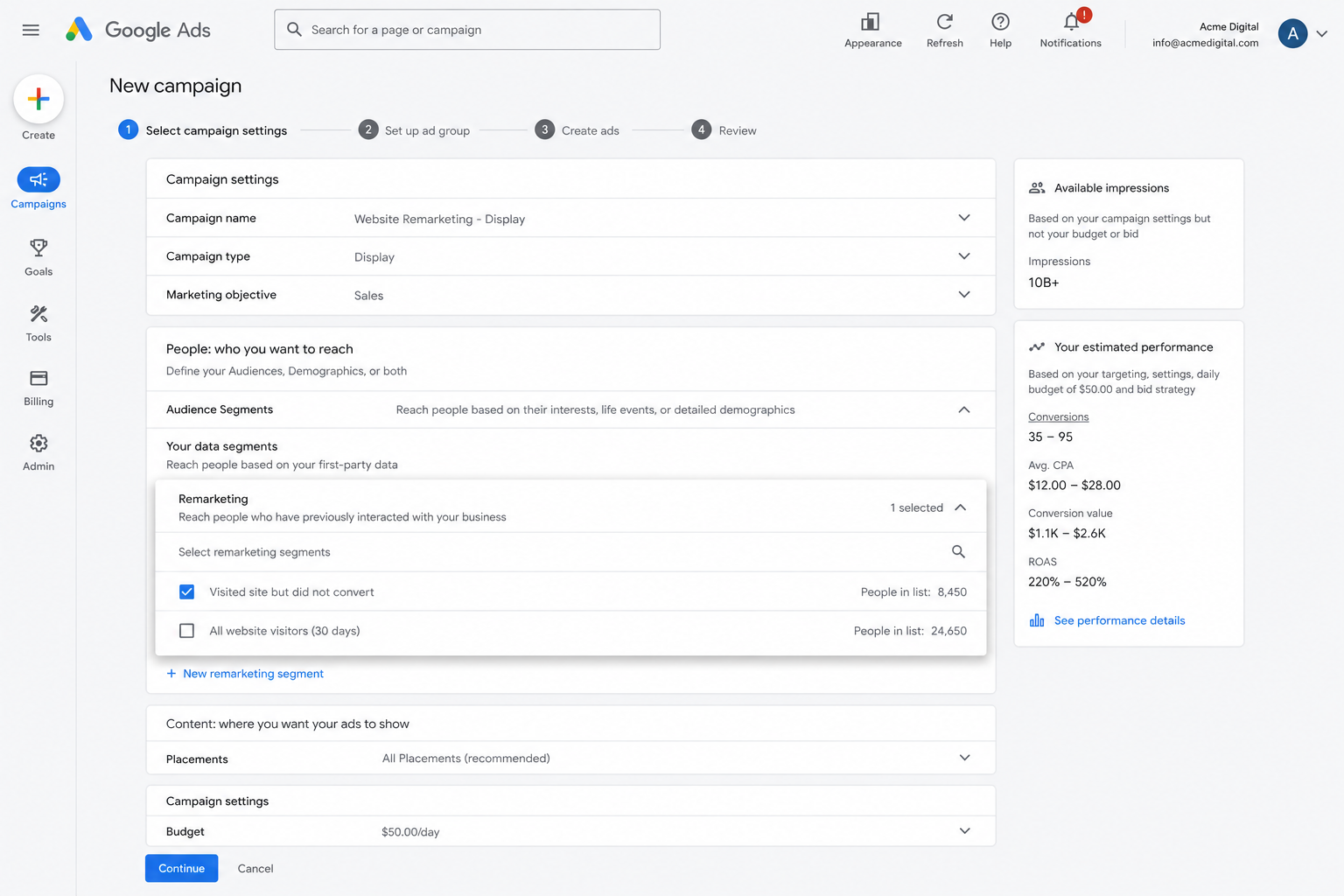
From there, you have a few different ways to bring those people back:
- Search — Adjust your bids up (or down) specifically for these visitors the next time they search your keywords.
- Display — Show display ads across the Google Display Network aimed just at this group, keeping your brand visible as they browse other sites.
- YouTube — Run YouTube Ads targeted specifically at these visitors, so your ads keep showing up while they watch videos.
Wrap Up
If you want conversions flowing into Google Ads every time someone submits your Webflow form, Converly makes that easy to set up.
It routes conversions directly to Google's servers so ad blockers and privacy browsers cannot get in the way, and it sends across a full set of lead details (name, email, phone, IP address, User Agent, and more) so Google has everything it needs to match the conversion back to the original ad click.
It only takes a few minutes to set up, and it comes with a 14-day free trial, so give it a try today!
About the author

Aaron is the founder of Converly. With over 15 years of experience in digital marketing and SaaS, he's passionate about helping businesses track and optimise their ad conversions.