


Track Squarespace form submissions as conversions in Google Ads
Learn how to send server-side conversions to Google Ads whenever a Squarespace form is submitted on your website. No code required!
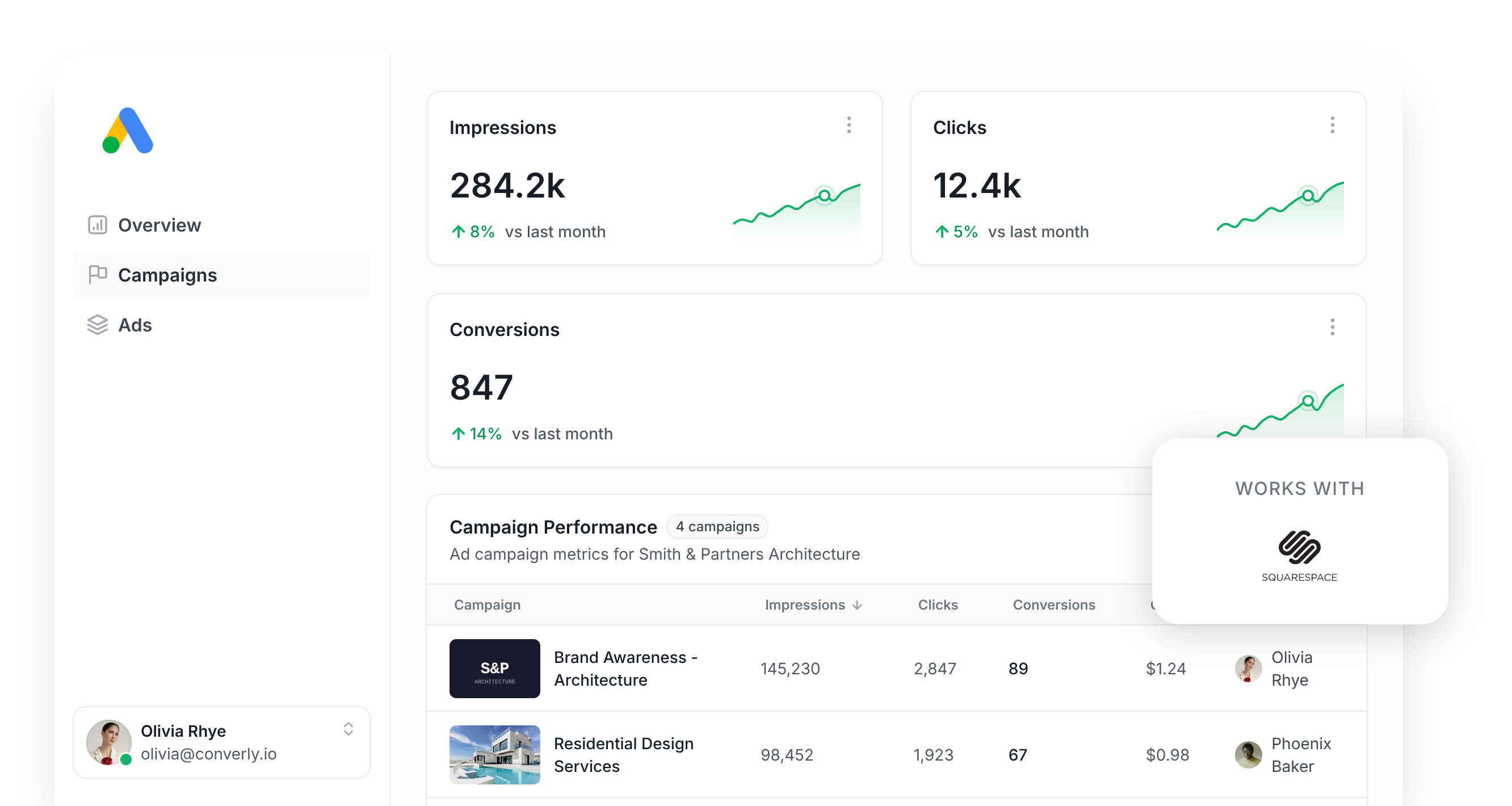
Setting up Google Ads is one thing. Being able to track which campaigns are actually generating leads for your business is another problem entirely.
If you've looked into it, you've probably run into Google Tag Manager, which asks you to build triggers, tags and variables from scratch just to track a form submission and send ti to your ad platforms and analytics tools.
And if you're relying on something simpler, like watching for visits to your thank you page, you could be missing close to 30% of your real conversions because of ad blockers, privacy settings in browsers like Safari, or leads who click your ad on their phone and come back later on a laptop to actually convert.
So what's the fix?
This guide walks through setting up proper, server-side conversion tracking in Google Ads for Squarespace form submissions, so every lead gets counted.
Why you need to send conversions to Google Ads server-side
Nailing your conversion tracking isn't optional if you want Google Ads to actually work for you.
Google's smart bidding pulls in thousands of data points (where someone's located, what they've bought before, what time of day it is) to figure out how likely a particular searcher is to actually convert into a lead, then adjusts your bids up or down accordingly.
It's a really powerful way to get more leads at a lower cost, but it doesn't work without solid conversion tracking in place. Google needs a clear signal of who converted and who didn't so its models can learn what a good lead actually looks like for your business.
The trouble with older approaches, like thank you page tracking or a standard Google Tag Manager setup, is that they rely on the visitor's own browser to report the conversion back to Google. That comes with a few issues:
- Ad Blockers — Ad blockers stop the Google tag from loading in the visitor's browser, so nothing they do on your site (like submitting a form) gets recorded.
- Privacy Features in Browsers — Safari and similar browsers cap how long a tracking cookie survives, often to a single day, so if a lead converts a few days after clicking your ad then it's impossible to tie the conversion back to the original ad they click
- Using multiple devices — Someone might click your ad at work, then finish the form later that night on their phone, and there's no way for browser-based tracking to connect those two moments because they happene din different browsers on different devices.
Server-side tracking solves this by skipping the browser entirely. Instead of sending the conversion to Google through the visitor's browser, the lead's details are sent directly to Google's servers in a private, encrypted message, so ad blockers and privacy tools never get the chance to interfere.
The results back this up. Google reports that businesses switching to server-side tracking see conversions climb by an average of 23%, alongside a 10% drop in cost per conversion, simply because the bidding algorithm finally has clean data to learn from.
3 simple steps to send server-side conversions to Google Ads from Squarespace
Getting server-side tracking running between your Squarespace forms and Google Ads only takes 3 steps.
Step 1: Build your Conversion Flow in Converly
Converly is a tool that makes sending server-side conversions from Squarespace to Google Ads easy.
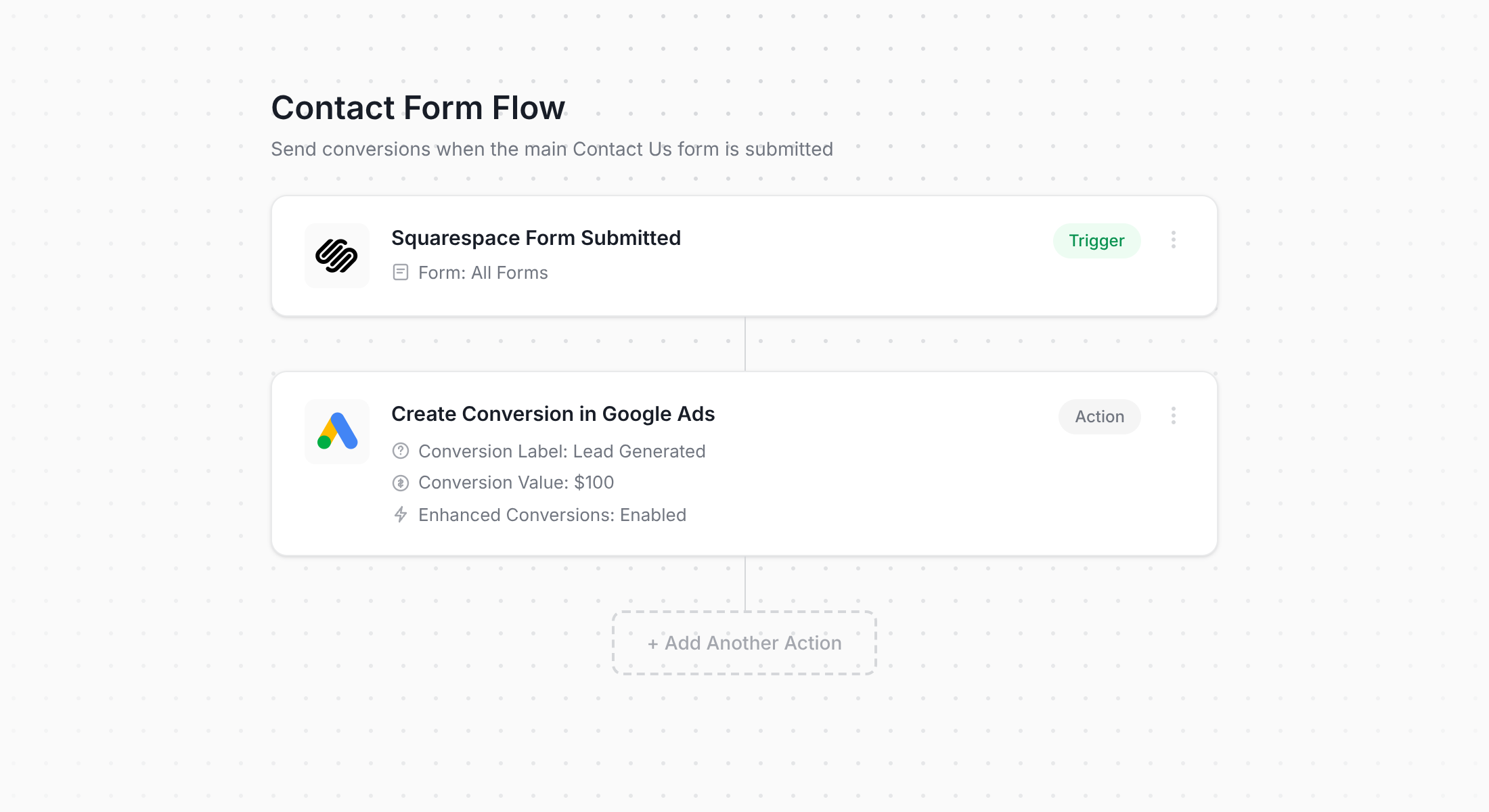
The screenshot above shows Converly's workflow builder, which will feel instantly familiar if you've ever used tools like Zapier or any sort of email automation tool.
You simply pick a trigger (like someone submitting a Squarespace form), then tell Converly what should happen next (sending a conversion event over to Google Ads).
That's genuinely all it takes. A handful of clicks and server-side conversion tracking is live in your Google Ads account.
Step 2: Add the Converly code to your website
After you've published your Conversion Flow, Converly gives you a short code snippet to install on your site.
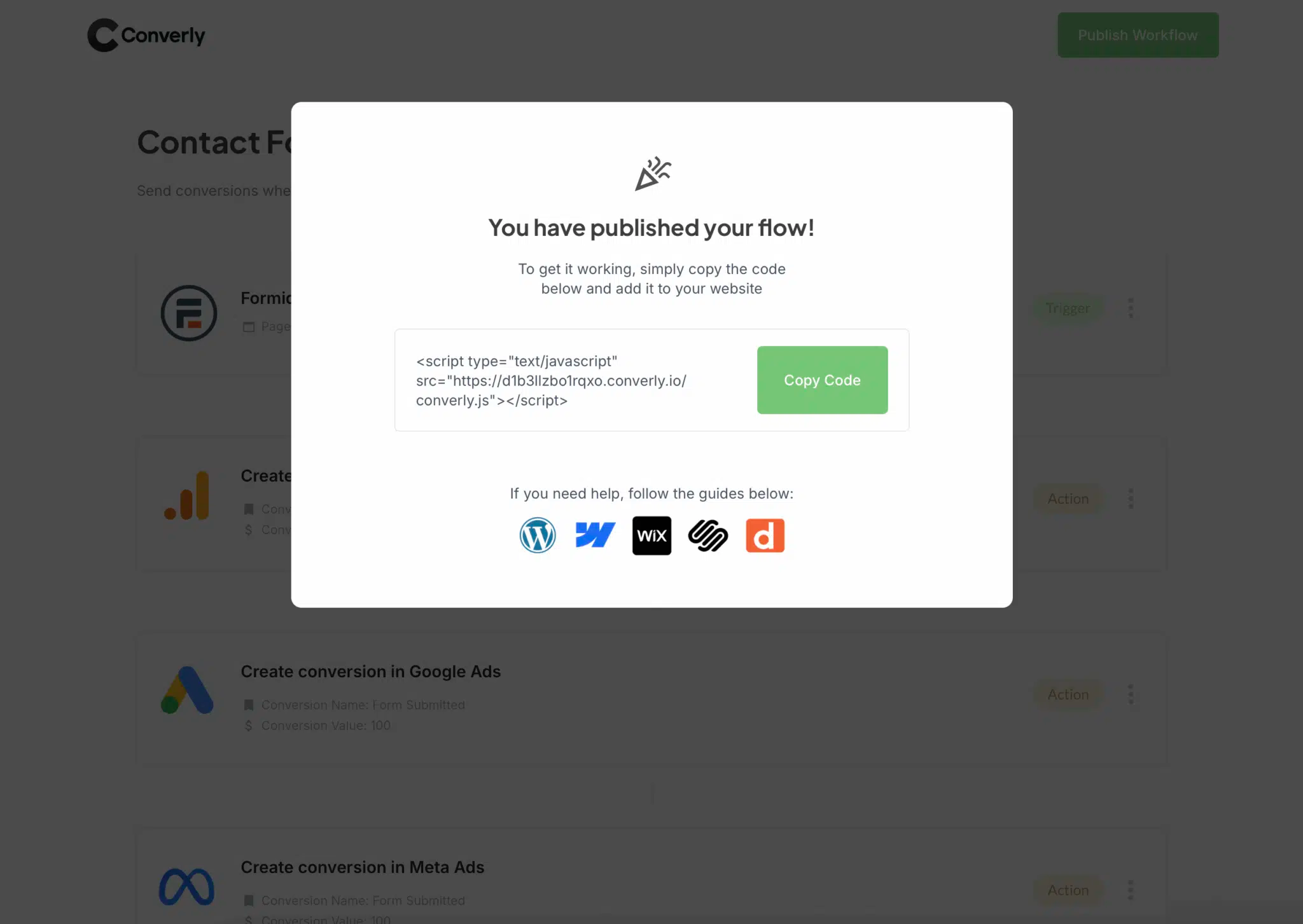
On Squarespace, head into Settings, then Advanced, then Code Injection, and paste the snippet into the Header field. Or if you're already using tools like Google Tag Manager to add code to your website, then that works just as well.
Step 3: Test it works
You can finish the set up by heading to your live site and filling out the form yourself.
Then jump back into Converly, open your Conversion Flow, click the 3 dots menu in the top right corner, and choose View Logs.
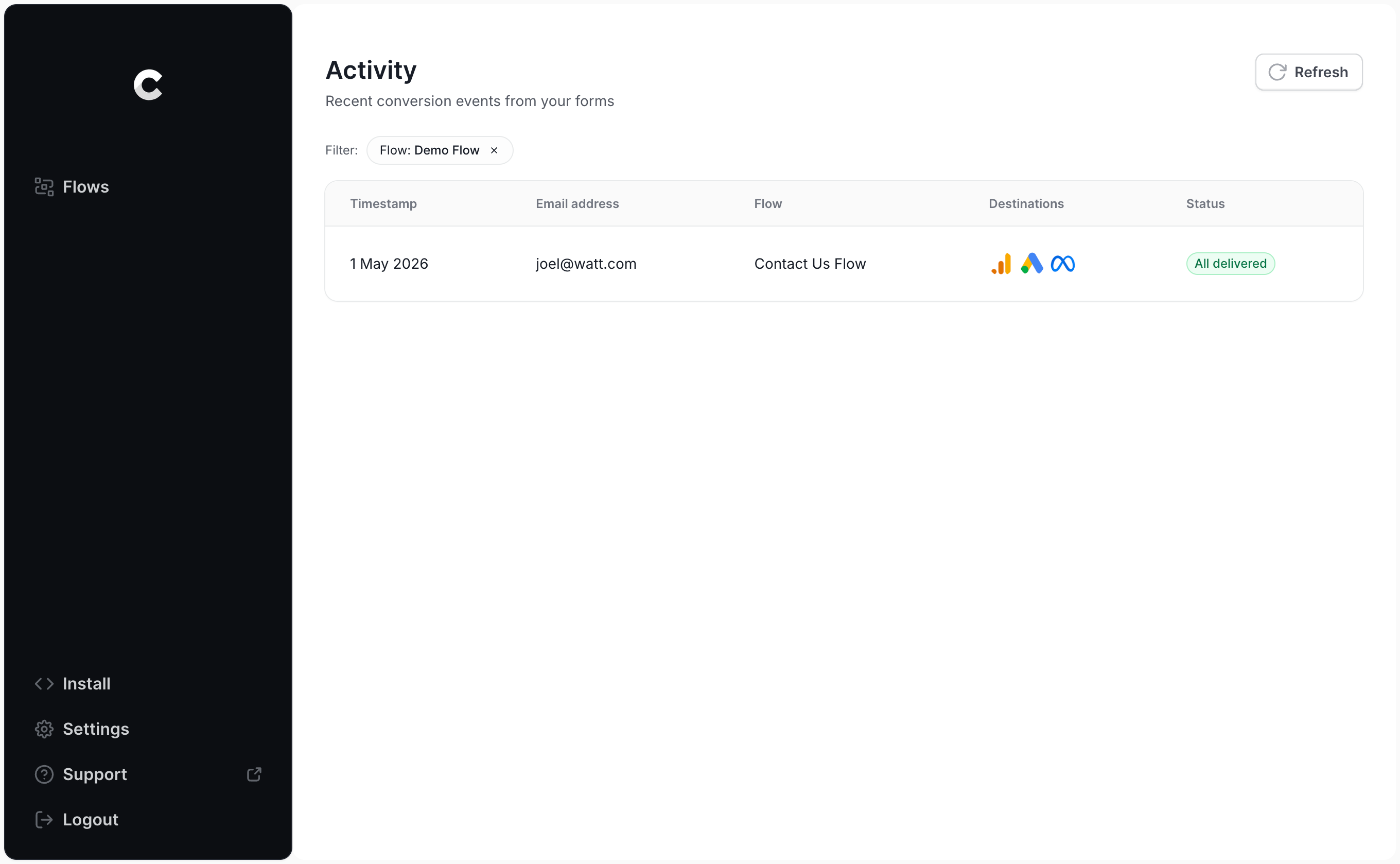
From the logs page, open your test entry and you'll see the full picture, including whether Google Ads accepted it.
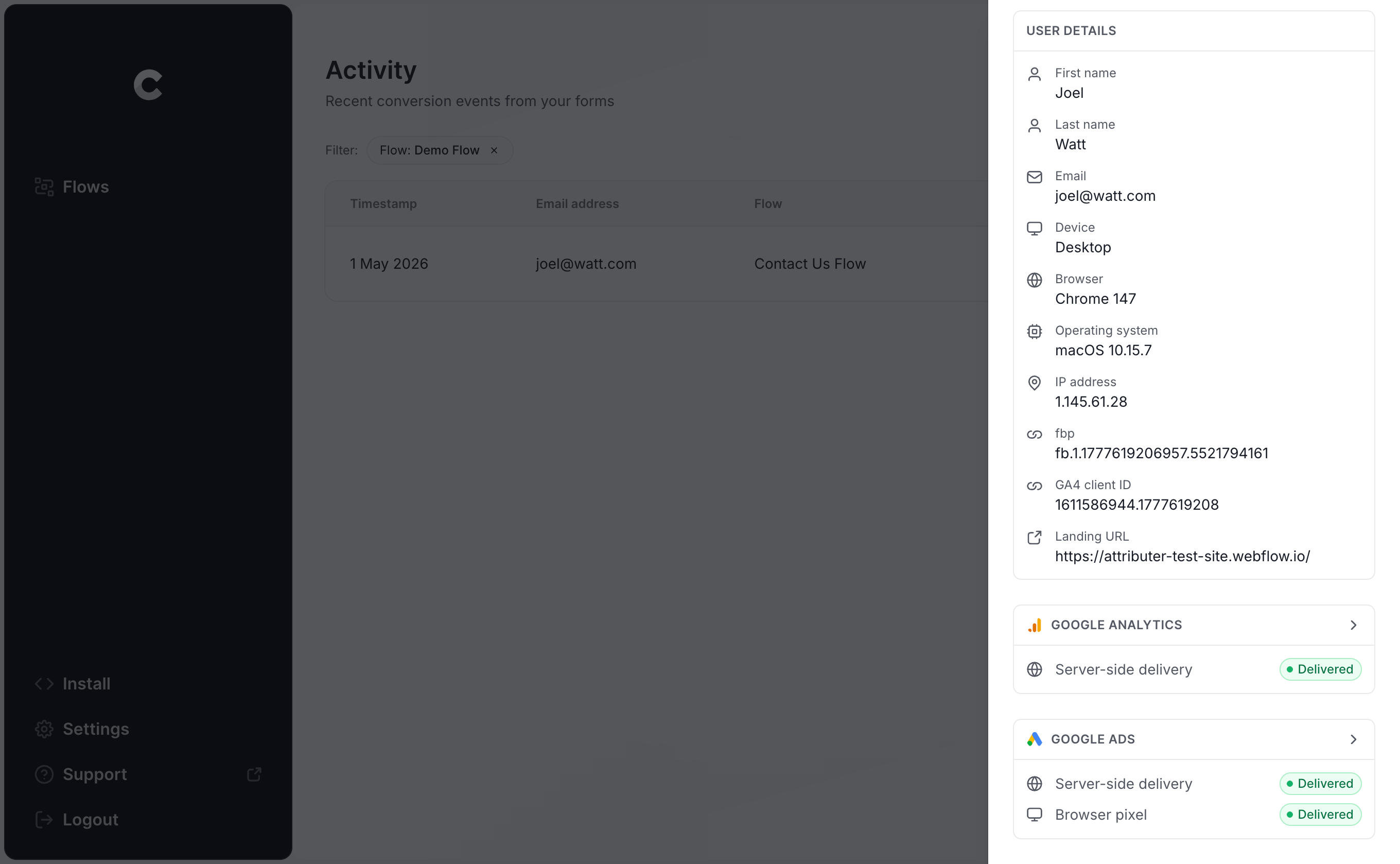
You can drill in even further to see exactly what got sent to Google Ads and how its servers responded.
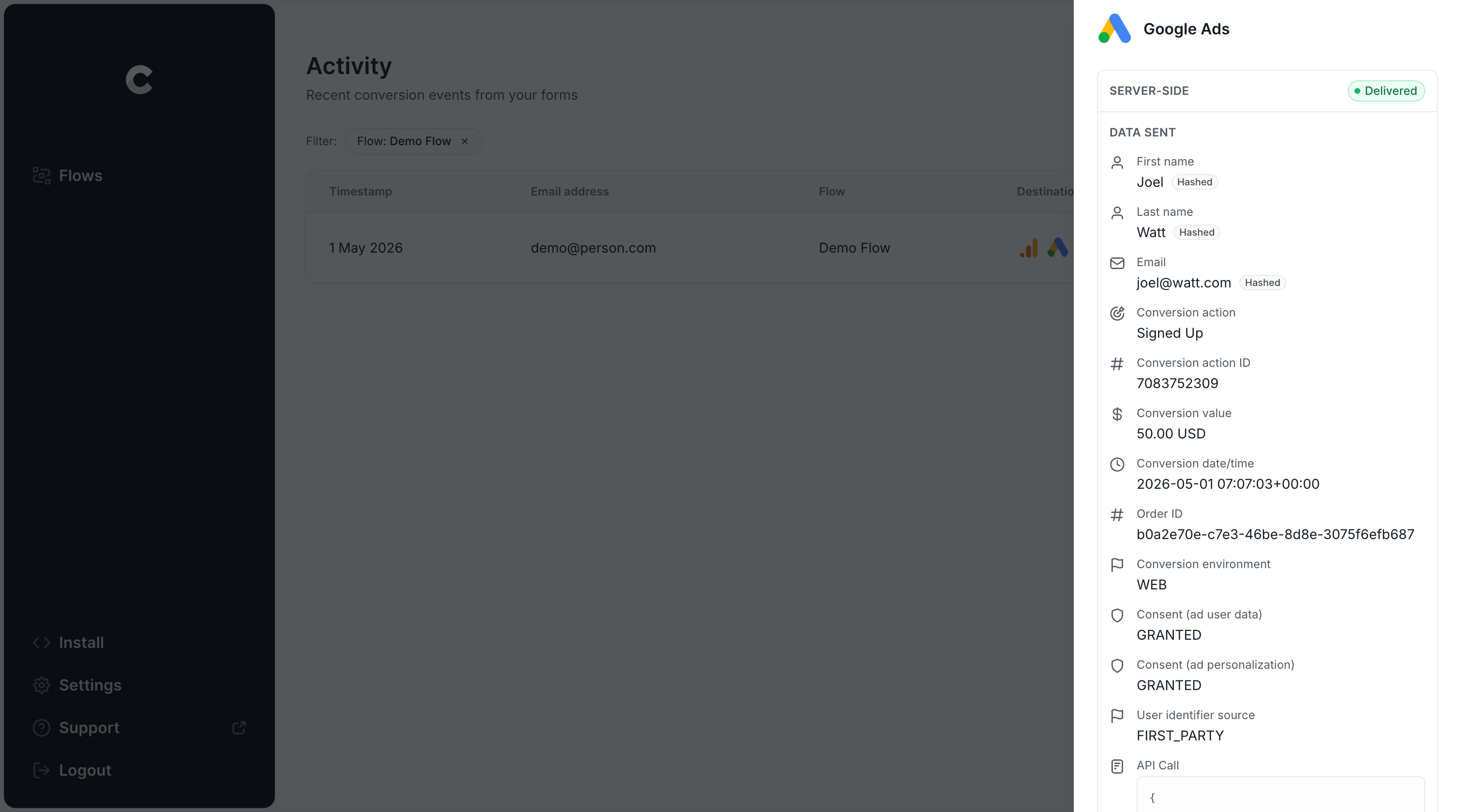
Once you spot that test submission sitting in the log with a successful delivery to Google Ads, your tracking is good to go. The whole process, start to finish, takes about 5 minutes.
Why Converly is the best way to send conversions to Google Ads from Squarespace
Plenty of options exist for getting Squarespace conversions into Google Ads, so what makes Converly worth choosing?
1. Easy to set up
Most people default to Google Tag Manager for this. That means writing code to listen for the form submission, writing more code to pull the lead's name and email into the DataLayer, hashing everything with SHA-256 (because Google requires it), then wiring up the variables, triggers and tags to match.
If you're not already deep into GTM, that's a lot of hours lost to trial and error.
Converly skips all of it. You simply choose your trigger (a Squarespace form submission) and then choose your action (a conversion sent to Google Ads), and you're done. No custom code, no tag configuration, just tracking that works.
2. Not affected by ad blockers and privacy restrictions
Browser-based methods like Google Tag Manager, or anything relying on thank-you page visits, lose a real chunk of conversions to ad blockers and privacy-focused browsers that block the Google Tag from firing.
One study looking at over 7 million conversions found tag-based tracking missed close to 30% of them. About 5% was attributed to ad blockers, and the remaining 25% was lost to browser privacy protections.
Converly sidesteps all of that by sending conversions directly to Google's servers, so your numbers stay accurate no matter what's running in the visitor's browser.
3. Works across devices
It's common for someone to discover your business on their phone but hold off on filling out the form until they're sitting at a computer.
Tools that only track in the browser can't join those dots, since the click and the conversion happen on two completely different devices.
Converly gets around this by sending identity details (name, email, and so on) straight to Google's servers, enabling Google to connect the eventual conversion back to the original ad click on the phone, so your campaigns get credit for the leads they actually generated.
4. Sends more data
Beyond the lead's name, email and phone, Converly also passes along technical signals like the GCLID, IP address and User Agent to Google Ads.
That gives Google Ads a much richer profile to match against, so it can more accurately tie a conversion back to an ad click even when weeks have passed and a different device was involved.
The payoff is more accurate conversion tracking and better quality data flowing into your Google Ads account.
5. Supports multiple tools and platforms
Converly connects to more than 100 form builders, scheduling tools, chat widgets and other website tools, Squarespace forms included.
It can also send conversion events to Google Analytics, Google Ads, Meta Ads, LinkedIn Ads, Microsoft Ads and several other destinations.
That means if you ever add a new tool to your site (like an Acuity scheduling widget) or launch ads on a new platform, you don't have to start your tracking setup over. Just add the connection in Converly and it's sorted.
6. Gives you a full conversion log and email alerts
With Google Tag Manager, there's no easy way to know your tracking is still working once it's live. You can test it thoroughly on day one, but if nobody checks again, a tweak to the form, a change in GTM, or an edit inside Google Ads can break things without anyone noticing.
Converly removes that blind spot entirely. Every conversion gets logged, showing exactly what data Converly captured, what was sent to Google Ads, and how Google Ads responded.
You can also switch on email alerts, either for every conversion or just for failures, so you find out the moment something stops working instead of weeks later.
3 things you can do when you properly send conversions to Google Ads from Squarespace
Once real conversion data is flowing into Google Ads, a lot of new reporting and optimisation options open up.
1. Report on conversions by campaign, ad group, keyword, etc.
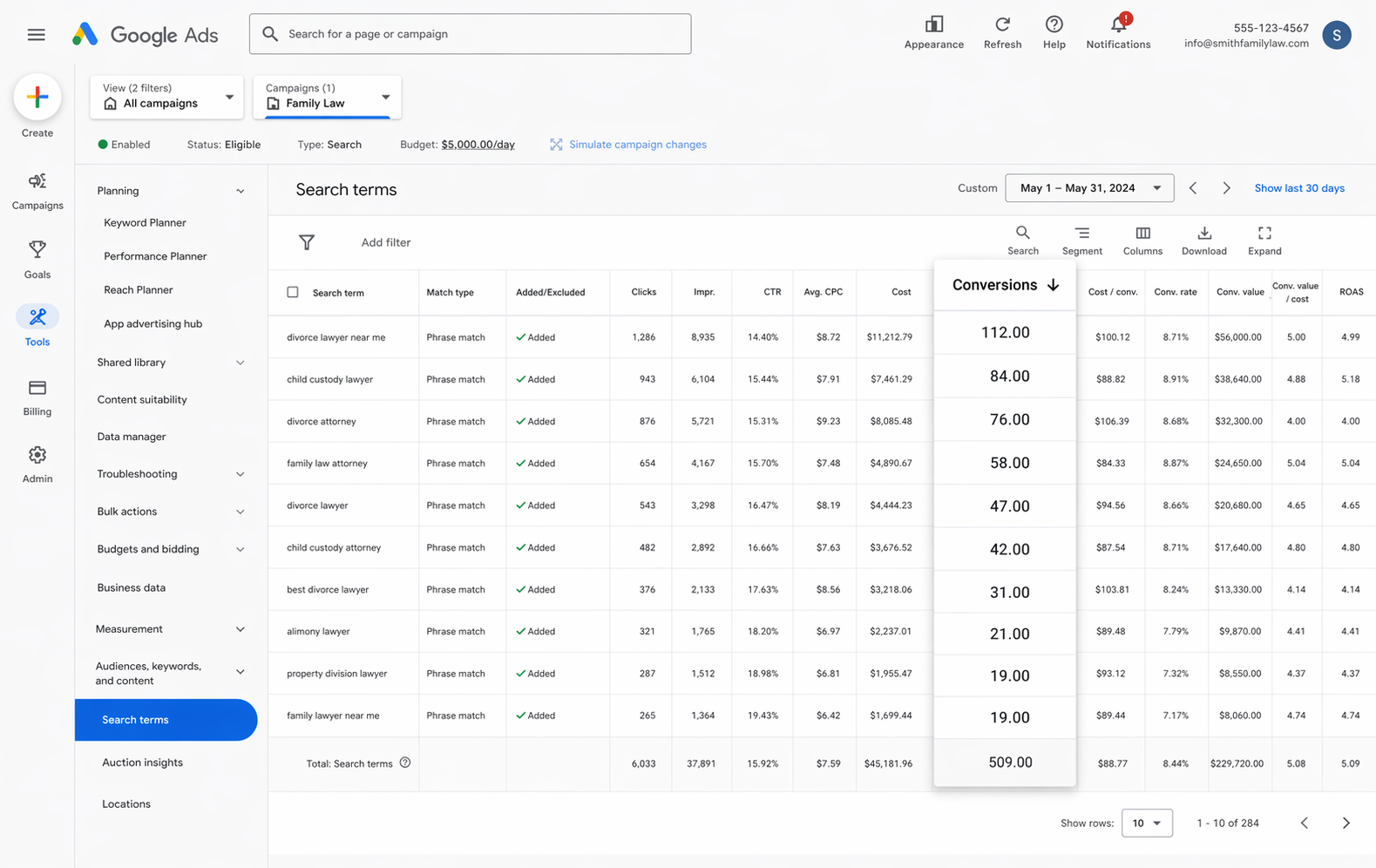
With accurate tracking in place, your Google Ads account moves beyond clicks and impressions. You get real numbers on conversions, conversion rate, cost per conversion, return on ad spend and more. And you can slice all of that by campaign, ad group, keyword, ad and even country.
That level of detail makes it much easier to spot where your Google Ads budget is actually working, and where it isn't.
2. Use Google's Smart Bidding technology
With manual bidding, you're basically telling Google "I will pay up to $3 per click." and Google goes and bids up to $3 regardless of who the person searching is or what their search term was.
On the other hand, Smart bidding allows you to tell Google ‘I’m willing to pay $45 per lead' and then Google goes and factors in everything it knows about the person searching (age, location, device, prior purchases, interests, etc) and decides whether to bid high or low, based on how likely that specific person is to convert.
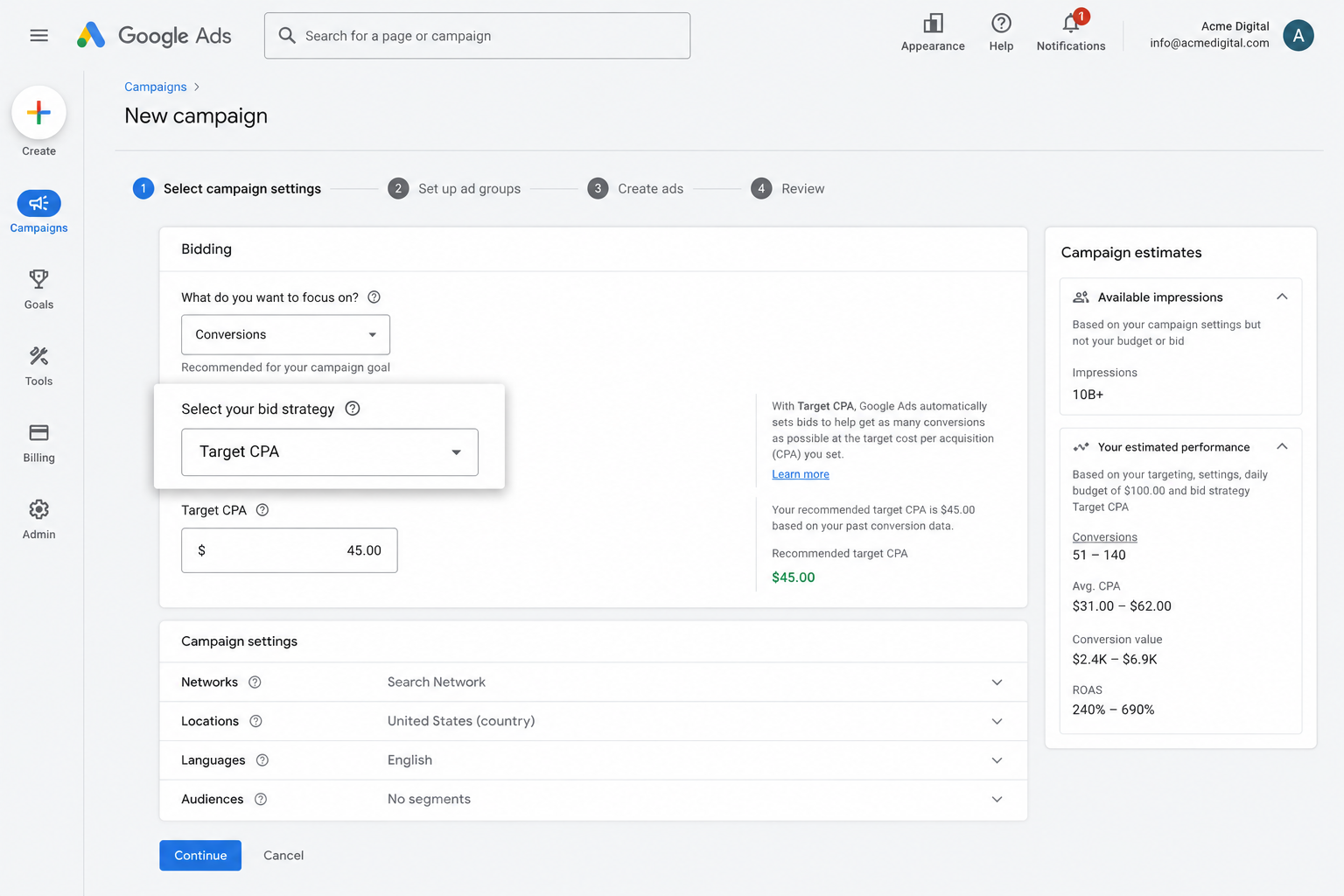
It's super powerful, but it only works with clean conversion data behind it. Without it, Google has no real sense of what a good lead looks like for your business, and it'll end up overpaying for clicks from people who were never going to convert.
But when you set up accurate, server-side tracking through Converly, you give Google's algorithms the data they need to serve your ads to the right people, driving more leads for less spend.
3. Retarget people who visited your site but didn't convert
Feeding accurate conversion data into Google Ads also lets you build remarketing lists made up of visitors who came to your site but never converted.
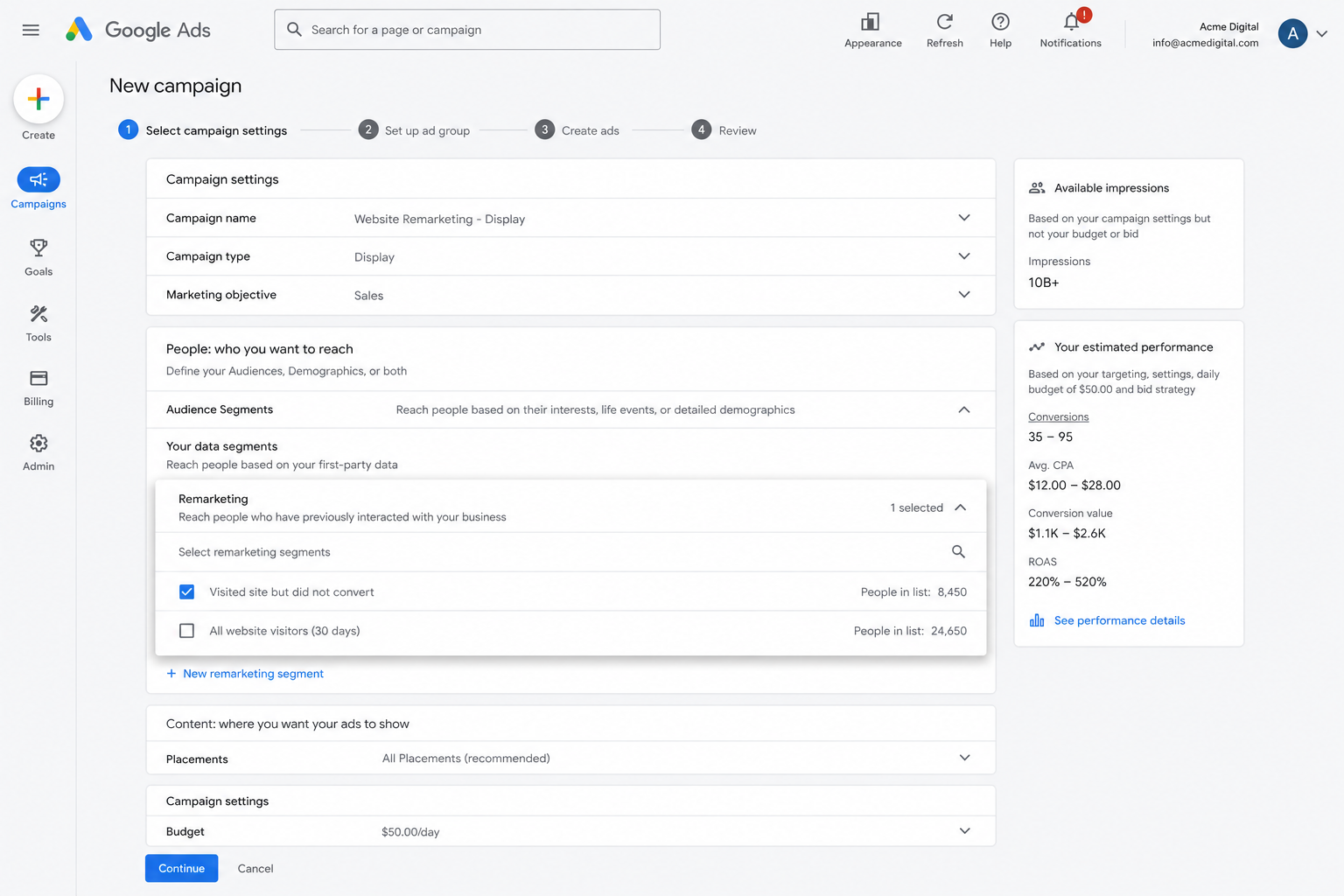
From there, you have a few ways to bring those people back, including:
- Search — Adjust your bids up (or down) specifically for this audience the next time they search your keywords.
- Display — Serve display ads across the Google Display Network aimed squarely at this group, keeping your brand in front of them as they browse around the web.
- YouTube — Target this same audience with YouTube ads so they keep seeing your message while watching video content.
Wrap Up
If your goal is sending accurate conversions to Google Ads every time someone fills out a Squarespace form, Converly is a solid way to get there.
It sends conversions directly to Google's servers so ad blockers and privacy browsers can't interfere, and it gives Google lead details (like name, email, phone, IP address, User Agent and more) so Google has the best possible shot at matching each conversion back to its original ad click.
Best of all, it usually takes less than 10 minutes to set up and comes with a 14-day free trial, so give it a try today!
About the author

Aaron is the founder of Converly. With over 15 years of experience in digital marketing and SaaS, he's passionate about helping businesses track and optimise their ad conversions.