


Track Salesforce form submissions as conversions in Google Analytics
Use Converly to send conversion events to Google Analytics whenever a Salesforce form is submitted. No code or technical setup required!
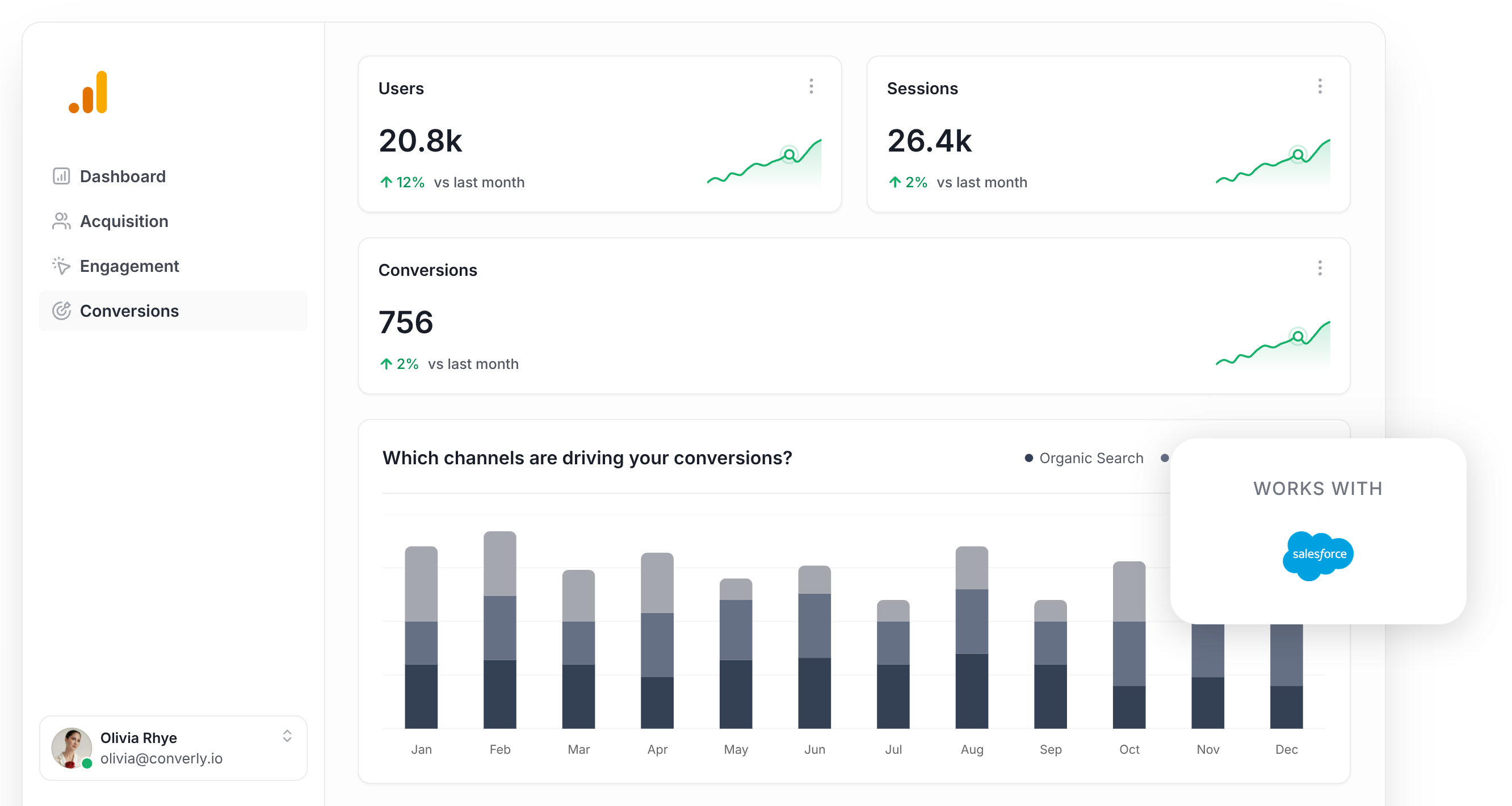
Spending money on marketing but have no idea which campaigns are actually bringing in leads?
It is one of the most common frustrations marketers face. You pour budget into ads, pull up the reports, and all you get are vanity metrics like clicks and page views. None of that tells you whether someone actually filled out a form and became a real lead.
The good news? There is a straightforward fix, and you will not need any coding skills or technical expertise to set it up.
In this guide, we will walk you through how to automatically trigger a conversion event in Google Analytics every time someone completes a Salesforce Web-to-Lead form on your website.
4 simple steps for tracking Salesforce Web-to-Lead form submissions as conversions in Google Analytics
Here's how to setup conversion tracking in Google Analytics in 4 simple steps:
Step 1: Build your Conversion Flow in Converly
Converly is a tool that makes it easy to send conversion events to ad platforms and analytics tools (including Google Analytics) when someone submits a form on your website.
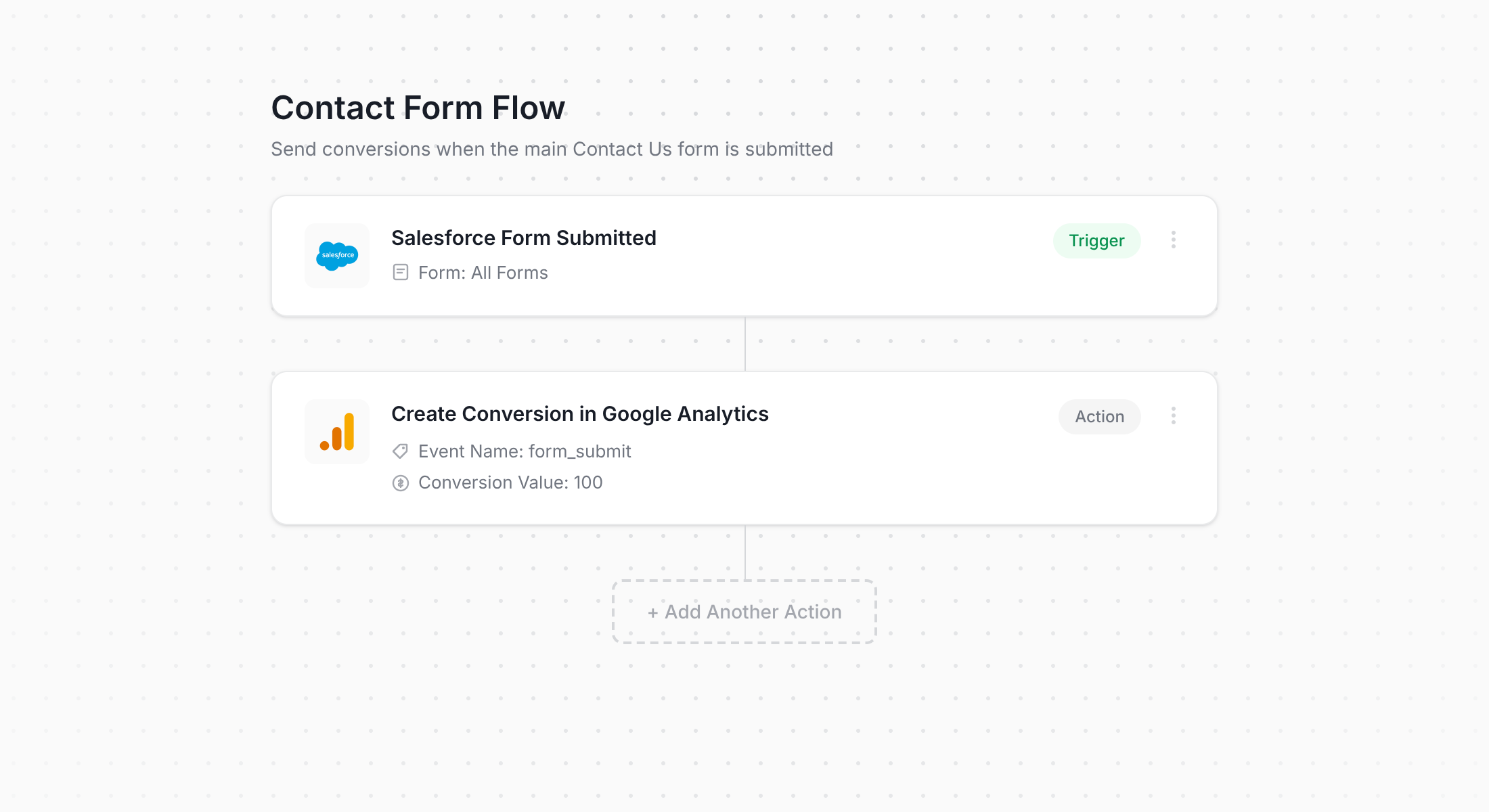
As the screenshot above shows, Converly comes with an intuitive workflow builder that anyone can pick up in minutes. If you have used tools like Zapier or HubSpot Workflows before, you will feel right at home.
Simply choose your trigger (such as a Salesforce Web-to-Lead form submission on your site) and then select where the conversion event should be sent (for example, Google Analytics).
Step 2: Install the Converly code on your website
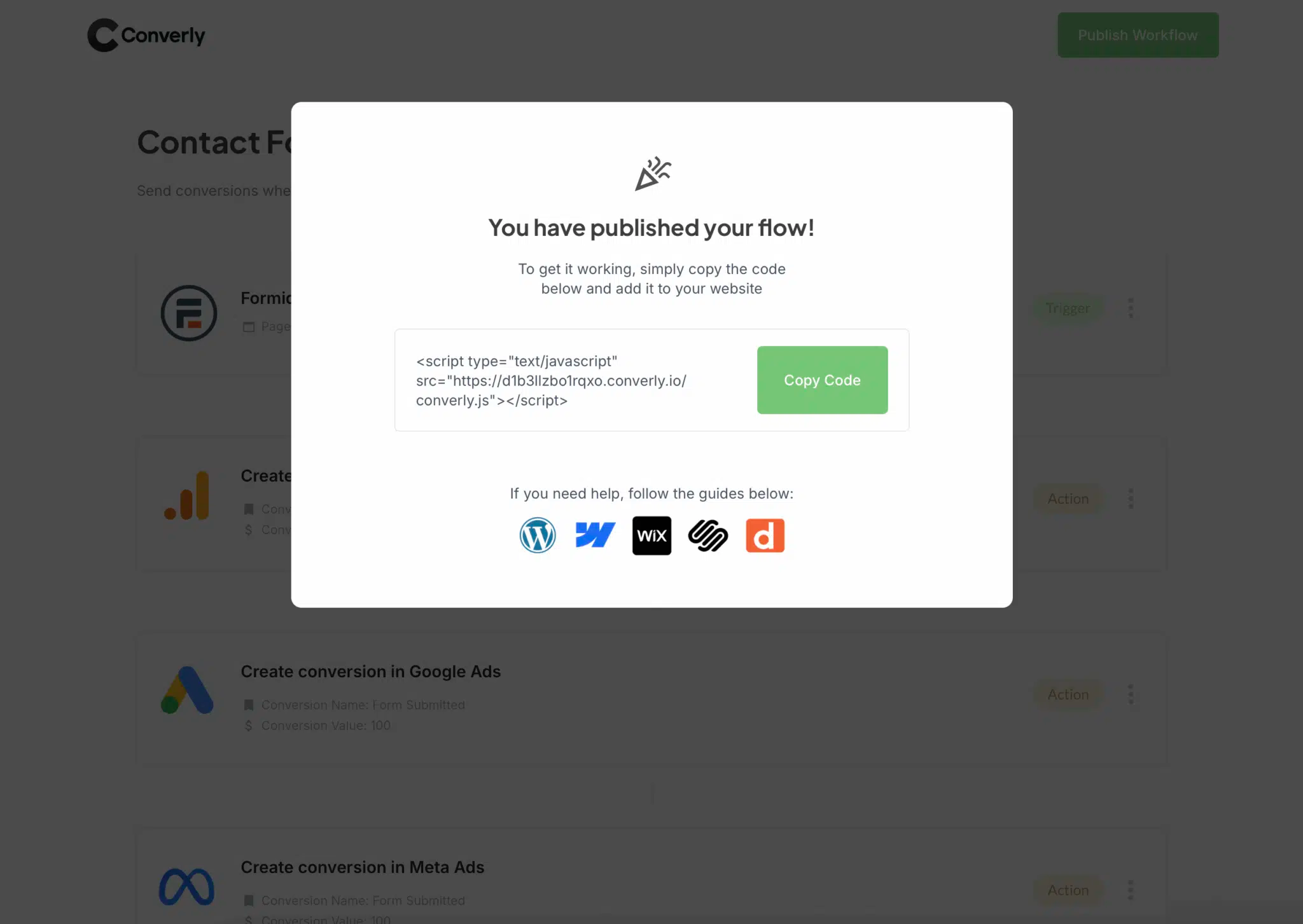
After you finish building your Conversion Flow, Converly will provide you with a small code snippet to place on your website.
Once the snippet is on your site, it handles everything automatically. It detects when someone submits a form and sends the conversion data straight to Google Analytics (along with any other platforms you have connected).
Step 3: Test it's working
With Converly installed and configured, the next thing to do is verify that everything is tracking correctly.
The easiest way to check is by opening an incognito browser window, navigating to the page where your Salesforce Web-to-Lead form lives, and filling it out as if you were a real visitor.
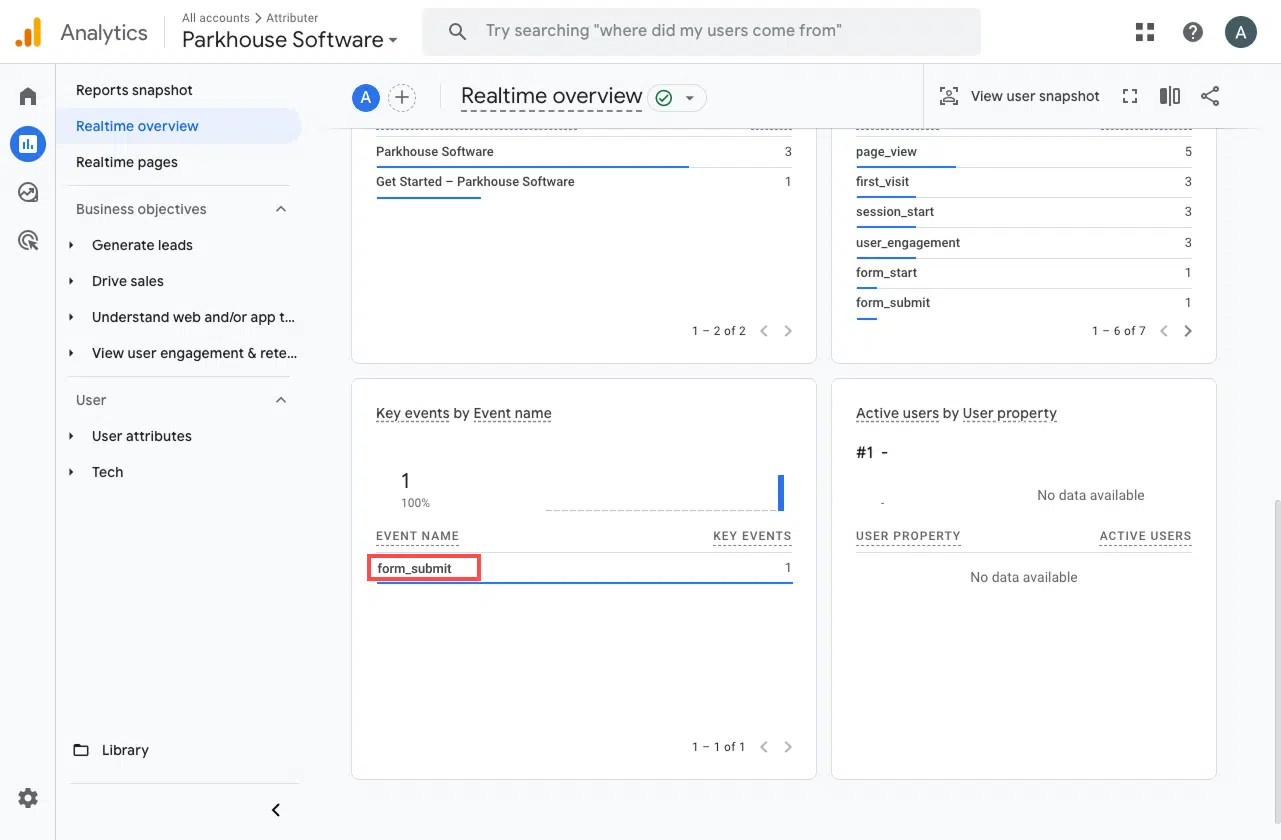
From there, log into Google Analytics and pull up the Real Time dashboard. Check the Recent Events section for the form_submit event. If you can see it appearing there, you are all set and conversions are being recorded properly.
Step 4: Mark the event as a 'Key Event' (Optional, but recommended)
There is one more optional step that is well worth doing. You can mark your form_submit event as a Key Event in Google Analytics 4. This signals to GA4 that the event should be treated as a conversion, which opens up additional reporting features and gives you deeper visibility into your data.
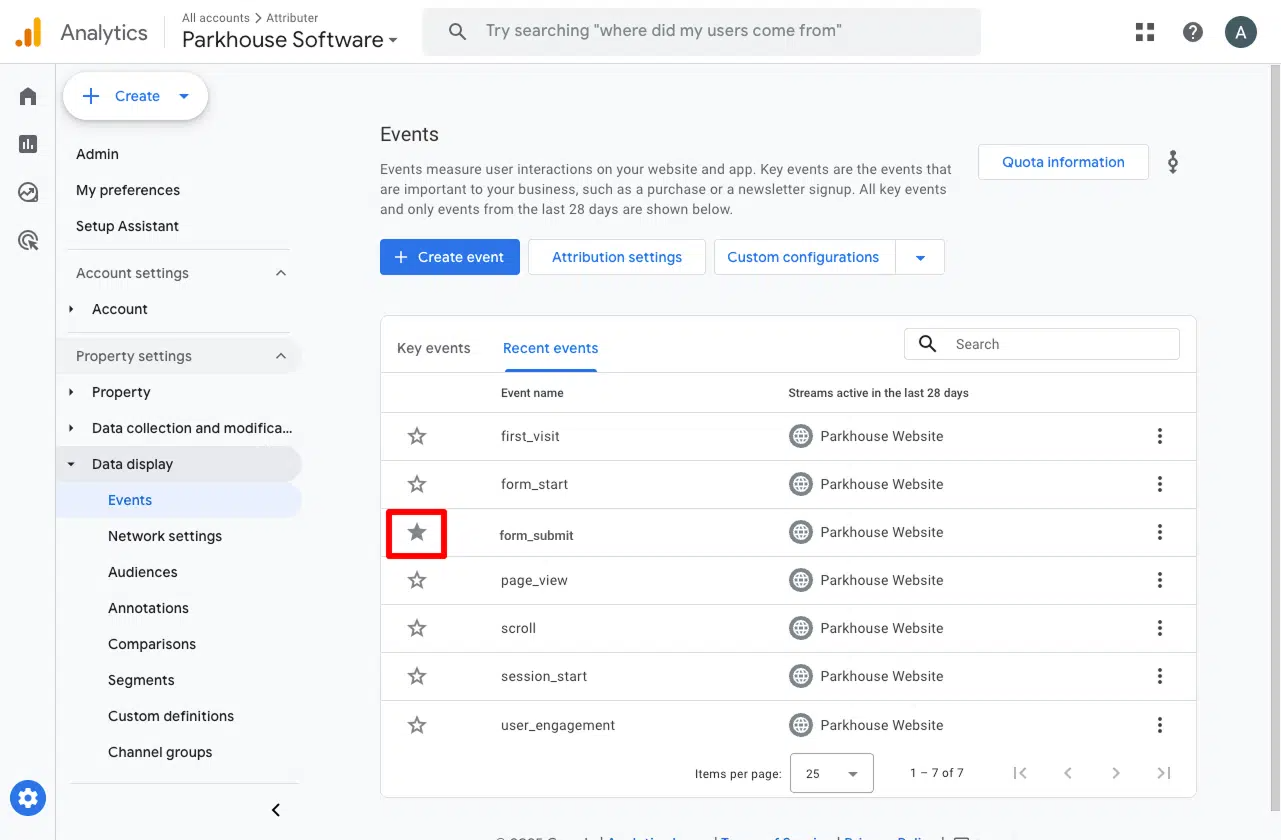
Setting this up is quick. Head to the Admin section of your GA4 property and select Events under the Data Display heading. Switch over to the Recent Events tab to see a list of events that have been recorded recently.
Find the form_submit event (or whatever custom name you assigned in Converly) and click the star icon beside it. That is all it takes. GA4 will now recognize it as a conversion and you will be able to use it across acquisition reports, funnel analysis, and other reporting tools within Google Analytics.
Why Converly is the best way to trigger conversions in Google Analytics
Here's why Converly is the best approach:
1. Easy to set up
Many marketers turn to Google Tag Manager to track conversions in Google Analytics, but getting it right can be a real headache. You often need to configure custom triggers to detect form submissions, set up data layer variables, and then wire everything together with the correct tags. It is not exactly beginner friendly.
Converly takes a completely different approach. Its workflow builder is designed to be intuitive from the start, and if you have ever worked with tools like Zapier or HubSpot Workflows, you will know exactly how it works.
You just pick a trigger (like a Salesforce Web-to-Lead form being submitted) and then tell it what to do next (such as sending a conversion event to Google Analytics).
That is literally it. No need to wrestle with Google Tag Manager or worry about getting the technical details right.
2. More accurate conversion numbers
Converly fires conversions into Google Analytics through the Measurement Protocol, which means the data is sent directly to their servers instead of through a tag running in the visitor's browser.
This sidesteps the things that typically break tag-based tracking. Stuff like ad blockers and the privacy controls baked into Safari, iOS, and other modern browsers.
And the impact is bigger than most people realize. In fact, a recent study covering more than 7 million conversions found that tag-based tracking was failing to capture about 30% of conversions. The breakdown was roughly 5% lost to ad blockers and 25% lost to browser privacy features.
But because Converly sends conversions directly to Google Analytics servers, all of those conversions make it through.
3. Supports multiple tools and platforms
Converly integrates with more than 50 tools, including form builders, booking widgets, live chat platforms, and beyond.
On the output side, it can push conversion events to Google Analytics, Google Ads, Meta Ads, LinkedIn Ads, and a long list of other destinations.
That means if you bring a new tool onto your website or decide to start running ads on an additional platform, getting conversion tracking up and running takes just a couple of clicks.
4. Makes it easy to add conditional logic
With Converly, you can build intelligent rules that fire different conversion events depending on the specific actions visitors take on your site.
For example, say you are handling marketing for an accounting firm. You could set up a conversion called Consultation Booked that fires when someone completes your consultation request form, and a separate one called Tax Guide Downloaded for when a visitor grabs one of your free guides.
Tracking these conversions individually gives you a much better understanding of what is driving results. Instead of lumping all form submissions into one generic event, you can pinpoint exactly which campaigns and ads are generating the high value actions (like consultation requests) versus the lower value ones.
5. Great support provided for free
If you have ever reached out to Google or Meta for help setting up conversions, you know how frustrating it can be. You either wait forever for a reply or get sent a generic help article that doesn't actually fix your problem.
Converly takes a completely different approach.
Our team has over 20 years of real-world experience working with ads and analytics, and we are here to make things simple. Whether you want to shoot us a quick email or hop on a short video call, we are always happy to help. You will get friendly, hands-on support to make sure everything is set up correctly and running the way it should.
6. Gives you a full conversion log and email alerts
With a tool like Google Tag Manager, there's no easy way to be sure your conversion tracking is still firing. You can run a few tests when you first build it, but unless you keep re-testing, it can break in the background (someone edits the Salesforce Web-to-Lead form, changes a tag in Google Tag Manager, or adjusts a setting in Google Analytics) and you would have no idea anything was wrong.
Converly clears that up. You get a full conversion log that records every conversion that fired, the exact data Converly captured, what it sent to Google Analytics, the response Google Analytics returned, and more.
You can also switch on email notifications. Get one for every conversion delivered to Google Analytics, or set them to only fire when a send fails, so the moment your tracking breaks you'll know about it.
3 useful reports you can run when you track Pipedrive form submissions as conversions in Google Analytics
Over the past 15 plus years of running marketing teams, I have logged more hours than I can count digging through Google Analytics to understand which channels and campaigns were actually delivering leads.
After all those years, there are 3 reports that have consistently stood out as the most valuable. And once you are tracking Salesforce Web-to-Lead form submissions as conversions in Google Analytics, you will have access to all of them.
1. Conversions by Channel
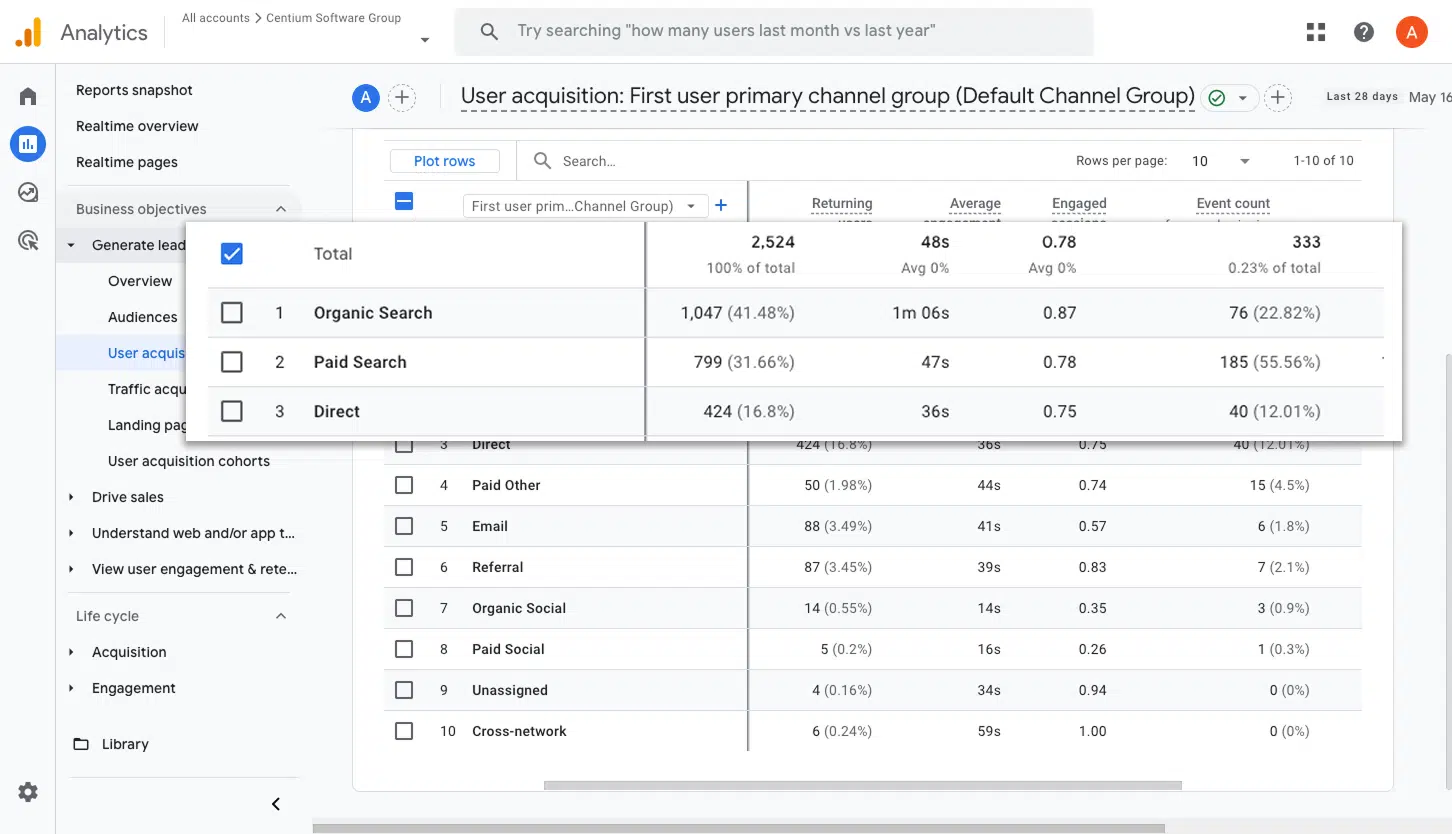
This report shows you at a glance which channels are responsible for your conversions. You can see exactly how many form submissions are coming from Paid Search, Organic Search, Paid Social, and every other channel.
It is a great starting point for understanding where your leads are actually coming from and figuring out which channels deserve more of your marketing budget going forward.
2. Conversions by Meta Ads Network
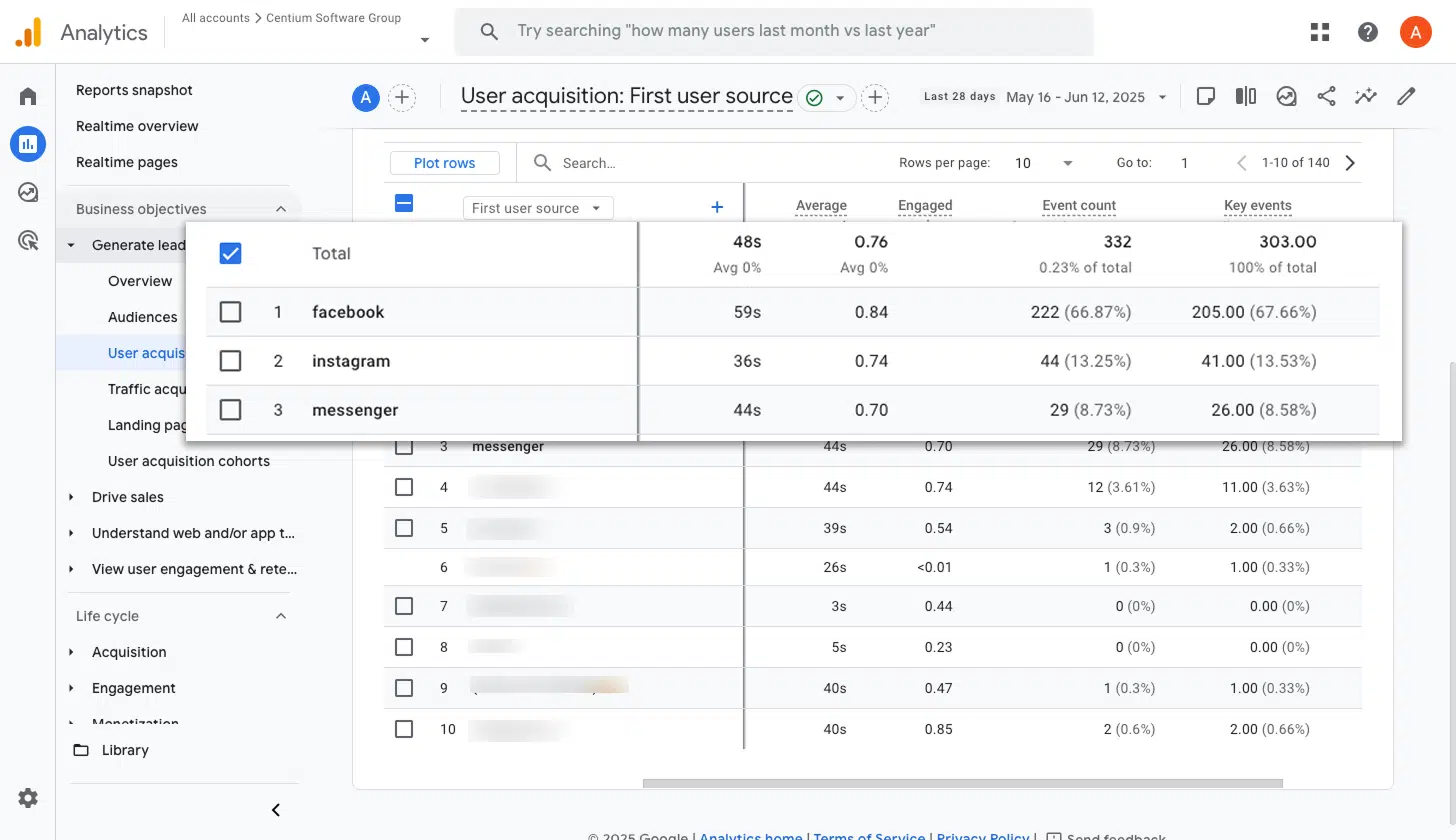
If you are advertising through Meta, your ads are likely being displayed across multiple platforms like Facebook, Instagram, Messenger, and WhatsApp.
Since each of these platforms attracts a different audience and behaves differently, it is natural for some to outperform others when it comes to generating actual leads. That is why having visibility into which networks are producing real conversions (not just impressions and clicks) is so important.
This report breaks that down for you. It reveals how many conversions each Meta network is delivering, so you can confidently shift your spending toward the platforms that are bringing in leads and pull back on the ones that are falling short.
3. Conversions by Google Ads Campaign
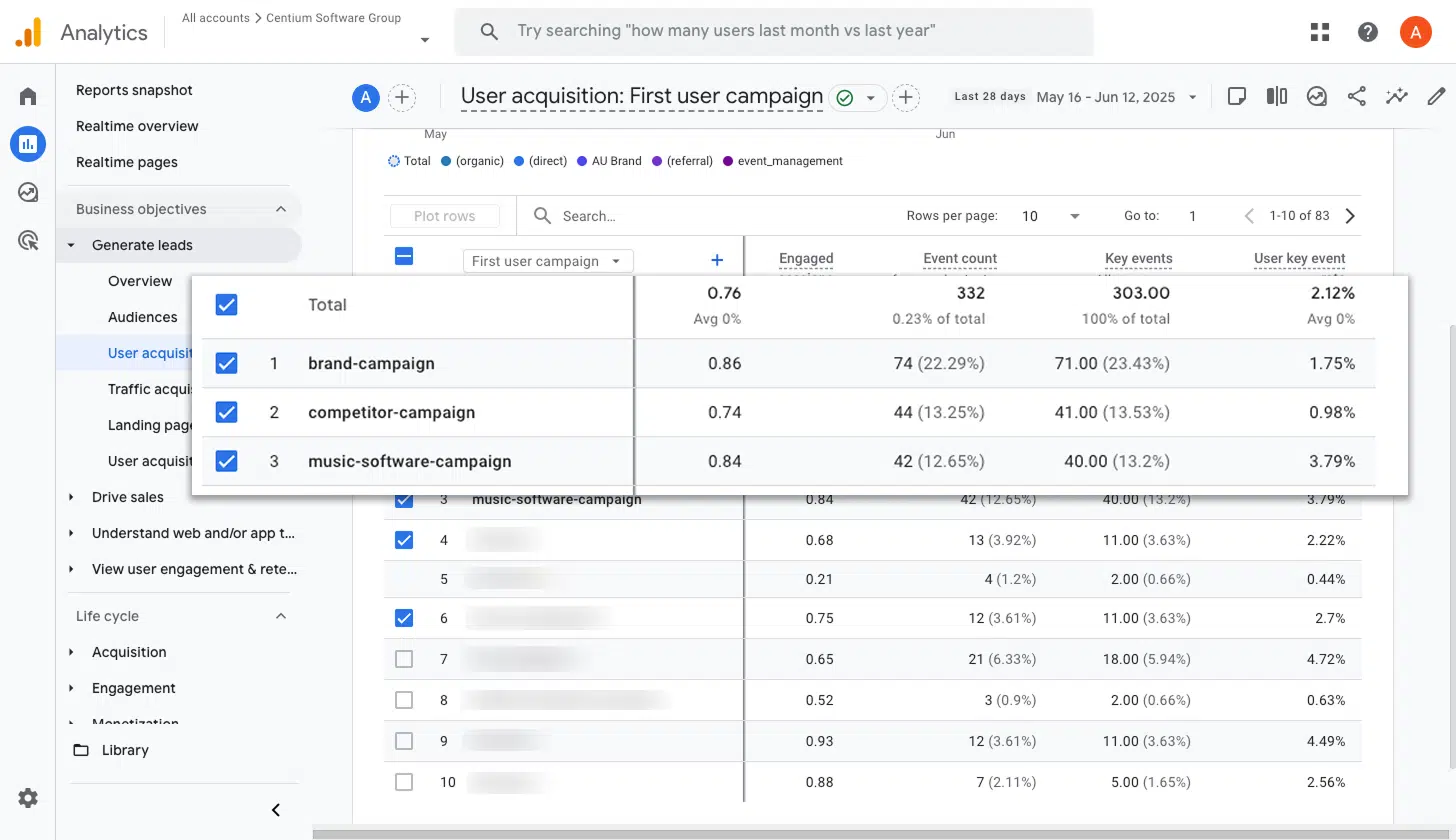
If you are running Google Ads, chances are you have multiple campaigns going at the same time, maybe targeting different services, keyword types, or geographic areas.
Knowing which of those campaigns are actually turning into leads is critical. Without that insight, it is easy to keep pouring money into campaigns that rack up impressive click numbers but never actually generate real leads for your business.
This report gives you that clarity. It lays out exactly how many conversions each campaign is producing, making it easy to double down on the winners and cut back on the ones that are not delivering real results.
Wrap up
With Converly, tracking conversions in Google Analytics every time someone completes a Salesforce Web-to-Lead form on your site is quick and effortless.
And because Converly also connects with platforms like Google Ads, Meta Ads, and LinkedIn Ads, you can add them to your Conversion Flow and push conversion data to every platform simultaneously.
Getting started is easy. Converly offers a 14 day free trial, and most people are up and running in under 10 minutes. Give Converly a try and see just how simple conversion tracking can be.
About the author

Aaron is the founder of Converly. With over 15 years of experience in digital marketing and SaaS, he's passionate about helping businesses track and optimise their ad conversions.