


Track Paperform submissions as conversions in Google Analytics
Use Converly to send conversion events to Google Analytics every time a Paperform is submitted on your site. No code or complicated setup needed!
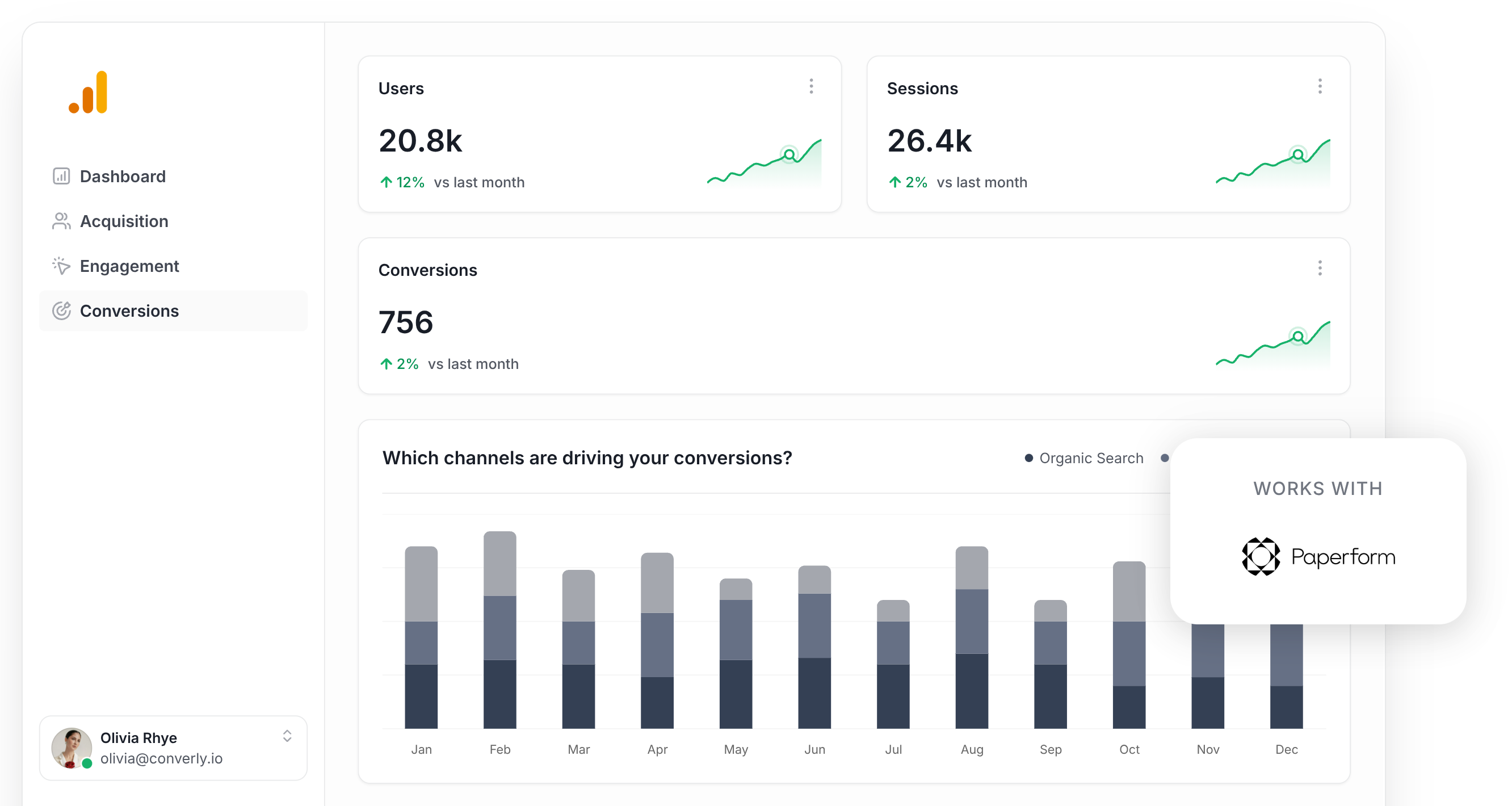
Struggling to get a clear picture of how many leads your marketing is actually generating across channels like Google Ads, Meta Ads, SEO, and others?
You are far from the only one.
When there is no easy way to see which campaigns are actually bringing in leads, it is all too easy to keep pouring budget into things that are not delivering results.
The good news is there is a straightforward fix, and it does not require writing a single line of code.
In this guide, we will show you how to use Converly to automatically send a conversion event to Google Analytics every time someone submits a Paperform on your site. Once it is up and running, you will be able to see exactly which campaigns are generating leads, which ads are performing best, and a whole lot more.
4 simple steps for tracking Paperform submissions as conversions in Google Analytics
Here is how to get conversion tracking up and running in Google Analytics in 4 simple steps:
Step 1: Build your Conversion Flow in Converly
Converly is a tool that handles sending conversion events to your ad platforms and analytics tools (including Google Analytics) whenever a form gets submitted on your website.
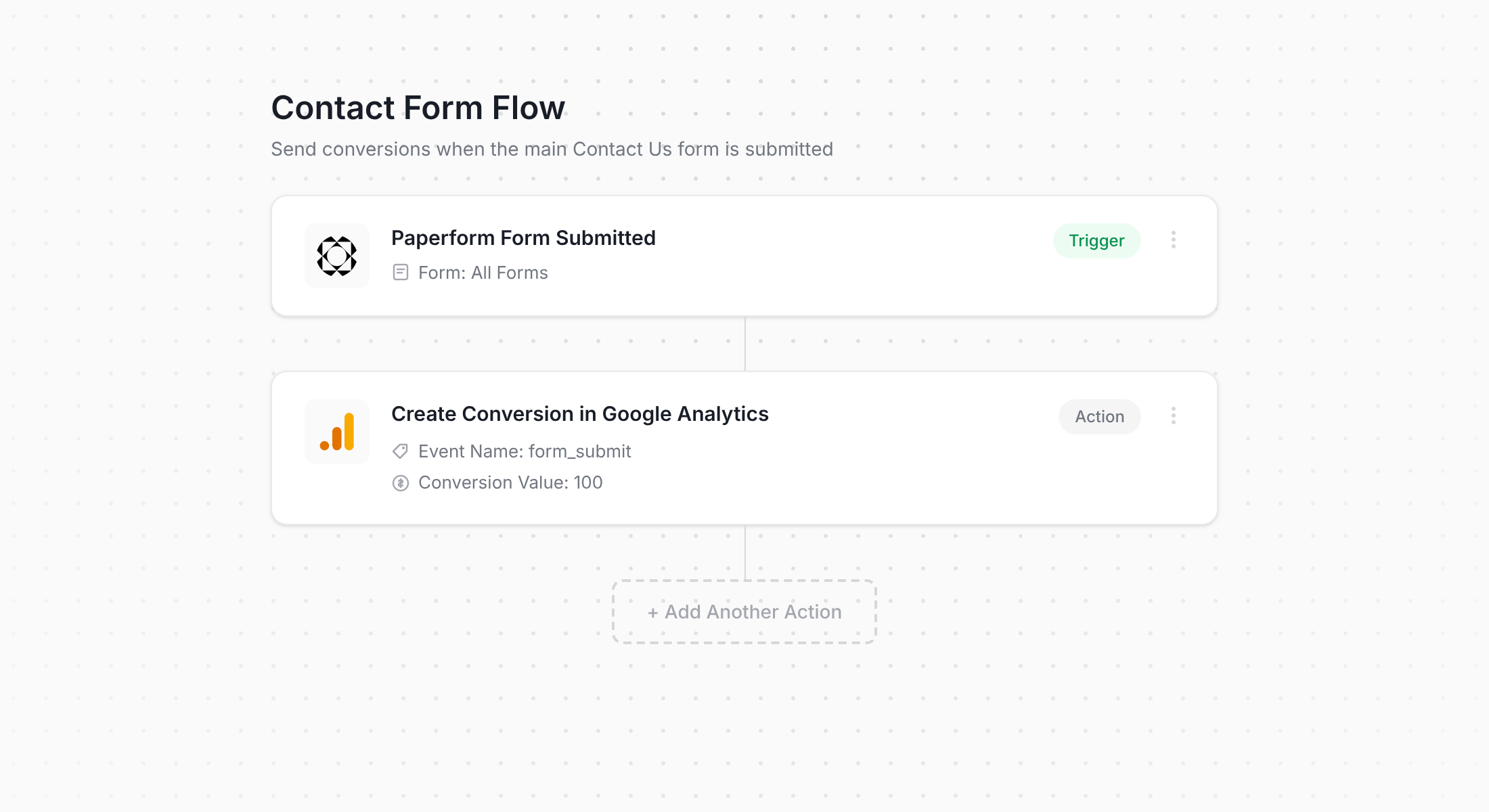
As you can see in the screenshot above, Converly comes with a simple workflow builder that is really easy to use. If you have ever worked with tools like Zapier or HubSpot Workflows, you will feel right at home.
All you need to do is choose a trigger (like when someone submits a Paperform on your site) and then select where you want the conversion event sent (like Google Analytics). That is genuinely all there is to it.
Step 2: Add the Converly code to your website
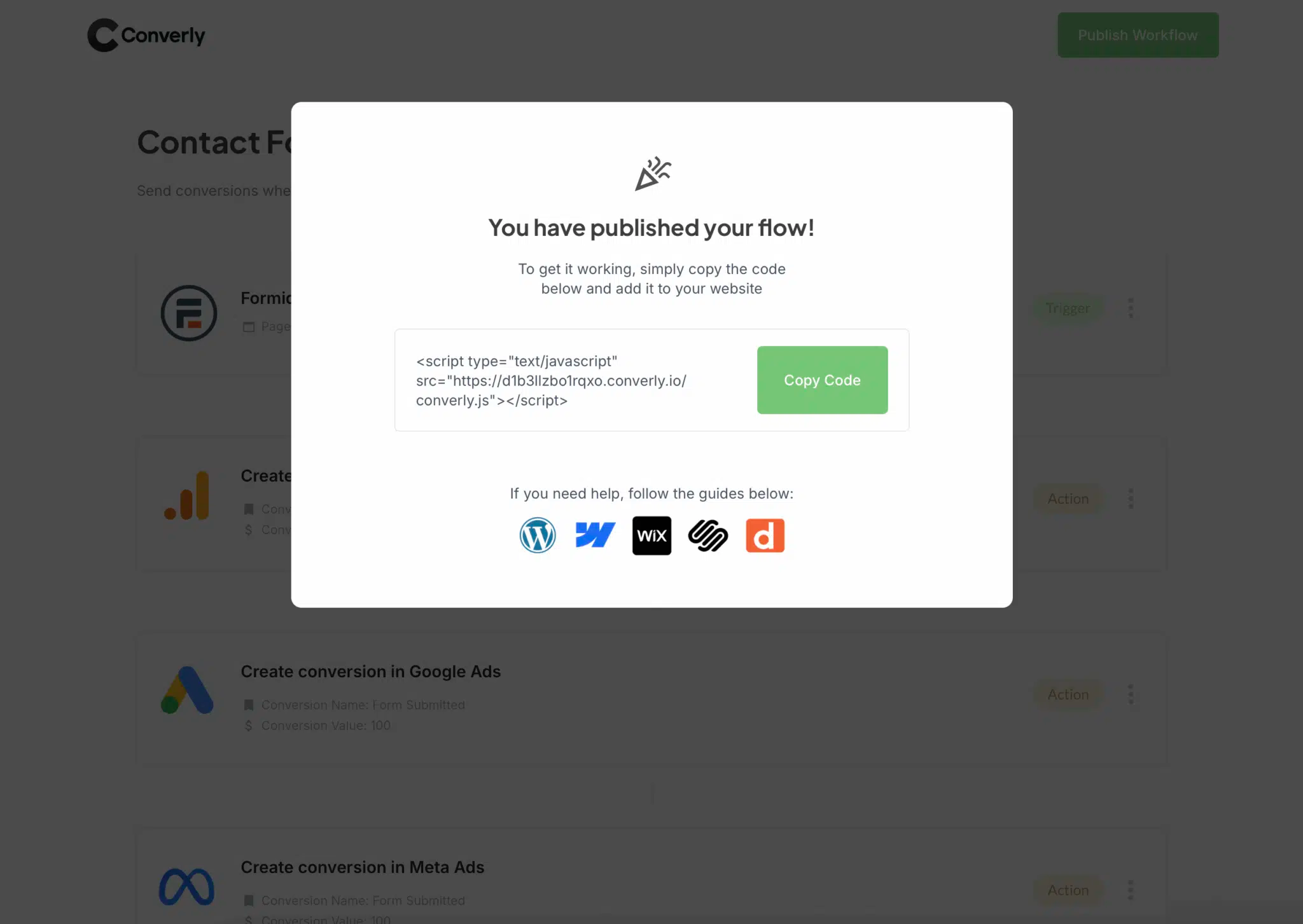
Once you have finished building your Conversion Flow, Converly gives you a small code snippet to add to your site.
The easiest way to add it is through the Settings section of your website builder, usually in a section called Header, Scripts, or Custom Code. You can also add it through Google Tag Manager if that is your preferred setup.
Once the code is in place, Converly takes care of everything automatically. It detects when someone submits a Paperform and fires the conversion event off to Google Analytics (plus any other platforms you have added to your flow).
Step 3: Test it's working
With Converly installed and your Conversion Flow ready to go, the next step is making sure everything is tracking the way it should.
The quickest way to check is to open an incognito window, head to the page on your site that has the Paperform embedded, and submit a test entry.
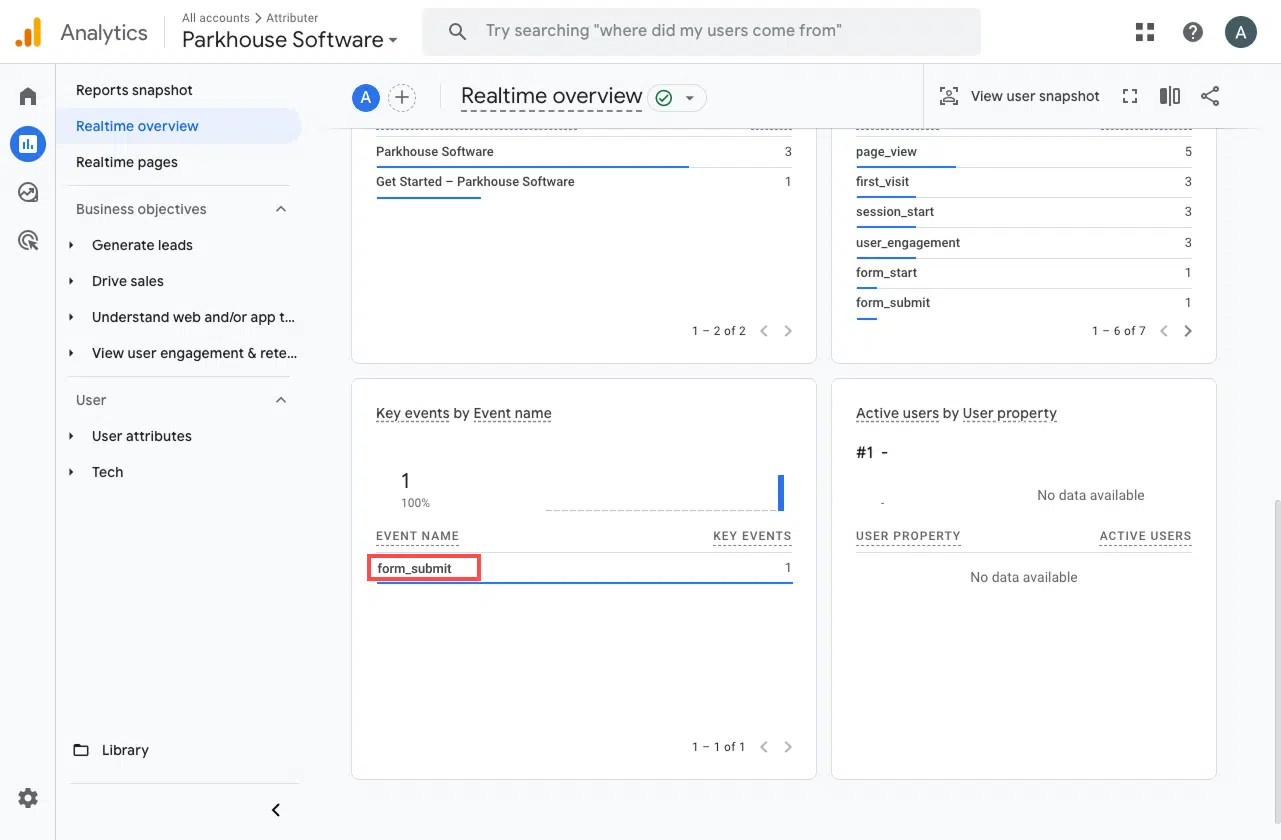
After that, log into Google Analytics and open the Real Time dashboard. Have a look at the Recent Events section. If your test submission shows up there, you are all set and everything is working perfectly.
Step 4: Mark the event as a 'Key Event' (Optional, but recommended)
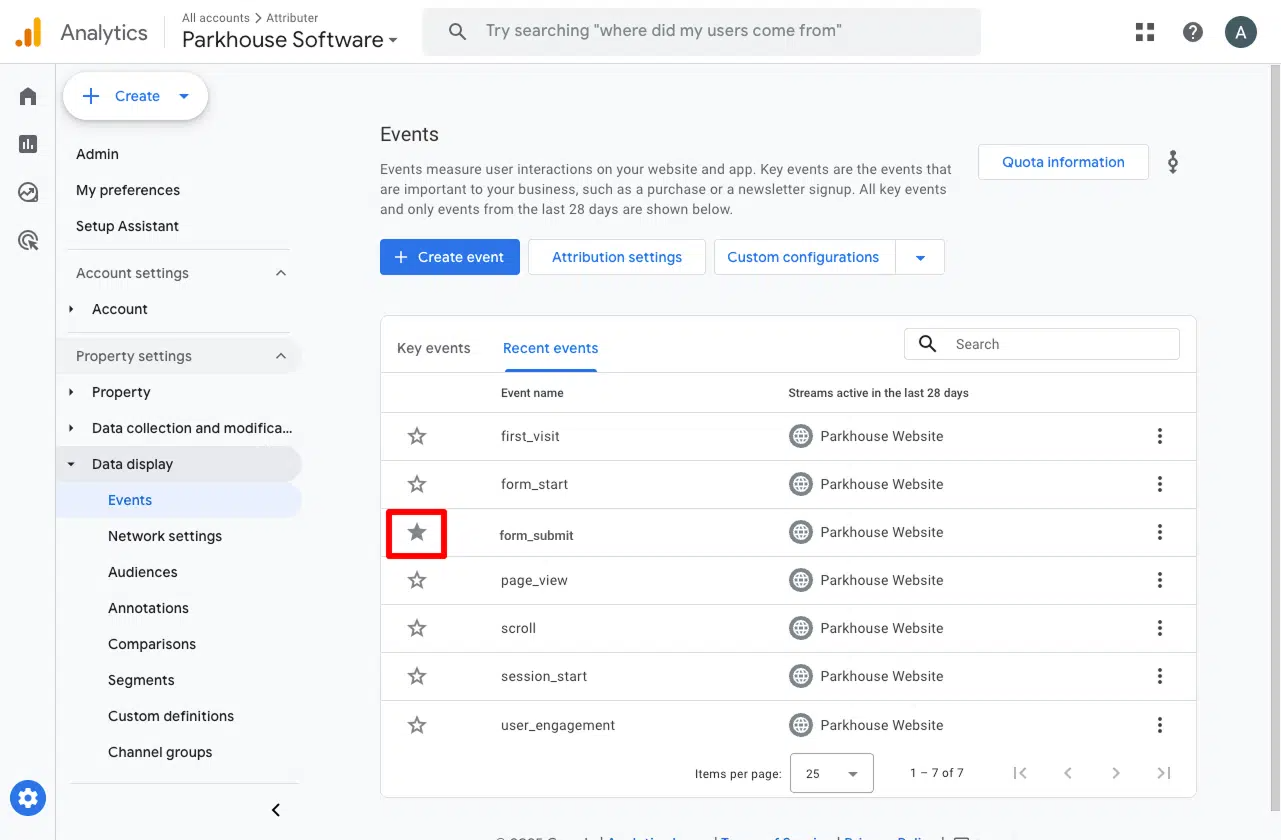
As a final step, we recommend marking the form_submit event as a Key Event in Google Analytics 4. This tells GA4 to count it as a conversion, which unlocks some really useful reporting features. For example, you will be able to include it in your acquisition reports or use it as a conversion point when building funnels and path analysis.
To do it, go to the Admin section of your GA4 property and click Events under the Data Display menu. Open the Recent Events tab to see a list of everything that has been tracked. Find your form_submit event (or whatever name you gave it) and click the star icon next to it to mark it as a Key Event.
Why Converly is the best way to trigger conversions in Google Analytics
As we touched on earlier, there are a few different ways to track conversions in Google Analytics when someone submits a Paperform on your site.
So why go with Converly? Here are a few good reasons:
1. No code or complicated setup
Most other ways to set up conversion tracking involve wading through Google Tag Manager, data layers, and custom scripts. That can get pretty daunting if you are not a developer.
Converly is built to be the opposite of all that. The workflow builder is visual and intuitive, and if you have ever used tools like Zapier or HubSpot Workflows, you will pick it up in no time.
Just select your trigger (like a Paperform submission) and choose what happens next (like sending a conversion event to Google Analytics). That is the whole setup. No code, no Tag Manager, no headaches.
2. More accurate conversion numbers
When Converly sends conversions to Google Analytics, it uses the Measurement Protocol to deliver them directly to Google's servers instead of relying on the Google tag running in the visitor's browser.
This matters because browser-based tracking is becoming less reliable every year. Ad blockers prevent tracking tags from loading, and privacy features in Safari and iOS (known as Apple ITP) prevent them from working properly even if they do load.
How much of an impact does this have? Well a recent analysis of over 7 million conversions showed that tag-based tracking missed close to 30% of conversions (around 5% of those came from ad blockers, and 25% came from browser privacy restrictions).
Sending conversions server-side with Converly means those conversions show up in your reports instead of disappearing.
3. Supports multiple tools and platforms
Converly works with over 50 different tools, from form builders and scheduling apps to chatbots and more. It can also push conversion events to a wide range of platforms like Google Analytics, Google Ads, Meta Ads, LinkedIn Ads, and plenty of others.
So if you ever add a new tool to your site or start advertising on a new platform, getting conversion tracking set up is just a few clicks away.
4. Makes it easy to add conditional logic
Converly lets you set up smart rules that fire different conversion events depending on what someone does on your site.
For instance, say you are running marketing for a law firm. You could set up a conversion called Consultation Requested when someone submits your consultation form, and a separate one called Guide Downloaded when a visitor downloads one of your legal guides.
That way you can track each conversion type separately and get a much clearer picture of which campaigns are driving the results that matter most.
5. Great support provided for free
Anyone who has tried to get help from Google or Meta about conversion tracking knows how hard it is to get a useful response.
That is not how things work at Converly.
Our team has more than 20 years of experience in advertising and analytics, and we love helping people get things set up properly. Whether you prefer to sort things out over email or jump on a quick video call, we offer free support to make sure your conversion tracking is running without a hitch.
6. Gives you a full conversion log and email alerts
With a tool like Google Tag Manager sending your form submissions to Google Analytics, it is hard to be sure the conversions are still going through. A few tests at setup prove it works that day, but unless you keep checking week after week, your tracking can quietly break (someone edits the Paperform, changes a tag in Google Tag Manager, or tweaks something in Google Analytics) and you would have no idea.
Converly takes that worry off your plate. You get a full conversion log that captures every conversion, the data Converly recorded for it, what it sent to Google Analytics, the response Google Analytics returned, and more.
You can also switch on email notifications. Have one sent for every conversion that reaches Google Analytics, or only when a send fails, so you find out straight away if your tracking breaks.
3 useful reports you can run when you track Paperform submissions as conversions in Google Analytics
Having spent more than 15 years leading marketing teams, I have spent a lot of time inside Google Analytics trying to figure out exactly where our visitors and leads were coming from.
Out of all the reports I have built and dug into over the years, these 3 have consistently delivered the most useful insights. And once you are tracking Paperform submissions as conversions in Google Analytics, you will be able to run them too.
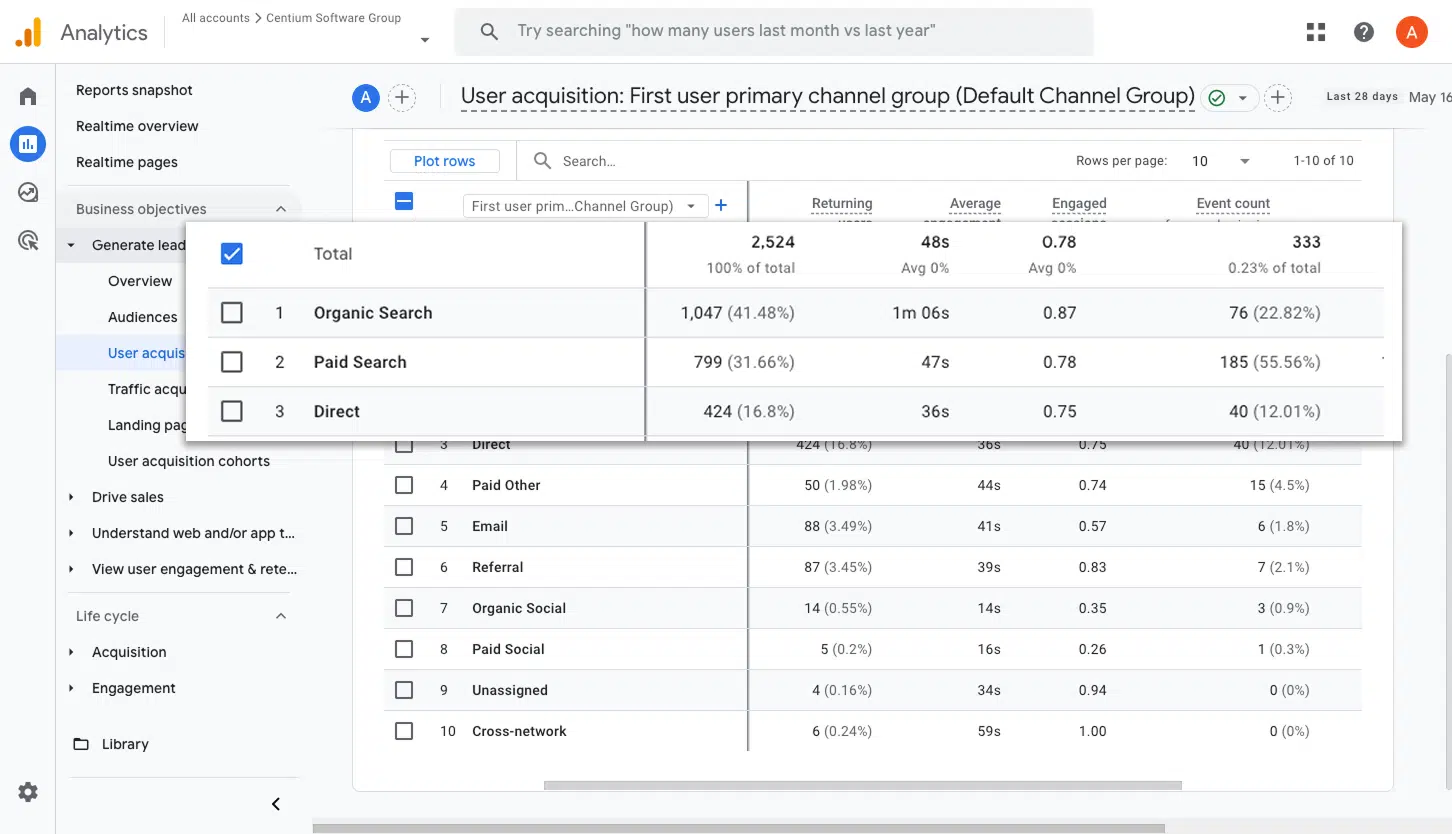
1. Conversions by Channel
This report shows you how many form submissions are coming in from each of your marketing channels, whether that is Organic Search, Paid Search, Paid Social, Organic Social, or anything else.
It is a great way to quickly see which channels are doing the heavy lifting and where there might be an opportunity to double down and generate even more leads.
2. Conversions by Meta Ads Network
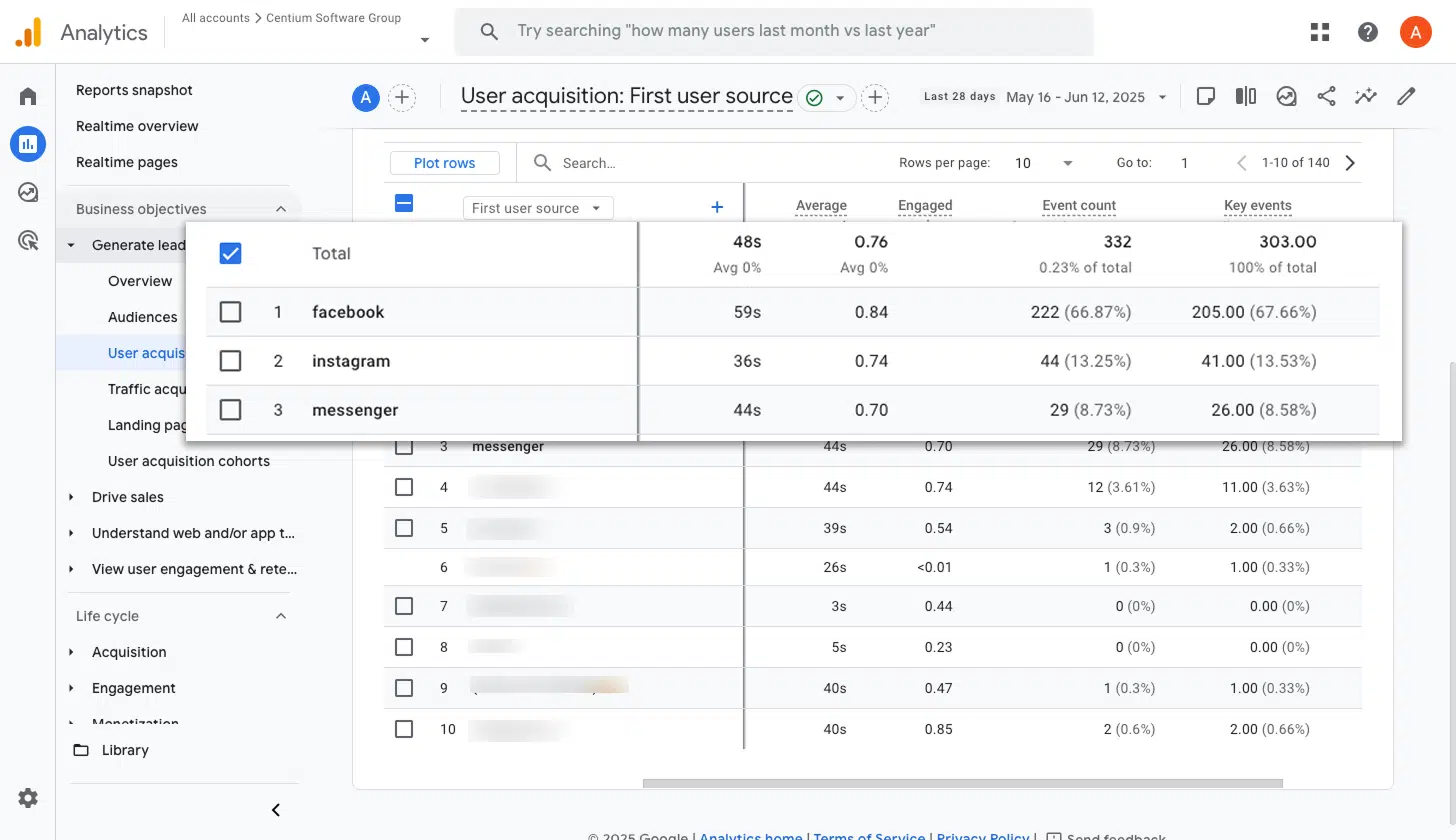
When you run ads through Meta, they tend to show up across several different networks including Facebook, Instagram, Messenger, and WhatsApp.
Since each of those platforms can perform quite differently, it is worth knowing which ones are actually driving leads rather than just racking up impressions and clicks.
This report makes that easy. It breaks down how many conversions came from each network, so you can put more budget behind the ones that are working and pull back on the ones that are not.
3. Conversions by Google Ads Campaign
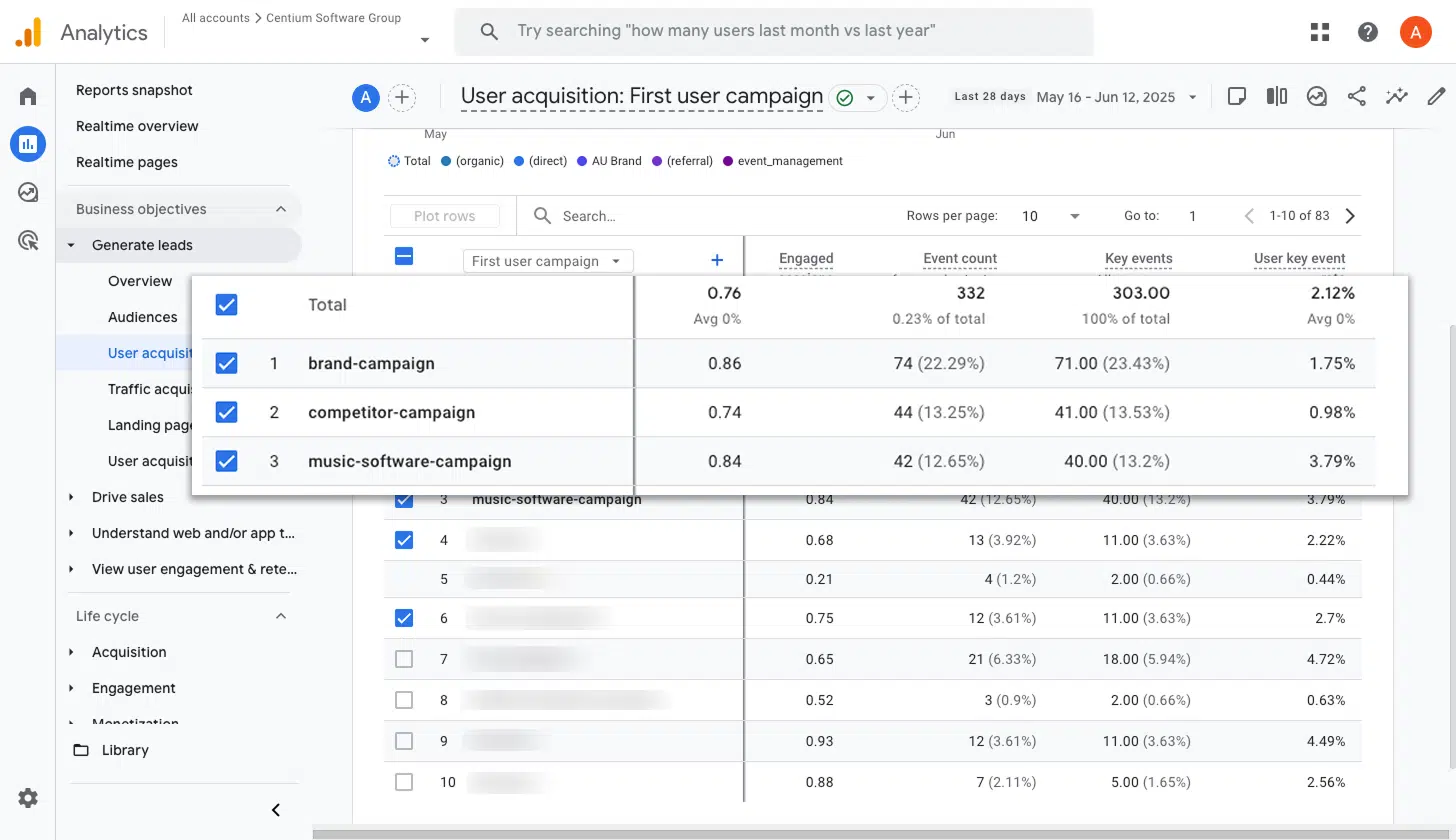
If you are running Google Ads, chances are you have a few different campaigns live at the same time. Some might be targeting different services, others could be focused on different keyword types like brand versus non-brand terms, and some might even be aimed at different locations.
Either way, knowing which campaigns are actually driving conversions is essential. This report shows you exactly that. You can see how many conversions each campaign has generated, so you can confidently put more budget into the ones that are working and scale back on the ones that are not.
Wrap up
Converly makes it easy to send conversion events to Google Analytics every time someone submits a Paperform on your site. No code required, no complicated setup to deal with.
And if you decide to start advertising on platforms like Google Ads or Meta Ads down the track, connecting them to your existing Conversion Flow takes just a few clicks. The same conversion data will start flowing through to those platforms automatically.
Ready to give it a go? There is a 14 day free trial, and most people have everything set up in under 10 minutes. Try Converly today and see how much easier conversion tracking can be.
About the author

Aaron is the founder of Converly. With over 15 years of experience in digital marketing and SaaS, he's passionate about helping businesses track and optimise their ad conversions.