


Track HubSpot Meetings bookings as conversions in Google Analytics
Use Converly to automatically send conversion events to Google Analytics whenever someone books a meeting through HubSpot Meetings on your website. No code or technical knowledge required!
Having a hard time working out how many of the new leads are actually being generated by your various marketing efforts?
If you are investing in Google Ads, running Meta Ads, or putting budget into SEO, understanding the exact number of leads/meeting bookings coming from each channel can completely change how you plan your marketing.
If that sounds like something you are wrestling with, rest assured you are in good company. And when you do not have reliable data on which campaigns are producing real results, it becomes very easy to keep throwing money at things that are not actually moving the needle.
The good news is that there is a simple way to fix this, and you will not need to touch a line of code.
In this guide, we will show you how to use Converly to automatically fire a conversion event in Google Analytics whenever someone schedules a meeting through HubSpot Meetings on your site. Once it is in place, you will be able to see exactly which campaigns, ads, and keywords are generating real meetings for your business.
4 simple steps for tracking HubSpot Meetings bookings as conversions in Google Analytics
Here is how to get conversion tracking for HubSpot Meetings set up in Google Analytics in just 4 steps:
Step 1: Build your Conversion Flow in Converly
Converly is a tool that sends conversion events to analytics tools and ad platforms (like Google Analytics) whenever someone completes a specific action on your website, such as booking a meeting through HubSpot Meetings.
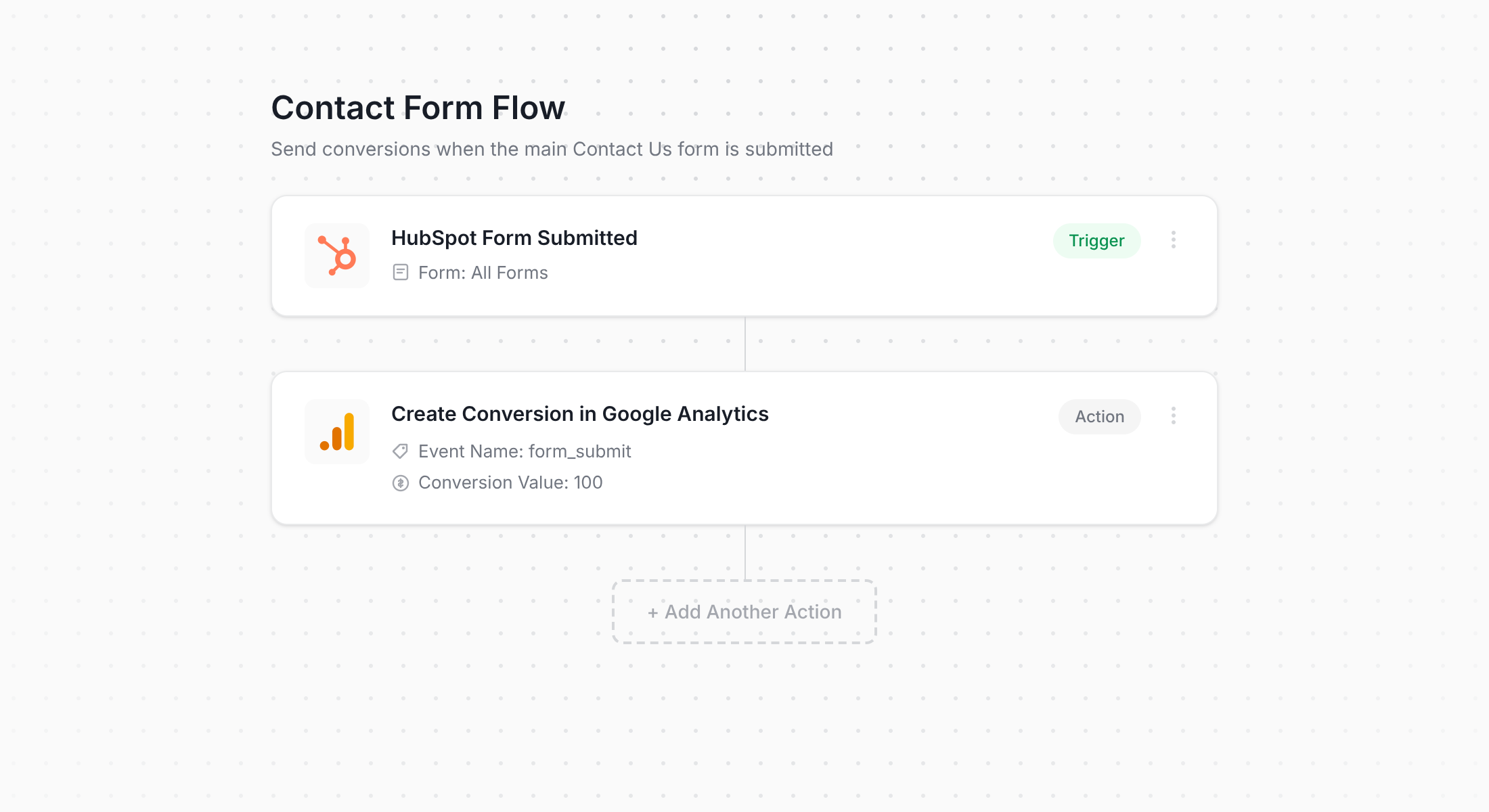
The screenshot above shows the Converly workflow builder, which has been designed to feel simple and familiar. Anyone who has spent time in a tool like Zapier or HubSpot Workflows will pick it up in seconds.
All it takes is selecting a trigger (in this case, someone booking a meeting through your HubSpot Meetings scheduler) and choosing where the conversion event should be sent (for example, Google Analytics). Yes, really, that is all there is to it.
Step 2: Install Converly on your website
With your Conversion Flow built and ready to go, Converly gives you a small code snippet to drop into your site.
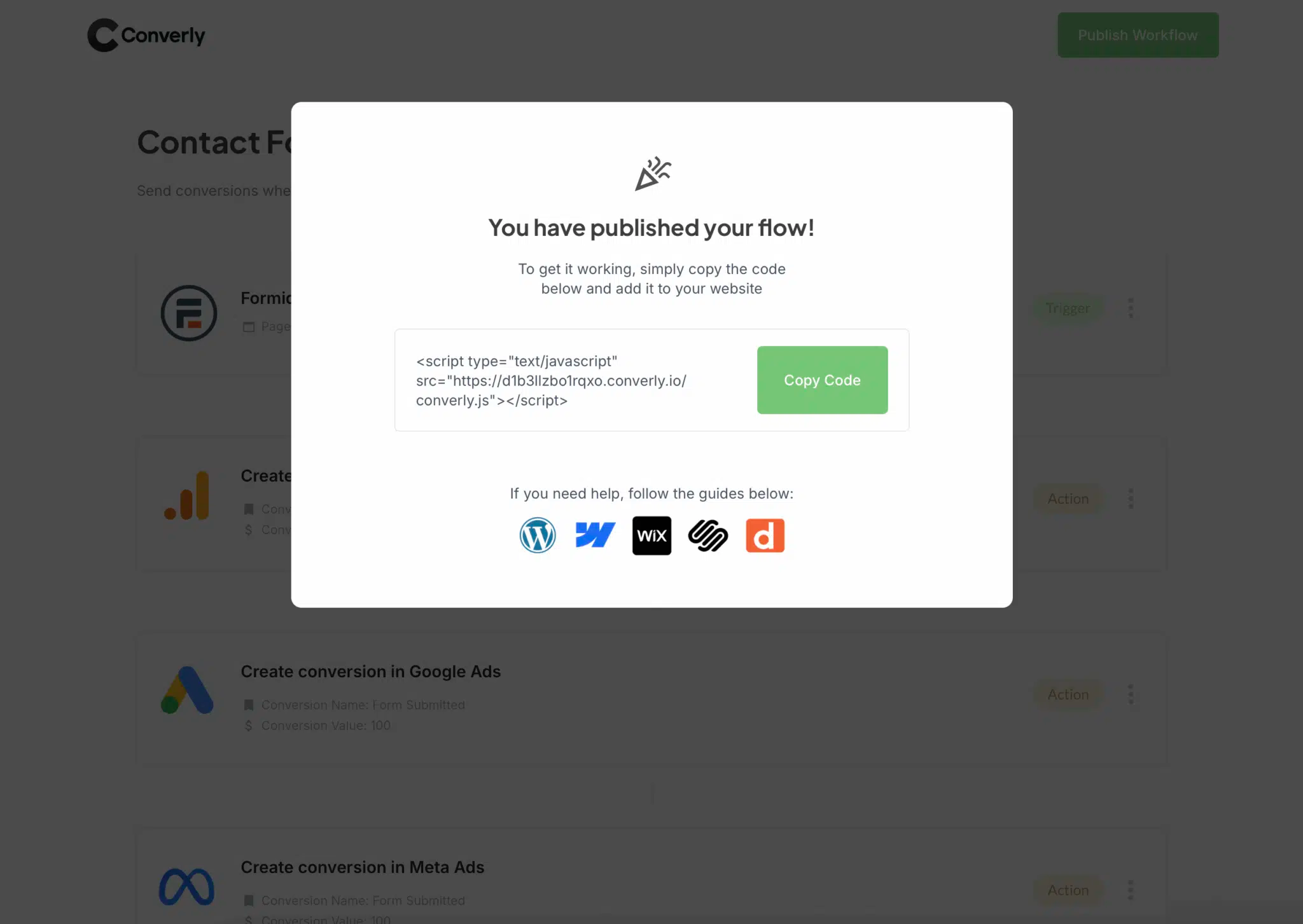
Exactly how you add it will depend on which website builder you are using, but in most platforms, you can simply paste the code into your site settings under a section named something like Scripts, Header, or Custom Code. For WordPress sites, a plugin such as Insert Header and Footer Code makes the process even quicker. And for anyone who prefers Google Tag Manager, that works perfectly too.
Once the snippet is in place, Converly takes care of everything in the background. It listens for bookings through HubSpot Meetings and automatically pushes the conversion data into Google Analytics (along with any other destinations you have added to your flow).
Step 3: Test it's working
With everything configured, the next thing to do is confirm that bookings are being recorded properly.
The simplest way to check is to open up an incognito browser window, head to the page where your HubSpot Meetings scheduler is embedded, and book a test meeting.
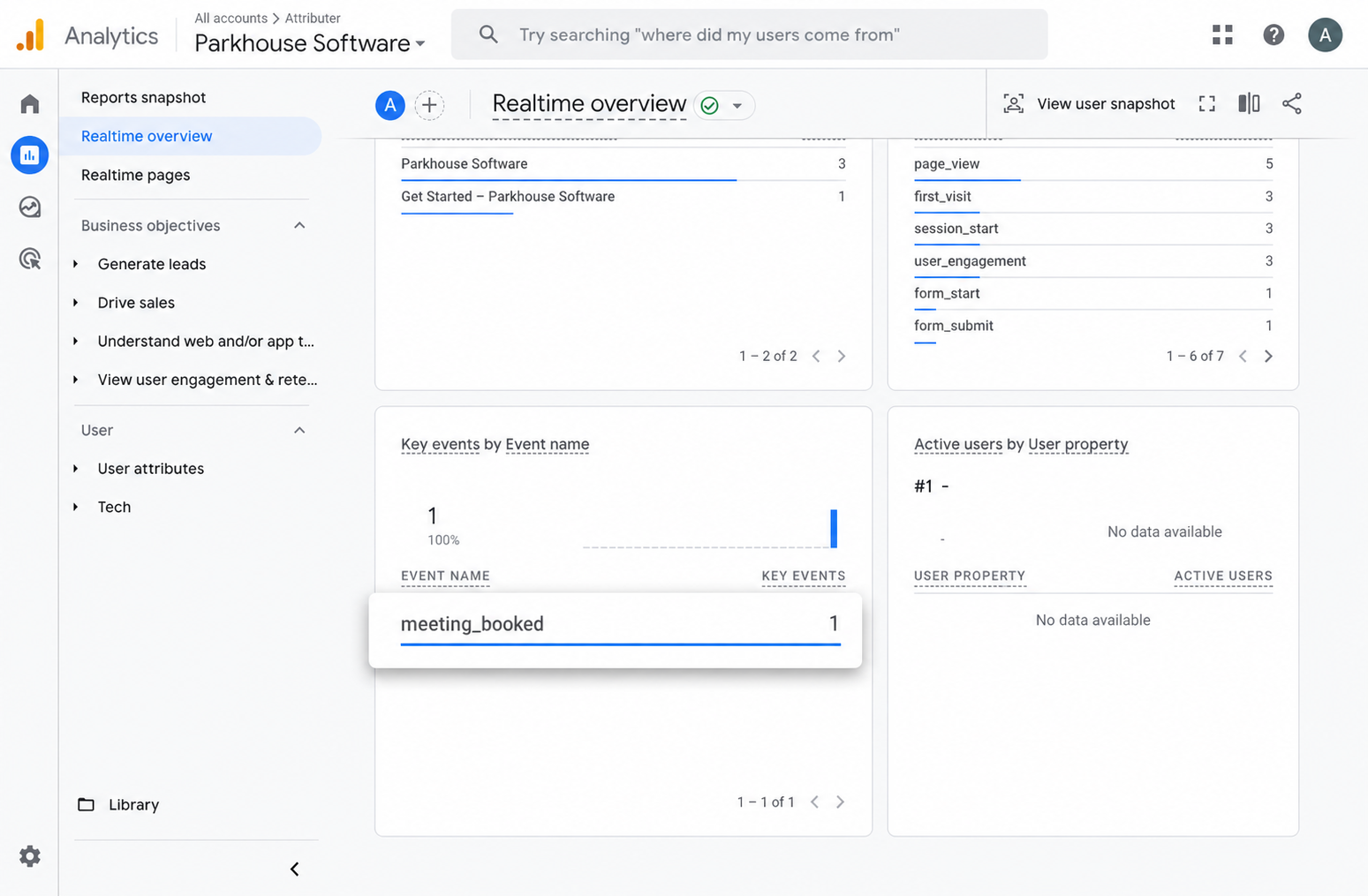
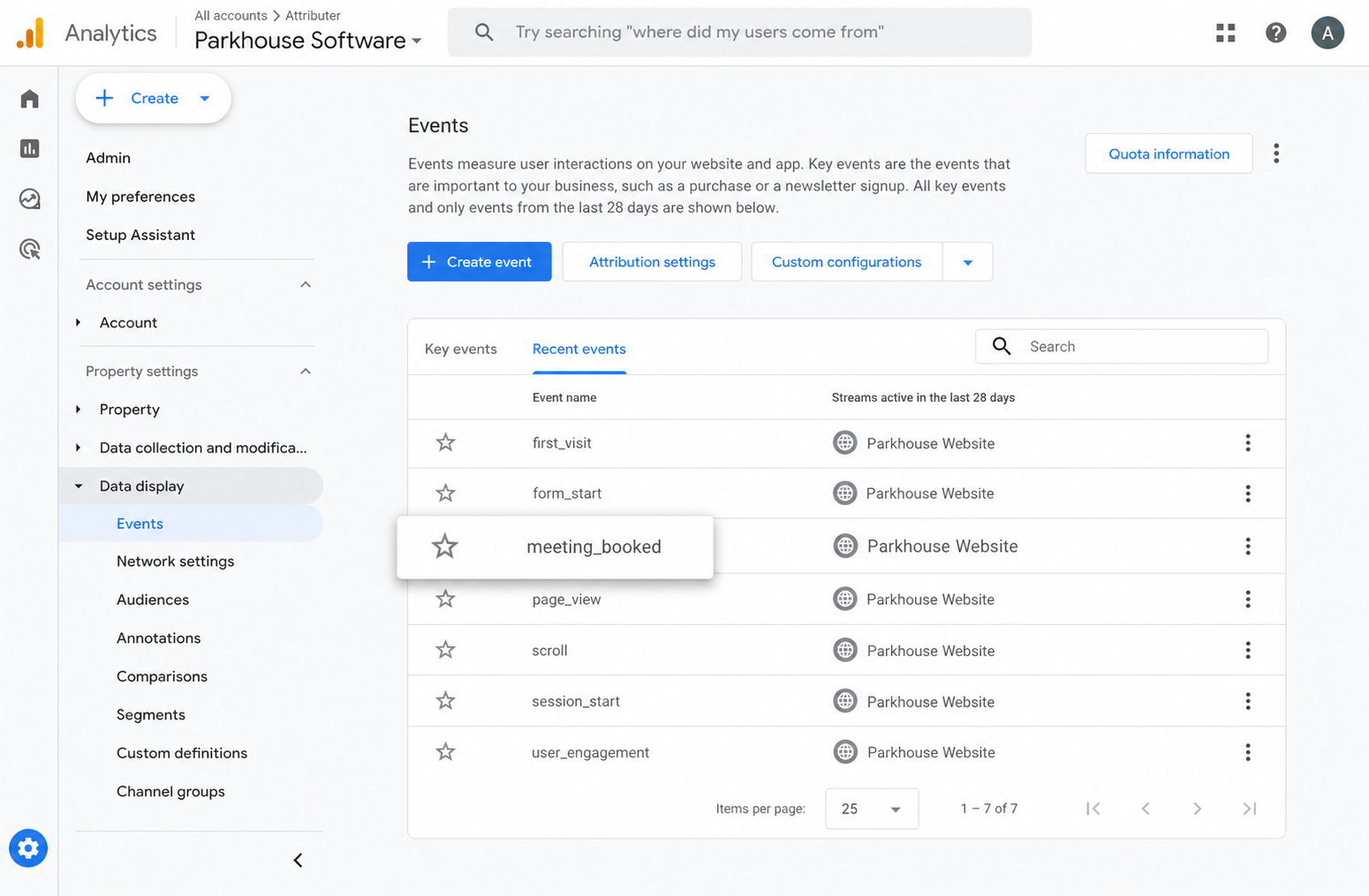
Then jump into Google Analytics, open up the Real Time dashboard, and take a look at the Recent Events section. If you can see the meeting_booked event pop up, you know the setup is working and everything is tracking as expected.
Step 4: Mark the event as a 'Key Event' (Optional, but recommended)
For the last step, we recommend marking the meeting_booked event as a Key Event inside GA4. This tells Google Analytics to count it as a conversion, which unlocks a bunch of extra reporting capabilities (such as including it in your acquisition reports and using it as a conversion point when building out funnels and path analysis).
To do it, jump into the Admin area of your GA4 property and click Events under the Data Display menu. Switch to the Recent Events tab, find your meeting_booked event (or whatever custom name you used), and click the star icon beside it to flag it as a Key Event.
Why Converly is the best way to trigger conversions in Google Analytics
There is more than one way to track HubSpot Meetings bookings as conversions in Google Analytics. Some approaches rely on setting up custom redirect URLs once a meeting is confirmed, while others involve building event triggers in Google Tag Manager.
So why does Converly stand out as the best option? A few reasons:
1. No code or complicated setup
The other methods for tracking conversion from HubSpot Meetings usually involve configuring post-booking redirects, building custom event tags in Google Tag Manager, or writing JavaScript that watches for changes inside the HubSpot Meetings embed. For non-developers, that can feel overwhelming.
Converly strips all of that complexity away. The workflow builder is visual, intuitive, and feels very similar to tools you probably already use day to day, like Zapier or HubSpot Workflows.
Just pick your trigger (a meeting is booked via HubSpot Meetings) and set what happens next (for example, fire a conversion event into Google Analytics). That really is the whole process. No code, no Tag Manager wrangling, no stress.
2. More accurate conversion numbers
Converly is a server-side conversion tracking tool, which means it sends conversions directly to Google Analytics servers (using the Measurement Protocol) rather than relying on the Google tag.
The issue is that browser tags (like the Gtag) get blocked by ad blockers and the privacy protections built into iOS and Safari, which means a chunk of your conversions never actually make it into Google Analytics.
And it's not a small chunk either. A recent study of over 7 million conversions found that tag-based tracking was missing around 30% of conversions. About 5% of that loss came from ad blockers, and the other 25% came from privacy restrictions in modern browsers.
Using Converly to send your conversions directly to Google Analytics servers means those conversions land in your Google Analytics account where they belong.
3. Supports multiple tools and platforms
Converly plays nicely with more than 50 different tools across form builders, scheduling platforms, chat widgets, and beyond. On top of that, it can send conversion events to a huge range of destinations, including Google Analytics, Google Ads, Meta Ads, LinkedIn Ads, and plenty more.
What that means in practice is that any time you add a new tool to your stack or start advertising on a new platform like Google Ads or Meta Ads, setting up conversion tracking is only a handful of clicks away.
4. Makes it easy to add conditional logic
Converly also makes it simple to create smart rules that fire different conversion events based on the specific actions people take on your site.
As an example, imagine you are handling marketing for a financial planning firm. You could set up one conversion called Consultation Booked whenever a prospect schedules a meeting through HubSpot Meetings, and another called Guide Downloaded whenever a visitor grabs one of your free planning resources.
By tracking those two conversions separately, you get a much clearer view of which campaigns are driving your most valuable leads (booked meetings) versus those that are bringing in lower-intent leads (like guide downloads).
5. Great support provided for free
If you have ever reached out to Google or Meta trying to get help with conversion tracking, you will already know how difficult it is to get a meaningful response.
That is not how Converly operates.
Our team brings over 20 years of hands-on experience across advertising and analytics, and we take real ownership of helping you succeed. Whether you prefer ironing things out over email or hopping on a quick video call, we offer free support to make sure your tracking is set up properly and running smoothly.
6. Gives you a full conversion log and email alerts
Track bookings through a tool like Google Tag Manager and you have no straightforward way to know it's still firing. You can test it the day you set it up, but unless you keep re-testing, it can quietly stop working (someone edits the HubSpot Meetings embed, changes a tag in Google Tag Manager, or adjusts a setting in Google Analytics) and you'd have no idea.
Converly removes that uncertainty. You get a full conversion log that records every booking that converted, the exact data Converly captured, what it sent to Google Analytics, the response Google Analytics returned, and more.
You can also switch on email notifications. Get one for every booking sent to Google Analytics, or only when a send fails, so the moment your tracking breaks you'll know about it.
3 useful reports you can run when you track HubSpot Meetings bookings as conversions in Google Analytics
After spending more than 15 years leading marketing teams, I have put a huge amount of time into Google Analytics reports, trying to understand where our visitors and leads were really coming from.
Out of every report I have built over that time, the three below have proved the most useful time and time again. Once HubSpot Meetings bookings are being tracked as conversions in Google Analytics, you will be able to run them too.
1. Conversions by Channel
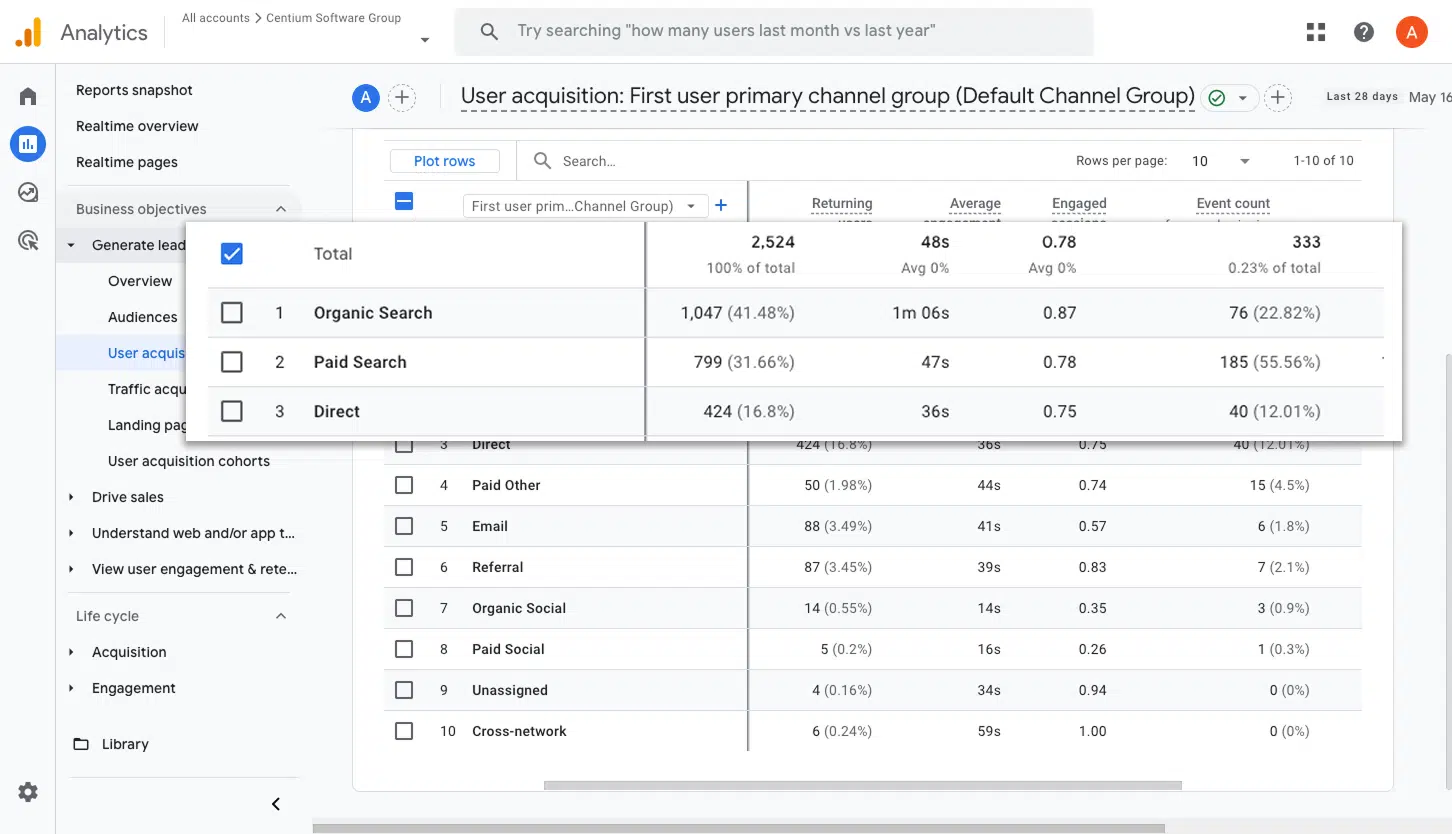
This report shows you how many booked meetings came in from each marketing channel, whether that is Organic Search, Paid Search, Paid Social, Organic Social, or anything else.
It is a great way to understand which channels are actually generating new client meetings for your business (as opposed to just delivering clicks and traffic), and to identify where there is room to generate even more.
2. Conversions by Meta Ads Network
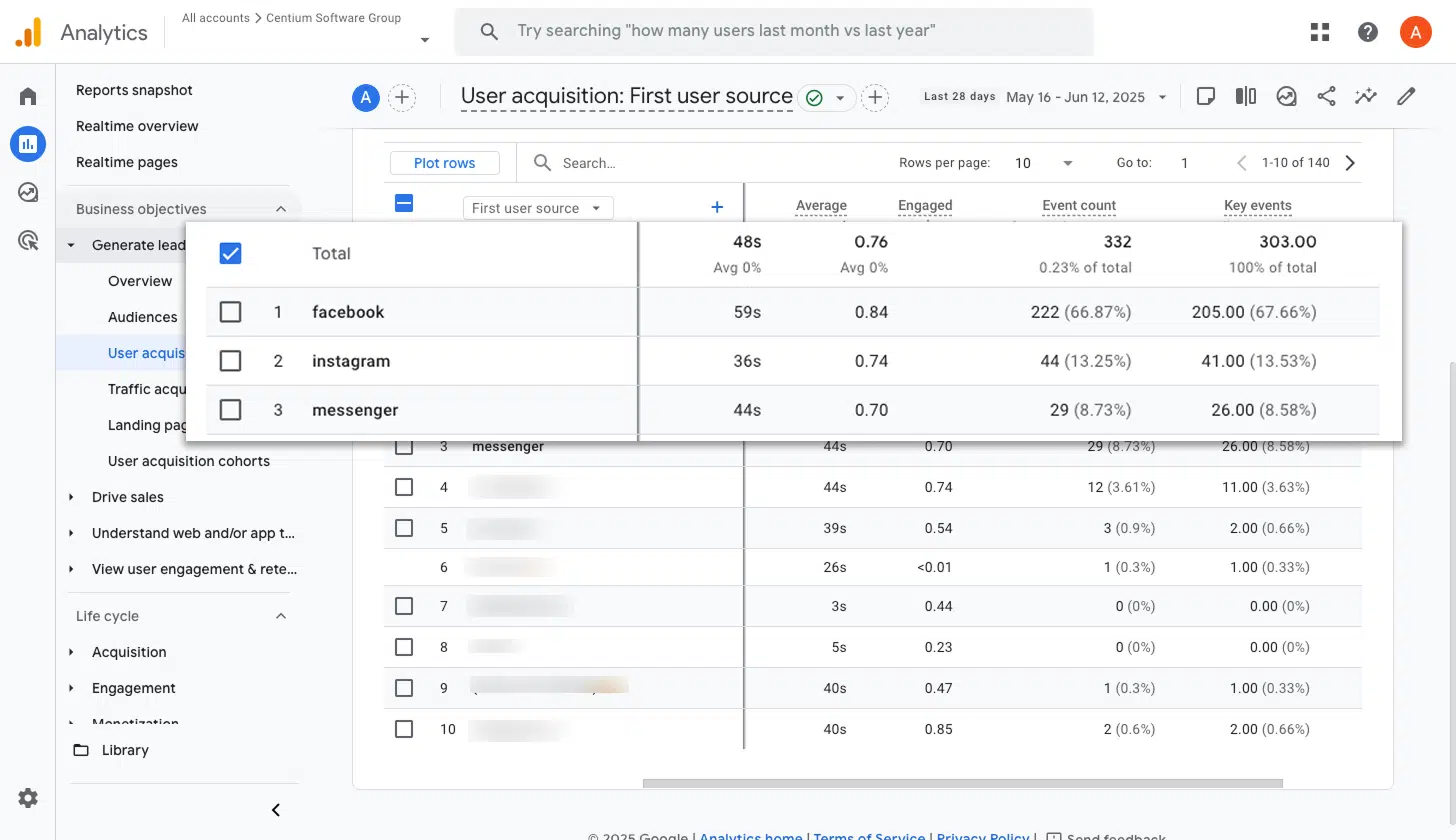
If you are running ads through Meta, chances are those ads are appearing across several different networks, such as Facebook, Instagram, Messenger, and WhatsApp.
Since each of those platforms can perform quite differently, it is worth knowing which ones are actually producing new client meetings. This report breaks that down for you, making it easy to push more budget toward the networks that are delivering and pull back on those that are not.
3. Conversions by Google Ads Campaign
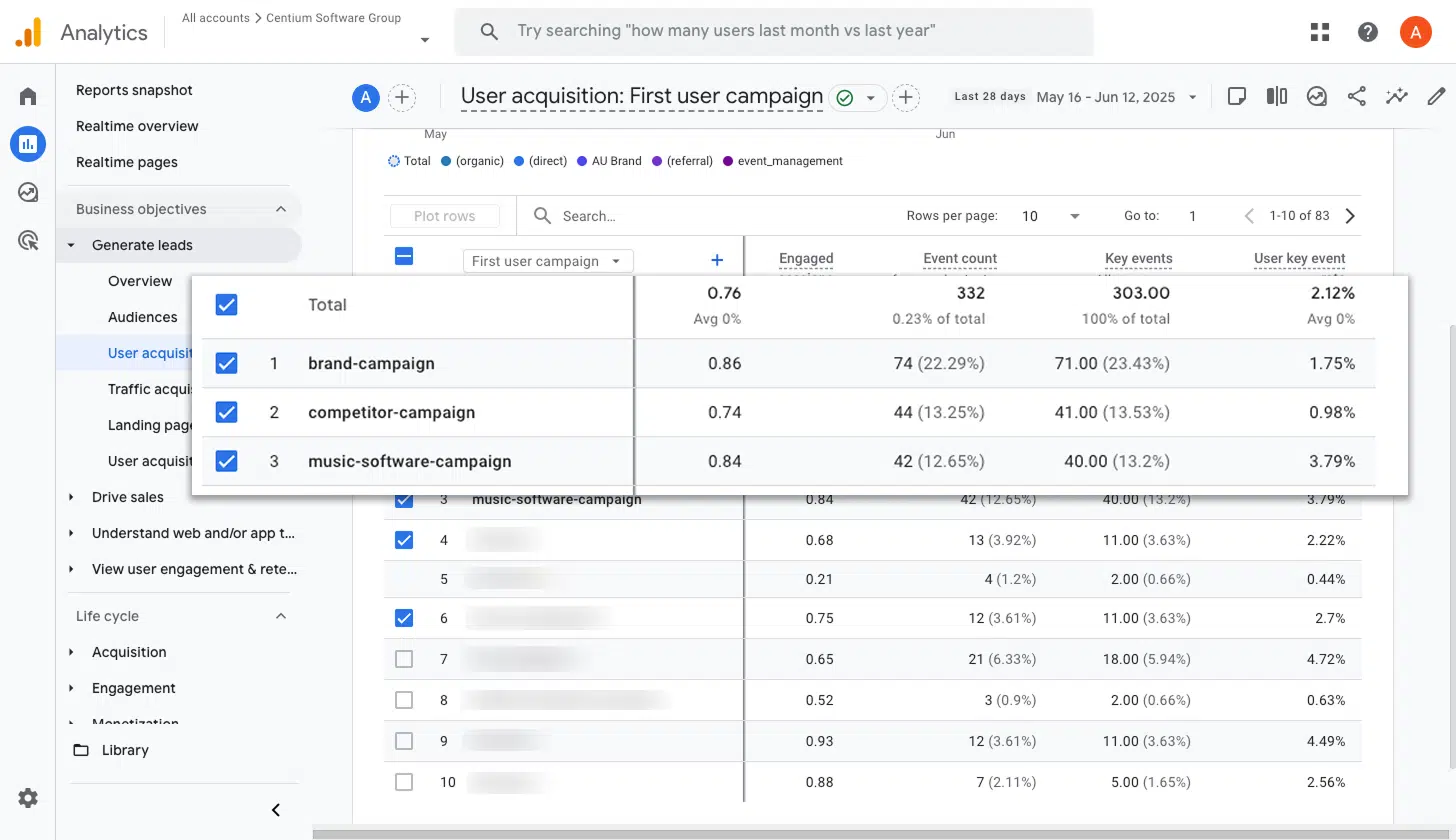
If you are running Google Ads, you have probably got several campaigns active at any given time. Some might cover different services you offer, others could be split between branded and generic keywords, and a few may target different geographic regions.
Knowing which of those campaigns are actually turning into booked meetings is essential when it comes to making smart decisions about budget. This report spells it all out for you, showing conversions by campaign so you can confidently scale up the winners and cut back on the ones that are not pulling their weight.
Wrap up
With Converly, firing conversion events into Google Analytics every time someone books a meeting through HubSpot Meetings is quick and painless. No code to write, no complicated tools to configure, and no headaches to deal with.
And if you later decide to start advertising on Google Ads, Meta Ads, or any other platform, you can add them to your Conversion Flow in just a few clicks. The same booking data will flow through to those platforms too.
Want to try it out? Converly comes with a 14-day free trial, and most people get fully set up in under 10 minutes. Give it a go and see just how simple conversion tracking can be.
About the author

Aaron is the founder of Converly. With over 15 years of experience in digital marketing and SaaS, he's passionate about helping businesses track and optimise their ad conversions.