


How to listen for HubSpot forms submissions in Google Tag Manager
GTM's Form Submission trigger doesn't fire on HubSpot forms, because they live in a cross-origin iframe. Here's the listener that fixes it, plus the exact GTM setup.
Are you struggling to track HubSpot form submissions in Google Tag Manager? Maybe you've set up the standard Form Submission trigger in GTM, but it isn't working?
The challenge is that when you embed a HubSpot form on your site, it doesn't actually go on the page. HubSpot loads it inside an iframe, which basically is a small window on your site that shows the HubSpot form in it. For security, browsers do not let your page see what happens inside a window that belongs to another site, so when someone submits the form, GTM never sees it and the Form Submission trigger you set up never fires.
The result is quietly expensive. Every lead goes uncounted, your GA4 reports sit at zero, and Google and Meta end up optimising your ad spend against conversions they were never told about.
Fortunately, there is a solution.
HubSpot actually sends a message to your page when the form is submitted, so you just need to listen for it and pass it to GTM. In this article, we'll show you how (and give you the code you need to make it happen).
The HubSpot form listener code
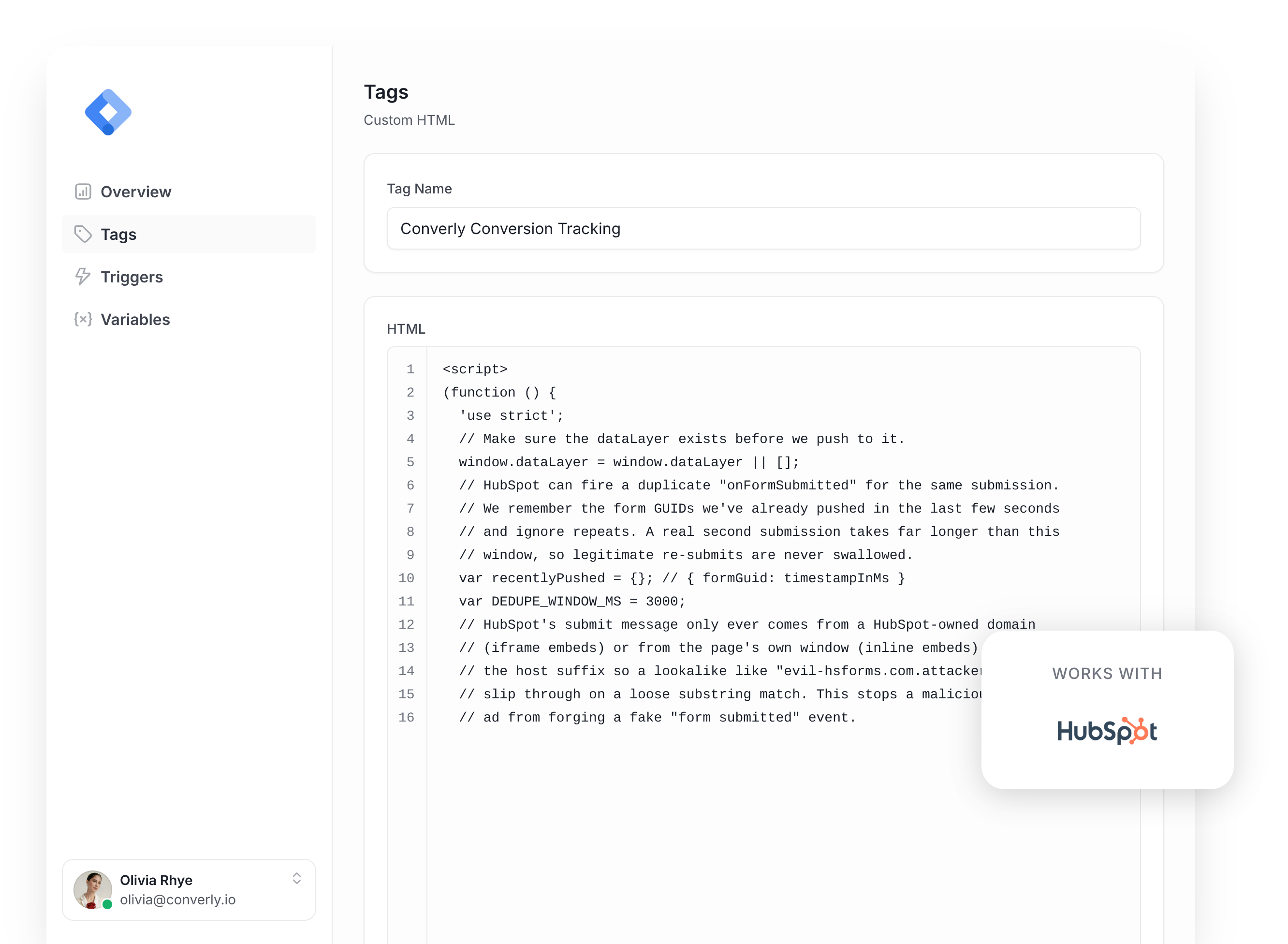
As someone uses the form you have embedded on your site, HubSpot sends little status updates to your page (e.g. the form loaded, the form was submitted, and so on). This snippet listens for the key update that means the form was successfully submitted, ignores the rest, and then writes a single event, form-submitted, into the dataLayer where GTM can see it (the dataLayer is basically just a place you can write information to that GTM will then pick up and take action on).
To set this up, simply paste this into a Custom HTML tag in Google Tag Manager or add it directly to your website (usually via a ‘Custom Code’ section in your website settings).
The snippet above does a few things:
- Listens for HubSpot's messages. Because the form lives inside HubSpot's iframe, the code cannot watch the form itself. Instead it listens for the status messages HubSpot broadcasts to your page while someone is filling the form in.
- Waits for the one message that means submitted and saved. HubSpot sends a message at several points: the form loaded, someone clicked submit, the submission was accepted, etc. The code ignores all of them except the single message that means HubSpot actually accepted and stored the submission. If you listened to the others (i.e. someone clicking submit), you'd end up counting form submissions that were rejected (because they typed an invalid email in the email address field, for instance). And then when they fixed the error and submitted again, you would have counted two conversions for the one lead.
- Checks the message really came from HubSpot. Any other script on your page can send a message to the dataLayer, so before trusting one, the code confirms it came from a genuine HubSpot address (or, for HubSpot's inline embed style, from your own page). A faked "form submitted" message from anything else is ignored, so you cannot end up with phantom conversions.
- Reads which form was submitted. It pulls out the form's unique ID and keeps it. If you run several HubSpot forms on your site (like a quote request form and a newsletter subscribe form), this is what lets you tell them apart (so you can send different conversions for each one if desired).
- Ignores duplicates. HubSpot occasionally reports the same submission twice. The code remembers what it just handled for a few seconds and skips the repeat, so one submission stays one conversion rather than two.
- Posts a clean event for GTM. Finally, it writes one tidy note to the dataLayer called
form-submitted, with the form's ID attached. That note is the cue GTM watches for to fire your GA4 or Google Ads conversion.
Why this listener is more reliable than most
If you search for a HubSpot GTM snippet you will find plenty of them. Most quietly overcount, and here is why this one doesn't.
- Most fire on the wrong HubSpot message. The simpler snippets listen for HubSpot's ‘submit button clicked’ event, which might seem fine at first, but will ultimately end up overcounting conversions. If a person completes your form and clicks submit then it fires, but HubSpot only validates the form submission after the submit button has been clicked, so if there was an error in the form (like an invalid email address or phone number) then the submission gets rejected. And then when the lead corrects their mistake and clicks submit again, a second conversion event has fired and now you've got two conversions for one lead.
- Most only handle one type of embed. HubSpot has two form builders currently (new forms and legacy forms), and each has a different way of embedding the form on the page. A snippet built for one records nothing for the other. The above snippet handles both.
- Most trust any message they receive. A snippet that never checks where a message came from can be fooled by other scripts or ads on the page into firing fake conversions. This one verifies the message genuinely came from HubSpot first.
- Most don't guard against repeats. HubSpot can report the same submission twice, and a naive snippet counts it twice. This one collapses the duplicate so one lead stays one conversion.
This is important because if you feed inflated or fake conversions back to Google and Meta, you train their automated bidding to chase the wrong people, which quietly wastes your ad budget. This snippet is virtually the same one we run inside Converly (a dedicated conversion tracking tool) to detect HubSpot submissions, and it fires on thousands of real submissions every month. You can paste it in with confidence.
How to set it up in Google Tag Manager
If you're not an expert in Google Tag Manager and aren't familiar with how to use this code, then not to worry. Here are the simple steps you need to follow to get it working:
Step 1: Add the listener as a Custom HTML tag
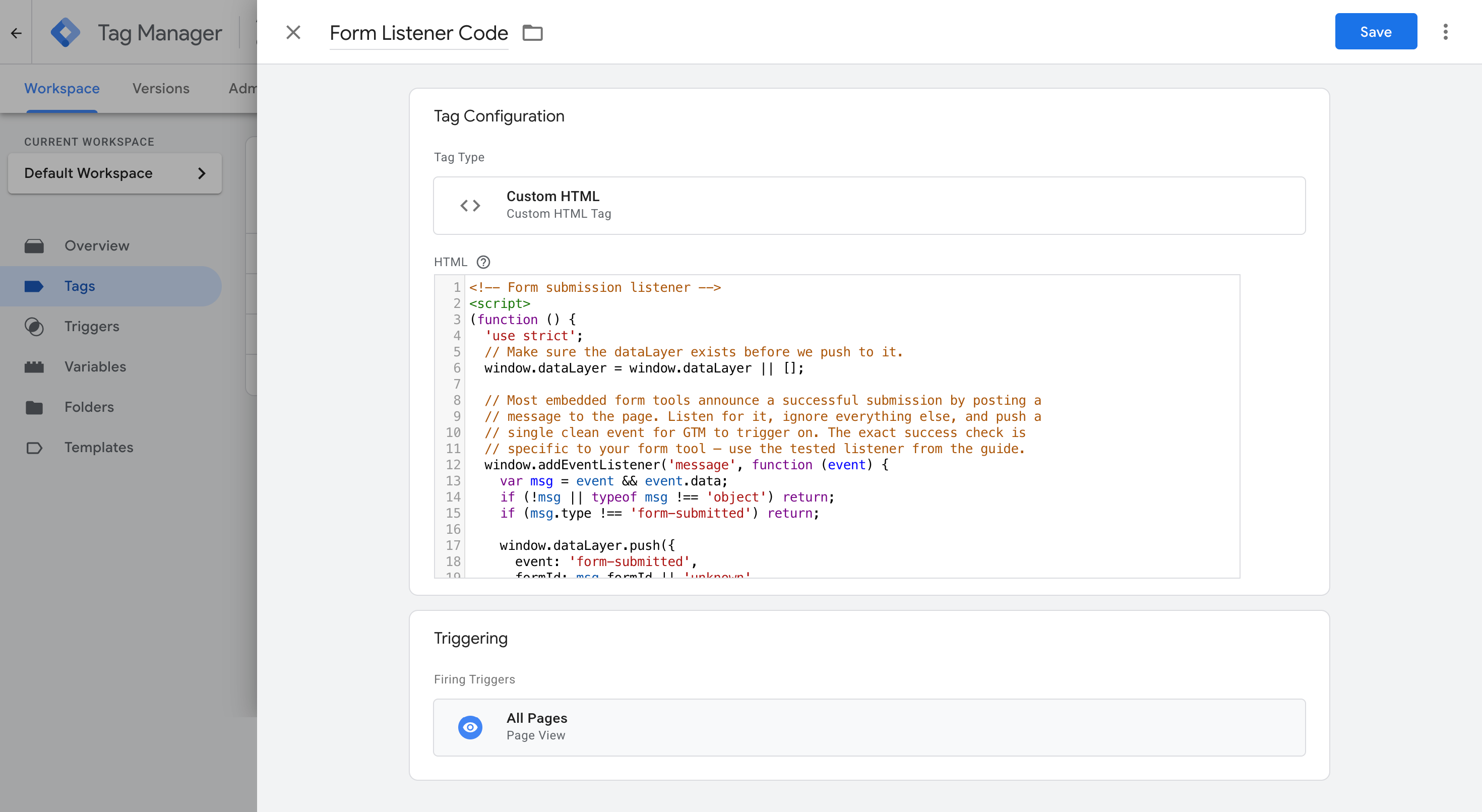
In GTM, create a new tag, choose Custom HTML, and paste in the HubSpot listener code from above. Set it to fire on the All Pages trigger so it is listening before anyone can submit a form.
Step 2: Create a Data Layer Variable for the form ID
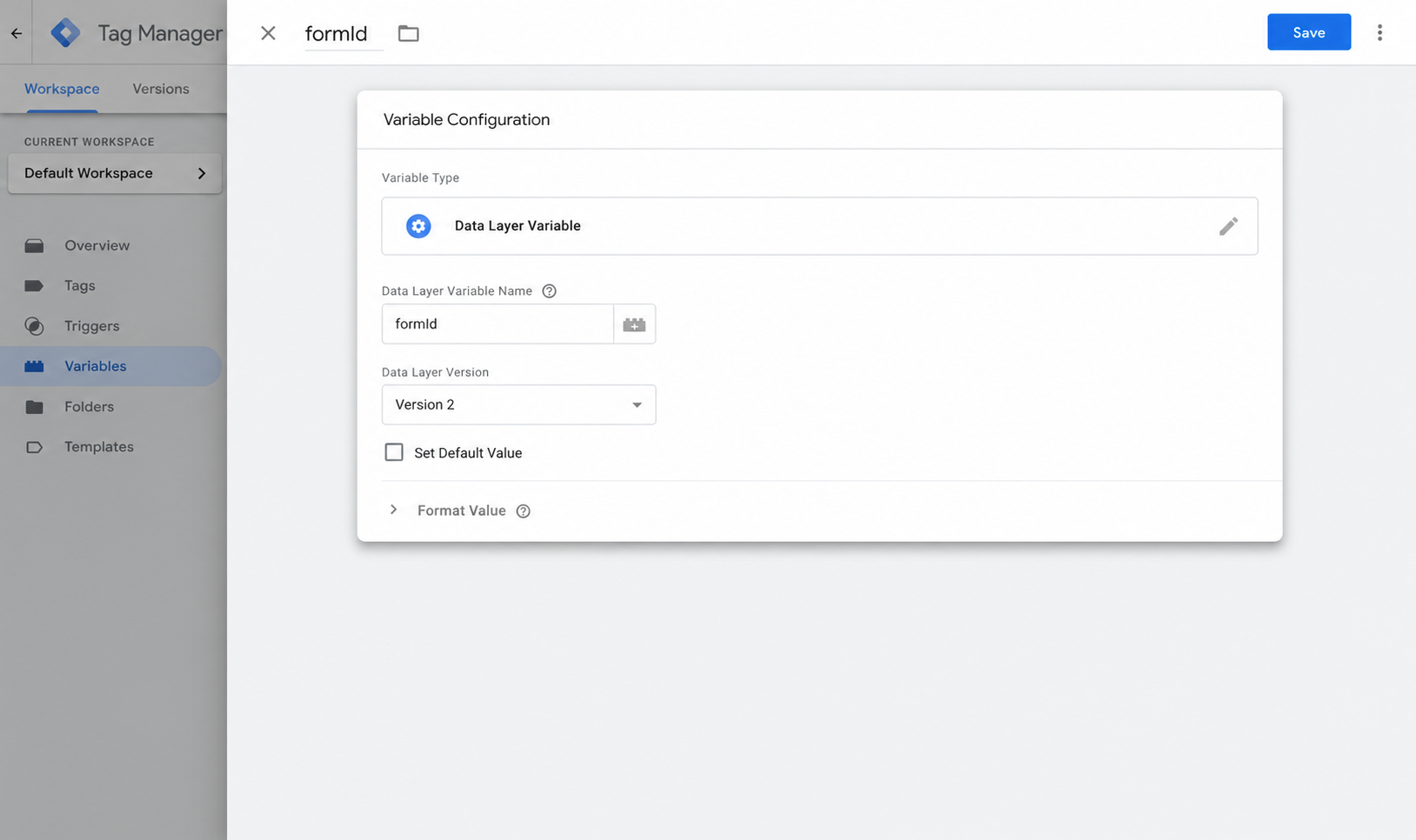
The listener code above sends the form ID into the dataLayer so it can be picked up by GTM, but to make that happen you first need to create a Data Layer Variable (which is basically how you instruct GTM to grab a specific value out of the note the listener posted). Name it exactly formId. This lets you see which form was submitted and, if you want, send different forms to different conversions.
Step 3: Create the Custom Event trigger
Now that you're sending a form-submitted event to the dataLayer each time a HubSpot form is submitted, the next thing you need to do is use it as a trigger. A trigger in GTM is the cue that tells it when to do something (i.e. send a conversion to GA4).
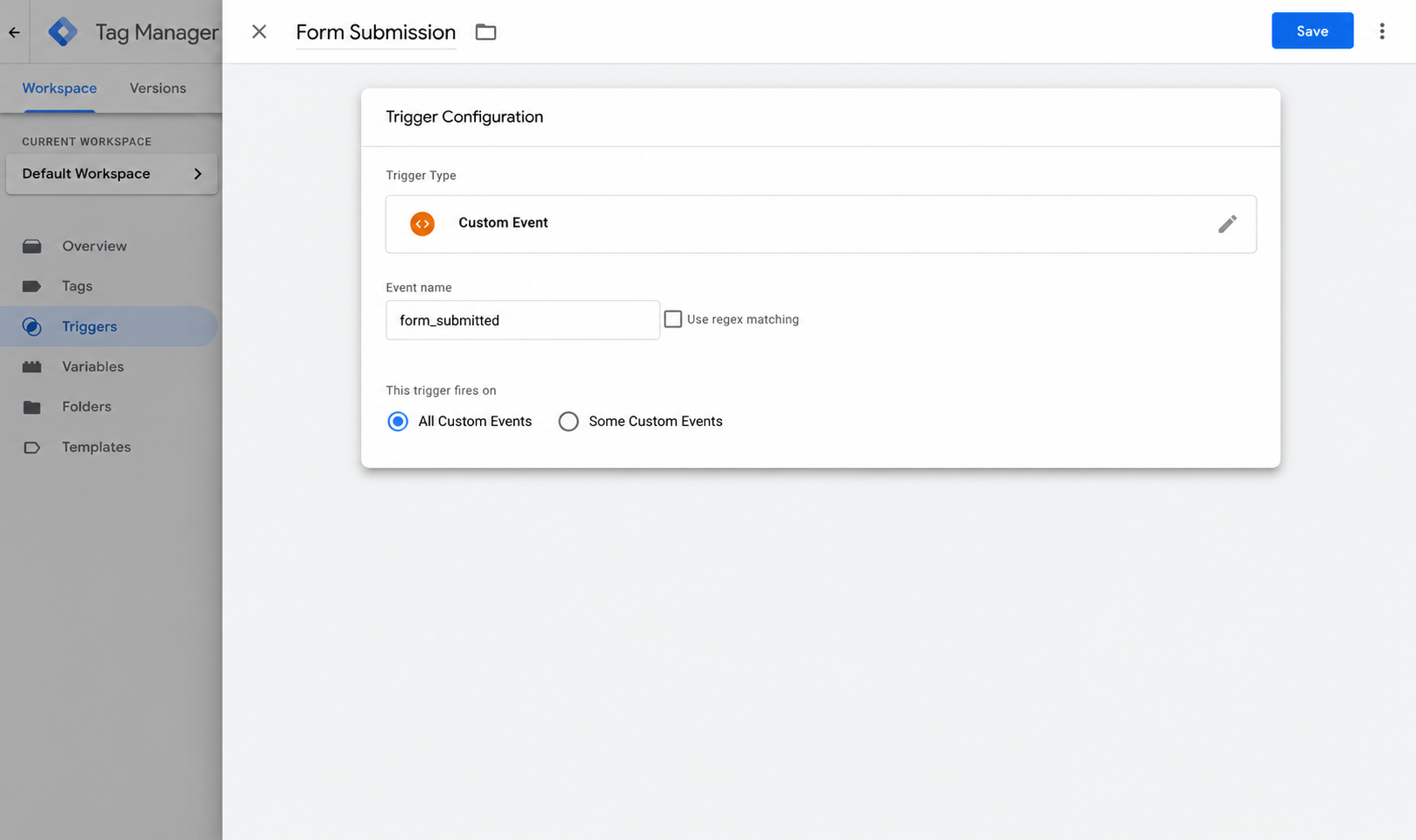
To create a new trigger, head to the Triggers section of GTM, select the ‘New’ button, choose Custom Event, and set the event name to form-submitted (it has to match what the listener writes, exactly). This tells GTM to watch for the event the code fires into the dataLayer with each HubSpot submission.
Step 4: Fire your conversion tag on the trigger
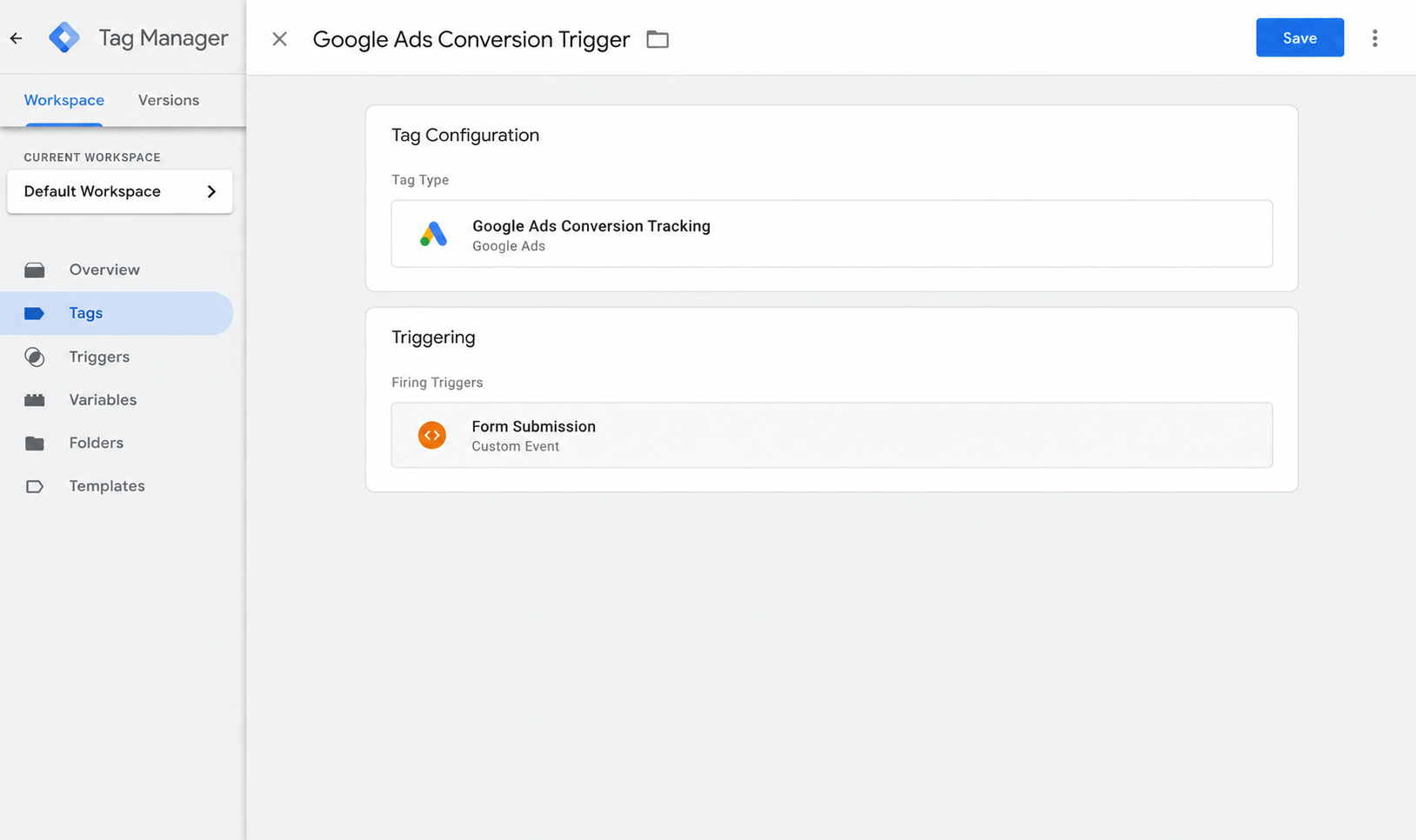
Finally, you need to set up a tag that fires whenever the trigger is received. To do that, open your GA4 or Google Ads conversion tag (or create one) and set it to fire on the Custom Event trigger you just made in Step 3.
Free download
Skip the setup: download the ready-made GTM container
Import our pre-built Google Tag Manager container and you get the HubSpot listener tag, the data layer variable, and the custom event trigger already wired up. Enter your email and we'll send it over.
Or skip the setup and use Converly
While the above listener is reliable, it's still a lot to set up and manage. Worse though, is the fact that sending a form submission to Google Ads, Meta Ads, etc. through Google Tag Manager doesn't really achieve much. You're sending the event through the browser, which means 30+% of conversions will get lost to ad blockers, privacy restrictions in browsers, etc. Plus, you're not sending the key data that ad platforms like Google and Meta need to actually use to match a conversion back to the original ad click (they need the name, email, phone, GCLID, FBCLID, IP address, User Agent, etc).
A better way to do it is to use Converly. Converly is a dedicated conversion tracking tool that makes it easy to send proper, server-side conversions to Google Ads, Meta Ads, GA4, etc whenever someone submits a HubSpot form on your website.
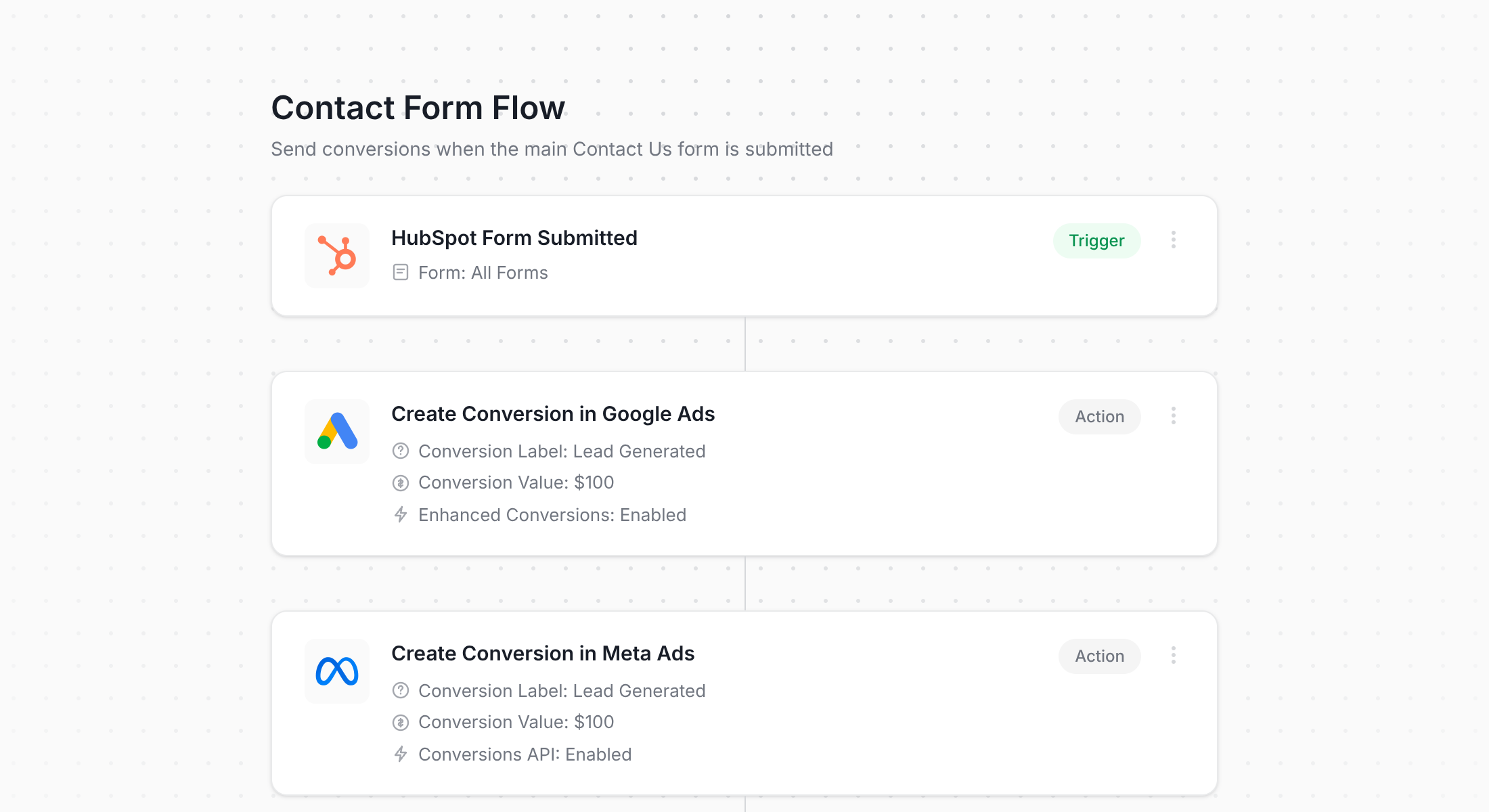
As you can see in the screenshot above, all you need to do is pick a trigger (like a HubSpot form submission) and then select where you want the conversion data to go (Google Ads, Meta Ads, GA4, and more). Converly then gives you a snippet of code to add to your site, and it automatically handles the rest. Here is why it beats the GTM setup.
- It is set up in minutes, with no GTM wiring. If you've ever used tools like Zapier or HubSpot Workflows, you'll recognise how simple it is to set up. Simply pick your trigger, and then select your destinations. No custom code to write information in dataLayer, no fiddly variables to extract it, etc.
- It sends conversions server-side. Converly sends conversions through each platform's Conversions API, so Safari's tracking prevention and ad blockers can't interfere with your conversion tracking like it does with Google Tag Manager.
- It sends the extra data the ad platforms actually reward. When someone clicks your ad, Google and Meta attach hidden tags to that visit (things like Google's click ID and Meta's tracking cookies). To properly credit a conversion to the original ad, they need those tags sent in along with the lead's name, email, phone, etc. Converly captures all of this data automatically and sends it over with each conversion. A plain GTM event carries none of it, which is why those conversions often go uncredited even when they do fire.
- It gives you a conversion log and email notifications. Converly gives you a full conversion log where you can see every lead that submitted your HubSpot form, what data was captured, whether it was successfully sent to your ad platforms, and more. You can also set up email notifications so that if there are ever any errors sending conversions to your ad platforms you'll be notified instantly, ensuring your conversion tracking doesn't randomly break without you knowing.
- One setup fires everywhere. The same HubSpot submission can go to Google Ads, Meta, GA4, LinkedIn, and hundreds of other tools at once. Add a new platform next month and it is one click, not a new GTM build.
- You get proper support. You get support from a team of experts who will happily help you get set up and troubleshoot any issues. You have no chance of getting help from Google if you use GTM.
Wrap up
The listener code presented in this guide will get HubSpot submissions into GTM reliably, and if all you need to do is send an event to GA4 then it's probably good enough.
But if you're doing this so that you can send conversions to Google Ads, Meta Ads, etc then it's probably not enough. You need to be sending the conversion server-side, where Safari's tracking protection and ad blockers can't interfere before it arrives, and you need to be sending the name, email, phone, Google Click ID, Meta Cookie IDs, IP address, User Agent, etc with each conversion. Only then will you actually have set up proper conversion tracking that Google and Meta's automated bidding algorithms can rely on.
So if that's what you're trying to do, then Converly is your best option. It integrates with HubSpot forms and handles it all automatically for you, plus you get a full conversion log + email notifications + friendly support so you can be sure your conversion tracking is working. It usually takes less than 10 minutes to set up, so start your free trial today!
About the author

Aaron is the founder of Converly. With over 15 years of experience in digital marketing and SaaS, he's passionate about helping businesses track and optimise their ad conversions.