


Track Gravity Forms submissions as conversions in Google Ads
Learn how to send server-side conversions to Google Ads whenever a Gravity Form is submitted on your website. No code required!
Google Ads is a great way to generate new leads and customers for your business, but properly setting up conversion tracking is hard.
Tools like Google Tag Manager require you to write custom code to listen for form submissions, and then you have to configure triggers, tags, variables, and a whole lot of other complicated stuff.
And basic approaches like tracking thank you page visits can result in up to 30% of conversions being missed due to things like ad blockers, privacy features built into browsers (like Safari), or people clicking your ad on their phone and then converting later on their computer.
So what are you supposed to do?
In this article, we'll show you how to set up proper conversion tracking in Google Ads when someone submits a Gravity Form on your website (using an approach known as server-side tracking).
Why you need to send conversions to Google Ads server-side
Having accurate conversion tracking set up is key to success with Google Ads.
Google Ads has smart bidding technology that uses thousands of signals (users' location, purchase history, time of day, etc) to understand whether a particular person is likely to purchase your product or service, and will use that information to bid higher or lower depending on whether they think this person is a good fit for you.
But in order for it to work properly, you need accurate conversion tracking. You need to be able to tell it "this person converted and this person didn't" so it knows what kind of people are the best fit.
The problem with other conversion tactics (like tracking thank you page visits or using tools like Google Tag Manager) is that they send conversions to Google through the user's browser. This approach has a couple of issues:
- Ad Blockers — Ad blockers prevent the Google Tag from firing on your website, which means it can't track anything a user does on your website.
- Privacy Features in Browsers — Web Browsers like Safari have built-in technologies that block the Google Tag from tracking visitors for more than a day (so if a person clicks your ad and then converts 3 days later, it won't be tracked).
- Using multiple devices — People might click your ad on their work computer but later convert on their home computer (or on their mobile device), which means their original ad click can't be tied to their later conversion.
This is why you need to be doing server-side tracking. Instead of relying on things to happen in the browser and hoping it works, you basically send a direct, private message to Google's servers with all the lead's details (which ensures the information isn't blocked by ad blockers or privacy settings).
This has been proven to work significantly better. In fact, Google's own data shows that using server-side tracking typically results in a 23% average increase in total recorded conversions and a 10% reduction in cost per conversion (because Google's algorithms have more accurate conversion data to learn from and can better serve your ads).
3 simple steps to send server-side conversions to Google Ads from Gravity Forms
Follow these 3 simple steps to get server-side conversion tracking set up between Gravity Forms and Google Ads.
Step 1: Build your Conversion Flow in Converly
Converly is a tool that makes it really easy to send server-side conversions from Gravity Forms to Google Ads.
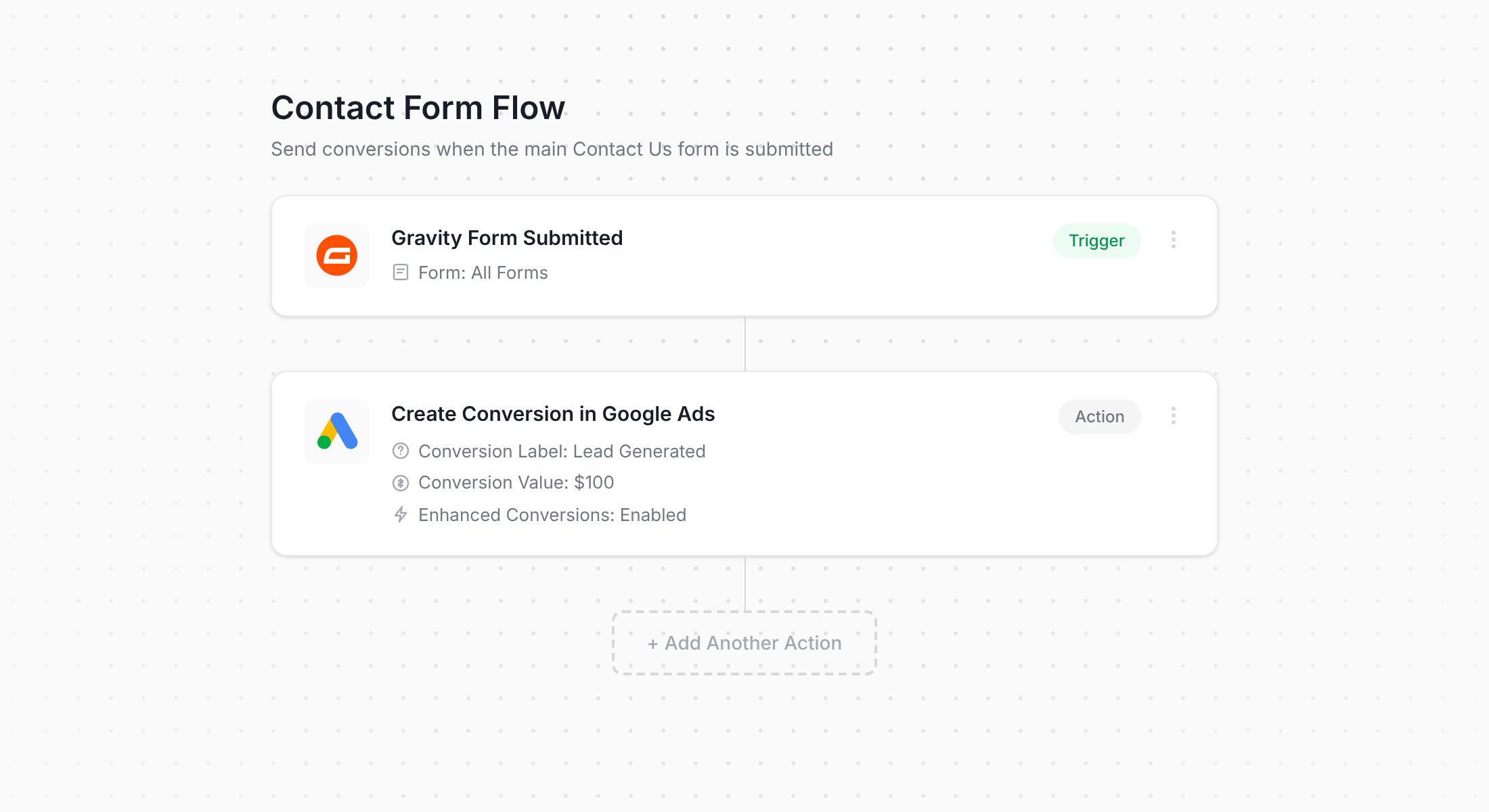
As you can see in the screenshot above, Converly comes with a simple workflow builder that should feel familiar if you've ever used tools like Zapier or HubSpot Workflows.
You simply pick your trigger (in this case, a Gravity Forms form being submitted), then decide on the actions that you want to happen (like sending a conversion to Google Ads).
That's all there is to it. In just a few clicks, you will have set up server-side conversion tracking in Google Ads.
Step 2: Add the Converly code to your website
Once you have built your Conversion Flow and published it, Converly will give you a small snippet of code to add to your website.
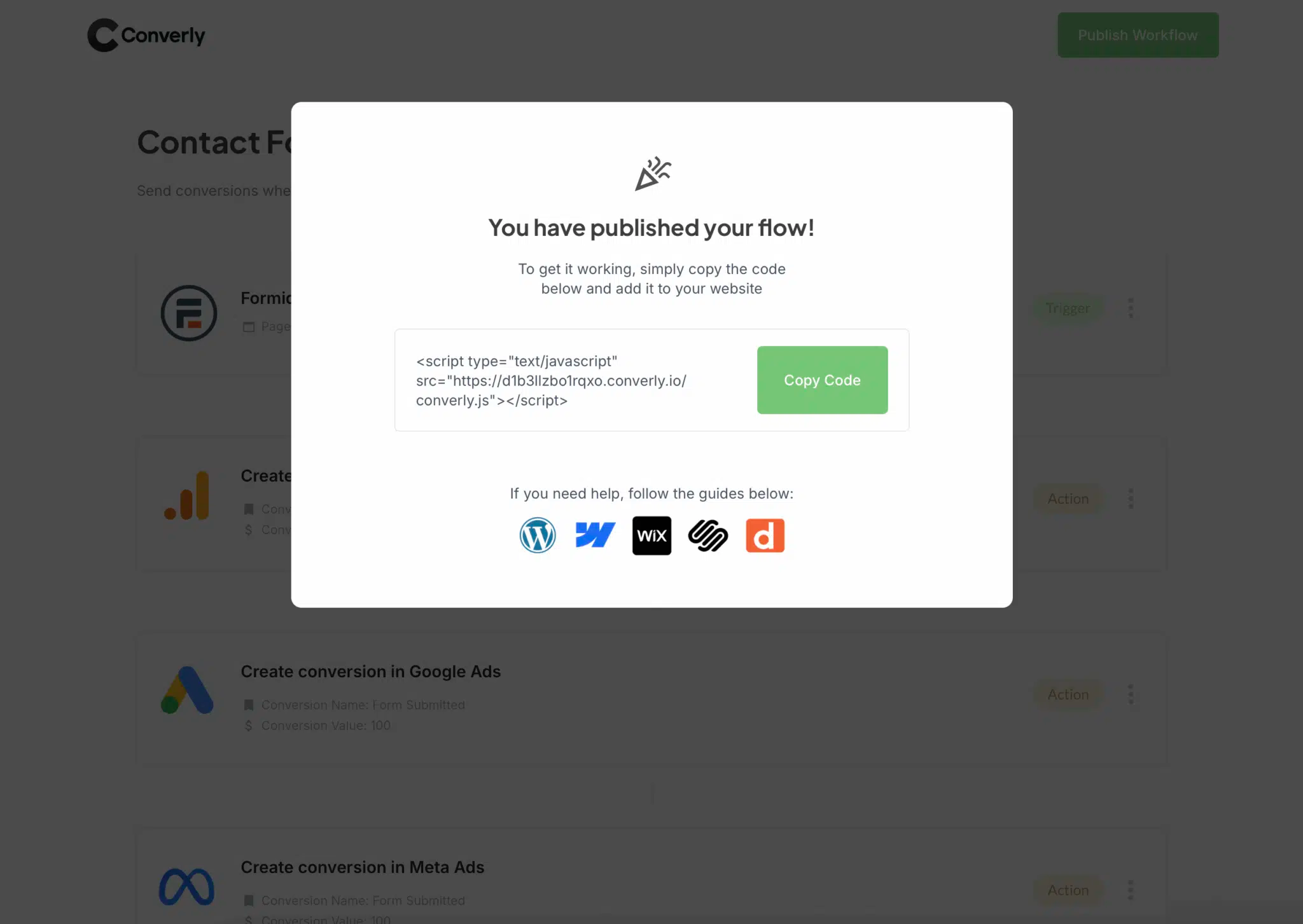
If your site runs on something like WordPress, Webflow, or HubSpot, you can usually paste the code into your CMS settings under a Header or Custom Code area, or install it through a header/footer plugin. Already using Google Tag Manager? That works too.
Step 3: Test it works
The final step to make sure it all works is to navigate to your website and submit the form on your site.
Then come into your Conversion Flow, click the 3 dots menu in the top right, and select View Logs.
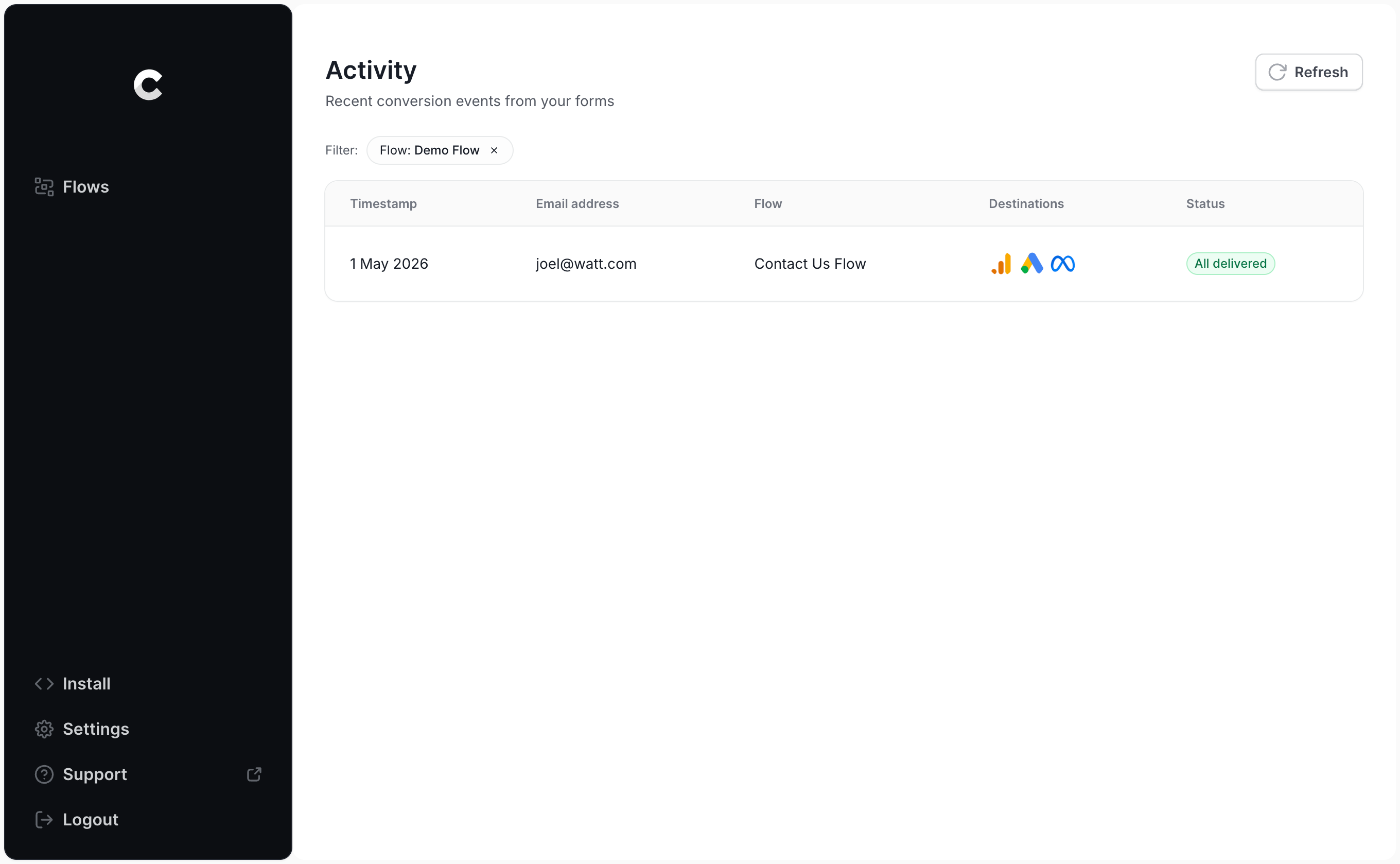
Once on the logs page, click into your test entry to see all the data about it, including whether it was successfully sent to Google Ads or not.
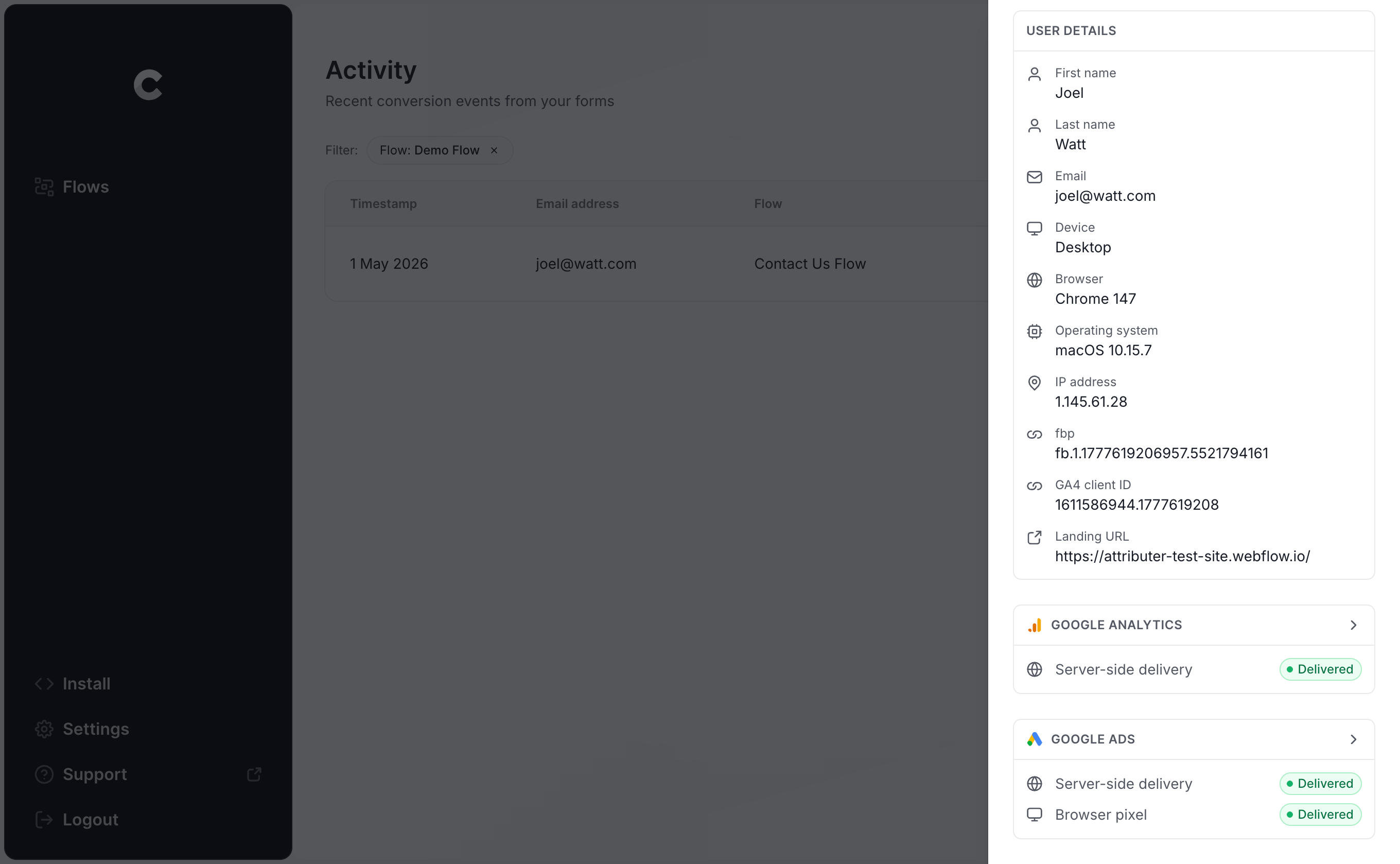
You can even click in further and see all the information that was sent to Google Ads, what the server responded with, etc.
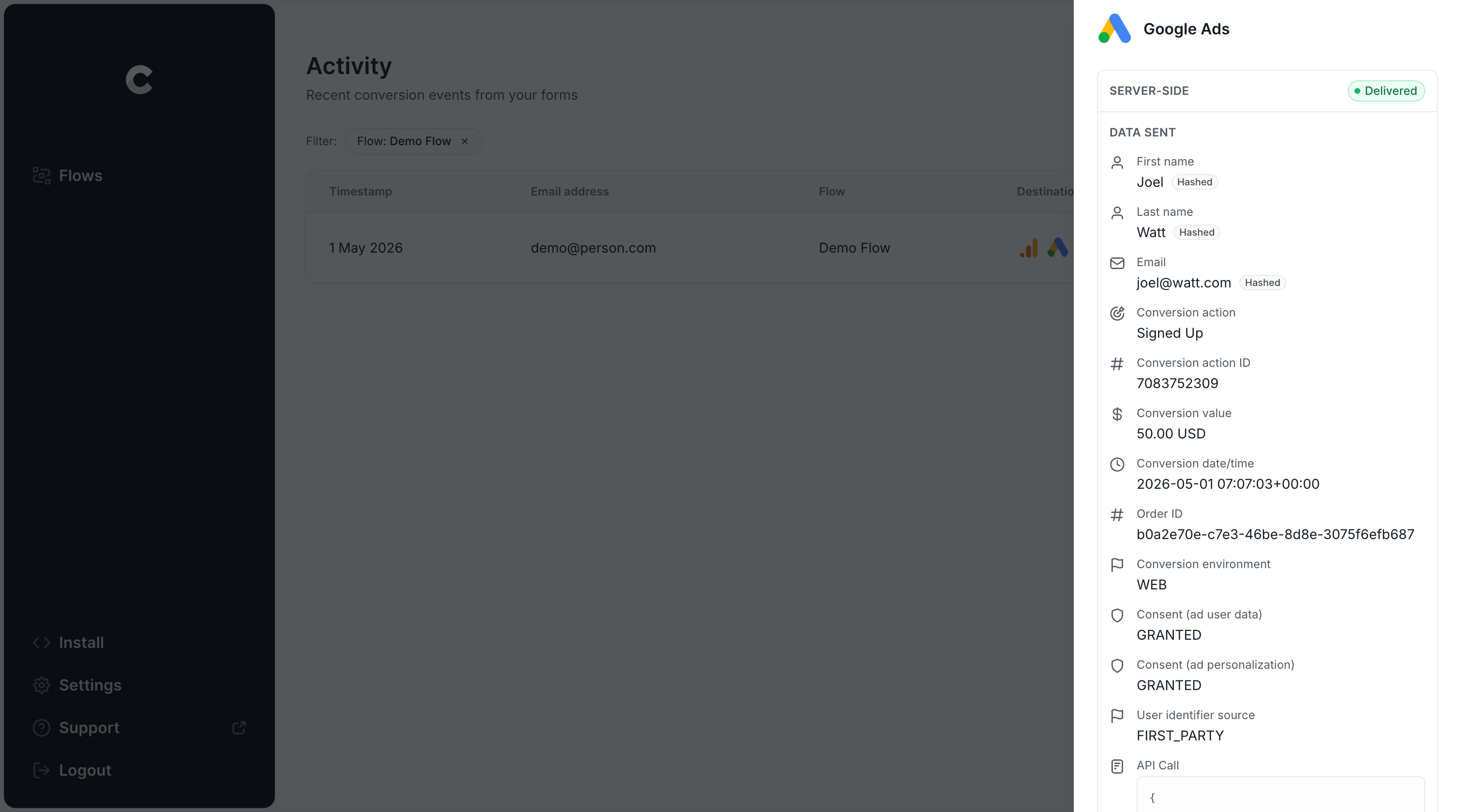
If you can see your test submission in the log, and you can see it was successfully sent to Google Ads, then you know your conversion tracking is correctly configured. All up, it shouldn't take more than 5 minutes to get it set up and working!
Why Converly is the best way to send conversions to Google Ads from Gravity Forms
There are other ways you can send conversions to Google Ads when someone submits a Gravity Form on your site, so why pick Converly over the alternatives? A few reasons stand out:
1. Easy to set up
The most common method of sending conversions to Google Ads is using Google Tag Manager. But that involves writing custom code to listen for form submissions, extracting the lead's name and email from the form and writing it into the DataLayer, figuring out how to anonymise the data with SHA-256 (required by Google), and configuring variables, triggers and tags.
Unless you're a Google Tag Manager expert, you are going to spend countless hours trying to figure that all out.
Fortunately, Converly makes it simple. You simply pick a trigger (like a Gravity Forms form being submitted on your site) and choose what should happen as a result (a conversion getting sent to Google Ads). No custom code, no complex setup, just simple conversion tracking.
2. Not affected by ad blockers and privacy restrictions
If you're using a tool like Google Tag Manager (or doing something basic like tracking thank you page visits), then a significant percentage of your conversions aren't going to make it back to Google thanks to ad blockers and privacy-focused browsers preventing the Google Tag from loading on your site.
A study that analysed over 7 million conversions actually found that tag-based tracking was missing roughly 30% of conversions. About 5% of those losses were down to ad blockers, and the larger share (around 25%) came from browser-level privacy measures.
But because Converly sends conversions directly to Google's servers, it isn't impacted by ad blockers or privacy-focused browsers, so you'll get far more accurate results.
3. Works across devices
It's pretty common for a lead to first land on your site on one device (their phone, say) but wait until they're back at a computer to actually fill out a form.
If you're just sending conversions in the browser (using tools like Google Tag Manager), it can't connect those two sessions because they happen on different devices.
But Converly sends identity data (name, email, and so on) directly to Google's servers, which means Google can essentially connect the conversion back to the initial ad click on the phone, meaning your ads get proper credit for the conversions they drove.
4. Sends more data
Not only does Converly send the lead's name, email, phone, etc to Google Ads to help it match ad clicks to conversions, it also captures technical data like the GCLID, IP address, User Agent, etc and sends this to Google Ads as well.
This ultimately means that Google Ads has a ton of data on the person who converted, and is able to use that information to better match it with an ad click (even if that ad click happened on a different device several weeks ago).
The end result for you is more accurate conversion tracking, and better data to work with in Google Ads.
5. Supports multiple tools and platforms
Converly works with more than 100 different form builders, scheduling tools, chat widgets, and a lot more.
And it can deliver conversion events to Google Analytics, Google Ads, Meta Ads, LinkedIn Ads, Microsoft Ads, and a host of other platforms.
This means that if you ever add new tools to your website or start advertising on a new platform, you don't have to rebuild your conversion tracking from scratch. A few clicks inside Converly and you're connected.
6. Gives you a full conversion log and email alerts
When you send conversions to Google Ads with a tool like Google Tag Manager, you have no real way of knowing whether it's still working. You can run a few tests when you first set it up, but unless you repeat them every week, your tracking can quietly break (someone tweaks the form, changes a tag in Google Tag Manager, or edits something in Google Ads) and you'd have no idea.
Converly takes the guesswork away. You get a full conversion log that shows every conversion that fired, exactly what data Converly captured, what it sent to Google Ads, the response Google Ads sent back, and more.
You can also turn on email notifications. Get an email every time a conversion is sent to Google Ads, or set them to only fire when a send fails, so the moment your tracking breaks you'll know about it.
3 things you can do when you properly send conversions to Google Ads from Gravity Forms
When you have real, accurate conversion tracking set up in Google Ads, it enables you to do a whole heap of things you couldn't previously.
1. Report on conversions by campaign, ad group, keyword, etc.
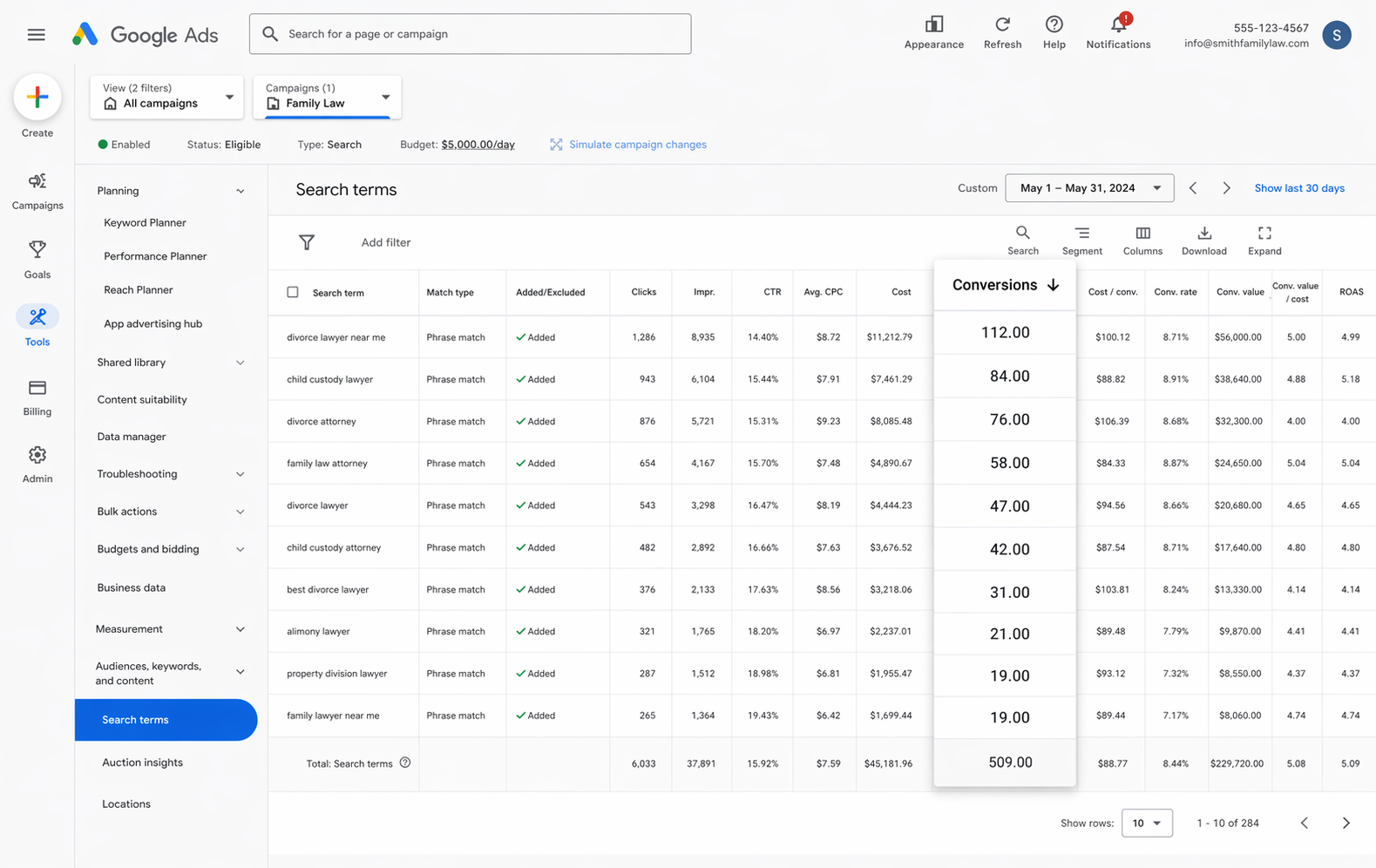
When you have accurate conversion tracking set up, you can look in your Google Ads account and see more than just impressions and clicks. You can see the number of conversions, the conversion rate, the cost per conversion, the return on ad spend, and a whole lot more.
You can even see these numbers by campaign, ad group, keyword, ad, country and a whole lot more.
This gives you much deeper insights into how your Google Ads are performing and where the biggest opportunities to grow are.
2. Use Google's Smart Bidding technology
Unlike manual bidding where you essentially say "I'm willing to spend $3 per click", Google's smart bidding technology lets you tell Google your end goal (like paying $45 per conversion) and it then bids in the auction for you.
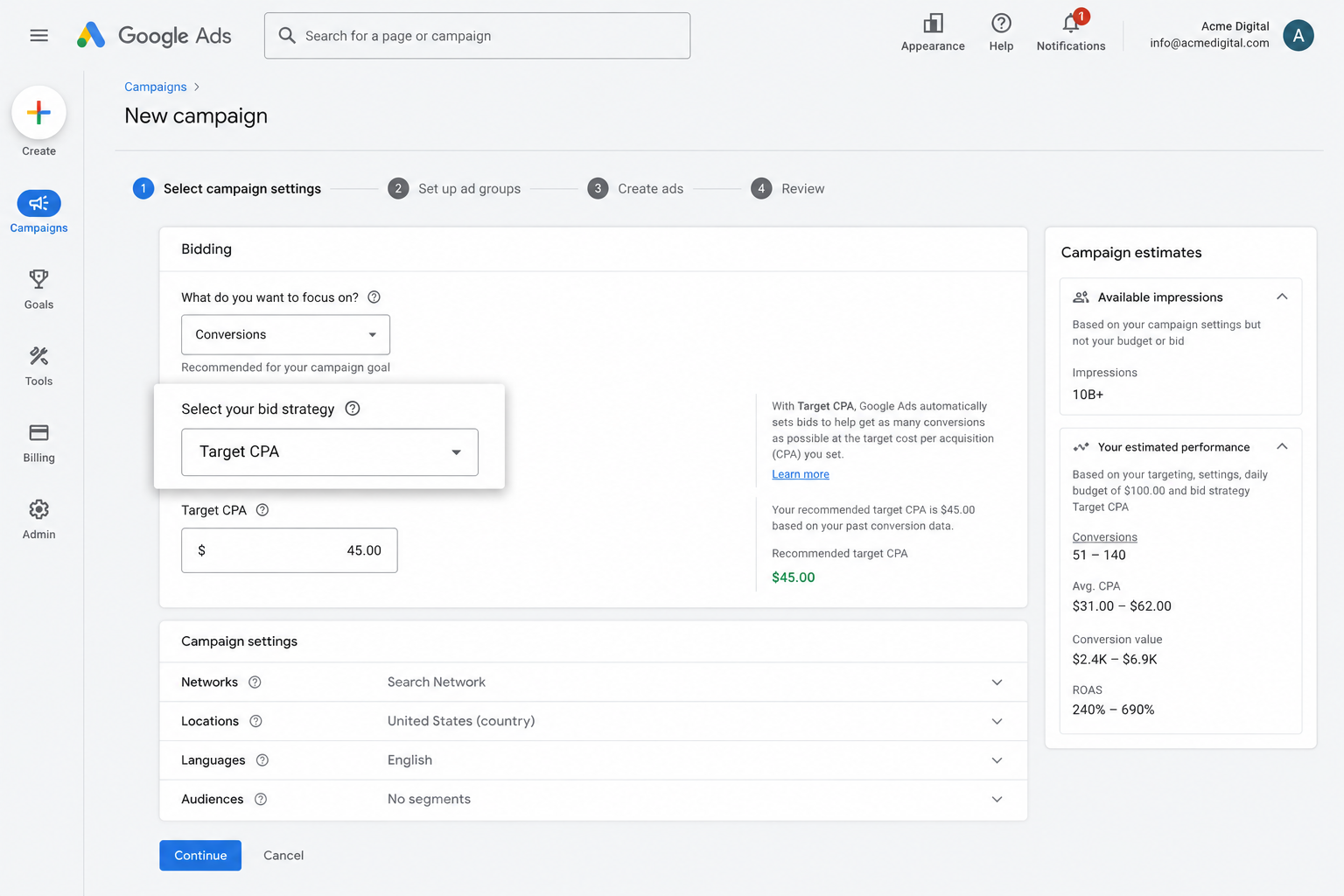
Google then takes into account everything it knows about the searcher (their age, location, device, purchase history, etc.) and decides whether to bid high or low based on whether it thinks this person will convert.
But it only works if you have accurate conversion tracking set up. If you don't, it has no idea what a "good" searcher looks like for you, and will end up bidding really high to get clicks from the wrong people (which burns your ad budget and increases costs).
By using Converly to set up accurate, server-side conversion tracking, you can make the most of Google's advanced smart bidding technologies and get more leads at a lower cost.
3. Retarget people who visited your site but didn't convert
When you send accurate conversion data to Google Ads, you are able to build remarketing lists of people who visited your site and didn't convert.
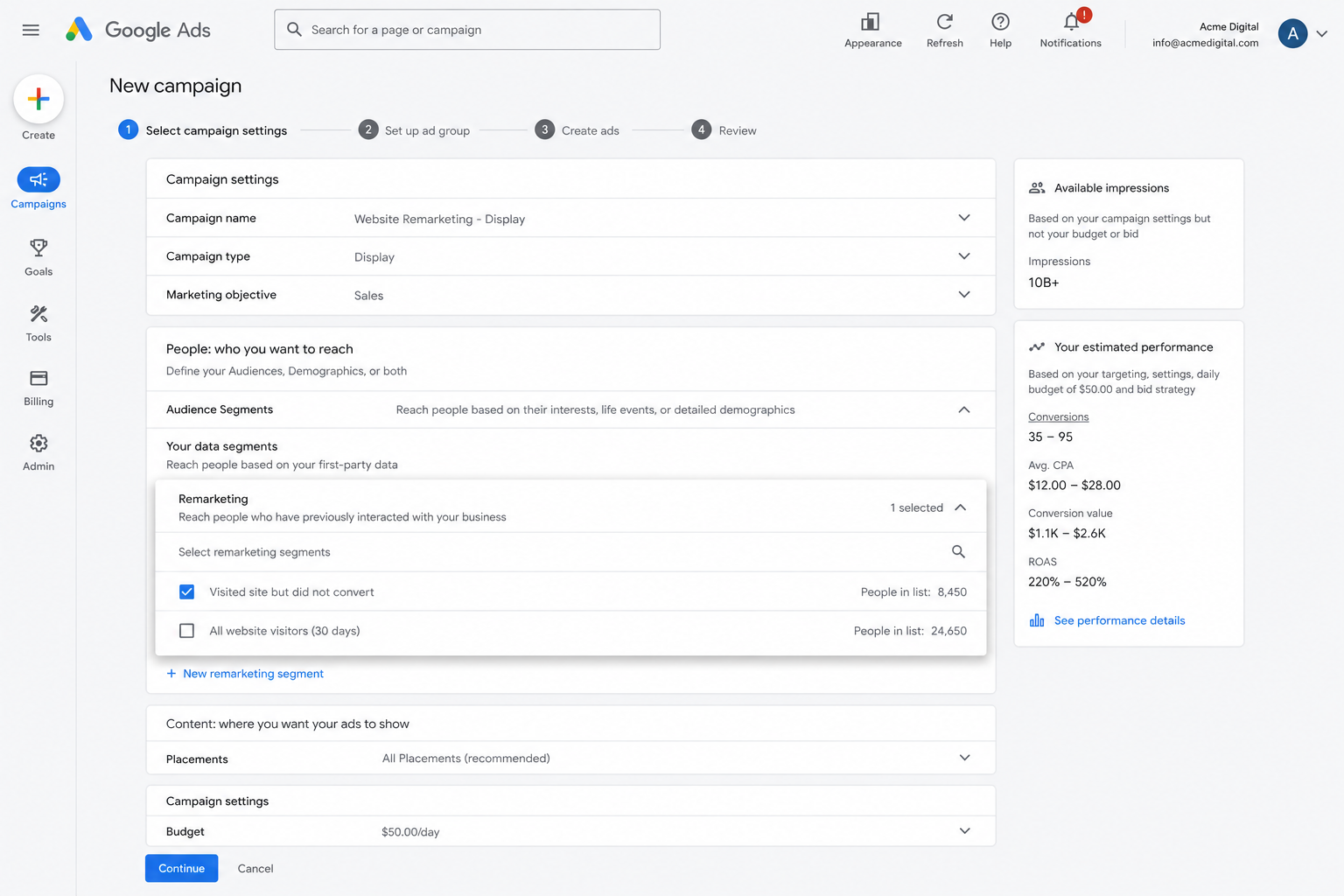
You can then retarget these people in a bunch of different ways, including:
- Search — You can bid higher (or lower if you want) for these people when they search for your keywords in the future.
- Display — You can run display ads on Google Display network targeted exclusively at these people, so they see your brand and your ads as they browse around the web.
- YouTube — You can run YouTube Ads exclusively targeting these people, so they regularly see your ads in YouTube.
Wrap Up
If you want to send conversions to Google Ads each time someone submits a Gravity Form on your website, then Converly is a great way to do it.
It sends the conversions directly to Google's servers so they aren't blocked by ad blockers and privacy-focused browsers, and it sends a ton of information about the lead (name, email, phone, IP address, User Agent, etc) so that Google has the absolute best chance of being able to match the conversion back to the original ad click.
Best of all, it can be set up in just a few minutes and comes with a 14-day free trial, so check it out today!
About the author

Aaron is the founder of Converly. With over 15 years of experience in digital marketing and SaaS, he's passionate about helping businesses track and optimise their ad conversions.