


Track Elementor form submissions as conversions in ChatGPT Ads
Learn the simple 3-step process for sending conversions to ChatGPT Ads when someone submits an Elementor Form on your WordPress site. No code required!
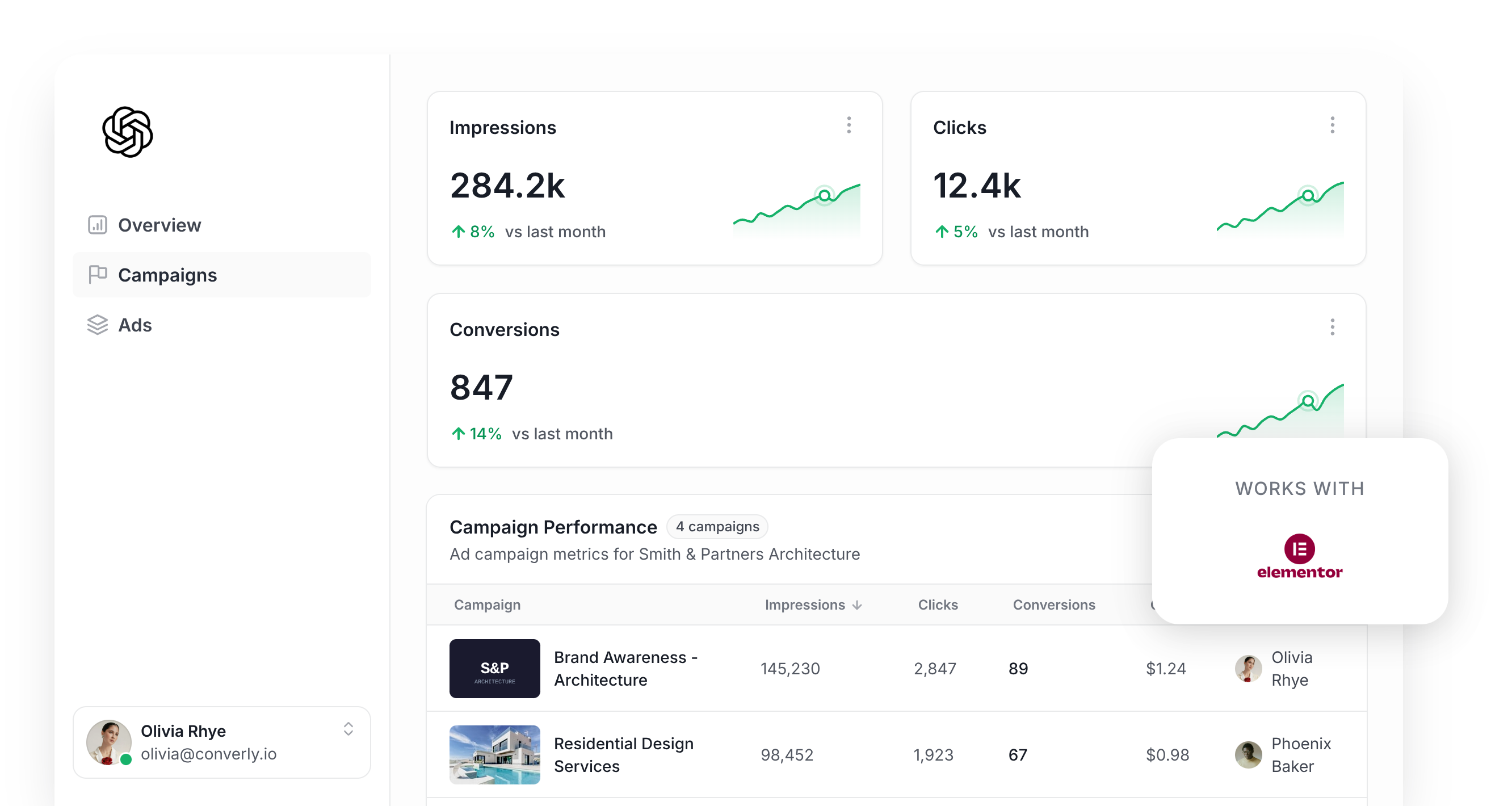
Planning to run ChatGPT Ads to bring in more leads for your business?
If so, the very first thing to sort out (before a single dollar of budget goes out the door) is your conversion tracking. ChatGPT Ads, like pretty much every ad platform out there now, relies on AI to work out which people are most likely to become leads and serve your ads more frequently to them.
The catch is that the AI is only ever as good as the conversion data you feed it. If ChatGPT Ads can't see which clicks generated actual leads, it has nothing to learn from, and it'll happily keep showing your ads to people who were never going to convert.
This is an even bigger deal with ChatGPT Ads, because there are no 'keywords' for you to choose. You're basically relying on ChatGPT to place your ad inside conversations it believes are relevant, and unless it knows which of those conversations ended in a lead, it has no way of figuring out where your ads should show up next time.
So what does solid conversion tracking in ChatGPT Ads actually involve, and how do you get it set up?
In this guide, we'll walk you through the best way to send a conversion to ChatGPT Ads whenever someone submits an Elementor Form on your WordPress site.
What proper conversion tracking looks like in ChatGPT Ads
Getting ChatGPT Ads conversion tracking right comes down to 2 things. The first is delivery (making sure every single conversion actually reaches the platform), and the second is data (making sure each one includes enough information for ChatGPT Ads to connect it to a real person and the ad that sent them your way).
Let's break each of those down:
Ensuring proper delivery
The simplest option to set up conversion tracking in ChatGPT Ads is probably just to drop the ChatGPT Ads Measurement Pixel onto your site and fire a conversion whenever someone lands on your thank you page.
The problem is that plenty of those conversions will never reach the ad platform, because ad blockers and privacy features built into browsers stop the ChatGPT Measurement Pixel from loading in the first place.
In fact, research suggests more than 30% of conversions get blocked this way.
That's the reason OpenAI recommends sending each conversion back in 2 different ways. One goes from the visitor's browser to the Measurement Pixel, and the other goes from a server straight to OpenAI via the Conversions API (which is what people mean when they talk about 'server-side tracking'). The idea is that, if the browser version gets blocked, the server-side one still finds its way back to ChatGPT Ads.
Sending the right data
Getting the conversion to ChatGPT Ads is only half the battle. It also needs to be matched to a real person and the specific ad they clicked, or it simply won't be counted as a conversion. A few things tend to get in the way here:
- Browser Privacy Features - Privacy-focused browsers like Safari only let tracking cookies live for a short period, so if someone clicks your ad on a Tuesday but doesn't fill out your form until the Wednesday after, there's a good chance the conversion can't be linked back to that original click.
- Switching Devices - It's really common for someone to click an ad on their phone, then come back a few hours/days later on their laptop and fill out the form. But the pixel running in the browser on the laptop has no idea the earlier click on the phone ever happened, so the conversion can't be linked back to the ad that started it.
- Switching Browsers - A lot of people use ChatGPT through the app on their phone. Clicking your ad there opens your website in a mini browser inside the app, and that mini browser stores its own cookies separate from Safari, Chrome or whatever other browser they normally use. So if they click the ad inside the ChatGPT app and later return through their regular browser and submit the form, the conversion can't be linked to the original click.
The fix for every one of these issues is to send extra information about the lead along with each conversion. That means their name, email address and phone number, plus the Click ID (ChatGPT Ads calls this the oppref), their IP address and their user agent. When ChatGPT Ads has that, it can tie the conversion back to a real user and the ad they clicked with 100% accuracy, and the conversion will actually appear in your reports (the conversion only gets counted when a match can be made back to a real person and the ad they clicked).
3 simple steps to send proper, server-side conversions to ChatGPT Ads from Elementor
Now you know what good ChatGPT Ads conversion tracking looks like, here's how to get it running with Converly in just 3 steps:
Step 1: Build your Conversion Flow in Converly
Converly is a conversion tracking tool designed to make it really easy to send conversions from Elementor Forms to ChatGPT Ads.
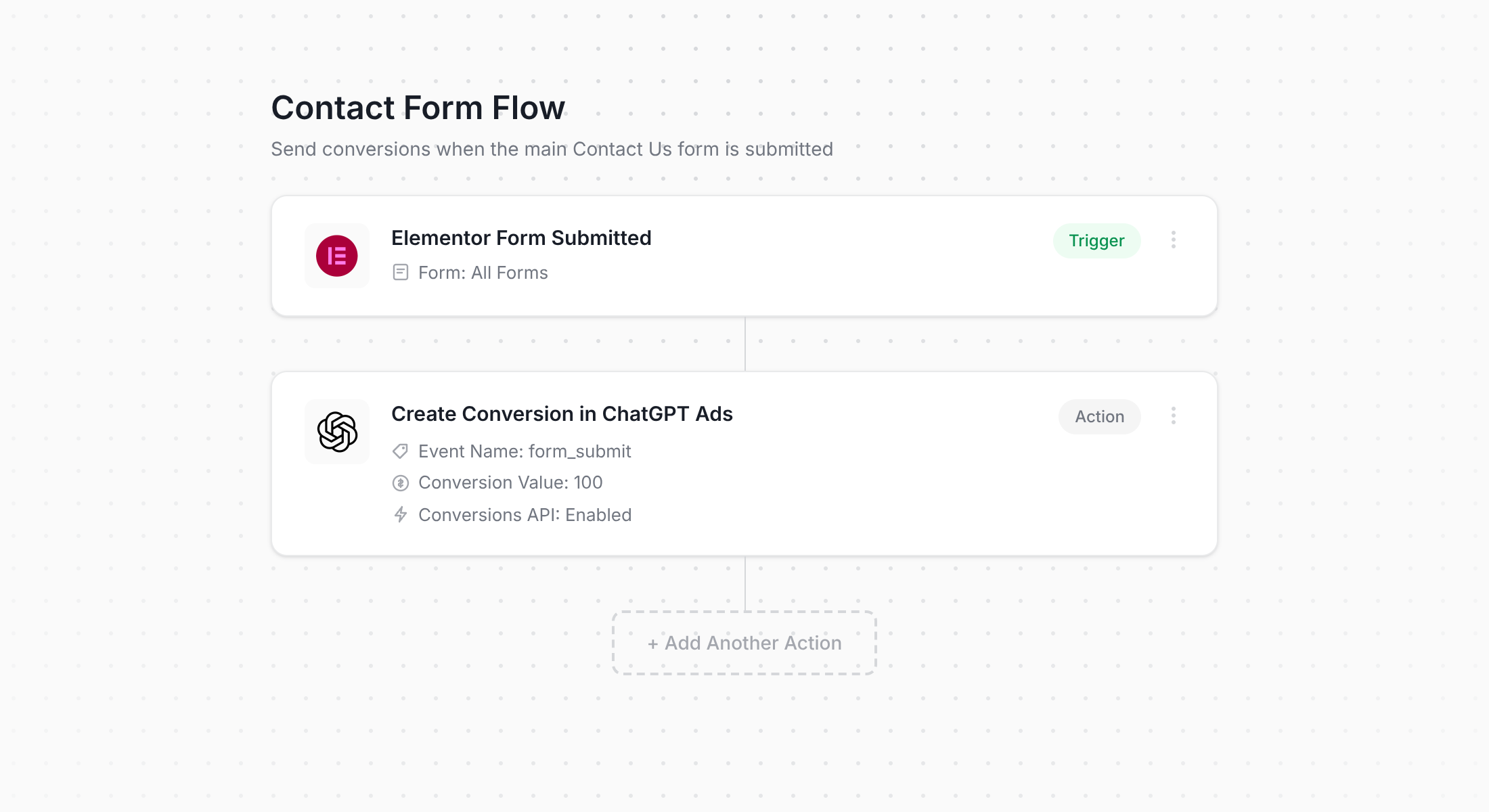
What you're looking at above is the Converly workflow builder. If you've ever built an automation in a tool like Zapier or HubSpot, you'll recognise the layout.
You simply choose your trigger (someone submitting an Elementor Form on your site), and then you pick what you want to happen as a result (a conversion being sent to ChatGPT Ads). Honestly, that's all there is to it. With a few clicks, you've got proper, server-side conversion tracking for ChatGPT Ads up and running.
And it's even quicker if you use an AI assistant like Claude or ChatGPT too. Just install the Converly plugin, ask it to 'Set up ChatGPT Ads conversion tracking for my Elementor Forms', and it can build the whole flow, install the code and test it works for you!
Step 2: Add the Converly code to your website
As soon as you publish your Conversion Flow, Converly gives you a small snippet of code to add to your site.
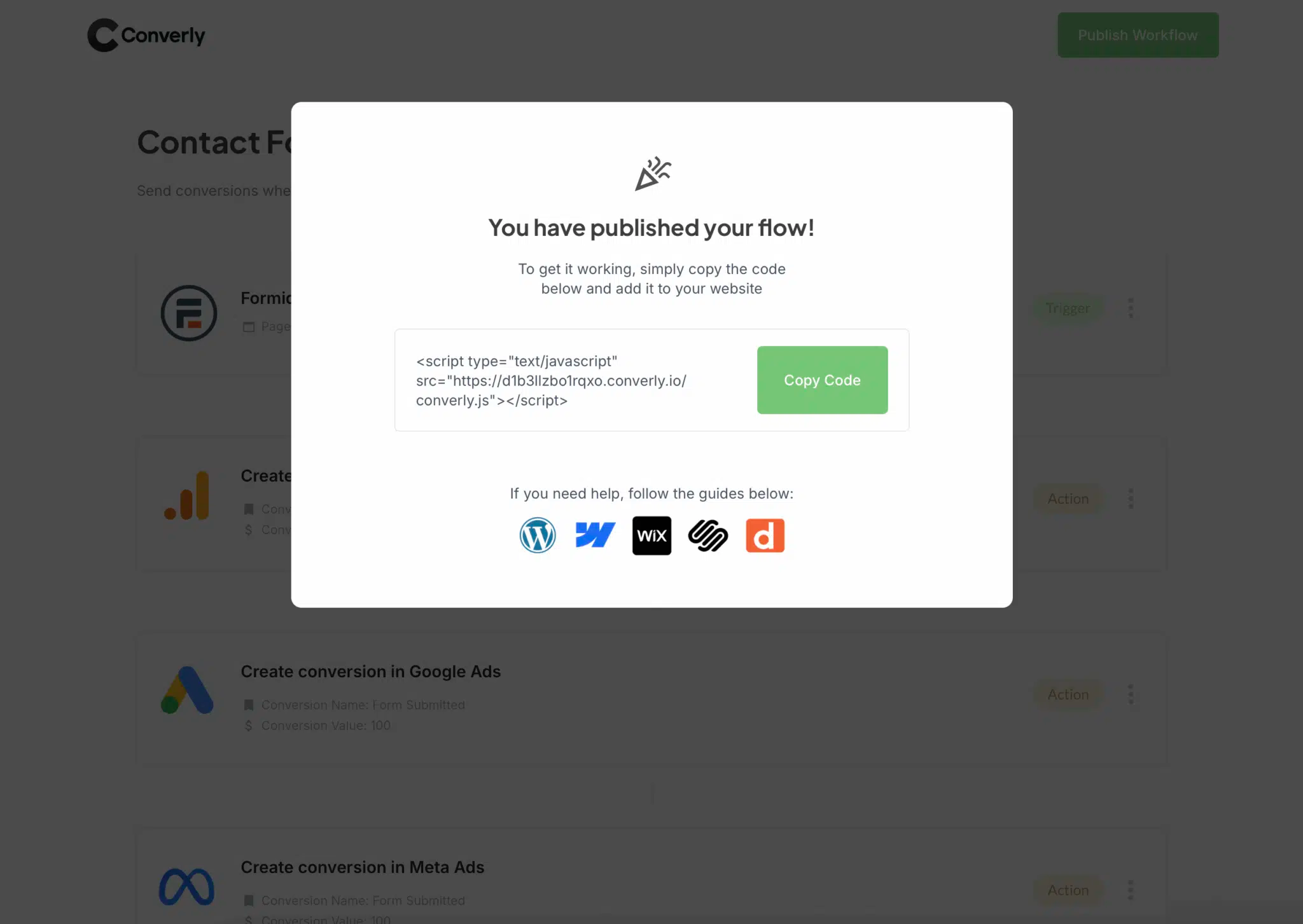
Since Elementor runs on WordPress, you've got a handful of ways to add it. You can paste it into the Header section of Elementor's theme settings or use a free plugin like Insert Headers and Footers. Or if your site already has Google Tag Manager installed, you can add the snippet through there instead.
Step 3: Test it works
Once the code is installed, head to your website and fill out one of your Elementor Forms, exactly as a real person would.
Next, jump back into Converly and click 'Logs' in the main menu.
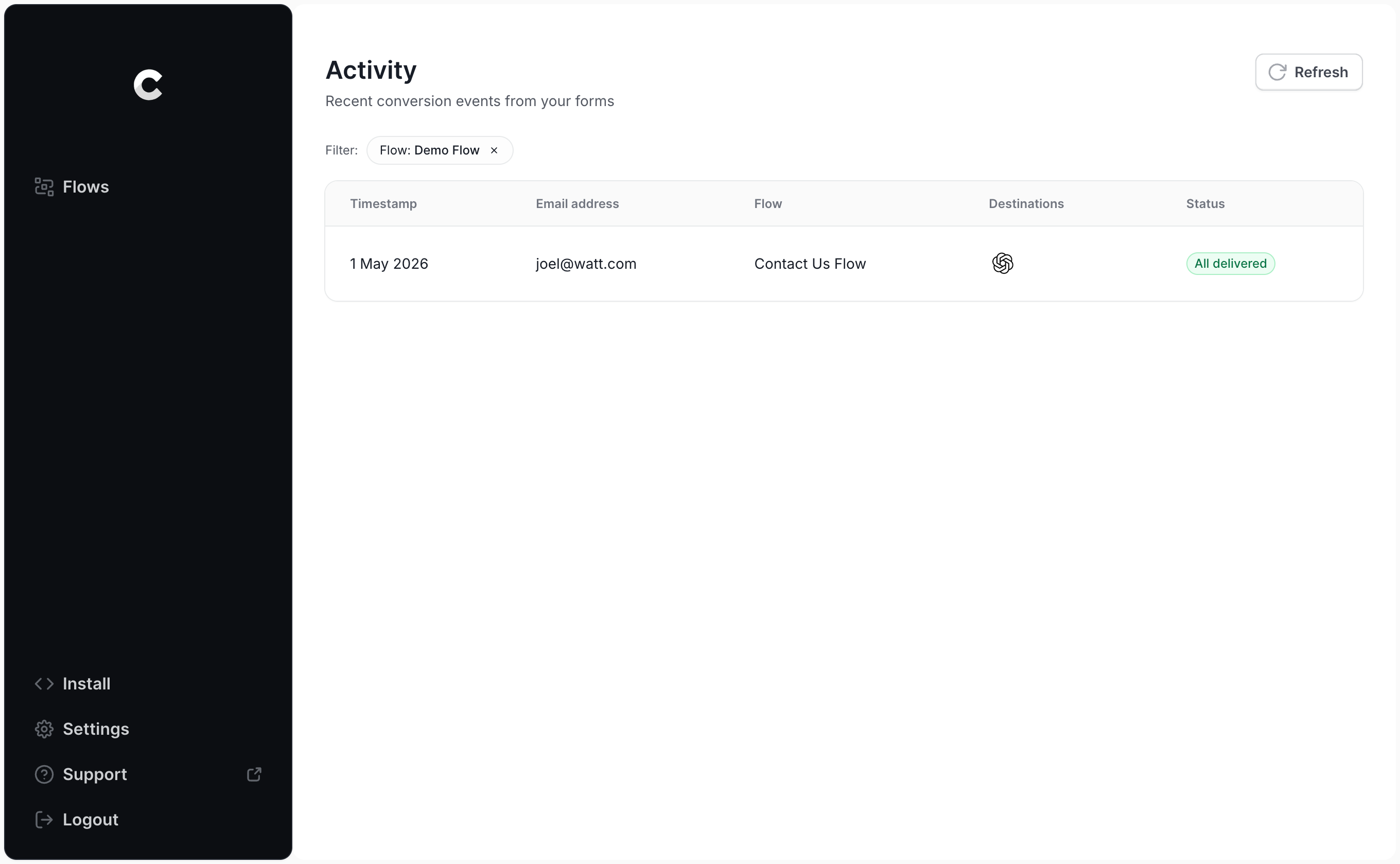
Find your test submission in the list and click into it. You'll see everything Converly captured, plus whether the conversion was successfully sent to ChatGPT Ads.
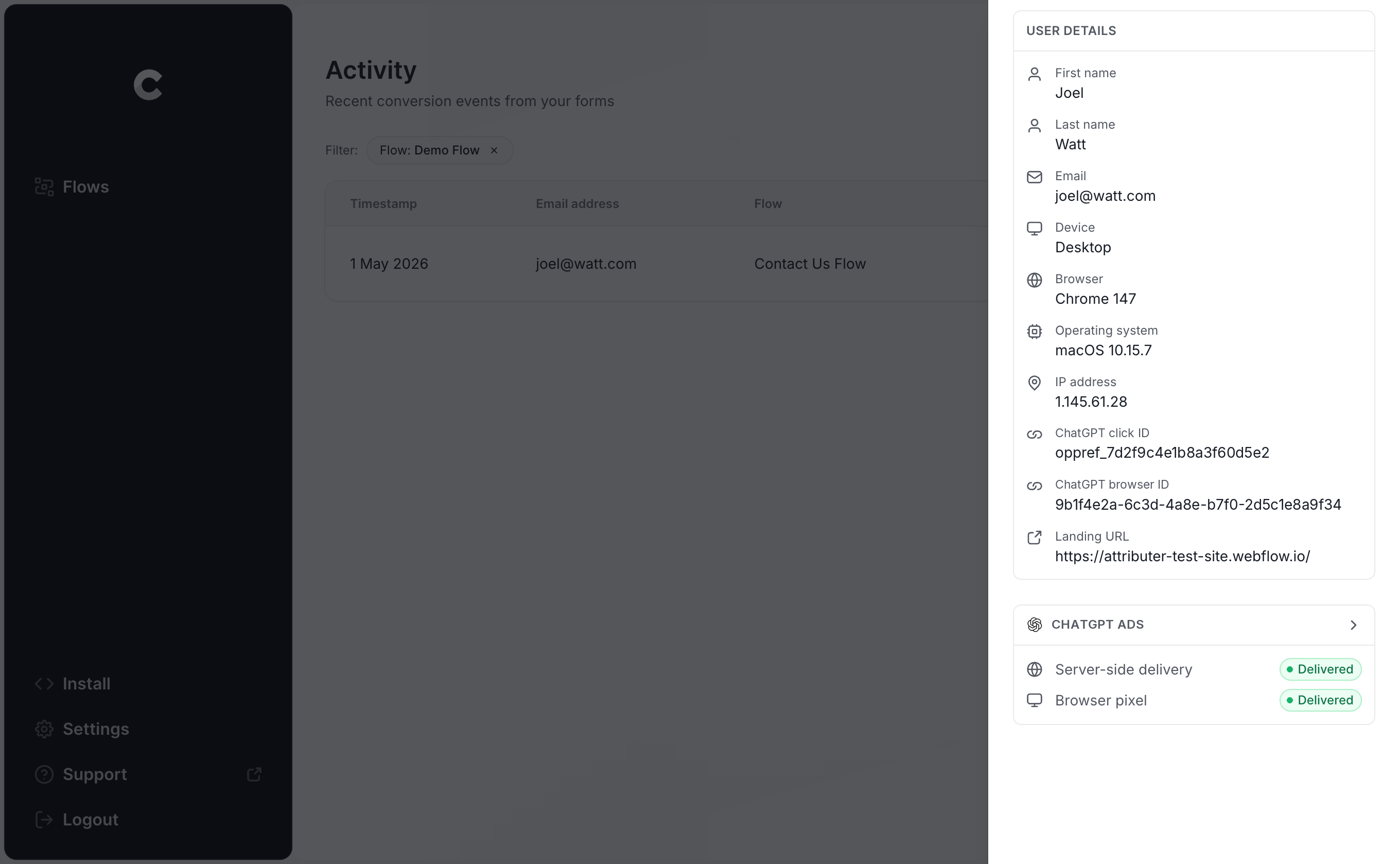
If you want to dig a little deeper, you can also view the exact payload Converly sent to ChatGPT Ads, along with the response OpenAI's server sent back.
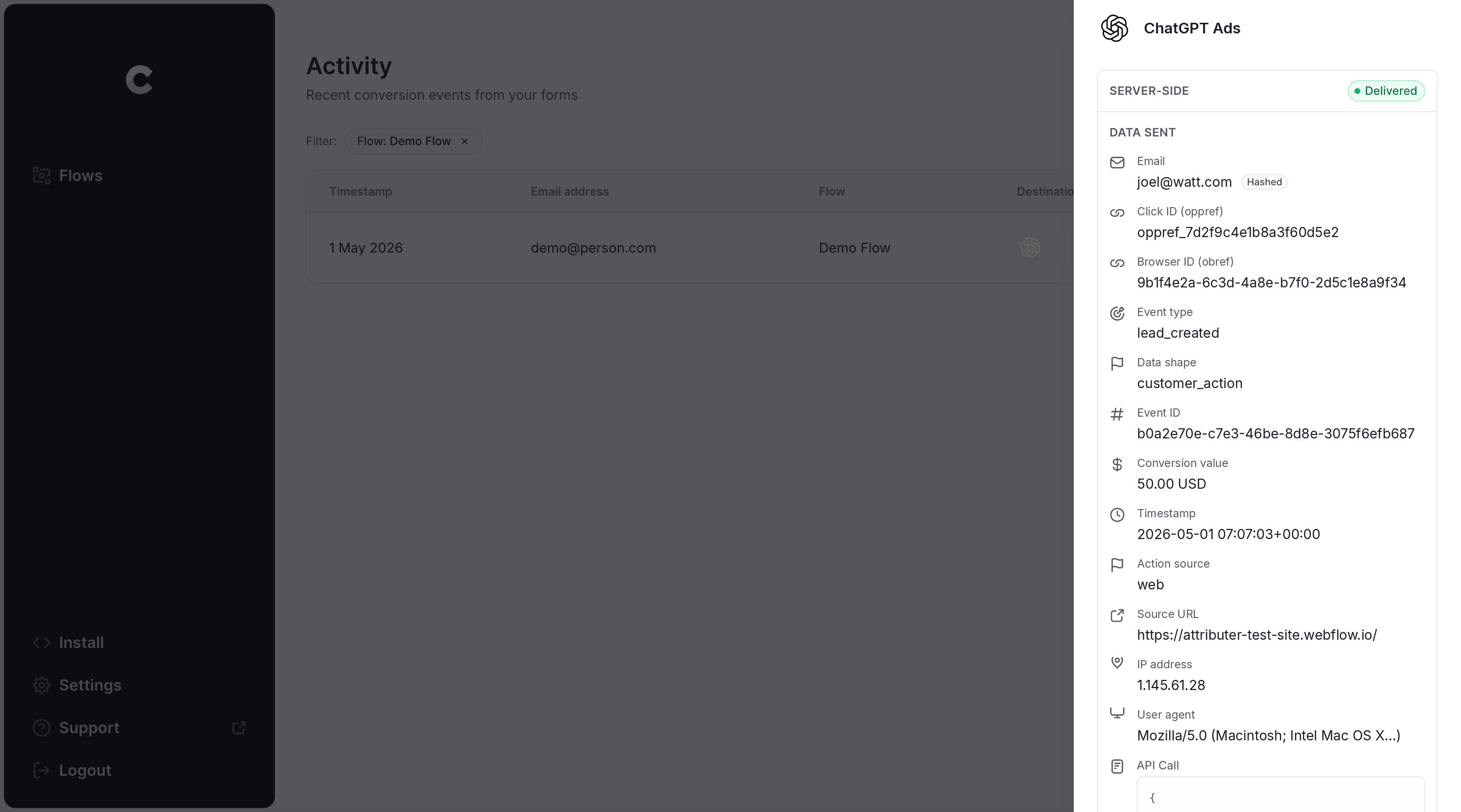
As long as the log shows your test submission reached ChatGPT Ads successfully, you're all set. Most people finish the whole thing in less than 5 minutes.
Why Converly is the best way to send conversions to ChatGPT Ads from Elementor
There are a few different ways to send a conversion to ChatGPT Ads when someone submits an Elementor Form on your site, so why do so many marketers choose Converly?
Here are the main reasons:
1. Easy to set up
To set all this up yourself, you'd have to write JavaScript that listens for Elementor's submit_success event, grab the click ID and browser cookie from the visitor's browser, pull the lead's name, email and phone out of the form fields, hash them with SHA-256, and send it all over in the exact format OpenAI expects. On top of that, you'd be on the hook for managing API keys, deduplication, retries, security, and more.
Converly handles all of that for you. You simply choose a trigger (like an Elementor Form being submitted), choose an action (like a conversion going to ChatGPT Ads), and Converly looks after the rest. There's no custom code to write and no API keys to wrangle. It just works.
And if you already use an AI tool like Claude or ChatGPT, you can connect it to Converly, ask it to 'Set up ChatGPT Ads tracking for my Elementor Forms', and let it do all the setup for you!
2. Not affected by ad blockers and privacy restrictions
Relying on the ChatGPT Ads Measurement Pixel alone (without also sending conversions server-side via the Conversions API) means a real portion of your conversions will never reach OpenAI.
That's because when a visitor has an ad blocker or a privacy-focused browser, the pixel can't load when they arrive on your site, so nothing they do can be tracked.
And it's not a small problem either. One study looking at more than 7 million conversions found that browser-only tracking missed around 30% of conversions.
Converly sends every conversion through both channels (via the browser to the ChatGPT Measurement Pixel, and server-side to the Conversions API), giving each conversion the best possible chance of making it through no matter what ad blocker or privacy settings your visitor is running.
3. Works across devices
Plenty of leads will find your website on one device (maybe their phone while waiting for a coffee) and then come back later on their computer and fill out your Elementor Form then.
If you're just doing something basic like tracking thank you page visits, there's no way to connect that conversion back to the original ad click (because the conversion/thank you page visit happened on one device while the original ad click happened on another).
Converly gets around this by capturing the click ID (the oppref) and sending it to ChatGPT Ads together with the lead's name, email address and phone number. With that information, ChatGPT Ads can easily match the conversion back to a real person and the original ad they clicked, even when that click happened weeks earlier on another device.
4. Sends more data
As soon as someone lands on your site, Converly captures the ChatGPT click ID (the oppref) as well as the cookie set by the ChatGPT Ads pixel and the visitor's user agent. Then, once they submit your Elementor Form, Converly combines all of that data with the lead's name, email address and phone number and sends it all to ChatGPT Ads.
The result is that ChatGPT Ads gets all the data it needs to link the conversion back to a real user and the exact ad they clicked, which means you get far more accurate conversion numbers in ChatGPT Ads Manager.
5. Supports multiple tools and platforms
Converly can detect conversions in over 100 form builders, booking tools, chat widgets and other apps, and it can send them to ChatGPT Ads, Google Ads, Meta Ads, LinkedIn Ads, Microsoft Ads, Google Analytics and plenty more.
So if you're also running Google Ads or Meta Ads alongside ChatGPT Ads, there's no need to build a separate setup for each one. Simply add them as extra actions in your existing Conversion Flow and every Elementor Form submission will be sent to all of them at the same time.
6. Gives you a full conversion log and email alerts
Most other approaches to ChatGPT Ads conversion tracking (Google Tag Manager is a classic example) give you no way of knowing whether it's actually working or not.
You might test everything on launch day, but if someone later tweaks the Elementor Form, updates a plugin, rotates an API key or changes a setting in ChatGPT Ads Manager, your tracking could easily break without you knowing.
Converly removes that uncertainty. You get a full log of every person who submits your Elementor form, what data was captured, what was sent to ChatGPT Ads, and whether it was successful or not.
You can also switch on email notifications, so you'll get an email for each conversion (including whether or not it reached ChatGPT Ads). That way, if something ever breaks, you'll hear about it right away.
2 things you can do when you properly send conversions to ChatGPT Ads from Elementor
Once accurate conversion data is flowing from your Elementor Forms into ChatGPT Ads, you unlock 2 things:
1. See which campaigns and ads actually produce leads
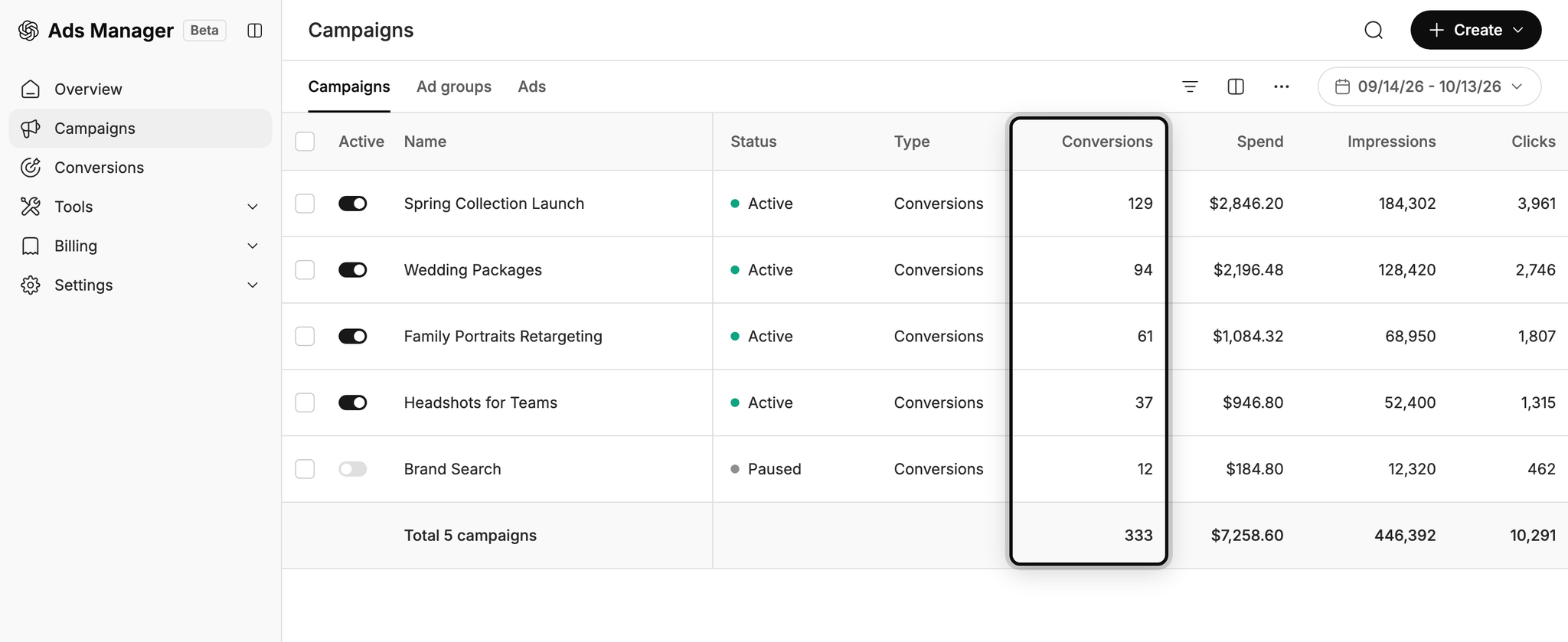
When your conversion tracking isn't set up properly, ChatGPT Ads can only show you impressions and clicks. It can't show you which of your campaigns, ads, etc actually generated leads for your business.
But with reliable conversion data coming through, you'll see exactly how many leads every campaign and ad is bringing in, how much each lead is costing you, and where your biggest opportunities for growth are.
2. Let OpenAI's algorithm find you more of the right people
ChatGPT Ads uses AI to decide both who sees your ads and which conversations they show up in.
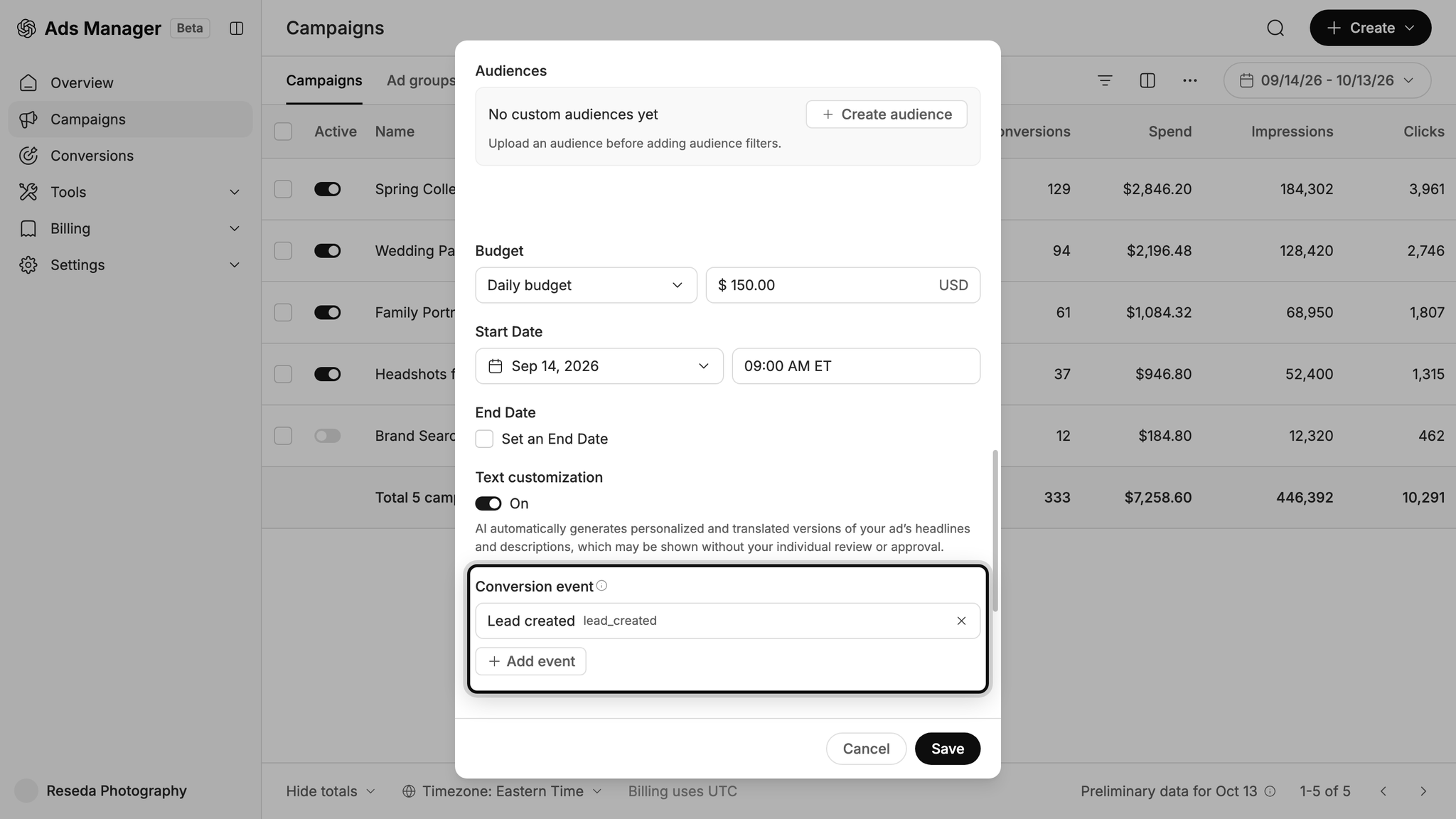
Every conversion you send back teaches ChatGPT Ads which conversations are actually producing leads for your business, so over time it gets much better at placing your ads in the right conversations (rather than wasting your budget on conversations that were never going to convert).
Wrap Up
If you want a conversion sent to ChatGPT Ads every time someone submits an Elementor Form on your WordPress site, Converly is the simplest and most reliable way to make it happen.
And because conversions go directly to OpenAI's servers, ad blockers and privacy-focused browsers can't get in the way. And because Converly sends the lead's name, email, phone, click ID and more with each conversion, it has the best possible chance of being matched to a real user and the ad they clicked (so it actually shows up in your reports).
Best of all, setup only takes a few minutes and there's a 14-day free trial (no credit card required), so start your free trial today!
About the author

Aaron is the founder of Converly. With over 15 years of experience in digital marketing and SaaS, he's passionate about helping businesses track and optimise their ad conversions.