


Track Calendly bookings as conversions in Google Analytics
Automatically send conversion events to Google Analytics every time someone books a meeting through Calendly on your website. No code or technical setup needed!
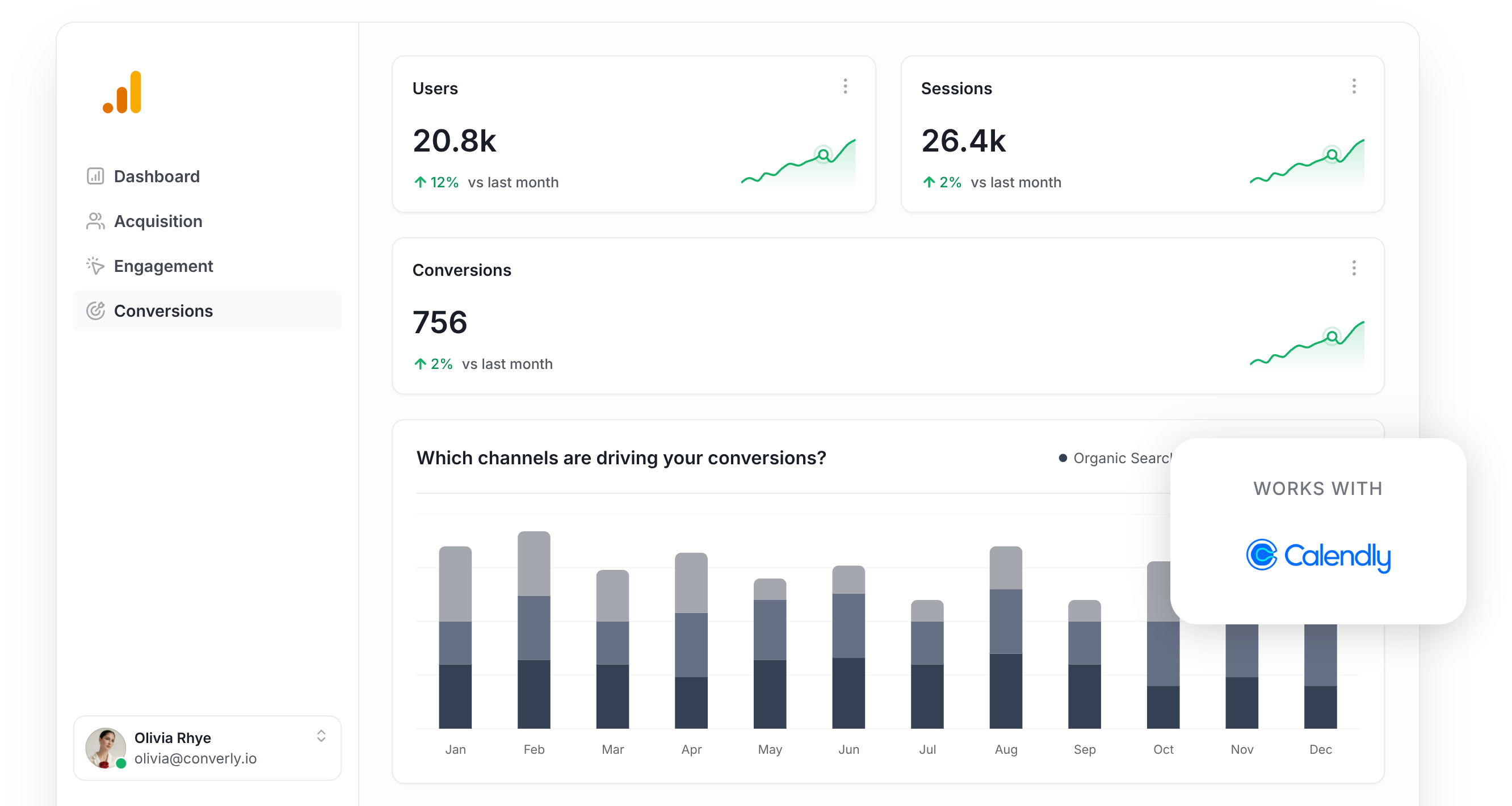
Do you know how many booked meetings your marketing campaigns are actually generating across channels like Google Ads, Meta Ads, and SEO?
If you are not sure, you are far from the only one. But without that visibility, it is all too easy to keep investing in campaigns that are not delivering real results.
The good news is that there is a simple way to fix this, and you will not need any coding skills to do it.
In this guide, we will show you how to use Converly to automatically send a conversion event to Google Analytics every time someone books a meeting through a Calendly booking widget on your website. Once everything is in place, you will be able to see exactly which campaigns, ads, and keywords are driving meetings for your business.
4 simple steps for tracking Calendly bookings as conversions in Google Analytics
Here is how to set up conversion tracking for Calendly bookings in Google Analytics in 4 easy steps:
Step 1: Build your Conversion Flow in Converly
Converly sends conversion events to your ad platforms and analytics tools (including Google Analytics) whenever someone takes a key action on your website, such as booking a meeting through Calendly.
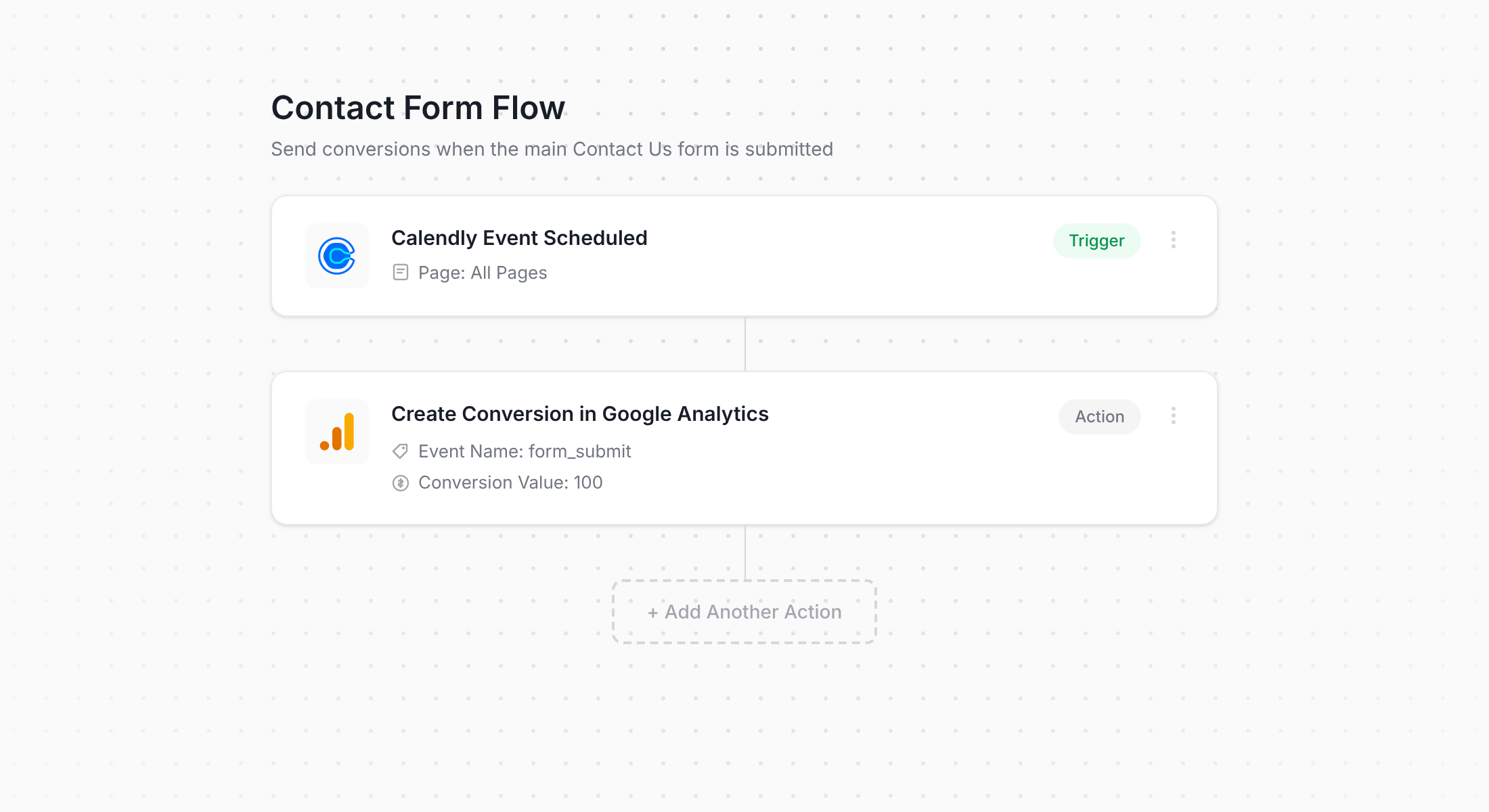
As you can see in the screenshot, Converly has an intuitive workflow builder that will feel immediately familiar if you have ever used tools like Zapier or HubSpot Workflows.
Simply choose your trigger (such as someone booking a meeting through your embedded Calendly widget) and select where the conversion event should be sent (like Google Analytics). That really is all there is to it.
Step 2: Install Converly on your website
After building your Conversion Flow, Converly provides a small code snippet to add to your site.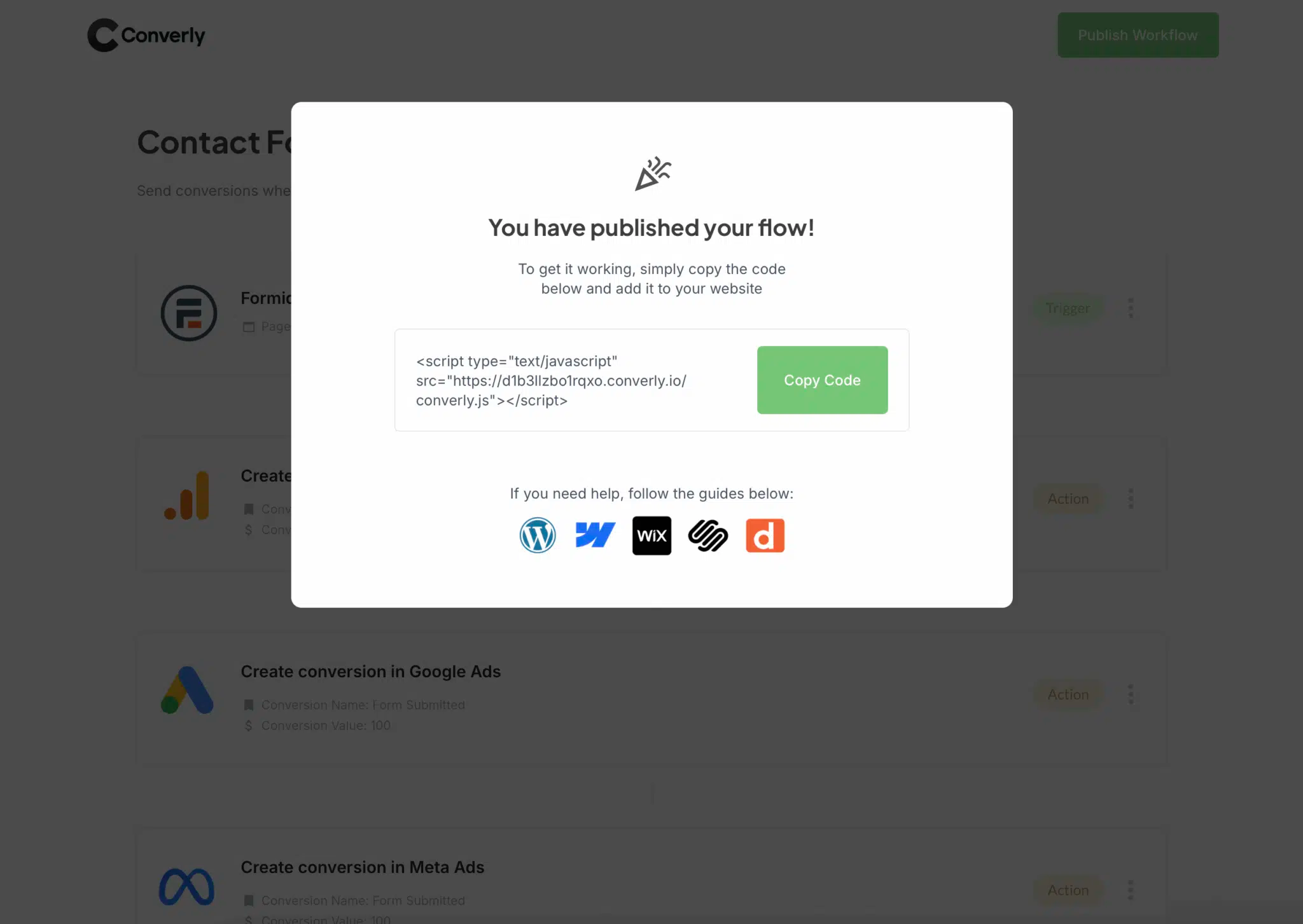 How you install it depends on your website builder. You can typically paste the code into the settings section of your site (usually under Scripts, Header, or Custom Code). If you are using WordPress, a plugin like Insert Header and Footer Code works well too. Google Tag Manager is also an option if you prefer that approach.
Once the snippet is live, Converly handles the rest. It automatically detects when someone books a meeting through your Calendly widget and sends the conversion data to Google Analytics (along with any other platforms in your flow).
Step 3: Test it's working
With everything set up, you will want to confirm that bookings are being tracked correctly.
The quickest way to check is to open an incognito window, go to the page where your Calendly widget is embedded, and schedule a test meeting.
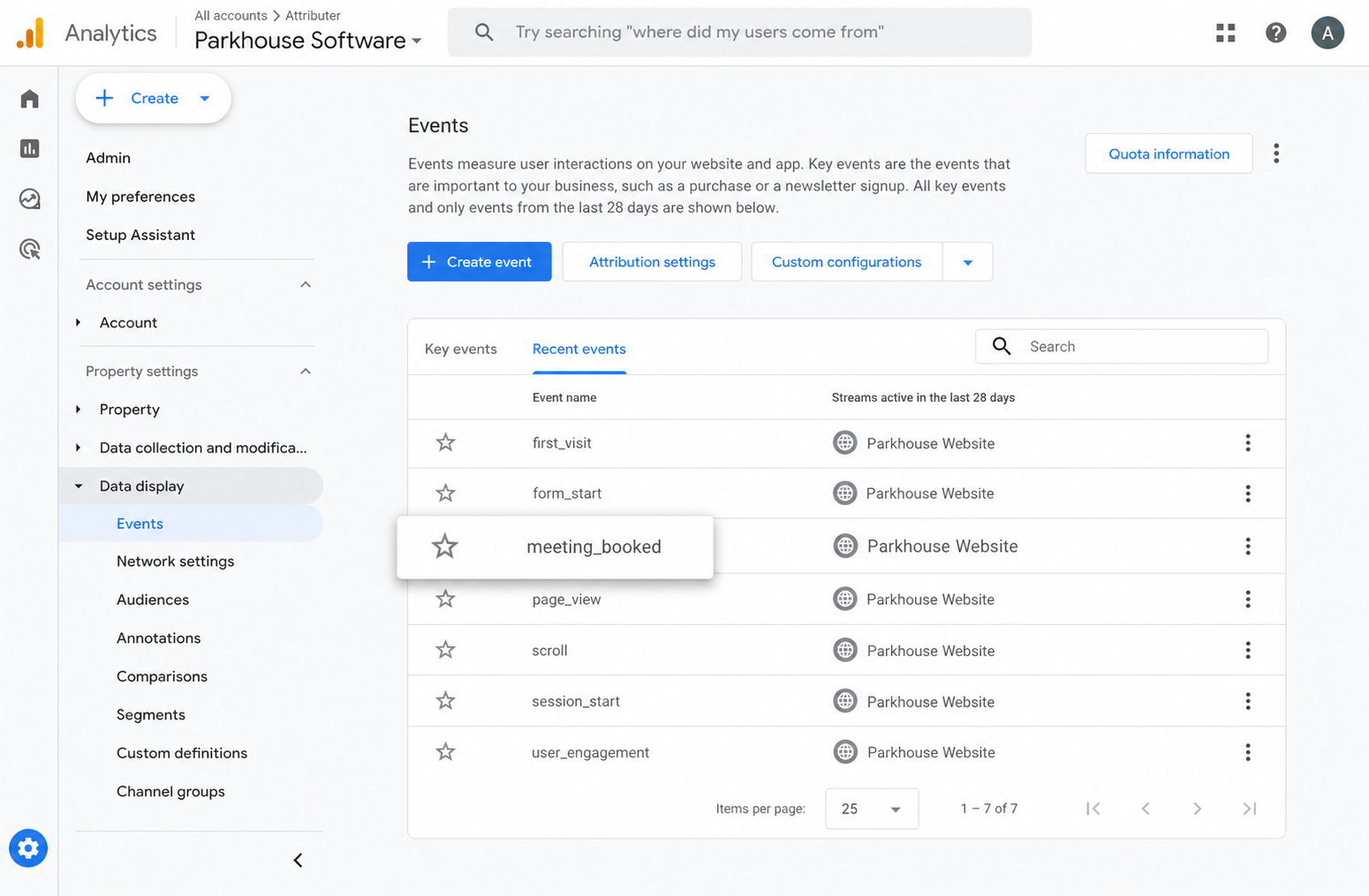
After that, open Google Analytics and navigate to the Real-Time dashboard. Look in the Recent Events section. If your meeting_booked event shows up there, everything is working as expected and you are good to go.
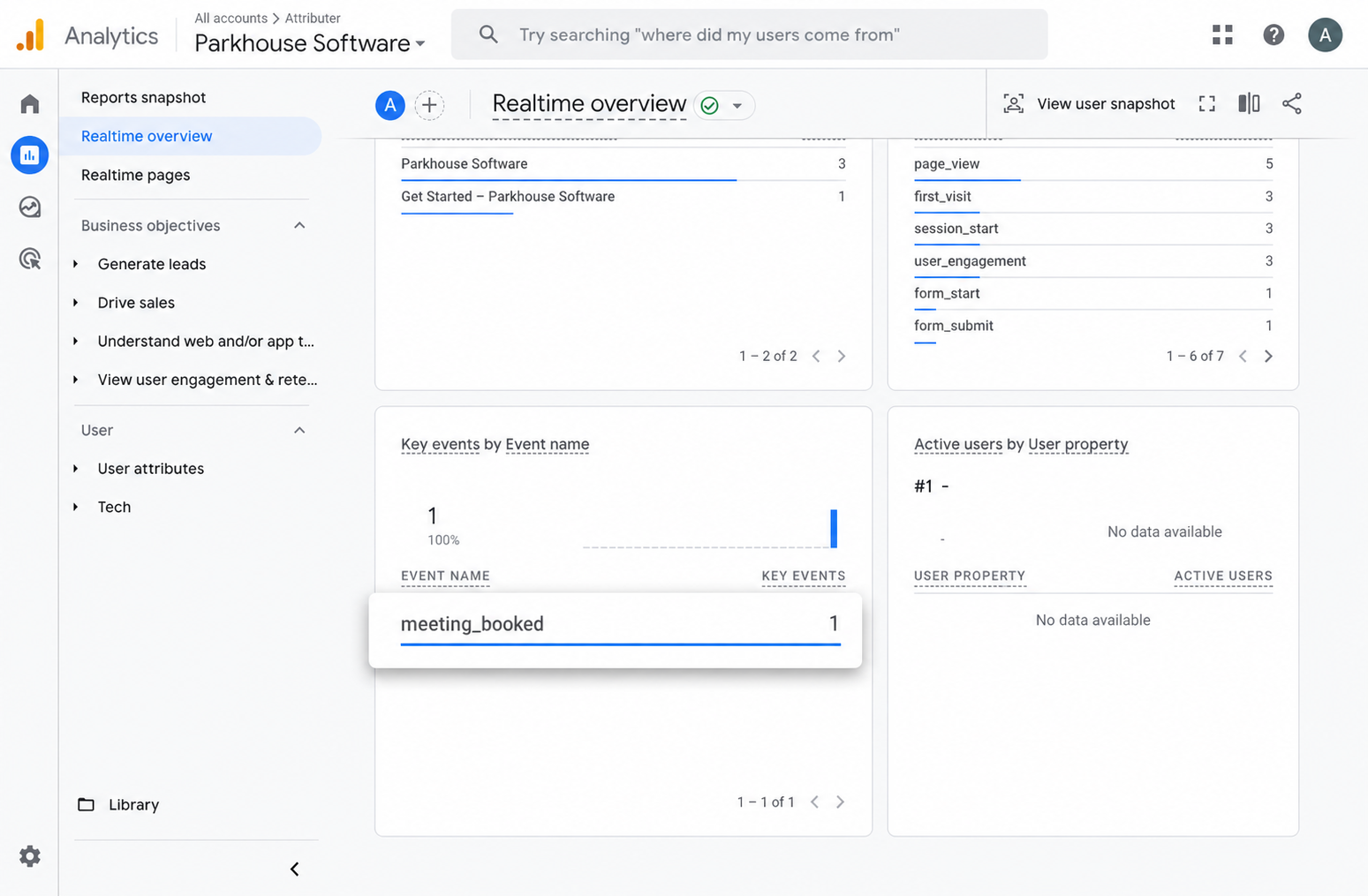
Step 4: Mark the event as a 'Key Event' (Optional, but recommended)
As a final step, we recommend marking the meeting_booked event as a Key Event in GA4. This tells Google Analytics to treat it as a conversion, which unlocks additional reporting features, such as showing the number of conversions in your acquisition reports and using it as a conversion point in funnel and path analysis.
To do this, go to the Admin section of your GA4 property and click Events under the Data Display menu. Switch to the Recent Events tab, find your meeting_booked event (or whatever name you chose during setup), and click the star icon next to it to mark it as a Key Event.
Why Converly is the best way to trigger conversions in Google Analytics
There are a few different ways to track Calendly bookings as conversions in Google Analytics. Some people use Calendly's built in analytics integrations, others try to set up custom events through Google Tag Manager.
So why go with Converly? Here are some key reasons:
1. No code or complicated setup
Most other methods for tracking Calendly bookings as conversions involve setting up custom event listeners in Google Tag Manager or writing JavaScript to detect when the Calendly scheduling confirmation appears. This can get technical fast, especially if you are not a developer.
Converly makes it much simpler. The visual workflow builder is designed to be intuitive, and if you have used tools like Zapier or HubSpot Workflows before, it will feel second nature.
Just pick your trigger (a Calendly booking) and choose what should happen next (such as sending a conversion event to Google Analytics). No code, no Tag Manager, no frustration.
2. More accurate conversion numbers
Converly uses the Google Analytics Measurement Protocol to send your conversions directly to Google's servers rather than relying on a browser tag.
This is a big deal because it gets around ad blockers and the privacy restrictions built into browsers like Safari and on iOS devices.
The result? More accurate conversion data.
To put it in numbers, a recent analysis of more than 7 million conversions found that tag based tracking missed roughly 30% of conversions (about 5% lost to ad blockers and another 25% lost to browser privacy restrictions).
Switching to server-side tracking with Converly means you get those missing conversions back in your reports.
3. Supports multiple tools and platforms
Converly connects with more than 50 different tools, from form builders and scheduling widgets to chatbots and beyond. It also sends conversion events to a broad range of destinations, including Google Analytics, Google Ads, Meta Ads, LinkedIn Ads, and many others.
So if you start advertising on a new platform or add another scheduling or form tool to your site, setting up conversion tracking takes just a few clicks.
4. Makes it easy to add conditional logic
Converly allows you to create smart rules that send different conversion events depending on what actions visitors take on your site.
For example, imagine you are a marketing manager at an accounting firm. You could set up one conversion called Consultation Booked for when someone schedules a meeting through Calendly, and a separate conversion called Tax Guide Downloaded for when a visitor grabs one of your free resources.
This lets you track each conversion type independently and understand exactly which campaigns are driving high-value actions like booked consultations versus lower-commitment actions like content downloads.
5. Great support provided for free
If you have ever tried reaching out to Google or Meta for help setting up conversion tracking, you will know how tough it can be to get a useful response.
Converly is different.
Our team brings over 20 years of experience in advertising and analytics, and we are genuinely here to help. Whether you prefer email or a quick video call, we offer free support to make sure your tracking is configured correctly and running smoothly.
6. Gives you a full conversion log and email alerts
If you rely on something like Google Tag Manager to send your bookings to Google Analytics, there is no easy way to confirm it is still doing its job. A couple of tests on day one prove it worked then, but unless you keep checking week after week, the whole thing can fall over without warning (someone edits the Calendly widget, changes a tag in Google Tag Manager, or adjusts something in Google Analytics) and nobody notices.
Converly hands you that visibility instead. Every booking that fires lands in a full conversion log, showing exactly what data Converly captured, what it passed along to Google Analytics, the response Google Analytics returned, and plenty more.
You can layer email notifications on top of that too. Choose to get an email for every booking sent to Google Analytics, or limit them to failures only, so the second your tracking stops working you find out about it.
3 useful reports you can run when you track Calendly bookings as conversions in Google Analytics
Over 15 years of leading marketing teams, I have spent countless hours in Google Analytics trying to understand where our visitors and leads were really coming from.
Of all the reports I have built during that time, these 3 have consistently delivered the most valuable insights. Once you are tracking Calendly bookings as conversions in Google Analytics, you will be able to run them yourself.
1. Conversions by Channel
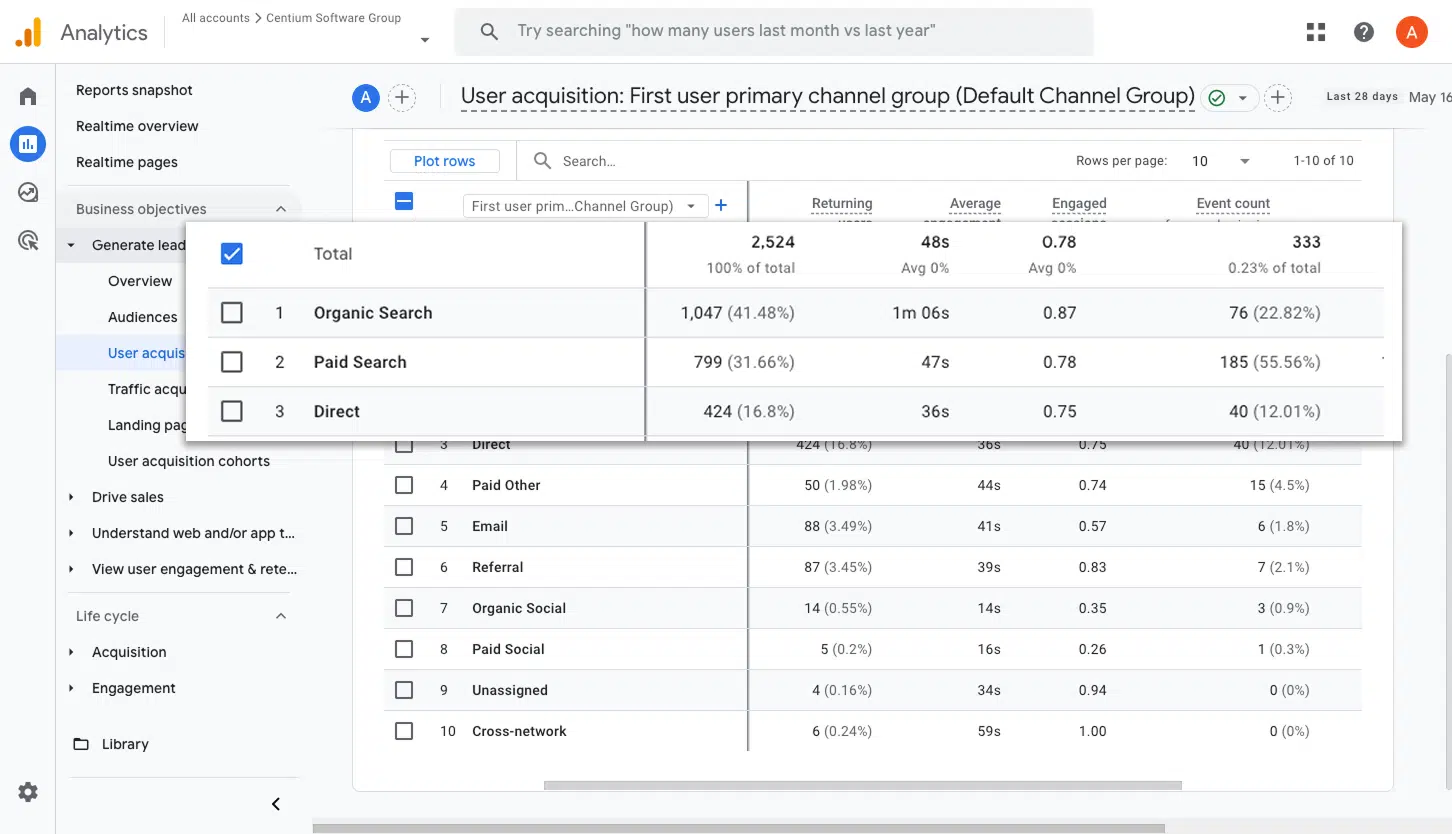
This report shows how many booked meetings are coming from each of your marketing channels, whether that is Organic Search, Paid Search, Paid Social, Organic Social, or any other source.
It is a great way to see which channels are actually driving meetings (not just clicks or page views) and to identify where there might be room to generate even more.
2. Conversions by Meta Ads Network
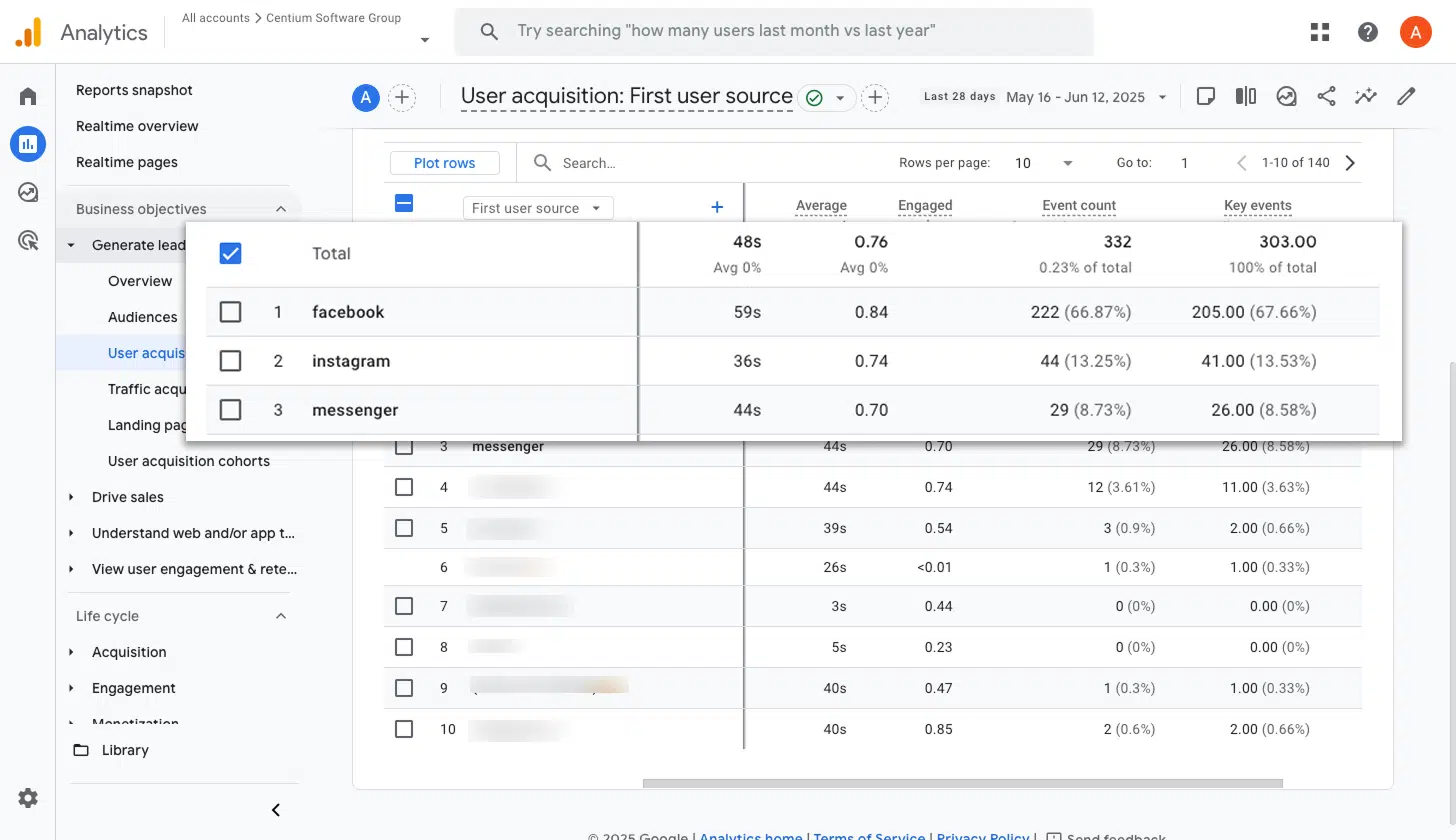
If you are running Meta ads, they are probably appearing across several networks, including Facebook, Instagram, Messenger, and WhatsApp.
Since each platform tends to perform differently, it is important to know which ones are genuinely resulting in booked meetings rather than just accumulating impressions and clicks.
This report makes that clear by breaking down conversions by network, so you can put more budget toward the platforms that are delivering and pull back on the ones that are not.
3. Conversions by Google Ads Campaign
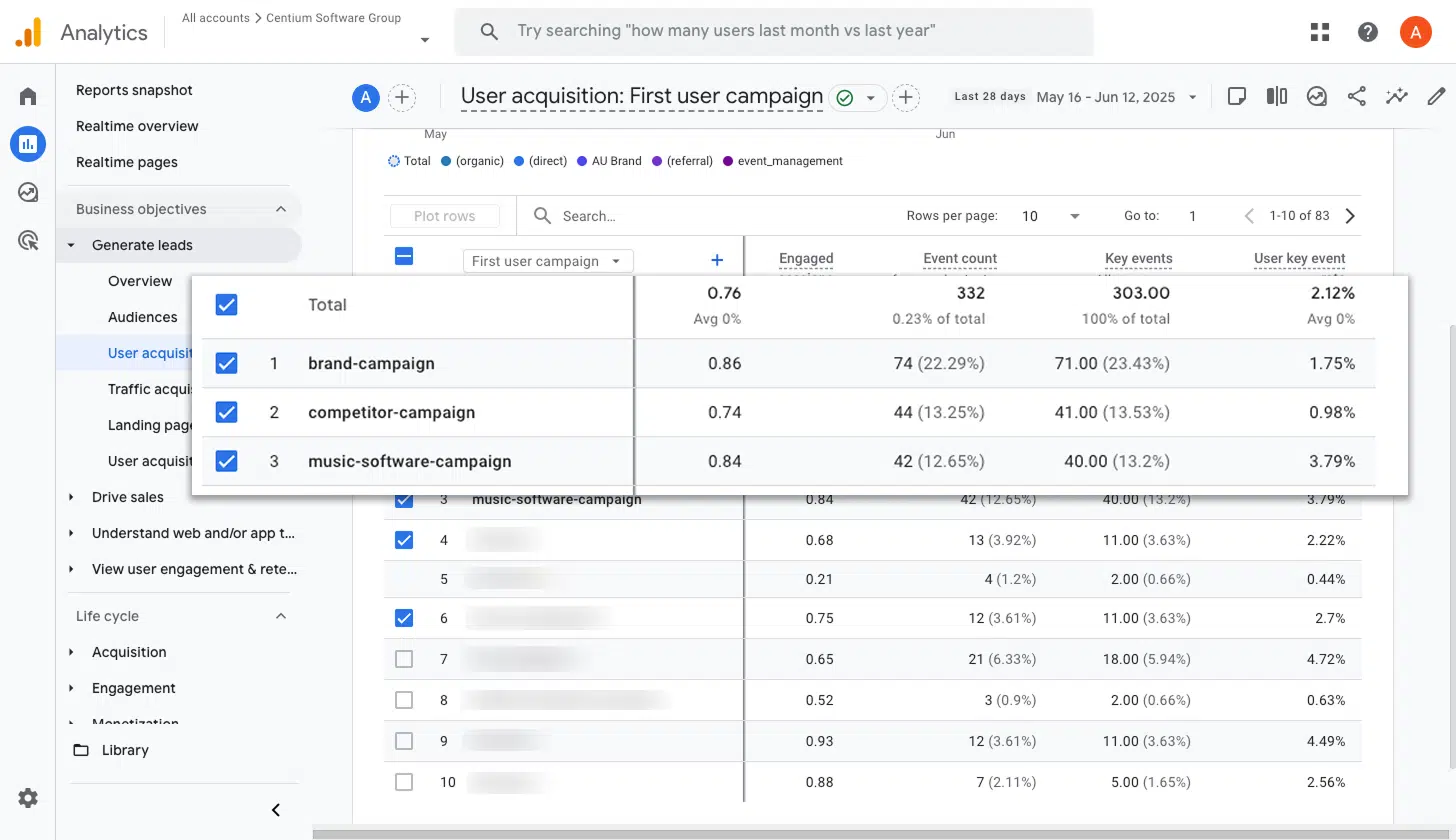
If you are running Google Ads, chances are you have several campaigns going at once. Some might target different services, others could focus on branded versus non-branded keywords, and some may be aimed at specific locations.
Knowing which campaigns are actually driving booked meetings is essential for budget allocation. This report gives you that clarity. It breaks down conversions by campaign, allowing you to put more of your budget into the campaigns that are working and dial back the ones that are not.
Wrap up
Converly makes it easy to send conversion events to Google Analytics every time someone books a meeting through Calendly on your website. No code, no complicated setup, no hassle.
And if you later decide to advertise on platforms like Google Ads or Meta Ads, adding them to your existing Conversion Flow takes just a few clicks. The same conversion data will automatically flow through to those platforms too.
Ready to get started? There is a 14-day free trial, and most people have everything up and running in under 10 minutes. Give Converly a try and see how much easier conversion tracking can be.
About the author

Aaron is the founder of Converly. With over 15 years of experience in digital marketing and SaaS, he's passionate about helping businesses track and optimise their ad conversions.