


Track Avada Forms form submissions as conversions in Google Ads
Learn how to send server-side conversions to Google Ads every time a visitor submits one of your Avada forms. No coding required!
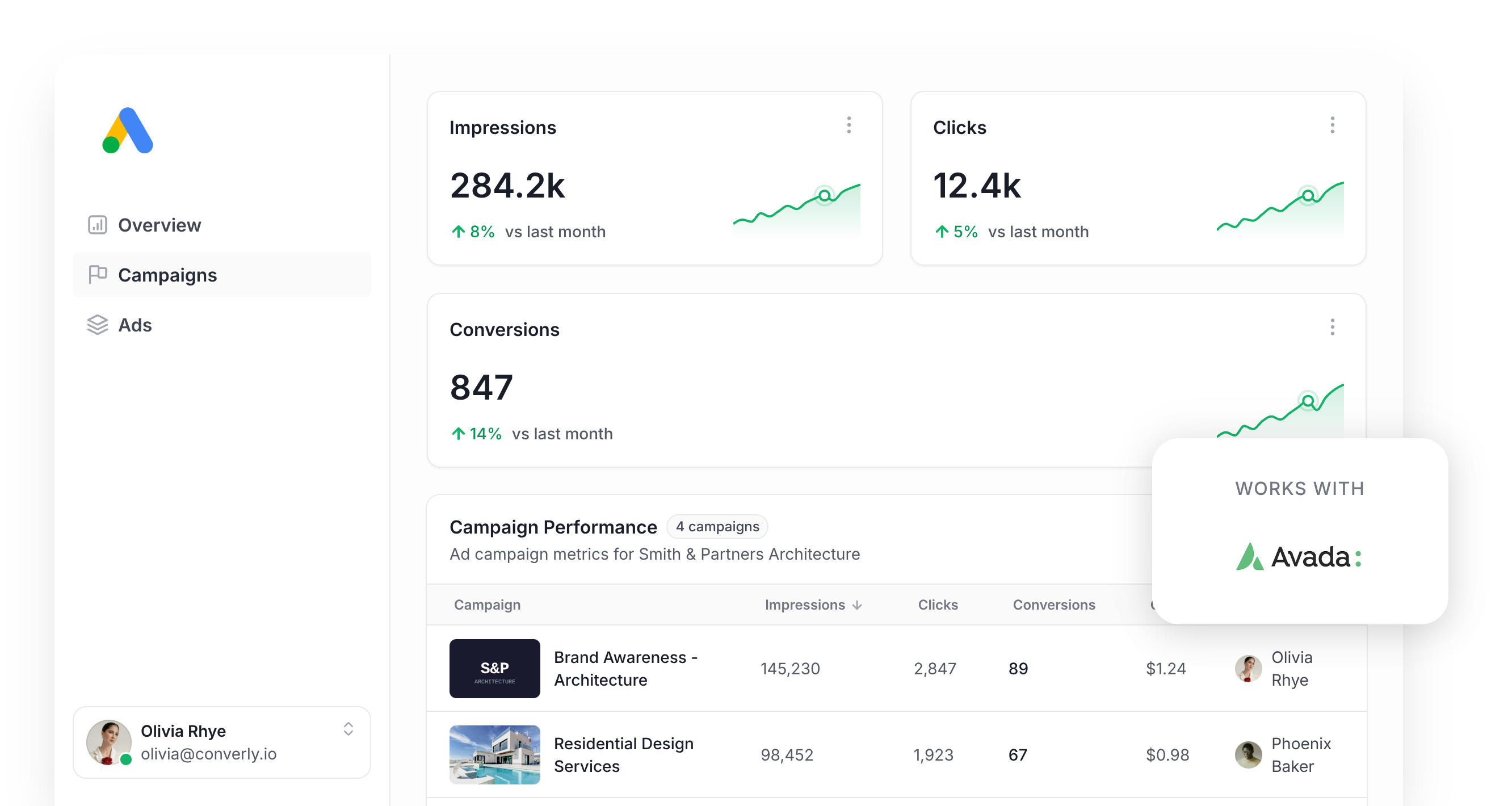
If you're running Google Ads and sending traffic to a WordPress site built on the Avada theme, you've probably run into the same wall a lot of marketers do. You need to set up conversion tracking, but you don't know how to.
A lot of posts on the web recommend using Google Tag Manager, but that means writing custom code and building out triggers, variables and tags just to catch a form submission event and pass it through to Google. A lot of effort.
You can also fire a conversion off a thank-you page, but that approach has gotten much less reliable over the years. Ad blockers and privacy tools built into browsers like Safari mean that, if you take this path, 30+% of your conversions will be blocked before they ever reach Google. And on top of that, Google Ads wants the lead's name, email, and phone number to be passed through with each conversion, and none of that data is available on a thank you page (it's on the previous page where the form is).
So what's the right way to get accurate Google Ads conversion tracking working with Avada Forms? Let's go through it.
Why server-side tracking matters for Google Ads
Smart bidding strategies in Google Ads (things like Target CPA and Maximise Conversions) work by weighing up hundreds of data points for each searcher (location, device, time of day, interests, past purchase behaviour, etc) and then deciding how much that click is worth bidding on based on how likely the searcher is to actually convert.
It's super powerful, but it only works if you have accurate conversion tracking set up. Without it, Google has no idea what a good lead looks like for your business so will end up bidding for people who aren't likely to convert.
But the standard ways of tracking conversions (thank you page visits, or a Google Tag Manager setup) only work if the Google tag successfully loads and fires inside the visitor's browser, and plenty of things get in the way of that:
- Ad Blockers - Browser extensions built to block ads also block the Google tag itself, so nothing the visitor does on your website gets recorded.
- Privacy Features in Browsers - Safari and similar browsers limit how long cookies set by the Google tag can stick around (often just a single day), so unless the conversion happens on the same day as the click, Google has almost no shot at connecting the two.
- Using multiple devices - Someone might click your ad from their phone in the morning and come back to fill out your Avada form from a laptop that night. Browser tracking has no way to link those two sessions together, so the conversion can't be attributed back to the original ad click.
Server-side tracking is the answer to these issues. Instead of relying on the visitor's browser to send the conversion to Google, Converly sends the lead's information directly to Google's servers, so there's no way for an ad blocker or privacy setting to interfere.
The payoff is measurable too. Google's own data shows that businesses moving to server-side tracking see conversions climb by 23% on average, while cost per conversion falls by around 10%, simply because the algorithm finally has enough real conversion data to figure out who your best customers are and find more of them.
3 simple steps to send server-side conversions to Google Ads from Avada Forms
Connecting Avada Forms to Google Ads with server-side tracking only takes 3 steps.
Step 1: Build your Conversion Flow in Converly
Converly is a dedicated conversion tracking tool. It does the heavy lifting of connecting Avada Forms to Google Ads (and setting it up doesn't require writing code or doing complex configuration).
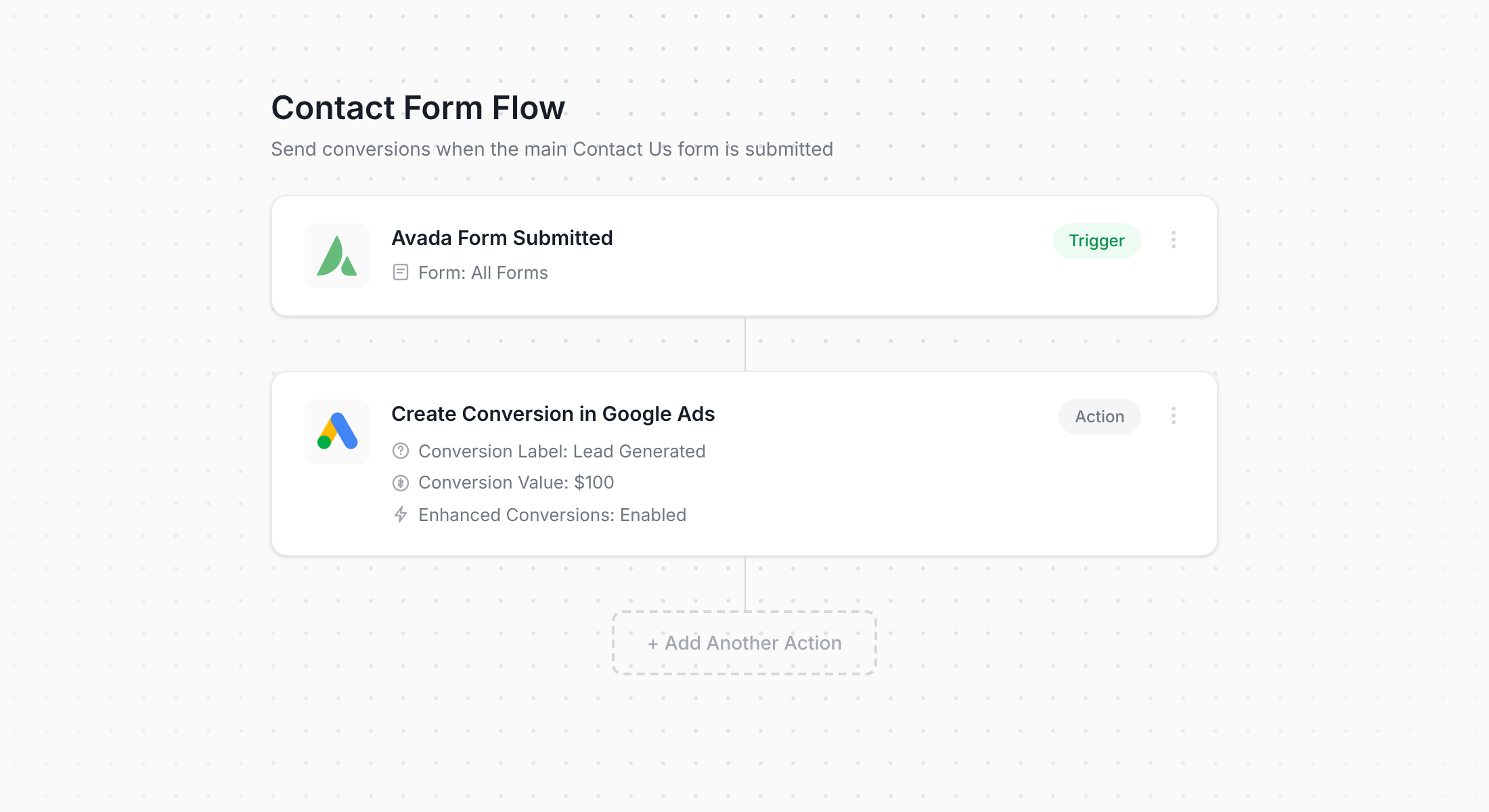
Anyone who's used tools like Zapier or HubSpot Workflows will recognize this layout immediately. To set up Converly, you simply pick a trigger (an Avada form being submitted on your site), then choose the action you want Converly to take (sending that submission to Google Ads as a conversion).
That's genuinely the entire setup. A couple of clicks and server-side conversion tracking is live in your Google Ads account.
Step 2: Add the Converly code to your website
Once your Conversion Flow is published, Converly gives you a little code snippet to put on your site.
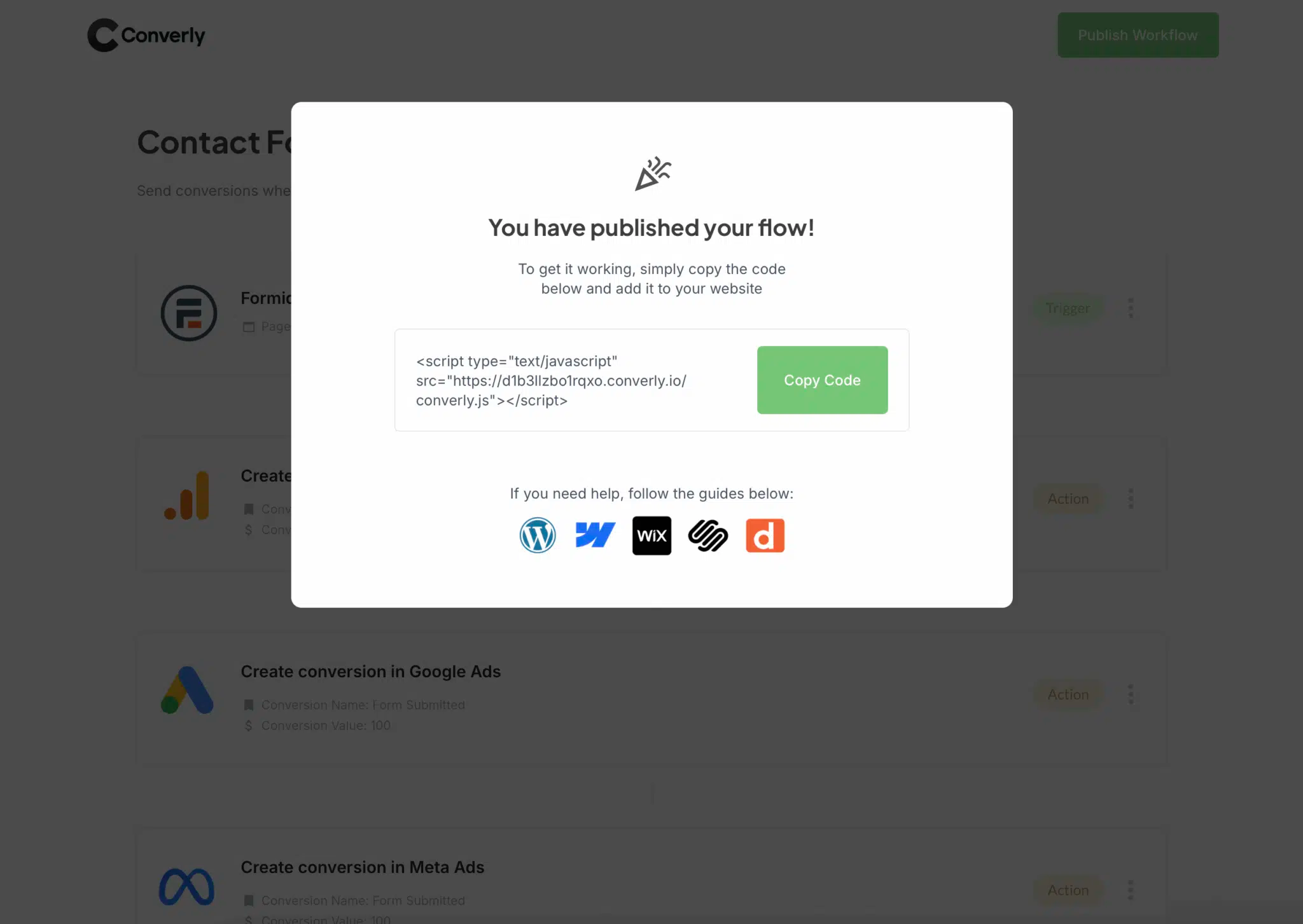
For an Avada site, the easiest place to add this is under Avada's theme options in the Scripts section. If you already run Google Tag Manager on the site, you can add it as a custom HTML tag there instead.
Step 3: Test it works
Head to your live site and submit one of your Avada forms as a test.
Then jump back into Converly, open the Conversion Flow you just built, click the 3 dots menu in the top right, and select View Logs.
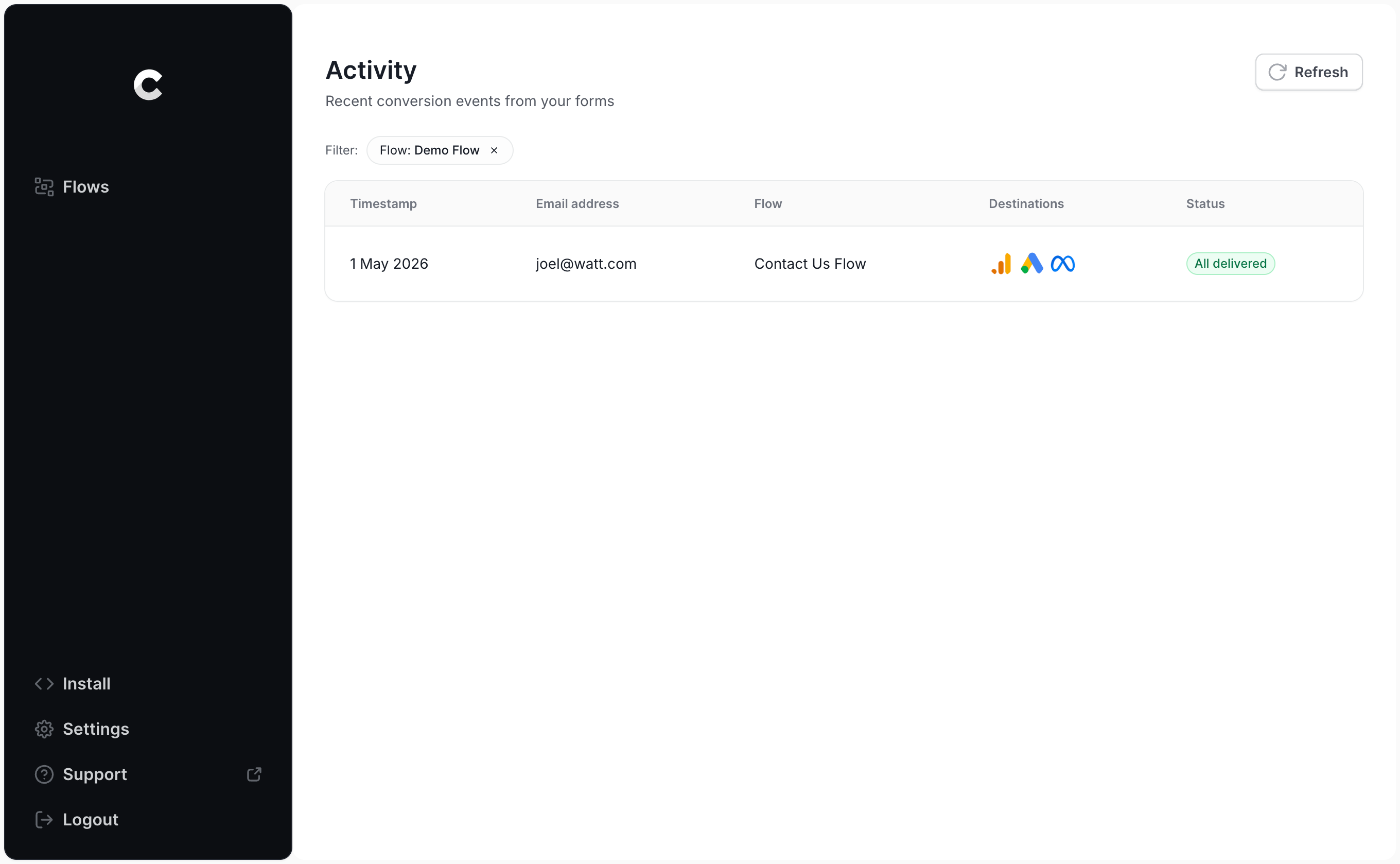
Click into the entry that was just created and you'll see everything Converly captured, plus confirmation of whether Google Ads accepted it.
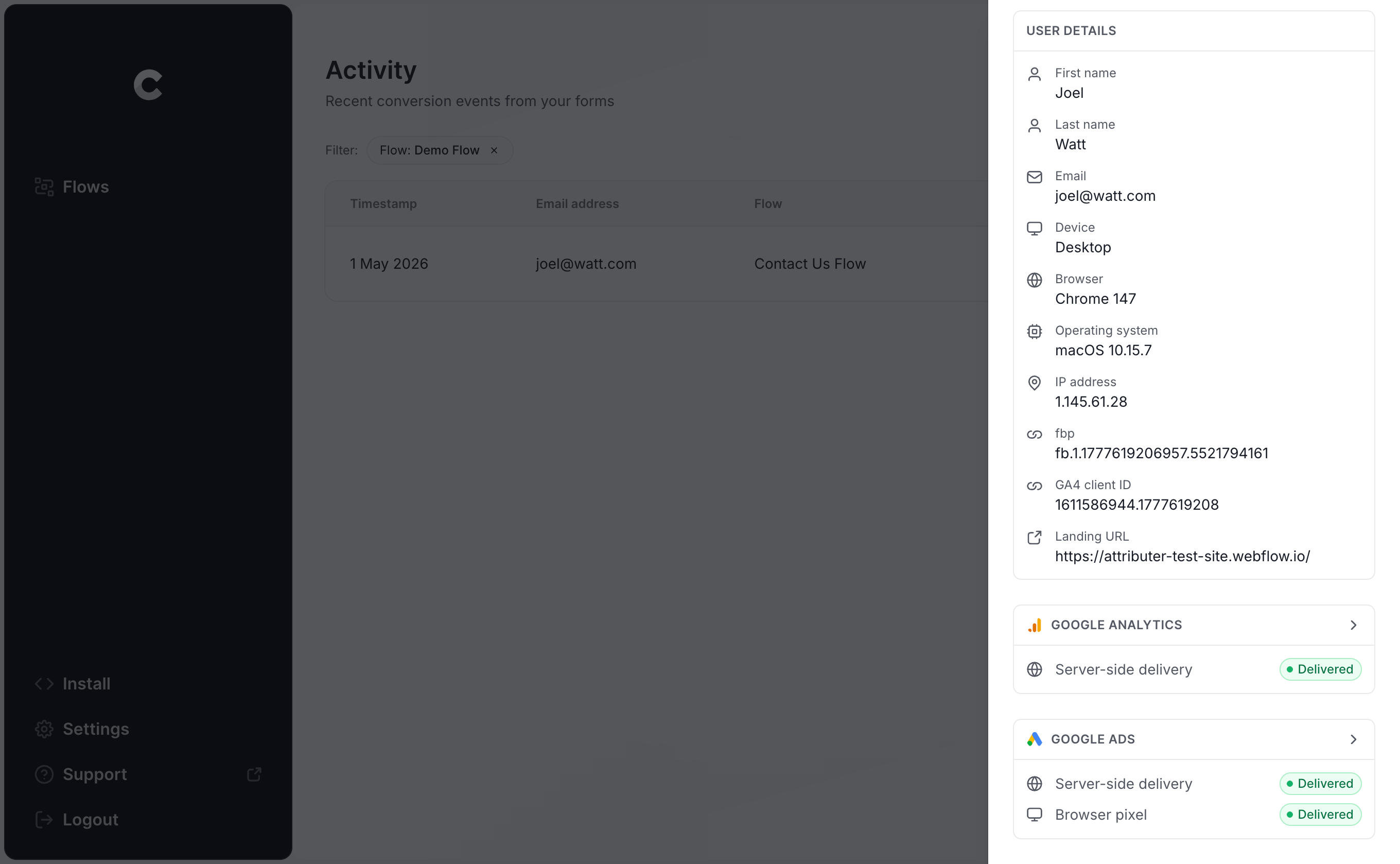
Want more detail? You can drill down even further to see the raw payload Converly sent to Google Ads and the exact response that came back.
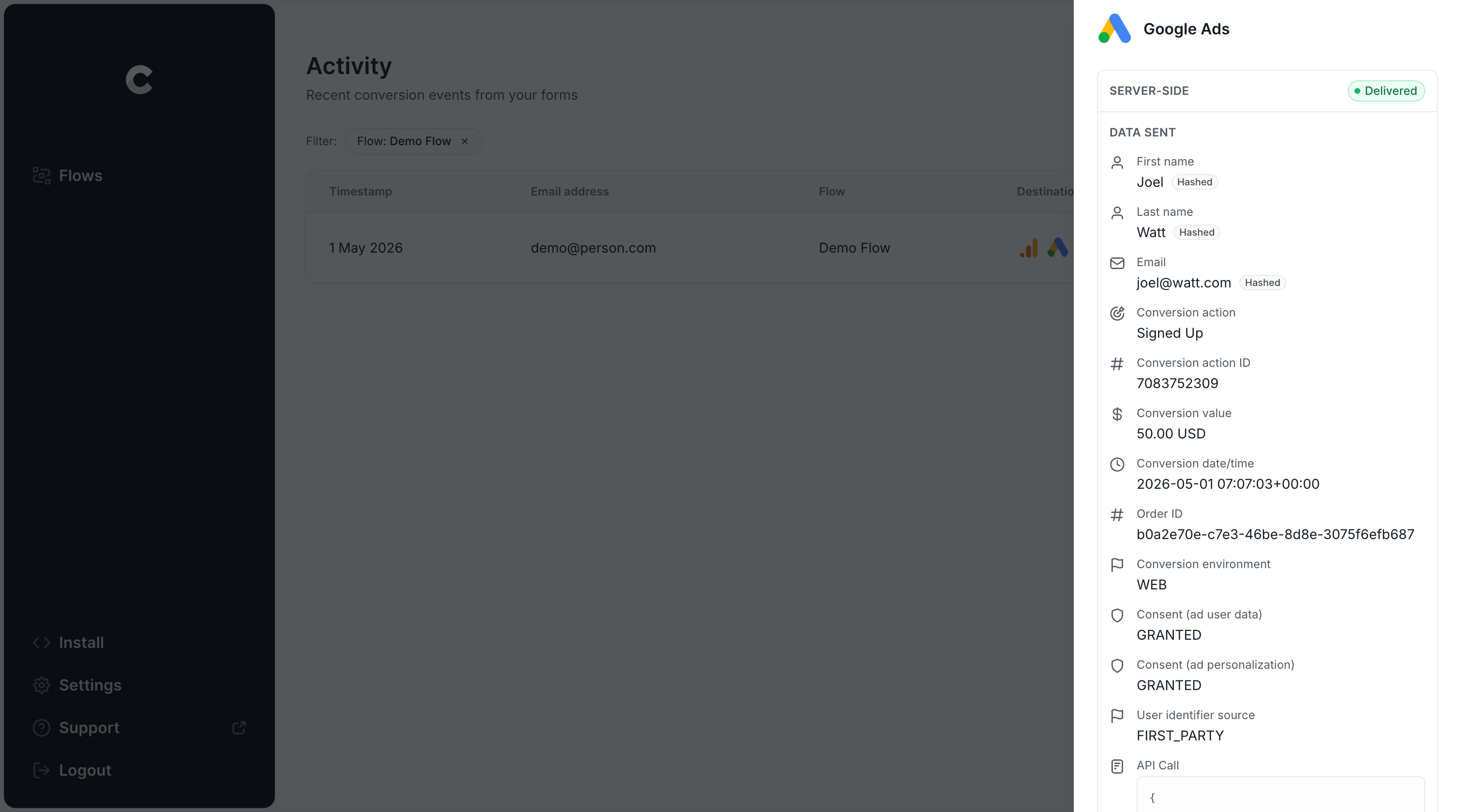
Once that test submission shows up as successfully delivered, you're done. Most people get through all 3 steps in under 5 minutes.
Why Converly is the best way to send conversions to Google Ads from Avada Forms
There are other ways to get Avada form submissions into Google Ads as conversions. Here's what sets Converly apart.
1. Easy to set up
Google Tag Manager tends to be the first thing people try, and it's a lot more involved than it looks. You'd need to write code to capture submissions from your Avada forms, push the lead's details into the dataLayer, hash everything with SHA256 the way Google requires, then wire up the matching triggers, tags, and variables.
Unless you already know GTM well, that adds up to hours of setup just to get basic tracking online.
Converly skips all of that. Choose your trigger (an Avada form being submitted), choose your action (a Google Ads conversion), and it's ready to go. No code, no GTM rabbit hole.
And if you use tools like Claude or ChatGPT, you can simply connect your account and tell it to ‘Setup conversion tracking in Google Ads from Avada Forms’ and your AI tools will set up everything for you (using our MCP or CLI)!
2. Not affected by ad blockers and privacy restrictions
Any browser-based method (whether that's GTM or tracking thank you page visits) loses conversions to ad blockers and privacy-focused browsers before Google ever sees them. One study covering more than 7 million conversions found tag-based tracking was missing close to 30% of conversions.
Because Converly sends conversions straight from server to server, none of that interference applies.
3. Works across devices
It's completely normal these days for someone to click your ad on one device and finish your Avada form on another. That breaks browser-based tracking, because the ad click and the eventual conversion happen on completely different devices.
Converly gets around this by sending Google the lead's actual details (like their name, email, and so on). Google then uses this data to match the conversion back to a real person and the original ad they clicked, which means the ad that sent them to your site originally gets credit for the conversion (even if it happened weeks earlier on a different device).
4. Sends more data
On top of the basics like name, email, and phone, Converly also passes along technical signals such as the Google Click ID (GCLID), IP address, and user agent.
This extra data gives Google Ads a much better shot at matching each conversion to the person who actually clicked the ad.
5. Supports multiple tools and platforms
Converly connects to more than 100 form builders, website builders, scheduling tools, and chat widgets (Avada Forms included), and can send conversions from any of them to Google Analytics, Google Ads, Meta Ads, ChatGPT Ads, LinkedIn Ads, Microsoft Ads, and more.
That means if you pick up a new tool on your site or start advertising on a new platform, you're not rebuilding your tracking setup from scratch. Just add the new connection inside Converly and you're set.
6. Gives you a full conversion log and email alerts
With something like Google Tag Manager, you can verify it's working when you first set it up, but after that you're basically hoping it doesn't break (unless you test it each week or something).
Converly removes that guesswork entirely. Every single conversion gets logged, along with the data that was captured, what was sent to Google Ads, and how Google Ads responded.
You can also turn on email alerts (either for every conversion or only for ones with issues), so if anything breaks, you know straight away (instead of it showing up a month later as a mysterious drop in your reports).
3 things you can do once conversions are flowing properly into Google Ads
Once Google Ads has clean, accurate conversion data coming from your Avada forms, a few things become possible that weren't before.
1. Report on conversions by campaign, ad group, keyword, etc.
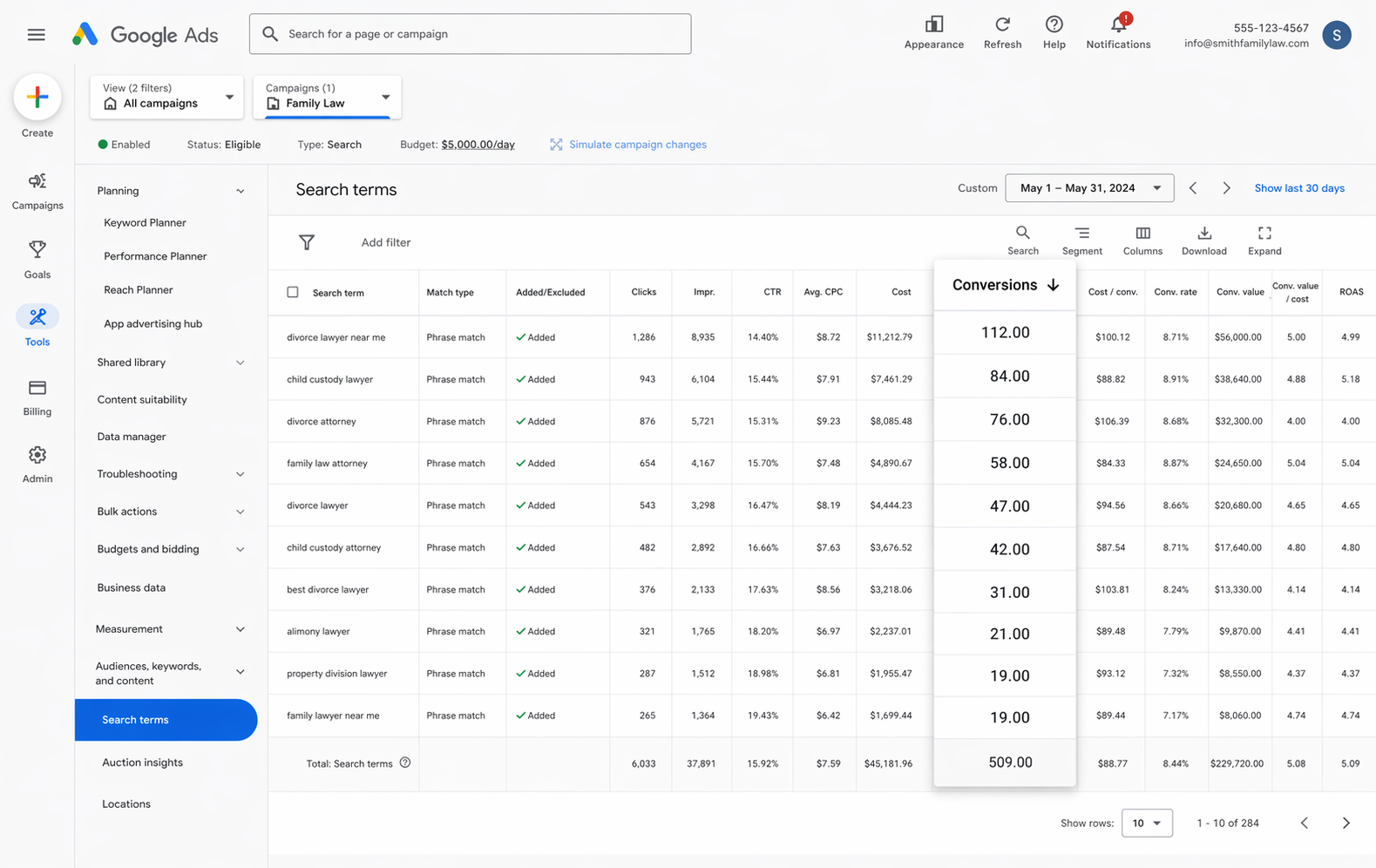
Rather than just clicks and impressions, your Google Ads account now shows the number of conversions, conversion rate, cost per conversion, and return on ad spend. And you can slice all of it by campaign, ad group, keyword, ad, and country.
That kind of visibility makes it much easier to spot which campaigns and keywords are actually earning their spend, and which ones deserve to be cut.
2. Switch to smart bidding strategies like Maximise Conversions or Target CPA
Manual bidding limits the effectiveness of your Google Ads. You're basically telling Google to bid up to a certain amount per click ($20 for example) and it will do that regardless of who the searcher is and how likely it thinks they are to convert.
Smart Bidding is the better approach. You set a target (like $45 per lead) and Google adjusts bids in real time based on signals like device, location, age, interests, and past behaviour. It bids more for people it thinks will convert and less for those it doesn't.
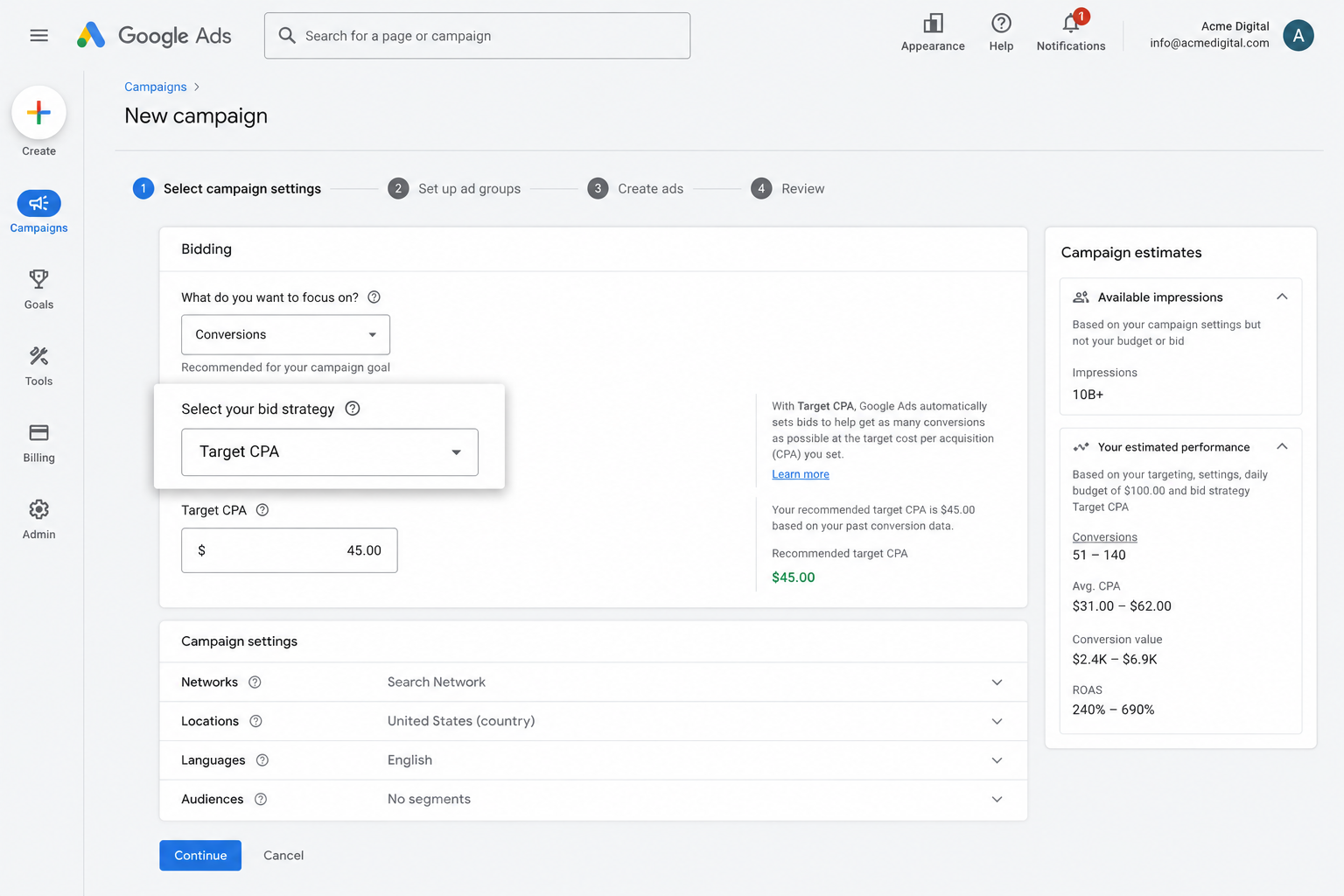
It's a genuinely effective way to bring in more leads for less, but it lives or dies on the quality of the conversion data behind it. If you tell Google which searchers converted and which didn't, it can learn what your ideal customer actually looks like, and will bid higher for those people and lower for those who aren't a good fit.
3. Retarget people who visited your site but didn't convert
Solid conversion data also opens the door to remarketing audiences built from people who visited your site but never completed one of your Avada forms.
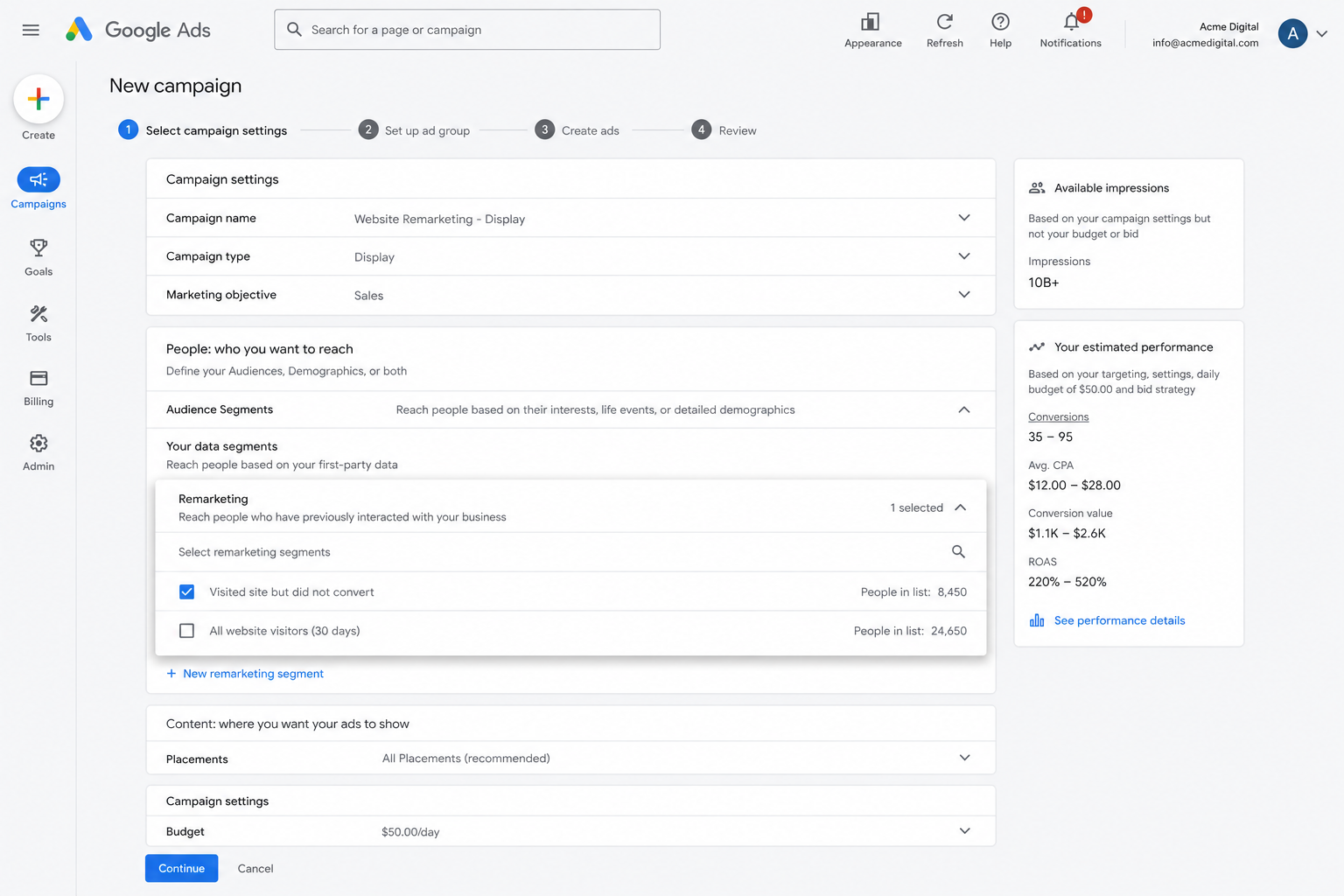
From there, a few options open up to bring them back.
- Search - Raise or lower your bids for this audience the next time they search your target keywords.
- Display - Serve display ads specifically to this group as they browse other sites across the Google Display Network.
- YouTube - Run YouTube ads aimed at people who visited but didn't convert, keeping your brand visible and pulling them back toward your site.
Wrap Up
If you are trying to set up conversion tracking in Google Ads whenever someone submits an Avada form on your website, then Converly is the best way to do it.
It's super easy to set up, and because conversions are sent directly to Google's servers, ad blockers and privacy browsers never get in the way. And because Converly sends over the full lead details (name, email, phone, IP address, user agent, and more), Google has everything it needs to tie the conversion back to the ad click that started it.
Setup only takes a few minutes and it comes with a 14-day free trial (no credit card required), so give it a try today!
About the author

Aaron is the founder of Converly. With over 15 years of experience in digital marketing and SaaS, he's passionate about helping businesses track and optimise their ad conversions.