


Gravity Forms conversion tracking: 3 best ways to do it
Learn three different ways to set up conversion tracking for Gravity Forms, and how to work out which one is right for you.
Are you running ads or pouring effort into SEO to drive people to your website, but you have no real idea which of those channels and campaigns are actually generating leads? If that sounds familiar, you are not alone.
When you cannot see which campaigns are bringing in real leads (and not just clicks and website visits), it is easy to keep spending budget on things that are not delivering.
The fix, of course, is to set up proper conversion tracking, so a conversion gets recorded every time someone submits one of your Gravity Forms.
The challenge is that there are actually multiple ways to do it, and the right one depends on your goal. If you just want to see conversion events in Google Analytics, there is a simple, free method. But if you want to send those conversions to Google Ads, Meta Ads, and the like, you need a different approach, and this is where a lot of DIY setups quietly fall short.
In this article, we'll show you three different ways to set up conversion tracking in Gravity Forms and help you decide which is the right approach for you. We build form conversion tracking for a living (it is what our product does), and Gravity Forms can be one of the trickier ones to get right, so along the way we will flag the issues we've run into so you can avoid them.
Method 1: Use the official Google Analytics Add-On for Gravity Forms
Good for: sending form submission events to Google Analytics 4.
If your goal is to see conversions in GA4, measure your conversion rate, and understand which channels and pages drive submissions, this is all you need. Google Analytics only needs to know that a conversion happened. It does not need you to send it the name or email or anything like that.
The good news is you do not have to touch Google Tag Manager or write a line of code for this one. Gravity Forms builds and maintains its own official Google Analytics Add-On, and for the "I just want to see conversions in GA4" case it is the best option. The only catch is that the add-on is available on the Gravity Forms Elite license (their top tier), so it is only an option if you are on Elite. If you are not, the GTM approach in Method 2 will get you a GA4 event too.
The add-on actually gives you multiple ways to send events to GA4, but the one we recommend for most people is the Google Measurement Protocol. The advantage there is that it sends the event directly from your WordPress site to Google's servers (as opposed to sending it to the Google Tag on your website through the visitor's browser). This means that if the lead is using an ad blocker or a privacy-focused browser like Safari, then the conversion won't be blocked like it would with some other methods.
Here's how to set it up.
Step 1: Install and activate the add-on
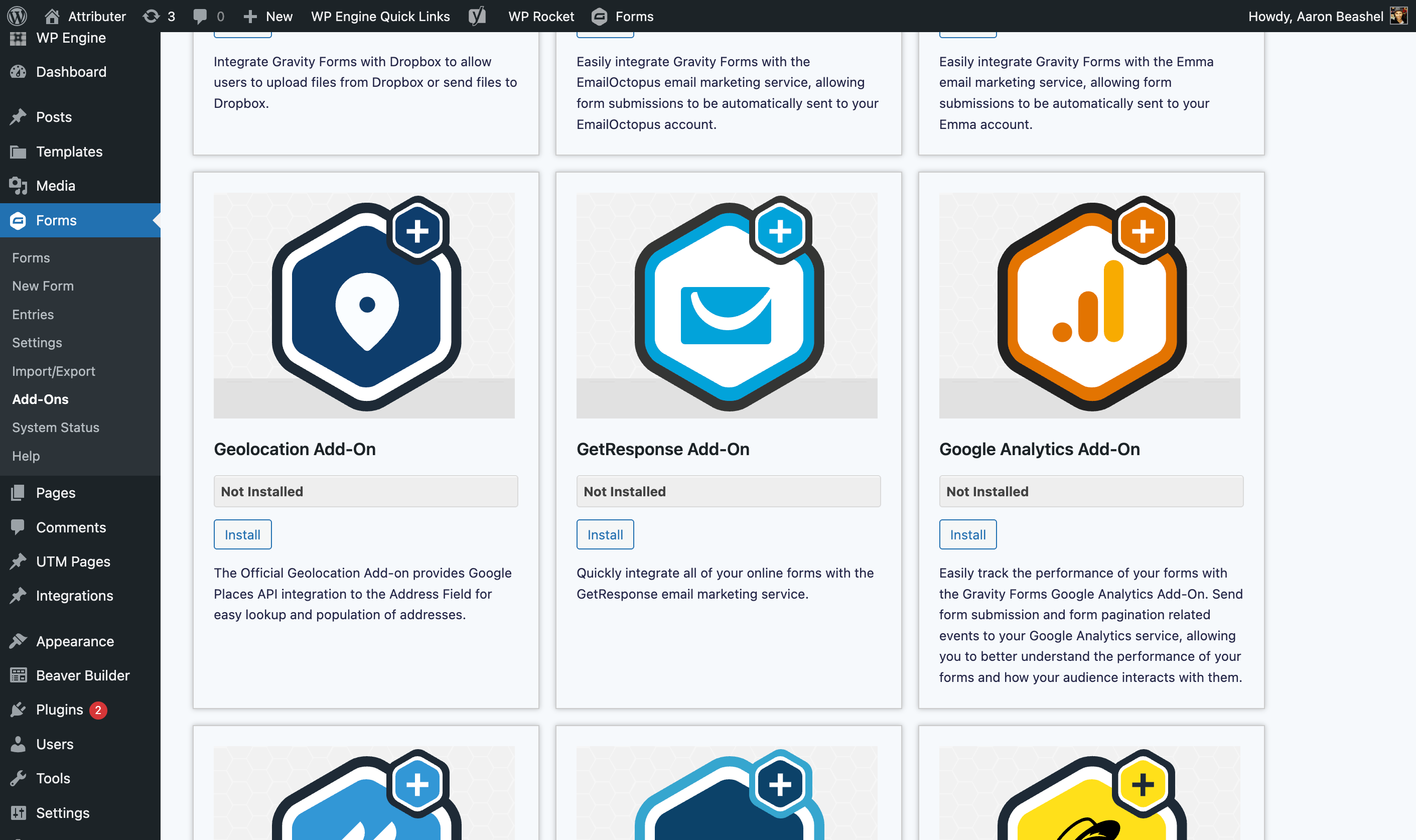
In your WordPress dashboard, go to Forms, then Add-Ons, find the Google Analytics Add-On in the list, and install and activate it. (It will only appear if your license is Elite or Nonprofit.)
Step 2: Connect to your GA4 property
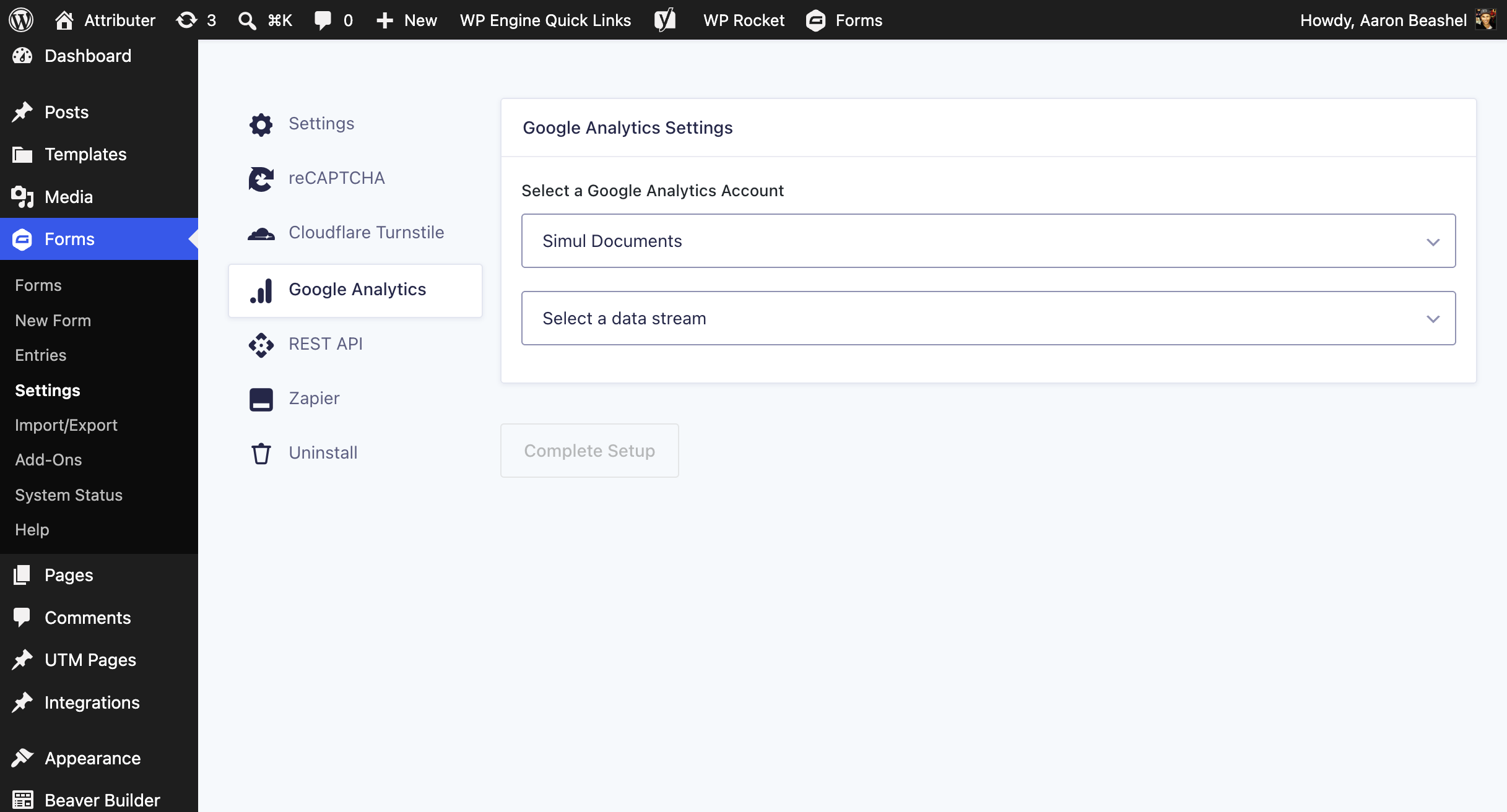
Go to Forms, then Settings, then Google Analytics. Pick Google Measurement Protocol as your connection type, then follow the prompts to authenticate with your Google account and choose the GA4 property you want your data to land in. Save your settings, and the connection is live.
Step 3: Add a Google Analytics feed to your form
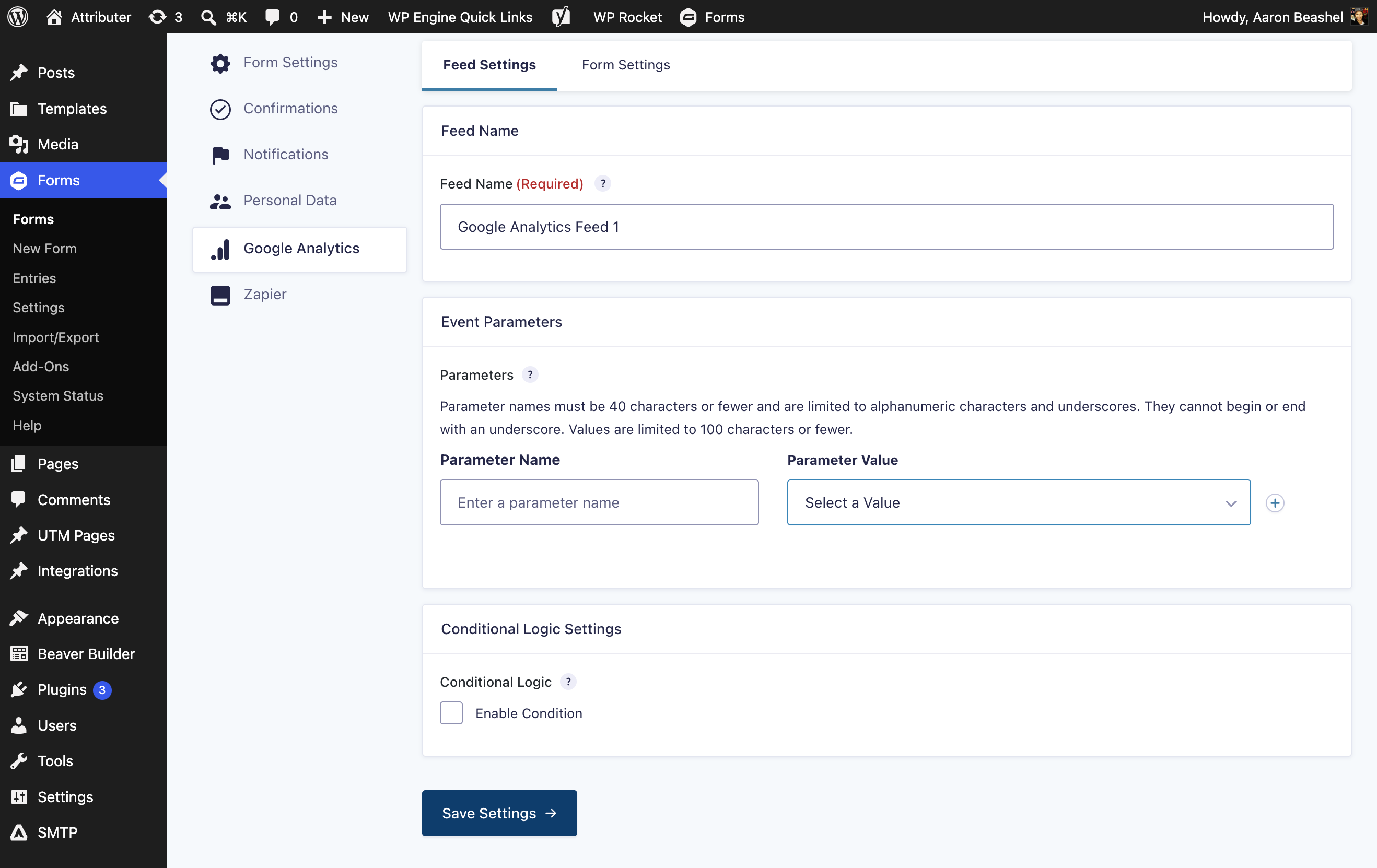
This is the step people forget, and without it nothing gets tracked. Open the form you want to track, go to Settings, then Google Analytics, then Feeds, and create a new feed. The feed is what tells the add-on to fire an event (named gforms_submission) whenever that form is submitted. You will need to set at least one event parameter for the feed to save, so add something useful like the form ID or entry ID. If you have several forms, remember each one needs its own feed.
Step 4: Test it, then mark it as a Key Event in GA4
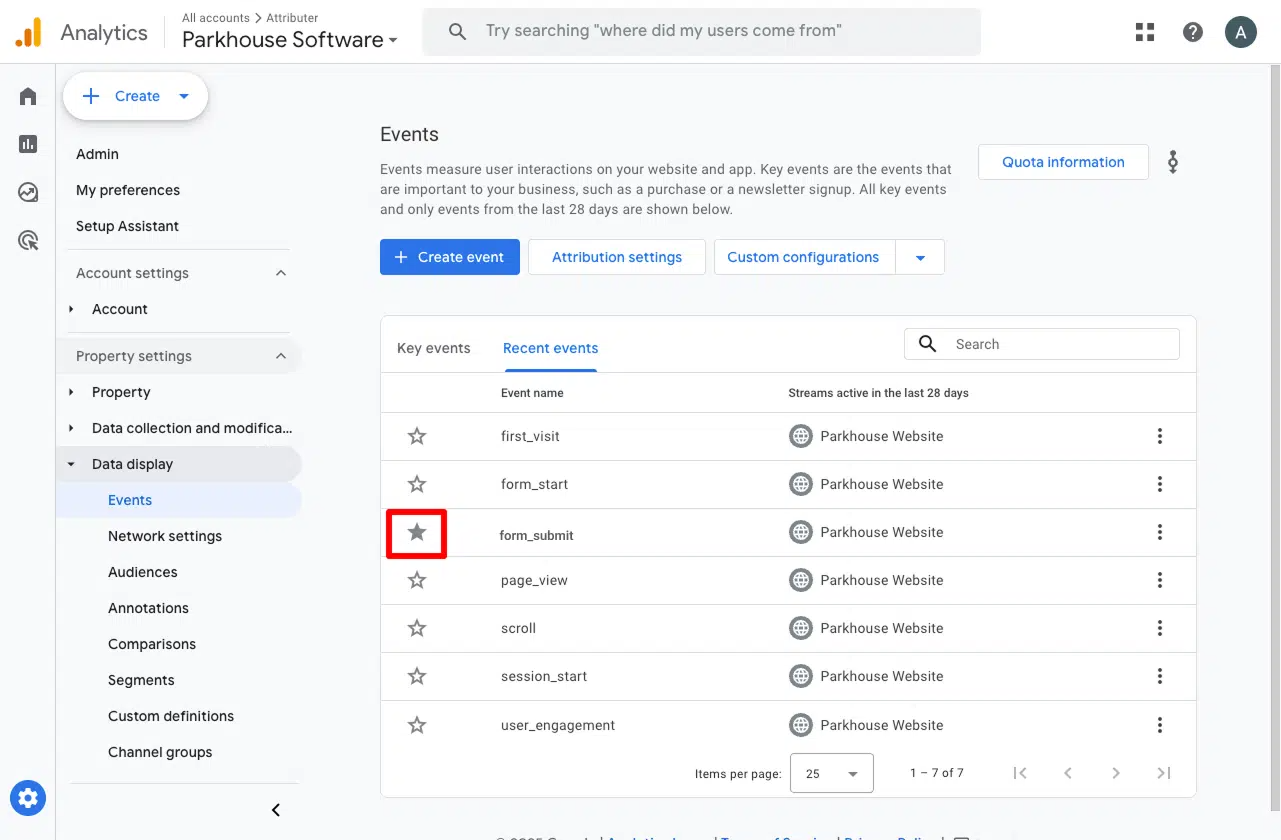
Submit a quick test entry, then open the Realtime report in GA4 and look for the gforms_submission event in the recent events list. Once you can see it coming through, go to Admin, then Events (or Key Events) in GA4, find gforms_submission, and toggle it on as a Key Event. That is what tells GA4 to treat it as a conversion, so it shows up in your acquisition and funnel reports rather than sitting there as a plain event.
Pros and cons
Pros:
- No code and no Google Tag Manager. The whole thing is set up inside Gravity Forms and GA4.
- It is official, built and maintained by Gravity Forms, so it will not silently break when Gravity ships an update (a real risk with a hand-rolled script).
- The Measurement Protocol connection sends events server side, so ad blockers and privacy browsers cannot drop them, which helps improve the accuracy of your conversion numbers.
- It detects Gravity's AJAX submissions for you, so you never have to think about which event to listen for.
- No personal data is sent to Google Analytics, so it is a clean, privacy-friendly setup.
Cons:
- It needs the Elite license, which is Gravity's most expensive tier. If you are on Basic or Pro, this option is off the table.
- It only sends to Google Analytics. It does not push conversions to Google Ads, Meta, or anywhere else, so it does nothing for ad platform optimisation (that is what Methods 2 and 3 are for).
- Getting a conversion from Google Analytics into Google Ads is possible, but it is not a good approach. Google Ads needs much more data (as you'll see if you keep reading) to properly record a conversion.
- There is a per-form setup cost. You have to create a feed on every form you want to track, and it is easy to forget on a new form and quietly lose its data.
Method 2: Use Google Tag Manager
Good for: sending Enhanced Conversions to Google Ads.
If you are running paid acquisition, simply counting form submissions (like in Method 1) is not enough. Google Ads prefers to match each conversion back to the specific person who clicked your ad, and it can only do that when you send information about the lead (like their name, email and phone number) with each conversion. This is known as Enhanced Conversions.
So for Google Ads, it isn't enough to just send an event that says "a conversion happened". You need to capture the visitor's name and email when they submit the form, hash it using SHA-256 (Google Ads requires it), and then send it to Google Ads from there.
One way to do this is to use Google Tag Manager, and here are the steps.
Step 1: Set up a Custom HTML Tag and add form listening code
In GTM, create a new Custom HTML tag, paste in the snippet below, and set it to fire on the Window Loaded trigger.
The above code does a bunch of things:
- Detects form submissions. It actually listens for form submissions in two different ways. Modern Gravity forms submit in the background and never fire the browser's normal "form submitted" event, so the code hooks into Gravity's own pre-submission step instead, which runs at the last moment while the field values are still on the page. For older or non-standard forms that do still fire the normal event, there is a second, backup listener. Between the two, the submission gets caught whichever kind of Gravity form it is.
- Extracts the name and email. The code loops through the form's fields and picks out three things: the email, the first name, and the last name. Gravity names its fields by position, like
input_24, which tells you nothing about what is inside. So instead of trusting the name, the code walks up to each field's row on the page and reads the visible label sitting next to it (e.g. Email Address, First Name, and so on). Everything else on the form is ignored on purpose, and it explicitly skips password and hidden fields. This is deliberate. By only ever reaching for email and name, the code can never accidentally scoop up something sensitive like a payment field. - Stores it in a temporary holding area. It stashes the captured name and email in memory, labelled with that form's ID, and holds it there until it hears a success signal from Gravity.
- Sends the data once Gravity confirms success. This is the most important part. The code listens for Gravity's success signal (the event Gravity fires only after it has accepted the submission and shown the thank-you message). When that signal arrives, the code takes the name and email it stashed earlier and posts them to the dataLayer as a
gravity_form_submittedevent, along with the form's ID. If the submission is rejected (maybe because it's spam or because the user entered an invalid email address), that success signal never comes, so nothing is sent. This means a failed or invalid submission can never be counted as a conversion.
The design of this code snippet actually gets around two things that often trip people up.
Catch 1: the lead's data is gone by the time the submission succeeds. Unfortunately you cannot just grab the lead's name and email when Gravity sends its success event (gform_confirmation_loaded). By that time, Gravity has already swapped the form out for the thank-you message, so the fields no longer exist, and if you tried to read them you'd get no data. That is why the code grabs the lead's details on the initial form submission call, holds them in memory, and only pushes them to the dataLayer once the success event comes back from Gravity Forms confirming the submission actually went through.
Catch 2: Gravity names every field by its position, not its type. On most form tools you could simply extract the email from the field named "email". Not on Gravity. It names the fields by position (input_1, input_2, and so on) and splits a single Name field into sub fields like input_2.3 and input_2.6. Nothing in those names tells you what is inside. The code gets around this by identifying fields the way a human would, mostly by reading the visible label next to each field, backed up by the field type and Gravity's own .3 and .6 naming for first and last name.
As you can probably tell, this is not a snippet we threw together for this article. It is a simplified version of the code we use inside Converly (our dedicated conversion tracking tool) to detect Gravity Forms submissions and capture the data. It has been through many rounds of iteration to handle edge cases (like those above) and has been tested by our customers thousands of times, which probably makes it one of the most tested and best developed snippets for capturing Gravity Forms submissions anywhere on the internet. You can paste it in with confidence.
Step 2: Create Data Layer Variables for the captured data
To make sense of this step, it helps to know what the "dataLayer" is, because the rest of the steps rely on it.
Think of the dataLayer as a messenger between your website and Google Tag Manager. Your website can send messages to it (e.g. someone just submitted a form, and here is their email and name) and GTM sits there reading every message that comes through. It is basically a running list of messages that your site sends and GTM receives.
That is exactly what the code in Step 1 does. When a form is submitted, it drops a note onto the dataLayer called gravity_form_submitted, and on that note are the three values it captured (the email, the first_name, and the last_name).
But here is the catch. Even though GTM can see the note arrive, it will not automatically pull those individual values out for you. You have to tell it which ones you want, and that is what setting up a Data Layer Variable does. It basically tells Google Tag Manager to grab specific data points with each message.
To set this up, navigate to the Variables section of Google Tag Manager, select the New button at the top of the User-Defined Variables table. Then in the configuration panel that appears, select Data Layer Variable as the Type and give it a name.
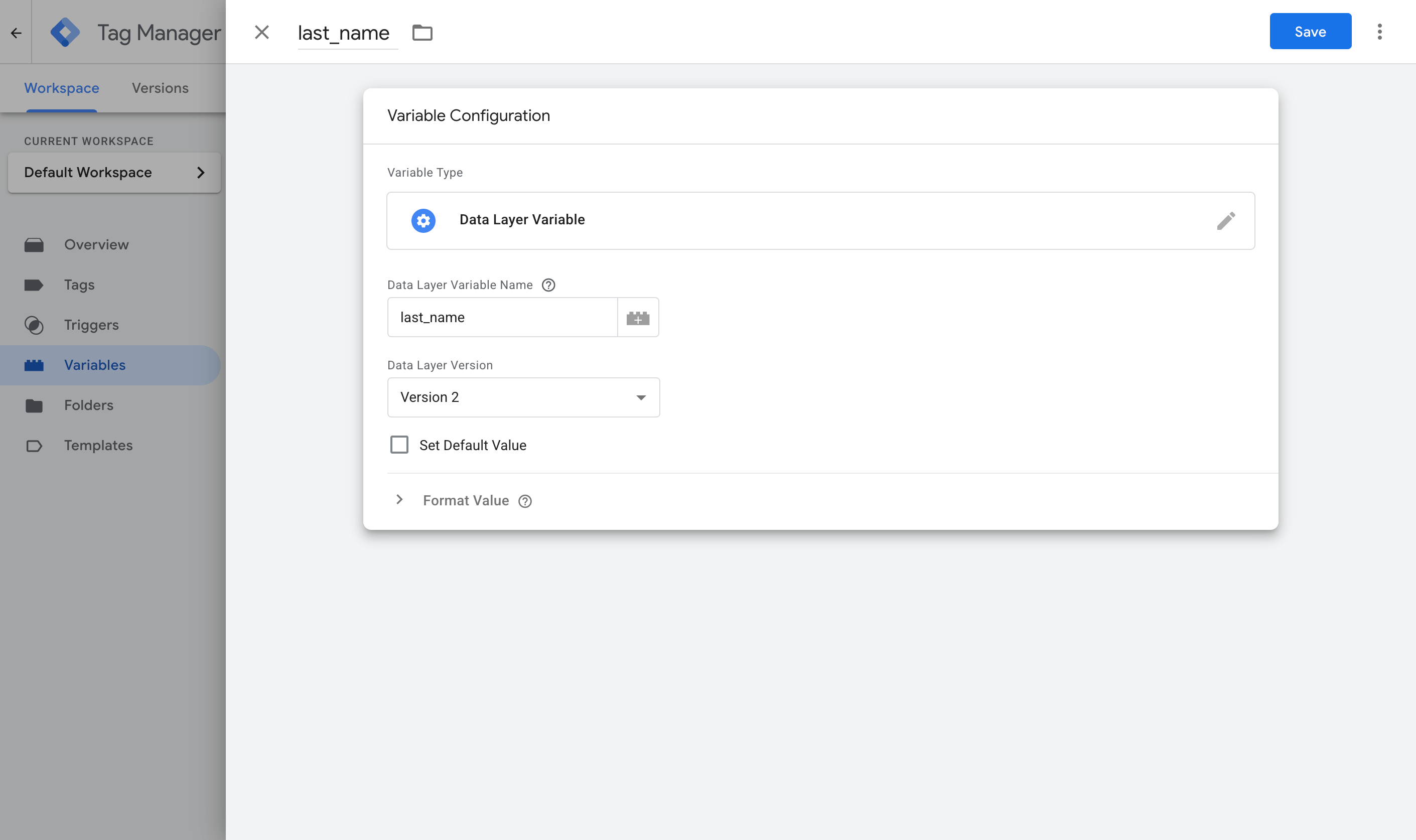
The exact details you need to enter for each of the three variables are below.
Variable 1:
- Name: Email
- Variable Type: Data Layer Variable
- Data Layer Variable Name: email
Variable 2:
- Name: First Name
- Variable Type: Data Layer Variable
- Data Layer Variable Name: first_name
Variable 3:
- Name: Last Name
- Variable Type: Data Layer Variable
- Data Layer Variable Name: last_name
Step 3: Create a Custom Event trigger
Now that you've added the code and set up the Data Layer Variables, you'd be excused for thinking that was it.
Unfortunately not, because information sitting in the dataLayer does not do anything by itself. You need to tell GTM to watch for it and treat it as the cue to fire your conversion. In GTM, that cue is called a trigger.
To set this up, navigate to the Triggers section of Google Tag Manager, click the New button to create a new trigger, choose the Custom Event type, and set the event name to gravity_form_submitted. It has to match what the code pushes exactly. This is the trigger your Google Ads tag will fire on in the next step.
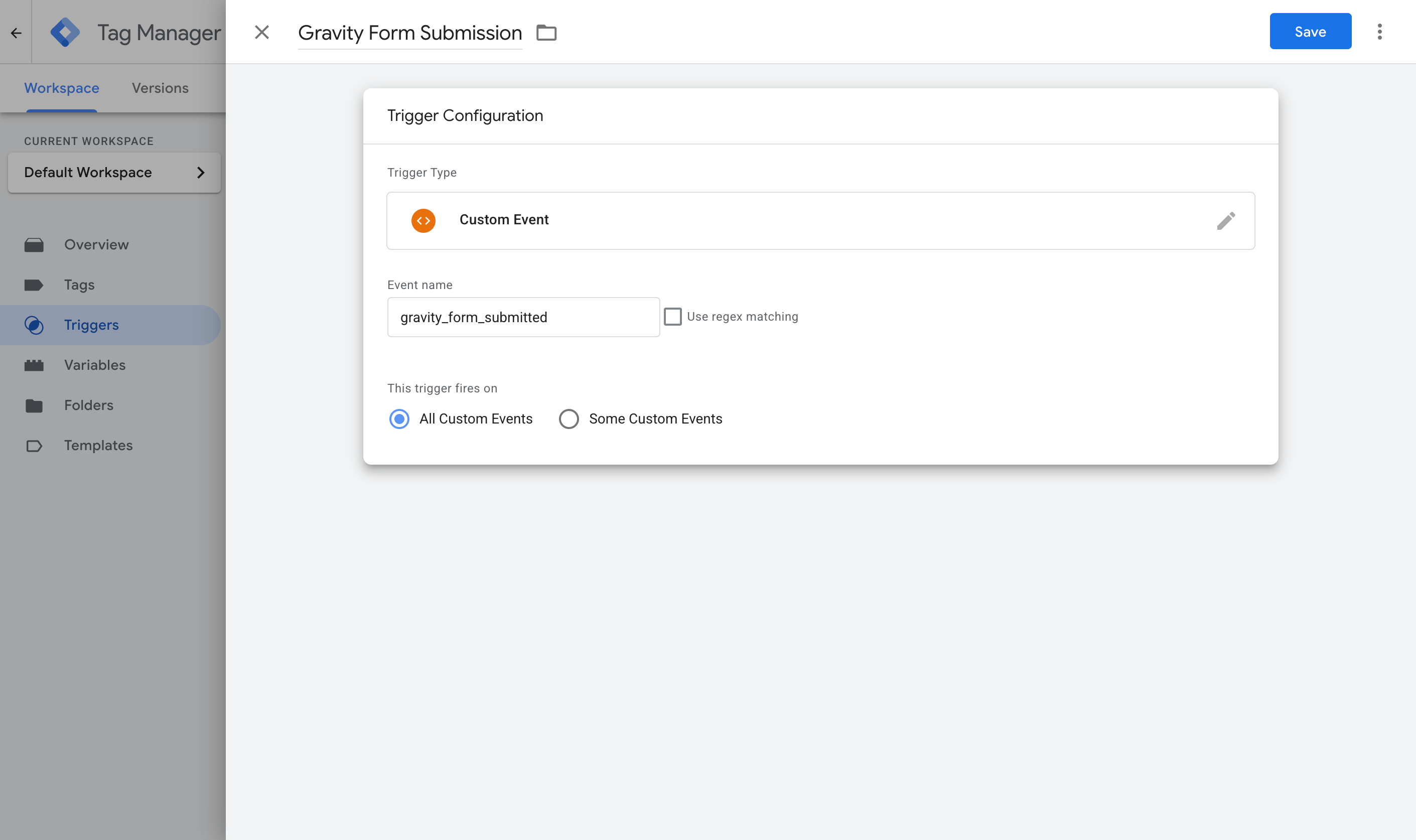
(If you ever want to track different forms separately, you can add a condition here on gravity_form_id, since the code includes that too. To fire the same conversion on all Gravity Form submissions, the event name on its own is all you need.)
Step 4: Turn on Enhanced Conversions in Google Ads
Next jump on over to your Google Ads account, go to Goals, then Conversions, then Settings, and turn on Enhanced Conversions.
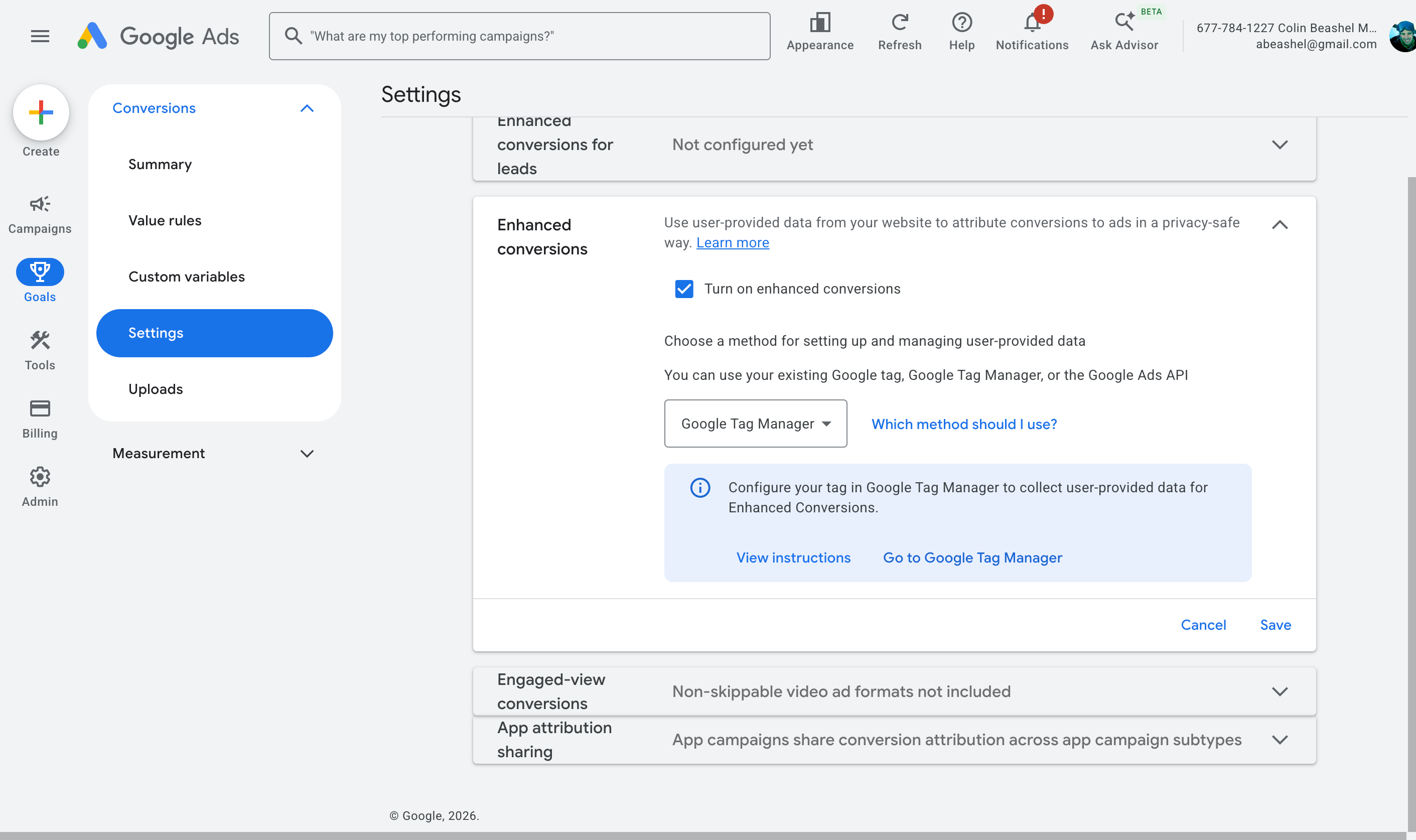
When it asks how you want to implement it, choose Google Tag Manager. This is what gives Google Ads permission to receive and use the customer data you are about to send.
Step 5: Create your Google Ads conversion tag and map the data
Back in GTM, navigate to the Tags section, select the New button to start creating a new one, choose Google Ads User Provided Data Event as the tag type, and then map the Variables you set up earlier to the data points it asks for (Email, Phone, and so on).
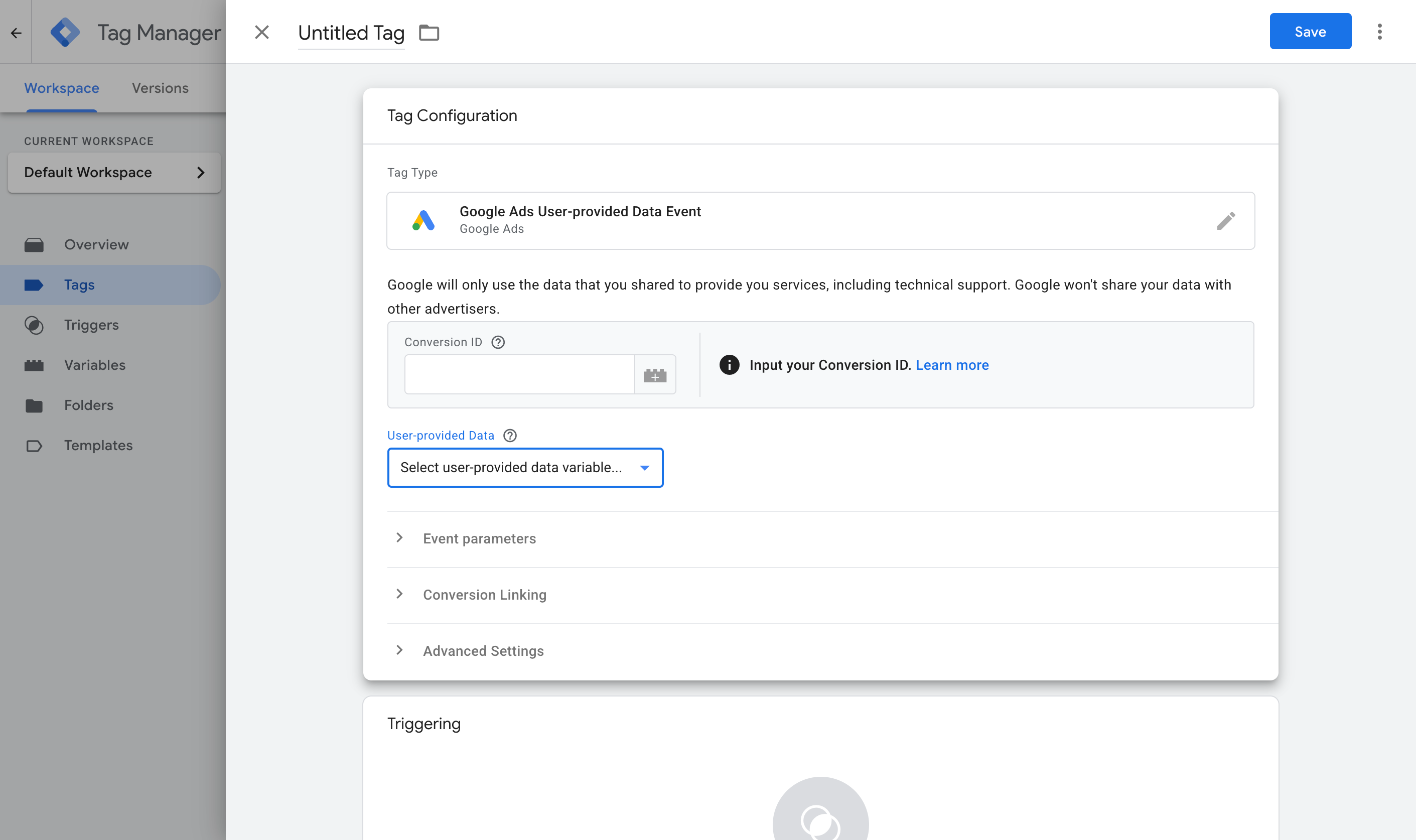
Next, set it to fire on the Custom Event trigger you created in Step 3.
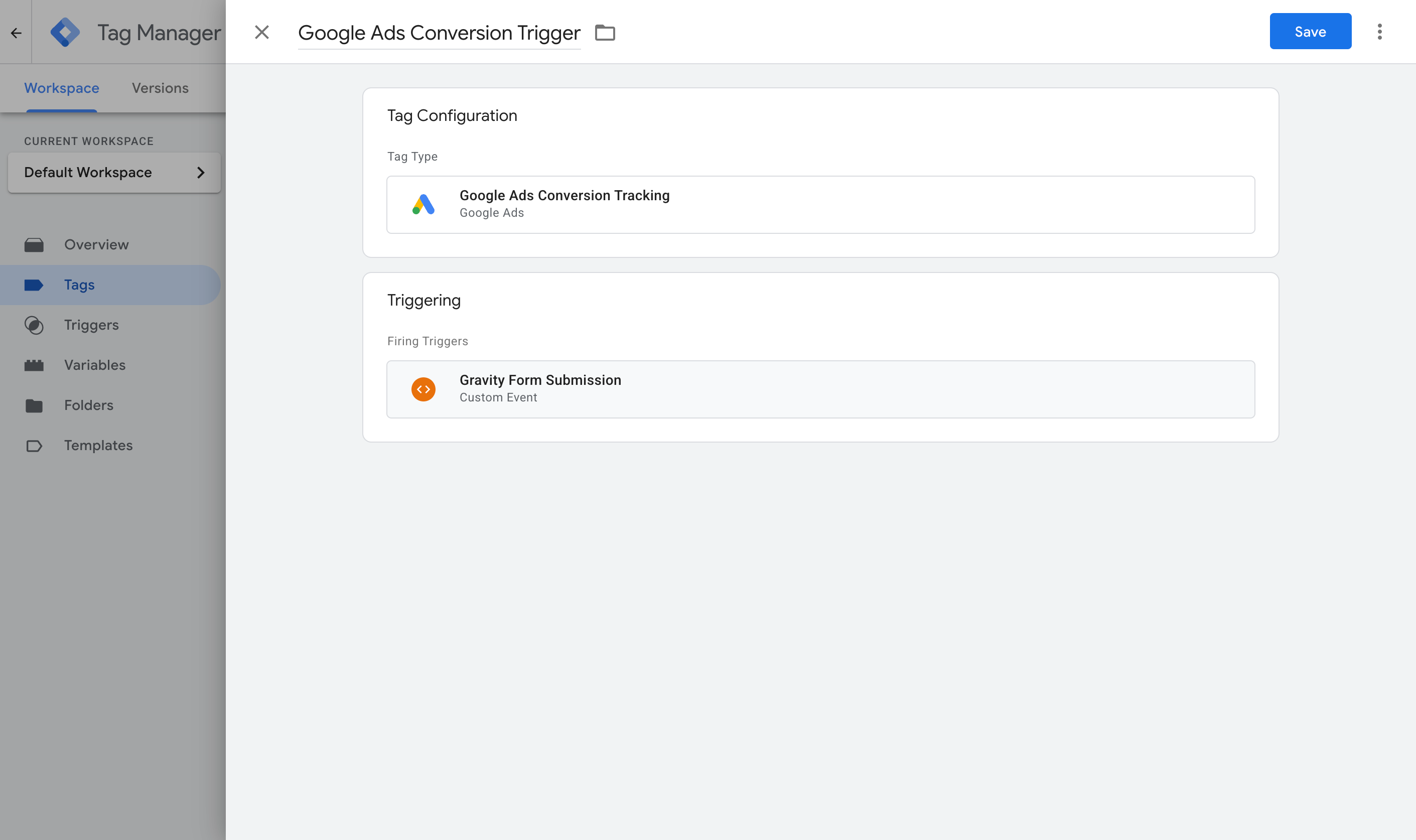
When that is done, publish your GTM container. To check it is working, submit a test entry in GTM Preview mode and confirm the gravity_form_submitted event arrives with the email and name filled in. Then watch the Enhanced Conversions diagnostics on the conversion action in Google Ads over the next day or two, which will tell you whether the data is being received and matched.
Pros and cons
Pros:
- It is free, and uses GTM, which you may already have installed on your site.
- It captures the email and name, which is the minimum Google Ads Enhanced Conversions needs to start matching conversions back to clicks.
- The capture code is genuinely battle tested, so the trickiest part (reading the right fields out of Gravity) is not something fragile you have to babysit.
- Like Method 1, it only counts real, completed submissions, because it fires on Gravity's success event.
Cons:
- There are a lot of moving parts. Between the GTM tag, the trigger, three variables, the Google Ads settings, and the conversion tag, there is plenty to misconfigure, and a wrong mapping tends to fail silently.
- You own and maintain it. A Gravity update, a theme change, or an unusual form layout can break the capture, and you will not get an error, just empty data flowing through.
- Sensitive data is a risk if you go off script. Plenty of tutorials show you how to dump every form field into the dataLayer at once. Never do that, because the moment a password or payment field lands there, every other script on the page can read it. (This is exactly why our snippet reads only the email and name.)
- Redirect forms can lose the data. If your form sends the visitor to a separate thank-you page rather than showing the message in place, the conversion can be lost as the page navigates away, unless you add more code to persist it.
- It still runs in the browser, so ad blockers and privacy browsers can stop it firing.
- Even done perfectly, it misses the data Google values most. It only captures what is in the form, not the click identifiers Google rewards, like the Google click ID (GCLID), the IP address, or the user agent. Some of those a browser cannot even see on its own (a page has no way to read its visitor's IP address without calling out to a server to ask for it). They are exactly the signals that lift Enhanced Conversions match quality, and a dataLayer setup cannot easily assemble or deliver them.
That last point is the one that pushes a lot of people to Method 3.
Method 3: Use Converly
Best for: sending proper, server-side conversions to Google Ads, Meta Ads, LinkedIn Ads, GA4, and more, without having to do complicated configuration in Google Tag Manager.
Converly is a dedicated conversion tracking tool that makes it really easy to send proper, server-side conversions to Google Ads, Meta Ads, LinkedIn Ads, and the rest, when a Gravity Form is submitted on your site.
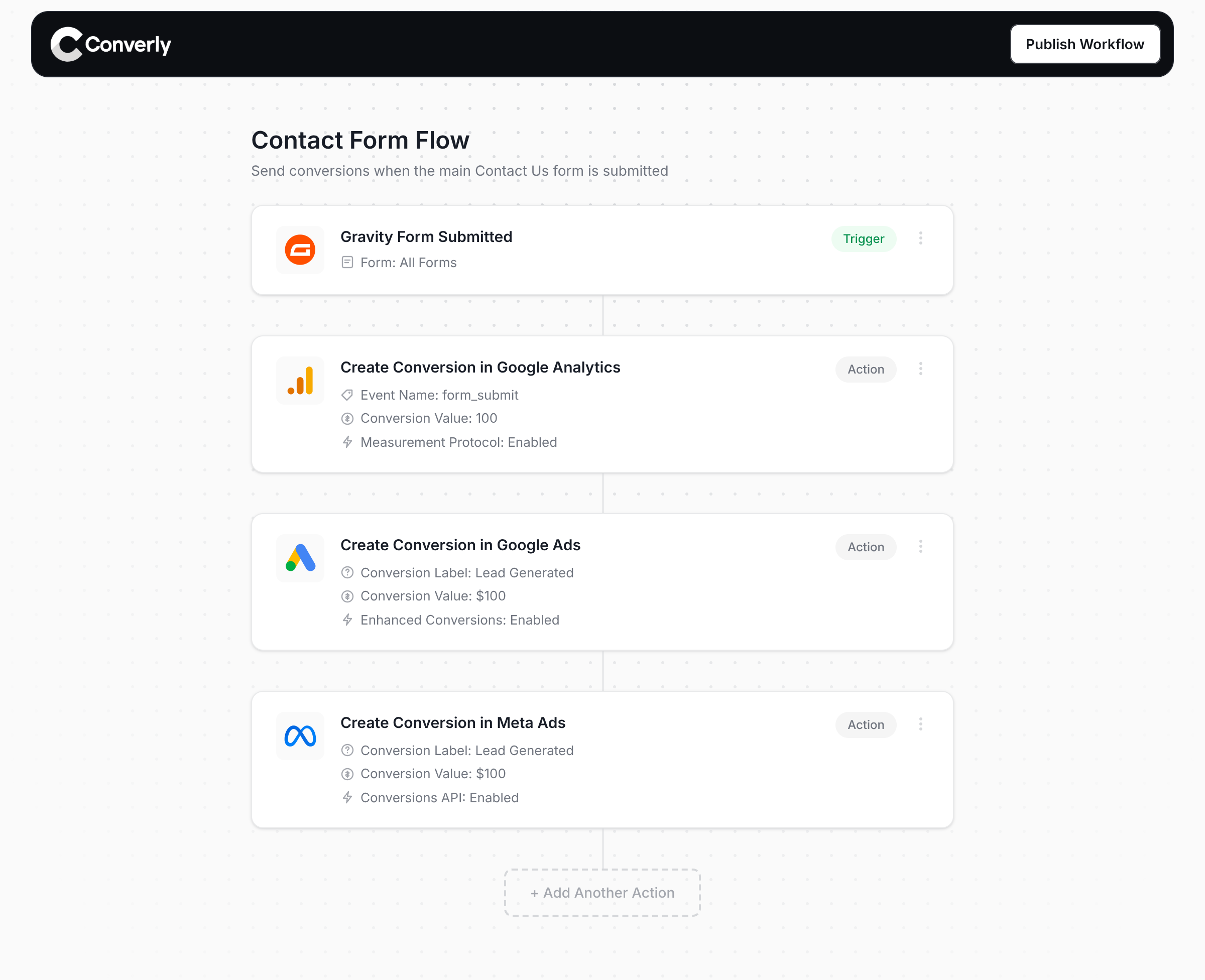
As you can see in the screenshot above, setting it up is really simple. You pick a trigger (like when a Gravity Form is submitted on your site) and then choose one or more actions (like send a conversion to Google Ads, send a conversion to Meta Ads, send an event to GA4, and so on). That is the whole setup. No custom code, no complicated configuration in Google Tag Manager.
Converly then gives you a small snippet of code to add to your site and it takes care of the rest. It listens for Gravity Forms submissions (including those that redirect to a thank-you page), extracts the name, email and phone, and sends it to Converly's own servers, which then send it over to Google Ads, Meta Ads, and more. That makes it a server-side conversion, which can't be blocked by ad blockers or privacy restrictions in browsers like Safari.
And here is the part that really matters for paid campaigns. Alongside the name and email, Converly captures the Google and Meta click IDs (GCLID and fbclid), the Meta browser cookies, the IP address, the user agent, and more, and sends it all over to Google Ads, Meta Ads, and so on with each conversion. These are precisely the signals Google and Meta reward, and capturing all of them is what takes your match quality from weak to strong (in Meta it would take your Event Match Quality score from about 3 to a 9 or 10).
Converly also gives you a full Conversion Log where you can easily see every lead that came through Gravity Forms, what data was captured, what data was sent to the ad platforms, whether it was successfully received, and so on.
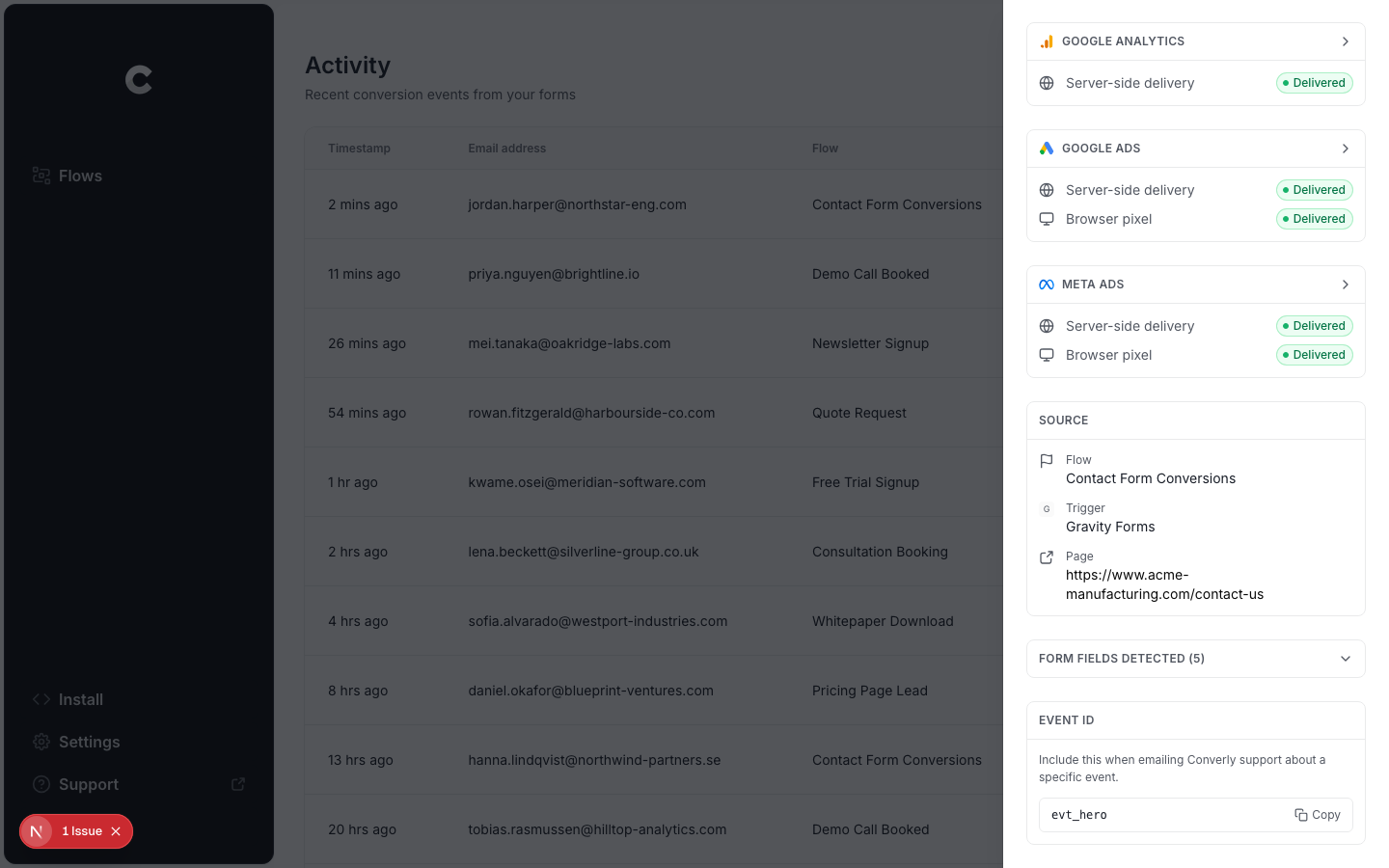
Finally, the other big advantage is reach. One setup in Converly can send the same conversion to Google Ads, Meta Ads, LinkedIn Ads, GA4, and plenty of other tools at once. So if you start advertising on a new platform next month, you just add it as another action to your existing flow. No new snippet, no new GTM tag, no rebuild.
Oh, and did we mention we provide full support for it as well? Good luck getting help from Google if your conversions aren't firing in Google Tag Manager.
Pros and cons
Pros:
- No code to write or maintain. One snippet, then a visual builder.
- Handles every Gravity gotcha automatically, so nothing silently breaks when Gravity updates or you add a new form.
- Captures the click IDs, cookies, IP, and user agent that boost match quality, which a dataLayer setup cannot easily reach.
- Sends server side, so ad blockers and privacy browsers do not stop your conversions.
- One setup sends to Google Ads, Meta Ads, LinkedIn Ads, GA4, and more.
- Supports conditional logic, so you can send specific conversions when certain forms are completed on your site (e.g. only send a conversion when the Quote Request form is submitted, and not the newsletter signup form).
- Lets you log in to Google Ads, Meta Ads, and so on and just pick the conversion you want to fire. No digging around for account IDs, conversion IDs, and the like.
- Gives you a full conversion log where you can see every lead that submitted your Gravity Form, what data was captured, whether it was successfully sent to your ad platforms, and more.
- You get support from a team of experts who will happily help you get set up and troubleshoot any issues. You have no chance of getting help from Google if you use GTM.
Cons:
- It is a paid tool after the free trial. Plans start at $19 per month (but you'd probably make that back in both the time saved setting up conversion tracking manually, plus the reduced cost per lead you'll get when you have proper conversion tracking working in Google Ads, Meta Ads, and so on).
What not to do
So far we have covered the three best approaches for conversion tracking in Gravity Forms and outlined when each one is best. It is also useful to know which approaches to avoid, because some of the most common ways people try to track Gravity Forms conversions quietly produce bad data. Here are the ones to stay away from.
Tracking thank-you page visits
This is the single most common DIY approach, and it is the one we would steer you away from most. The idea is to send people to a dedicated "thank you" page after they submit, then count visits to that page as conversions. It sounds clean, but in reality there are just so many ways it can go wrong.
It fires for people who never submitted anything. A thank-you page is just a URL, and a URL can be reached without ever touching your form. People bookmark it, land on it from their browser history or autocomplete, get sent the link by someone else, or find it in Google if it ever gets indexed. Your own team hits it while testing. Every one of those gets counted as a conversion, even though no form was submitted.
It can double count real submissions. Refresh the thank-you page and you get a second conversion. Hit the back button and return, or revisit it later from history, and you get more. A single lead can rack up several conversions, which inflates your numbers and means Google and Meta are optimising your ads against incorrect conversion data.
You would get terrible match rates. A page visit has no idea who submitted the form, so it cannot pass the name, email, phone, GCLID, fbclid, and so on that Google Ads Enhanced Conversions or Meta CAPI needs. That means that even though you are sending conversions to these ad platforms, they would largely do nothing.
It can also miss conversions too. If the redirect is slow and the visitor closes the tab first, no conversion. If you forget to set up the thank-you page redirect on a form and it just shows the inline confirmation message instead (which modern Gravity forms do by default), then no conversion is recorded. If the page is cached, the tag may not fire. So you manage to under count and over count at the same time.
The root problem is that a thank-you page visit is a proxy for a conversion, not the conversion itself. The three methods we presented above all fire on Gravity's actual confirmed submission, so they stay tied to what really happened.
Relying on the default form submit event in Google Tag Manager
When people set up tracking in Google Tag Manager, the obvious first move is GTM's built-in Form Submission trigger, which listens for the browser's native form submit event. On modern Gravity Forms though, it records nothing.
As we covered in Method 2, Gravity (version 2.8 and up) submits over AJAX and cancels the browser's native submission, so the event that trigger is waiting for never fires. The frustrating part is that it fails silently. The trigger looks correctly set up, GTM saves without complaint, and you walk away thinking conversion tracking is live while your reports sit at zero.
Technically, on older Gravity Forms (the ones not using AJAX) it can fire, but these would fire any time the Submit button is clicked. So if the form submission fails (for example because they entered their email wrong and it failed validation) then it would fire regardless. And then if the lead fixed their email and submitted, it fires again.
It's a bad idea, and you should use Gravity's own success event instead (like Converly does).
Using GA4's automatic form tracking (Enhanced Measurement)
GA4 has a built-in Enhanced Measurement feature that claims to track form submissions automatically with no setup.
Unfortunately though, it has the same two problems as the Form Submission trigger in Google Tag Manager above.
Its form detection relies on the standard HTML form submission event being sent through the browser, but Gravity Forms doesn't use that, so the event never fires.
Second, when it does fire, it can fire on unsuccessful submissions (like when someone leaves a required field blank and the form validation throws an error) so you end up counting form submissions that never actually happened.
If you want submissions to be recorded as conversions in GA4, use the official add-on from Method 1 or use Converly.
Firing the conversion on the submit button click
Some Gravity Forms conversion tracking setups we've seen fire the conversion when someone clicks the submit button (usually with a click trigger in GTM on the button). The trouble is that a click is not a submission. The visitor might have left a required field blank, entered their email in the wrong format, tripped your spam protection, and so on. Every one of those clicks gets counted as a conversion, and then when they fix the error and click submit again it gets counted as a second conversion.
This matters more than it sounds, because the bad data does not just mislead your reports. When you send those inflated conversions back to Google Ads or Meta, you are training their smart bidding to serve your ads to leads that weren't actually leads. Always fire on the confirmed submission, never on the click.
So which method should I use?
Here is the quick version:
- If you only need conversions in Google Analytics, Method 1 (the official add-on) is the cleanest option, as long as you are on a Gravity Forms Elite license.
- If you are running Google Ads, Meta Ads, LinkedIn Ads, and the like, and you want the best possible conversion tracking system with the easiest possible setup, then use a tool like Converly.
- If you only need to send conversions to Google Ads, don't mind some complicated configuration, and don't have budget to pay for a tool, then Method 2 (Enhanced Conversions through Google Tag Manager) is probably your best bet. Just note that it only sends name, email and phone, and doesn't send the other signals Google uses for matching, like the GCLID, IP address, and user agent.
Wrap up
Getting conversion tracking right is really important, particularly if you're sending conversions to Google Ads, Meta Ads, and the like.
In fact, Google states that proper, server-side conversion tracking results in an average 19% increase in conversions. Meta says that it gets an average 23% increase in conversions on their platform.
And with tools like Converly, it's super easy to do. You just pick a trigger (like when a Gravity Form is submitted), choose where you want the conversions sent, and add one snippet to your site.
Best of all, Converly is free to get started, and setup usually takes less than 10 minutes. Start your 14-day free trial today.
About the author

Aaron is the founder of Converly. With over 15 years of experience in digital marketing and SaaS, he's passionate about helping businesses track and optimise their ad conversions.