


Formidable Forms Conversion Tracking: 3 ways to do it
Learn three different ways to set up conversion tracking for Formidable Forms, and how to work out which one is right for you.
Does this sound familiar? You are spending money on ads, maybe putting real effort into SEO too, and you still cannot say with any confidence which campaigns are actually turning into leads.
Tools like Google Analytics will show you how many website visitors you are getting from your different channels straight out of the box, but being able to track how many leads you're actually getting is how you make good decisions on where to allocate your marketing budget.
That's where conversion tracking comes in.
This article walks through three ways to set up conversion tracking in Formidable Forms and shows you the pros and cons of each. We build form conversion tracking for a living, and Formidable has some genuine quirks that make it a bit harder to do than some other form builders, but we'll make sure you're aware of these and can pick the right solution for your needs.
Method 1: Use the MonsterInsights Forms addon
Good for: Sending form submission events to Google Analytics 4.
If all you need is to see Formidable form submissions as events in GA4, then this is probably the best solution.
Unfortunately, Formidable Forms does not ship its own Google Analytics add-on (some other WordPress form builders do). The closest thing to a plug-and-play option is the MonsterInsights Forms addon, a third-party plugin that plugs straight into Formidable Forms (along with most other WordPress form builders) and sends events to the Google Analytics tag whenever a Formidable Form is submitted.
The catch is that the Forms addon needs a MonsterInsights Pro license or higher, so this option is off the table if you only run the free version. Here is how to set it up.
Step 1: Connect MonsterInsights to your GA4 property
Install and activate MonsterInsights, then follow its setup wizard to connect your Google account and choose the GA4 property you want your data to land in.
Step 2: Install the Forms addon
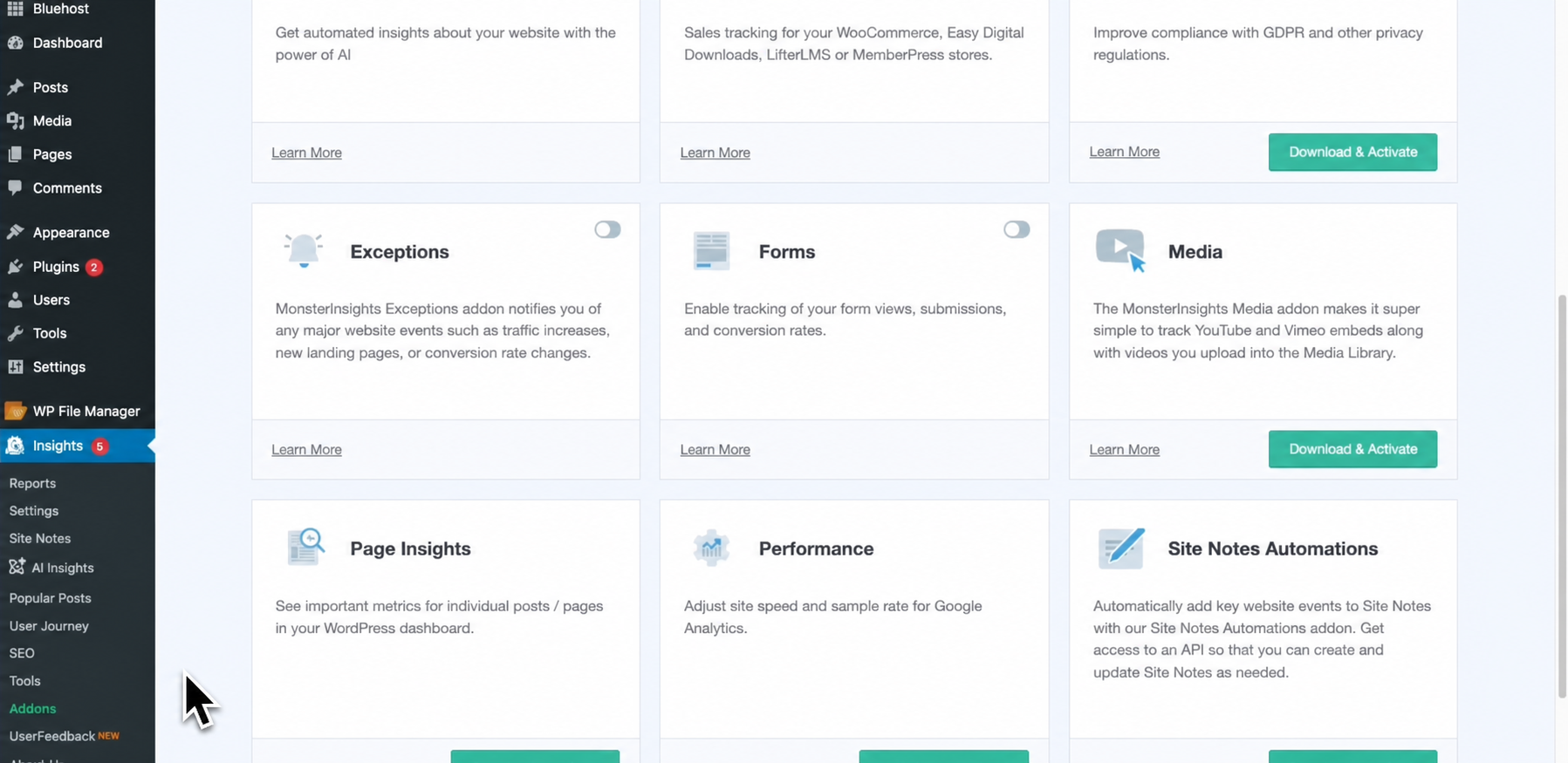
Go to Insights, then Addons, find Forms in the list, and select Download and Activate. Once the addon is active, it automatically tracks submissions across every compatible form plugin on your site.
Step 3: Test it, then mark it as a Key Event in GA4
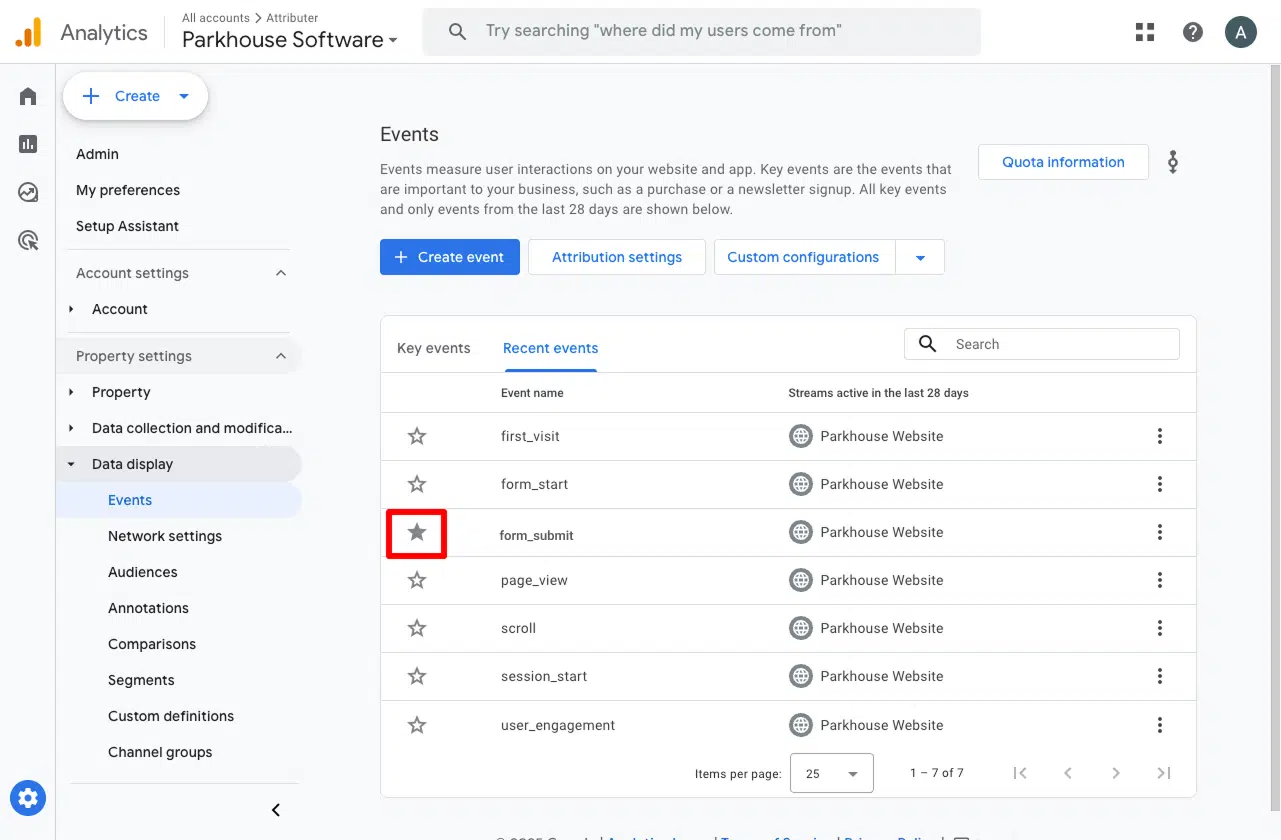
Submit a quick test entry, then open the Realtime report in GA4 and look for the generate_lead event in the recent events list. That is the event MonsterInsights fires whenever a form is submitted. Once you can see it coming through, go to Admin, then Events (or Key Events) in GA4, find generate_lead, and mark it as a Key Event. That tells GA4 to treat it as a conversion, so it shows up properly in your acquisition and funnel reports.
Pros and cons
Pros:
- Setup is pretty easy. There's none of the complexities of tools like Google Tag Manager. The whole thing is set up inside WordPress and GA4.
- MonsterInsights is a mature, widely used plugin with good support. Much more reliable than trying to code something yourself.
- There is no setup at the form level. You turn it on once and every Formidable form on your site is covered, including any new ones you add later.
Cons:
- It needs a MonsterInsights Pro license, which is a separate paid product on top of Formidable itself. It costs $399 per year (though it does often go on sale).
- It only sends to Google Analytics. It does not push conversions to Google Ads, Meta, or anywhere else, so you can't use it to send conversions to your ad platforms (that is what Methods 2 and 3 are for).
- It sends the conversion to GA4 through the visitor's browser, which means ad blockers and privacy browsers can stop it firing. Studies show browser-based tracking loses about 30% of conversions because they get stopped by ad blockers and other things.
- It sends a conversion event on every form submission with no way to tell them apart. So if you have a Quote Request form on your site as well as a Contact Support form, you won't be able to count how many Quote Request form submissions you got because every form submission of every form will be counted.
Method 2: Use Google Tag Manager
Good for: Sending Enhanced Conversions to Google Ads.
If you are running paid ads, simply counting form submissions like in Method 1 is not enough.
Google Ads prefers to match each conversion back to the specific person who clicked your ad, and it can only do that when you send information about the lead (like their name, email and phone number) with each conversion. This is what Google calls Enhanced Conversions.
So for Google Ads, Method 1 won't really work. You need to capture the visitor's name, email and phone when they submit the form, hash it (Google Ads requires it), and send it over to Google Ads.
One way to do this is with Google Tag Manager, and here are the steps.
Step 1: Set up a Custom HTML tag with the following form listening code
In GTM, create a new Custom HTML tag, paste in the snippet below, and set it to fire on the All Pages trigger, with the tag firing option set to Once per event.
The above code does a bunch of things:
- Detects both of Formidable's submission modes. Formidable can submit over AJAX, with the server confirming success in the background by sending its own
frmFormCompleteandfrmBeforeFormRedirectevents back to the browser. But out of the box, Formidable ships with AJAX switched off, so most live installs use the older "Page Reload" behaviour instead, where the browser posts the form and navigates to a fresh page with no client-side success event to hook. The code detects both. - Pre-captures the field values as the visitor types. Formidable clears every field's value when the form is submitted and AJAX success event fires, so a script that reads the form at that point gets nothing back. This snippet solves that issue by capturing and storing the data written into the form fields as it is typed.
- Extracts the email, first name, last name and phone. Formidable names its fields numerically, like
item_meta[123], which makes it really hard to understand which field contains the email address, which field contains the name, etc. So this snippet of code reads the visible label sitting next to each field (.frm_primary_label, which is usually things like Email, First Name, Phone) to understand which fields contain the data that needs to be extracted for Enhanced Conversions (I.e. the name, email, phone, etc). - Skips sensitive fields. Passwords, card numbers, CVV fields, one-time codes and similar sensitive items are checked and dropped before the code sends any data anywhere.
- Sends the data once Formidable confirms success. If your forms use the AJAX submit method, then this snippet listens for the
frmFormCompleteorfrmBeforeFormRedirectsuccess messages and only sends the data once it sees them. If your forms use the Page Reload submission method there is no success message that comes from the server, so the code snapshots the values from the form fields, carries them across the page reload, and pushes them to the dataLayer once it can see a genuine.frm_messagesuccess box on the next page. If the submission errors (maybe because the user forgot to complete a required field), Formidable instead re-renders the form with its own error markers and nothing gets sent.
The design of this snippet gets around two things that trip up almost every homemade Formidable tracking script.
Catch 1: Formidable's default submission mode is the one a naive script usually misses. Most homemade WordPress form-tracking scripts are written with WPForms or Gravity Forms in mind, where AJAX submission is the default and Page Reload is the option you have to switch on. Formidable is the opposite. AJAX has to be turned on deliberately in the form's settings, so almost every Formidable form uses the Page Reload method by default. A script that only listens for an AJAX success event, which is what most tutorials show you, doesn't work on the majority of live Formidable sites. This snippet handles both, so it works whichever way your form is configured.
Catch 2: Formidable clears the fields before you get a chance to read them. If your form uses the AJAX submission method, Formidable Forms clears the data from the form fields before it sends the success message, so a script that tries to read the form at that moment can't extract any data and can't send it to Google Ads. This snippet solves it by continuously capturing the field values as the visitor fills the form, and then pulling them from the store and sending them off when the success message is received.
As you can probably tell, this is not a snippet we threw together for this article. It is ported from the same detection logic Converly uses in production to track Formidable Forms, and it has been tested against a real Formidable Forms install with a form left on Page Reload mode (Formidable's default) and set up with first name, last name, email, phone, a deliberately included CVV field, and Formidable's own honeypot field. We tested valid submissions, rejected submissions, etc and it worked every time. You can use this snippet with confidence.
Step 2: Create Data Layer Variables for the captured data
To make sense of this step, it helps to know what the dataLayer is, because the next couple of steps talk about it.
Think of the dataLayer as a messageboard between your website and Google Tag Manager. Your website can send messages to it (i.e. someone just submitted a form, and here is their email and name) and GTM reads the messages as they come through.
That is exactly what the code in Step 1 does. When a form is submitted successfully, it sends a message to the dataLayer named formidable_forms_submitted, and included in that message are the email, first name, last name and phone.
But because GTM is unnecessarily complicated, it will not automatically pull those individual values out for you. You have to tell it which ones you want, and that is what this step is about (creating a Data Layer Variable to tell GTM which data it should capture from the message).
To set this up, navigate to the Variables section of Google Tag Manager, select New under User-Defined Variables, choose Data Layer Variable as the type, and give it a name.
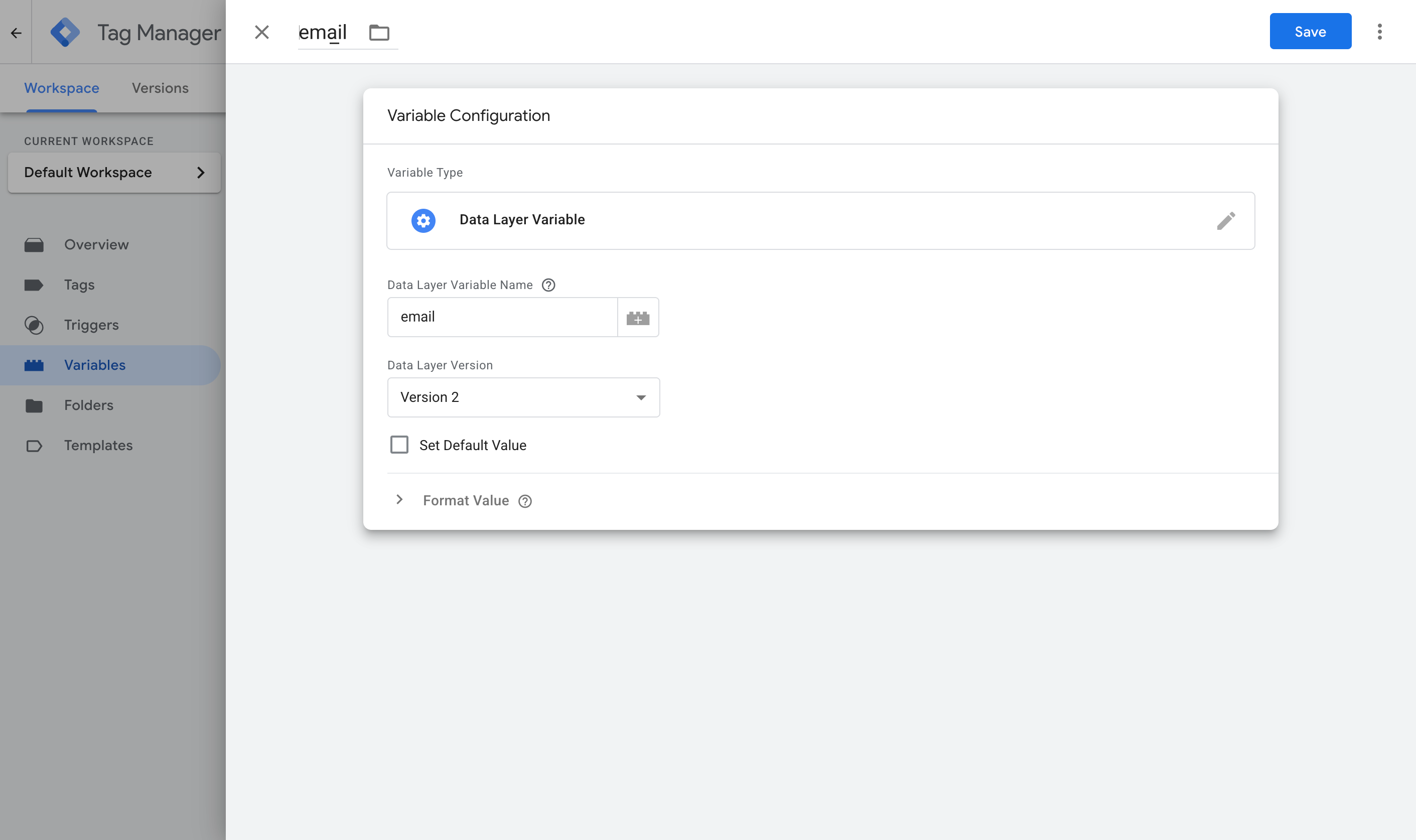
The details for each of the four variables are below.
Variable 1:
- Name: Email
- Variable Type: Data Layer Variable
- Data Layer Variable Name: email
Variable 2:
- Name: First Name
- Variable Type: Data Layer Variable
- Data Layer Variable Name: first_name
Variable 3:
- Name: Last Name
- Variable Type: Data Layer Variable
- Data Layer Variable Name: last_name
Variable 4:
- Name: Phone
- Variable Type: Data Layer Variable
- Data Layer Variable Name: phone
If you also want to be able to see which specific Formidable form fired the event in your GTM debug view, you can add a fifth variable pointing at form_id too, though it is not required for the Google Ads tag below.
Step 3: Create a Custom Event trigger
In classic GTM style, information sitting in the dataLayer does not do anything by itself. You then need to tell GTM to watch for it and treat it as the cue to fire your conversion, and in GTM that cue is called a Trigger.
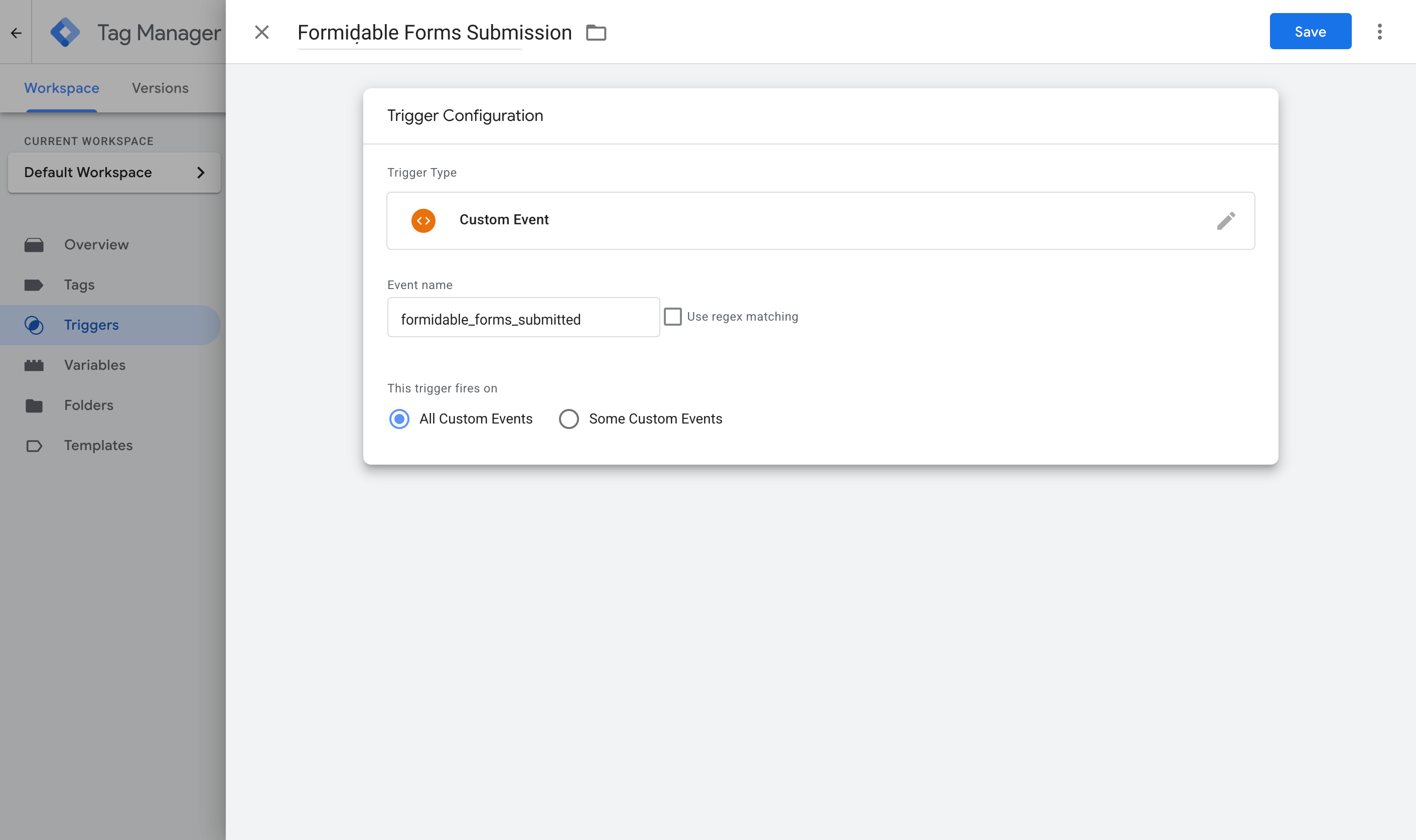
Navigate to the Triggers section, click New, choose the Custom Event type, and set the event name to formidable_forms_submitted. It has to match what the code pushes exactly, or it won't work.
Step 4: Turn on Enhanced Conversions in Google Ads
Jump over to your Google Ads account, go to Goals, then Conversions, then Settings, and turn on Enhanced Conversions.
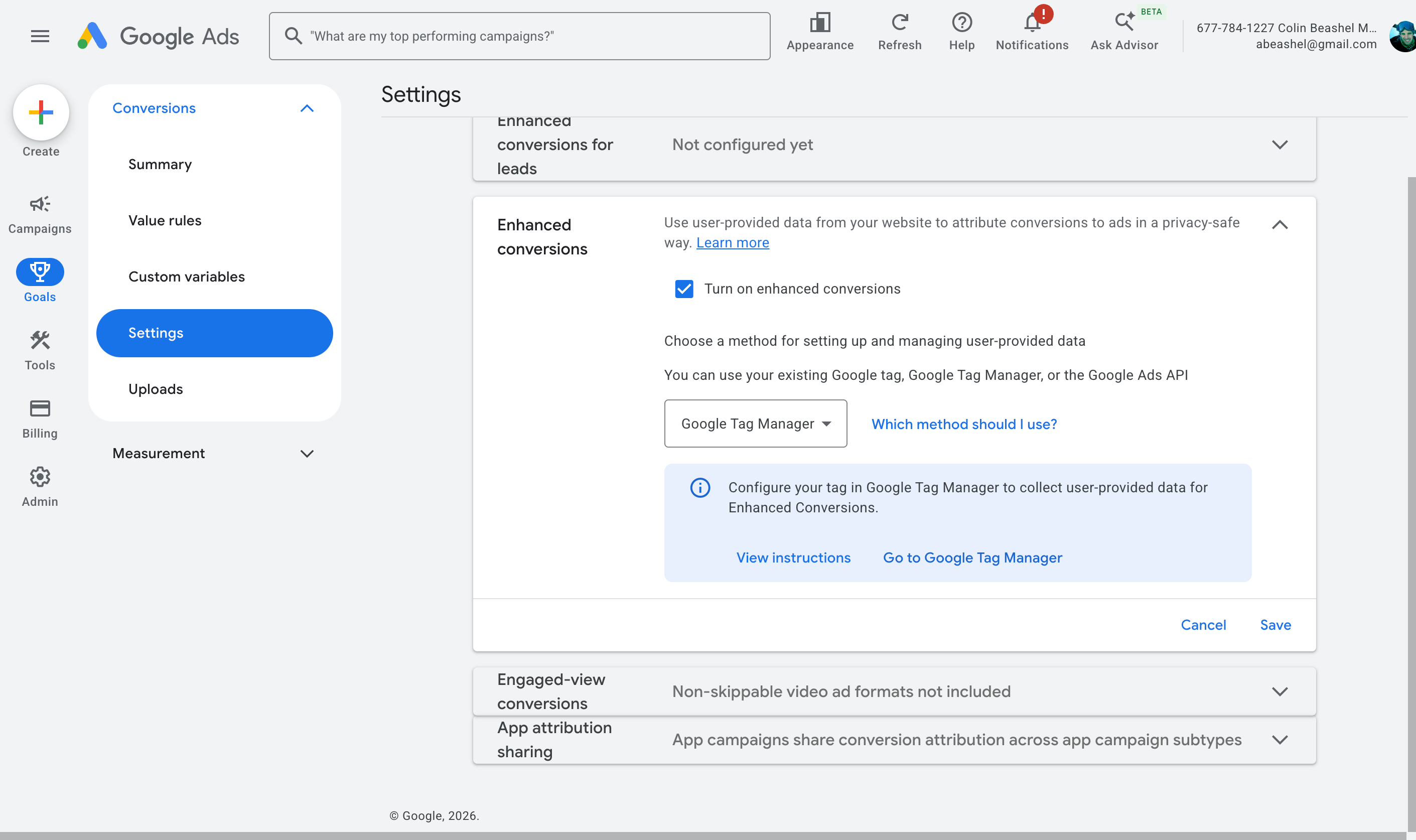
When it asks how you want to implement it, choose Google Tag Manager. This is what gives Google Ads permission to receive and use the customer data you are about to send.
Step 5: Create your Google Ads conversion tag and map the data
In this final step, you are going to setup a Google Ads conversions tag, tell it to fire when the Trigger you set up earlier is detected, and then map the dataLayer variables you set up earlier to the equivalent fields in Google Ads.
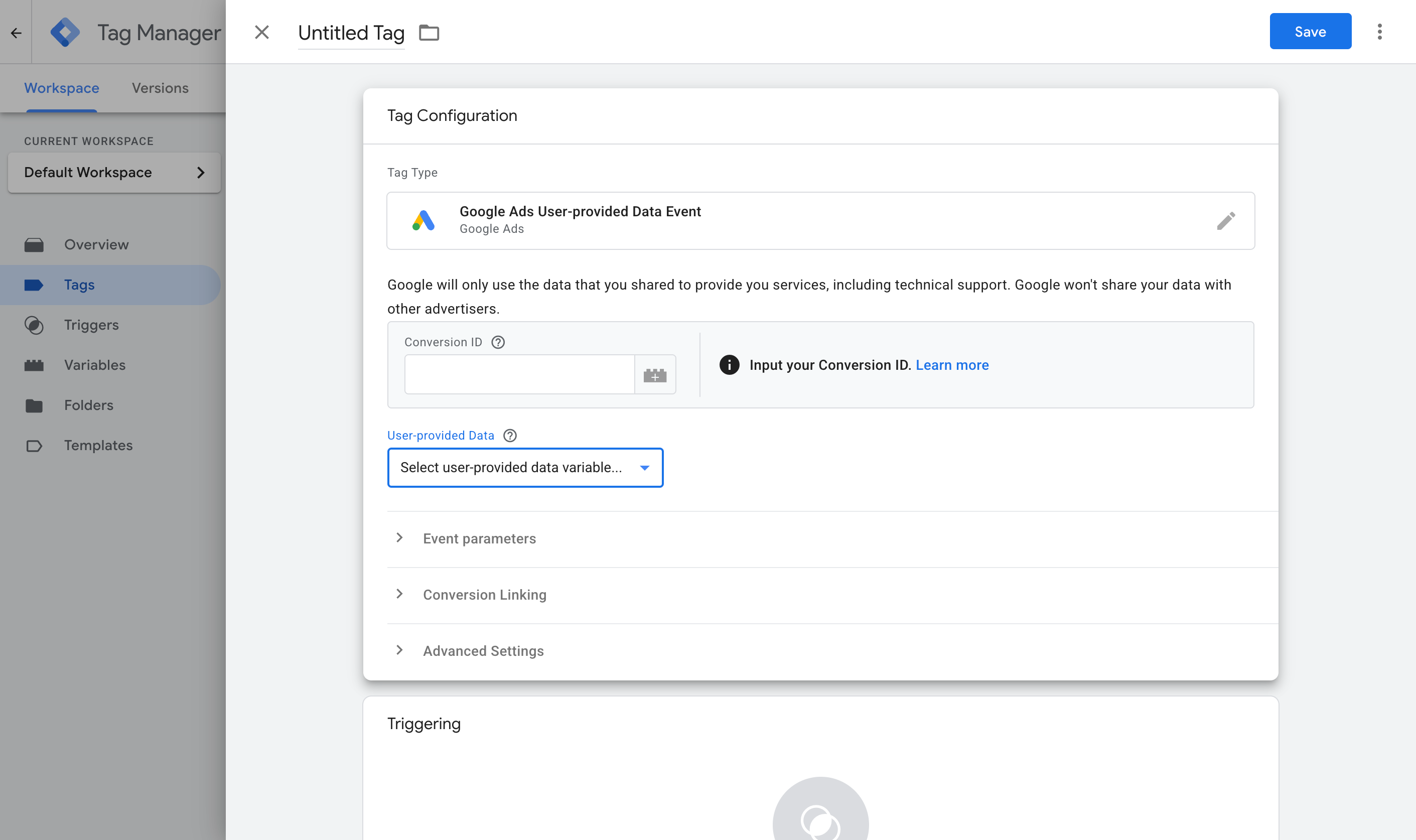
To do this, jump back into GTM, navigate to Tags, select New, choose Google Ads User Provided Data Event as the tag type, and map the variables you set up earlier to the data points it asks for.
Then set it to fire on the Custom Event trigger you created in Step 3.
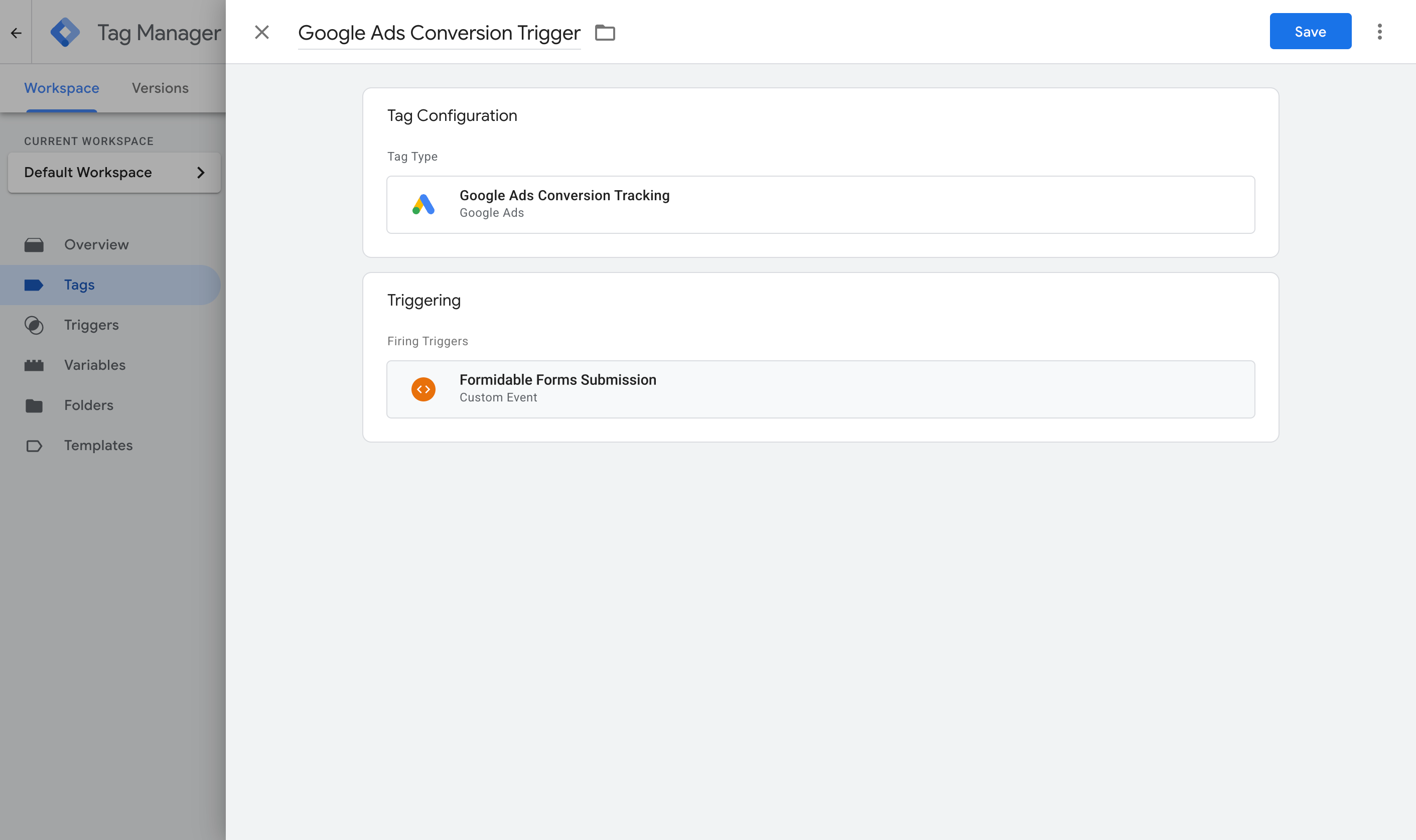
When that is done, publish your GTM container. To check it is working, submit your Formidable Form inside GTM Preview mode and confirm the formidable_forms_submitted event arrives with the email and name filled in (and maybe try it with the form both left on Page Reload and switched to AJAX if you use both across your site).
Pros and cons
Pros:
- It is free, and uses Google Tag Manager, which you may already have installed on your site.
- It captures the email, name and phone, which is the minimum Google Ads needs for Enhanced Conversions.
- The capture logic handles both of Formidable's submission modes, so you are covered whether a form is left on the Page Reload default or switched to AJAX.
- It only counts real, completed submissions, because it waits for a genuine Formidable success signal on both paths.
Cons:
- It's difficult to set up, especially if you're not familiar with Google Tag Manager and all of its different pieces. Between the GTM tag, the trigger, four or five variables, the Google Ads settings and the conversion tag, there is plenty to misconfigure. And the worst part is that if you get one bit wrong, the whole thing fails and nothing tells you which part was wrong.
- You own and maintain it. If it breaks, Google offers no support, so you're on your own trying to figure out what the problem is and how to fix it (YouTube videos can help, but it's a time suck).
- It depends on sessionStorage to carry the data across a Page Reload submission (if you use that option). If a visitor's browser blocks it (some of the more privacy-centric browsers do), that particular submission will not be tracked.
- Fundamentally, this method is still sending conversions to Google Ads through the visitor's browser, so if they have an ad blocker installed or are using a privacy-centric browser then the conversion isn't going to get to Google Ads.
- Even if you do manage to set this up properly, it misses a whole bunch of the data that Google wants. Although it captures what is in the form, it doesn't capture some of the other identifiers that Google rewards, like the Google click ID (GCLID), the IP address, or the user agent (Google Tag Manager can't actually do this, because it can't get the user's IP address).
That last point is the one that pushes a lot of people to Method 3.
Method 3: Use Converly
Best for: Sending proper, server-side conversions to Google Ads, Meta Ads, LinkedIn Ads, ChatGPT Ads, GA4, and more, without having to do complicated configuration in Google Tag Manager.
Converly is a dedicated conversion tracking tool that makes it simple to send proper, server-side conversions to Google Ads, Meta Ads, LinkedIn Ads, and more, whenever someone submits a Formidable form on your site.
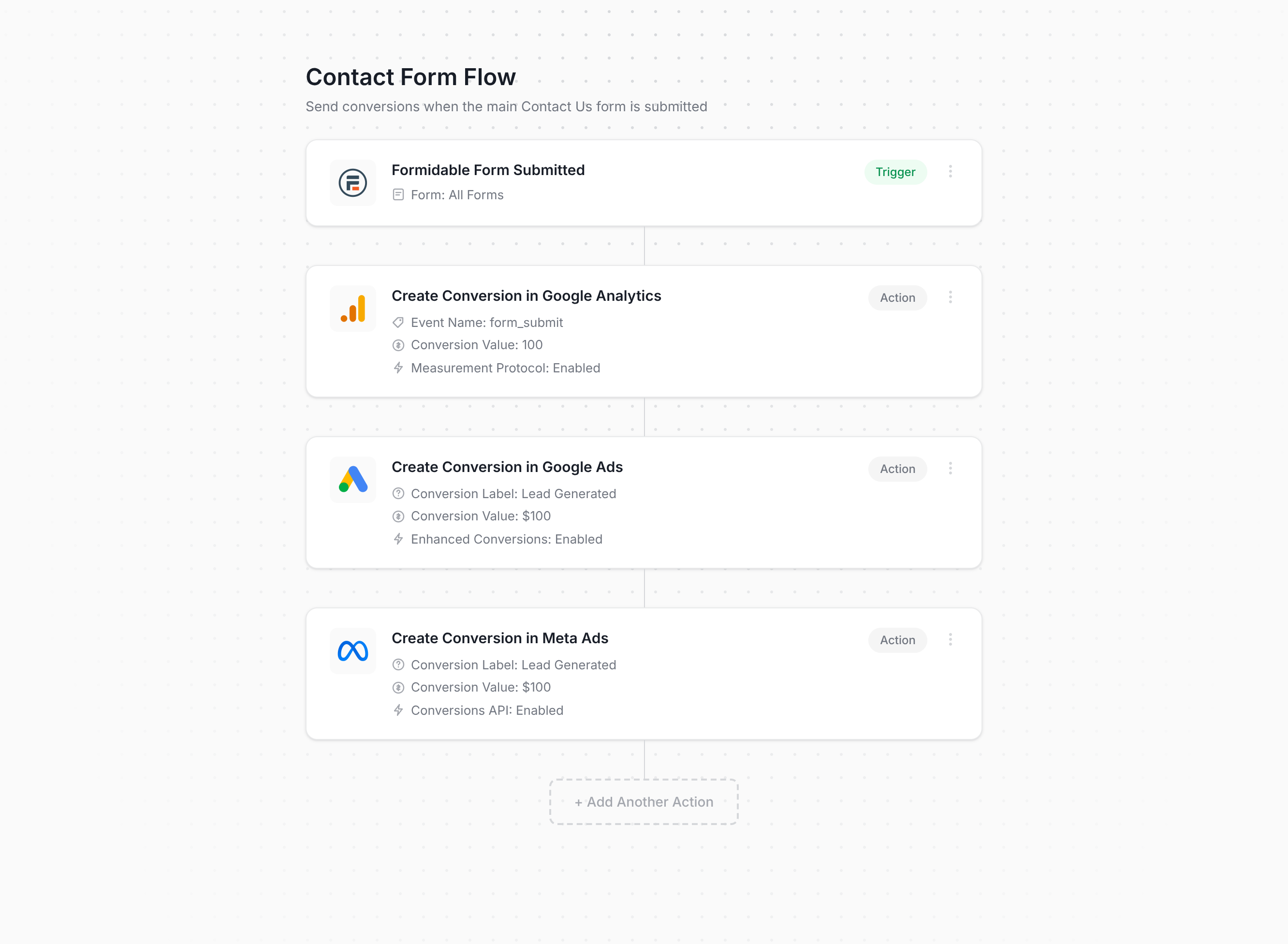
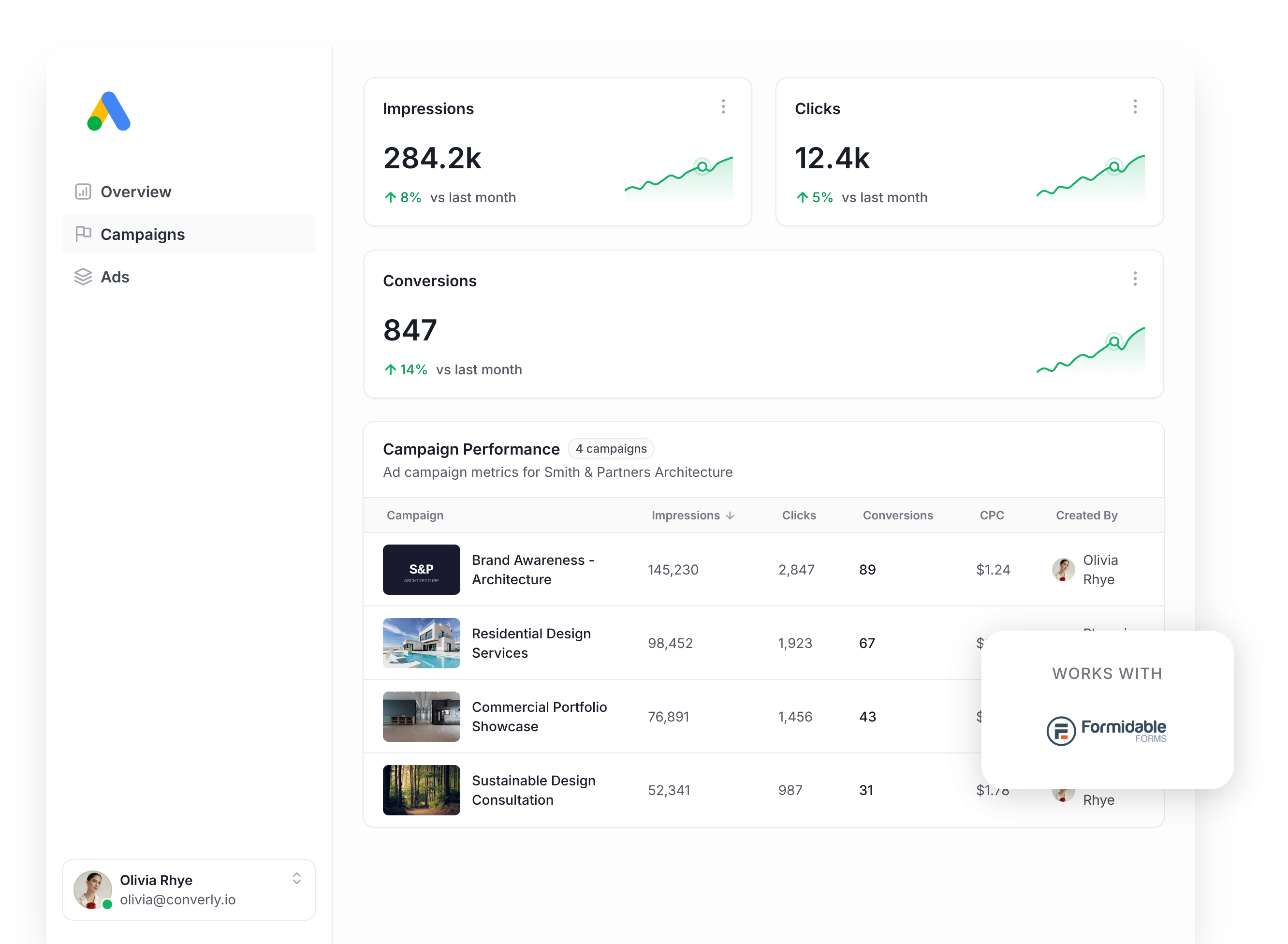
As the image above shows, setting it up is genuinely straightforward. You simply pick a trigger, such as a Formidable Form being submitted on your site, then pick the actions you want to happen (like sending a conversion to Google Ads, sending one to Meta Ads, etc). That's it. That's the whole setup. No custom code, and no trying to figure out Google Tag Manager.
Converly then handles the rest for you. It listens for Formidable submissions (using both the Page Reload path and the AJAX path), pulls out the name, email and phone, and sends it to Converly's servers, which then send it on to Google Ads, Meta Ads, etc. This is the part that means ad blockers and privacy restrictions in browsers like Safari can't get in the way (we send it directly to the ad platforms' servers as opposed to sending it through the visitor's browser).
But here is the part that matters most if you are running paid ad campaigns. Along with the name, email and phone, Converly also captures the Google and Meta click IDs (GCLID and fbclid), Meta's browser cookies, the visitor's IP address, their user agent, and more, and sends all of it to Google Ads, Meta Ads, etc with every conversion. These are exactly the signals ad platforms like Google and Meta reward, and having all of them is what takes your match quality from weak to strong (on Meta, that can move your Event Match Quality score from around 3 up to a 9 or 10).
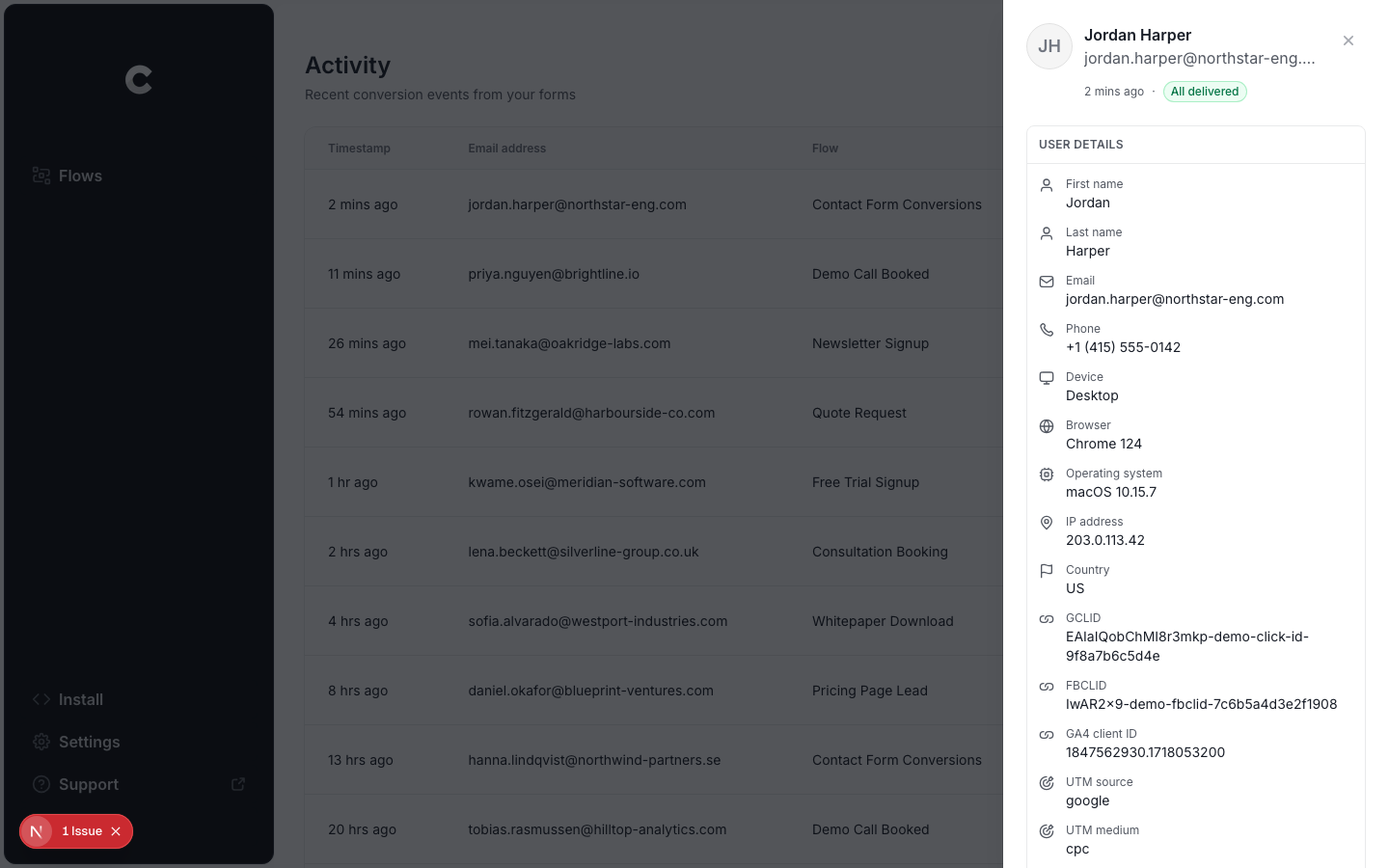
The other benefit is that Converly gives you a full conversion log, so you can see every lead that submitted your Formidable form, what data was captured, what was sent to each ad platform, and whether it was received.
Pros and cons
Pros:
- It's super easy to set up. You simply pick a trigger and then pick the actions you want to happen. No messing in complicated tools like Google Tag Manager.
- Handles every Formidable gotcha automatically, including both submission modes and the field-clearing quirk, so you don't need to worry about these types of things.
- It captures the click IDs, cookies, IP address and user agent and sends it to each ad platform with each conversion. This gives you much higher match rates and makes your conversion tracking much more accurate.
- Sends the data server-side, so ad blockers and privacy browsers do not stop your conversions from reaching their destination.
- Converly can send conversions to 20+ destinations, including Google Ads, Meta Ads, LinkedIn Ads, GA4, ChatGPT Ads, and more. So if you ever want to try advertising on a new platform, setting up conversion tracking is just a few clicks.
- Supports conditional logic, so you can send specific conversions when certain forms are completed on your site (for example, only send a conversion when the Quote Request form is submitted, and not the Contact Support form).
- Lets you log in to your Google Ads account, Meta Ads account, and so on and just pick the conversion you want to fire. No digging around for account IDs and conversion IDs.
- Gives you a full conversion log where you can see every lead that submitted your Formidable form, what data was captured, whether it was successfully sent to your ad platforms, and more.
- You get support from a team of experts who will happily help you get set up and troubleshoot any issues. You have no chance of getting help from Google if you use GTM.
Cons:
- It is a paid tool after the free trial. Plans start at $19 per month (but you would probably make that back in both the time saved setting up conversion tracking manually, plus the reduced cost per lead you will get when you have proper conversion tracking working in Google Ads, Meta Ads, and so on).
What not to do
So far we have covered the three best approaches for conversion tracking in Formidable Forms and when it's best to use each one. But it's also worth knowing which approaches to avoid, because some of the most common ways people try to track Formidable form submissions as conversions will produce very inaccurate conversion data.
Counting thank-you page visits as conversions
This is the DIY approach we see the most, and the one we think is genuinely the worst. Redirecting visitors to a dedicated thank you page once they submit (and counting that as a conversion) seems like a decent way to do things, but there are just so many ways it breaks:
People can reach the page without submitting a form. A thank-you page is just another URL on your site and can be easily reached by someone who has never submitted a form. They could bookmark it, browser autocomplete could send them there, or Google might index it and it shows up in search. All of these would get counted as conversions even though they never submitted your form.
Real submissions get counted multiple times. People can accidentally refresh thank you pages, or land there again if they hit the back button in their browser. What was genuinely one lead can end up being logged as two or three conversions.
Match quality is essentially zero. This is the big one. These days, most ad platforms want you to send the lead's name, email, phone, etc along with the conversion so they can match the conversion back to the original ad click. But a thank you page doesn't have any of this data. The data is on the form on the page before. So even if you do get this working and sending conversions back to Google Ads, Meta Ads, etc, if you're not sending the lead's name, email, phone, etc then the ad platform will have a very hard time matching the conversion back to the original ad click.
At the core, a thank-you page visit is a proxy for a conversion. You are far better off actually just measuring how many conversions/form submissions you got (which is what Methods 1 through 3 do).
Relying on the default form submit trigger in Google Tag Manager
Google Tag Manager has a built-in Form Submission trigger which listens for the browser's native form submit event. Unlike other WordPress form plugins, Formidable ships with AJAX switched off by default so this trigger does actually work (it doesn't for Gravity Forms, WPForms, Elementor Forms, etc).
The problem is that it fires as soon as the Submit button is pressed, before Formidable has decided whether to accept or reject the form submission. This means that if Formidable rejects the form submission (maybe because they left a required field blank, or inputted an invalid email address or phone, or failed the spam check), the conversion will fire anyway and you'll end up massively overcounting conversion (particularly if your form gets a lot of spam, as these will be counted).
You need to make sure you are always listening for a genuine success signal from Formidable Forms, like the snippets above do, rather than just relying on the browser's built-in form submit event which fires regardless of whether the form was successfully submitted or not.
Using GA4's automatic form tracking (Enhanced Measurement)
GA4 has a feature ‘Enhanced Measurement’ that claims to track form submissions automatically with no setup.
It has the same trouble as the Form Submission trigger in Google Tag Manager though (mentioned above). It listens for the browser's standard form submit event which fires whenever the submit button is clicked, regardless of whether the form was actually successfully submitted or not. This means that rejected form submissions (because they left a required field blank, or inputted an invalid email address or phone, or failed the spam check) get counted. Worse still, when the user fixes the error and submits the form again, you end up with two conversions counted for one lead.
If you want submissions recorded in GA4, use the MonsterInsights Forms addon from Method 1, or use Converly.
Firing the conversion on the submit button click
Some setups we have seen fire the conversion when someone clicks the submit button on the form (usually with a click trigger in Google Tag Manager on the button). The trouble is that clicking the submit button on the form does not mean there was a successful form submission. The visitor might have left a required field blank, entered their email in the wrong format, or tripped spam protection. Every one of those clicks gets counted, and then when they fix the error and click submit again, it gets counted a second time.
Again, the solution is to only fire your conversions when the form is successfully submitted. Tools like Converly make this super simple (it's literally all handled for you).
So which method should I use?
Here's how the three ways to track Formidable Forms conversions compare.
| Method | Best for | Sends conversions to | Data sent |
|---|---|---|---|
| Method 1. The MonsterInsights Forms addon | Sending submissions to Google Analytics without code | Google Analytics 4 | The submission event only |
| Method 2. Enhanced Conversions through Google Tag Manager | Sending to Google Ads, if fiddly configuration doesn't put you off | Google Ads | Name, email and phone |
| Method 3. Converly | Sending to any ad platform, with the least setup work | Google Ads, Meta Ads, LinkedIn Ads, ChatGPT Ads, GA4 and more | Name, email and phone, plus the GCLID, the Meta click ID, IP address and user agent |
Wrap up
At this point in time, setting up conversion tracking is no longer optional if you are running campaigns in Google Ads, Meta Ads, LinkedIn Ads, etc. Accurate conversion data is what those platforms use to decide who to show your ads to next, so if you don't have accurate conversion tracking set up then you are literally burning your ad budget (for no real reason).
In fact, Google's own figures show that the average business gets a 19% increase in conversions from proper, server-side conversion tracking. Meta says it's a 23% increase in conversions on their platform.
A tool like Converly gets you proper server-side conversion tracking without any of the hassle of the other tools. You simply pick a trigger (like a Formidable Form being submitted), pick where the conversion should go, and you are done.
Best of all, it is free to try, and most people have it running in under 10 minutes. Start your 14-day free trial today.
About the author

Aaron is the founder of Converly. With over 15 years of experience in digital marketing and SaaS, he's passionate about helping businesses track and optimise their ad conversions.