


Fluent Forms conversion tracking: 3 ways to do it
Learn three different ways to set up conversion tracking in Fluent Forms, and how to work out which one is right for you.
Are you struggling to set up proper conversion tracking in Fluent Forms?
It's understandable. The most common way to do it is to use Google Tag Manager, but that involves writing custom code to detect the form submission, and then configuring Triggers, Tags, and Variables to get the data over to wherever you need it to go. It's genuinely hard.
So in this article, we'll walk you through three different ways to set up conversion tracking for Fluent Forms and show you which one is the best for you based on what you are trying to achieve.
Method 1: Use Fluent Forms' own event tracking guide
Good for: Sending form submission events to Google Analytics 4, for free.
If all you need is for Fluent Forms submissions to show up in GA4 so you can see your conversion rate and work out which pages and channels are actually producing leads, this is genuinely all you need. Google Analytics does not need to know who submitted the form, just that a submission happened.
Unlike some other WordPress form plugins, Fluent Forms does not ship its own built-in Google Analytics action, so instead they provide an official guide for wiring submissions into GA4 through Google Tag Manager, and it works on the free version of the plugin with no premium license needed.
The purpose of this article is to show you different options, so we have summarised there approach below. You can read their offical guide here.
Step 1: Make sure Google Tag Manager is installed on your site
Everything in this method runs inside a GTM container, so if you do not already have one on your site, go and create an account and then paste the code on your site.
Step 2: Add the Custom HTML tag from Fluent Forms' guide
This is the piece that actually detects the submission and hands it to GTM. Fluent Forms' documentation provides a small script for a Custom HTML tag, set to fire on all pages, that finds every Fluent Form on the page and listens for its fluentform_submission_success event, the same confirmed success signal Methods 2 and 3 below also rely on. When it fires, the script pushes a message onto GTM's dataLayer recording which form was submitted. We have pasted the code below for your convenience:
Step 3: Build the Data Layer Variables and trigger the guide describes
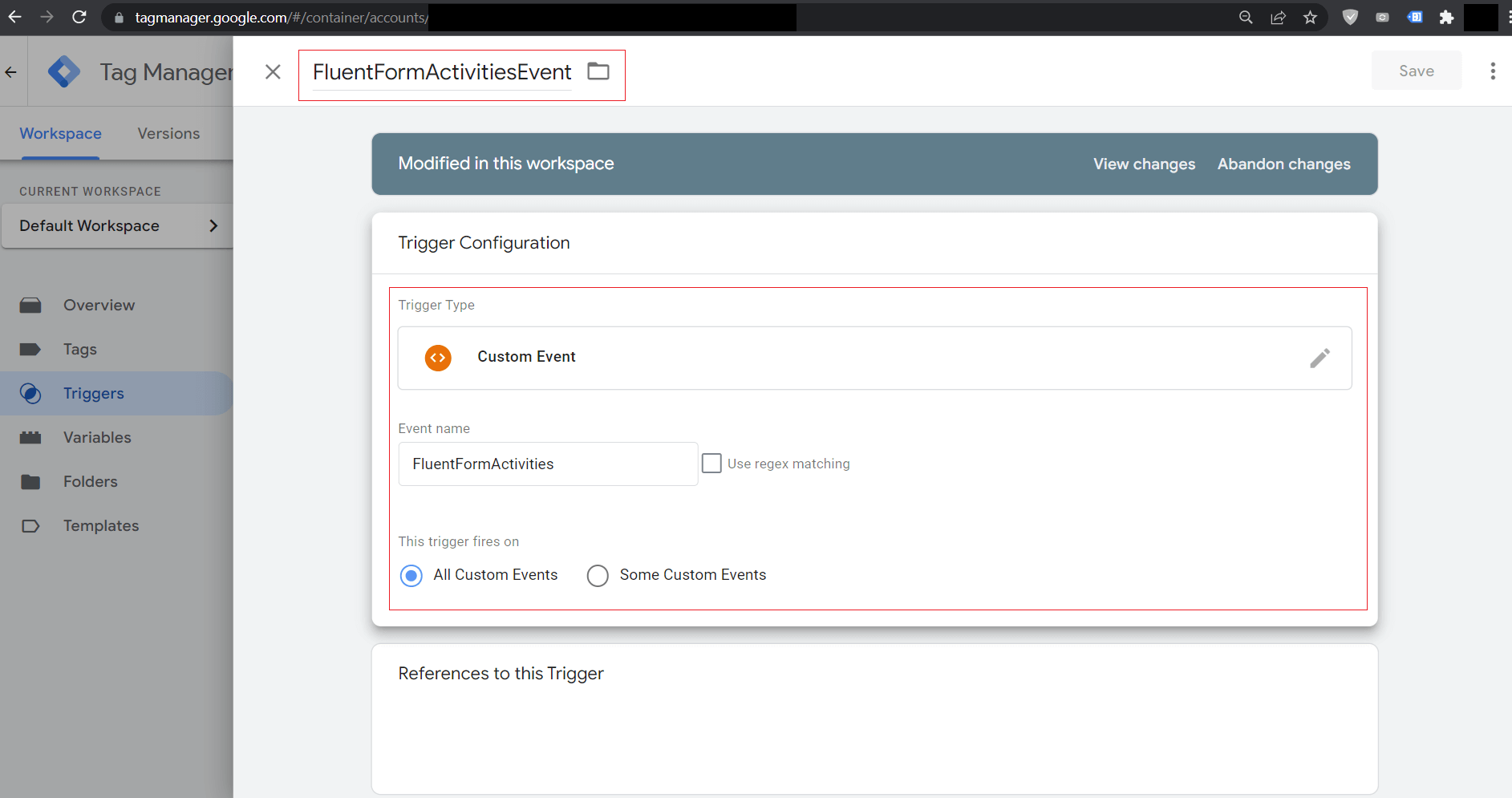
Once that message is landing on the dataLayer, GTM still needs to be told to read it. Fluent Forms' guide walks through creating three Data Layer Variables (the form's ID, the event action, and an optional one for the form's name) and a Custom Event trigger that watches for the event the script in Step 2 pushes.
Step 4: Add your GA4 configuration tag and test
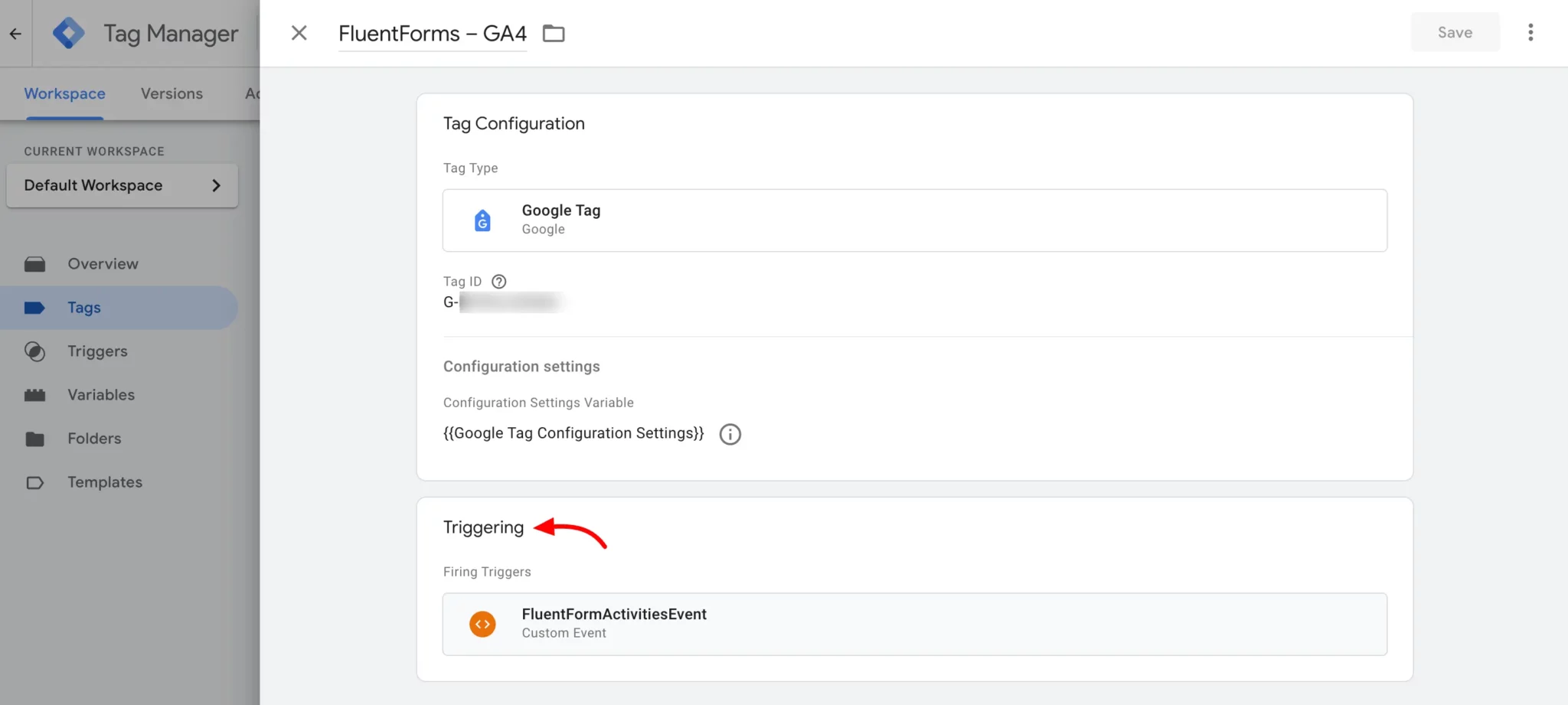
With the trigger in place, the last piece is telling GA4 what to do when it fires. Create or reuse a GA4 configuration tag, set it to fire on the trigger from Step 3, and publish your container. Submit a test entry, confirm the event lands in GA4's Realtime report, then mark it as a Key Event so it counts as a conversion in your reports instead of sitting there as an ordinary event.
Pros and cons
Pros:
- It's free, and it works on the free version of Fluent Forms with no premium license required.
- It comes straight from Fluent Forms' own documentation, so it's less likely to break unexpectedly on a plugin update than a random third-party integration would be.
- It fires on the genuine
fluentform_submission_successevent, the same one Methods 2 and 3 use, so a rejected submission never gets counted.
Cons:
- It's genuinely hard. You're building three Data Layer Variables, a trigger, a Custom HTML tag, and a conversion tag by hand. There are so many ways to get it wrong, and if you just get the slightest thing wrong at one of the steps, the whole thing will break and you'll have no idea why.
- It only sends data to Google Analytics. It does nothing for Google Ads, Meta Ads, or any other ad platform, which is what Methods 2 and 3 are for.
- Like any browser-based tracking, ad blockers and privacy-focused browsers like Safari will stop the Google Tag from loading on your site, so no events will make it to GA4. Multiple studies have shown that about 30% of conversions get missed because of this.
- Every Fluent Form on your site pushes the same
FluentFormActivitiesevent. A Quote Request form and a Contact Support will both count as conversions, and unless you build a custom GA4 report to split them apart, your reporting will show both quote requests and support requests as one blended number.
Method 2: Use Google Tag Manager for Enhanced Conversions
Good for: Sending Enhanced Conversions to Google Ads.
Counting submissions the way Method 1 does is fine for Google Analytics, but it will not get you far in Google Ads.
That's because Google Ads wants to match a conversion back to the exact person who clicked your ad, and to do that you need to send information like their name, email, and phone with every conversion. This is what Google Ads calls Enhanced Conversions.
Here is how to capture that data and send it with Google Tag Manager.
Step 1: Set up a Custom HTML Tag with the form listening code
In GTM, create a new Custom HTML Tag, paste in the snippet below, and set it to fire on the All Pages trigger, with the tag firing option set to Once per event.
The above code does a bunch of things:
- Captures the visitor's details as they type. Fluent Forms clears every field's value as soon as the form is submitted (before the success event is even fired). So if we waited until then to read the fields, they'd be empty. Instead, the code records each field's value as the visitor types and stores it in the browser so it can be retrieved once the submission actually succeeds.
- Listens for Fluent Forms' genuine success signal. Fluent Forms is built on jQuery and announces a successful submission through its own
fluentform_submission_successevent rather than a plain browser event, so the code listens for that specifically. - Skips sensitive fields. Passwords, card numbers, CVV fields, one-time codes, and similar sensitive fields are checked and dropped before the code ever stores or reads them.
- Sends an event to the dataLayer. Once a genuine submission goes through, the code pushes a
fluent_forms_submittedevent onto the dataLayer, along with the lead's name, email, and phone, ready to be used as the trigger for your conversion tags.
This snippet has been extensively tested and addresses a number of issues that other scripts on the internet do not, including:
Issue 1: One successful submission can reach your tracking code twice. Fluent Forms actually announces a successful submission three separate ways behind the scenes, so a simpler script that just listens and pushes straight to the dataLayer ends up firing twice for a single real lead (which would double your reported conversions). This snippet deduplicates each submission per form within a short window, so even if multiple success messages are returned, the conversion only fires once.
Issue 2: By the time the success event fires, Fluent Forms has already wiped the fields you want to send. Fluent Forms clears the data from all the form fields as soon as a submission goes through (before its own success event even fires). So a script that waits for that event and then tries to read the fields finds nothing there. This snippet solves that by recording what the visitor types as they go, so by the time the success event fires and it's time to send the conversion, the name, email, and phone are already safely stored and ready to be sent.
Issue 3: Identifies which field is which from the label, not just the field name. Fluent Forms mostly uses sensible field names like email and phone, but its phone field renders as a plain text input rather than a dedicated phone type, so a script that only trusts the input type would miss it. This snippet scores each field on its type, its autocomplete hint, and its visible label, and uses whichever signal is strongest, so the key details like the name, email, and phone number still get caught correctly.
As you can probably tell from reading the above, this is not a snippet we put together just for this article. It is ported from the same detection logic we use in our own conversion tracking software to track Fluent Forms submissions and send them to ad platforms and analytics tools. We regularly test it against Fluent Forms in our testing environment, and it's been used to detect thousands of form submissions from our customers, so you can use it with confidence.
Step 2: Create Data Layer Variables for the captured data
Before you can use the data the snippet just added, you need to tell Google Tag Manager to pull the lead's details out of the dataLayer (like the email, first name, last name, and phone) so they can be sent to Google Ads, Meta Ads, etc. A Data Layer Variable is what does that.
To set one up, go to the Variables section in GTM, click New under User-Defined Variables, choose Data Layer Variable as the type, and give it a name.
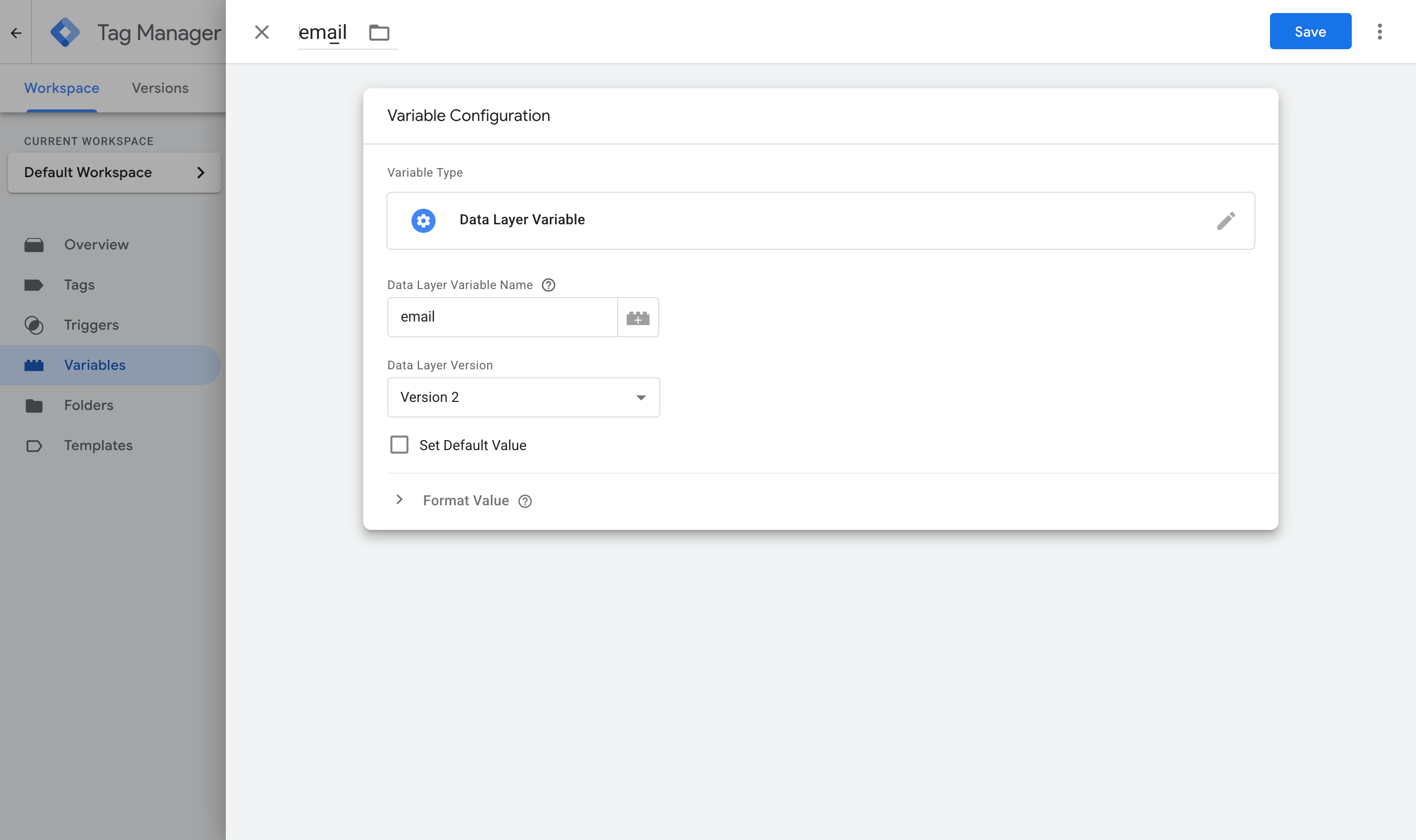
Here are the four you need.
Variable 1:
- Name: Email
- Variable Type: Data Layer Variable
- Data Layer Variable Name: email
Variable 2:
- Name: First Name
- Variable Type: Data Layer Variable
- Data Layer Variable Name: first_name
Variable 3:
- Name: Last Name
- Variable Type: Data Layer Variable
- Data Layer Variable Name: last_name
Variable 4:
- Name: Phone
- Variable Type: Data Layer Variable
- Data Layer Variable Name: phone
Step 3: Create a Custom Event trigger
Now that you have set up the Variables to pull the data out of the dataLayer, you then need to tell Google Tag Manager when to use them. That is what a Trigger is for. It watches for the message the snippet pushes into the dataLayer when a Fluent Form is submitted successfully, and tells your conversion tags to fire when it arrives.
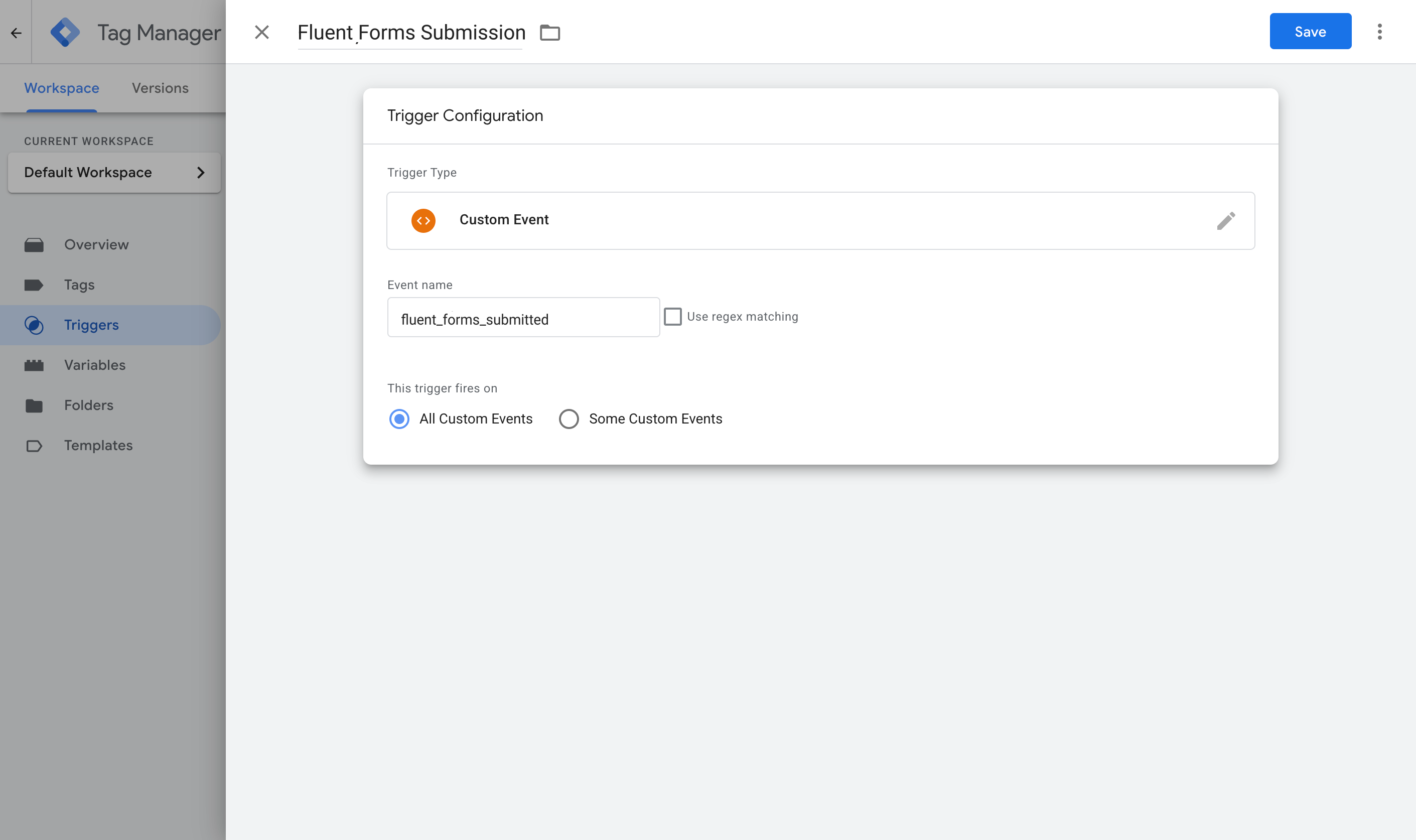
To set this up, navigate to the Triggers section, click New, choose the Custom Event type, and set the event name to fluent_forms_submitted. It has to match what the code pushes exactly.
Step 4: Turn on Enhanced Conversions in Google Ads
Before any of this can reach Google Ads, Google Ads itself needs to be set up to accept it. Head to your Google Ads account, go to Goals, then Conversions, then Settings, and turn on Enhanced Conversions.
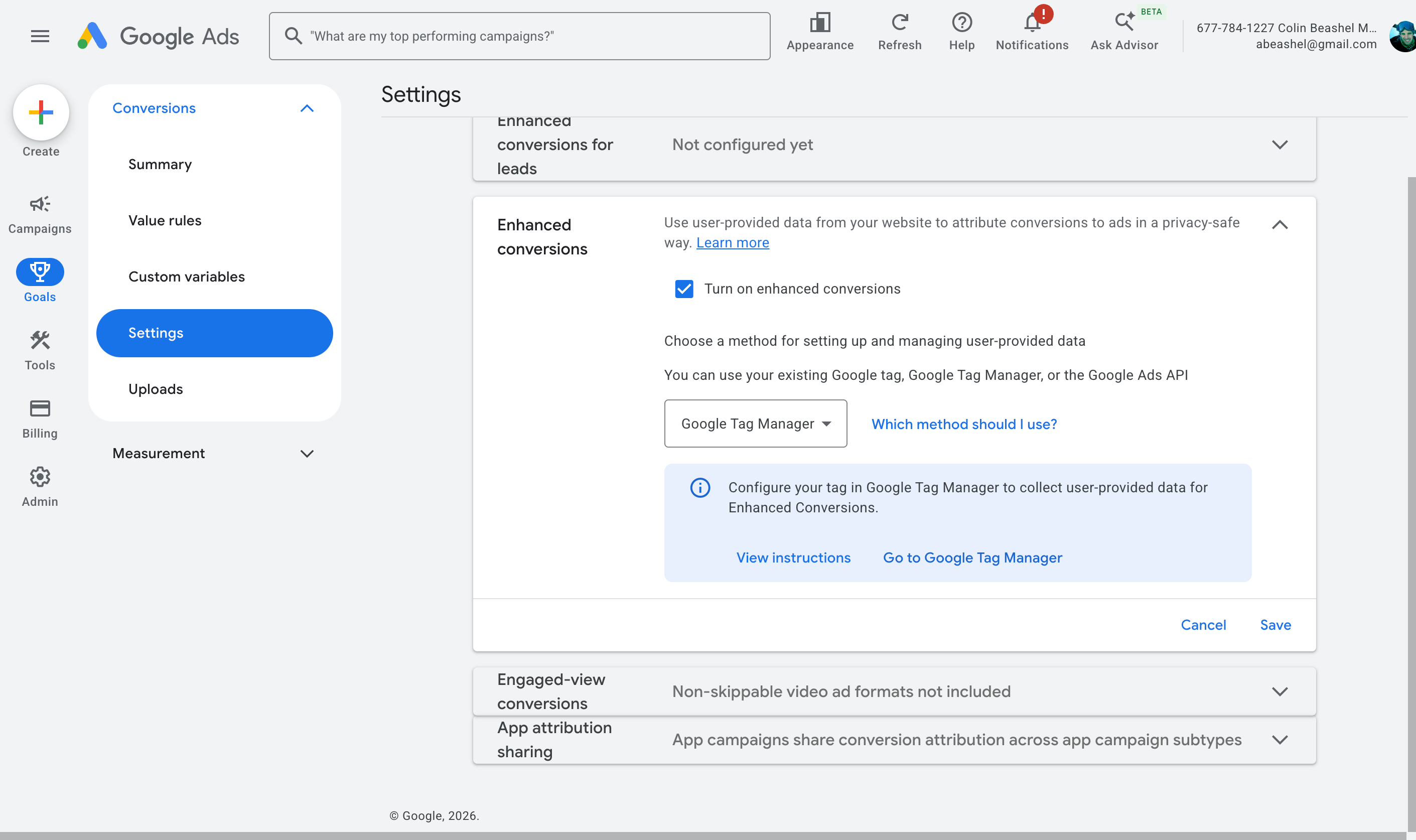
When it asks how you want to implement it, choose Google Tag Manager. This gives Google Ads permission to receive and use the customer data you are about to send.
Step 5: Create your Google Ads conversion tag and map the data
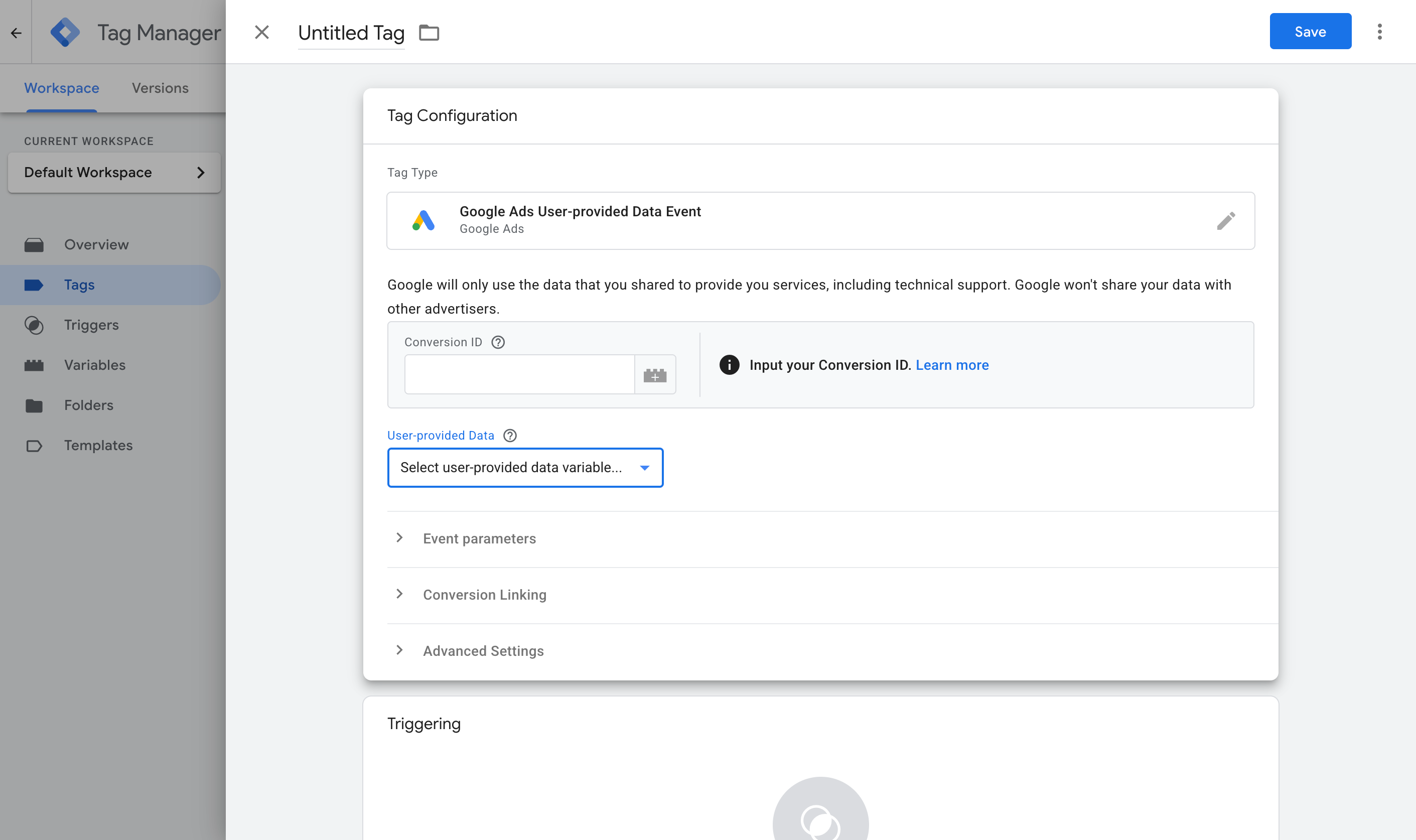
Now it's time to put the pieces together. Jump back into GTM, go to Tags, select New, choose Google Ads User Provided Data Event as the tag type, and map the variables from Step 2 to the fields it asks for.
Then set it to fire on the Custom Event trigger you created in Step 3.
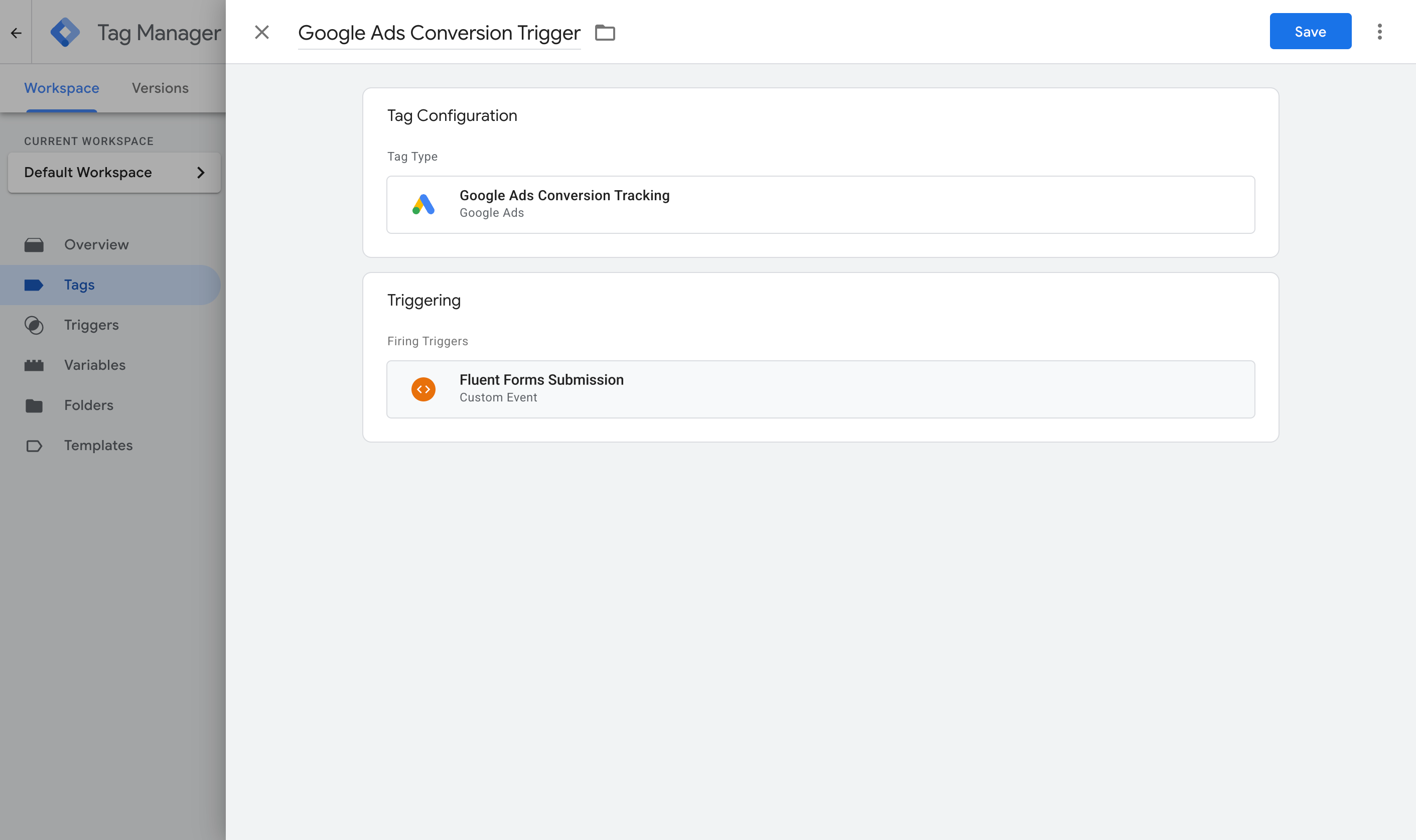
Once that's done, publish your GTM container. With some luck, you would have successfully set up a Tag to listen for Fluent Form submissions and send an event to the dataLayer, some Variables to pull the information out of the dataLayer, a Trigger to listen for the event, and a Tag that sends a conversion when the Trigger fires.
To check it's working, open GTM Preview mode, submit the Fluent Form on your site, and confirm the fluent_forms_submitted event arrives with the email and name filled in.
Pros and cons
Pros:
- It's free, and you may already have Google Tag Manager installed on your site, so that's a start.
- Unlike Method 1, this method captures the name, email, and phone and sends them to Google Ads (or wherever else you configure them to be sent). This is the minimum you need to enable Enhanced Conversions in Google Ads, and will help with your match rate on platforms like Meta Ads & LinkedIn Ads (match rate is how many conversions can be mapped back to the original person who clicked the ad).
- It correctly distinguishes a successful submission from a rejected one, so you don't end up overcounting conversions when someone does something like misses a required field or enters their email in an invalid format (the two most common ways for a form submission to be rejected).
Cons:
- There are a lot of moving parts. Between the GTM tag, the Trigger, four Variables, the Google Ads settings, and the conversion Tag itself, there is plenty to get wrong, and there are no error messages telling you which piece failed if it goes bad.
- It still sends the conversion through the visitor's browser, so ad blockers and privacy browsers can stop it firing. Expect to lose 30% or more of your conversions this way.
- It still misses the data Google values most. Name, email, and phone are just the minimum for Enhanced Conversions. It does not capture the Google Click ID, the visitor's IP address, the user agent, etc. These are the exact-match identifiers Google weighs far more heavily, because a Click ID (for instance) can tie the conversion back to the original ad click with 100% accuracy.
That last point is the one that pushes a lot of people to Method 3.
Method 3: Use Converly
Best for: Sending proper, server-side conversions to Google Ads, Meta Ads, ChatGPT Ads, LinkedIn Ads, and more, without having to do complicated configuration in Google Tag Manager.
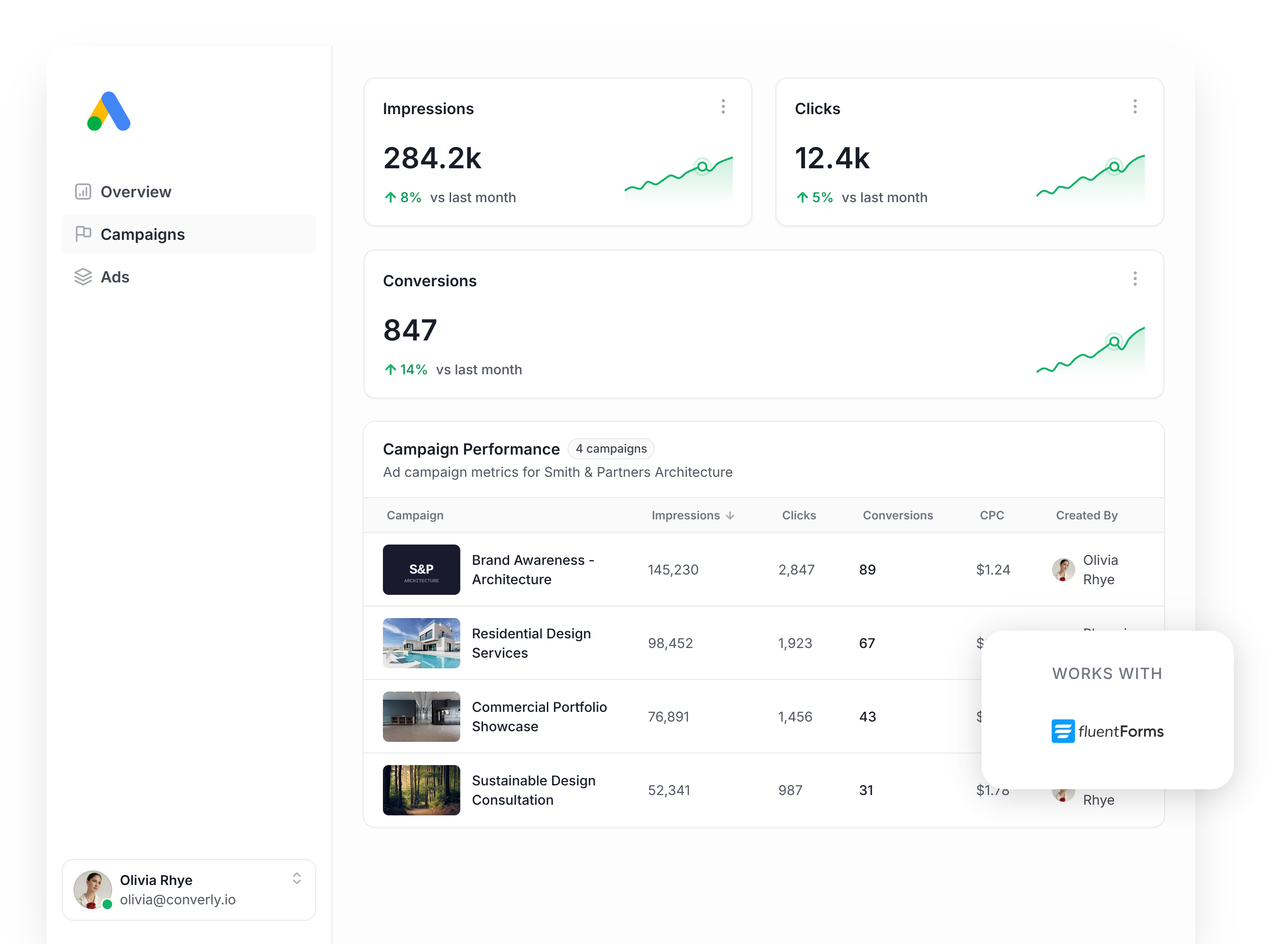
Converly is a purpose-built conversion tracking tool that makes it easy to send server-side conversions to Google Ads, Meta Ads, LinkedIn Ads, etc. whenever a visitor submits a Fluent form on your site.
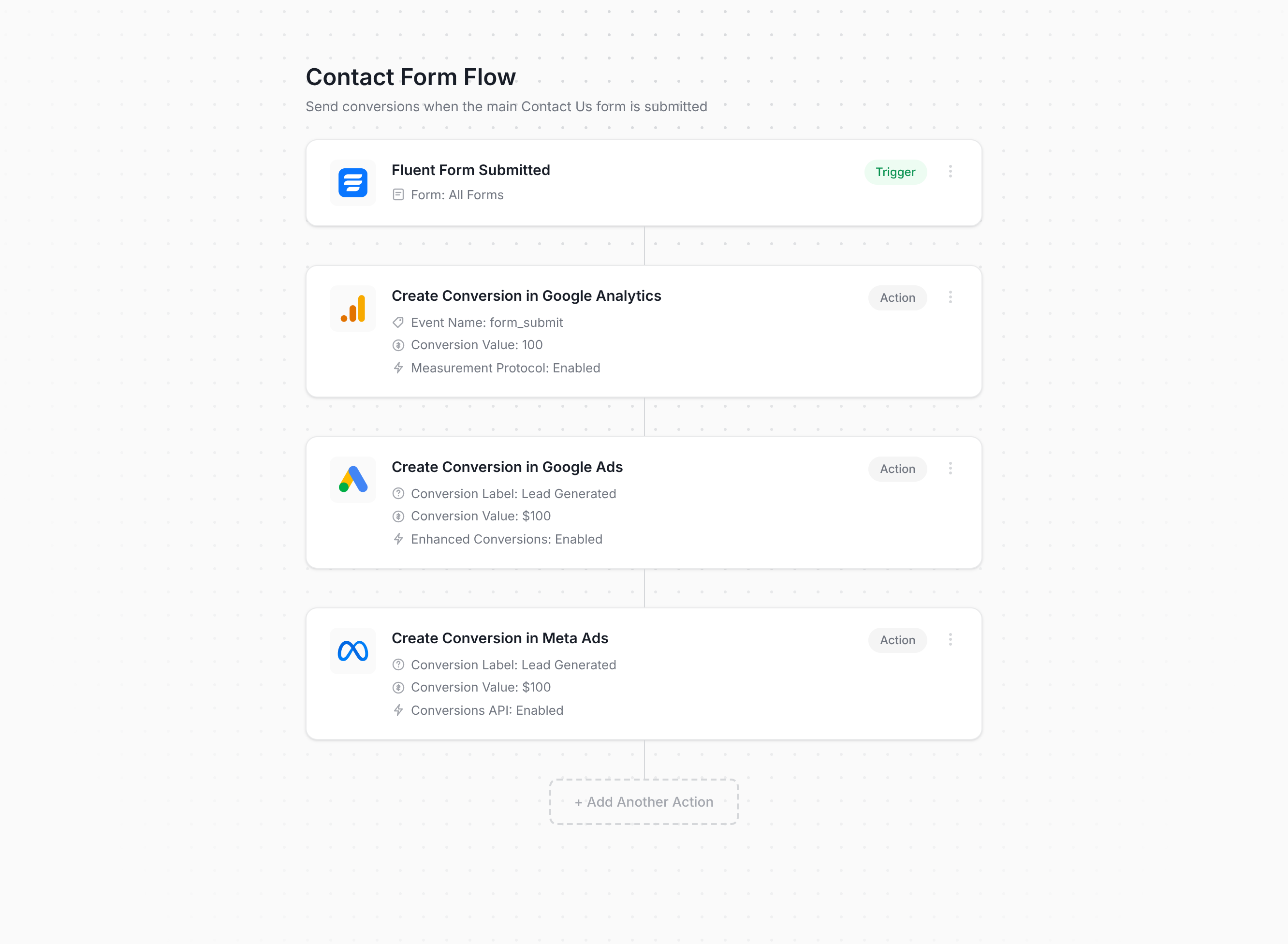
As you can see above, setup is genuinely simple. Pick a trigger (like a Fluent Forms submission) and then pick one or more actions, like sending a conversion to Google Ads or to Meta Ads. That's all there is to it. No custom code, and no Tag Manager triggers or variables to piece together.
From there, you just paste the Converly code on your site, and it does the rest. It watches for Fluent Forms submissions, pulls out the name, email, and phone, and sends them to Converly's own servers, which pass them on to Google Ads, Meta Ads, and wherever else you've connected (because this forwarding step happens server-side, ad blockers and privacy-focused browsers like Safari can't get in the way).
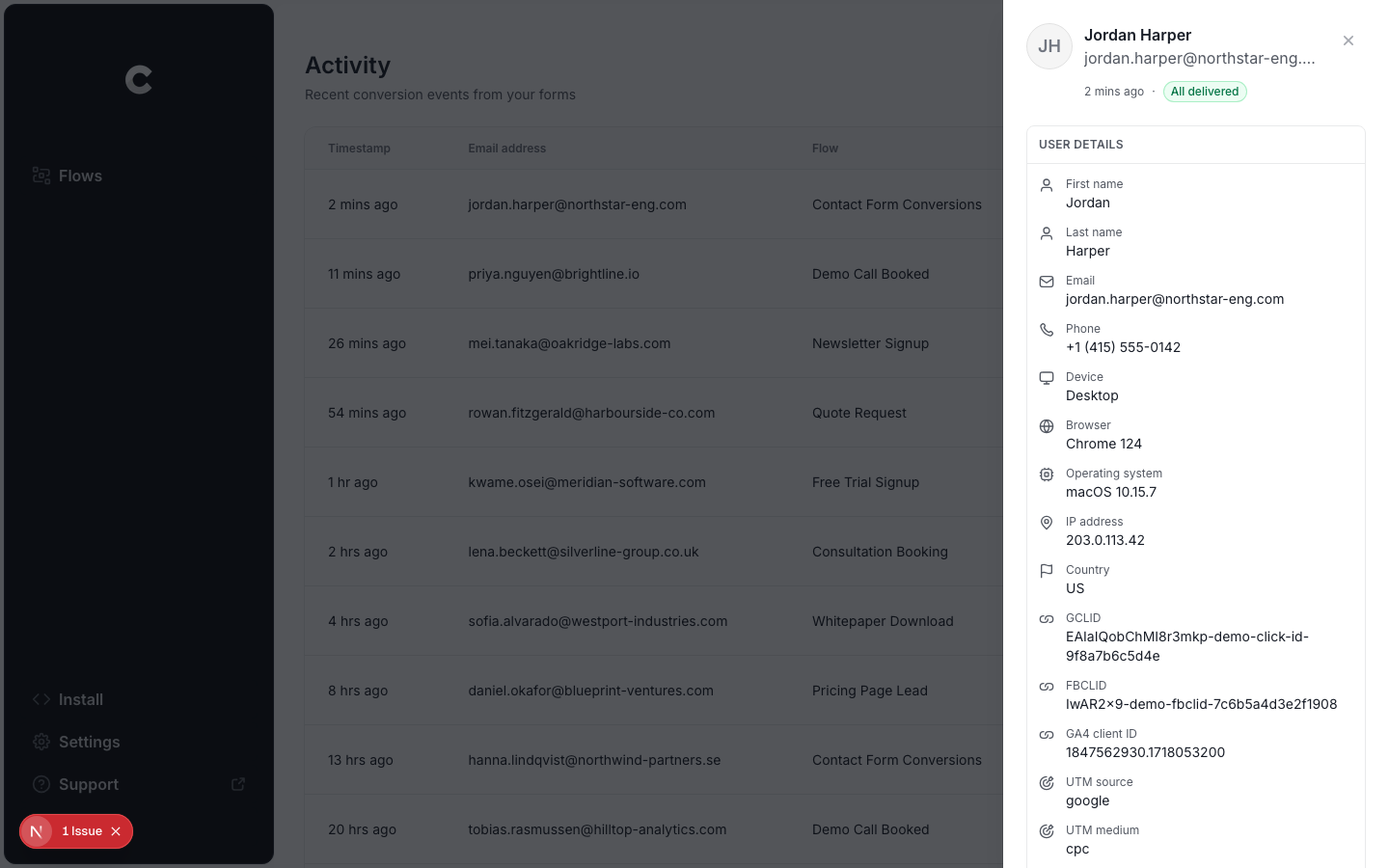
But here's the part that matters most if you're running ads on Google, Meta, ChatGPT, etc. Alongside the name, email, and phone, Converly also grabs the Google and Meta click IDs (GCLID and fbclid), Meta's browser cookies, the visitor's IP address, their user agent, and more, and sends all of it over with each conversion. Those are exactly the signals platforms like Google and Meta reward, and having the full set is what pushes your match quality from weak to strong (on Meta, this will likely lift your Event Match Quality from around 3 up to a 9 or 10).
Converly also gives you a full conversion log, so you can see every lead that submitted one of your Fluent Forms, what data was captured, what was sent to each ad platform, and whether it landed.
The other benefit is that one setup in Converly can send the same conversion to Google Ads, Meta Ads, ChatGPT Ads, LinkedIn Ads, GA4, and 15 other destinations in one go. So if you start advertising somewhere new next month, you just add it as another action on the flow you already have. No new snippet, no new GTM tag, nothing to rebuild.
Pros and cons
Pros:
- It's genuinely easy to set up. No code to write or maintain, and no complex configuration.
- Captures the click IDs, cookies, IP, and user agent and sends them along with every conversion. This dramatically lifts match quality in the ad platform (in Meta for example, you'd typically go from an Event Match Quality score of 3 or 4 up to a 9 or 10 with Converly).
- Sends the conversion server-side, so ad blockers and privacy browsers don't stop them from reaching your ad platforms. You'll likely record 30% more conversions using Converly than using Google Tag Manager.
- Supports conditional logic, so you can send specific conversions when certain forms are completed on your site (for example, only firing a conversion when the Quote Request form is submitted, not the Contact Support form).
- Lets you log in to Google Ads, Meta Ads, and so on within the platform and just pick the conversion you want to fire. No hunting around for account IDs or conversion IDs.
- Gives you a full conversion log where you can see every lead that submitted your Fluent Forms form, what data was captured, whether it made it to your ad platforms, and more.
- You get support from a team of experts who will happily help you get set up and troubleshoot issues. Good luck getting that kind of help from Google if you're using GTM.
Cons:
- It's a paid tool after the free trial. Plans start at $19 per month.
What not to do
So far we've covered the three best approaches to conversion tracking for Fluent Forms, and when to use each one. But it's also worth knowing which approaches to avoid, because a few of the most common DIY approaches to Fluent Forms conversion tracking can produce seriously incorrect data. Here's what to steer clear of:
Tracking thank-you page visits
This is the single most common DIY approach, and it's one of the worst. The idea is to send people to a dedicated thank-you page after they submit, then count visits to that page as conversions. It sounds clean, but it goes wrong in several ways.
It fires for people who never submitted anything. A thank-you page is just a URL, and a URL can be reached without ever submitting a form. People bookmark it, land on it from their browser history or autocomplete, or stumble on it through Google if it ever gets indexed. Every one of those gets counted as a conversion, even though no form was ever submitted.
It can double count genuine submissions. If a lead refreshes the thank-you page by accident, a second conversion gets recorded. If they hit the back button and land on it again, that's a third. One real lead can generate several conversions, which inflates your total count.
Match rates would be poor. A thank-you page has no idea who submitted the form, so there's no way to capture the lead's name, email, phone, Google Click ID, Facebook Click ID, and so on to send back to the ad platforms. Without that data, sending conversions to ad platforms is kind of pointless, since the ad platforms don't have the data they need to match the conversion back to the person and the ad they clicked.
It also misses conversions of its own. By default, Fluent Forms shows its confirmation message on the same page rather than redirecting anywhere, so if you set up a new form and forget to configure a thank-you page redirect, this approach never gets the chance to fire at all.
The root problem is that a thank-you page visit is a proxy for a conversion, not the conversion itself. The three methods above all fire on Fluent Forms' actual confirmed submission, so they're much more accurate.
Relying on the default form submit trigger in Google Tag Manager
If you're setting up conversion tracking in Google Tag Manager, the obvious first thing to do is use the built-in Form Submission trigger, which listens for the browser's native form submit event.
But with Fluent Forms, that event fires as soon as the button is clicked, regardless of whether the form submission was accepted or rejected. So if a user leaves a required field blank or they type their email wrong, the submission gets rejected, but the conversion gets counted. And when they fix the error and submit again, you get two conversions from one lead.
On top of that, most spam protection only happens after the submit button is clicked, so if you get any spam submissions they will all be counted as conversions.
Always listen for a genuine Fluent Forms success signal instead, the way tools like Converly do.
Using GA4's automatic form tracking (Enhanced Measurement)
GA4 ships a built-in Enhanced Measurement feature that claims to detect form submissions automatically, with no setup required.
It's triggered by the same native browser submit event that Google Tag Manager uses, which means it inherits the same problem described above. Since Fluent Forms fires that event on every submit, a rejected submission is just as likely to get logged as a real one, and there's no way to tell the two apart in your reports afterward.
So if you want accurate conversion tracking, use one of the methods mentioned above.
Firing the conversion on the submit button click
Some setups we come across send the conversion as soon as someone clicks the submit button, typically using a click trigger in GTM aimed at the button itself. As we've mentioned above, a click is not a submission. The visitor might have left a required field blank, mistyped their email, or tripped Fluent Forms' spam protection, and in any of those cases the submission gets rejected, but the conversion still gets counted because the button was clicked.
Then, when they fix the issue and click submit again, a second conversion gets counted for the same lead. Not good.
So which method should I use?
Here's how the three ways to track Fluent Forms conversions compare.
| Method | Best for | Sends conversions to | Data sent |
|---|---|---|---|
| Method 1. Fluent Forms' own event tracking setup | Sending submissions to Google Analytics, if you don't mind following some setup steps | Google Analytics 4 | The submission event only |
| Method 2. Enhanced Conversions through Google Tag Manager | Sending to Google Ads, if fiddly configuration doesn't put you off | Google Ads | Name, email and phone |
| Method 3. Converly | Sending to any ad platform, with the least setup work | Google Ads, Meta Ads, LinkedIn Ads, ChatGPT Ads, GA4 and more | Name, email and phone, plus the GCLID, the Meta click ID, IP address and user agent |
Wrap up
Conversion tracking rarely gets much attention, but it's actually a huge factor in how well the rest of your advertising performs. Set it up properly, and Google and Meta's algorithms will learn what your ideal customer looks like and serve your ads to people like them. Set it up badly, and you'll end up spending lots of money showing your ads to people who were never going to convert.
The upside is not just theoretical either, because both platforms have published figures on it. Google says businesses that move to proper server-side conversion tracking see conversions climb by 19% on average. And Meta reports a 23% increase from doing the same on its platform.
Converly gets you proper server-side tracking without any of the hard parts. You simply pick your trigger (a Fluent Forms submission), decide which platforms should receive the conversion, and the setup is done.
Best of all, Converly is free to start with, and most people are fully up and running in under 10 minutes. Start your 14-day free trial today.
About the author

Aaron is the founder of Converly. With over 15 years of experience in digital marketing and SaaS, he's passionate about helping businesses track and optimise their ad conversions.