


Track Typeform submissions as conversions in Google Ads
Learn how to send server-side conversions to Google Ads whenever a Typeform is submitted on your website. No code required!
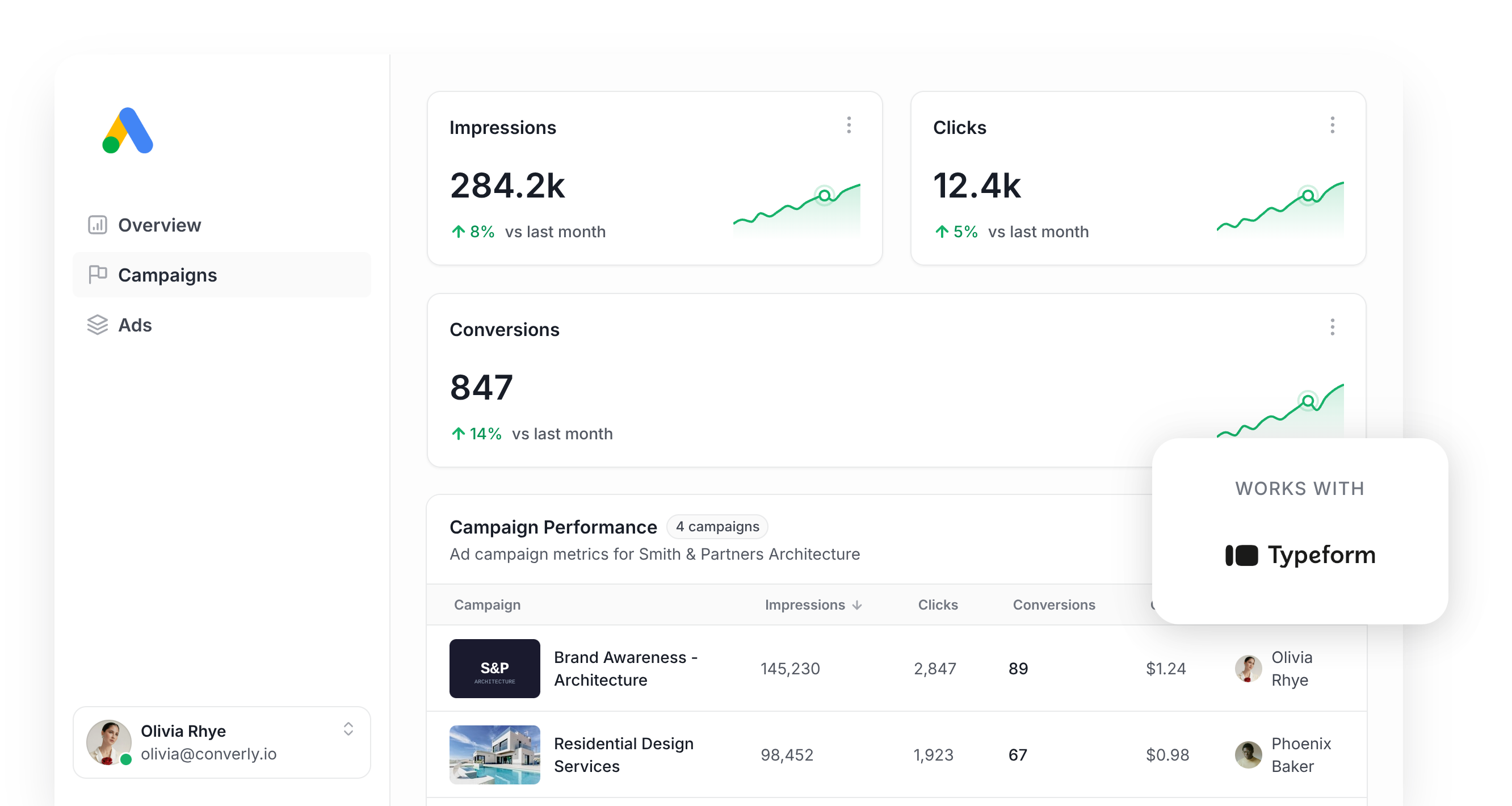
Google Ads is a great way to bring new leads and customers into your business, but wiring up conversion tracking correctly is no small task.
Tools like Google Tag Manager require you to write custom code that listens for form events, and then you have to extract the user's name, email, etc. hash it with SHA-256, and configure Variables, Tags and Triggers just to get the data over to Google.
Even the easy-looking alternatives don't really hold up. Tracking thank you page views, for example, will routinely drop close to 30% of your conversions once you factor in ad blockers, browser privacy controls (Safari being the big offender), or anyone who taps your ad on mobile and finishes the form days later on a different device.
So how should you actually handle it? Fortunately, there is a better way.
In this article, we'll show you a super simple way to send conversions to Google Ads whenever someone submits a Typeform form on your website.
Why you need to send conversions to Google Ads server-side
Having accurate conversion tracking in place is the key to success with Google Ads.
Google Ads has smart bidding technology that uses hundreds of signals (the user's location, purchase history, time of day, and so on) to understand whether a particular person is likely to buy your product or service, and it uses that to bid higher or lower depending on whether it thinks the person is a good fit for you.
It's super powerful, but it only works if you have accurate conversion tracking. You need to be able to tell it "this person converted and this person didn't" so it knows what kind of people are the best fit.
The problem with other conversion tactics (like tracking thank you page visits or using tools like Google Tag Manager) is that they send the conversions to Google through the user's browser. That approach has a couple of issues:
- Ad Blockers — Ad Blockers prevent the Google Tag from loading, so if a visitor is using one, it can't record any of the actions they take on your site.
- Privacy Features in Browsers — Safari and similar privacy-first browsers cap how long the Google Tag can track visitors, often to a single day. If someone clicks your ad and converts 3 days later, the conversion can't be tied back to the original ad click.
- Using multiple devices — A prospect might first click your ad on their work laptop, then come back to convert on their phone or home computer, which breaks the link between the original click and the eventual conversion.
This is why you need to be doing server-side tracking. Rather than relying on things to happen in the browser and hoping it all works, you essentially send a direct, private message to Google's servers with all the lead's details (which ensures the conversion can be matched across devices and isn't blocked by ad blockers or privacy settings).
This has been proven to work significantly better. In fact, Google's own data shows that using server-side tracking typically results in a 23% average increase in total recorded conversions and a 10% reduction in cost per conversion (more accurate conversion data helps Google understand who your ideal customer is, and serve your ads to more of those kind of people).
3 simple steps to send server-side conversions to Google Ads from Typeform
Here are the 3 simple steps to get server-side conversion tracking running between Typeform and Google Ads.
Step 1: Build your Conversion Flow in Converly
Converly is a tool that makes it easy to send server-side conversions from Typeform to Google Ads.
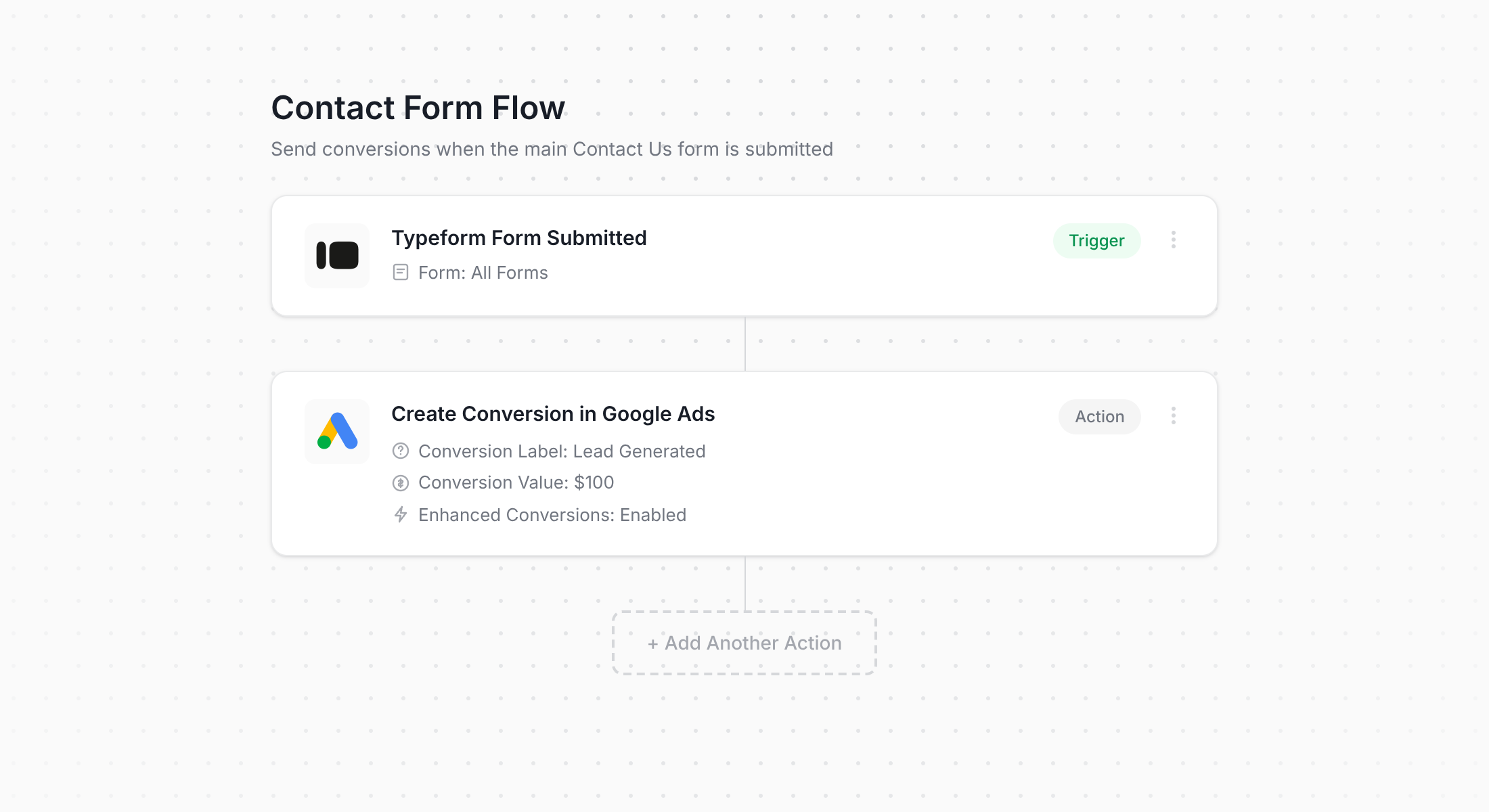
You can see in the screenshot above that Converly ships with a simple workflow builder. If you've ever set up an automation in tools like Zapier or HubSpot, it'll feel immediately familiar.
You start by choosing your trigger (in this example, a Typeform being submitted), and then add the actions you want to happen next (such as firing off a conversion to Google Ads).
That really is the whole thing. A handful of clicks and your server-side conversion tracking is live in Google Ads.
Step 2: Add the Converly code to your website
After you've built and published your Conversion Flow, Converly will give you a small snippet of code to drop onto your website.
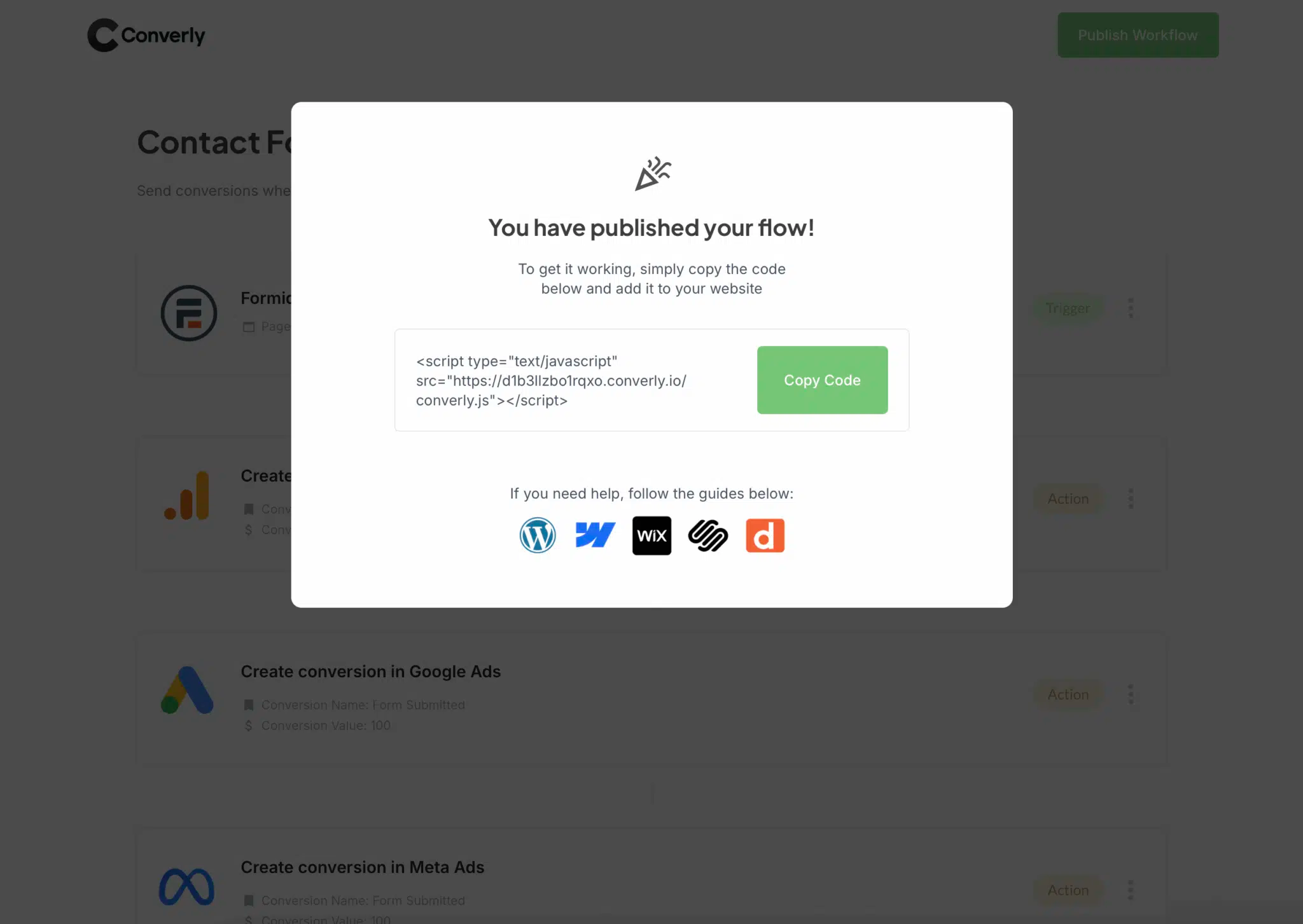
Because Typeform is hosted on typeform.com and embedded into your site via an iframe or JavaScript, the snippet needs to go on whichever website hosts the embed (not inside Typeform itself). If your site runs on WordPress, Webflow, Squarespace, etc, you can usually paste it into a Header or Custom Code area in the CMS settings. You can also do it via Google Tag Manager if you use that.
Step 3: Test it works
The last step is to head over to your site and submit the Typeform as if you were a regular visitor.
Then jump back into your Conversion Flow, click the 3 dots menu in the top right, and choose View Logs.
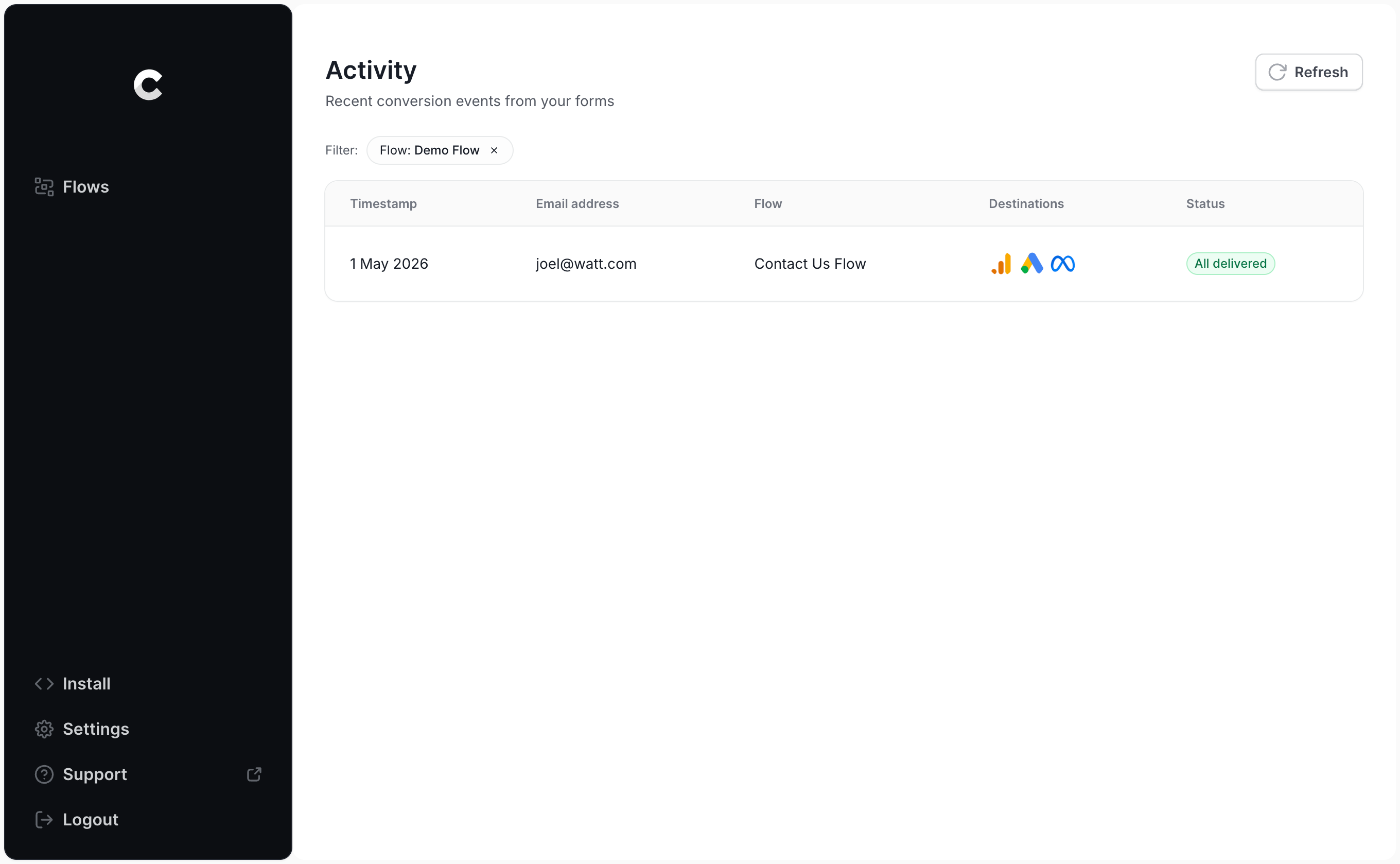
On the logs page, click into your test submission to see all the data captured, including whether or not it was delivered to Google Ads.
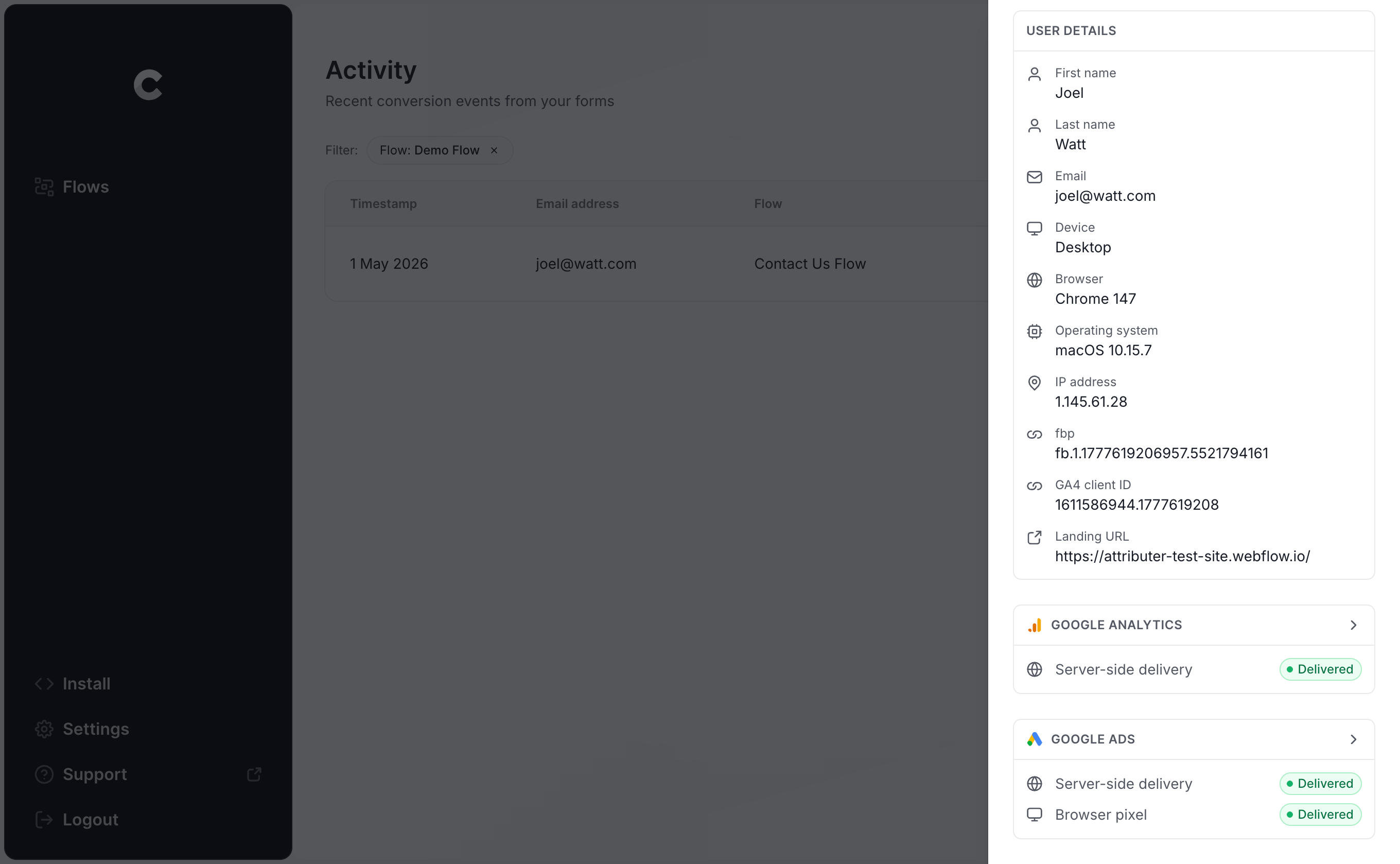
You can then drill in even further to inspect exactly what data Converly sent to Google Ads, the response that came back, and so on.
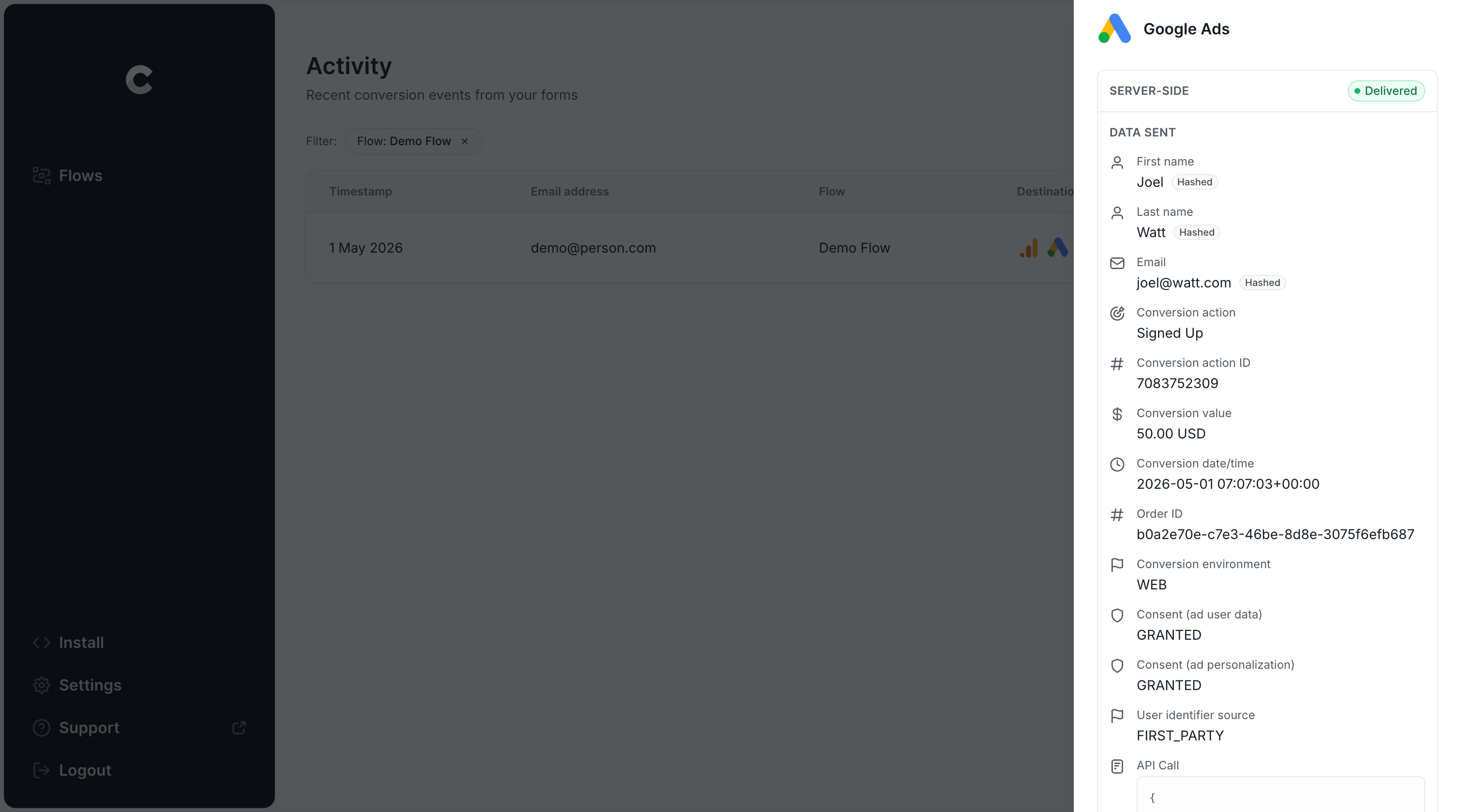
If your test submission shows up in the log and confirms it was sent successfully to Google Ads, you know everything is wired up correctly. Start to finish, this whole setup shouldn't take you more than 5 minutes!
Why Converly is the best way to send conversions to Google Ads from Typeform
There are a handful of other ways to send conversions to Google Ads when someone fills out a Typeform on your site, so why go with Converly? Here's why:
1. Easy to set up
The usual recommendation for sending conversions to Google Ads is Google Tag Manager. The catch with Typeform is that the form itself runs inside an iframe loaded from typeform.com, so a normal GTM trigger listening on the parent page can't actually hear the typeform-ready or typeform-submit events.
To get around that, you have to write custom code that hooks into Typeform's Embed SDK callbacks, then push the lead's name and email into the DataLayer, hash that data with SHA-256 (Google requires it), and wire up the matching variables, triggers, and tags.
Unless you live and breathe Google Tag Manager (and the Typeform Embed SDK), you'll lose hours stitching all of that together.
Converly handles all of this complexity for you behind the scenes. You simply choose a trigger (like a Typeform submission on your site) and then choose what should happen as a result (a conversion getting pushed to Google Ads). That's all that you need to do. Converly handles all the complexity of listening for form submissions, extracting the data, securing it and passing it to Google's servers for you.
2. Not affected by ad blockers and privacy restrictions
If you rely on something like Google Tag Manager (or a basic thank you page approach), a decent chunk of your conversions will simply never reach Google because ad blockers and privacy-focused browsers stop the Google Tag from running on your site.
One study that crunched the numbers on more than 7 million conversions found that tag-based tracking was missing roughly 30% of conversions. About 5% of that came from ad blockers, with the bigger share (around 25%) coming from browser-level privacy controls.
Converly sidesteps the issue entirely. Because conversions are sent directly from our servers to Google's servers, ad blockers and privacy browsers cannot intercept them, and you end up with far more accurate numbers.
3. Works across devices
It's really common for a lead to discover your business on one device (their phone on the train, say) and then come back later on a laptop to actually fill in the Typeform.
When conversions are fired purely in the browser (the way Google Tag Manager works), those two sessions can't be stitched together because they happened on different devices.
Converly, by contrast, passes identity details (name, email, and so on) straight to Google's servers. That gives Google what it needs to tie the eventual conversion back to the original ad click on the phone, so your campaigns get the credit they deserve.
4. Sends more data
Beyond the basics like the lead's name, email and phone number, Converly also captures technical signals (the GCLID, IP address, User Agent, and so on) and ships those across to Google Ads with each conversion.
The result is that Google Ads has a far richer picture of the person who converted, and is much better placed to match the conversion back to an ad click (even if that click came from a different device weeks earlier).
For you, that means you get more accurate conversion tracking and better data to make decisions with inside Google Ads.
5. Supports multiple tools and platforms
Converly plugs into more than 100 different form builders, scheduling tools, chat widgets, and more.
And it can also deliver conversion events into Google Analytics, Google Ads, Meta Ads, LinkedIn Ads, Microsoft Ads, and plenty of other destinations.
So if you ever add a new tool to your site (like a scheduling widget or chat tool), or you start running ads on a new ad platform, you don't have to start your conversion tracking from scratch. A few clicks inside Converly and the new connection is live.
6. Gives you a full conversion log and email alerts
Here is a problem with a tool like Google Tag Manager that rarely gets talked about. You have no straightforward way to check that your conversions are still reaching Google Ads. A handful of tests at setup prove it works that day, but unless you re-run them every week, the tracking can break in silence (someone edits the Typeform, changes a tag in Google Tag Manager, or tweaks something in Google Ads) and you would have no clue.
Converly fixes that for you. You get a full conversion log that records every Typeform submission, the data Converly captured, what it sent to Google Ads, the response Google Ads sent back, and more.
You can also turn on email notifications. Get one for every conversion delivered to Google Ads, or only when a send fails, so you will know the instant your tracking stops working.
3 things you can do when you properly send conversions to Google Ads from Typeform
Once you've got real, accurate conversion data flowing into Google Ads, a whole set of capabilities unlock that just weren't possible before.
1. Report on conversions by campaign, ad group, keyword, etc.
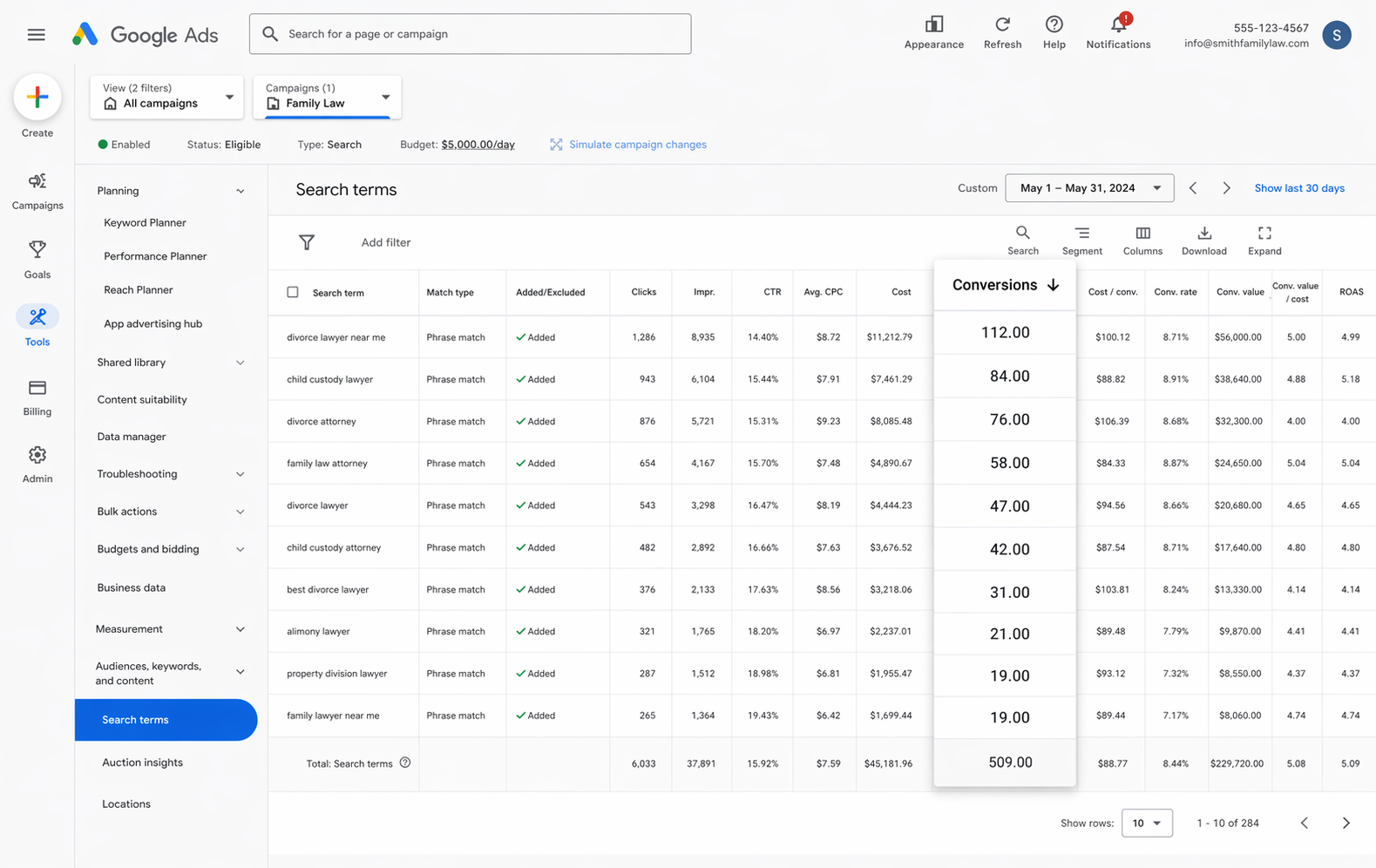
With accurate conversion tracking in place, your Google Ads reports stop being limited to impressions and clicks. You'll see conversions, conversion rate, cost per conversion, return on ad spend, and a stack of other useful metrics.
You can also slice those metrics by campaign, ad group, keyword, ad, country, and more.
That gives you a much deeper understanding of how your Google Ads are actually performing, and where the biggest opportunities to grow are hiding.
2. Use Google's Smart Bidding technology
With manual bidding, you basically tell Google "I'm willing to pay up to $3 a click." Smart bidding flips that around. You tell Google your real goal (like 'I'm willing to pay $45 per lead') and Google does the bidding in the auction for you.
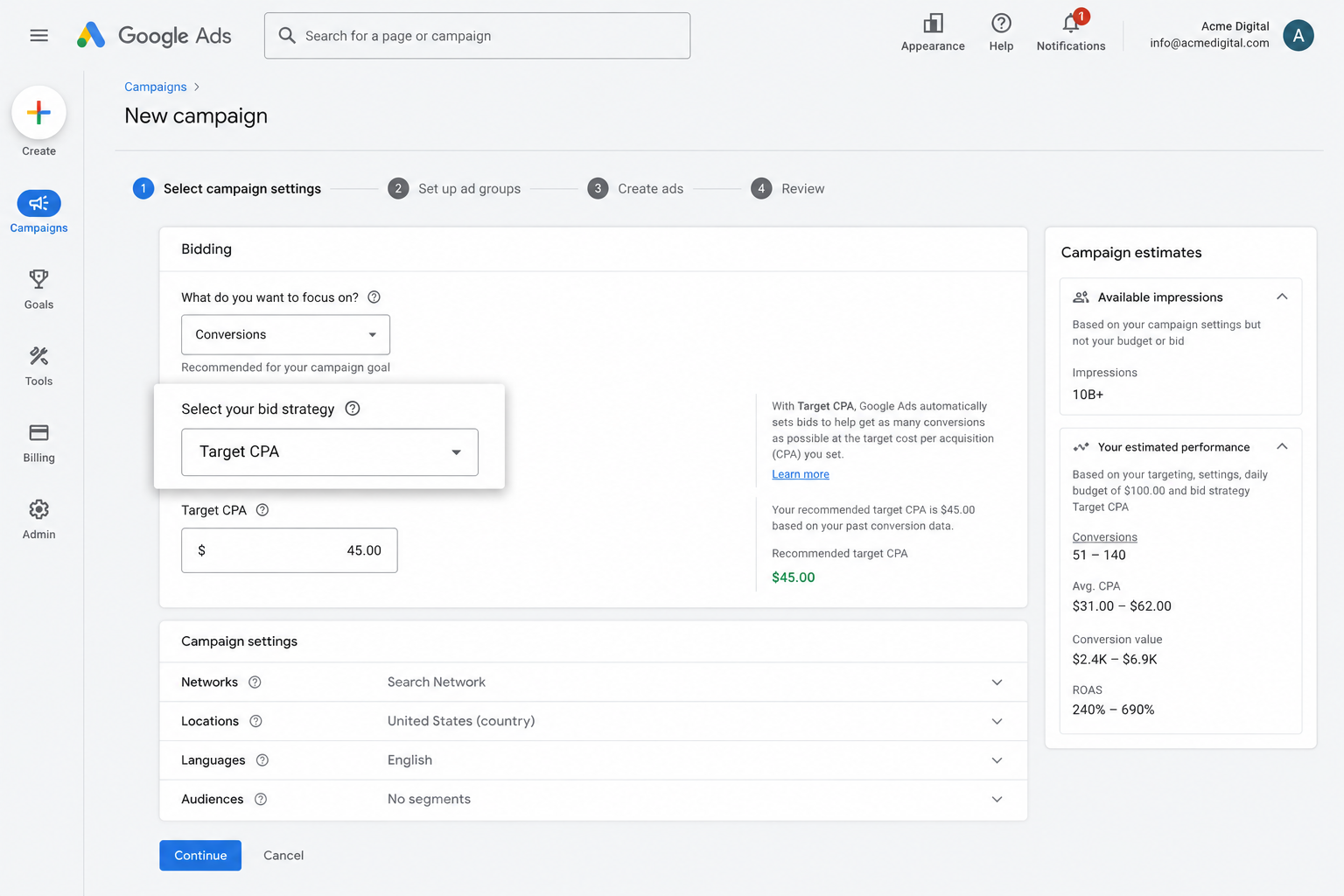
Google factors in everything it knows about the searcher (age, location, device, purchase history, etc.) and decides whether to bid aggressively or pull back based on how likely it thinks they are to convert.
It's super powerful, but the catch is that smart bidding only really works when your conversion data is solid. Without it, Google has no idea what a "good" lead looks like for your business, and tends to bid way too high to chase clicks from the wrong audience (which torches your budget and inflates costs).
By using Converly to send accurate, server-side conversions, you give Google's smart bidding technology what it needs to do its job, and you end up with more leads at a lower cost as a result.
3. Retarget people who visited your site but didn't convert
Sending accurate conversion data to Google Ads also lets you build remarketing lists of visitors who landed on your site but didn't fill out a form and convert.
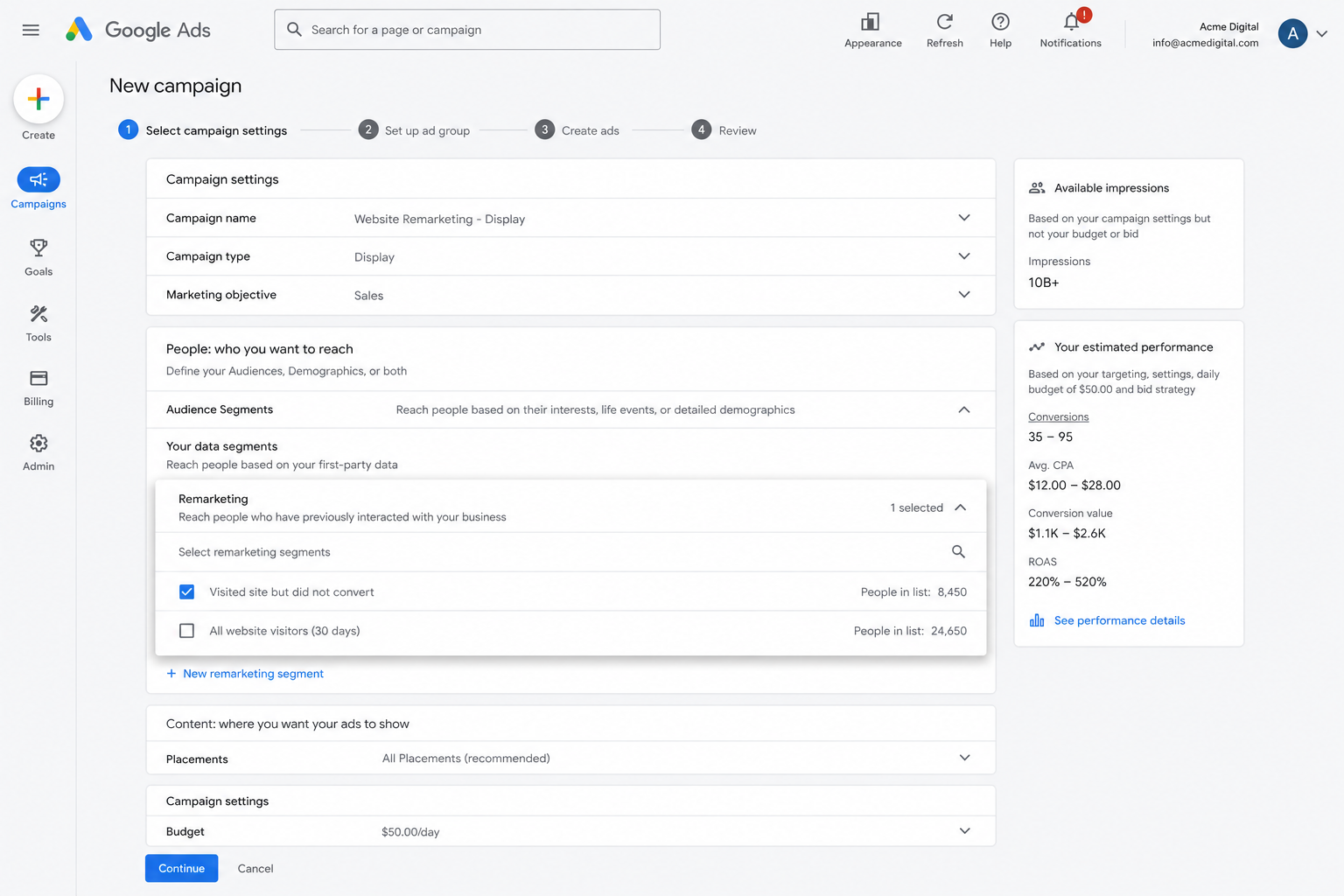
From there, you can re-engage those people in a few different ways:
- Search — Bid more aggressively (or less, if you'd rather) on these visitors when they search for your keywords again later.
- Display — Run display ads across the Google Display network targeted only at these people, keeping your brand in front of them as they browse the web.
- YouTube — Run YouTube ads aimed exclusively at this audience, so they keep seeing your message while watching content on YouTube.
Wrap Up
If your goal is to send a conversion to Google Ads every time someone submits a Typeform on your site, Converly is one of the easiest ways to get there.
It delivers conversions directly to Google's servers (so ad blockers and privacy browsers can't get in the way) and packs in a ton of useful information about the lead (name, email, phone, IP address, User Agent, and more) to give Google the strongest possible chance of matching the conversion back to the original ad click.
Best of all, it can be up and running in just a few minutes and comes with a 14-day free trial, so give it a try today!
About the author

Aaron is the founder of Converly. With over 15 years of experience in digital marketing and SaaS, he's passionate about helping businesses track and optimise their ad conversions.