


Track Salesforce Account Engagement form submissions as conversions in Google Analytics
Learn how to track conversions in Google Analytics whenever a Salesforce Account Engagement (formerly Pardot) form is submitted on your website. No code required!
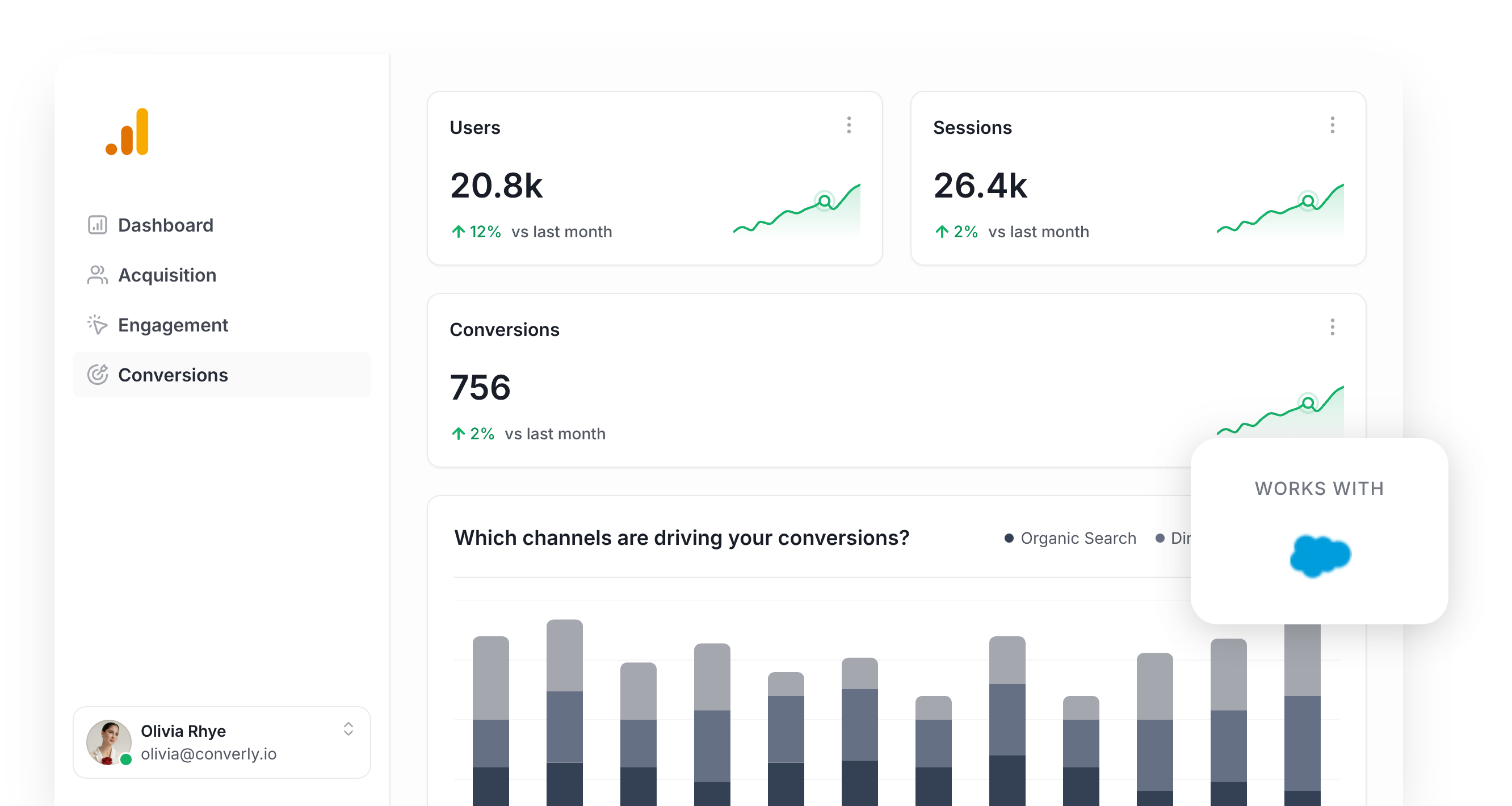
Wondering how many of your leads are actually coming from the marketing channels you're investing in (think Google Ads, LinkedIn Ads, SEO, and the like)?
If so, you're definitely not alone. And without that visibility, it's all too easy to keep pouring budget into channels that aren't really pulling their weight.
The good news is you can sort this out fairly quickly, and you don't need to write a single line of code to do it.
In this guide, I'll walk you through how to use a tool called Converly to fire a conversion event into Google Analytics every time a visitor submits a Salesforce Account Engagement (formerly Pardot) form on your site. Once it's in place, you'll be able to see exactly how many leads each campaign is generating, which channels are pulling their weight, and a whole lot more.
4 simple steps for tracking Salesforce Account Engagement form submissions as conversions in Google Analytics
When it comes to tracking Salesforce Account Engagement (formerly Pardot) form submissions as conversions in Google Analytics, there are quite a few options out there. Some teams wire it up through Google Tag Manager, others ping the Measurement Protocol with HTTP requests directly, and a few use Pardot's built-in completion actions.
The catch with most of these approaches is they're surprisingly technical. You're often stuck writing custom JavaScript or wrestling with API authentication and tag triggers.
Thankfully, there's a much friendlier option. No coding required, and no technical background needed either. The four steps below will get you up and running in just a few minutes.
Step 1: Install Converly on your website
Converly is a tool that takes the pain out of sending conversion events to ad platforms and analytics tools like Google Analytics whenever someone submits a form on your site. The best part? Zero code involved.
Kicking things off is straightforward. Sign up for the 14-day free trial and drop the snippet of code that Converly gives you into your website.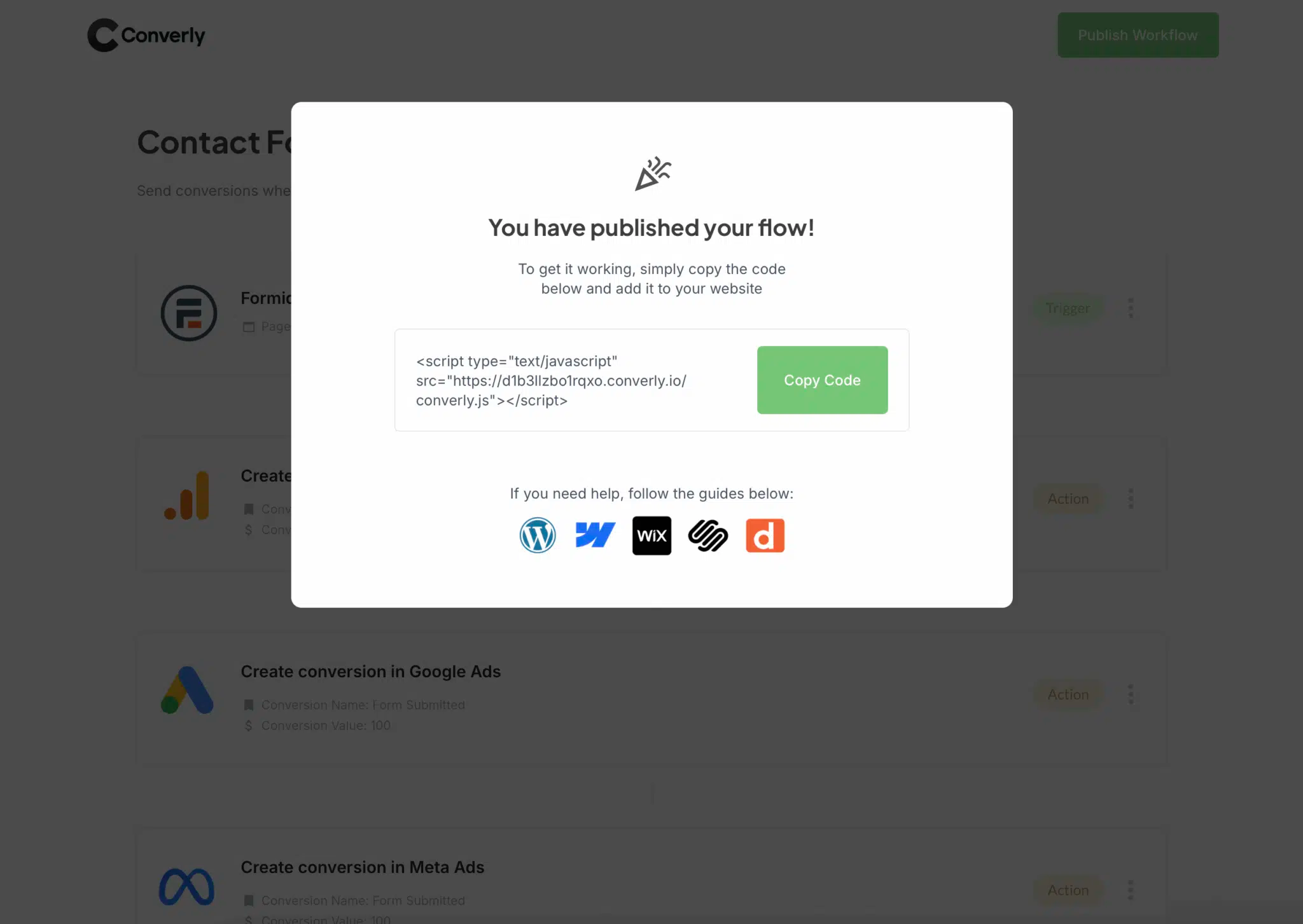 If your site runs on something like WordPress, Webflow, or HubSpot, you can usually paste the code into your CMS settings under a Header or Custom Code area, or install it through a header/footer plugin. Already using Google Tag Manager? That works too.
Step 2: Build your Conversion Flow
With the snippet installed, the next thing to do is set up your conversion flow inside Converly.
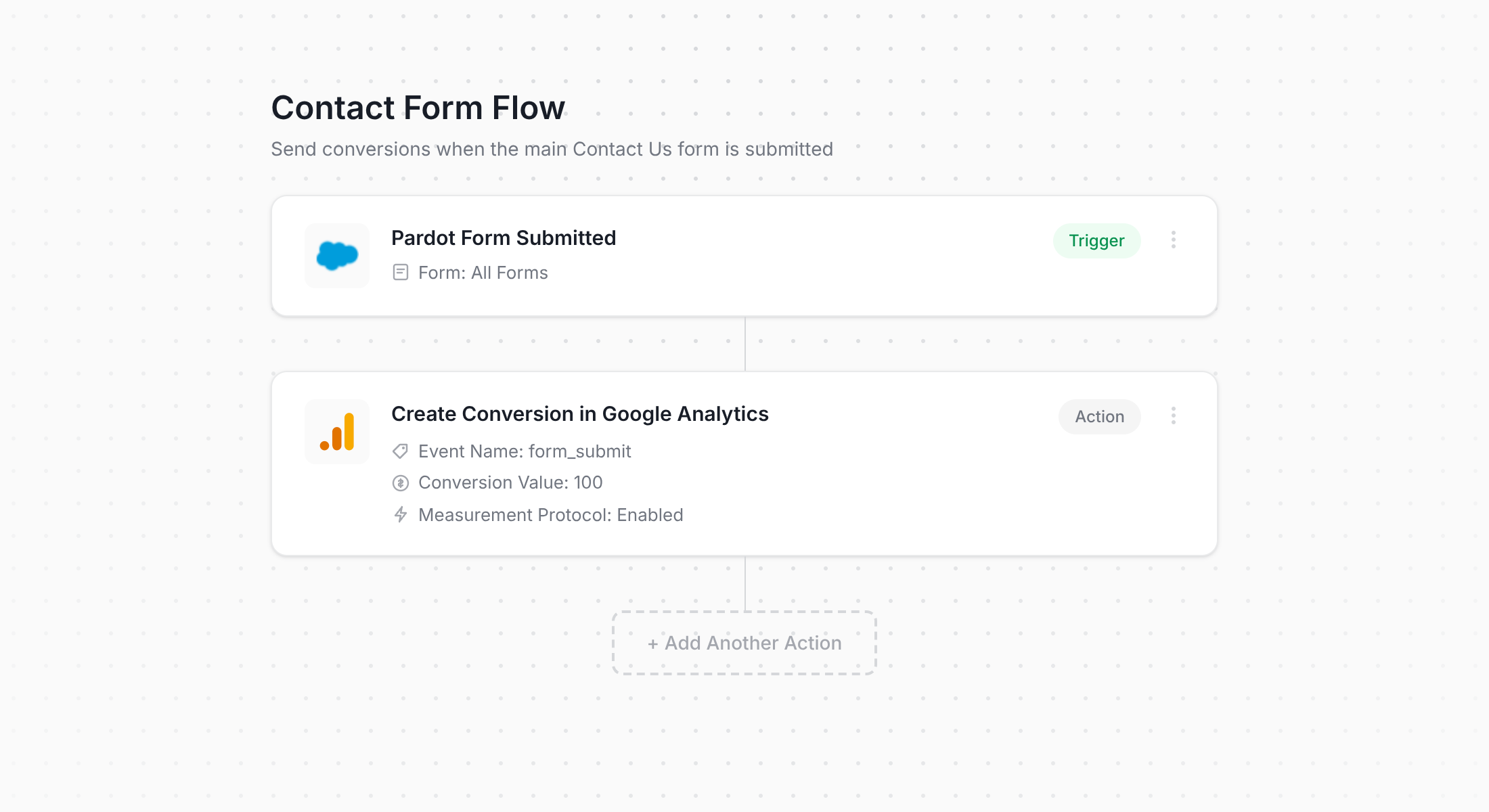
You can see in the screenshot above that Converly comes with a workflow builder that should feel familiar if you've ever touched something like Zapier or HubSpot Workflows.
You simply pick your trigger (in this case, a Salesforce Account Engagement form being submitted), then decide on the action that should follow (sending a conversion event over to Google Analytics).
That really is the whole thing. A handful of clicks and you've got conversion tracking running into Google Analytics, no code in sight.
Step 3: Test it's working
After installing Converly and configuring the flow, it's worth confirming that everything is firing the way it should be.
The quickest way to test is to open a fresh incognito window, head to the page where your Salesforce Account Engagement form lives, and submit a dummy entry.
Then jump into Google Analytics, open up the Real Time dashboard, and have a look at the Recent Events panel. If your setup is correct, your test submission will show up there within a few seconds.
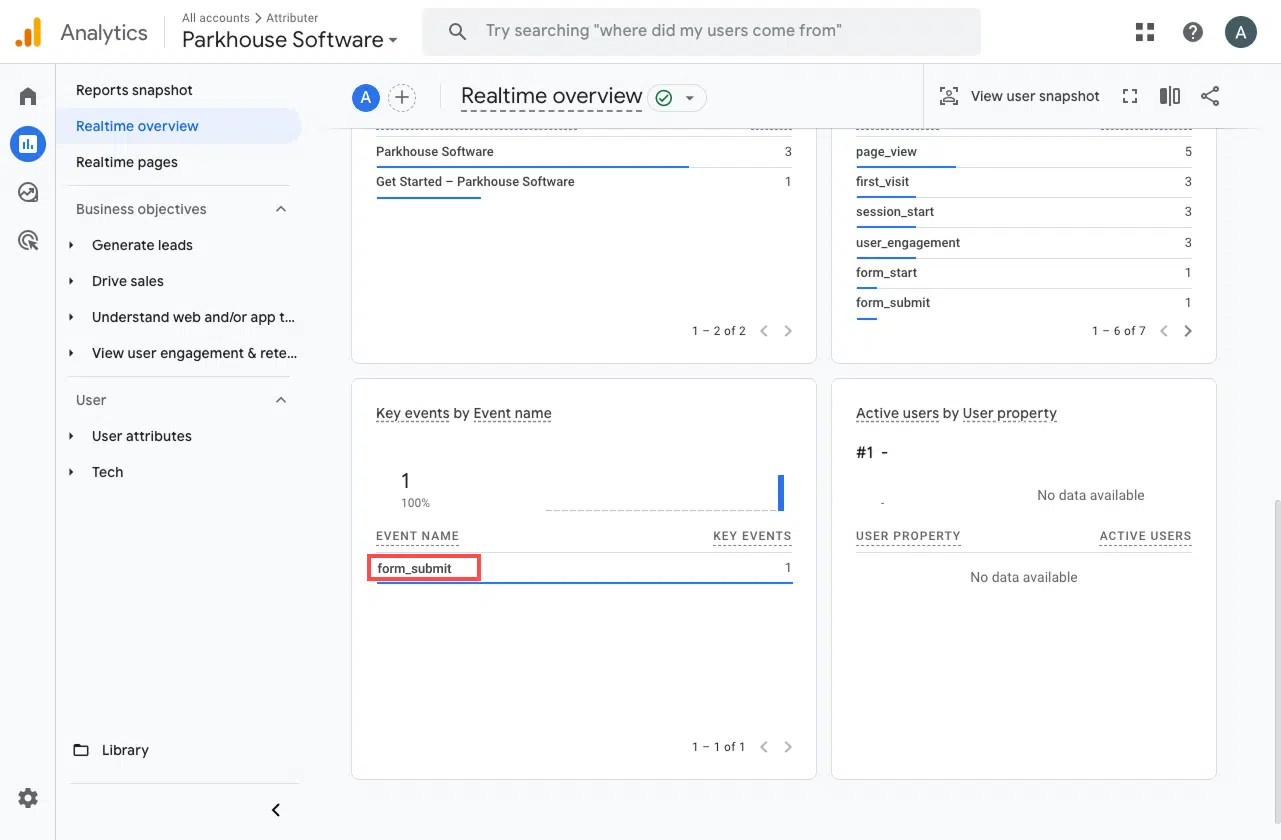
You'll spot an event in the list called form_submit (or whatever name you assigned it during setup). Seeing it there is exactly what you want. It confirms the event is firing the moment someone completes the form, and that GA4 is logging it against the right property.
Step 4: Mark the event as a 'Key Event' (Optional, but recommended)
For a finishing touch, it's a good idea to flag your form_submit event as a Key Event.
Doing this tells Google Analytics 4 to treat the event as a conversion, which opens up a bunch of additional reporting capabilities, including acquisition reports, funnel exploration, path analysis, etc.
Setting it up is quick. Head into the Admin area of your GA4 property and click Events under the Data Display section. Open the Recent Events tab and you'll see the events that have been firing. Find your form_submit event (or whatever you called it), then hit the star icon beside it to flag it as a Key Event.
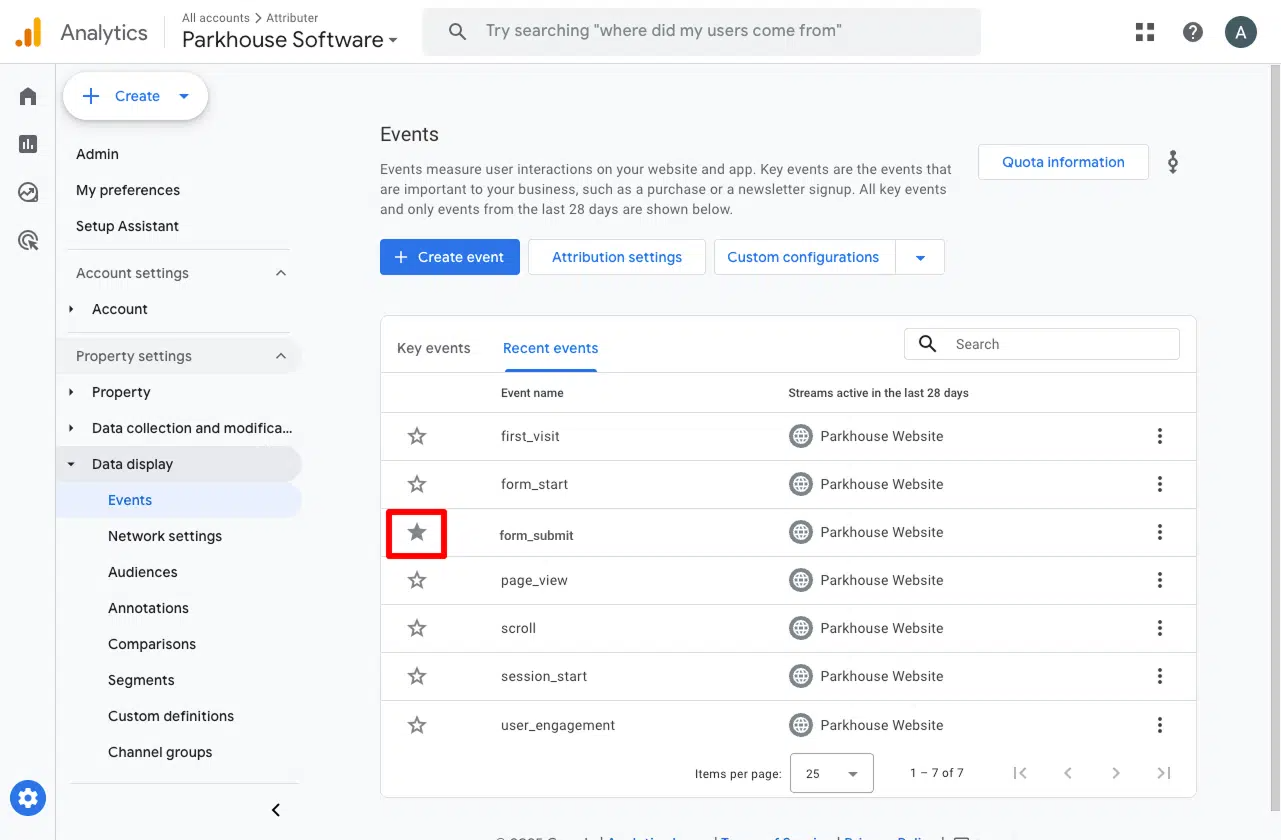
There's one more tweak we'd recommend making while you're here.
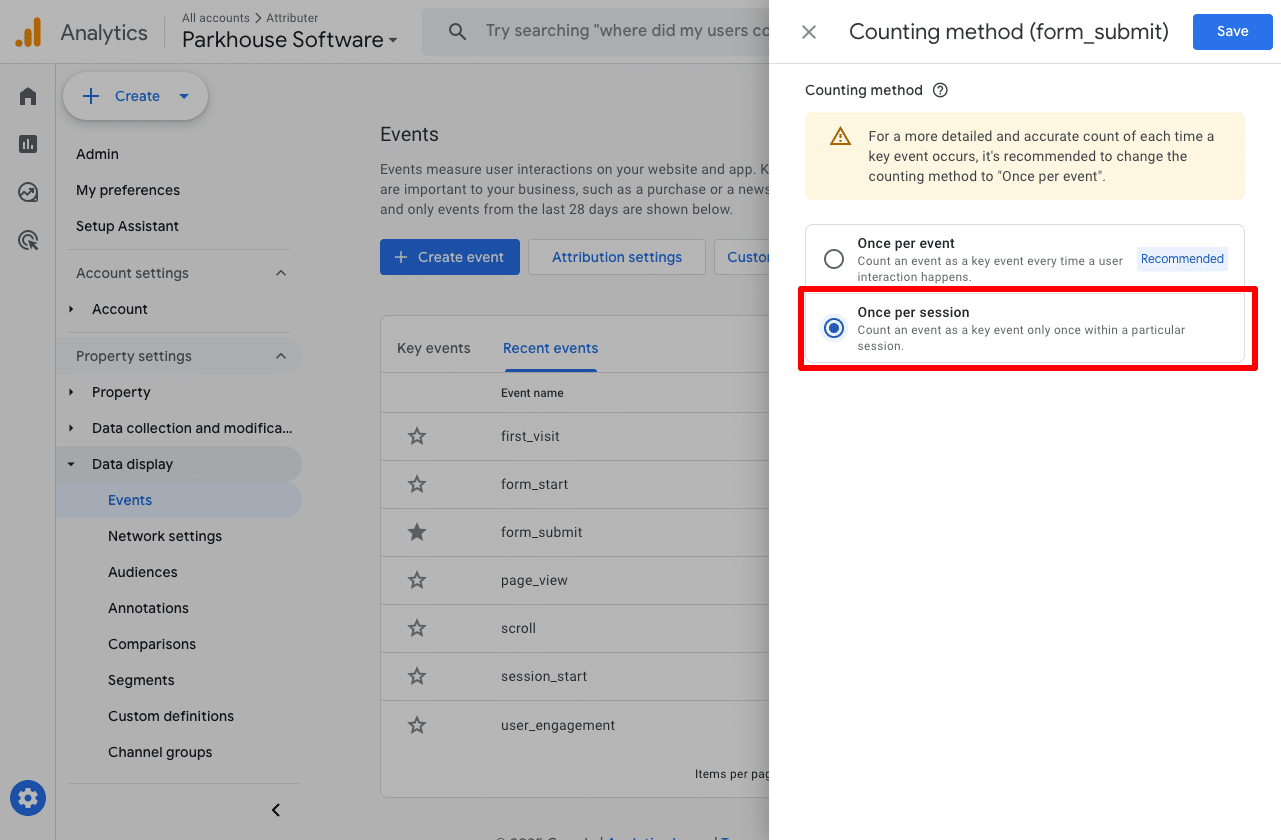
Click the three dots next to the event and select Change Counting Method. A sidebar slides out where you can pick Once Per Session.
For lead generation businesses (which is the typical setup if you're capturing form submissions through Salesforce Account Engagement), this option works far better. It avoids inflating your numbers when the same person submits the form twice. After all, a lead really only needs to be counted once per visit, unlike an eCommerce site where multiple purchases in a single session genuinely should be counted separately.
Why Converly is the best way to trigger conversions in Google Analytics
As I mentioned earlier, there are several routes you can take to push conversions into Google Analytics when someone submits a Salesforce Account Engagement (formerly Pardot) form on your site.
So why pick Converly over the alternatives? A few reasons stand out:
1. No code or complicated setup
Most of the other options out there involve custom code or wrangling Google Tag Manager. Converly skips all of that.
You get a workflow-style interface that feels intuitive from the moment you open it, especially if you've spent any time with tools like Zapier or HubSpot Workflows.
The whole process boils down to picking a trigger (a Salesforce Account Engagement form submission, in this case) and choosing what should happen as a result (sending a conversion event into Google Analytics).
And that's it. No custom JavaScript, no Tag Manager triggers, no developer involvement.
2. More accurate conversion numbers
Where most setups rely on a browser tag (like the Google Tag) to send conversions, Converly takes a different route. It sends the data directly to Google Analytics' servers via the Measurement Protocol.
Why's that important? Browser tags get blocked all the time. Ad blockers prevent them from loading, and modern browser privacy features (think Apple's Intelligent Tracking Prevention) often stop them from working as intended too.
A study that analysed over 7 million conversions actually found that tag-based tracking was missing roughly 30% of conversions. About 5% of those losses were down to ad blockers, and the larger share (around 25%) came from browser-level privacy measures.
By switching to server-side delivery with Converly, that missing 30% reappears in your Google Analytics reports.
3. Supports multiple tools and platforms
Converly plays nicely with more than 50 different tools, spanning form builders, scheduling tools, chat widgets, and a lot more. On the destination side, it can deliver conversion events to Google Analytics, Google Ads, Meta Ads, LinkedIn Ads, Microsoft Ads, and a host of other platforms.
The practical benefit is that adding new tools to your stack or expanding into a new ad platform doesn't mean redoing your conversion tracking from scratch. A few clicks inside Converly and you're connected.
4. Makes it easy to add conditional logic
One thing Converly does really well is conditional logic. You can set up rules so that different conversions are sent to your ad platforms and analytics tools depending on what visitors actually do.
Picture this. Say you're running marketing for a B2B SaaS company. You might fire a conversion called 'Demo Requested' when someone fills in your demo form, and a different one called 'Whitepaper Downloaded' when a visitor grabs one of your gated assets.
That separation lets you measure each conversion type on its own.
5. Great support provided for free
If you've ever tried getting actual help from Google or Meta about conversion tracking, you already know how painful that experience is.
Converly is the polar opposite.
Our team has over 20 years of experience between us in advertising and analytics, and we genuinely enjoy helping marketers get this stuff right. Email works, video calls work, whatever you prefer. Free support is included so you can be confident your setup is correct and humming along nicely.
6. Gives you a full conversion log and email alerts
The catch with a tool like Google Tag Manager is that you're never quite sure your conversion tracking is still firing. A few tests at setup confirm it works that afternoon, but unless you go back and re-test on a regular basis, it can break with no warning at all (someone reworks the form, changes a tag in Google Tag Manager, or edits something in Google Analytics) and you'd be left guessing.
Converly removes that doubt with a full conversion log. It lists every conversion that came through, the data Converly captured for it, what it sent to Google Analytics, the response Google Analytics returned, and a good deal more.
You can also switch on email notifications. Have one sent for every conversion that reaches Google Analytics, or only for the times a send fails, so you always find out straight away if something stops working.
3 useful reports you can run when you track Salesforce Account Engagement form submissions as conversions in Google Analytics
After more than 15 years of leading marketing teams, I've spent a ridiculous amount of time inside Google Analytics trying to figure out where leads and visitors are coming from.
Of all the reports I've used, three have proven their worth. You'll be able to run all of these once you're tracking Salesforce Account Engagement form submissions as conversions in Google Analytics.
1. Conversions by Channel
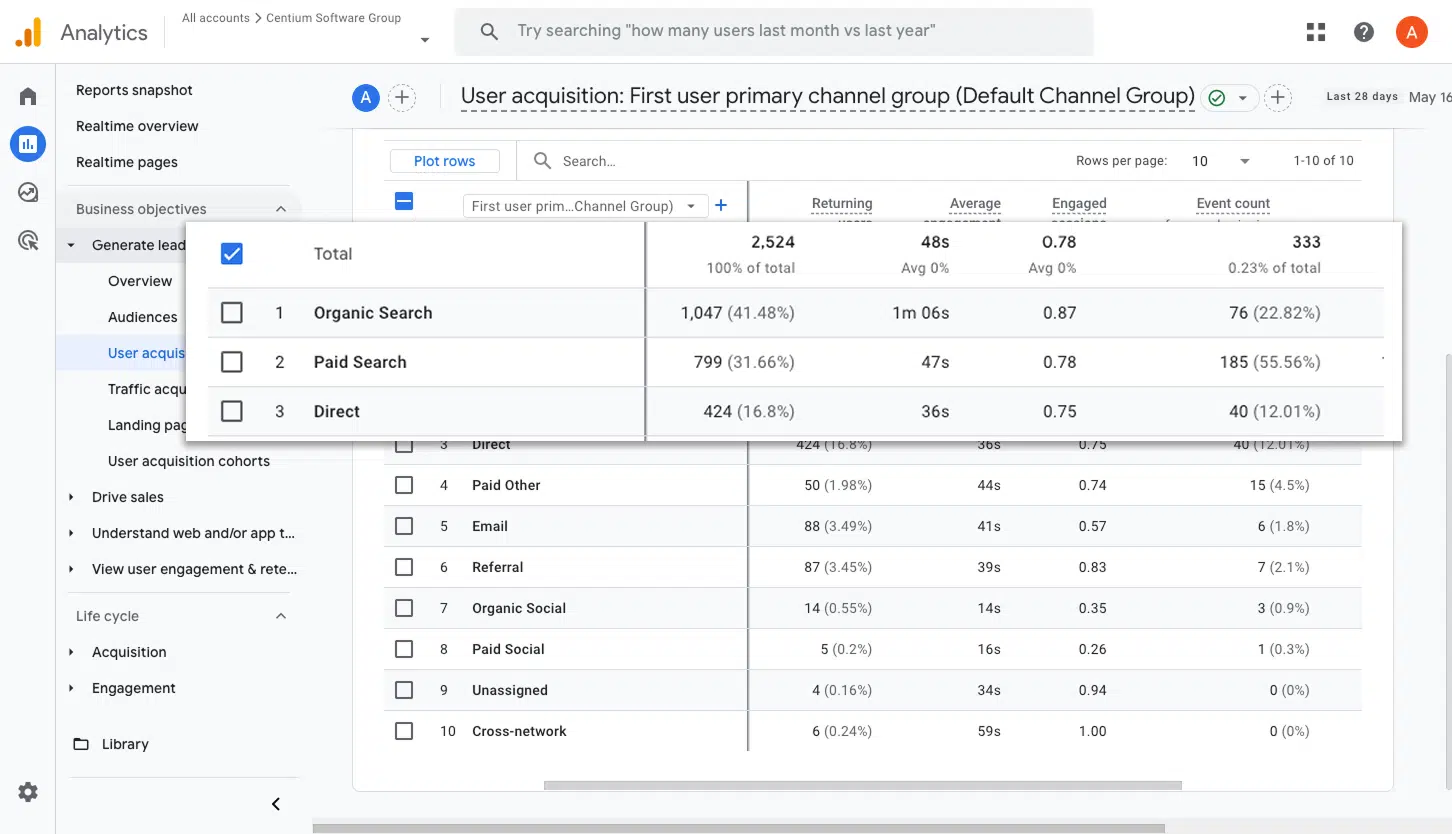
This one shows how many of your form submissions came from each channel, whether that's Organic Search, Paid Search, Paid Social, Organic Social, or somewhere else entirely.
It's an easy way to spot which channels are pulling their weight and where you might have headroom to capture more leads.
2. Conversions by Meta Ads Network
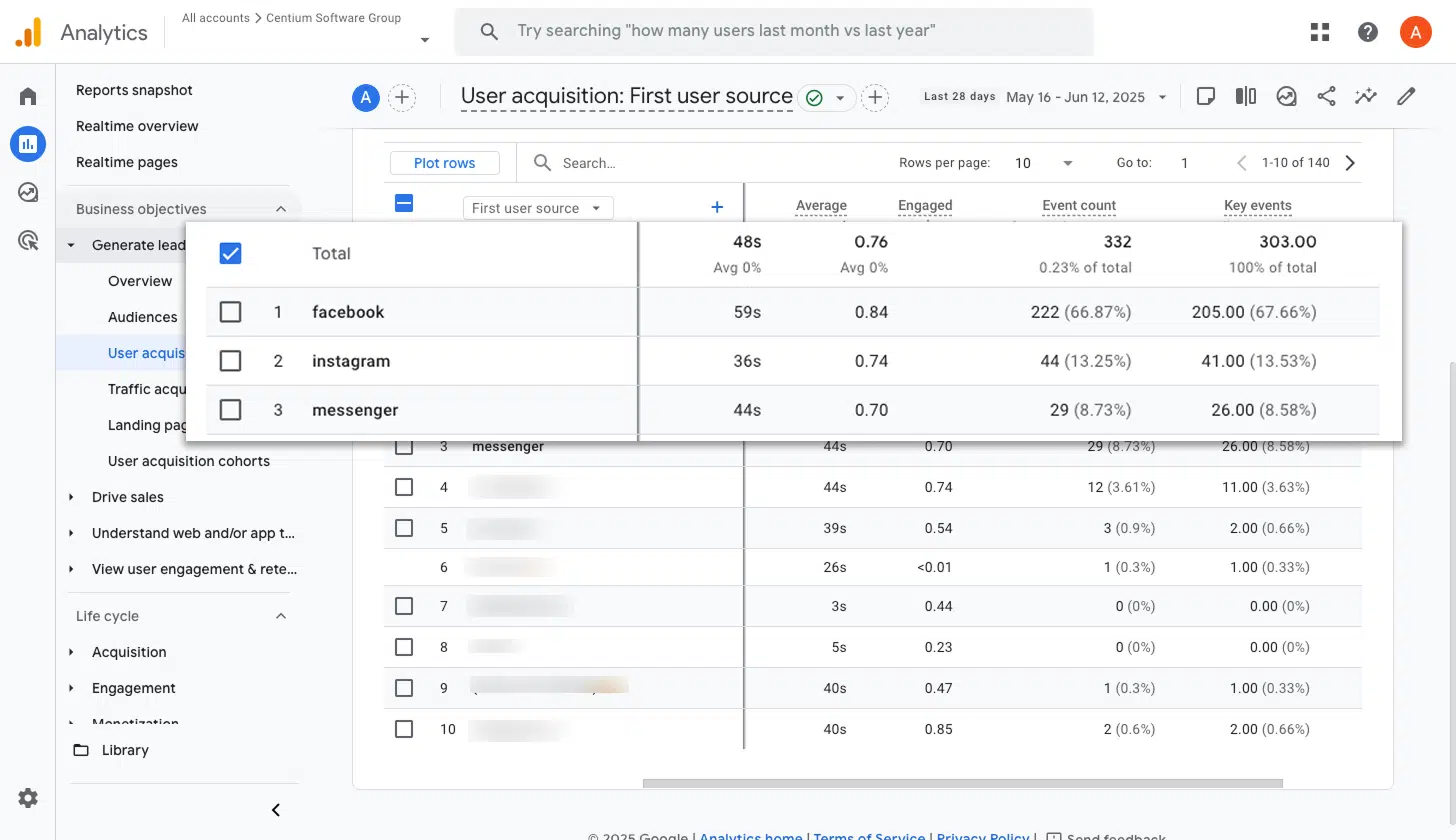
Anyone advertising on Meta will find their ads showing across multiple networks: Facebook, Instagram, Messenger, WhatsApp, and so on.
Each of those networks performs differently, so understanding which ones are actually delivering leads matters.
This report makes the breakdown obvious. You can see exactly how many conversions came from each network, then shift budget toward the platforms that are converting and dial back the ones that aren't.
3. Conversions by Google Ads Campaign
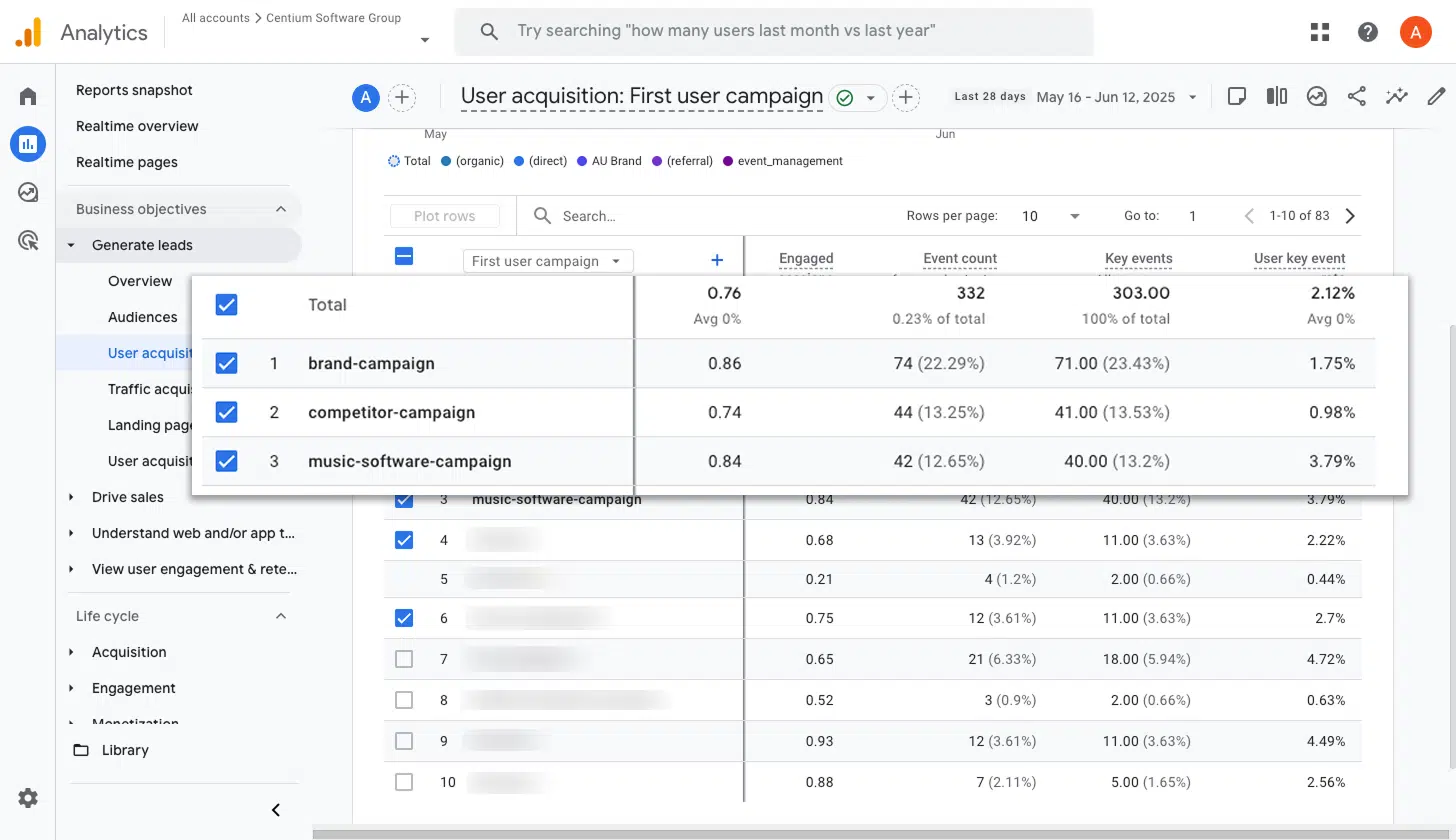
Most teams running Google Ads have several campaigns going at once. They might be split by product line, by keyword type (brand versus non-brand), or by region.
Knowing which of those campaigns are actually generating conversions is what lets you make smart budget decisions.
This report surfaces exactly that information. You can see which campaigns are pulling in the most conversions, then double down on the winners and reduce spend on the laggards.
Wrap up
Once you've followed the steps above, you'll be sending form submission events into Google Analytics every time someone completes a Salesforce Account Engagement (formerly Pardot) form on your site. Best of all, you got there without writing any code or fiddling with a complicated setup.
And if you eventually decide to advertise on Google, Meta, LinkedIn, or anywhere else, you can plug those platforms into your existing Conversion Flow and have the same data fed into them too.
Getting started is easy. Converly comes with a 14-day free trial, and most setups take less than 10 minutes from start to finish. Give Converly a go and see how simple this can be!
About the author

Aaron is the founder of Converly. With over 15 years of experience in digital marketing and SaaS, he's passionate about helping businesses track and optimise their ad conversions.