


Track Contact Form 7 submissions as conversions in Google Ads
Learn how to send server-side conversions to Google Ads every time a Contact Form 7 form is submitted on your WordPress site. No code required!
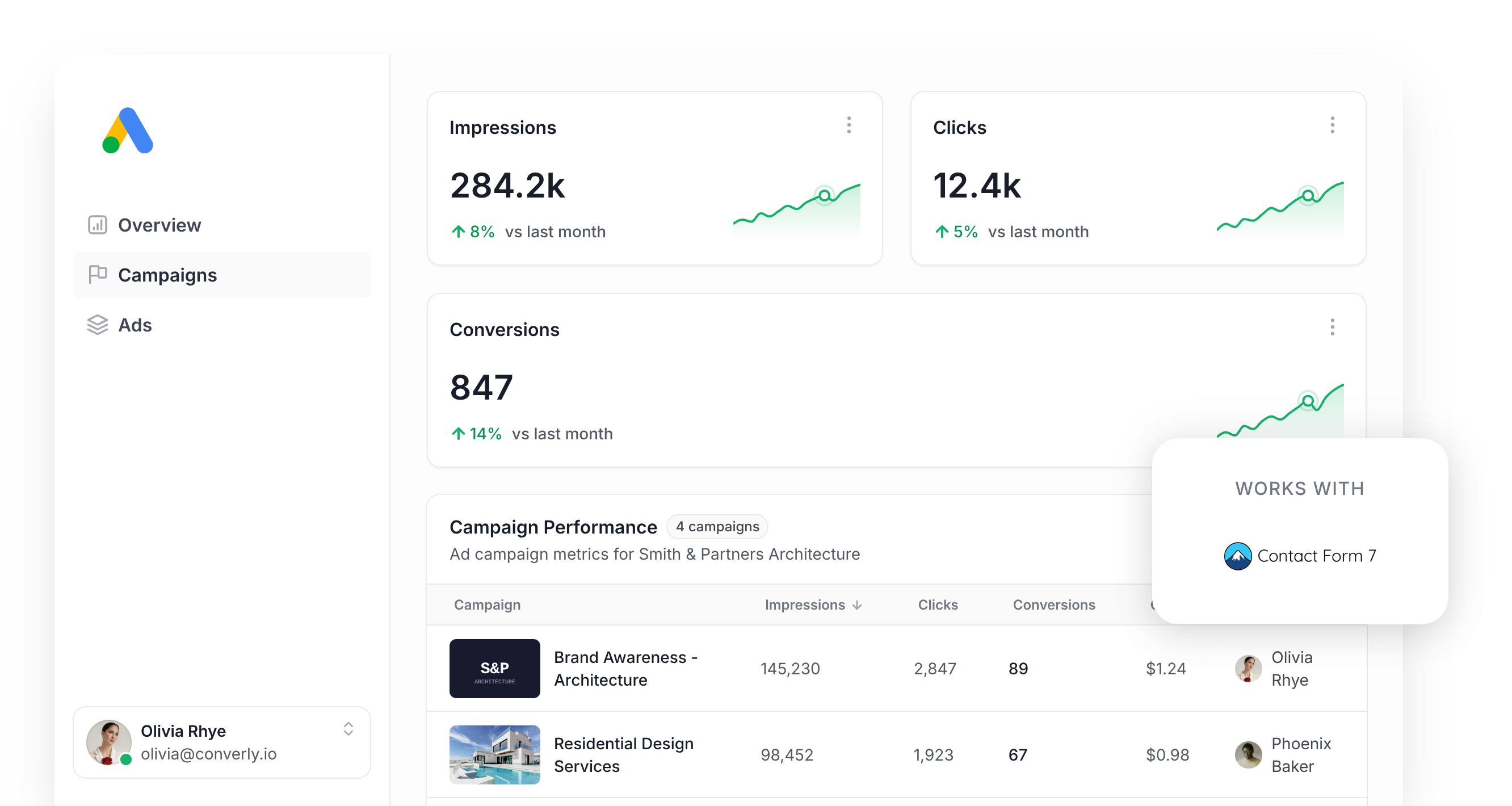
Struggling to set up conversion tracking in Google Ads when someone completes a Contact Form 7 form on your website?
You're not the only one. Tools like Google Tag Manager make you write custom JavaScript that listens for form submissions, and then you have to wrestle with triggers, tags, variables, and a long list of other moving parts.
Simpler approaches (like firing a conversion when someone hits a thank you page) tend to miss up to 30% of conversions because of ad blockers, in-browser privacy protections like the ones Safari ships with, or people clicking your ad on a phone but actually converting later on their laptop.
Fortunately, there is a solution.
In this guide, we'll walk you through a super simple way to send conversions to Google Ads whenever someone submits a Contact Form 7 form on your WordPress site (using a method called server-side tracking).
Why you need to send conversions to Google Ads server-side
Believe it or not, accurate conversion tracking is actually one of the biggest keys to success with Google Ads.
That's because Google has incredibly powerful Smart Bidding technology that pulls in hundreds of signals about a searcher (where they are located, what they've bought before, what device they are on, etc) to predict whether they are a good fit for your business, and it then uses that prediction to bid higher or lower in the auction depending on how good a fit they are.
For any of that to work though, the system needs reliable conversion data. You have to be able to accurately tell it "this person converted, this one didn't" so it can figure out which kinds of people are the right fit for your business.
The trouble with most other tracking methods (thank you page visits, Google Tag Manager, etc) is that they rely on the user's browser to deliver the conversion back to Google. That approach runs into a few problems:
- Ad Blockers — Ad blockers stop the Google Tag from firing on your pages, which means nothing the visitor does ever gets tracked.
- Privacy Features in Browsers — Browsers like Safari come with technology (known as Apple ITP) that limits how long the Google Tag can track a visitor (often capping it at a single day), so a click today and a conversion 3 days later won't connect.
- Using multiple devices — Plenty of people click an ad on their work laptop and then come back later to convert on their phone or home computer, which breaks the link between the original click and the eventual conversion.
Server-side tracking solves all of this. Instead of crossing your fingers and hoping that the visitor's browser cooperates, you send a direct, private message straight to Google's servers with the lead's details (sidestepping ad blockers and privacy-focused browsers entirely).
It really helps improve conversions too. In fact, Google's own data shows that switching to server-side tracking typically produces a 23% lift in total recorded conversions and a 10% drop in cost per conversion, because the algorithms finally have the data they need to understand what a 'good' visitor looks like for you.
3 simple steps to send server-side conversions to Google Ads from Contact Form 7
Here are the 3 simple steps to get server-side conversion tracking running between Contact Form 7 and Google Ads.
Step 1: Build your Conversion Flow in Converly
Converly is a tool built specifically to make it easy to send server-side conversions from Contact Form 7 to Google Ads.
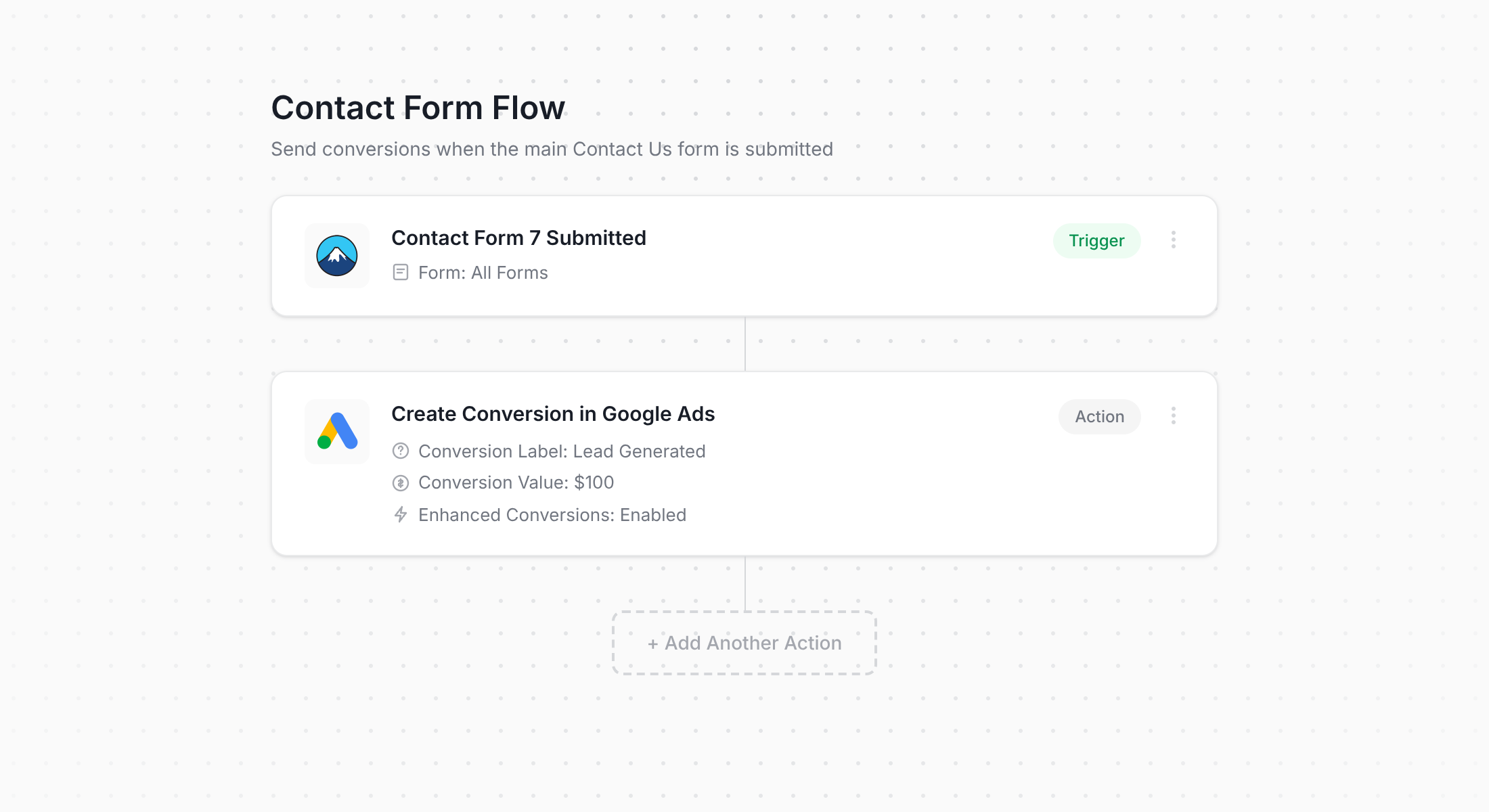
As the screenshot above shows, Converly ships with a straightforward workflow builder that will feel instantly familiar if you've spent any time in tools like Zapier or HubSpot Workflows.
You simply pick a trigger (in this case, someone submitting a Contact Form 7 form on your site), then select the actions you want to happen (like pushing a server-side conversion into Google Ads).
That really is the whole process. A few clicks and you've got server-side conversion tracking wired up to Google Ads.
Step 2: Add the Converly code to your website
After your Conversion Flow is built and live, Converly gives you a small JavaScript snippet to install on your WordPress site.
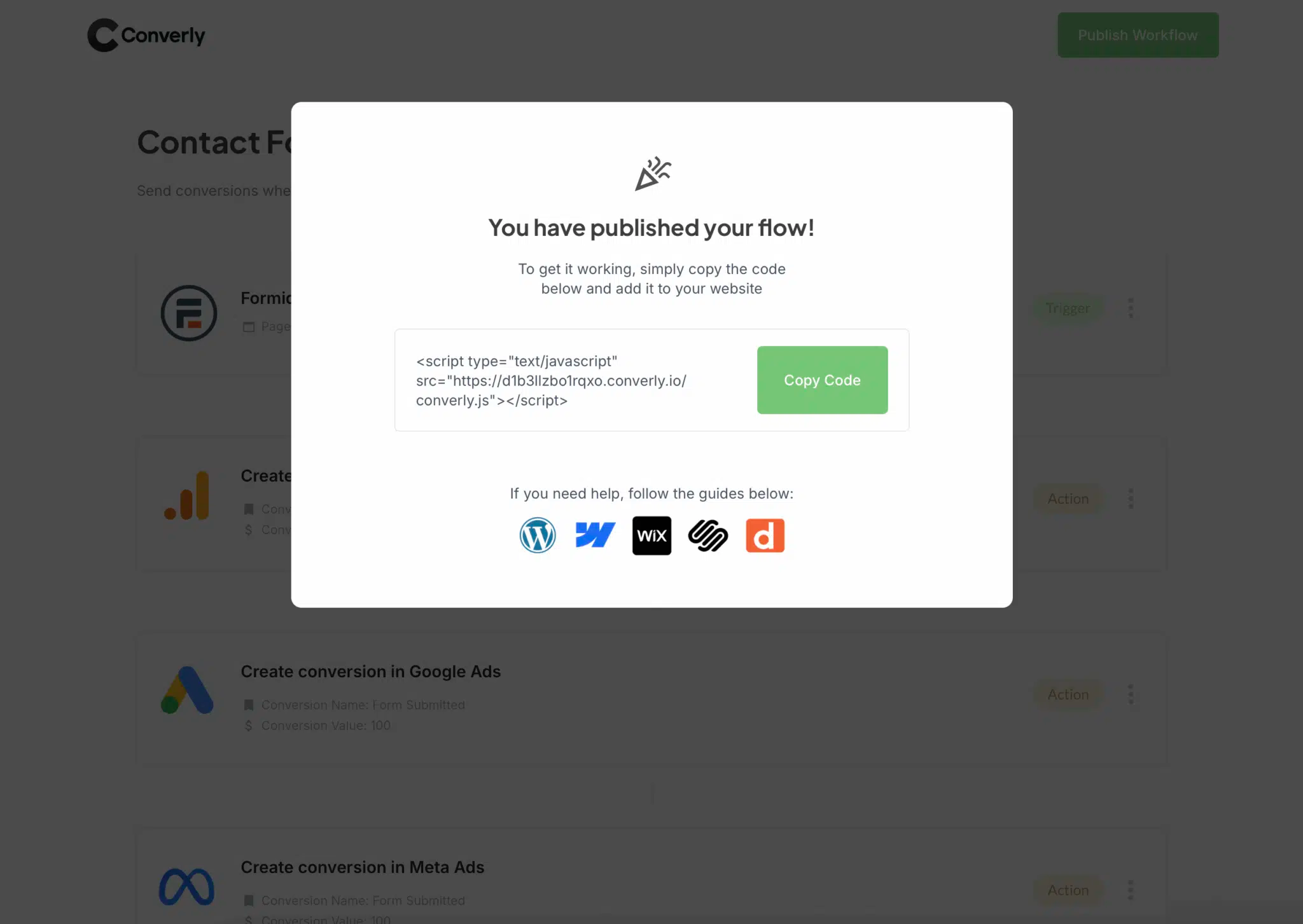
On WordPress, you have a few options for getting that snippet onto the site. Most themes include a Header section in their settings where you can paste it in, or you can install a free plugin like Insert Headers and Footers and drop it there. Or if you're already running Google Tag Manager on your site, you can paste the snippet into a Custom HTML tag and load it that way too.
Step 3: Test it works
The last thing to do is confirm everything is wired up. Head over to your WordPress site and submit a test entry through your Contact Form 7 form.
Then jump back into your Conversion Flow in Converly, open the 3 dots menu in the top right, and click View Logs.
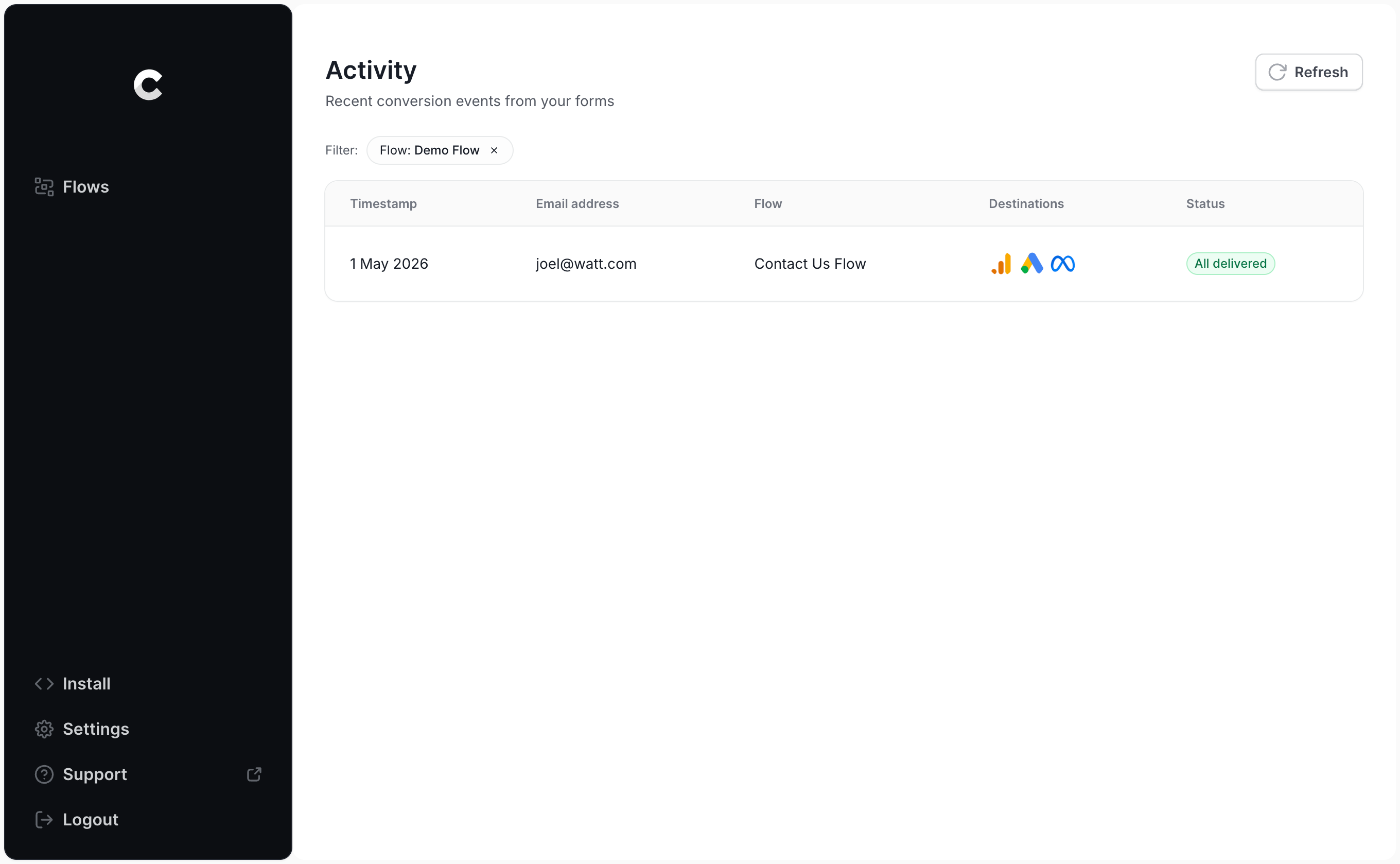
On the logs page, click into your test submission to dig into the details, including whether the event was successfully delivered to Google Ads.
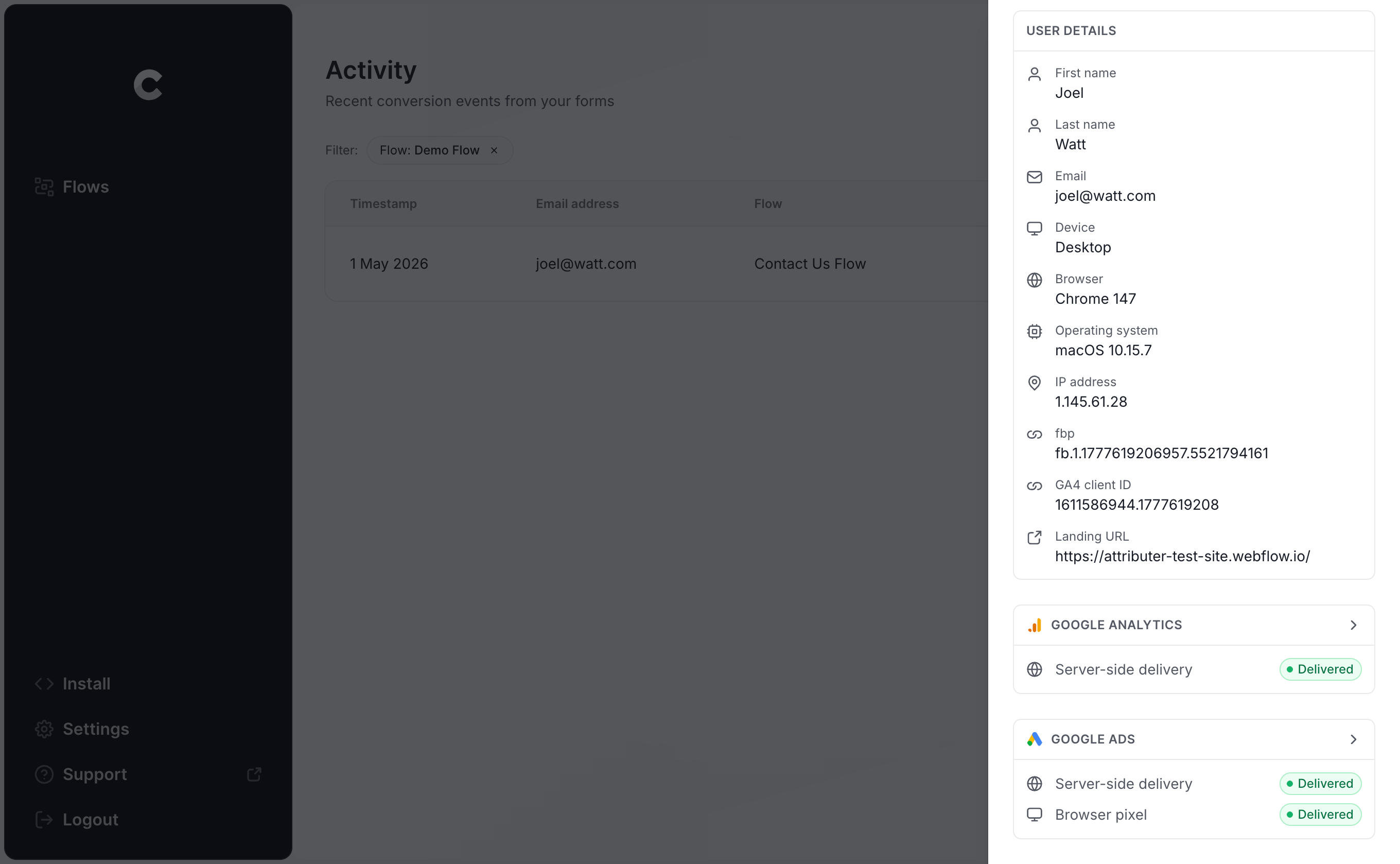
You can even drill down further to inspect exactly what data was sent over to Google Ads, what Google's servers responded with, and so on.
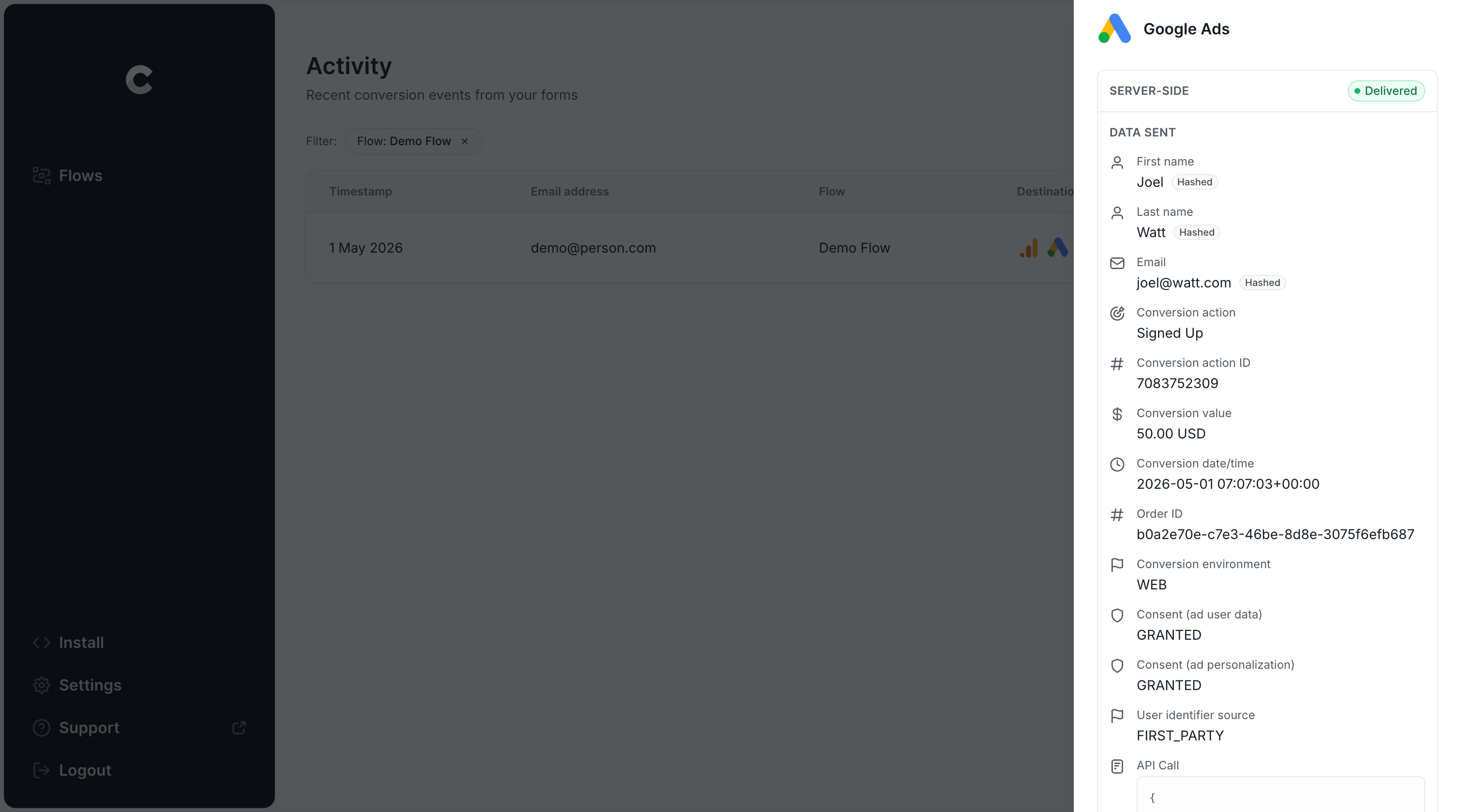
If your test entry shows up in the log and Converly confirms it was delivered to Google Ads, you're all set. From start to finish, the whole thing should take less than 5 minutes.
Why Converly is the best way to send conversions to Google Ads from Contact Form 7
There are plenty of ways to push conversions to Google Ads when someone submits a Contact Form 7 form, so why pick Converly over the alternatives? Here's why:
1. Easy to set up
The go-to option for most people is Google Tag Manager. The catch with Contact Form 7 specifically is that it doesn't expose a clean submission event for GTM to listen on. It fires its own JavaScript event called wpcf7mailsent, which means you have to write a custom Custom HTML tag with a listener to capture submissions, then pull the lead's name and email out of the form fields, hash them with SHA-256 (Google requires it), and stitch together variables, triggers and tags to actually send it over to Google Ads.
So unless you really know your way around Google Tag Manager, expect to lose hours figuring all of that out.
Converly takes that complexity off your plate. You choose a trigger (someone submitting a Contact Form 7 form on your site) and pick what should happen next (a conversion gets sent to Google Ads). There's no JavaScript to write, no listener to maintain, and no complicated setup.
2. Not affected by ad blockers and privacy restrictions
When you rely on something like Google Tag Manager (or a basic setup that tracks thank you page visits), a meaningful chunk of your conversions never make it back to Google because ad blockers and privacy-focused browsers stop the Google Tag from running on your pages in the first place.
One study that looked at more than 7 million conversions found that browser-based tracking was losing roughly 30% of conversions. Around 5% of those losses came from ad blockers, and the bigger share (about 25%) came from privacy features baked into modern browsers.
But because Converly delivers conversions directly to Google's servers, none of that applies. Ad blockers and privacy-focused browsers have no way to interfere, which means the data Google receives is far more complete.
3. Works across devices
It's pretty normal for someone to first discover your site on one device (often their phone) and then wait until they're back at a laptop or desktop to actually fill out a form.
If you're tracking conversions purely in the browser through something like Google Tag Manager, there's no way to connect those two visits because they happen on different devices.
Converly sidesteps that problem by sending identity data (name, email, and so on) straight to Google's servers, which lets Google match the conversion back to the original ad click on the phone. The result is that your ads actually get credit for the conversions they drove.
4. Sends more data
Converly doesn't just send over the lead's name, email and phone number to Google Ads. When a form is submitted on your site, it also pulls in technical data points like the GCLID, IP address, User Agent and more, and ships those over to Google Ads too.
That gives Google Ads a large amount of information about the person who converted, which it can use to tie the conversion back to an ad click (even when that click happened weeks ago on a completely different device).
The upshot for you is far more accurate conversion tracking, and much better data for Google's algorithms to optimise your campaigns with.
5. Supports multiple tools and platforms
Converly integrates with over 100 different form builders, scheduling tools, chat widgets, and other tools you might one day use on your site.
Plus it can also push conversion events into Google Analytics, Google Ads, Meta Ads, LinkedIn Ads, Microsoft Ads, and a long list of other platforms.
So if you ever add a scheduling widget to your site or start advertising on a new channel, there's no need to start over with conversion tracking. A few clicks inside Converly and the new connection is live.
6. Gives you a full conversion log and email alerts
With a tool like Google Tag Manager, there's no simple way to know whether your conversion tracking is still doing its job. You can test it the day you set it up, but unless you keep re-testing, it can break without a sound (someone tweaks the Contact Form 7 form, edits a tag in Google Tag Manager, or changes something in Google Ads) and you'd have no idea anything was wrong.
Converly puts an end to that guesswork. You get a full conversion log that shows every conversion that fired, exactly what data Converly captured, what it sent to Google Ads, the response Google Ads sent back, and more.
You can also switch on email notifications. Have one sent for every conversion delivered to Google Ads, or set them to only fire when a send fails, so the moment your tracking stops working you'll know about it.
3 things you can do when you properly send conversions to Google Ads from Contact Form 7
Once you have proper conversion tracking running in Google Ads, a whole stack of things become possible that simply weren't before.
1. Report on conversions by campaign, ad group, keyword, etc.
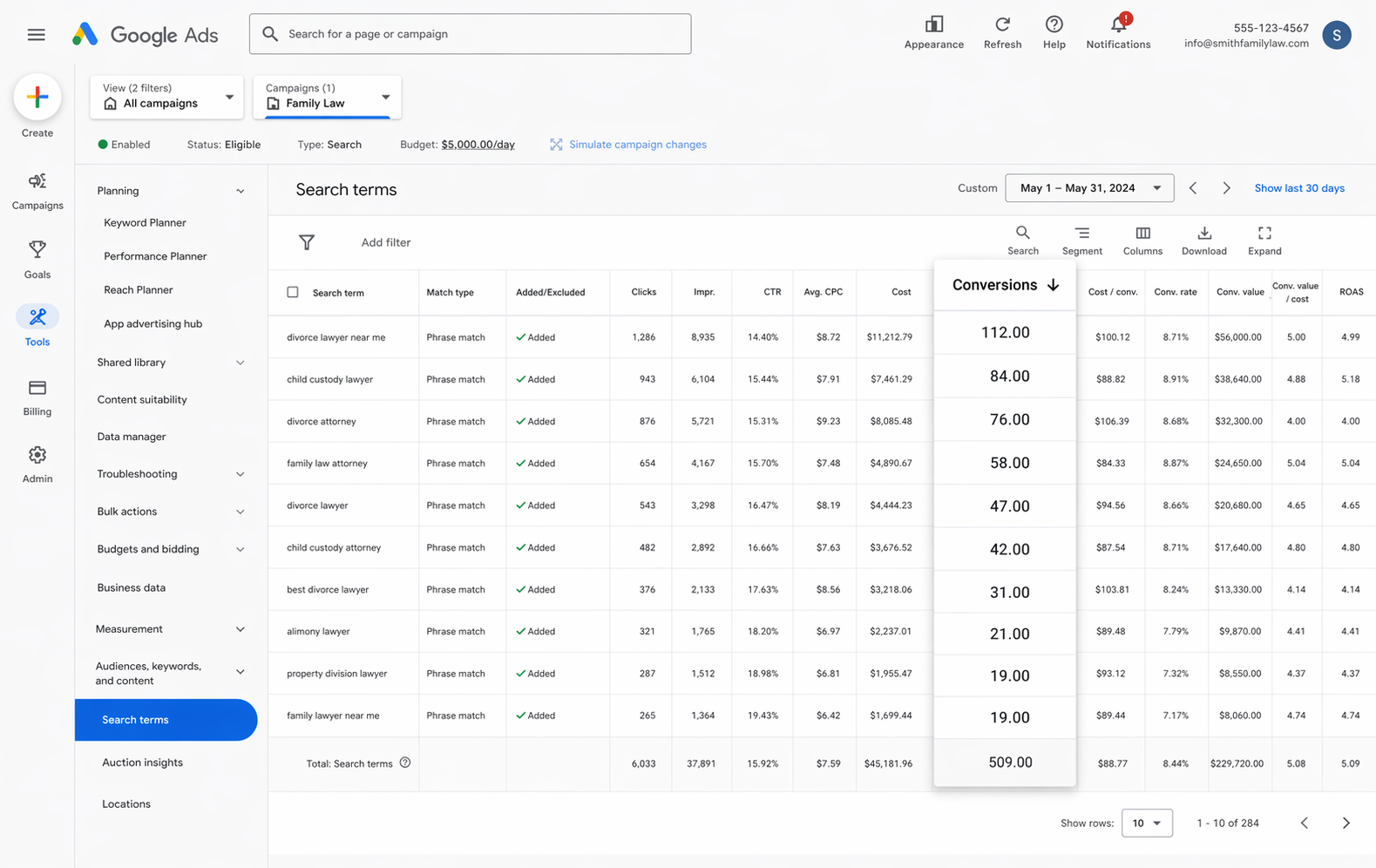
With accurate conversion data flowing in, your Google Ads reports show you more than just impressions and clicks. You can see how many conversions you got, the conversion rate, your cost per conversion, return on ad spend, and a long list of other metrics.
You can also slice those numbers by campaign, ad group, keyword, individual ad, country, and plenty of other dimensions.
That gives you a much sharper view of how your Google Ads are actually performing and where the real growth opportunities are sitting.
2. Use Google's Smart Bidding technology
Manual bidding is essentially telling Google "I'm willing to pay $3 a click". Smart bidding flips that around, letting you tell Google your real business goal ('I'm willing to pay $45 per lead') and then have Google handle all the bidding for you.
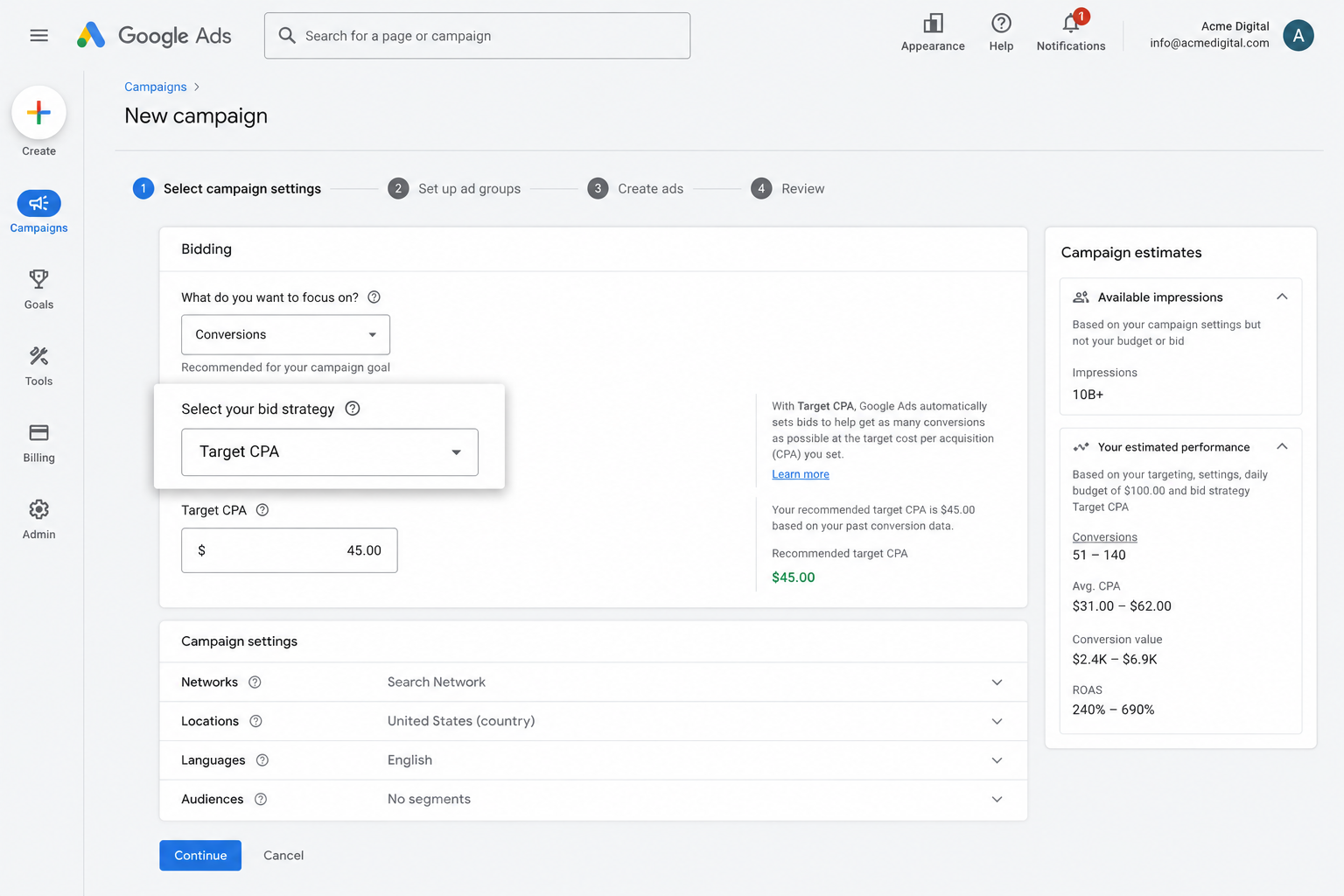
Then when someone searches for a keyword you are bidding on, Google factors in everything it knows about the person searching (age, location, device, purchase history, and more) and decides whether to bid high or low based on how likely it thinks they are to convert.
It's an incredibly powerful system, but it only works if your conversion data is reliable. Without it, Google has no way of knowing what a "good" searcher looks like for you, and could end up bidding aggressively on the wrong people (which eats through your ad budget and drives costs up).
Using Converly to get accurate, server-side conversion tracking means you can unlock the full power of smart bidding, and can ultimately generate more leads at a lower cost.
3. Retarget people who visited your site but didn't convert
When Google Ads is receiving accurate conversion data, you can also build remarketing lists made up of people who landed on your site but didn't convert.
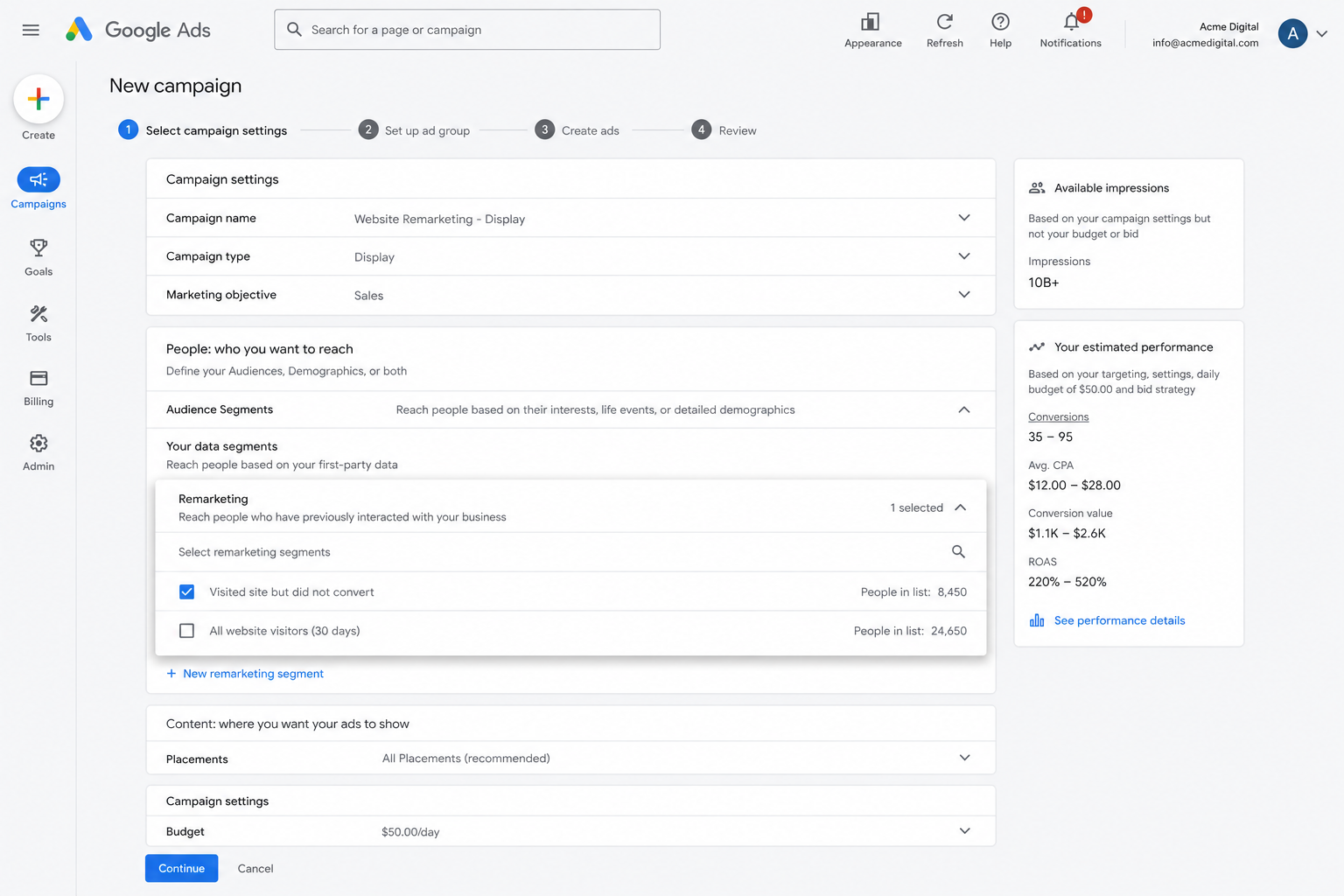
From there, you can use those lists to re-engage people in a few different ways:
- Search — You can bid higher (or lower if it makes sense) on those people the next time they search for your keywords.
- Display — You can run Display Network campaigns aimed only at this audience, keeping your brand in front of them as they browse the web.
- YouTube — You can serve YouTube Ads exclusively to these people, so your videos pop up whenever they're watching content on YouTube.
Wrap Up
If you want to send conversions to Google Ads whenever someone submits a Contact Form 7 form on your WordPress site, Converly is a solid way to do it.
Conversions are delivered straight to Google's servers, which keeps them safe from ad blockers and privacy-focused browsers. Plus Converly sends a wealth of detail about the lead (name, email, phone, IP address, User Agent and more) so Google has the best possible shot at tying each conversion back to the original ad click.
The best part is that it can be set up in just a few minutes and comes with a 14-day free trial, so go give it a try today!
About the author

Aaron is the founder of Converly. With over 15 years of experience in digital marketing and SaaS, he's passionate about helping businesses track and optimise their ad conversions.